iOS-三步快速集成社交化分享工具ShareSDK
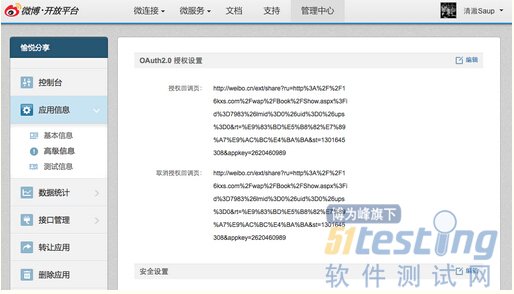
1.前言 作为现在App里必不可少的用户分享需要,社交化分享显然是我们开发app里较为常用的。 最近因为公司App有社交化分享的需要,就特此研究了会,拿出来与大家分享。 想要集成社交会分享,我们可以使用 ShareSDK - 优点功能丰富,缺点体积较大 百度分享SDK - 缺点功能相对ShareSDK较少,优点体积较小 这是现在较为常用的两种社交化分享工具。 使用哪一种,就看个人的app的需要来决定了。 今天我主要说的是ShareSDK的简单集成和使用。 2.集成前的准备工作 2.1. 拿自己的Appkey 去下载ShareSDK 下载地址:http://sharesdk.cn/Download 2.2. 申请分享工具的Appkey 例如: 新浪微博、 腾讯微博、豆瓣应用、人人网、QQ空间 去各大社交网站的开发者平台,进行注册申请即可。 获取如下: //新浪微博: //App Key:2258477553 //App Secret:1e2f275afc375109e456f550fb3918e8 //腾讯微博: //App key:2620460989 //App secret:58c55f572d5ae35e0c355f4c0ee11283 3.集成ShareSDK 3.1.注册使用ShareSDK - (BOOL)application:(UIApplication *)application didFinishLaunchingWithOptions:(NSDictionary *)launchOptions { //注册ShareSDK [ShareSDK registerApp:@"1983bf0916db”]; return YES; } 3.2.添加要集成的分享平台 注意: 新浪微博需要提供回调地址才行 回调地址去新浪开发者平台获取 如图: - (BOOL)application:(UIApplication *)application didFinishLaunchingWithOptions:(NSDictionary *)launchOptions { //注册ShareSDK [ShareSDK registerApp:@"1983bf0916db”]; //添加新浪微博应用 [ShareSDK connectSinaWeiboWithAppKey:@"2620460989" appSecret:@"58c55f572d5ae35e0c355f4c0ee11283" redirectUri:@"http://weibo.cn/ext/share?ru=http%3A%2F%2F16kxs.com%2Fwap%2FBook%2FShow.aspx%3Fid%3D7983%26lmid%3D0%26uid%3D0%26ups%3D0&rt=%E9%83%BD%E5%B8%82%E7%89%A7%E9%AC%BC%E4%BA%BA&st=1301645308&appkey=2620460989”]; //添加腾讯微博应用 [ShareSDK connectTencentWeiboWithAppKey:@"801307650" appSecret:@"ae36f4ee3946e1cbb98d6965b0b2ff5c" redirectUri:@"http://www.sharesdk.cn"]; //添加豆瓣应用 [ShareSDK connectDoubanWithAppKey:@"07d08fbfc1210e931771af3f43632bb9" appSecret:@"e32896161e72be91" redirectUri:@"http://dev.kumoway.com/braininference/infos.php"]; //添加人人网应用 [ShareSDK connectRenRenWithAppKey:@"fc5b8aed373c4c27a05b712acba0f8c3" appSecret:@"f29df781abdd4f49beca5a2194676ca4"]; //添加Facebook应用 [ShareSDK connectFacebookWithAppKey:@"107704292745179" appSecret:@"38053202e1a5fe26c80c753071f0b573"]; } 3.3.弹出分享View a.初始化默认分享内容 NSString *imagePath = [[NSBundle mainBundle] pathForResource:@"123" ofType:@"png"]; //构建优秀的SDK //构造分享内容 id<ISSContent> publishContent = [ShareSDK content:@"iOS社交化分享测试内容。" defaultContent:@"默认分享内容,没内容时显示" image:[ShareSDK imageWithPath:imagePath] title:@"ShareSDK" url:@"http://www.sharesdk.cn" description:@"这是一条测试信息" mediaType:SSPublishContentMediaTypeNews]; b.弹出分享View [ShareSDK showShareActionSheet:nil shareList:nil content:publishContent statusBarTips:YES authOptions:nil shareOptions: nil result:^(ShareType type, SSResponseState state, id<ISSPlatformShareInfo> statusInfo, id<ICMErrorInfo> error, BOOL end) { if (state == SSResponseStateSuccess) { NSLog(@"分享成功"); } else if (state == SSResponseStateFail) { NSLog(@"分享失败,错误码:%d,错误描述:%@", [error errorCode], [error errorDescription]); } }]; 效果图: 最新内容请见作者的GitHub页:http://qaseven.github.io/