首页 文章 精选 留言 我的

精选列表

搜索[centos],共5623篇文章
优秀的个人博客,低调大师

centos6.x 使用raid5构建lvm逻辑卷

1、将之前实验环境还原: a、利用umount先卸载之前挂载的文件系统; b、修改/etc/fstab里面的数据,让开机不会自动挂载; c、利用fdisk将该分区删除; 整合raid5和lvm实验 实验环境: 一块6G的盘,分成5个分区,每个分区1G。 其中4个作为active态,一个为spare态。 fdisk -l 开始磁盘分区: [plain] view plain copy Disk/dev/sdd:6442MB,6442450944bytes 255heads,63sectors/track,783cylinders Units=cylindersof16065*512=8225280bytes Sectorsize(logical/physical):512bytes/512bytes I/Osize(minimum/optimal):512bytes/512bytes Diskidentifier:0x00000000 [plain] view plain copy [root@srcxtts~]#fdisk/dev/sdd DevicecontainsneitheravalidDOSpartitiontable,norSun,SGIorOSFdisklabel BuildinganewDOSdisklabelwithdiskidentifier0x95cc4770. Changeswillremaininmemoryonly,untilyoudecidetowritethem. Afterthat,ofcourse,thepreviouscontentwon'tberecoverable. Warning:invalidflag0x0000ofpartitiontable4willbecorrectedbyw(rite) WARNING:DOS-compatiblemodeisdeprecated.It'sstronglyrecommendedto switchoffthemode(command'c')andchangedisplayunitsto sectors(command'u'). Command(mforhelp):p Disk/dev/sdd:6442MB,6442450944bytes 255heads,63sectors/track,783cylinders Units=cylindersof16065*512=8225280bytes Sectorsize(logical/physical):512bytes/512bytes I/Osize(minimum/optimal):512bytes/512bytes Diskidentifier:0x95cc4770 DeviceBootStartEndBlocksIdSystem Command(mforhelp):n Commandaction eextended pprimarypartition(1-4) p Partitionnumber(1-4):1 Firstcylinder(1-783,default1): Usingdefaultvalue1 Lastcylinder,+cylindersor+size{K,M,G}(1-783,default783):+1G Command(mforhelp):p Disk/dev/sdd:6442MB,6442450944bytes 255heads,63sectors/track,783cylinders Units=cylindersof16065*512=8225280bytes Sectorsize(logical/physical):512bytes/512bytes I/Osize(minimum/optimal):512bytes/512bytes Diskidentifier:0x95cc4770 DeviceBootStartEndBlocksIdSystem /dev/sdd111321060258+83Linux Command(mforhelp):n Commandaction eextended pprimarypartition(1-4) p Partitionnumber(1-4):2 Firstcylinder(133-783,default133): Usingdefaultvalue133 Lastcylinder,+cylindersor+size{K,M,G}(133-783,default783):+1G Command(mforhelp):p Disk/dev/sdd:6442MB,6442450944bytes 255heads,63sectors/track,783cylinders Units=cylindersof16065*512=8225280bytes Sectorsize(logical/physical):512bytes/512bytes I/Osize(minimum/optimal):512bytes/512bytes Diskidentifier:0x95cc4770 DeviceBootStartEndBlocksIdSystem /dev/sdd111321060258+83Linux /dev/sdd2133264106029083Linux Command(mforhelp):n Commandaction eextended pprimarypartition(1-4) p Partitionnumber(1-4):3 Firstcylinder(265-783,default265): Usingdefaultvalue265 Lastcylinder,+cylindersor+size{K,M,G}(265-783,default783):+1G Command(mforhelp):p Disk/dev/sdd:6442MB,6442450944bytes 255heads,63sectors/track,783cylinders Units=cylindersof16065*512=8225280bytes Sectorsize(logical/physical):512bytes/512bytes I/Osize(minimum/optimal):512bytes/512bytes Diskidentifier:0x95cc4770 DeviceBootStartEndBlocksIdSystem /dev/sdd111321060258+83Linux /dev/sdd2133264106029083Linux /dev/sdd3265396106029083Linux Command(mforhelp):n Commandaction eextended pprimarypartition(1-4) e Selectedpartition4 Firstcylinder(397-783,default397): Usingdefaultvalue397 Lastcylinder,+cylindersor+size{K,M,G}(397-783,default783): Usingdefaultvalue783 Command(mforhelp):p Disk/dev/sdd:6442MB,6442450944bytes 255heads,63sectors/track,783cylinders Units=cylindersof16065*512=8225280bytes Sectorsize(logical/physical):512bytes/512bytes I/Osize(minimum/optimal):512bytes/512bytes Diskidentifier:0x95cc4770 DeviceBootStartEndBlocksIdSystem /dev/sdd111321060258+83Linux /dev/sdd2133264106029083Linux /dev/sdd3265396106029083Linux /dev/sdd43977833108577+5Extended Command(mforhelp):n Firstcylinder(397-783,default397): Usingdefaultvalue397 Lastcylinder,+cylindersor+size{K,M,G}(397-783,default783):+1G Command(mforhelp):p Disk/dev/sdd:6442MB,6442450944bytes 255heads,63sectors/track,783cylinders Units=cylindersof16065*512=8225280bytes Sectorsize(logical/physical):512bytes/512bytes I/Osize(minimum/optimal):512bytes/512bytes Diskidentifier:0x95cc4770 DeviceBootStartEndBlocksIdSystem /dev/sdd111321060258+83Linux /dev/sdd2133264106029083Linux /dev/sdd3265396106029083Linux /dev/sdd43977833108577+5Extended /dev/sdd53975281060258+83Linux Command(mforhelp):n Firstcylinder(529-783,default529): Usingdefaultvalue529 Lastcylinder,+cylindersor+size{K,M,G}(529-783,default783):+1G Command(mforhelp):p Disk/dev/sdd:6442MB,6442450944bytes 255heads,63sectors/track,783cylinders Units=cylindersof16065*512=8225280bytes Sectorsize(logical/physical):512bytes/512bytes I/Osize(minimum/optimal):512bytes/512bytes Diskidentifier:0x95cc4770 DeviceBootStartEndBlocksIdSystem /dev/sdd111321060258+83Linux /dev/sdd2133264106029083Linux /dev/sdd3265396106029083Linux /dev/sdd43977833108577+5Extended /dev/sdd53975281060258+83Linux /dev/sdd65296601060258+83Linux Command(mforhelp):w Thepartitiontablehasbeenaltered! Callingioctl()tore-readpartitiontable. Syncingdisks. 2、创建raid5磁盘 [plain] view plain copy [root@srcxtts~]#mdadm--create--auto=yes/dev/md0--level=5\ >--raid-devices=4--spare-devices=1/dev/sdd{1,2,3,5,6} mdadm:Defaultingtoversion1.2metadata mdadm:array/dev/md0started. [root@srcxtts~]#ll/dev/md0 brw-rw----.1rootdisk9,05月1009:26/dev/md0 [root@srcxtts~]#cat/proc/mdstat Personalities:[raid6][raid5][raid4] md0:activeraid5sdd5[5]sdd6[4](S)sdd3[2]sdd2[1]sdd1[0] 3176448blockssuper1.2level5,512kchunk,algorithm2[4/4][UUUU] unuseddevices:<none> 3、对raid5磁盘/dev/md0创建pv [plain] view plain copy [root@srcxtts~]#pvcreate/dev/md0 Physicalvolume"/dev/md0"successfullycreated [root@srcxtts~]#pvdisplay/dev/md0 "/dev/md0"isanewphysicalvolumeof"3.03GiB" ---NEWPhysicalvolume--- PVName/dev/md0 VGName PVSize3.03GiB AllocatableNO PESize0 TotalPE0 FreePE0 AllocatedPE0 PVUUIDGjGVBh-z3h6-uyD0-xNjQ-LflN-j1gb-XvR4I7 4、根据生成的pv创建vg,参数默认,pe大小默认4M [plain] view plain copy [root@srcxtts~]#vgcreateraidvg/dev/md0 Volumegroup"raidvg"successfullycreated [plain] view plain copy [root@srcxtts~]#vgdisplayraidvg ---Volumegroup--- VGNameraidvg SystemID Formatlvm2 MetadataAreas1 MetadataSequenceNo1 VGAccessread/write VGStatusresizable MAXLV0 CurLV0 OpenLV0 MaxPV0 CurPV1 ActPV1 VGSize3.03GiB PESize4.00MiB TotalPE775 AllocPE/Size0/0 FreePE/Size775/3.03GiB VGUUIDJx2ZNz-juP4-g8fx-oPJ5-F3Mg-QYn4-WoZ5HO 5、把vg中全部的pe都分配给lv,创建lv [plain] view plain copy [root@srcxtts~]#lvcreate-l775-nraidlvraidvg Logicalvolume"raidlv"created [root@srcxtts~]#lvscan ACTIVE'/dev/vg_srcxtts/lv_root'[21.58GiB]inherit ACTIVE'/dev/vg_srcxtts/lv_swap'[3.94GiB]inherit ACTIVE'/dev/raidvg/raidlv'[3.03GiB]inherit [root@srcxtts~]#lvdisplay/dev/raidvg/raidlv ---Logicalvolume--- LVPath/dev/raidvg/raidlv LVNameraidlv VGNameraidvg LVUUIDrOaylO-3Br7-sUo3-3IRZ-Rf4D-O5V8-A98KGh LVWriteAccessread/write LVCreationhost,timesrcxtts,2018-05-1009:29:36+0800 LVStatusavailable #open0 LVSize3.03GiB CurrentLE775 Segments1 Allocationinherit Readaheadsectorsauto -currentlysetto6144 Blockdevice253:2 6、将lv格式化为ext3文件系统 [plain] view plain copy [root@srcxtts~]#mkfs.ext3/dev/raidvg/raidlv mke2fs1.41.12(17-May-2010) 文件系统标签= 操作系统:Linux 块大小=4096(log=2) 分块大小=4096(log=2) Stride=128blocks,Stripewidth=384blocks 198400inodes,793600blocks 39680blocks(5.00%)reservedforthesuperuser 第一个数据块=0 Maximumfilesystemblocks=813694976 25blockgroups 32768blockspergroup,32768fragmentspergroup 7936inodespergroup Superblockbackupsstoredonblocks: 32768,98304,163840,229376,294912 正在写入inode表:完成 Creatingjournal(16384blocks):完成 Writingsuperblocksandfilesystemaccountinginformation:完成 Thisfilesystemwillbeautomaticallycheckedevery33mountsor 180days,whichevercomesfirst.Usetune2fs-cor-itooverride. 7、创建挂载点并挂载lv [plain] view plain copy [root@srcxtts~]#mkdir/mnt/raidlvm [root@srcxtts~]#mount/dev/raidvg/raidlv/mnt/raidlvm [plain] view plain copy [root@srcxtts~]#df-h 文件系统容量已用可用已用%%挂载点 /dev/mapper/vg_srcxtts-lv_root 22G11G9.4G54%/ tmpfs2.0G84K2.0G1%/dev/shm /dev/sda1477M60M392M14%/boot /dev/mapper/raidvg-raidlv 3.0G69M2.8G3%/mnt/raidlvm [root@srcxtts~]# 到此整合就完成了。 实验还原: 1、卸载lv文件系统 [plain] view plain copy [root@srcxtts~]#umount/mnt/raidlvm [root@srcxtts~]#df-h 文件系统容量已用可用已用%%挂载点 /dev/mapper/vg_srcxtts-lv_root 22G11G9.4G54%/ tmpfs2.0G84K2.0G1%/dev/shm /dev/sda1477M60M392M14%/boot 2、移除lv [plain] view plain copy [root@srcxtts~]#lvremove/dev/raidvg/raidlv Doyoureallywanttoremoveactivelogicalvolumeraidlv?[y/n]:y Logicalvolume"raidlv"successfullyremoved 3、改变vg的状态为非active [plain] view plain copy [root@srcxtts~]#vgchange-anraidvg 0logicalvolume(s)involumegroup"raidvg"nowactive 4、移除vg [plain] view plain copy [root@srcxtts~]#vgremoveraidvg Volumegroup"raidvg"successfullyremoved 5、移除pv [plain] view plain copy [root@srcxtts~]#pvremove/dev/md0 Labelsonphysicalvolume"/dev/md0"successfullywiped 6、停md0 raid磁盘 [plain] view plain copy [root@srcxtts~]#mdadm--stop/dev/md0 mdadm:stopped/dev/md0 7、使用fdisk将磁盘还原 [plain] view plain copy [root@srcxtts~]#fdisk/dev/sdd WARNING:DOS-compatiblemodeisdeprecated.It'sstronglyrecommendedto switchoffthemode(command'c')andchangedisplayunitsto sectors(command'u'). Command(mforhelp):p Disk/dev/sdd:6442MB,6442450944bytes 255heads,63sectors/track,783cylinders Units=cylindersof16065*512=8225280bytes Sectorsize(logical/physical):512bytes/512bytes I/Osize(minimum/optimal):512bytes/512bytes Diskidentifier:0x95cc4770 DeviceBootStartEndBlocksIdSystem /dev/sdd111321060258+83Linux /dev/sdd2133264106029083Linux /dev/sdd3265396106029083Linux /dev/sdd43977833108577+5Extended /dev/sdd53975281060258+83Linux /dev/sdd65296601060258+83Linux Command(mforhelp):d Partitionnumber(1-6):1 Command(mforhelp):d Partitionnumber(1-6):2 Command(mforhelp):d Partitionnumber(1-6):3 Command(mforhelp):d Partitionnumber(1-6):4 Command(mforhelp):d Nopartitionisdefinedyet! Command(mforhelp):5 5:unknowncommand Commandaction atoggleabootableflag beditbsddisklabel ctogglethedoscompatibilityflag ddeleteapartition llistknownpartitiontypes mprintthismenu naddanewpartition ocreateanewemptyDOSpartitiontable pprintthepartitiontable qquitwithoutsavingchanges screateanewemptySundisklabel tchangeapartition'ssystemid uchangedisplay/entryunits vverifythepartitiontable wwritetabletodiskandexit xextrafunctionality(expertsonly) Command(mforhelp):w Thepartitiontablehasbeenaltered! Callingioctl()tore-readpartitiontable. Syncingdisks. [root@srcxtts~]#fdisk/dev/sdd WARNING:DOS-compatiblemodeisdeprecated.It'sstronglyrecommendedto switchoffthemode(command'c')andchangedisplayunitsto sectors(command'u'). Command(mforhelp):q [root@srcxtts~]#fdisk/dev/sdd-l Disk/dev/sdd:6442MB,6442450944bytes 255heads,63sectors/track,783cylinders Units=cylindersof16065*512=8225280bytes Sectorsize(logical/physical):512bytes/512bytes I/Osize(minimum/optimal):512bytes/512bytes Diskidentifier:0x95cc4770 DeviceBootStartEndBlocksIdSystem [root@srcxtts~]#


优秀的个人博客,低调大师

基于 Nginx 的中间件架构(CentOS 7环境)

目标 一:教你实战 二:了解中间件架构 image.png Nginx 性能优化 三:贯彻技术原理 四:理论结合实践 安排 基础篇 场景实践篇 深度学习篇 架构篇 学习环境 安装 一次初始化 验证 yum 源可用 确保关闭防火墙规则 确保关闭 SELinux yum -y install gcc gcc-c++ autoconf pcre pcre-devel makeautomake 安装所需依赖 yum -y install wget httpd-tools vim 安装依赖包 初始化相关目录 基础篇 image.png 使用官方 yum 源配置 rpm -ql nginx 执行 curl 命令 重启服务 提前备份 进阶学习 静态资源 Web 服务 代理服务 负载均衡调度器 SLB 动态缓存 9 Nginx的访问控制 9.1 access_module 配置语法介绍

优秀的个人博客,低调大师

CentOS7中时间同步,时间信息查看,at延时任务

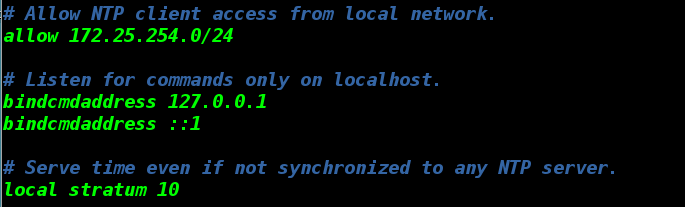
1.时间同步 在服务器端共享时间 vim /etc/chrony.conf 29 local stratum 10 ##开启时间共享功能并设定共享级别 ##这个参数开启后本机不同步别人的时间到本机 22 allow 172.25.254.0/24 ##允许那些客户端来访问本机共享的时间 systemctl restart chronyd 注意:服务端此时的防火墙应关闭 在客户端: vim /etc/chrony.conf server 172.25.254.120 iburst ##同步服务端主机时间 systemctl restart chronyd ##重启服务 chronyc sources -v ##查看是否同步时间 ^*代表同步成功 ^?代表没同步过来 ###查看时间,设定时间指令 timedatectl ##查看时间 timedatectl list-timezones ##查看时区 timedatectl set-timezone Asia/Shanghai ##设定时区 timedatectl date vim /etc/adjtime timedatectl set-local-rtc 1 ##设定成本地时间 vim /etc/adjtime timedatectl set-local-rtc 0 ##设定成utc时间 vim /etc/adjtime timedatectl timedatectl set-time "2018-11-11 11:11:11" ##更改当前本地时间 date at ##延时任务操作指令 at 时间 at now+5min ##5分钟后执行任务 at 16:38 ##在16:38执行任务 >touch /mnt/file{1..10} >ctrl+d ##结束操作 at -l ##查看延时任务job号 at -c job号 ##查看延迟任务 at -r job号 ##撤销延迟任务 ##操作步骤## vim /etc/at.deny ##设定at用户使用黑名单 useradd westos useradd linux su - linux su - westos vim /etc/at.allow ##设定at用户使用白名单(其余所有用户都默认是黑名单) su - linux su - westos at now+1min vim /etc/at.allow su - linux

优秀的个人博客,低调大师

CentOS 7.x上搭建gitlab教程(https可用,邮件可用)

目录 知识要求 搭建感想 搭建过程 参考 知识要求: nginx基础知识 搭建感想 注:以下是我搭建gitlab时的思考,需要nginx的基础知识,Docker的基础知识才容易理解,与下面的搭建过程是独立的,不感兴趣可直接略过。 其实gitlab已经搭建并用了一年多了,现在所有的项目管理都通过gitlab完成。但是一直以来都有2个问题: 80端口被系统的nginx占用了,所以只能监听非80端口; 443端口也被系统的nginx占用,所以也一直没增加对https的支持; 最近正在尝试对所有已有的服务Docker化,一方面想让gitlab的搭建更简单些,另一方面也把这两个问题都处理掉。 于是就做了两个Docker容器:nginx和gitlab,相当于nginx和gitlab运行在局域网的不同主机,所以端口上没冲突。nginx是对外的服务器,它做一层反向代理到gitlab就能让gitlab提供对外的服务。 然而。。。这个做法却带来了一个新问题:gitlab需要的是22,80,443端口,80与443通过反向代理解决了,22却没办法解决。因为正常来讲,宿主机的SSH肯定也在使用,所以gitlab的SSH监听端口映射到宿主机会有冲突。 当然了,解决办法还是有的,不过非常繁琐。我们做Docker的目的不就是为了降低布署难度吗?如果使用Docker的配置比在宿主机上还繁琐,那使用起来就没太大意义了。 于是gitlab就没有放在Docker中,而是直接搭在宿主机上。 搭建过程 安装 gitlab的安装是很简单的,先下载安装包: wget https://mirrors.tuna.tsinghua.edu.cn/gitlab-ce/yum/el7/gitlab-ce-10.2.5-ce.0.el7.x86_64.rpm 安装: rpm -Uvh gitlab-ce-10.2.5-ce.0.el7.x86_64.rpm 配置 gitlab内置了nginx的服务,所以默认会占用80和443端口。一般来说,我们做WEB开发,服务器上早就安装了nginx或者apache,把80和443端口给占了,所以需要做些修改防止冲突。 简单的修改端口是不可行的,比如80改成85,当查看gitlab项目时,下图中的项目地址会变成http://git.papamk.com:85/papamk/groupbill这样,看着就不舒服。启用https则在使用过程中则会出现其他的问题。这里不一一论述,直接说明正确的配置方法。 具体步骤: 1.首先确保你的服务器已经有运行nginx,并且该nginx监听宿主机的80和443端口。(如果你原来使用的apache,请通过nginx反向代理到apache,这样apache原来的服务仍然可用)。 2.编辑/etc/gitlab/gitlab.rb: # 编辑对外的域名(gitlab.papamk.com请添加A记录指向本服务器的公网IP): external_url 'http://gitlab.papamk.com/' # 禁用`gitlab`内置的`nginx`: nginx['enable'] = false # 修改成与nginx运行时的用户一致 web_server['external_users'] = ['www'] 修改监听方式和监听地址(如果nginx与gitlab都在宿主机上,不用改也行;如果nginx在docker中,则需要修改) gitlab_workhorse['listen_network'] = "tcp" # 下面的172.18.147.173为本机IP,根据实际情况修改,不能为localhost或者127.0.0.1,否则docker访问不到 gitlab_workhorse['listen_addr'] = "172.18.147.173:8181" 最后执行下面命令让配置生效: $gitlab-ctl reconfigure 3.配置nginx 增加gitlab.conf的配置(所有需要注意的地方都加了中文注释): upstream gitlab-workhorse { server 172.18.147.173:8181; #根据实际情况修改 } ## Normal HTTP host server { listen 80; listen [::]:80 default_server; server_name gitlab.papamk.com; ## 修改成自己的域名; server_tokens off; ## Don't show the nginx version number, a security best practice root /opt/gitlab/embedded/service/gitlab-rails/public; ## See app/controllers/application_controller.rb for headers set ## Individual nginx logs for this GitLab vhost access_log /home/wwwlogs/gitlab_access.log; # 根据实际情况修改 error_log /home/wwwlogs/gitlab_error.log; # 根据实际情况修改 location / { client_max_body_size 0; gzip off; ## https://github.com/gitlabhq/gitlabhq/issues/694 ## Some requests take more than 30 seconds. proxy_read_timeout 300; proxy_connect_timeout 300; proxy_redirect off; proxy_http_version 1.1; proxy_set_header Host $http_host; proxy_set_header X-Real-IP $remote_addr; proxy_set_header X-Forwarded-For $proxy_add_x_forwarded_for; proxy_set_header X-Forwarded-Proto $scheme; proxy_pass http://gitlab-workhorse; } } 该配置根据官网提供的配置修改而来:https://gitlab.com/gitlab-org/gitlab-recipes/blob/master/web-server/nginx/gitlab-omnibus-nginx.conf。 重启nginx: $sudo service nginx restart 4.登陆浏览器,这时可以看到安装成功了,如下图所示: 首次登陆会要求重置管理员密码,管理员的默认用户名为root。 https的支持 1.使用Let's encrypt申请免费的SSL证书,该项目提供了一个叫certbot/certbot-auto的工具获取证书,执行下面命令获取工具: $wget https://dl.eff.org/certbot-auto $chmod +x certbot-auto 执行下面命令生成生成gitlab.papamk.com的证书,其中--agree-tos表示同意协议,--email 95496875@qq.com为自己的email。 $./certbot-auto --agree-tos --email 95496875@qq.com certonly --webroot -w /opt/gitlab/embedded/service/gitlab-rails/public/ -d gitlab.papamk.com 执行成功后,可通过以下命令查看下证书位置,nginx需要引用这些文件。(一般位于/etc/letsencrypt/live/gitlab.papamk.com/目录) $./certbot-auto certificates 2.修改/etc/gitlab/gitlab.rb,对外的URL改为https: external_url 'https://gitlab.papamk.com' 执行重新配置命令以便让新配置生效: $gitlab-ctl reconfigure 3.修改前面的nginx的gitlab.conf的配置,全部替换成下面的内容(所有需要注意的地方都加了中文注释): upstream gitlab-workhorse { server 172.18.147.173:8181; #根据实际情况修改 } ## Redirects all HTTP traffic to the HTTPS host server { ## Either remove "default_server" from the listen line below, ## or delete the /etc/nginx/sites-enabled/default file. This will cause gitlab ## to be served if you visit any address that your server responds to, eg. ## the ip address of the server (http://x.x.x.x/) listen 0.0.0.0:80; listen [::]:80 ipv6only=on default_server; server_name gitlab.papamk.com; ## 改成自己的域名 server_tokens off; ## Don't show the nginx version number, a security best practice return 301 https://$http_host$request_uri; access_log /home/wwwlogs/gitlab_access.log; # 根据实际情况修改 error_log /home/wwwlogs/gitlab_error.log; # 根据实际情况修改 } ## HTTPS host server { listen 0.0.0.0:443 ssl; listen [::]:443 ipv6only=on ssl default_server; server_name gitlab.papamk.com; ## 改成自己的域名 server_tokens off; ## Don't show the nginx version number, a security best practice root /opt/gitlab/embedded/service/gitlab-rails/public; ## Strong SSL Security ## https://raymii.org/s/tutorials/Strong_SSL_Security_On_nginx.html & https://cipherli.st/ ssl on; ssl_certificate /etc/letsencrypt/live/gitlab.papamk.com/fullchain.pem; ssl_certificate_key /etc/letsencrypt/live/gitlab.papamk.com/privkey.pem; # GitLab needs backwards compatible ciphers to retain compatibility with Java IDEs ssl_ciphers "ECDHE-RSA-AES256-GCM-SHA384:ECDHE-RSA-AES128-GCM-SHA256:ECDHE-RSA-AES256-SHA384:ECDHE-RSA-AES128-SHA256:ECDHE-RSA-AES256-SHA:ECDHE-RSA-AES128-SHA:ECDHE-RSA-DES-CBC3-SHA:AES256-GCM-SHA384:AES128-GCM-SHA256:AES256-SHA256:AES128-SHA256:AES256-SHA:AES128-SHA:DES-CBC3-SHA:!aNULL:!eNULL:!EXPORT:!DES:!MD5:!PSK:!RC4"; ssl_protocols TLSv1 TLSv1.1 TLSv1.2; ssl_prefer_server_ciphers on; ssl_session_cache shared:SSL:10m; ssl_session_timeout 5m; ## sudo openssl dhparam -out /etc/ssl/certs/dhparam.pem 4096 # ssl_dhparam /etc/ssl/certs/dhparam.pem; access_log /home/wwwlogs/gitlab_access.log; # 根据实际情况修改 error_log /home/wwwlogs/gitlab_error.log; # 根据实际情况修改 location / { client_max_body_size 0; gzip off; ## https://github.com/gitlabhq/gitlabhq/issues/694 ## Some requests take more than 30 seconds. proxy_read_timeout 300; proxy_connect_timeout 300; proxy_redirect off; proxy_http_version 1.1; proxy_set_header Host $http_host; proxy_set_header X-Real-IP $remote_addr; proxy_set_header X-Forwarded-Ssl on; proxy_set_header X-Forwarded-For $proxy_add_x_forwarded_for; proxy_set_header X-Forwarded-Proto $scheme; proxy_pass http://gitlab-workhorse; } } 重启nginx: $sudo service nginx restart 4.定期更新ssl证书 Let's encrypt提供的证书,有效期为90天,到期后执行如下命令即可继续使用: $./certbot-auto renew 将该命令加入到crontab,每小时刷新一次,就不用担心过期了。先将该命令移到系统目录下: $sudo mv certbot-auto /usr/bin/certbot-auto 然后执行crontab -e,添加一行: 0 */1 * * * /usr/bin/certbot-auto renew 发送邮件的支持 官网已经给出详细的配置说明和各大邮件服务提供商的示例,不再对配置做说明:https://docs.gitlab.com/omnibus/settings/smtp.html。 我自己使用163邮箱做测试,而官网示例没有,这里给出参考配置: gitlab_rails['gitlab_email_from'] = 'xxxx@163.com' # 替换成实际的email gitlab_rails['smtp_enable'] = true gitlab_rails['smtp_address'] = "smtp.163.com" gitlab_rails['smtp_port'] = 465 gitlab_rails['smtp_user_name'] = "xxxx@163.com" # 替换成实际的email gitlab_rails['smtp_password'] = "xxx" # 替换成实际的密码 #gitlab_rails['smtp_domain'] = "163.com" gitlab_rails['smtp_authentication'] = "login" gitlab_rails['smtp_enable_starttls_auto'] = true gitlab_rails['smtp_tls'] = true 一般来说,服务提供商的SMTP邮箱都会限制每日发送次数(250封左右),所以推荐有兴趣的同学用Postfix自建邮箱服务器,或者使用mailgun这种专业的邮件服务提供商。 如果是阿里云上的服务器,作为客户端使用第三方的SMTP配置,会发现被禁止连接SMTP的25端口,需要使用465或者587。 安全相关 root的密码建议设置得复杂些; 管理员登陆后,推荐开启注册邮箱验证, 防恶意注册,见:https://docs.gitlab.com/ce/security/user_email_confirmation.html。 参考 用Docker安装Gitlab gitlab升级 为gitlab启用let’s encrypt颁布的证书

优秀的个人博客,低调大师

centos6.5 nginx+php+mysql之php5.4安装

一.安装前的准备 cd /usr/local/src/ yum -y install libmcrypt-devel mhash-devel libxslt-devel libjpeg libjpeg-devel libpng libpng-devel freetype freetype-devel libxml2 libxml2-devel zlib zlib-devel glibc glibc-devel glib2 glib2-devel bzip2 bzip2-devel ncurses ncurses-devel curl curl-devel e2fsprogs e2fsprogs-devel krb5 krb5-devel libidn libidn-devel openssl openssl-devel 二.安装PHP 下载PHP wgethttp://cn2.php.net/distributions/php-5.4.38.tar.gz tar -zxvf php-5.4.38.tar.gz cd php-5.4.38 ./configure --prefix=/usr/local/php --enable-fpm --with-mcrypt --enable-mbstring --disable-pdo --with-curl --disable-debug --disable-rpath --enable-inline-optimization --with-bz2 --with-zlib --enable-sockets --enable-sysvsem --enable-sysvshm --enable-pcntl --enable-mbregex --with-mhash --enable-zip --with-pcre-regex --with-mysql --with-mysqli --with-gd --with-jpeg-dir 此时出现报错:configure: error: mcrypt.h not found. Please reinstall libmcrypt. 解决方法: rpm -ivh "http://www.lishiming.net/data/attachment/forum/month_1211/epel-release-6-7.noarch.rpm" yum install -y libmcrypt-devel 再次 ./configure --prefix=/usr/local/php --enable-fpm --with-mcrypt --enable-mbstring --disable-pdo --with-curl --disable-debug --disable-rpath --enable-inline-optimization --with-bz2 --with-zlib --enable-sockets --enable-sysvsem --enable-sysvshm --enable-pcntl --enable-mbregex --with-mhash --enable-zip --with-pcre-regex --with-mysql --with-mysqli --with-gd --with-jpeg-dir make all install cd /usr/local/php cp etc/php-fpm.conf.default etc/php-fpm.conf vi /usr/local/php/etc/php-fpm.conf 修改后保存: user = www-php group = www-php 添加用户 groupadd www-php useradd -g www-php www-php 编译nginx 在server段添加: # pass the PHP scripts to FastCGI server listening on 127.0.0.1:9000 # location ~ \.php$ { root html; fastcgi_pass 127.0.0.1:9000; fastcgi_index index.php; fastcgi_param SCRIPT_FILENAME $document_root$fastcgi_script_name; include fastcgi_params; } 创建php测试文件 vi /usr/local/nginx/html/index.php 添加以下内容: <?php echo phpinfo(); ?> ~ 启动nginx: /usr/local/nginx/nginx 启动php /usr/local/php/sbin/php-fpm 测试: links 192.168.66.176/index.php 其中192.168.66.176为IP地址 测试结果显示PHP版本等信息为OK 本文转自 yawei555 51CTO博客,原文链接:http://blog.51cto.com/huwei555/1618742,如需转载请自行联系原作者

优秀的个人博客,低调大师

centos下利用yum安装卸载软件常用命令

一、使用yum安装和卸载软件,有个前提是yum安装的软件包都是rpm格式的。 安装的命令是,yum install ~,yum会查询数据库,有无这一软件包,如果有,则检查其依赖冲突关系,如果没有依赖冲突,那么最好,下载安装;如果有,则会给出提示,询问是否要同时安装依赖,或删除冲突的包,你可以自己作出判断; 删除的命令是,yum remove ~,同安装一样,yum也会查询数据库,给出解决依赖关系的提示。 其中~ 代表软件名 1.用YUM安装软件包命令:yum install ~ 2.用YUM删除软件包命令:yum remove ~ 二、用yum查询想安装的软件 我们常会碰到这样的情况,想安装一个软件,只知道它和某方面有关,但又不能确切知道它的名字。这时yum的查询功能就起作用了。我们可以用 yum search keyword这样的命令来进行搜索,比如我们要则安装一个Instant Messenger,但又不知到底有哪些,这时不妨用 yum search messenger这样的指令进行搜索,yum会搜索所有可用rpm的描述,列出所有描述中和messeger有关的rpm包,于是我们可能得到 gaim,kopete等等,并从中选择。 有时我们还会碰到安装了一个包,但又不知道其用途,我们可以用yum info packagename这个指令来获取信息。 1.使用YUM查找软件包 命令:yum search ~ 2.列出所有可安装的软件包 命令:yum list 3.列出所有可更新的软件包 命令:yum list updates 4.列出所有已安装的软件包 命令:yum list installed 5.列出所有已安装但不在Yum Repository 內的软件包 命令:yum list extras 6.列出所指定软件包 命令:yum list ~ 7.使用YUM获取软件包信息 命令:yum info ~ 8.列出所有软件包的信息 命令:yum info 9.列出所有可更新的软件包信息 命令:yum info updates 10.列出所有已安裝的软件包信息 命令:yum info installed 11.列出所有已安裝但不在Yum Repository 內的软件包信息 命令:yum info extras 12.列出软件包提供哪些文件 命令:yum provides~ 三、清除YUM缓存 yum 会把下载的软件包和header存储在cache中,而不会自动删除。如果我们觉得它们占用了磁盘空间,可以使用yum clean指令进行清除,更精确的用法是yum clean headers清除header,yum clean packages清除下载的rpm包,yum clean all 清除所有。 1.清除缓存目录(/var/cache/yum)下的软件包 命令:yum clean packages 2.清除缓存目录(/var/cache/yum)下的 headers 命令:yum clean headers 3.清除缓存目录(/var/cache/yum)下旧的 headers 命令:yum clean oldheaders 4.清除缓存目录(/var/cache/yum)下的软件包及旧的headers 命令:yum clean, yum clean all (= yum clean packages; yum clean oldheaders) 四、yum命令工具使用举例 yum update 升级系统 yum install ~ 安装指定软件包 yum update ~ 升级指定软件包 yum remove ~ 卸载指定软件 yum grouplist 查看系统中已经安装的和可用的软件组,可用的可以安装 yum grooupinstall ~安装上一个命令显示的可用的软件组中的一个 yum grooupupdate ~更新指定软件组的软件包 yum grooupremove ~ 卸载指定软件组中的软件包 yum deplist ~ 查询指定软件包的依赖关系 yum list yum\* 列出所有以yum开头的软件包 yum localinstall ~ 从硬盘安装rpm包并使用yum解决依赖

优秀的个人博客,低调大师

CentOS6.9使用Rsync+sersync实现数据实时同步

Sersync简介 Sersync利用inotify与rsync对服务器进行实时同步,其中inotify用于监控文件系统事件,rsync是目前广泛使用的同步算法,其优点是只对文件不同的部分进行操作,所以其优势大大超过使用挂接文件系统的方式进行镜像同步。由金山的周洋开发完成,是目前使用较多的文件同步工具之一。该工具和其他的工具相比有如下优点: sersync是使用c++编写,由于只同步发生更改的文件,因此比其他同步工具更节约时间、带宽; 安装方便、配置简单; 使用多线程进行同步,能够保证多个服务器实时保持同步状态; 自带出错处理机制,通过失败队列对出错的文件重新出错,如果仍旧失败,则每10个小时对同步失败的文件重新同步; 自带crontab功能,只需在xml配置文件中开启,即可按您的要求,隔一段时间整体同步一次; 自带socket与http协议扩展,你可以方便的进行二次开发; rsync+sersync与rsync+Inotify-tools区别 Inotify-tools只能记录下被监听的目录发生了变化(包括增加、删除、修改),并没有把具体是哪个文件或者哪个目录发生了变化记录下来; rsync在同步的时候,并不知道具体是哪个文件或者哪个目录发生了变化,每次都是对整个目录进行同步,当数据量很大时,整个目录同步非常耗时(rsync要对整个目录遍历查找对比文件),因此,效率很低。 sersync是基于Inotify开发的,类似于Inotify-tools的工具; sersync可以记录下被监听目录中发生变化的(包括增加、删除、修改)具体某一个文件或某一个目录的名字; rsync在同步的时候,只同步发生变化的这个文件或者这个目录(每次发生变化的数据相对整个同步目录数据来说是很小的,rsync在遍历查找比对文件时,速度很快),因此,效率很高。 所以,当同步的目录数据量不大时,建议使用Rsync+Inotify-tools;当数据量很大(几百G甚至1T以上)、文件很多时,建议使用Rsync+sersync。 地址:http://code.google.com/p/sersync/,要翻墙才能下载 http://download.csdn.net/detail/hellopengyl/9918625 安装、配置 和Inotify-tools一样,只需要在数据源端安装 1、查看服务器内核是否支持inotify [root@localhostsrc] #ll/proc/sys/fs/inotify#查看服务器内核是否支持inotify,出现下面的内容,说明服务器内核支持inotify total0 -rw-r--r--1rootroot0Jul2710:32max_queued_events -rw-r--r--1rootroot0Jul2710:32max_user_instances -rw-r--r--1rootroot0Jul2710:32max_user_watches [root@localhostsrc] #uname-r#Linux下支持inotify的内核最小为2.6.13 2.6.32-642.el6.x86_64 [root@localhostsrc] #sysctl-a|egrep-i"max_queued_events|max_user_watches|max_user_instances"#修改inotify默认参数(inotify默认内核参数值太小) fs.inotify.max_user_instances=128 fs.inotify.max_user_watches=8192 fs.inotify.max_queued_events=16384 fs.epoll.max_user_watches=201420 [root@localhostsrc] #vim/etc/sysctl.conf fs.inotify.max_user_instances=65535 fs.inotify.max_user_watches=99999999 fs.inotify.max_queued_events=99999999 [root@localhostsrc] #cat/proc/sys/fs/inotify/{max_user_instances,max_user_watches,max_queued_events} 65535 99999999 99999999 [root@localhostsrc] # max_queued_events inotify队列最大长度,如果值太小,会出现"** Event Queue Overflow **"错误,导致监控文件不准确 max_user_watches 要同步的文件包含多少目录,可以用:find /home/www.osyunwei.com -type d | wc -l统计,必须保证max_user_watches值大于统计结果(这里/home/www.osyunwei.com为同步文件目录) max_user_instances 每个用户创建inotify实例最大值 2、安装、配置sersync [root@localhostsrc] #tarzxvfsersync2.5.4_64bit_binary_stable_final.tar.gz [root@localhostsrc] #mvGNU-Linux-x86/app/sersync [root@localhostsrc] #cd/app/sersync/ [root@localhostsersync] #ls confxml.xmlsersync2 [root@localhostsersync] #cpconfxml.xml{,.default} [root@localhostsersync] #vimconfxml.xml <?xmlversion= "1.0" encoding= "ISO-8859-1" ?> < head version= "2.5" > <hosthostip= "localhost" port= "8008" >< /host > #针对插件的保留字段,保留默认即可。 <debugstart= "true" /> #在sersync正在运行的控制台,打印inotify,rsync同步命令 <fileSystemxfs= "false" /> #对于xfs文件系统用户,需要将这个选项开启才正常工作 <filterstart= "false" > #过滤系统的临时文件,被过滤的文件不会被监控提高,默认过滤系统的临时文件(以“.”开头,以“~”结尾) <excludeexpression= "(.*)\.svn" >< /exclude > <excludeexpression= "(.*)\.gz" >< /exclude > <excludeexpression= "^info/*" >< /exclude > <excludeexpression= "^static/*" >< /exclude > < /filter > <inotify> #inotify监控文件模块 <deletestart= "true" /> #如果本地文件删除,不需要删除远程段的文件可以设置成false <createFolderstart= "true" /> #如果将createFolder设为false,则不会对产生的目录进行监控,该目录下的子文件与子目录也不会被监控; <createFilestart= "false" /> #把createFile(监控文件事件选项)设置为false来提高性能,减少rsync通讯;因为拷贝文件到监控目录会产生create事件与close_write事件,所以如果关闭create事件,只监控文件拷贝结束时的时间close_write,同样可以实现文件完整同步; <closeWritestart= "true" /> <moveFromstart= "true" /> <moveTostart= "true" /> <attribstart= "false" /> <modifystart= "false" /> < /inotify > <sersync> #进行数据同步的模块 <localpath watch = "/app/rsync_client" > #定义本地要同步的目录 <remoteip= "10.15.43.100" name= "app_rsync_server" /> #远程接受同步的IP和rsync模块名 <!--<remoteip= "192.168.8.39" name= "tongbu" />--> <!--<remoteip= "192.168.8.40" name= "tongbu" />--> < /localpath > < rsync > <commonParamsparams= "-artuz" /> #自定义rsync参数,默认是-artuz <authstart= "true" users = "rsync" passwordfile= "/etc/rsyncd.secret" /> #开启用户认证,定义用户名密码 <userDefinedPortstart= "false" port= "874" /><!--port=874--> <timeoutstart= "false" time = "100" /><!--timeout=100--> < ssh start= "false" /> #开启会使用rsync-essh的方式进行传输 < /rsync > <failLogpath= "/tmp/rsync_fail_log.sh" timeToExecute= "60" /><!--defaultevery60minsexecuteonce--> #对于失败的传输,会进行重新传送,再次同步失败后日志记录到/tmp/rsync_fail_log.sh,并且每60分钟对失败的log进行重新同步 < crontab start= "true" schedule= "600" ><!--600mins--> #每隔600s会做一次完全同步 <crontabfilterstart= "false" >#如果开启了filter文件过滤功能,那么 crontab 整体同步也需要设置过滤,否则虽然实时同步的时候文件被过滤了,但 crontab 整体同步的时候如果不单独设置crontabfilter,还会将需过滤的文件同步到远程, <excludeexpression= "*.php" >< /exclude > # crontab 的过滤正则与filter过滤的不同,果同时开启了filter与 crontab ,则要开启 crontab 的crontabfilter,并按示例设置使其与filter的过滤一一对应。 <excludeexpression= "info/*" >< /exclude > < /crontabfilter > < /crontab > <pluginstart= "false" name= "command" />#当设置为 true 的时候,将文件同步到远程服务器后会调用name参数指定的插件。 < /sersync > <pluginname= "command" > #name指定的插件 #当文件同步完成后,会调用command插件,例如同步文件是file.txt,file.txt文件在改动之后,调用rsync同步到远程服务器后,调用command插件,执行/bin/shfile.txtsuffix>/dev/null2>&1 #如果suffix设置了,则会放在inotify事件file.txt之后,如果ignoreError为true,则会添加>/dev/null2>&1 <paramprefix= "/bin/sh" suffix= "" ignoreError= "true" /> <!--prefix /opt/tongbu/mmm .shsuffix--> <filterstart= "false" > <includeexpression= "(.*)\.php" /> #当filter为ture,include可以只对正则匹配到的文件,调用command。 <includeexpression= "(.*)\.sh" /> < /filter > < /plugin > #http插件,可以向指定域名的主机post,inotify监控的事件。 #socket插件,开启该模块,则向指定ip与端口发送inotify所产生的文件路径信息 <pluginname= "socket" > <localpath watch = "/opt/tongbu" > <deshostip= "192.168.138.20" port= "8009" /> < /localpath > < /plugin > #在同步过程中将文件发送到目的服务器后刷新cdn接口。如果不想使用,则设置<pluginstart="false"name="refreshCDN"/> #该模块根据chinaCDN的协议,进行设计,当有文件产生的时候,就向cdn接口发送需要刷新的路径位置 <pluginname= "refreshCDN" > <localpath watch = "/data0/htdocs/cms.xoyo.com/site/" > #需要监控的目录 #cdnifo标签制定了cdn接口的域名,端口号,以及用户名与密码。 <cdninfodomainname= "ccms.chinacache.com" port= "80" username= "xxxx" passwd = "xxxx" /> #sendurl标签是需要刷新的url的前缀 <sendurlbase=" #regexurl标签中的,regex属性为true时候,使用match属性的正则语句匹配inotify返回的路径信息,并将正则匹配到的部分作为url一部分, <regexurlregex= "false" match= "cms.xoyo.com/site([/a-zA-Z0-9]*).xoyo.com/images" /> #如果产生文件事件为:/data0/htdoc/cms.xoyo.com/site/jx3.xoyo.com/image/a/123.txt #经过上面的match正则匹配后,最后刷新的路径是:http://pic.xoyo.com/cms/jx3/a/123.txt; #如果regex属性为false,最后刷新的路径是http://pic.xoyo.com/cms/jx3.xoyo.com/images/a/123.txt; < /localpath > < /plugin > < /head > [root@localhostsersync] #/app/sersync/sersync2-d-r-n8-o/app/sersync/confxml.xml set thesystemparam execute: echo 50000000> /proc/sys/fs/inotify/max_user_watches execute: echo 327679> /proc/sys/fs/inotify/max_queued_events parsethe command param option:-d runasadaemon option:-r rsync allthe local filestotheremoteserversbeforethesersyncwork option:-n threadnumis:8 option:-o configxmlname: /app/sersync/confxml .xml parsexmlconfig file hostip:localhost hostport:8008 Opendebug,youwillseedebuginfomation daemonstart,sersyncrunbehindtheconsole Startthe crontab Every600minutes rsync allthefilestotheremoteserversentirely use rsync password- file : useris rsync passwordfileis /etc/rsyncd .secret configxmlparsesuccess please set /etc/rsyncd .confmaxconnections=0Manually sersyncworkingthread10=1(primarythread)+1(failretrythread)+8(daemonsubthreads) Maxthreadsnumbersis:18=10(Threadpoolnums)+8(Subthreads) pleaseaccordingyourcpu,use-nparamtoadjustthecpurate ------------------------------------------ rsync thedirectoryrecursivlytotheremoteserversonce workingpleasewait... execute command : cd /app/rsync_client && rsync -artuz-R--delete./ rsync @10.15.43.100::app_rsync_server--password- file = /etc/rsyncd .secret crontab command : cd /app/rsync_client && rsync -artuz-R--delete./ rsync @10.15.43.100::app_rsync_server--password- file = /etc/rsyncd .secret runthesersync: watch pathis: /app/rsync_client add watch : /app/rsync_client return wdis:1 add watch : /app/rsync_client/test return wdis:2 [root@localhostsersync] # -d 后台启动 -r同步前将已存在的文件全部同步过去,如果设置了过滤器,即在xml文件中,filter为true,则暂时不能使用-r参数进行整体同步; -n开启的线程总数默认10 -o指定配置文件,指定 -o 参数可以指定多个不同的配置文件,从而实现sersync多进程多实例的数据同步 -m不进行同步,只运行插件 ./sersync -m pluginName 例如:./sersync -m command,则在监控到事件后,不对远程目标服务器进行同步,而是直接运行command插件 [root@localhostsersync] #catmonitor_sersync.sh#监控Sersync运行状态的脚本,如果服务停止了就重启服务 #!/bin/bash server_file= "/app/sersync/sersync2" conf_file= "/app/sersync/confxml.xml" options= "-d-r-n8-o" proc_num=$( ps -ef| grep -isersync2| grep - v "grep" | wc -l) if [$proc_num-lt1]; then cd $( dirname $server_file) nohup $server_file$options$conf_file& else exit 0; fi [root@localhostsersync] #chmod+xmonitor_sersync.sh [root@localhostsersync] #crontab-l * /5 **** /app/sersync/monitor_sersync .sh [root@localhostsersync] #/etc/init.d/crondrestart [root@localhostsersync] #vim/etc/rc.d/rc.local#设置开机自动运行脚本 /app/sersync/sersync2 -d-r-n8-o /app/sersync/confxml .xml [root@localhostsersync] # 测试 在客户端监控的目录/app/rsync_client创建文件,然后查看服务器端app_rsync_server模块对应的目录是否同步更新 [root@localhostrsync_client] #touchfile{1..9} inotifywd:1 name:file1 mask:256 inotifywd:1 name:file1 mask:8 inotifywd:1 name:file2 mask:256 inotifywd:1 name:file2 mask:8 inotifywd:1 name:file3 mask:256 inotifywd:1 name:file3 mask:8 inotifywd:1 name:file4 mask:256 inotifywd:1 name:file4 mask:8 inotifywd:1 name:file5 mask:256 [root@localhostrsync_client] #cd/app/rsync_client&&rsync-artuz-R"./file2"rsync@10.15.43.100::app_rsync_server--password-file=/etc/rsyncd.secret inotifywd:1 name:file5 mask:8 inotifywd:1 name:file6 mask:256 inotifywd:1 name:file6 mask:8 inotifywd:1 name:file7 mask:256 inotifywd:1 name:file7 mask:8 inotifywd:1 name:file8 mask:256 inotifywd:1 name:file8 mask:8 inotifywd:1 name:file9 mask:256 inotifywd:1 name:file9 mask:8 cd /app/rsync_client && rsync -artuz-R "./file1" rsync @10.15.43.100::app_rsync_server--password- file = /etc/rsyncd .secret cd /app/rsync_client && rsync -artuz-R "./file3" rsync @10.15.43.100::app_rsync_server--password- file = /etc/rsyncd .secret cd /app/rsync_client && rsync -artuz-R "./file4" rsync @10.15.43.100::app_rsync_server--password- file = /etc/rsyncd .secret cd /app/rsync_client && rsync -artuz-R "./file5" rsync @10.15.43.100::app_rsync_server--password- file = /etc/rsyncd .secret cd /app/rsync_client && rsync -artuz-R "./file6" rsync @10.15.43.100::app_rsync_server--password- file = /etc/rsyncd .secret cd /app/rsync_client && rsync -artuz-R "./file7" rsync @10.15.43.100::app_rsync_server--password- file = /etc/rsyncd .secret cd /app/rsync_client && rsync -artuz-R "./file8" rsync @10.15.43.100::app_rsync_server--password- file = /etc/rsyncd .secret cd /app/rsync_client && rsync -artuz-R "./file9" rsync @10.15.43.100::app_rsync_server--password- file = /etc/rsyncd .secret [root@localhostrsync_client] #touchfile1 inotifywd:1 name:file1 mask:8 [root@localhostrsync_client] #cd/app/rsync_client&&rsync-artuz-R"./file1"rsync@10.15.43.100::app_rsync_server--password-file=/etc/rsyncd.secret [root@localhostsersync] # 压测 写入10K个文件批量同步测试结果: [root@localhostrsync_client] #fornin{1..10000};doddif=/dev/zeroof=/app/rsync_client/"$n".txtbs=1Mcount=5;done 查看同步速度,当10K个文件同步完后,在/app/rsync_server里发现才同步了600多个文件 多实例情况 配置多个confxml.xml文件(比如:www、bbs、blog....等等),根据不同的需求同步对应的实例文件 [root@localhostrsync_client] #/app/sersync/sersync2-d-r-n8-o/app/sersync/www_confxml.xml [root@localhostrsync_client] #/app/sersync/sersync2-d-r-n8-o/app/sersync/bbs_confxml.xml [root@localhostrsync_client] #/app/sersync/sersync2-d-r-n8-o/app/sersync/blog_confxml.xml

资源下载

更多资源
优质分享App

优质分享App

近一个月的开发和优化,本站点的第一个app全新上线。该app采用极致压缩,本体才4.36MB。系统里面做了大量数据访问、缓存优化。方便用户在手机上查看文章。后续会推出HarmonyOS的适配版本。

Nacos

Nacos

Nacos /nɑ:kəʊs/ 是 Dynamic Naming and Configuration Service 的首字母简称,一个易于构建 AI Agent 应用的动态服务发现、配置管理和AI智能体管理平台。Nacos 致力于帮助您发现、配置和管理微服务及AI智能体应用。Nacos 提供了一组简单易用的特性集,帮助您快速实现动态服务发现、服务配置、服务元数据、流量管理。Nacos 帮助您更敏捷和容易地构建、交付和管理微服务平台。

Spring

Spring

Spring框架(Spring Framework)是由Rod Johnson于2002年提出的开源Java企业级应用框架,旨在通过使用JavaBean替代传统EJB实现方式降低企业级编程开发的复杂性。该框架基于简单性、可测试性和松耦合性设计理念,提供核心容器、应用上下文、数据访问集成等模块,支持整合Hibernate、Struts等第三方框架,其适用范围不仅限于服务器端开发,绝大多数Java应用均可从中受益。

Rocky Linux

Rocky Linux

Rocky Linux(中文名:洛基)是由Gregory Kurtzer于2020年12月发起的企业级Linux发行版,作为CentOS稳定版停止维护后与RHEL(Red Hat Enterprise Linux)完全兼容的开源替代方案,由社区拥有并管理,支持x86_64、aarch64等架构。其通过重新编译RHEL源代码提供长期稳定性,采用模块化包装和SELinux安全架构,默认包含GNOME桌面环境及XFS文件系统,支持十年生命周期更新。

用户登录
用户注册