首页 文章 精选 留言 我的

精选列表

搜索[centos],共5623篇文章
优秀的个人博客,低调大师

centos6.5下安装配置ELK及收集nginx日志

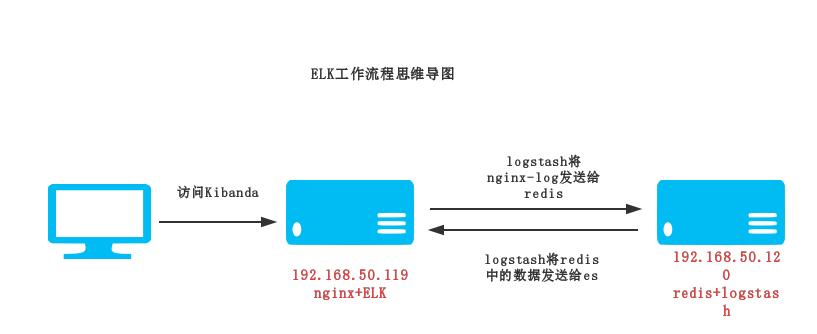
Elasticsearch 是个开源分布式搜索引擎,它的特点有:分布式,零配置,自动发现,索引自动分片,索引副本机制,restful风格接口,多数据源,自动搜索负载等。 Logstash 是一个完全开源的工具,他可以对你的日志进行收集、分析,并将其存储供以后使用(如,搜索) kibana 也是一个开源和免费的工具,他Kibana可以为 Logstash 和 ElasticSearch 提供的日志分析友好的 Web 界面,可以帮助您汇总、分析和搜索重要数据日志。 环境:192.168.50.119:ELK+Nginx 192.168.50.120:Redis+Logstash 架构图 部署流程: 192.168.50.119 ELK服务器 1.安装JDK Logstash的运行依赖于Java运行环境, Logstash 1.5以上版本不低于java 7推荐使用最新版本的Java,我这里使用了1.8版本 1 2 3 4 5 6 tar -zxfjdk-8u45-linux-x64. tar .gz-C /usr/local/ vim /etc/profile #设置环境变量 export JAVA_HOME= /usr/local/jdk1 .8.0_45 export PATH=$PATH:$JAVA_HOME /bin export CLASSPATH=.:$JAVA_HOME /lib/tools .jar:$JAVA_HOME /lib/dt .jar:$CLASSPATH source /etc/profile #使环境变量生效 验证是否安装成功 1 2 3 4 [root@localhost~] #java-version javaversion "1.8.0_45" Java(TM)SERuntimeEnvironment(build1.8.0_45-b14) JavaHotSpot(TM)64-BitServerVM(build25.45-b02,mixedmode) 2.安装Logstash(日志收集、分析,并将其存储供以后使用) 1 2 wgethttps: //download .elastic.co /logstash/logstash/logstash-2 .4.0. tar .gz tar –zxflogstash-2.4.0. tar .gz-C /usr/local/ 验证logstash是否安装成功 1 2 3 4 5 [root@localhost~] #/usr/local/logstash-2.4.0/bin/logstash-e'input{stdin{}}output{stdout{}}' Settings:Defaultpipelineworkers:1 Logstashstartupcompleted 等待输入:helloworld 2016-11-28T20:32:07.853Zlocalhost.localdomainhelloworld 我们可以看到,我们输入什么内容logstash按照某种格式输出,其中-e参数参数允许Logstash直接通过命令行接受设置。 这点尤其快速的帮助我们反复的测试配置是否正确而不用写配置文件。使用CTRL-C命令可以退出之前运行的Logstash。 3.部署nginx并收集日志 1 2 3 4 5 6 yum-y install nginx 设置nginx的log格式 vim /etc/nginx/nginx .conf log_formatmain '$remote_addr-$remote_user[$time_local]"$request"' '$status$body_bytes_sent"$http_referer"' '"$http_user_agent"$http_x_forwarded_for$request_length$msec$connection_requests$request_time' ; 启动nginx 1 servicenginxstart 1 2 3 4 5 6 7 8 9 10 11 12 13 14 15 16 17 18 19 mkdir /usr/local/logstash-2 .4.0 /conf/ #创建logstash配置目录 定义logstash配置文件,用来收集nginx日志 [root@localhostconf] #catlogstash_nginx.conf input{ file { path=>[ "/var/log/nginx/access.log" ] type => "nginx_log" } } output{ redis{ host=> "192.168.50.120" key=> 'logstash-redis' data_type=> 'list' } stdout{ codec=>rubydebug } } 4.安装部署redis 192.168.50.120 服务器 1 2 3 yum-y install redis vim /etc/redis .conf bind192.168.50.120 启动 1 serviceredisstart 5.启动Logstash 1 2 [root@localhostconf] #/usr/local/logstash-2.4.0/bin/logstash-f./logstash_nginx.conf--configtest#检查配置文件 ConfigurationOK 1 2 3 4 5 6 7 8 9 10 11 12 13 14 15 16 17 18 19 20 21 22 23 24 25 26 27 [root@localhostconf] #/usr/local/logstash-2.4.0/bin/logstashagent-f./logstash_nginx.conf#将日志信息输出到redis服务器 Settings:Defaultpipelineworkers:1 Logstashstartupcompleted { "message" => "192.168.50.114--[29/Nov/2016:00:58:43+0800]\"GET/HTTP/1.1\"3040\"-\"\"Mozilla/5.0(WindowsNT6.1;Win64;x64)AppleWebKit/537.36(KHTML,likeGecko)Chrome/54.0.2840.99Safari/537.36\"\"-\"" , "@version" => "1" , "@timestamp" => "2016-11-28T18:55:49.587Z" , "path" => "/var/log/nginx/access.log" , "host" => "localhost.localdomain" , "type" => "nginx_log" } { "message" => "192.168.50.114--[29/Nov/2016:00:58:43+0800]\"GET/nginx-logo.pngHTTP/1.1\"3040\"http://192.168.50.119/\"\"Mozilla/5.0(WindowsNT6.1;Win64;x64)AppleWebKit/537.36(KHTML,likeGecko)Chrome/54.0.2840.99Safari/537.36\"\"-\"" , "@version" => "1" , "@timestamp" => "2016-11-28T18:55:49.590Z" , "path" => "/var/log/nginx/access.log" , "host" => "localhost.localdomain" , "type" => "nginx_log" } { "message" => "192.168.50.114--[29/Nov/2016:00:58:43+0800]\"GET/poweredby.pngHTTP/1.1\"3040\"http://192.168.50.119/\"\"Mozilla/5.0(WindowsNT6.1;Win64;x64)AppleWebKit/537.36(KHTML,likeGecko)Chrome/54.0.2840.99Safari/537.36\"\"-\"" , "@version" => "1" , "@timestamp" => "2016-11-28T18:55:49.590Z" , "path" => "/var/log/nginx/access.log" , "host" => "localhost.localdomain" , "type" => "nginx_log" } 6.安装部署Elasticsearch 192.168.50.119 ELK服务器 创建安装用户 1 2 groupaddelk useradd es-gelk 1 2 3 4 tar -xfelasticsearch-2.2.0. tar .gz-C /usr/local/ vim /usr/local/elasticsearch-2 .2.0 /config/elasticsearch .yml network.host:192.168.50.119 #端口绑定ip地址 http.port:9200 启动 这里遇到一个坑:es用户默认是不能用root用户启动的。所以要切到普通用户启动 1 2 3 chown -Res.elk /usr/local/elasticsearch-2 .2.0 su -es nohup /usr/local/elasticsearch-2 .2.0 /bin/elasticsearch > /usr/local/elasticsearch-2 .2.0 /nohub & 1 2 [root@localhostELK] #netstat-tunpl|grep9200 tcp00::ffff:192.168.50.119:9200:::*LISTEN2183 /java 1 2 3 4 5 6 7 8 9 10 11 12 13 [root@localhostELK] #curlhttp://192.168.50.119:9200#查看状态 { "name" : "BloodBrothers" , "cluster_name" : "elasticsearch" , "version" :{ "number" : "2.2.0" , "build_hash" : "8ff36d139e16f8720f2947ef62c8167a888992fe" , "build_timestamp" : "2016-01-27T13:32:39Z" , "build_snapshot" : false , "lucene_version" : "5.4.1" }, "tagline" : "YouKnow,forSearch" } 安装kopf和head插件 1 2 3 4 5 6 7 8 [root@localhostconf] #cd/usr/local/elasticsearch-2.2.0/bin/ [root@localhostbin] #./plugininstalllmenezes/elasticsearch-kopf ->Installinglmenezes /elasticsearch-kopf ... Tryinghttps: //github .com /lmenezes/elasticsearch-kopf/archive/master .zip... Downloading............................................................DONE Verifyinghttps: //github .com /lmenezes/elasticsearch-kopf/archive/master .zipchecksums if available... NOTE:Unabletoverifychecksum for downloadedplugin(unableto find .sha1or.md5 file toverify) Installedkopfinto /usr/local/elasticsearch-2 .2.0 /plugins/kopf 1 2 3 4 5 6 [root@localhostbin] #./plugininstallmobz/elasticsearch-head ->Installingmobz /elasticsearch-head ... Tryinghttps: //github .com /mobz/elasticsearch-head/archive/master .zip... Downloading.........................................................DONE NOTE:Unabletoverifychecksum for downloadedplugin(unableto find .sha1or.md5 file toverify) Installed head into /usr/local/elasticsearch-2 .2.0 /plugins/head 7.安装kibana 192.168.50.119 ELK服务器 安装 1 2 [root@localhostELK] #tar-xfkibana-4.4.0-linux-x64.tar.gz-C/usr/local/ [root@localhostELK] #cd/usr/local/kibana-4.4.0-linux-x64/ 配置 1 2 3 4 [root@localhostkibana-4.4.0-linux-x64] #vimconfig/kibana.yml elasticsearch.url: "http://192.168.50.119:9200" server.port:5601 server.host: "0.0.0.0" 启动 1 [root@localhostkibana-4.4.0-linux-x64] #nohup/usr/local/kibana-4.4.0-linux-x64/bin/kibana>/usr/local/kibana-4.4.0-linux-x64/nohub.out& 1 2 [root@localhostELK] #netstat-tunpl|grep5601 tcp000.0.0.0:56010.0.0.0:* 浏览器访问http://192.168.50.119:5601/ 8.安装logstash-server服务器 192.168.50.120 服务器 安装jdk和logstash 1 2 3 4 5 6 tar -zxfjdk-8u45-linux-x64. tar .gz-C /usr/local/ vim /etc/profile #设置环境变量 export JAVA_HOME= /usr/local/jdk1 .8.0_45 export PATH=$PATH:$JAVA_HOME /bin export CLASSPATH=.:$JAVA_HOME /lib/tools .jar:$JAVA_HOME /lib/dt .jar:$CLASSPATH source /etc/profile #使环境变量生效 1 2 tar –zxflogstash-2.4.0. tar .gz-C /usr/local/ mkdir /usr/local/logstash-2 .4.0 /conf 将redis 中的数据发送到elasticsearch中 1 2 3 4 5 6 7 8 9 10 11 12 13 14 15 16 [root@localhostconf] #catlogstash_server.conf input{ redis{ port=> "6379" host=> "192.168.50.120" data_type=> "list" key=> "logstash-redis" type => "redis-input" } } output{ elasticsearch{ hosts=> "192.168.50.119" index=> "logstash-%{+YYYY.MM.dd}" } } 9.在Kibanda上创建nginx日志监控视图 es常规操作 1 2 3 4 5 6 7 8 9 10 11 12 13 14 es健康状态 [root@localhost~] #curlhttp://192.168.50.119:9200/_cat/health?v epochtimestampclusterstatusnode.totalnode.datashardsprireloinitunassignpending_tasksmax_task_wait_timeactive_shards_percent 148034531523:01:55elasticsearchyellow11660060-50.0% health的状态包括:green,yellow,red. 列出节点 [root@localhost~] #curlhttp://192.168.50.119:9200/_cat/nodes?v hostipheap.percent ram .percentloadnode.rolemastername 192.168.50.119192.168.50.1198990.00d*BloodBrothers 列出索引 [root@localhost~] #curlhttp://192.168.50.119:9200/_cat/indices?v healthstatusindexprirepdocs.countdocs.deletedstore.sizepri.store.size yellow open .kibana11205.6kb5.6kb yellow open logstash-2016.11.2851104.9kb4.9kb 本文转自 shouhou2581314 51CTO博客,原文链接:http://blog.51cto.com/thedream/1878971,如需转载请自行联系原作者

优秀的个人博客,低调大师

CentOS下查找处理文件名后包含空格的文件

当Linux下文件名中出现空格这类特殊情况话,如何查找或确认那些文件名后有空格呢? 又怎么批量替换处理掉这些空格呢? 方法1: 输入文件名后使用Tab键,如果使用Tab键后面出现\ \ \这样的可见字符,那么该文件名包含空格。当然,这个方法弊端很大,例如,效率低下,不能批量查找,只有当你怀疑某个文件名后有空格,这个方法才比较凑效。另外,不能查找文件中间包含空格的文件名。如下测试所示: [root@DB-Server kerry]# cat >"test.txt " it is only for test! [1]+ Stopped cat > "test.txt " [root@DB-Server kerry]# cat >"tes t.txt" it is only for test too! [2]+ Stopped cat > "tes t.txt" [root@DB-Server kerry]# ls test.txt ls: test.txt: No such file or directory [root@DB-Server kerry]# ls test test~ test1.py test.py test.sh test.txt [root@DB-Server kerry]# ls test.txt\ \ \ \ test.txt [root@DB-Server kerry]# ls tes test~ test1.py test.py test.sh tes t.txt test.txt 方法2: 使用find命令查找文件名中包含空格的文件。 [root@DB-Server kerry]# find . -type f -name "* *" -print ./test.txt ./tes t.txt 那么如何将这些空格替换掉呢?下面脚本可以替换文件中间的空格,用下划线替换空格,但是只能替换文件中间的空格,并不能替换文件名后面的空格。如下测试所示: find . -type f -name "* *" -print | while read name; do na=$(echo $name | tr ' ''_') if [[ $name != $na ]]; then mv "$name""$na" fi done 上面脚本只能将文件名中间有空格的替换为下划线。那么如何解决文件名后有空格的情况呢? 可以用其它shell脚本实现,如下所示: [root@DB-Server kerry]# rm -rf * [root@DB-Server kerry]# cat >"test.txt " 12 [root@DB-Server kerry]# cat >"tes t.txt" 12 [root@DB-Server kerry]# find . -type f -name "* *" -print ./test.txt ./tes t.txt [root@DB-Server kerry]# for file in *; do mv "$file" `echo $file | tr ' ' '_'` ; done [root@DB-Server kerry]# find . -type f -name "* *" -print [root@DB-Server kerry]# ls -lrt total 8 -rw-r--r-- 1 root root 0 Nov 13 10:04 test.txt -rw-r--r-- 1 root root 0 Nov 13 10:04 tes_t.txt 如上所示,虽然文件名中间的空格被替换为了下划线,但是后面的空格没有替换为下划线,而是将那些空格直接截断了。Why?下面使用sed命令也是如此 [root@DB-Server kerry]# rm -rf * [root@DB-Server kerry]# cat >"test.txt " 12 [root@DB-Server kerry]# cat >"tes t.txt" 12 [root@DB-Server kerry]# find . -type f -name "* *" -print ./test.txt ./tes t.txt [root@DB-Server kerry]# for i in *' '*; do mv "$i" `echo $i | sed -e 's/ /_/g'`; done [root@DB-Server kerry]# find . -type f -name "* *" -print [root@DB-Server kerry]# ls -lrt total 8 -rw-r--r-- 1 root root 0 Nov 13 09:29 test.txt -rw-r--r-- 1 root root 0 Nov 13 09:29 tes_t.txt [root@DB-Server kerry]# [root@DB-Server kerry]# 其实,这个是因为读取文件名是$file 与"$file"是不同的,$file不会识别文件名后面的空格,而"$file"才会失败文件名后面的空格。所以上面脚本其实只是取巧而已。 [root@DB-Server kerry]# rm -rf *; [root@DB-Server kerry]# cat >"test.txt " 123 [root@DB-Server kerry]# for file in *; do echo "$file"; echo "$file" | wc -m ; done; test.txt 13 [root@DB-Server kerry]# for file in *; do echo $file; echo $file | wc -m ; done; test.txt 9 [root@DB-Server kerry]# 所以,正确的替换空格的命令应该为如下: 方案1: [root@DB-Server kerry]# rm -rf * [root@DB-Server kerry]# cat >"test.txt " 123456 [root@DB-Server kerry]# find . -type f -name "* *" -print ./test.txt [root@DB-Server kerry]# for file in *; do mv "$file" `echo "$file" | tr ' ' '\n'` ; done [root@DB-Server kerry]# find . -type f -name "* *" -print [root@DB-Server kerry]# ls test.txt test.txt [root@DB-Server kerry]# 方案2: [root@DB-Server kerry]# [root@DB-Server kerry]# rm -rf * [root@DB-Server kerry]# cat >"test.txt " 123456 [root@DB-Server kerry]# for file in *' '*; do mv "$file" `echo "$file" | sed -e 's/ /n/g'`; done [root@DB-Server kerry]# find . -type f -name "* *" -print 但是对于文件名中间包含空格的情况,上面两个脚本都无法完美解决。如下所示: [root@DB-Server kerry]# [root@DB-Server kerry]# rm -rf * [root@DB-Server kerry]# cat >"tes t.txt" 123456 [root@DB-Server kerry]# for file in *; do mv "$file" `echo "$file" | tr ' ' '_'` ; done [root@DB-Server kerry]# find . -type f -name "* *" -print [root@DB-Server kerry]# ls -lrt total 8 -rw-r--r-- 1 root root 7 Nov 13 16:00 tes_t.txt [root@DB-Server kerry]# [root@DB-Server kerry]# rm -rf * [root@DB-Server kerry]# cat >"tes t.txt" 123456 [root@DB-Server kerry]# cat >"test.txt " 654321 [root@DB-Server kerry]# find . -type f -name "* *" -print ./test.txt ./tes t.txt [root@DB-Server kerry]# for file in *; do mv "$file" `echo "$file" | tr ' ' '_'` ; done [root@DB-Server kerry]# find . -type f -name "* *" -print [root@DB-Server kerry]# ls -lrt total 12 -rw-r--r-- 1 root root 0 Nov 13 15:59 tes_t.txt -rw-r--r-- 1 root root 7 Nov 13 15:59 test.txt____ 当然对于这两种特殊情况,上面脚本都不能一起处理,如上所示,后面的空格会被替换成了下划线。这反而不是我们想要的,反而最上面的那两种脚本,可以误打误撞的解决这两种问题。当然让前提是你得知其然知其所以然!

优秀的个人博客,低调大师

阿里云服务器CentOS 7.3 64位部署FTP服务

一、安装vsftpd yum -y install vsftpd 二、配置 vsftpd的配置文件在/etc/vsftpd,其中vsftp.conf文件是住配置文件,打开如下: # Example config file /etc/vsftpd/vsftpd.conf # # The default compiled in settings are fairly paranoid. This sample file # loosens things up a bit, to make the ftp daemon more usable. # Please see vsftpd.conf.5 for all compiled in defaults. # # READ THIS: This example file is NOT an exhaustive list of vsftpd options. # Please read the vsftpd.conf.5 manual page to get a full idea of vsftpd's # capabilities. # # Allow anonymous FTP? (Beware - allowed by default if you comment this out). # 匿名访问,NO关闭,默认为YES开启状态 anonymous_enable=NO # # Uncomment this to allow local users to log in. # When SELinux is enforcing check for SE bool ftp_home_dir local_enable=YES # # Uncomment this to enable any form of FTP write command. write_enable=YES # # Default umask for local users is 077. You may wish to change this to 022, # if your users expect that (022 is used by most other ftpd's) local_umask=022 # # Uncomment this to allow the anonymous FTP user to upload files. This only # has an effect if the above global write enable is activated. Also, you will # obviously need to create a directory writable by the FTP user. # When SELinux is enforcing check for SE bool allow_ftpd_anon_write, allow_ftpd_full_access #anon_upload_enable=YES # # Uncomment this if you want the anonymous FTP user to be able to create # new directories. #anon_mkdir_write_enable=YES # # Activate directory messages - messages given to remote users when they # go into a certain directory. dirmessage_enable=YES # # Activate logging of uploads/downloads. xferlog_enable=YES # # Make sure PORT transfer connections originate from port 20 (ftp-data). connect_from_port_20=YES # # If you want, you can arrange for uploaded anonymous files to be owned by # a different user. Note! Using "root" for uploaded files is not # recommended! #chown_uploads=YES #chown_username=whoever # # You may override where the log file goes if you like. The default is shown # below. #xferlog_file=/var/log/xferlog # # If you want, you can have your log file in standard ftpd xferlog format. # Note that the default log file location is /var/log/xferlog in this case. xferlog_std_format=YES # # You may change the default value for timing out an idle session. #idle_session_timeout=600 # # You may change the default value for timing out a data connection. #data_connection_timeout=120 # # It is recommended that you define on your system a unique user which the # ftp server can use as a totally isolated and unprivileged user. #nopriv_user=ftpsecure # # Enable this and the server will recognise asynchronous ABOR requests. Not # recommended for security (the code is non-trivial). Not enabling it, # however, may confuse older FTP clients. #async_abor_enable=YES # # By default the server will pretend to allow ASCII mode but in fact ignore # the request. Turn on the below options to have the server actually do ASCII # mangling on files when in ASCII mode. # Beware that on some FTP servers, ASCII support allows a denial of service # attack (DoS) via the command "SIZE /big/file" in ASCII mode. vsftpd # predicted this attack and has always been safe, reporting the size of the # raw file. # ASCII mangling is a horrible feature of the protocol. #ascii_upload_enable=YES #ascii_download_enable=YES # # You may fully customise the login banner string: #ftpd_banner=Welcome to blah FTP service. # # You may specify a file of disallowed anonymous e-mail addresses. Apparently # useful for combatting certain DoS attacks. #deny_email_enable=YES # (default follows) #banned_email_file=/etc/vsftpd/banned_emails # # You may specify an explicit list of local users to chroot() to their home # directory. If chroot_local_user is YES, then this list becomes a list of # users to NOT chroot(). # (Warning! chroot'ing can be very dangerous. If using chroot, make sure that # the user does not have write access to the top level directory within the # chroot) #chroot_local_user=YES #chroot_list_enable=YES # (default follows) #chroot_list_file=/etc/vsftpd/chroot_list # # You may activate the "-R" option to the builtin ls. This is disabled by # default to avoid remote users being able to cause excessive I/O on large # sites. However, some broken FTP clients such as "ncftp" and "mirror" assume # the presence of the "-R" option, so there is a strong case for enabling it. #ls_recurse_enable=YES # # When "listen" directive is enabled, vsftpd runs in standalone mode and # listens on IPv4 sockets. This directive cannot be used in conjunction # with the listen_ipv6 directive. listen=NO # # This directive enables listening on IPv6 sockets. By default, listening # on the IPv6 "any" address (::) will accept connections from both IPv6 # and IPv4 clients. It is not necessary to listen on *both* IPv4 and IPv6 # sockets. If you want that (perhaps because you want to listen on specific # addresses) then you must run two copies of vsftpd with two configuration # files. # Make sure, that one of the listen options is commented !! listen_ipv6=YES pam_service_name=vsftpd userlist_enable=YES tcp_wrappers=YES # FTP跟路径设置 local_root=/home 理论上什么都不用修改就可以,但是实际上,我们都会把匿名访问给关闭,和设置一个FTP根路径 anonymous_enable=NO YES改为NO 添加local_root=/home 等号后面为想要设置的文件路径 三、添加用户 useradd ftpadmin -s /sbin/nologin // ftpadmin可改为你的FTP账号 passwd ftpadmin // 设置密码,输入两遍,密码不可见 chown -R ftpadmin /var/ftp // 改动用户权限,格式为chown -R 用户名 文件路径 四、开启服务 service vsftpd start 附:这篇就先这样,以后再更新卸载,vsftpd主配置文件修改及介绍,黑白名单,制定用户配置权限等等

优秀的个人博客,低调大师

解决centos下非root用户频繁出现Authentication is required to set the ne

非root用户登陆linux服务器,总是弹出一个对话框,而且关闭之后,过一段时间还会弹出来。对话框的内容是:Authentication is required to set the network proxy used for downloading packages。然后提示你输入root密码。 解决办法:在终端窗口(右键,open in terminal)输入“gnome-session-properties”。然后把“PackageKit Update Applet”前面的勾去掉就行了。

优秀的个人博客,低调大师

解决CentOS启动MySQL时报“The server quit without updating PID file.

今天在阿里云服务器上安装MySQL5.5后,启动时报了如下错 [root@localhost mysql]# service mysql start Starting MySQL.. ERROR! The server quit without updating PID file (/var/lib/mysql/localhost.localdomain.pid). 按照网上的说法,用ps -ef|grep mysql把相关的MySQL进程关闭后,还是报同样的错 解决方法: 输入rpm -qa | grep -i mysql 查看已安装的MySQL 然后用rpm -e --nodeps删除已安装的MySQL 最后,删除/var/lib/下的mysql文件夹,重新安装MySQL,成功

优秀的个人博客,低调大师

CentOS查找所有文件中某个字符串

查找目录下的所有文件中是否含有某个字符串 find .|xargs grep -ri "IBM" 查找目录下的所有文件中是否含有某个字符串,并且只打印出文件名 find .|xargs grep -ri "IBM" -l (1)find命令的一般形式 find pathname -options [-print -exec -ok] pathname :find命令所查找的目录路径。如用"."来表示当前的目录,用/来表示系统根目录 -print :find命令将匹配的文件输出到标准输出 -exec: find命令对匹配的文件执行该参数所给出的shell命令,相应的命令形式为 'command'{} \; (注意{}和\之间的空格) -ok 和 -exec的作用相同,只不过以一种更为安全的模式来执行该参数所给出的shell命令,在执行每一个命令之前,都会给出提示,让用户来确定是否执行。 options有如下几种: -name :按照文件名查找文件 -perm :按照文件权限来查找文件 -user :按照文件属主来查找文件 -group :按照文件所属的组来查找文件 -mtime -n +n 按照文件的更改时间来查找文件,-n表示文件更改时间距现在n天以内,+n表示文件更改时间距现在n天以前。find命令还有-atime 和-ctime选项,但它们都和-mtime选项相似。 -size n[c]查找文件长度为n块的文件,带有c时表示文件长度以字节计。 -nogroup 查找无有效所属组的文件,即该文件所属的组在/etc/groups中不存在 -newer file1 !file2查找更改时间比文件file1新但比文件file2旧的文件 -depth 先查找指定目录有无匹配文件,若无则再在子目录中查找 -type 查找某一类型的文件,如 b :块设备文件 d:目录 e:字符设备文件 p;管道文件 l:符号链接文件 f:普通文件 (3)find命令举例 find -name "*.txt" -print 查找txt结尾的文件并输出到屏幕上 find /cmd ".sh" -print 查找/cmd目录下所有sh文件,并输出 find . -perm 755 -print 查找当前目录下权限为755的文件,并输出 find `pwd` -user root -print 查找当前目录下属主为root的文件,并输出 find ./ -group sunwill -print 查找当前目录下所属主是sunwill的文件 find /var -mtime -5 -print 查找/var目录下更改时间为5天内的所有文件 find /var -mtime +5 -print 查找/var目录下更改时间为5天以前的所有文件 find /var -newer "myfile1" ! -newer "myfile2" -print 查找/var目录下比myfile1新,但是比myfile2旧的所有文件。 find /var -type d -print 查找/var目录下所有目录 find /var -type l -print 查找/var目录下所有的符号链接文件。 find . -size +1000000c -print 查找当前目录下大于1000000字节的文件 find / -name "con.file" -depth -print 查找根目录下有无"con.file",若无则在其子目录中查找 find . -type f -exec ls -l {} \; 查找当前目录下是否有普通文件,若有则执行ls -l (4)xargs命令 在 使用find命令的-exec选项处理匹配到的文件时,find命令将所有匹配到的文件一起传递给exec。不幸的是,有些系统对能够传递给exec的命 令长度有限制,这样find命令运行几分钟之后就算出现溢出错误。错误信息通常是“参数列太长”或“参数列溢出”。这就是xargs的用处所在,特别是与 find命令一起使用,exec会发起多个进程,而xargs会多个,只有一个 find ./ -perm -7 -print | xargs chmod o-w 查找权限为7的文件并传递给chmod处理 (5)grep介绍.如果你想在当前目录下 查找"hello,world!"字符串,可以这样: grep -rn "hello,world!" * * : 表示当前目录所有文件,也可以是某个文件名 -r 是递归查找 -n 是显示行号 -R 查找所有文件包含子目录 -i 忽略大小写 下面是一些有意思的命令行参数: grep -i pattern files :不区分大小写地搜索。默认情况区分大小写, grep -l pattern files :只列出匹配的文件名, grep -L pattern files :列出不匹配的文件名, grep -w pattern files :只匹配整个单词,而不是字符串的一部分(如匹配‘magic’,而不是‘magical’), grep -C number pattern files :匹配的上下文分别显示[number]行, grep pattern1 | pattern2 files :显示匹配 pattern1 或 pattern2 的行, grep pattern1 files | grep pattern2 :显示既匹配 pattern1 又匹配 pattern2 的行。 这里还有些用于搜索的特殊符号: \< 和 \> 分别标注单词的开始与结尾。 例如: grep man * 会匹配 ‘Batman’、‘manic’、‘man’等, grep '\<man' * 匹配‘manic’和‘man’,但不是‘Batman’, grep '\<man\>' 只匹配‘man’,而不是‘Batman’或‘manic’等其他的字符串。 '^':指匹配的字符串在行首, '$':指匹配的字符串在行尾, (6),xargs配合grep查找 find -type f -name '*.php'|xargs grep 'hello,world!'

资源下载

更多资源
优质分享App

优质分享App

近一个月的开发和优化,本站点的第一个app全新上线。该app采用极致压缩,本体才4.36MB。系统里面做了大量数据访问、缓存优化。方便用户在手机上查看文章。后续会推出HarmonyOS的适配版本。

腾讯云软件源

腾讯云软件源

为解决软件依赖安装时官方源访问速度慢的问题,腾讯云为一些软件搭建了缓存服务。您可以通过使用腾讯云软件源站来提升依赖包的安装速度。为了方便用户自由搭建服务架构,目前腾讯云软件源站支持公网访问和内网访问。

Rocky Linux

Rocky Linux

Rocky Linux(中文名:洛基)是由Gregory Kurtzer于2020年12月发起的企业级Linux发行版,作为CentOS稳定版停止维护后与RHEL(Red Hat Enterprise Linux)完全兼容的开源替代方案,由社区拥有并管理,支持x86_64、aarch64等架构。其通过重新编译RHEL源代码提供长期稳定性,采用模块化包装和SELinux安全架构,默认包含GNOME桌面环境及XFS文件系统,支持十年生命周期更新。

Sublime Text

Sublime Text

Sublime Text具有漂亮的用户界面和强大的功能,例如代码缩略图,Python的插件,代码段等。还可自定义键绑定,菜单和工具栏。Sublime Text 的主要功能包括:拼写检查,书签,完整的 Python API , Goto 功能,即时项目切换,多选择,多窗口等等。Sublime Text 是一个跨平台的编辑器,同时支持Windows、Linux、Mac OS X等操作系统。

用户登录
用户注册