首页 文章 精选 留言 我的

精选列表

搜索[ios],共10000篇文章
优秀的个人博客,低调大师

iOS - UIKit

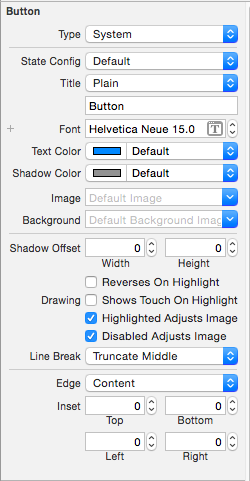
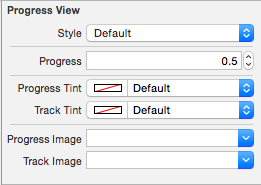
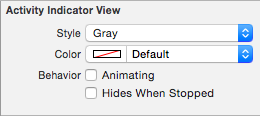
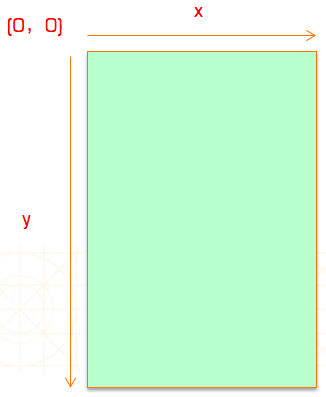
1、UIKit 框架基本结构 1)控件 屏幕上的所有 UI 元素都叫做控件(也有叫做视图、组件),比如按钮(UIButton)、文本(UILabel)都是控件。 为了便于开发者打造各式各样的优秀 App,UIKit 框架提供了非常多功能强大又易用的 UI 控件,但并不是每一个都很常用,有些控件可能 1 年内都用不上,有些控件天天用,比如 UIButton、UILabel、UIImageView、UITableView 等等。 每个控件都是个容器,能容纳其他控件。内部小控件是大控件的子控件,大控件是内部小控件的父控件。 一个控件看不见有哪些可能: 宽度或者高度其实为 0 位置不对(比如是个负数或者超大的数,已经超出屏幕) hidden == YES alpha <= 0.01 没有设置背景色、没有设置内容 可能是文字颜色和背景色一样 2)控件坐标系 在 UIKit 中,坐标系的原点(0,0)在左上角,x 值向右正向延伸,y 值向下正向延伸。 1.1 各控件之间的层次结构 |—— UIAcceleration | |—— UIAccelerometer | |—— UIAccessibilityElement | |—— UIActivity | |—— UIBarButtonItem |—— UIBarItem ——————————————————————-| | |—— UITabBarItem |—— UIBeziPath | |—— UIColor | |—— UIDevice | |—— UIDocumentInteractionController | |—— UIEvent | |—— UIFont |—— UILongPressGestureRecognizer |—— UIWindow | | | |—— UIGestureRecognizer —————————————|—— UIPanGestureRecognizer |—— UILabel | | | |—— UIImage |—— UIPinchGestureRecognizer |—— UIPickerView | | | |—— UILocalizedIndexedCollation |—— UIRotationGestureRecognizer |—— UIProgressView | | | |—— UILocalNotification |—— UISwipeGestureRecognizer |—— UIActivityIndicatorView |—— UITextView | | | | |—— UIMenuController |—— UITapGestureRecognizer |—— UIImageView |—— UITableView | | | NSObject ——|—— UIMenuItem |—— UIScrollView ——————————————-——|—— UICollectionView | | |—— UINavigationItem |—— UITabBar | | |—— UINib |—— UIToolbar |—— UIStepper | | | |—— UIPasteboard |—— UINavigationBar |—— UIButton | | | |—— UIPopoverController |—— UISimpleTextPrintFormatter |—— UITableViewCell |—— UIDatePicker | | | | |—— UIPrintFormatter ———————————————-|—— UIMarkupTextPrintFormatter |—— UIActionSheet |—— UIPageControl | | | | |—— UIPrintInfo |—— UIViewPrintFormatter |—— UIAlertView |—— UISegmentedControl | | | |—— UIPrinInteractionController |—— UISearchBar |—— UITextField | | | |—— UIPrintPageRender |—— UIApplication |—— UIWebView |—— UISlider | | | | |—— UIPrintPaper |—— UIView ———————————————————————|—— UIControl ————————————————————|—— UISwitch | | |—— UIResponder ———————————————-—————|—— UIViewController —————————————|—— UISplitViewController | | |—— UIScreen |—— UITabBarController | | |—— UIScreenMode |—— UITableViewController | | |—— UIImagePickerController |—— UISearchDisplayController |—— UINavigationController ————| | | |—— UIVideoEditorController |—— UITextChecker |—— UICollectionViewController | | |—— UITextInputStringTokenizer |—— UIPageViewController | | |—— UITextPosition |—— UIActivityViewController | |—— UITextRanger | |—— UITouch | |—— CMMotionManager 1.2 各控件关联说明 UIWindow : UIView 窗口 UIApplication : UIResponder 应用 UIView : UIResponder 视图 UILabel : UIView 标签 UIProgressView : UIView 进度条 UIAlertView : UIView 警告框 UIActionSheet : UIView 操作表 UIPickerView : UIView 选择框 UIActivityIndicatorView : UIView 风火轮 UIImageView : UIView 图像视图 UIWebView : UIView 网页视图 UIScrollView : UIView 滚动视图 UITextView : UIScrollView 多行文本视图 UIToolbar : UIView 工具条 UIControl : UIView 控制器 UITextField : UIControl 文本框控件 UIButton : UIControl 按钮控件 UISwitch : UIControl 开关按钮控件 UISegmentedControl : UIControl 选择控件 UISlider : UIControl 滑块控件 UIStepper : UIControl 微调器控件 UIDatePicker : UIControl 日期选择器控件 UIViewController : UIResponder 视图控制器 UITableViewController : UIViewController 表格视图控制器 UITableView : UIScrollView 表格视图 UITableViewCell : UIView 表格视图单元 UINavigationController : UIViewController 导航视图控制器 UINavigationBar : UIView 导航条 UITabBarController : UIViewController 标签视图控制器 UITabBar : UIView 标签条 UICollectionViewController : UIViewController 网格视图控制器 UICollectionView : UIScrollView 网格视图 UIPageViewController : UIViewController 页视图控制器 UIPageControl : UIControl 页控件 UISplitViewController : UIViewController 分割视图控制器 UIImagePickerController : UINavigationController 图像选择视图控制器 UIActivityViewController : UIViewController 分享视图控制器 UIActivity : NSObject 分享 UISearchController : NSObject 搜索视图控制器 UISearchBar : UIView 搜索条 UIAlertController : UIViewController 警告视图控制器 UIColor : NSObject 颜色 UIDevice : NSObject 设备信息 CMMotionManager : NSObject 加速度传感器 UIGestureRecognizer : NSObject 手势检测 UITapGestureRecognizer : UIGestureRecognizer 点击手势 UILongPressGestureRecognizer : UIGestureRecognizer 长按手势 UIRotationGestureRecognizer : UIGestureRecognizer 旋转手势 UIPinchGestureRecognizer : UIGestureRecognizer 捏合手势 UIPanGestureRecognizer : UIGestureRecognizer 拖动手势 UISwipeGestureRecognizer : UIGestureRecognizer 滑动手势 UITouch : NSObject 触摸 AudioServicesPlayAlertSound : 短频音效播放 AVAudioPlayer : NSObject 音频播放 MPMoviePlayerViewController : UIViewController 视频播放视图控制器 MPMoviePlayerController : NSObject 视频播放控件 AVPlayerViewController : UIViewController 音视频播放视图控制器 AVPlayer : NSObject 音视频播放控件 2、各控件功能说明 2.1 文字显示 2.2 进度显示 2.3 弹框提醒 2.4 滚动视图 2.5 内容选择 2.6 工具条

优秀的个人博客,低调大师

iOS开发那些-如何打包iOS应用程序

我们把应用上传到App Store之前需要把编译的二进制文件和资源文件打成压缩包,压缩格式是zip。 首页找到编译到什么地方,这个很重要也不太好找,我们可以看看编译日志,找到其中的Create universal binary HelloWorld…的内容,然后展开内容如下: Create Universal Binary /Users/tonyguan/Library/Developer/Xcode/DerivedData/HelloWorld-fzvtlfsmygaqjleczypphenzabef/Build/Products/Release-iphoneos/HelloWorld.app/HelloWorld normal ”armv7 armv7s” cd ”/Users/tonyguan/Desktop/19.1.4 HelloWorld” setenv PATH ”/Applications/Xcode.app/Contents/Developer/Platforms/iPhoneOS.platform/Developer/usr/bin:/Applications/Xcode.app/Contents/Developer/usr/bin:/usr/bin:/bin:/usr/sbin:/sbin” lipo -create /Users/tonyguan/Library/Developer/Xcode/DerivedData/HelloWorld-fzvtlfsmygaqjleczypphenzabef/Build/Intermediates/HelloWorld.build/Release-iphoneos/HelloWorld.build/Objects-normal/armv7/HelloWorld /Users/tonyguan/Library/Developer/Xcode/DerivedData/HelloWorld-fzvtlfsmygaqjleczypphenzabef/Build/Intermediates/HelloWorld.build/Release-iphoneos/HelloWorld.build/Objects-normal/armv7s/HelloWorld -output /Users/tonyguan/Library/Developer/Xcode/DerivedData/HelloWorld-fzvtlfsmygaqjleczypphenzabef/Build/Products/Release-iphoneos/HelloWorld.app/HelloWorld 在最后日志-output之后就是应用编译之后的位置了,其中“/Users/tonyguan/Library/… /Products/Release-iphoneos/”是编译之后生成的目录,HelloWorld.app是包文件,HelloWorld是二进制文件。 包文件HelloWorld.app可以使用点击右键菜单“显示包内容”,其中HelloWorld文件是我们这个应用的二进制文件。其它的都是资源文件,包括图片、属性列表文件、nib和storyboardc文件,nib是编译之后的xib文件,storyboardc是编译之后的故事板文件等。 应用打包就是将HelloWorld.app包文件打包成为HelloWorld.zip,具体操作是右键点击HelloWorld.app包文件弹出菜单,选择压缩“HelloWorld”,这样就会在当前目录下生成HelloWorld.zip压缩文件了,请将这个文件保存好,我们会在下一节介绍,上传应用时候还会使用到。 本文转自 tony关东升 51CTO博客,原文链接:http://blog.51cto.com/tonyguan/1214979,如需转载请自行联系原作者

优秀的个人博客,低调大师

iOS知识学习】_iOS动态改变TableView Cell高度

在做tableView的时候,我们有时候须要依据cell的高度动态来调整。近期在网上看到一段代码不错。跟大家Share一下。 在 -(UITableViewCell*)tableView:(UITableView*)tableView cellForRowAtIndexPath:(NSIndexPath*)indexPath{ 类中获取cell的高度: CGSize boundSize = CGSizeMake(216, CGFLOAT_MAX); cell.textLabel.text = @"12345678900123456789"; cell.userInteractionEnabled = NO; cell.textLabel.numberOfLines = 0; CGSize requiredSize = [cell.textLabel.text sizeWithFont:[UIFont systemFontOfSize:13] constrainedToSize:boundSize lineBreakMode:UILineBreakModeWordWrap]; CGRect rect = cell.frame; rect.size.height = requiredSize.height+5; cell.frame = rect;这时候获取到了cell的高度,然后在 - (CGFloat)tableView:(UITableView*)tableView heightForRowAtIndexPath:(NSIndexPath*)indexPath { 类中改变cell的高度: UITableViewCell *cell = [self tableView:tableView cellForRowAtIndexPath:indexPath]; NSLog(@"cell height %f",cell.frame.size.height); return cell.frame.size.height; 这样以来cell的高度就依据cell里label的内容自己主动改变啦。 其主要出发点就是我有一个label。然后我要把这个label展示出来。我依据字体的大小还有行数来获取一个高度,这样cell的高度就有啦。 本文转自mfrbuaa博客园博客,原文链接:http://www.cnblogs.com/mfrbuaa/p/5350356.html,如需转载请自行联系原作者

资源下载

更多资源
Mario

Mario

马里奥是站在游戏界顶峰的超人气多面角色。马里奥靠吃蘑菇成长,特征是大鼻子、头戴帽子、身穿背带裤,还留着胡子。与他的双胞胎兄弟路易基一起,长年担任任天堂的招牌角色。

腾讯云软件源

腾讯云软件源

为解决软件依赖安装时官方源访问速度慢的问题,腾讯云为一些软件搭建了缓存服务。您可以通过使用腾讯云软件源站来提升依赖包的安装速度。为了方便用户自由搭建服务架构,目前腾讯云软件源站支持公网访问和内网访问。

Spring

Spring

Spring框架(Spring Framework)是由Rod Johnson于2002年提出的开源Java企业级应用框架,旨在通过使用JavaBean替代传统EJB实现方式降低企业级编程开发的复杂性。该框架基于简单性、可测试性和松耦合性设计理念,提供核心容器、应用上下文、数据访问集成等模块,支持整合Hibernate、Struts等第三方框架,其适用范围不仅限于服务器端开发,绝大多数Java应用均可从中受益。

Rocky Linux

Rocky Linux

Rocky Linux(中文名:洛基)是由Gregory Kurtzer于2020年12月发起的企业级Linux发行版,作为CentOS稳定版停止维护后与RHEL(Red Hat Enterprise Linux)完全兼容的开源替代方案,由社区拥有并管理,支持x86_64、aarch64等架构。其通过重新编译RHEL源代码提供长期稳定性,采用模块化包装和SELinux安全架构,默认包含GNOME桌面环境及XFS文件系统,支持十年生命周期更新。

用户登录
用户注册