首页 文章 精选 留言 我的

精选列表

搜索[部署],共10000篇文章
优秀的个人博客,低调大师

docker-compose部署php项目

原文章地址:https://www.jikeyuan.cn/a/15.html1.制定特定扩展的PHP镜像sudo mkdir -p /www/dockersudo cd /www/dockersudo vi DockerfileFROM php:7.2-fpm-alpine MAINTAINER diaocheweide RUN sed -i 's/dl-cdn.alpinelinux.org/mirrors.aliyun.com/g' /etc/apk/repositories RUN apk update && apk add --no-cache --virtual .build-deps \ $PHPIZE_DEPS \ curl-dev \ imagemagick-dev \ libtool \ libxml2-dev \ postgresql-dev \ sqlite-dev \ libmcrypt-dev \ freetype-dev \ libjpeg-turbo-dev \ libpng-dev \ && apk add --no-cache \ curl \ imagemagick \ mysql-client \ postgresql-libs \ && pecl install imagick \ && pecl install mcrypt-1.0.1 \ && docker-php-ext-install zip \ && docker-php-ext-install pdo_mysql \ && docker-php-ext-install opcache \ && docker-php-ext-install mysqli \ && docker-php-ext-enable mcrypt \ && docker-php-ext-enable imagick \ && docker-php-ext-install \ curl \ mbstring \ pdo \ pdo_mysql \ pdo_pgsql \ pdo_sqlite \ pcntl \ tokenizer \ xml \ zip \ && docker-php-ext-install -j"$(getconf _NPROCESSORS_ONLN)" iconv \ && docker-php-ext-configure gd --with-freetype-dir=/usr/include/ --with-jpeg-dir=/usr/include/ \ && docker-php-ext-install -j"$(getconf _NPROCESSORS_ONLN)" gd \ && pecl install -o -f redis \ && rm -rf /tmp/pear \ && docker-php-ext-enable redis \ && rm -r /var/cache/apk/* EXPOSE 90002.编写yml文件sudo vi docker-compose.ymlversion: '3.1' services: nginx: image: nginx container_name: nginx restart: always ports: - "80:80" - "443:443" volumes: - /www/data/nginx/conf.d:/etc/nginx/conf.d - /www/default:/www/default networks: csl: ipv4_address: 172.18.0.2 php: image: php:7.2-fpm-alpine-dcwd container_name: php7.2 restart: always volumes: - /www/default:/www/default networks: csl: ipv4_address: 172.18.0.3 mysql5: image: mysql:5.7 container_name: mysql5 restart: always ports: - "3306:3306" environment: MYSQL_ROOT_PASSWORD: thisyourpassword volumes: - /www/data/mysql/mysql5:/var/lib/mysql #- /www/data/mysql/mysql5/conf/my.cnf:/etc/my.cnf #- /www/data/mysql/mysql5/init:/docker-entrypoint-initdb.d networks: csl: ipv4_address: 172.18.0.4 mysql8: image: mysql:8 container_name: mysql8 restart: always environment: MYSQL_ROOT_PASSWORD: thisyourpassword volumes: - /www/data/mysql/mysql8:/var/lib/mysql networks: csl: ipv4_address: 172.18.0.5 networks: csl: driver: bridge ipam: config: - subnet: 172.18.0.0/16 3.配置default.conf文件,拷贝这一步请参考上一篇文章sudo vi /www/data/nginx/default.conf server { listen 80; server_name localhost; #charset koi8-r; #access_log /var/log/nginx/host.access.log main; location / { root /www/default; index index.php index.html index.htm; } #error_page 404 /404.html; # redirect server error pages to the static page /50x.html # error_page 500 502 503 504 /50x.html; location = /50x.html { root /usr/share/nginx/html; } # proxy the PHP scripts to Apache listening on 127.0.0.1:80 # #location ~ \.php$ { # proxy_pass http://127.0.0.1; #} # pass the PHP scripts to FastCGI server listening on 127.0.0.1:9000 # location ~ \.php$ { root /www/default; fastcgi_pass php7.2:9000;#php容器名或者php容器ip fastcgi_index index.php; fastcgi_param SCRIPT_FILENAME $document_root$fastcgi_script_name; include fastcgi_params; } # deny access to .htaccess files, if Apache's document root # concurs with nginx's one # #location ~ /\.ht { # deny all; #} } 4.修改mysql允许远程连接并新建数据库docker exec -it mysql5 bashmysql -u root -puse mysql;update user set host='%' where user='root';flush privileges;5.创建并且启动容器docker-compose up -d6.新建index.php测试mysql连接<?php $con = mysqli_connect("172.18.0.4", "root", "thisyourpassword", "shop");if ($con) { echo '连接 MYSQL 成功'; } else { echo "连接 MySQL 失败: " . mysqli_connect_error(); } mysqli_close($con);

优秀的个人博客,低调大师

【Android电量】Battery Historian环境部署

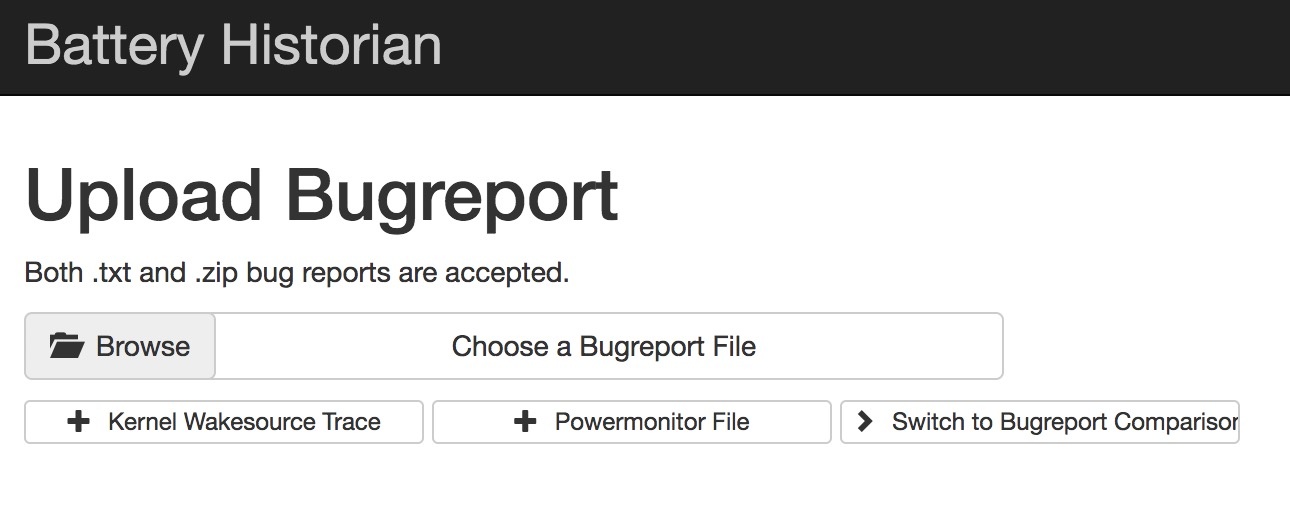
1、Install Docker Desktop for Mac (ps: Requires Apple Mac OS Sierra 10.12 or above.)手动下载安装 https://docs.docker.com/docker-for-mac/install/ 使用 Homebrew 安装 brew cask install docker(推荐) 2、Run the Battery Historian image. 使用命令 docker run -d -p 9999:9999 bhaavan/battery-historian 加载启动镜像 (有问题的镜像,不要用) docker run -p 9998:9998 gcr.io/android-battery-historian/stable:3.0 --port 9998 (亲测可用镜像) didi@localhost  ~  docker run -p 9998:9998 gcr.io/android-battery-historian/stable:3.0 --port 9998 Unable to find image 'gcr.io/android-battery-historian/stable:3.0' locally 3.0: Pulling from android-battery-historian/stable c62795f78da9: Pull complete d4fceeeb758e: Pull complete 5c9125a401ae: Pull complete 0062f774e994: Pull complete 6b33fd031fac: Pull complete a6bd6e1d0bdb: Pull complete 76cf9d0635af: Pull complete 856d20d533e0: Pull complete e63a73f6a528: Pull complete 1a75578c9353: Pull complete 24f3649604d9: Pull complete 10f637765748: Pull complete e06a9fa76cf2: Pull complete Digest: sha256:265a37707f8cf25f2f85afe3dff31c760d44bb922f64bbc455a4589889d3fe91 Status: Downloaded newer image for gcr.io/android-battery-historian/stable:3.0 2019/04/15 12:46:23 Listening on port: 9998 2019/04/15 12:48:19 Trace starting analysisServer processing for: GET 2019/04/15 12:48:19 Trace finished analysisServer processing for: GET 2019/04/15 12:48:20 Trace starting analysisServer processing for: GET 2019/04/15 12:48:20 Trace finished analysisServer processing for: GET 2019/04/15 12:48:27 Trace starting analysisServer processing for: POST 2019/04/15 12:48:27 Trace starting reading uploaded file. 2330165 bytes 2019/04/15 12:48:28 failed to extract battery info: could not find battery time info in bugreport 2019/04/15 12:48:28 failed to extract time information from bugreport dumpstate: open /usr/lib/go-1.6/lib/time/zoneinfo.zip: no such file or directory 2019/04/15 12:48:28 Trace started analyzing "bugreport-ALP-AL00-HUAWEIALP-AL00-2019-04-15-14-31-10.zip~bugreport-ALP-AL00-HUAWEIALP-AL00-2019-04-15-14-31-10/bugreport-ALP-AL00-HUAWEIALP-AL00-2019-04-15-14-31-10.txt" file. 2019/04/15 12:48:28 Trace finished processing checkin. 2019/04/15 12:48:28 Trace finished processing summary data. 2019/04/15 12:48:28 Trace finished generating Historian plot. 2019/04/15 12:48:28 Trace finished analyzing "bugreport-ALP-AL00-HUAWEIALP-AL00-2019-04-15-14-31-10.zip~bugreport-ALP-AL00-HUAWEIALP-AL00-2019-04-15-14-31-10/bugreport-ALP-AL00-HUAWEIALP-AL00-2019-04-15-14-31-10.txt" file. 2019/04/15 12:48:29 Trace ended analyzing file. 2019/04/15 12:48:29 Trace finished analysisServer processing for: POST didi@localhost  /usr/local/Cellar/go/1.12.4/src/github.com/google/battery-historian   master  docker ps -all CONTAINER ID IMAGE COMMAND CREATED STATUS PORTS NAMES c19bb05d9198 bhaavan/battery-historian "/bin/sh -c 'go run …" 19 minutes ago Up 19 minutes 0.0.0.0:9999->9999/tcp sad_shaw didi@localhost  /usr/local/Cellar/go/1.12.4/src/github.com/google/battery-historian   master  didi@localhost  /usr/local/Cellar/go/1.12.4/src/github.com/google/battery-historian   master  docker images REPOSITORY TAG IMAGE ID CREATED SIZE bhaavan/battery-historian latest 9a3a9fd0ca2f 2 years ago 922MB 3、Open BHRun historian and visit http://localhost:9999 4、Upload Report Both .txt and .zip bug reports are accepted. To take a bug report from your Android device, you will need to enable USB debugging under Settings > System > Developer Options To obtain a bug report from your development device running Android 7.0 and higher: $ adb bugreport bugreport.zip didi@localhost  ~  adb bugreport bugreport.zip /data/user_de/0/com.android.shell/files/bugreports/bugreport-ALP-AL00-HUAWEIALP-AL00-2019-04-15-11-08-01.zip: 1 file pulled. 23.2 MB/s (2295220 bytes in 0.094s) // 手机本地 didi@localhost  ~  adb pull /data/user_de/0/com.android.shell/files/bugreports/bugreport-ALP-AL00-HUAWEIALP-AL00-2019-04-15-12-08-32.zip /Users/didi/Documents/ # 导出到电脑 /data/user_de/0/com.android.shell/files/bugreports/bugreport-ALP-AL00-HUAWEIALP-AL00-2019-04-15-12-08-32.zip: 1 file pulled. 24.1 MB/s (2415380 bytes in 0.096s) For devices 6.0 and lower: $ adb bugreport > bugreport.txt 5、Start analyzing! Timeline: System stats: App stats:

优秀的个人博客,低调大师

使用 kubeadm 在 GCP 部署 Kubernetes

0. 介绍 最近在准备 CKA 考试,所以需要搭建一个 Kubernetes 集群来方便练习.GCP 平台新用户注册送 300 刀体验金,所以就想到用 kubeadm 在 GCP 弄个练练手,既方便又省钱. 这一套做下来,还是比较容易上手的,kubeadm 提供的是傻瓜式的安装体验,所以难度主要还是在科学上网和熟悉 GCP 的命令上,接下来就详细记述一下如何操作. 1. 准备 接下来的操作都假设已经设置好了科学上网,由于政策原因,具体做法请自行搜索;而且已经注册好了 GCP 账户,链接如下:GCP 1.1 gcloud 安装和配置 首先需要在本地电脑上安装 GCP 命令行客户端:gcloud,参考链接为:gcloud 因为众所周知的原因,gcloud 要能正常使用,要设置代理才可以,下面是设置 SOCKS5 代理的命令: # gcloud config set proxy/type PROXY_TYPE $ gcloud config set proxy/type socks5 # gcloud config set proxy/address PROXY_IP_ADDRESS $ gcloud config set proxy/address 127.0.0.1 # gcloud config set proxy/port PROXY_PORT $ gcloud config set proxy/address 1080 如果是第一次使用 GCP,需要先进行初始化.在初始化的过程中会有几次交互,使用默认选项即可.由于之前已经设置了代理,网络代理相关部分就可以跳过了.注意:在选择 region(区域)时,建议选择 us-west2,原因是目前大部分 GCP 的 region,体验用户只能最多创建四个虚拟机实例,只有少数几个区域可以创建六个,其中就包括 us-west2,正常来讲,搭建 Kubernetes 需要三个 master,三个 worker,四个不太够用,当然如果只是试试的话,两个节点,一主一从,也够用了. $ gcloud init Welcome! This command will take you through the configuration of gcloud. Settings from your current configuration [profile-name] are: core: disable_usage_reporting: 'True' Pick configuration to use: [1] Re-initialize this configuration [profile-name] with new settings [2] Create a new configuration [3] Switch to and re-initialize existing configuration: [default] Please enter your numeric choice: 3 Your current configuration has been set to: [default] You can skip diagnostics next time by using the following flag: gcloud init --skip-diagnostics Network diagnostic detects and fixes local network connection issues. Checking network connection...done. ERROR: Reachability Check failed. Cannot reach https://www.google.com (ServerNotFoundError) Cannot reach https://accounts.google.com (ServerNotFoundError) Cannot reach https://cloudresourcemanager.googleapis.com/v1beta1/projects (ServerNotFoundError) Cannot reach https://www.googleapis.com/auth/cloud-platform (ServerNotFoundError) Cannot reach https://dl.google.com/dl/cloudsdk/channels/rapid/components-2.json (ServerNotFoundError) Network connection problems may be due to proxy or firewall settings. Current effective Cloud SDK network proxy settings: type = socks5 host = PROXY_IP_ADDRESS port = 1080 username = None password = None What would you like to do? [1] Change Cloud SDK network proxy properties [2] Clear all gcloud proxy properties [3] Exit Please enter your numeric choice: 1 Select the proxy type: [1] HTTP [2] HTTP_NO_TUNNEL [3] SOCKS4 [4] SOCKS5 Please enter your numeric choice: 4 Enter the proxy host address: 127.0.0.1 Enter the proxy port: 1080 Is your proxy authenticated (y/N)? N Cloud SDK proxy properties set. Rechecking network connection...done. Reachability Check now passes. Network diagnostic (1/1 checks) passed. You must log in to continue. Would you like to log in (Y/n)? y Your browser has been opened to visit: https://accounts.google.com/o/oauth2/auth?redirect_uri=...... 已在现有的浏览器会话中创建新的窗口。 Updates are available for some Cloud SDK components. To install them, please run: $ gcloud components update You are logged in as: [<gmail account>]. Pick cloud project to use: [1] <project-id> [2] Create a new project Please enter numeric choice or text value (must exactly match list item): 1 Your current project has been set to: [<project-id>]. Your project default Compute Engine zone has been set to [us-west2-b]. You can change it by running [gcloud config set compute/zone NAME]. Your project default Compute Engine region has been set to [us-west2]. You can change it by running [gcloud config set compute/region NAME]. Created a default .boto configuration file at [/home/<username>/.boto]. See this file and [https://cloud.google.com/storage/docs/gsutil/commands/config] for more information about configuring Google Cloud Storage. Your Google Cloud SDK is configured and ready to use! * Commands that require authentication will use <gmail account> by default * Commands will reference project `<project-id>` by default * Compute Engine commands will use region `us-west2` by default * Compute Engine commands will use zone `us-west2-b` by default Run `gcloud help config` to learn how to change individual settings This gcloud configuration is called [default]. You can create additional configurations if you work with multiple accounts and/or projects. Run `gcloud topic configurations` to learn more. Some things to try next: * Run `gcloud --help` to see the Cloud Platform services you can interact with. And run `gcloud help COMMAND` to get help on any gcloud command. * Run `gcloud topic -h` to learn about advanced features of the SDK like arg files and output formatting 1.2 GCP 资源创建 接下来创建 Kuernetes 所需的 GCP 资源. 第一步是创建网络和子网. $ gcloud compute networks create cka --subnet-mode custom $ gcloud compute networks subnets create kubernetes --network cka --range 10.240.0.0/24 接下来要创建防火墙规则,配置哪些端口是可以开放访问的.一共两条规则,一个外网,一个内网.外网规则只需要开放 ssh, ping 和 kube-api 的访问就足够了: $ gcloud compute firewall-rules create cka-external --allow tcp:22,tcp:6443,icmp --network cka --source-ranges 0.0.0.0/0 内网规则设置好 GCP 虚拟机网段和后面 pod 的网段可以互相访问即可,因为后面会使用 calico 作为网络插件,所以只开放 TCP, UDP 和 ICMP 是不够的,还需要开放 BGP,但 GCP 的防火墙规则中没有 BGP 选项,所以放开全部协议的互通. $ gcloud compute firewall-rules create cka-internal --network cka --allow=all --source-ranges 192.168.0.0/16,10.240.0.0/16 最后创建 GCP 虚拟机实例. $ gcloud compute instances create controller-1 --async --boot-disk-size 200GB --can-ip-forward --image-family ubuntu-1804-lts --image-project ubuntu-os-cloud --machine-type n1-standard-1 --private-network-ip 10.240.0.11 --scopes compute-rw,storage-ro,service-management,service-control,logging-write,monitoring --subnet kubernetes --tags cka,controller $ gcloud compute instances create worker-1 --async --boot-disk-size 200GB --can-ip-forward --image-family ubuntu-1804-lts --image-project ubuntu-os-cloud --machine-type n1-standard-1 --private-network-ip 10.240.0.21 --scopes compute-rw,storage-ro,service-management,service-control,logging-write,monitoring --subnet kubernetes --tags cka,worker 2. 主节点配置 使用 gcloud 登录 controller-1 $ gcloud compute ssh controller-1 WARNING: The public SSH key file for gcloud does not exist. WARNING: The private SSH key file for gcloud does not exist. WARNING: You do not have an SSH key for gcloud. WARNING: SSH keygen will be executed to generate a key. Generating public/private rsa key pair. Enter passphrase (empty for no passphrase): Enter same passphrase again: Your identification has been saved in /home/<username>/.ssh/google_compute_engine. Your public key has been saved in /home/<username>/.ssh/google_compute_engine.pub. The key fingerprint is: SHA256:jpaZtzz42t7FjB1JV06GeVHhXVi12LF/a+lfl7TK2pw <username>@<username> The key's randomart image is: +---[RSA 2048]----+ | O&| | B=B| | ...*o| | . o .| | S o .o| | * = .. *| | *.o . = *o| | ..+.o .+ = o| | .+*....E .o| +----[SHA256]-----+ Updating project ssh metadata...⠧Updated [https://www.googleapis.com/compute/v1/projects/<project-id>]. Updating project ssh metadata...done. Waiting for SSH key to propagate. Warning: Permanently added 'compute.2329485573714771968' (ECDSA) to the list of known hosts. Welcome to Ubuntu 18.04.1 LTS (GNU/Linux 4.15.0-1025-gcp x86_64) * Documentation: https://help.ubuntu.com * Management: https://landscape.canonical.com * Support: https://ubuntu.com/advantage System information as of Wed Dec 5 03:05:31 UTC 2018 System load: 0.0 Processes: 87 Usage of /: 1.2% of 96.75GB Users logged in: 0 Memory usage: 5% IP address for ens4: 10.240.0.11 Swap usage: 0% Get cloud support with Ubuntu Advantage Cloud Guest: http://www.ubuntu.com/business/services/cloud 0 packages can be updated. 0 updates are security updates. $ ssh -l<user-name> -i .ssh/google_compute_engine.pub 35.236.126.174 安装 kubeadm, docker, kubelet, kubectl. $ sudo apt update $ sudo apt upgrade -y $ sudo apt-get install -y docker.io $ sudo vim /etc/apt/sources.list.d/kubernetes.list deb http://apt.kubernetes.io/ kubernetes-xenial main $ curl -s https://packages.cloud.google.com/apt/doc/apt-key.gpg | sudo apt-key add - OK $ sudo apt update $ sudo apt-get install -y \ kubeadm=1.12.2-00 kubelet=1.12.2-00 kubectl=1.12.2-00 kubeadm 初始化 $ sudo kubeadm init --pod-network-cidr 192.168.0.0/16 配置 calico 网络插件 $ wget https://tinyurl.com/yb4xturm \ -O rbac-kdd.yaml $ wget https://tinyurl.com/y8lvqc9g \ -O calico.yaml $ kubectl apply -f rbac-kdd.yaml $ kubectl apply -f calico.yaml 配置 kubectl 的 bash 自动补全. $ source <(kubectl completion bash) $ echo "source <(kubectl completion bash)" >> ~/.bashrc 3. 从节点配置 这里偷懒了一下,从节点安装的包和主节点一模一样,大家可以根据需求,去掉一些不必要的包. $ sudo apt-get update && sudo apt-get upgrade -y $ apt-get install -y docker.io $ sudo vim /etc/apt/sources.list.d/kubernetes.list deb http://apt.kubernetes.io/ kubernetes-xenial main $ curl -s \ https://packages.cloud.google.com/apt/doc/apt-key.gpg \ | sudo apt-key add - $ sudo apt-get update $ sudo apt-get install -y \ kubeadm=1.12.2-00 kubelet=1.12.2-00 kubectl=1.12.2-00 如果此时 kubeadm init 命令中的 join 命令找不到了,或者 bootstrap token 过期了,该怎么办呢,下面就是解决方法. $ sudo kubeadm token list TOKEN TTL EXPIRES USAGES DESCRIPTION 27eee4.6e66ff60318da929 23h 2017-11-03T13:27:33Z authentication,signing The default bootstrap token generated by ’kubeadm init’.... $ sudo kubeadm token create 27eee4.6e66ff60318da929 $ openssl x509 -pubkey \ -in /etc/kubernetes/pki/ca.crt | openssl rsa \ -pubin -outform der 2>/dev/null | openssl dgst \ -sha256 -hex | sed ’s/^.* //’ 6d541678b05652e1fa5d43908e75e67376e994c3483d6683f2a18673e5d2a1b0 最后执行 kubeadm join 命令. $ sudo kubeadm join \ --token 27eee4.6e66ff60318da929 \ 10.128.0.3:6443 \ --discovery-token-ca-cert-hash \ sha256:6d541678b05652e1fa5d43908e75e67376e994c3483d6683f2a18673e5d2a1b0 4. 参考文档 GCP Cloud SDK 安装指南 配置 Cloud SDK 以在代理/防火墙后使用 Kubernetes the hard way Linux Academy: Certified Kubernetes Administrator (CKA)

优秀的个人博客,低调大师

kafka原理及Docker环境部署

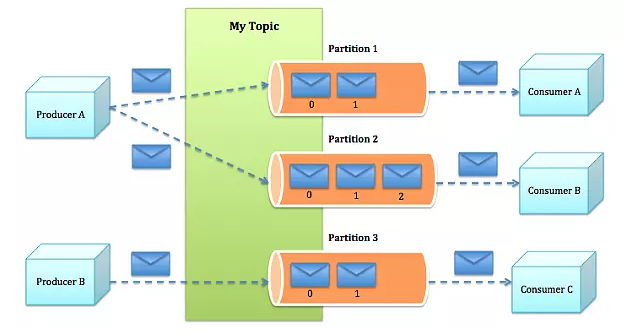
技术原理 Kafka是由Apache软件基金会开发的一个开源流处理平台,由Scala和Java编写。Kafka为处理实时数据提供一个统一、高吞吐、低延迟的平台。其持久化层本质上是一个“按照分布式事务日志架构的大规模发布/订阅消息队列”,这使它作为企业级基础设施来处理流式数据非常有价值。此外,Kafka可以通过Kafka Connect连接到外部系统(用于数据输入/输出),并提供了Kafka Streams——一个Java流式处理库 (计算机)。 Kafka是一个分布式的、高吞吐量、高可扩展性的消息系统。Kafka 基于发布/订阅模式,通过消息解耦,使生产者和消费者异步交互,无需彼此等待。Ckafka 具有数据压缩、同时支持离线和实时数据处理等优点,适用于日志压缩收集、监控数据聚合等场景。 关键名词: broker:kafka集群包含一个或者多个服务器,服务器就称作broker producer:负责发布消息到broker consumer:消费者,从broker获取消息 topic:发布到kafka集群的消息类别。 partition:每个topic划分为多个partition。 group:每个partition分为多个group 架构示意图 一个典型的Kafka集群中包含若干Producer(可以是web前端FET,或者是服务器日志等),若干broker(Kafka支持水平扩展,一般broker数量越多,集群吞吐率越高),若干ConsumerGroup,以及一个Zookeeper集群。 Kafka通过Zookeeper管理Kafka集群配置:选举Kafka broker的leader,以及在Consumer Group发生变化时进行rebalance,因为consumer消费kafka topic的partition的offsite信息是存在Zookeeper的。 Producer使用push模式将消息发布到broker,Consumer使用pull模式从broker订阅并消费消息。一个典型的Cloud Kafka集群如上所示。其中的生产者Producer可能是网页活动产生的消息、或是服务日志等信息。生产者通过push模式将消息发布到Cloud Kafka的Broker集群,消费者通过pull模式从broker中消费消息。消费者Consumer被划分为若干个Consumer Group,此外,集群通过Zookeeper管理集群配置,进行leader选举,故障容错等。 kafka特点: 它是一个处理流式数据的”发布-订阅“消息系统。 实时高效处理流式数据:kafka每秒可以处理几十万条消息,它的延迟最低只有几毫秒,每个topic可以分多个partition, consumer group 对partition进行consume操作。 将数据安全存储在分布式集群。 它是运行在集群上的。 它将流式记录存储在topics中。 每个record由key, value和timestamp组成。 Docker搭建 参考:https://github.com/wurstmeister/kafka-docker docker-compose.yml如下: version: '2' services: zookeeper: image: wurstmeister/zookeeper volumes: - ./data:/data ports: - "2181:2181" kafka: image: wurstmeister/kafka ports: - "9092:9092" environment: KAFKA_ADVERTISED_HOST_NAME: 10.154.38.115 KAFKA_MESSAGE_MAX_BYTES: 2000000 KAFKA_CREATE_TOPICS: "Topic1:1:3,Topic2:1:1:compact" KAFKA_ZOOKEEPER_CONNECT: zookeeper:2181 volumes: - ./kafka-logs:/kafka - /var/run/docker.sock:/var/run/docker.sock kafka-manager: image: sheepkiller/kafka-manager ports: - 9020:9000 environment: ZK_HOSTS: zookeeper:2181 参数说明: KAFKA_ADVERTISED_HOST_NAME:Docker宿主机IP(如果你要配置多个brokers,就不能设置为 localhost 或 127.0.0.1) KAFKA_MESSAGE_MAX_BYTES:kafka(message.max.bytes) 会接收单个消息size的最大限制,默认值为1000000 , ≈1M KAFKA_CREATE_TOPICS:初始创建的topics,可以不设置 环境变量./kafka-logs为防止容器销毁时消息数据丢失。 容器kafka-manager为yahoo出可视化kafka WEB管理平台。 操作命令: # 启动: $ docker-compose up -d # 增加更多Broker: $ docker-compose scale kafka=3 # 合并: $ docker-compose up --scale kafka=3 Kakfa使用 1,Kafka管理节点 2,主题 environment: KAFKA_CREATE_TOPICS: "Topic1:1:3,Topic2:1:1:compact" Topic1有1个Partition和3个replicas, Topic2有2个Partition,1个replica和cleanup.policy为compact。 Topic 1 will have 1 partition and 3 replicas, Topic 2 will have 1 partition, 1 replica and a cleanup.policy set to compact. 3,读写验证 读写验证的方法有很多,这里我们用kafka容器自带的工具来验证,首先进入到kafka容器的交互模式: docker exec -it kafka_kafka_1 /bin/bash 创建一个主题: /opt/kafka/bin/kafka-topics.sh --create --zookeeper 192.168.31.84:2181 --replication-factor 1 --partitions 1 --topic my-test 查看刚创建的主题: /opt/kafka/bin/kafka-topics.sh --list --zookeeper 192.168.31.84:2181 发送消息: /opt/kafka/bin/kafka-console-producer.sh --broker-list 192.168.31.84:9092 --topic my-test This is a message This is another message 读取消息: /opt/kafka/bin/kafka-console-consumer.sh --bootstrap-server 192.168.31.84:9092 --topic my-test --from-beginning 使用场景 日志收集:一个公司可以用Kafka可以收集各种服务的log,通过kafka以统一接口服务的方式开放给各种consumer,例如hadoop、Hbase、Solr等。 消息系统:解耦和生产者和消费者、缓存消息等。 用户活动跟踪:Kafka经常被用来记录web用户或者app用户的各种活动,如浏览网页、搜索、点击等活动,这些活动信息被各个服务器发布到kafka的topic中,然后订阅者通过订阅这些topic来做实时的监控分析,或者装载到hadoop、数据仓库中做离线分析和挖掘。 运营指标:Kafka也经常用来记录运营监控数据。包括收集各种分布式应用的数据,生产各种操作的集中反馈,比如报警和报告。 流式处理:比如spark streaming和storm 参考: 1,https://www.jianshu.com/p/bfeceb3548ad2,https://www.jianshu.com/p/7f089cdff29a3,https://www.cnblogs.com/iforever/p/9130983.html4,利用flume+kafka+storm+mysql构建大数据实时系统5,Kafka系列(四)Kafka消费者:从Kafka中读取数据6,基于Docker搭建分布式消息队列Kafka

资源下载

更多资源
优质分享App

优质分享App

近一个月的开发和优化,本站点的第一个app全新上线。该app采用极致压缩,本体才4.36MB。系统里面做了大量数据访问、缓存优化。方便用户在手机上查看文章。后续会推出HarmonyOS的适配版本。

Nacos

Nacos

Nacos /nɑ:kəʊs/ 是 Dynamic Naming and Configuration Service 的首字母简称,一个易于构建 AI Agent 应用的动态服务发现、配置管理和AI智能体管理平台。Nacos 致力于帮助您发现、配置和管理微服务及AI智能体应用。Nacos 提供了一组简单易用的特性集,帮助您快速实现动态服务发现、服务配置、服务元数据、流量管理。Nacos 帮助您更敏捷和容易地构建、交付和管理微服务平台。

Rocky Linux

Rocky Linux

Rocky Linux(中文名:洛基)是由Gregory Kurtzer于2020年12月发起的企业级Linux发行版,作为CentOS稳定版停止维护后与RHEL(Red Hat Enterprise Linux)完全兼容的开源替代方案,由社区拥有并管理,支持x86_64、aarch64等架构。其通过重新编译RHEL源代码提供长期稳定性,采用模块化包装和SELinux安全架构,默认包含GNOME桌面环境及XFS文件系统,支持十年生命周期更新。

Sublime Text

Sublime Text

Sublime Text具有漂亮的用户界面和强大的功能,例如代码缩略图,Python的插件,代码段等。还可自定义键绑定,菜单和工具栏。Sublime Text 的主要功能包括:拼写检查,书签,完整的 Python API , Goto 功能,即时项目切换,多选择,多窗口等等。Sublime Text 是一个跨平台的编辑器,同时支持Windows、Linux、Mac OS X等操作系统。

用户登录
用户注册