首页 文章 精选 留言 我的

精选列表

搜索[网站开发],共10000篇文章
优秀的个人博客,低调大师

iOS开发-automaticallyAdjustsScrollViewInsets属性

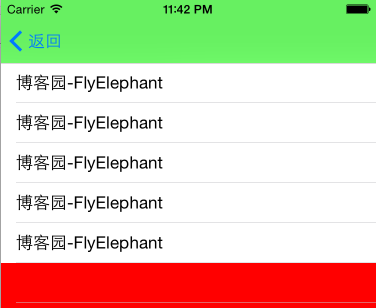
最近遇到一个问题是这样的,App一般自己都会有一个UINavigationController,顶部TableView如果有tableHeaderView如果设置起始位置是(0,0)是在导航栏的下面的,为了更好地UI希望从屏幕的(0,0)开始,就遇到了上面的这个问题,简单的看一下效果: 主要代码如下: 1 2 3 4 5 6 7 8 9 10 11 12 13 14 15 16 17 18 19 20 21 22 23 24 25 - (UITableView *)tableView { if (!_tableView) { _tableView = [[UITableView alloc] initWithFrame:CGRectMake(0, 0, CGRectGetWidth( self .view.bounds), CGRectGetHeight( self .view.bounds)) style:UITableViewStylePlain]; // _tableView.tableFooterView = [[UIView alloc] init]; _tableView.rowHeight =40.0; _tableView.sectionHeaderHeight = 0.0; _tableView.sectionFooterHeight = 0.0; _tableView.dataSource = self ; _tableView.delegate = self ; } return _tableView; } -( NSInteger )tableView:(UITableView *)tableView numberOfRowsInSection:( NSInteger )section{ return 5; } //http://www.cnblogs.com/xiaofeixiang 技术交流:228407086 -(UITableViewCell *)tableView:(UITableView *)tableView cellForRowAtIndexPath:( NSIndexPath *)indexPath{ UITableViewCell *cell=[[UITableViewCell alloc]init]; cell.textLabel.text=@ "博客园-FlyElephant" ; return cell; } 这个时候设置automaticallyAdjustsScrollViewInsets效果如下: 官方文档解释如下: 1 2 3 4 5 6 7 8 9 10 11 12 A Boolean value that indicates whether the view controller should automatically adjust its scroll view insets. Declaration SWIFT var automaticallyAdjustsScrollViewInsets: Bool OBJECTIVE-C @property ( nonatomic , assign) BOOL automaticallyAdjustsScrollViewInsets Discussion The default value of this property is YES , which allows the view controller to adjust its scroll view insets in response to the screen areas consumed by the status bar, navigation bar, and toolbar or tab bar. Set to NO if you want to manage scroll view inset adjustments yourself, such as when there is more than one scroll view in the view hierarchy. Availability Available in iOS 7.0 and later. 简单点说就是automaticallyAdjustsScrollViewInsets根据按所在界面的status bar,navigationbar,与tabbar的高度,自动调整scrollview的 inset,设置为no,不让viewController调整,我们自己修改布局即可~ 本文转自Fly_Elephant博客园博客,原文链接:http://www.cnblogs.com/xiaofeixiang/p/4655932.html,如需转载请自行联系原作者

优秀的个人博客,低调大师

iOS开发-装饰模式

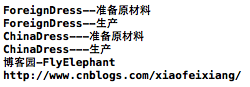
装饰模式是指在不必改变原类文件和使用继承的情况下,动态地扩展一个对象的功能。通过创建一个包装对象,也就是装饰来包裹真实的对象。装饰模式中的装饰对象和真实对象有相同的接口。这样客户端对象就能以和真实对象相同的方式和装饰对象交互,同时装饰对象包含一个真实对象的引用(reference),装饰对象接受所有来自客户端的请求。它把这些请求转发给真实的对象。 装饰模式与继承都可以要扩展对象的功能,但是装饰模式可以提供比继承更多的灵活性。通过使用不同的具体装饰类以及这些装饰类的排列组合,可以创造出很多不同行为的组合。 基础设计 单纯的看概念有点单调,看一张经典的装饰模式的UML类图: Component:定义ConcreteComponent和Decorator类要实现的方法,装饰对象和真实对象的之间的通信就是通过Component实现; ConcreteComponent:真实对象,使用ConcreteComponent的派生类提供核心功能,与Decorator是同一级别; Decorator:具有特定装饰功能的类,用来装饰ConcreteComponent类,具体的装饰子类通过继承Decorator实现; 关于整体的轮廓有了一个大概的了解,我们可以通过生活的例子来模拟装饰模式,关于房子,有商业住宅和民用住宅,买了房子我们需要装修,桌子,椅子必不可少,我们最终需要算一下总费用,思考几秒可以看下面具体实现; 功能实现 设计基础类House和协议: 1 2 3 4 5 6 7 8 9 10 11 12 @protocol HouseDelegate <NSObject> @optional -( double )totalMoney; @end @ interface House : NSObject<HouseDelegate> -(NSString *)detialInfo; @end House的子类CommercialHouse,被装饰对象: 1 2 3 4 5 6 7 8 9 10 11 @implementation CommercialHouse -( double )totalMoney{ return 360000.89; } -(NSString *)detialInfo{ return [NSString stringWithFormat: @"商业住宅" ]; } @end 装饰对象的基类HouseDecorator,这里需要保持一个对被装饰对象的引用: 1 2 3 4 5 6 7 @ interface HouseDecorator : House -(instancetype)initWithHouse:(House *)house; @property (strong,nonatomic) House *house; @end 1 2 3 4 5 6 7 8 9 10 @implementation HouseDecorator -(instancetype)initWithHouse:(House *)house{ self=[super init]; if (self) { self.house=house; } return self; } @end 装饰对象TableDecorator: 1 2 3 4 5 6 7 8 9 10 11 @implementation TableDecorator -( double )totalMoney{ return self.house.totalMoney+10; } -(NSString *)detialInfo{ return [NSString stringWithFormat: @"%@--桌子" ,self.house.detialInfo]; } @end 装饰对象ChairDecorator: 1 2 3 4 5 6 7 8 9 10 11 @implementation ChairDecorator -( double )totalMoney{ return self.house.totalMoney+100; } -(NSString *)detialInfo{ return [NSString stringWithFormat: @"%@--椅子" ,self.house.detialInfo]; } @end 回到最初的总费用问题,我们看下结果: 1 2 3 4 5 6 7 House *house=[[CommercialHouse alloc]init]; house=[[TableDecorator alloc]initWithHouse:house]; house=[[ChairDecorator alloc]initWithHouse:house]; NSLog( @"房子价格:%f" , [house totalMoney]); NSLog( @"房子详情:%@" ,[house detialInfo]); NSLog( @"博客园-FlyElephant" ); NSLog( @"http://www.cnblogs.com/xiaofeixiang/" ); 桌子椅子的价格是可以动态变化的,桌子椅子的数量的也是不确定的,从这些角度看例子稍微有点勉强,不过大概功能设计实现大同小异,万变不离其宗,相信大家会对装饰模式有自己独到的见解~ 本文转自Fly_Elephant博客园博客,原文链接:http://www.cnblogs.com/xiaofeixiang/p/5097972.html,如需转载请自行联系原作者

优秀的个人博客,低调大师

iOS开发-策略模式

策略(Strategy)模式定义了一系列的算法,并将每一个算法封装起来,而且使它们还可以相互替换。策略模式让算法独立于使用它的客户而独立变化。策略模式是对算法的包装,是把使用算法的责任和算法本身分割开来,委派给不同的对象管理。看到策略模式的时候有的时候跟简单工厂相比较,其实有很大的迷惑性,都是继承多态感觉没有太大的差异性,简单工厂模式是对对象的管理,策略模式是对行为的封装。可以先简单的看一下结构图: 之前简单工厂是通过银行卡作为例子的简单工厂将不同的银行卡抽象出来,如果在策略模式中我们可以将每张银行卡的购物,吃饭,住房。。作为一个简单的消费策略抽象出来,也可以以操作系统类比,Windows,OS X,Linux可以作为简单的对象抽象,系统中都是有默认软件的,我们不需要管软件的安装,如果没有软件的话我们就需要自己下载,可以将软件的安装作为一个策略封装起来。 Strategy的抽象类: 1 2 3 4 5 @ interface SoftWareStrategy : NSObject -( void )installStrategy; @end 继承Strategy的Xcode的策略类: 1 2 3 4 5 6 7 @implementation XcodeStrategy -( void )installStrategy{ NSLog( @"Xcode安装成功" ); } @end 继承Strategy的QQ的策略类: 1 2 3 4 5 6 7 8 @implementation QQStrategy -( void )installStrategy{ NSLog( @"QQ安装成功" ); NSLog( @"原文地址:http://www.cnblogs.com/xiaofeixiang" ); } @end Context类: 1 2 3 4 5 6 7 8 9 10 11 12 typedef NS_OPTIONS(NSInteger, StrategyType){ StrategyXcode, strategyQQ }; @ interface SoftWareContext : NSObject -(instancetype)initWithStrategyType:(StrategyType)strategyType; -( void )installResult; @end Context的实现: 1 2 3 4 5 6 7 8 9 10 11 12 13 14 15 16 17 18 19 20 21 22 23 24 25 26 27 @ interface SoftWareContext() @property (strong,nonatomic) SoftWareStrategy *strategy; @end @implementation SoftWareContext -(instancetype)initWithStrategyType:(StrategyType)strategyType{ self=[super init]; if (self) { switch (strategyType) { case StrategyXcode: self.strategy=[[XcodeStrategy alloc]init]; break ; case strategyQQ: self.strategy=[[QQStrategy alloc]init]; break ; } } return self; } -( void )installResult{ [self.strategy installStrategy]; } @end 最终调用: 1 2 SoftWareContext *context=[[SoftWareContext alloc]initWithStrategyType:StrategyXcode]; [context installResult]; 这里有三个概念再看一下应该就清晰多了: 环境(Context)角色:持有一个Strategy的引用; 抽象策略(Strategy)角色:这是一个抽象角色,通常由一个接口或抽象类实现。此角色给出所有的具体策略类所需的接口; 具体策略(ConcreteStrategy)角色:包装了相关的算法或行为; 本文转自Fly_Elephant博客园博客,原文链接:http://www.cnblogs.com/xiaofeixiang/p/4719566.html,如需转载请自行联系原作者

优秀的个人博客,低调大师

iOS开发之FMDB

sqlite作为一个轻量级的 数据库,由于它占用的内存很少,因此在很多的嵌入式设备中得到广泛的使用。iOS的SDK很早就开始支持了SQLite,我们只需要加入 libsqlite3.dylib 以及引入 sqlite3.h 头文件即可,但由于原生sqlite的API不是很友好,因此使用的话一般会对其做一层封装,其中以开源的FMDB最为流行。 FMDB主要的类 1.FMDatabase – 表示一个单独的SQLite数据库。 用来执行SQLite的命令。 2.FMResultSet – 表示FMDatabase执行查询后结果集 3.FMDatabaseQueue – 当你在多线程中执行操作,使用该类能确保线程安全。 FMDB的使用 数据库的创建: 创建FMDatabase对象时需要参数为SQLite数据库文件路径。该路径可以是以下三种之一: 1..文件路径。该文件路径无需真实存,如果不存在会自动创建。 2..空字符串(@”")。表示会在临时目录创建一个临时数据库,当FMDatabase 链接关闭时,文件也被删除。 3.NULL. 将创建一个内存数据库。同样的,当FMDatabase连接关闭时,数据会被销毁。 内存数据库: 通常数据库是存放在磁盘当中的。然而我们也可以让存放在内存当中的数据库,内存数据库的优点是对其操作的速度较快,毕竟访问内存的耗时低于访问磁盘,但内存数据库有如下缺陷:由于内存数据库没有被持久化,当该数据库被关闭后就会立刻消失,断电或程序崩溃都会导致数据丢失;不支持读写互斥处理,需要自己手动添加锁;无法被别的进程访问。 临时数据库: 临时数据库和内存数据库非常相似,两个数据库连接创建的临时数据库也是各自独立的,在连接关闭后,临时数据库将自动消失,其底层文件也将被自动删除。尽管磁盘文件被创建用于存储临时数据库中的数据信息,但是实际上临时数据库也会和内存数据库一样通常驻留在内存中,唯一不同的是,当临时数据库中数据量过大时,SQLite为了保证有更多的内存可用于其它操作,因此会将临时数据库中的部分数据写到磁盘文件中,而内存数据库则始终会将数据存放在内存中。 创建数据库:FMDatabase *db= [FMDatabase databaseWithPath:dbPath] ; 在进行数据库的操作之前,必须要先把数据库打开,如果资源或权限不足无法打开或创建数据库,都会导致打开失败。 如下为创建和打开数据库的示例: NSArray *paths = NSSearchPathForDirectoriesInDomains(NSDocumentDirectory, NSUserDomainMask, YES); NSString *documentDirectory = [paths objectAtIndex:0]; //dbPath: 数据库路径,存放在Document中。 NSString *dbPath = [documentDirectory stringByAppendingPathComponent:@"MYTest.db"]; //创建数据库实例 db 这里说明下:如果路径中不存在"MYTest.db"的文件,sqlite会自动创建"MYTest.db" FMDatabase *db= [FMDatabase databaseWithPath:dbPath] ; if (![db open]) { NSLog(@"Could not open db."); return ; } 更新操作 一切不是SELECT命令都视为更新操作,包括CREATE, UPDATE, INSERT,ALTER,COMMIT, BEGIN, DETACH, DELETE, DROP, END, EXPLAIN, VACUUM和REPLACE等。 创建表: [db executeUpdate:@"CREATE TABLE myTable (Name text,Age integer)"]; 插入 [db executeUpdate:@"INSERT INTO myTable (Name,Age) VALUES (?,?)",@"jason",[NSNumber numberWithInt:20]]; 更新 [db executeUpdate:@"UPDATE myTable SET Name = ? WHERE Name = ? ",@"john",@"jason"];. 删除 [db executeUpdate:@"DELETE FROM myTable WHERE Name = ?",@"jason"]; 查询操作 SELECT命令就是查询,执行查询的方法是以 -excuteQuery开头的。执行查询时,如果成功返回FMResultSet对象, 错误返回nil. 读取信息的时候需要用while循环: FMResultSet *s = [db executeQuery:@"SELECT * FROM myTable"]; while ([s next]) { //从每条记录中提取信息 } 关闭数据库 当使用完数据库,你应该 -close 来关闭数据库连接来释放SQLite使用的资源。 [db close]; 参数 通常情况下,你可以按照标准的 SQL语句,用?表示执行语句的参数,如: INSERT INTO myTable VALUES (?, ?, ?) 然后,可以我们可以调用executeUpdate方法来将?所指代的具体参数传入,通常是用变长参数来传递进去的,如下: NSString *sql = @"insert into myTable (name, password) values (?, ?)"; [db executeUpdate:sql, user.name, user.password]; 这里需要注意的是,参数必须是NSObject的子类,所以象int,double,bool这种基本类型,需要进行相应的封装 [db executeUpdate:@"INSERT INTO myTable VALUES (?)", [NSNumber numberWithInt:42]]; 多线程操作 由于FMDatabase对象本身不是线程安全的,因此为了避免在多线程操作的时候出错,需要使用 FMDatabaseQueue来执行相关操作。只需要利用一个数据库文件地址来初使化FMDatabaseQueue,然后传入一个block到inDatabase中,即使是多个线程同时操作,该queue也会确保这些操作能按序进行,保证线程安全。 创建队列: FMDatabaseQueue *queue = [FMDatabaseQueue databaseQueueWithPath:aPath]; 使用方法: [queue inDatabase:^(FMDatabase *db) { [db executeUpdate:@"INSERT INTO myTable VALUES (?)", [NSNumber numberWithInt:1]]; [db executeUpdate:@"INSERT INTO myTable VALUES (?)", [NSNumber numberWithInt:2]]; FMResultSet *rs = [db executeQuery:@"select * from foo"]; while([rs next]) { … } }]; 至于事务可以像这样处理: [queue inTransaction:^(FMDatabase *db, BOOL *rollback) { [db executeUpdate:@"INSERT INTO myTable VALUES (?)", [NSNumber numberWithInt:1]]; [db executeUpdate:@"INSERT INTO myTable VALUES (?)", [NSNumber numberWithInt:2]]; [db executeUpdate:@"INSERT INTO myTable VALUES (?)", [NSNumber numberWithInt:3]]; if (somethingWrongHappened) { *rollback = YES; return; } // etc… [db executeUpdate:@"INSERT INTO myTable VALUES (?)", [NSNumber numberWithInt:4]]; }]; 最新内容请见作者的GitHub页:http://qaseven.github.io/

优秀的个人博客,低调大师

iOS开发-Bug锦囊

duplicate symbols for architecture armv7 今天修改了自己项目的部分代码,发现XCode编译的时候报错:duplicate symbols for architecture armv7 1.排查是否有名字重复的文件; 2.检查是否在#import头文件的时候,不小心将.h写成了.m(这种情况居多,本人属于此类情况) No architectures to compile for (ONLY_ACTIVE_ARCH=YES, active arch=x86_64, VALID_ARCHS=i386 App Transport Security has blocked a cleartext HTTP (http://) resource load since it is insecure. Temporary exceptions can be configured via your app's Info.plist file. xcode7中苹果不允许使用http协议,需要使用Https协议,如果需要使用http协议,需要在infoList中设置NSAppTransportSecurity: <key>NSAppTransportSecurity</key> <dict> <key>NSAllowsArbitraryLoads</key> <true/> </dict> 本文转自Fly_Elephant博客园博客,原文链接:http://www.cnblogs.com/xiaofeixiang/p/4528097.html,如需转载请自行联系原作者

优秀的个人博客,低调大师

iOS开发-简单抽奖

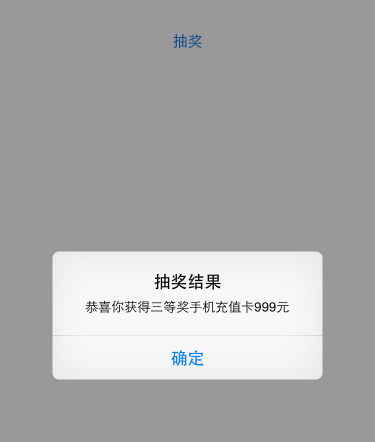
路过商场,看过抽奖感觉挺有意思的,商场进行抽奖活动,三个奖项,一等奖的概率1/10,二等奖的概率的3/10,三等奖的概率是6/10,具体奖品我没仔细看,回来随便练手了一下,思考了一下,奖品分为10份,生成一个随机数,如果0-5则是三等奖,6-8是二等奖,9是一等奖,简单实现如下: 1 2 3 4 5 6 7 8 int randomNumber=arc4random()%10; if (randomNumber>=0&&randomNumber<=5) { [ self alert:@ "恭喜你获得三等奖手机充值卡999元" ]; } else if (randomNumber>=6&&randomNumber<=8){ [ self alert:@ "恭喜你获得二等奖iPad3" ]; } else { [ self alert:@ "恭喜你获得一等奖iPhone6" ]; } 简单提示: 1 2 3 4 5 -( void )alert:( NSString *)message{ // http://www.cnblogs.com/xiaofeixiang UIAlertView *alterView=[[UIAlertView alloc]initWithTitle:@ "抽奖结果" message:message delegate: self cancelButtonTitle:@ "确定" otherButtonTitles: nil ]; [alterView show]; } 效果如下: 本文转自Fly_Elephant博客园博客,原文链接:http://www.cnblogs.com/xiaofeixiang/p/4524023.html,如需转载请自行联系原作者

优秀的个人博客,低调大师

iOS开发-UIButton浅谈

UIButton算是最基本的一个控件了,不过有的时候用法挺多关于UIButton文字的位置,字体大小,字体的颜色 1.设置UIButton字体大小,尤其注意不要使用直接调用setFont: 1 [ self .playButton.titleLabel setFont:[UIFont systemFontOfSize:14]]; 2.UIButton默认背景是白色的,如果文字默认颜色是白色的,是看不到文字的,设置标题颜色: 1 [ self .playButton setTitleColor:[UIColor blackColor] forState:UIControlStateNormal]; 3.设置颜色之后很有可能标题没法显示,检查一下是不是通过titleLabel设置的,应该是直接设置: 1 [ self .playButton setTitle:@ "FlyElephant" forState:UIControlStateNormal]; 4.设置文字居中,最容易通过title设置NSTextAlignment,结果发现不尽人意,这个时候可以通过contentHorizontalAlignment设置: 1 self .playButton.contentHorizontalAlignment= UIControlContentHorizontalAlignmentLeft; 垂直方向的设置和水平方向差不多: 1 self .playButton.contentVerticalAlignment=UIControlContentVerticalAlignmentBottom; 5.设置居左之后可能发现太过于居左,可以通过setContentEdgeInsets设置: 1 [ self .playButton setContentEdgeInsets:UIEdgeInsetsMake(0, 10, 0, 0)]; 本文转自Fly_Elephant博客园博客,原文链接:http://www.cnblogs.com/xiaofeixiang/p/4541293.html,如需转载请自行联系原作者

优秀的个人博客,低调大师

iOS开发-UIScreenEdgePanGestureRecognizer实战

UIScreenEdgePanGestureRecognizer名字很长,而且关于其文档也是少的的可怜,苹果官方给的唯一的一个属性是edges,文档中的解释是这样的: 1 A UIScreenEdgePanGestureRecognizer looks for panning (dragging) gestures that start near an edge of the screen. The system uses screen edge gestures in some cases to initiate view controller transitions. You can use this class to replicate the same gesture behavior for your own actions. 大概的意思就是UIScreenEdgePanGestureRecognizer跟pan(平移)手势差不多,需要从边缘进行拖动,在控制器转换的时候是有用的,看文档的话我们会发现UIScreenEdgePanGestureRecognizer是UIPanGestureRecognizer的子类,理解会更方便一点。 UIPanGestureRecognizer铺垫 先简单的看下需要实现的视图控制器的效果: 稍微回顾一下UIPanGestureRecognizer,第一个红色的视图我们通过Pan手势进行操作: 1 2 3 4 5 6 7 8 9 self.panView=[[UIView alloc]initWithFrame:CGRectMake(0, 200, CGRectGetWidth(self.view.bounds), 100)]; [self.panView setBackgroundColor:[UIColor redColor]]; self.panLabel=[[UILabel alloc]initWithFrame:CGRectMake(20, 30, 150, 40)]; [self.panLabel setText: @"博客园-FlyElephant" ]; [self.panLabel setFont:[UIFont systemFontOfSize:14]]; [self.panView addSubview:self.panLabel]; [self.view addSubview:self.panView]; UIPanGestureRecognizer *pangestureRecognizer=[[UIPanGestureRecognizer alloc]initWithTarget:self action:@selector(panGesture:)]; [self.panView addGestureRecognizer:pangestureRecognizer]; 手势事件: 1 2 3 4 -( void )panGesture:(UIPanGestureRecognizer *)gesture{ CGPoint translation = [gesture translationInView:gesture.view]; NSLog( @"%@" ,[NSString stringWithFormat: @"(%0.0f, %0.0f)" , translation.x, translation.y]); } 手势向左滑动的panView的变化: UIScreenEdgePanGestureRecognizer实战 第二个视图我们可以通过UIScreenEdgePanGestureRecognizer进行设置,跟上面的代码稍微有点重复,如果你有代码洁癖的话可以考虑将以上代码进行惰性初始化,可能感官会更好一点,不过为了方便暂时都写在了一起: 1 2 3 4 5 6 7 8 self.centerX=CGRectGetWidth(self.view.bounds)/2; self.edgeView=[[UIView alloc]initWithFrame:CGRectMake(0, 320, CGRectGetWidth(self.view.bounds), 100)]; [self.edgeView setBackgroundColor:[UIColor greenColor]]; self.label=[[UILabel alloc]initWithFrame:CGRectMake(10, 30, 320, 40)]; [self.label setText: @"原文地址:http://www.cnblogs.com/xiaofeixiang/" ]; [self.label setFont:[UIFont systemFontOfSize:14]]; [self.edgeView addSubview:self.label]; [self.view addSubview:self.edgeView]; 注意这个时候手势是加载view不是单独的edgeView上的,手势代码,edges是一个枚举,我们可以设置的是响应边缘右滑事件; 1 2 3 4 5 UIScreenEdgePanGestureRecognizer *rightEdgeGesture = [[UIScreenEdgePanGestureRecognizer alloc] initWithTarget:self action:@selector(handleRightEdgeGesture:)]; rightEdgeGesture.edges = UIRectEdgeRight; // 右滑显示 [self.view addGestureRecognizer:rightEdgeGesture]; 响应边缘事件的代码: 1 2 3 4 5 6 7 8 9 10 11 12 13 14 15 16 17 18 19 20 21 //当前被触摸的view UIView *view = [self.view hitTest:[gesture locationInView:gesture.view] withEvent:nil]; if (UIGestureRecognizerStateBegan == gesture.state || UIGestureRecognizerStateChanged == gesture.state) { CGPoint translation = [gesture translationInView:gesture.view]; [UIView animateWithDuration:0.5 animations:^{ view.center = CGPointMake(self.centerX + translation.x, view.center.y); NSLog( @"%@" ,NSStringFromCGPoint(view.center)); }]; } else //取消,失败,结束的时候返回原处 { [UIView animateWithDuration:0.5 animations:^{ view.center = CGPointMake(self.centerX, view.center.y); }]; } 具体效果如下: 如果你细心点会发现那个篮球在滑动介结束的时候转动了一下,在处理动画结束的时候加了一个判断,代码如下: 1 2 3 4 5 6 7 8 9 10 if (gesture.state==UIGestureRecognizerStateEnded) { //旋转360度之后归0 if (self.currentRadius==360.f){ self.currentRadius=0.0f; } [UIView animateWithDuration:1.0 animations:^{ self.currentRadius += 90.0; self.circleView.transform = CGAffineTransformMakeRotation((self.currentRadius * M_PI) / 180.0); }]; } 如果你想那个篮球一直转动的话通过NSTimer即可实现: 1 [NSTimer scheduledTimerWithTimeInterval:0.1 target:self selector:@selector(transformRotate) userInfo: nil repeats: YES]; 转动的代码和上面的差不多,不过每次改变的弧度较小: 1 2 3 4 5 6 7 8 -( void )transformRotate{ if (self.currentRadius==360.f){ self.currentRadius=0.0f; } else { self.currentRadius += 10.0; self.circleView.transform = CGAffineTransformMakeRotation((self.currentRadius * M_PI) / 180.0); } } 本文转自Fly_Elephant博客园博客,原文链接:http://www.cnblogs.com/xiaofeixiang/p/4725645.html,如需转载请自行联系原作者

优秀的个人博客,低调大师

iOS开发之UICollectionViewDataSourcePrefetching

在iOS10中,苹果为UICollectionViewCell引入了Pre-Fetching预加载机制用于提升它的性能。主要引入了一个新的数据源协议UICollectionViewDataSourcePrefetching,包含两个方法: @protocol UICollectionViewDataSourcePrefetching <NSObject> @required // 预加载数据 - (void)collectionView:(UICollectionView *)collectionView prefetchItemsAtIndexPaths:(NSArray<NSIndexPath *> *)indexPaths NS_AVAILABLE_IOS(10_0); @optional // 取消提前加载数据 - (void)collectionView:(UICollectionView *)collectionView cancelPrefetchingForItemsAtIndexPaths:(NSArray<NSIndexPath *> *)indexPaths NS_AVAILABLE_IOS(10_0); @end 网上搜了一大圈,讲述原理的(翻译文档)的文章很多,有干货的Demo很少,于是乎自己摸索了一下,写了一个简单的案例,在此记录并分享一下。 运行环境:Xcode 8.2.1 + iOS 10.2 核心步骤: 1、遵从 UICollectionViewDataSourcePrefetching 协议 2、实现 collectionView:prefetchItemsAtIndexPaths 方法和collectionView:cancelPrefetchItemsAtIndexPaths 方法(可选) 3、将第1步中遵从协议的类设置为 UICollectionView 的 prefetchDataSource 属性 实现 一、创建UICollectionViewFlowLayout 自己写一个类继承自UICollectionViewFlowLayout @implementation MyCollectionViewFlowLayout -(void)prepareLayout{ self.minimumLineSpacing = 1;//垂直间距 self.minimumInteritemSpacing = 0;//水平间距 self.sectionInset = UIEdgeInsetsMake(0, 0, 8, 0);//分组间距 } @end 二、用XIB定义一个 里面就一个UIImageView,然后拽线设置一个IBOutlet UICollectionViewCell.png @property (weak, nonatomic) IBOutlet UIImageView *imgView; 三、控制器 注释很详细 #import "ViewController.h" #import "MyCollectionViewFlowLayout.h" #import "ImgCollectionViewCell.h" #define ScreenW [UIScreen mainScreen].bounds.size.width //重用标识 static NSString *cellId = @"imgCell"; //遵守协议 @interface ViewController ()<UICollectionViewDelegate, UICollectionViewDataSource, UICollectionViewDataSourcePrefetching> //下载图片任务 @property(nonatomic, strong) NSMutableDictionary<NSURL *, dispatch_queue_t> *tasks; //图片地址 @property(nonatomic, copy) NSMutableArray<NSURL *> *imgURLArray; //下载的图片 @property(nonatomic, copy) NSMutableDictionary<NSURL *, UIImage *> *imgs; //UICollectionView @property(nonatomic, weak) UICollectionView *collectionView; @end @implementation ViewController //懒加载imgURLArray -(NSMutableArray<NSURL *> *)imgURLArray{ if (_imgURLArray == nil) { _imgURLArray = [NSMutableArray array]; for (int i = 0; i < 30; i++) { NSURL *imgURL = [NSURL URLWithString:@"https://timgsa.baidu.com/timg?image&quality=80&size=b9999_10000&sec=1494499175005&di=1d8d40ac84f4a71cb26d7bf4a5a845ec&imgtype=0&src=http%3A%2F%2Fimg10.360buyimg.com%2Fyixun_zdm%2Fjfs%2Ft2830%2F11%2F2310606472%2F165925%2F962fa94a%2F575f7664Nfd743845.jpg"]; [_imgURLArray addObject:imgURL]; } } return _imgURLArray; } //懒加载imgs -(NSMutableDictionary<NSURL *,UIImage *> *)imgs{ if (_imgs == nil) { _imgs = [NSMutableDictionary dictionary]; } return _imgs; } //懒加载tasks -(NSMutableDictionary<NSURL *,dispatch_queue_t> *)tasks{ if (_tasks == nil) { _tasks = [NSMutableDictionary dictionary]; } return _tasks; } - (void)viewDidLoad { [super viewDidLoad]; //创建UICollectionView //创建布局 UICollectionViewLayout *layout = [[MyCollectionViewFlowLayout alloc]init]; //初始化一个UICollectionView UICollectionView *collection = [[UICollectionView alloc]initWithFrame:[UIScreen mainScreen].bounds collectionViewLayout:layout]; //设置背景色 collection.backgroundColor = [UIColor groupTableViewBackgroundColor]; //设置代理 collection.dataSource = self; collection.delegate = self; collection.prefetchDataSource = self; //注册Cell UINib *nib = [UINib nibWithNibName:@"ImgCollectionViewCell" bundle:nil]; [collection registerNib:nib forCellWithReuseIdentifier:cellId]; [self.view addSubview:collection]; self.collectionView = collection; } -(void)loadImage:(NSIndexPath *)indexPath{ NSURL *currentURL = [self.imgURLArray objectAtIndex:indexPath.row]; dispatch_queue_t queue = dispatch_get_global_queue(DISPATCH_QUEUE_PRIORITY_DEFAULT, 0); __weak typeof(self) weakSelf = self; //异步下载图片 dispatch_async(queue, ^{ NSData *imageData = [NSData dataWithContentsOfURL:currentURL]; UIImage *image = [UIImage imageWithData:imageData]; weakSelf.imgs[currentURL] = image; //更新UI dispatch_async(dispatch_get_main_queue(), ^{ ImgCollectionViewCell *cell = (ImgCollectionViewCell *)[weakSelf.collectionView cellForItemAtIndexPath:indexPath]; cell.imgView.image = image; }); }); //为了取消任务 self.tasks[currentURL] = queue; } #pragma mark <UICollectionViewDataSource> - (NSInteger)collectionView:(UICollectionView *)collectionView numberOfItemsInSection:(NSInteger)section{ return self.imgURLArray.count; } - (UICollectionViewCell *)collectionView:(UICollectionView *)collectionView cellForItemAtIndexPath:(NSIndexPath *)indexPath{ ImgCollectionViewCell * cell = [collectionView dequeueReusableCellWithReuseIdentifier:cellId forIndexPath:indexPath]; // 获取URL NSURL *imgURL = self.imgURLArray[indexPath.row]; //对应的URL的图片已经存在 if (self.imgs[imgURL]) { cell.imgView.image = self.imgs[imgURL]; } //不存在 else{ [self loadImage:indexPath]; } return cell; } #pragma mark <UICollectionViewDelegate> //定义每个Item 的大小 - (CGSize)collectionView:(UICollectionView *)collectionView layout:(UICollectionViewLayout*)collectionViewLayout sizeForItemAtIndexPath:(NSIndexPath *)indexPath { CGFloat W = (ScreenW - 1) / 2; return CGSizeMake(W, 100); } #pragma mark <UICollectionViewDataSourcePrefetching> - (void)collectionView:(UICollectionView *)collectionView prefetchItemsAtIndexPaths:(NSArray<NSIndexPath *> *)indexPaths { for (NSIndexPath * indexPath in indexPaths) { NSURL *currentURL = [self.imgURLArray objectAtIndex:indexPath.row]; //不存在就请求 if (!self.imgs[currentURL]) { [self loadImage:indexPath]; } } } - (void)collectionView:(UICollectionView *)collectionView cancelPrefetchingForItemsAtIndexPaths:(NSArray<NSIndexPath *> *)indexPaths { for (NSIndexPath * indexPath in indexPaths){ NSURL *currentURL = [self.imgURLArray objectAtIndex:indexPath.row]; //当前任务存在 if (self.tasks[currentURL]) { dispatch_queue_t queue = self.tasks[currentURL]; dispatch_suspend(queue); self.tasks[currentURL] = nil; } } } @end 效果 效果演示.gif 写在后面的话 1、这个新特性仍然需要探究 2、遇到的一个坑:细心看的话可以发现我的字典是懒加载的,如果直接在viewDidLoad中初始化会在 weakSelf.imgs[currentURL] = image; 一行报错,why?烦请知道的告知。 源代码

资源下载

更多资源
腾讯云软件源

腾讯云软件源

为解决软件依赖安装时官方源访问速度慢的问题,腾讯云为一些软件搭建了缓存服务。您可以通过使用腾讯云软件源站来提升依赖包的安装速度。为了方便用户自由搭建服务架构,目前腾讯云软件源站支持公网访问和内网访问。

Nacos

Nacos

Nacos /nɑ:kəʊs/ 是 Dynamic Naming and Configuration Service 的首字母简称,一个易于构建 AI Agent 应用的动态服务发现、配置管理和AI智能体管理平台。Nacos 致力于帮助您发现、配置和管理微服务及AI智能体应用。Nacos 提供了一组简单易用的特性集,帮助您快速实现动态服务发现、服务配置、服务元数据、流量管理。Nacos 帮助您更敏捷和容易地构建、交付和管理微服务平台。

Spring

Spring

Spring框架(Spring Framework)是由Rod Johnson于2002年提出的开源Java企业级应用框架,旨在通过使用JavaBean替代传统EJB实现方式降低企业级编程开发的复杂性。该框架基于简单性、可测试性和松耦合性设计理念,提供核心容器、应用上下文、数据访问集成等模块,支持整合Hibernate、Struts等第三方框架,其适用范围不仅限于服务器端开发,绝大多数Java应用均可从中受益。

Sublime Text

Sublime Text

Sublime Text具有漂亮的用户界面和强大的功能,例如代码缩略图,Python的插件,代码段等。还可自定义键绑定,菜单和工具栏。Sublime Text 的主要功能包括:拼写检查,书签,完整的 Python API , Goto 功能,即时项目切换,多选择,多窗口等等。Sublime Text 是一个跨平台的编辑器,同时支持Windows、Linux、Mac OS X等操作系统。

用户登录
用户注册