基于WebGL架构的3D可视化平台—新风系统演示
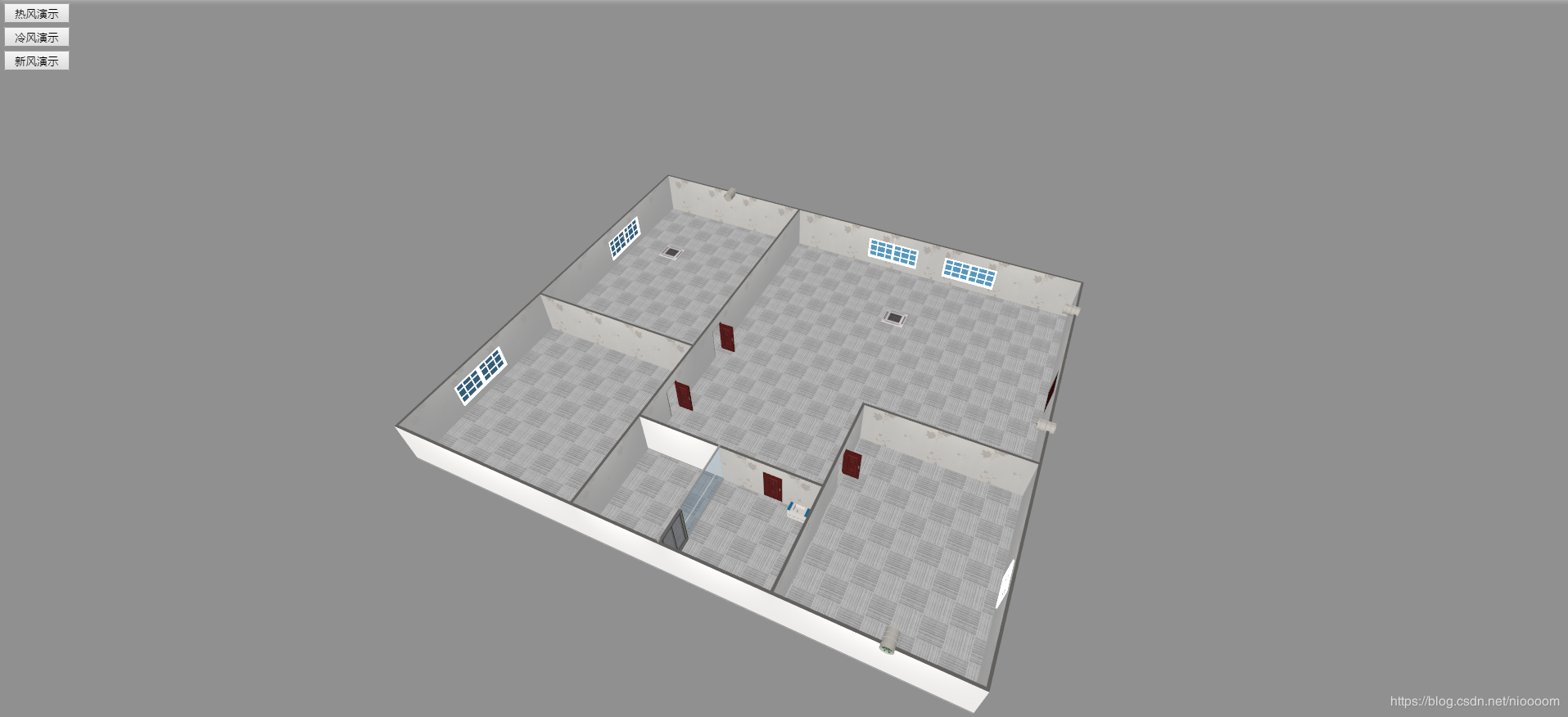
新风系统是根据在密闭的室内一侧用专用设备向室内送新风,再从另一侧由专用设备向室外排出,在室内会形成“新风流动场”,从而满足室内新风换气的需要。实施方案是:采用高风压、大流量风机、依靠机械强力由一侧向室内送风,由另一侧用专门设计的排风风机向室外排出的方式强迫在系统内形成新风流动场。在送风的同时对进入室内的空气进过滤、消毒、杀菌、增氧、预热(冬天)。 接下来就用ThingJs平台来搭建一个新风系统第一步,利用CampusBuilder搭建模拟场景。CampusBuilder的模型库有各种各样的模型,使我们搭建出的场景更逼真。 1 //加载场景代码 2 var app = new THING.App({ 3 // 场景地址 4 "url": "http://www.thingjs.com/./uploads/wechat/oLX7p05lsWJZUIxnIWsNXAzJ40X8/scene/新风演示2", 5 6 }); 第二步,创建三个数组来保存每个风的模型。 1 var hotWindGroup = []; 2 var coolWindGroup = []; 3 var newWindGroup = []; 4 var wind = null; 第三步,构造一个创建风的函数,为了方便创建风及其位置,我们选取排风设备为风的父物体,将创建出来的风的visiable属性设置为false(这里这个坐标问题可以看一下官网的教程中控制物体中的坐标转换)。 1 function createWind(parent, x, y, angle, localPosition, color, group) { 2 rs = app.query(parent)[0]; 3 wind = app.create({ 4 type: 'Thing', 5 name: 'hotWind', 6 url: 'http://model.3dmomoda.cn/models/4da706d8a37047298c0318a5b9546abd/0/gltf/', 7 localPosition: localPosition, 8 scale: [1, 2, 1], 9 angle: angle, 10 parent: rs, 11 }); 12 wind.style.color = color; 13 wind.visible = false; 14 wind.rotateX(x); 15 wind.rotateY(y); 16 group.push(wind); 17 } 第四步,开始创建风模型,并调整一下摄像机的角度及位置。 1 app.on('load', function () { 2 //摄像机角度 3 app.camera.position = [-22.91452445633646, 30.46296743148116, -23.83548169673341]; 4 app.camera.target = [-13.532807014407252, 5.6565539015865856, -3.3431546399681276]; 5 //hotWind 6 createWind('空调1', 0, 0, 0, [0, -2, 0], '#FF0000', hotWindGroup); 7 createWind('空调1', 0, 0, 0, [0, -2, 0.5], '#FF0000', hotWindGroup); 8 createWind('空调1', 0, 0, 0, [0, -2, 1], '#FF0000', hotWindGroup); 9 createWind('空调2', 0, 0, 0, [0, -2, 0], '#FF0000', hotWindGroup); 10 createWind('空调2', 0, 0, 0, [0, -2, 0.5], '#FF0000', hotWindGroup); 11 createWind('空调2', 0, 0, 0, [0, -2, 1], '#FF0000', hotWindGroup); 12 //coolWind 13 createWind('空调1', 0, 0, 0, [0, -2, 0], '#0000FF', coolWindGroup); 14 createWind('空调1', 0, 0, 0, [0, -2, 0.5], '#0000FF', coolWindGroup); 15 createWind('空调1', 0, 0, 0, [0, -2, 1], '#0000FF', coolWindGroup); 16 createWind('空调2', 0, 0, 0, [0, -2, 0], '#0000FF', coolWindGroup); 17 createWind('空调2', 0, 0, 0, [0, -2, 0.5], '#0000FF', coolWindGroup); 18 createWind('空调2', 0, 0, 0, [0, -2, 1], '#0000FF', coolWindGroup); 19 //newWind 20 createWind('排风1', -50, 0, 0, [0, -0.5, 2], '#00FF00', newWindGroup); 21 createWind('排风1', -50, 0, 0, [0, -0.5, 4], '#00FF00', newWindGroup); 22 createWind('排风1', -50, 0, 0, [0, -0.5, 6], '#00FF00', newWindGroup); 23 createWind('排风1', -50, 50, 50, [2, -0.5, 7], '#00FF00', newWindGroup); 24 createWind('排风1', -50, 50, 50, [4, -0.5, 8], '#00FF00', newWindGroup); 25 createWind('排风1', -50, 50, 50, [6, -0.5, 9], '#00FF00', newWindGroup); 26 createWind('排风1', -50, 50, 50, [8, -0.5, 12], '#00FF00', newWindGroup); 27 createWind('排风1', -50, 50, 50, [10, -0.5, 15], '#00FF00', newWindGroup); 28 createWind('排风1', -50, 50, 50, [12, -0.5, 18], '#00FF00', newWindGroup); 29 createWind('排风1', -50, 50, 50, [10, -0.5, 9], '#00FF00', newWindGroup); 30 createWind('排风1', -50, 50, 50, [14, -0.5, 9], '#00FF00', newWindGroup); 31 createWind('排风1', -50, 50, 50, [18, -0.5, 9], '#00FF00', newWindGroup); 32 createWind('排风1', -50, 50, 50, [22, -0.5, 9], '#00FF00', newWindGroup); 33 createWind('排风1', -50, 50, 50, [26, -0.5, 9], '#00FF00', newWindGroup); 34 createWind('排风2', -50, 0, 0, [0, -0.5, 2], '#00FF00', newWindGroup); 35 createWind('排风3', -50, 0, 0, [0, -0.5, 2], '#00FF00', newWindGroup); 36 createWind('排风4', -50, 0, 0, [0, -0.5, 2], '#00FF00', newWindGroup); 37 createWind('排风4', -50, 0, 0, [0, -0.5, 4], '#00FF00', newWindGroup); 38 createWind('排风4', -50, 0, 0, [0, -0.5, 6], '#00FF00', newWindGroup); 39 createWind('排风4', -50, 0, 0, [0, -0.5, 8], '#00FF00', newWindGroup); 40 createWind('排风4', -50, 0, 0, [0, -0.5, 10], '#00FF00', newWindGroup); 41 createWind('排风4', -50, 0, 0, [0, -0.5, 12], '#00FF00', newWindGroup); 42 createWind('排风4', -90, 50, 50, [2, -0.6, 12], '#00FF00', newWindGroup); 43 createWind('排风4', -90, 50, 50, [4, -0.7, 12], '#00FF00', newWindGroup); 44 createWind('排风4', -90, 50, 50, [6, -0.8, 13], '#00FF00', newWindGroup); 45 createWind('排风4', -90, 50, 90, [8, -0.8, 11], '#00FF00', newWindGroup); 46 createWind('排风4', -90, 50, 90, [12, -0.8, 9], '#00FF00', newWindGroup); 47 createWind('排风4', -90, 50, 90, [16, -0.8, 7], '#00FF00', newWindGroup); 48 createWind('排风4', -90, 50, 90, [20, -0.8, 5], '#00FF00', newWindGroup); 49 createWind('排风4', -90, 50, 90, [24, -0.8, 3], '#00FF00', newWindGroup); 50 createWind('排风4', -90, 0, 90, [8, -0.8, 13], '#00FF00', newWindGroup); 51 createWind('排风4', -90, 0, 90, [12, -0.8, 13], '#00FF00', newWindGroup); 52 createWind('排风4', -90, 0, 90, [16, -0.7, 13], '#00FF00', newWindGroup); 53 createWind('排风4', -90, 0, 90, [20, -0.6, 13], '#00FF00', newWindGroup); 54 //createWind('排风4', -90, 0, 90, [24, -0.5, 13], '#00FF00', newWindGroup); 55 56 //热风演示 57 new THING.widget.Button('热风演示', function () { 58 for (let i of coolWindGroup) { 59 i.visible = false; 60 }; 61 for (let i of hotWindGroup) { 62 i.visible = true; 63 }; 64 65 }); 66 67 //冷风演示 68 new THING.widget.Button('冷风演示', function () { 69 for (let i of coolWindGroup) { 70 i.visible = true; 71 }; 72 for (let i of hotWindGroup) { 73 i.visible = false; 74 }; 75 }); 76 77 //新风演示 78 new THING.widget.Button('新风演示', function () { 79 playNewWind(); 80 }); 81 82 function playNewWind() { 83 for (var i = 0; i < newWindGroup.length; i++) { 84 if(i==newWindGroup.length-1) 85 return; 86 newWindGroup[i].visible = true; 87 newWindGroup[i].moveTo({ 88 "time": 4000, 89 "position": newWindGroup[i+1].position, 90 }); 91 } 92 }); 第五步,运行项目。演示地址 思考与总结:首先就是空间坐标系下转父物体坐标真是弄晕了,看了官网的教程多少理解了一点。刚开始的时候我一直认为我的子物体以父物体坐标下放置的时候,子物体坐标轴的问题指向的问题。看了教程发现自己的担心多余了,就好像是人戴鸭舌帽帽子不管戴在谁的头上都一样。其次就是让风动起来,最初是想让一个模型在空间中运动,发现效果不好用。最后就创建了多个模型他们对应着有各自的点,让每一个模型向他下一个模型的位置移动实现运动。 完整代码 //加载场景代码 var app = new THING.App({ // 场景地址 "url": "http://www.thingjs.com/./uploads/wechat/oLX7p05lsWJZUIxnIWsNXAzJ40X8/scene/新风演示2", }); var hotWindGroup = []; var coolWindGroup = []; var newWindGroup = []; var wind = null; function createWind(parent, x, y, angle, localPosition, color, group) { rs = app.query(parent)[0]; wind = app.create({ type: 'Thing', name: 'hotWind', url: 'http://model.3dmomoda.cn/models/4da706d8a37047298c0318a5b9546abd/0/gltf/', localPosition: localPosition, scale: [1, 2, 1], angle: angle, parent: rs, }); wind.style.color = color; wind.visible = false; wind.rotateX(x); wind.rotateY(y); group.push(wind); } app.on('load', function () { //摄像机角度 app.camera.position = [-22.91452445633646, 30.46296743148116, -23.83548169673341]; app.camera.target = [-13.532807014407252, 5.6565539015865856, -3.3431546399681276]; //hotWind createWind('空调1', 0, 0, 0, [0, -2, 0], '#FF0000', hotWindGroup); createWind('空调1', 0, 0, 0, [0, -2, 0.5], '#FF0000', hotWindGroup); createWind('空调1', 0, 0, 0, [0, -2, 1], '#FF0000', hotWindGroup); createWind('空调2', 0, 0, 0, [0, -2, 0], '#FF0000', hotWindGroup); createWind('空调2', 0, 0, 0, [0, -2, 0.5], '#FF0000', hotWindGroup); createWind('空调2', 0, 0, 0, [0, -2, 1], '#FF0000', hotWindGroup); //coolWind createWind('空调1', 0, 0, 0, [0, -2, 0], '#0000FF', coolWindGroup); createWind('空调1', 0, 0, 0, [0, -2, 0.5], '#0000FF', coolWindGroup); createWind('空调1', 0, 0, 0, [0, -2, 1], '#0000FF', coolWindGroup); createWind('空调2', 0, 0, 0, [0, -2, 0], '#0000FF', coolWindGroup); createWind('空调2', 0, 0, 0, [0, -2, 0.5], '#0000FF', coolWindGroup); createWind('空调2', 0, 0, 0, [0, -2, 1], '#0000FF', coolWindGroup); //newWind createWind('排风1', -50, 0, 0, [0, -0.5, 2], '#00FF00', newWindGroup); createWind('排风1', -50, 0, 0, [0, -0.5, 4], '#00FF00', newWindGroup); createWind('排风1', -50, 0, 0, [0, -0.5, 6], '#00FF00', newWindGroup); createWind('排风1', -50, 50, 50, [2, -0.5, 7], '#00FF00', newWindGroup); createWind('排风1', -50, 50, 50, [4, -0.5, 8], '#00FF00', newWindGroup); createWind('排风1', -50, 50, 50, [6, -0.5, 9], '#00FF00', newWindGroup); createWind('排风1', -50, 50, 50, [8, -0.5, 12], '#00FF00', newWindGroup); createWind('排风1', -50, 50, 50, [10, -0.5, 15], '#00FF00', newWindGroup); createWind('排风1', -50, 50, 50, [12, -0.5, 18], '#00FF00', newWindGroup); createWind('排风1', -50, 50, 50, [10, -0.5, 9], '#00FF00', newWindGroup); createWind('排风1', -50, 50, 50, [14, -0.5, 9], '#00FF00', newWindGroup); createWind('排风1', -50, 50, 50, [18, -0.5, 9], '#00FF00', newWindGroup); createWind('排风1', -50, 50, 50, [22, -0.5, 9], '#00FF00', newWindGroup); createWind('排风1', -50, 50, 50, [26, -0.5, 9], '#00FF00', newWindGroup); createWind('排风2', -50, 0, 0, [0, -0.5, 2], '#00FF00', newWindGroup); createWind('排风3', -50, 0, 0, [0, -0.5, 2], '#00FF00', newWindGroup); createWind('排风4', -50, 0, 0, [0, -0.5, 2], '#00FF00', newWindGroup); createWind('排风4', -50, 0, 0, [0, -0.5, 4], '#00FF00', newWindGroup); createWind('排风4', -50, 0, 0, [0, -0.5, 6], '#00FF00', newWindGroup); createWind('排风4', -50, 0, 0, [0, -0.5, 8], '#00FF00', newWindGroup); createWind('排风4', -50, 0, 0, [0, -0.5, 10], '#00FF00', newWindGroup); createWind('排风4', -50, 0, 0, [0, -0.5, 12], '#00FF00', newWindGroup); createWind('排风4', -90, 50, 50, [2, -0.6, 12], '#00FF00', newWindGroup); createWind('排风4', -90, 50, 50, [4, -0.7, 12], '#00FF00', newWindGroup); createWind('排风4', -90, 50, 50, [6, -0.8, 13], '#00FF00', newWindGroup); createWind('排风4', -90, 50, 90, [8, -0.8, 11], '#00FF00', newWindGroup); createWind('排风4', -90, 50, 90, [12, -0.8, 9], '#00FF00', newWindGroup); createWind('排风4', -90, 50, 90, [16, -0.8, 7], '#00FF00', newWindGroup); createWind('排风4', -90, 50, 90, [20, -0.8, 5], '#00FF00', newWindGroup); createWind('排风4', -90, 50, 90, [24, -0.8, 3], '#00FF00', newWindGroup); createWind('排风4', -90, 0, 90, [8, -0.8, 13], '#00FF00', newWindGroup); createWind('排风4', -90, 0, 90, [12, -0.8, 13], '#00FF00', newWindGroup); createWind('排风4', -90, 0, 90, [16, -0.7, 13], '#00FF00', newWindGroup); createWind('排风4', -90, 0, 90, [20, -0.6, 13], '#00FF00', newWindGroup); //createWind('排风4', -90, 0, 90, [24, -0.5, 13], '#00FF00', newWindGroup); //热风演示 new THING.widget.Button('热风演示', function () { for (let i of coolWindGroup) { i.visible = false; }; for (let i of hotWindGroup) { i.visible = true; //playWind(i,[0,-0.6499999999999999,0],[0,-0.7234152255572697,0.46352549156242107],[0,-1.2683221215612903,1.2135254915624212],[0,-2.15,1.5]) }; }); //冷风演示 new THING.widget.Button('冷风演示', function () { for (let i of coolWindGroup) { i.visible = true; }; for (let i of hotWindGroup) { i.visible = false; }; }); //新风演示 new THING.widget.Button('新风演示', function () { playNewWind(); }); function playNewWind() { for (var i = 0; i < newWindGroup.length; i++) { if(i==newWindGroup.length-1) return; newWindGroup[i].visible = true; newWindGroup[i].moveTo({ "time": 4000, "position": newWindGroup[i+1].position, }); } } });