Appium入门示例(Java)
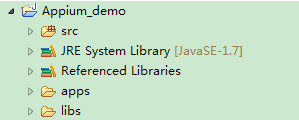
一、环境准备: 见我另一篇文章:http://www.cnblogs.com/puresoul/p/4696638.html 二、使用Eclipse直接创建案例工程 1、打开Eclipse,【File】-->【New】-->【Project】 2、选择【Java Project】-->【Next】 3、输入工程名称Appium_demo,点击【Finish】 4、右键点击工程 New-Folder,新建两个文件夹:apps和libs,目录结构如下: 三、导入测试的类库 1、导入Selenum类库:http://docs.seleniumhq.org/download/ 1)selenium-server-standalone-2.44.0.jar 2)selenium-java-2.44.0.zip 2、导入Appium类库: 1)java-client-1.2.1.jar 3、右键点击工程空白处,选择【Build Path】-->【Configure Build Path】 四、下载测试APK 1、下载测试的文件ContactManager.apk:https://github.com/appium/sample-code/tree/master/sample-code/apps/ContactManager 2、将下载的apk放到项目的apps目录下 五、建立package包和案例文件 1、在src文件夹上右键单击,【New】-->【package】,输入包名:com.glen.demo,点击【Finish】 2、在package下新建类:ContactsTest.java,如下: 下载地址:https://github.com/appium/sample-code/tree/master/sample-code/examples/java/junit/src/test/java/com/saucelabs/appium 1 package com.glen.demo; 2 3 import io.appium.java_client.AppiumDriver; 4 import org.junit.After; 5 import org.junit.Before; 6 import org.junit.Test; 7 import org.openqa.selenium.By; 8 import org.openqa.selenium.WebElement; 9 import org.openqa.selenium.remote.CapabilityType; 10 import org.openqa.selenium.remote.DesiredCapabilities; 11 12 import java.io.File; 13 import java.net.URL; 14 import java.util.List; 15 16 17 public class ContactsTest { 18 private AppiumDriver driver; 19 @Before 20 public void setUp() throws Exception { 21 //设置apk的路径 22 File classpathRoot = new File(System.getProperty("user.dir")); 23 File appDir = new File(classpathRoot, "apps"); 24 File app = new File(appDir, "ContactManager.apk"); 25 26 //设置自动化相关参数 27 DesiredCapabilities capabilities = new DesiredCapabilities(); 28 capabilities.setCapability(CapabilityType.BROWSER_NAME, ""); 29 capabilities.setCapability("platformName", "Android"); 30 capabilities.setCapability("deviceName", "Android Emulator"); 31 32 //设置安卓系统版本 33 capabilities.setCapability("platformVersion", "4.3"); 34 //设置apk路径 35 capabilities.setCapability("app", app.getAbsolutePath()); 36 37 //设置app的主包名和主类名 38 capabilities.setCapability("appPackage", "com.example.android.contactmanager"); 39 capabilities.setCapability("appActivity", ".ContactManager"); 40 41 //初始化 42 driver = new AppiumDriver(new URL("http://127.0.0.1:4723/wd/hub"), capabilities); 43 } 44 45 @Test 46 public void addContact(){ 47 WebElement el = driver.findElement(By.name("Add Contact")); 48 el.click(); 49 List<WebElement> textFieldsList = driver.findElementsByClassName("android.widget.EditText"); 50 textFieldsList.get(0).sendKeys("Some Name"); 51 textFieldsList.get(2).sendKeys("Some@example.com"); 52 driver.swipe(100, 500, 100, 100, 2); 53 driver.findElementByName("Save").click(); 54 } 55 56 @After 57 public void tearDown() throws Exception { 58 driver.quit(); 59 } 60 } 六、 启动Android模拟器(也可以连接真机) 1、cmd输入:android avd,选择模拟器,点击【Start】即可。具体可参考:http://www.cnblogs.com/puresoul/p/4597211.html 2、启动好后,cmd输入:adb devices,确定设备是否连接上,如下图连接成功: 七、 启动Appium 方法一:cmd输入:appium 方法二: 1、直接双击appium gui图标(如下图): 2、点击右上角的启动按钮,启动日志如下: 八、 运行测试案例: 1、在eclipse中,项目右键>【Run As】>【JUnit Test】,运行过程截图如下: 2、运行日志: > Checking if an update is available > Update not available > Starting Node Server > warn: Appium support for versions of node < 0.12 has been deprecated and will be removed in a future version. Please upgrade! > info: Welcome to Appium v1.4.0 (REV 8f63e2f91ef7907aed8bda763f4e5ca08e86970a) > info: Appium REST http interface listener started on 127.0.0.1:4723 > info: [debug] Non-default server args: {"app":"F:\\workspace\\AppiumDemo\\apps\\ContactManager.apk","address":"127.0.0.1","logNoColors":true,"deviceName":"test","platformName":"Android","platformVersion":"18","automationName":"Appium"} > info: Console LogLevel: debug > info: --> POST /wd/hub/session {"desiredCapabilities":{"app":"F:\\workspace\\Appium_demo\\apps\\ContactManager.apk","platformVersion":"4.3","deviceName":"Android Emulator","platformName":"Android","appActivity":".ContactManager","browserName":"","appPackage":"com.example.android.contactmanager"}} > info: Client User-Agent string: Apache-HttpClient/4.3.4 (java 1.5) > info: [debug] Using local app from desired caps: F:\workspace\Appium_demo\apps\ContactManager.apk > info: [debug] Creating new appium session 97fd4549-c40a-4e96-a60a-6ffb9ed7fd01 > info: Starting android appium > info: [debug] Getting Java version > info: Java version is: 1.7.0_51 > info: [debug] Checking whether adb is present > info: [debug] Using adb from D:\android-sdk\sdk\platform-tools\adb.exe > info: [debug] Set chromedriver binary as: D:\Program Files\Appium\node_modules\appium\build\chromedriver\windows\chromedriver.exe > info: [debug] Using fast reset? true > info: [debug] Preparing device for session > info: [debug] Checking whether app is actually present > info: Retrieving device > info: [debug] Trying to find a connected android device > info: [debug] Getting connected devices... > info: [debug] executing cmd: D:\android-sdk\sdk\platform-tools\adb.exe devices > info: [debug] 1 device(s) connected > info: Found device emulator-5554 > info: [debug] Setting device id to emulator-5554 > info: [debug] Waiting for device to be ready and to respond to shell commands (timeout = 5) > info: [debug] executing cmd: D:\android-sdk\sdk\platform-tools\adb.exe -s emulator-5554 wait-for-device > info: [debug] executing cmd: D:\android-sdk\sdk\platform-tools\adb.exe -s emulator-5554 shell "echo 'ready'" > info: [debug] Starting logcat capture > info: [debug] Getting device API level > info: [debug] executing cmd: D:\android-sdk\sdk\platform-tools\adb.exe -s emulator-5554 shell "getprop ro.build.version.sdk" > info: [debug] Device is at API Level 18 > info: Device API level is: 18 > info: [debug] Extracting strings for language: default > info: [debug] executing cmd: D:\android-sdk\sdk\platform-tools\adb.exe -s emulator-5554 shell "getprop persist.sys.language" > info: [debug] Current device persist.sys.language: en > info: [debug] java -jar "D:\Program Files\Appium\node_modules\appium\node_modules\appium-adb\jars\appium_apk_tools.jar" "stringsFromApk" "F:\workspace\Appium_demo\apps\ContactManager.apk" "C:\Users\ADMINI~1\AppData\Local\Temp\com.example.android.contactmanager" en > info: [debug] No strings.xml for language 'en', getting default strings.xml > info: [debug] java -jar "D:\Program Files\Appium\node_modules\appium\node_modules\appium-adb\jars\appium_apk_tools.jar" "stringsFromApk" "F:\workspace\Appium_demo\apps\ContactManager.apk" "C:\Users\ADMINI~1\AppData\Local\Temp\com.example.android.contactmanager" > info: [debug] Reading strings from converted strings.json > info: [debug] Setting language to default > info: [debug] executing cmd: D:\android-sdk\sdk\platform-tools\adb.exe -s emulator-5554 push "C:\\Users\\ADMINI~1\\AppData\\Local\\Temp\\com.example.android.contactmanager\\strings.json" /data/local/tmp > info: [debug] Checking whether aapt is present > info: [debug] Using aapt from D:\android-sdk\sdk\build-tools\android-4.3\aapt.exe > info: [debug] Retrieving process from manifest. > info: [debug] executing cmd: D:\android-sdk\sdk\build-tools\android-4.3\aapt.exe dump xmltree F:\workspace\Appium_demo\apps\ContactManager.apk AndroidManifest.xml > info: [debug] Set app process to: com.example.android.contactmanager > info: [debug] Not uninstalling app since server not started with --full-reset > info: [debug] Checking app cert for F:\workspace\Appium_demo\apps\ContactManager.apk. > info: [debug] executing cmd: java -jar "D:\Program Files\Appium\node_modules\appium\node_modules\appium-adb\jars\verify.jar" F:\workspace\Appium_demo\apps\ContactManager.apk > info: [debug] App already signed. > info: [debug] Zip-aligning F:\workspace\Appium_demo\apps\ContactManager.apk > info: [debug] Checking whether zipalign is present > info: [debug] Using zipalign from D:\android-sdk\sdk\tools\zipalign.exe > info: [debug] Zip-aligning apk. > info: [debug] executing cmd: D:\android-sdk\sdk\tools\zipalign.exe -f 4 F:\workspace\Appium_demo\apps\ContactManager.apk C:\Users\ADMINI~1\AppData\Local\Temp\11572-12744-gdxu1q\appium.tmp > info: [debug] MD5 for app is b2d2916bb5388e1dc281ec3e71ef1234 > info: [debug] executing cmd: D:\android-sdk\sdk\platform-tools\adb.exe -s emulator-5554 shell "ls /data/local/tmp/b2d2916bb5388e1dc281ec3e71ef1234.apk" > info: [debug] Getting install status for com.example.android.contactmanager > info: [debug] Getting device API level > info: [debug] executing cmd: D:\android-sdk\sdk\platform-tools\adb.exe -s emulator-5554 shell "getprop ro.build.version.sdk" > info: [debug] Device is at API Level 18 > info: [debug] executing cmd: D:\android-sdk\sdk\platform-tools\adb.exe -s emulator-5554 shell "pm list packages -3 com.example.android.contactmanager" > info: [debug] App is installed > info: App is already installed, resetting app > info: [debug] Running fast reset (stop and clear) > info: [debug] executing cmd: D:\android-sdk\sdk\platform-tools\adb.exe -s emulator-5554 shell "am force-stop com.example.android.contactmanager" > info: [debug] executing cmd: D:\android-sdk\sdk\platform-tools\adb.exe -s emulator-5554 shell "pm clear com.example.android.contactmanager" > info: [debug] Forwarding system:4724 to device:4724 > info: [debug] executing cmd: D:\android-sdk\sdk\platform-tools\adb.exe -s emulator-5554 forward tcp:4724 tcp:4724 > info: [debug] Pushing appium bootstrap to device... > info: [debug] executing cmd: D:\android-sdk\sdk\platform-tools\adb.exe -s emulator-5554 push "D:\\Program Files\\Appium\\node_modules\\appium\\build\\android_bootstrap\\AppiumBootstrap.jar" /data/local/tmp/ > info: [debug] Pushing settings apk to device... > info: [debug] executing cmd: D:\android-sdk\sdk\platform-tools\adb.exe -s emulator-5554 install "D:\Program Files\Appium\node_modules\appium\build\settings_apk\settings_apk-debug.apk" > info: [debug] Pushing unlock helper app to device... > info: [debug] executing cmd: D:\android-sdk\sdk\platform-tools\adb.exe -s emulator-5554 install "D:\Program Files\Appium\node_modules\appium\build\unlock_apk\unlock_apk-debug.apk" > info: Starting App > info: [debug] Attempting to kill all 'uiautomator' processes > info: [debug] Getting all processes with 'uiautomator' > info: [debug] executing cmd: D:\android-sdk\sdk\platform-tools\adb.exe -s emulator-5554 shell "ps 'uiautomator'" > info: [debug] No matching processes found > info: [debug] Running bootstrap > info: [debug] spawning: D:\android-sdk\sdk\platform-tools\adb.exe -s emulator-5554 shell uiautomator runtest AppiumBootstrap.jar -c io.appium.android.bootstrap.Bootstrap -e pkg com.example.android.contactmanager -e disableAndroidWatchers false > info: [debug] [UIAUTOMATOR STDOUT] INSTRUMENTATION_STATUS: current=1 > info: [debug] [UIAUTOMATOR STDOUT] INSTRUMENTATION_STATUS: id=UiAutomatorTestRunner > info: [debug] [UIAUTOMATOR STDOUT] INSTRUMENTATION_STATUS: class=io.appium.android.bootstrap.Bootstrap > info: [debug] [UIAUTOMATOR STDOUT] INSTRUMENTATION_STATUS: stream= > info: [debug] [UIAUTOMATOR STDOUT] io.appium.android.bootstrap.Bootstrap: > info: [debug] [UIAUTOMATOR STDOUT] INSTRUMENTATION_STATUS: numtests=1 > info: [debug] [UIAUTOMATOR STDOUT] INSTRUMENTATION_STATUS: test=testRunServer > info: [debug] [UIAUTOMATOR STDOUT] INSTRUMENTATION_STATUS_CODE: 1 > info: [debug] [BOOTSTRAP] [debug] Socket opened on port 4724 > info: [debug] [BOOTSTRAP] [debug] Appium Socket Server Ready > info: [debug] [BOOTSTRAP] [debug] Loading json... > info: [debug] Waking up device if it's not alive > info: [debug] Pushing command to appium work queue: ["wake",{}] > info: [debug] [BOOTSTRAP] [debug] json loading complete. > info: [debug] [BOOTSTRAP] [debug] Registered crash watchers. > info: [debug] [BOOTSTRAP] [debug] Client connected > info: [debug] [BOOTSTRAP] [debug] Got data from client: {"cmd":"action","action":"wake","params":{}} > info: [debug] [BOOTSTRAP] [debug] Got command of type ACTION > info: [debug] [BOOTSTRAP] [debug] Got command action: wake > info: [debug] [BOOTSTRAP] [debug] Returning result: {"value":true,"status":0} > info: [debug] executing cmd: D:\android-sdk\sdk\platform-tools\adb.exe -s emulator-5554 shell "dumpsys window" > info: [debug] Screen already unlocked, continuing. > info: [debug] Pushing command to appium work queue: ["getDataDir",{}] > info: [debug] [BOOTSTRAP] [debug] Got data from client: {"cmd":"action","action":"getDataDir","params":{}} > info: [debug] [BOOTSTRAP] [debug] Got command of type ACTION > info: [debug] [BOOTSTRAP] [debug] Got command action: getDataDir > info: [debug] [BOOTSTRAP] [debug] Returning result: {"value":"\/data","status":0} > info: [debug] dataDir set to: /data > info: [debug] Pushing command to appium work queue: ["compressedLayoutHierarchy",{"compressLayout":false}] > info: [debug] [BOOTSTRAP] [debug] Got data from client: {"cmd":"action","action":"compressedLayoutHierarchy","params":{"compressLayout":false}} > info: [debug] [BOOTSTRAP] [debug] Got command of type ACTION > info: [debug] [BOOTSTRAP] [debug] Got command action: compressedLayoutHierarchy > info: [debug] [BOOTSTRAP] [debug] Returning result: {"value":false,"status":0} > info: [debug] Getting device API level > info: [debug] executing cmd: D:\android-sdk\sdk\platform-tools\adb.exe -s emulator-5554 shell "getprop ro.build.version.sdk" > info: [debug] Device is at API Level 18 > info: [debug] executing cmd: D:\android-sdk\sdk\platform-tools\adb.exe -s emulator-5554 shell "am start -S -a android.intent.action.MAIN -c android.intent.category.LAUNCHER -f 0x10200000 -n com.example.android.contactmanager/.ContactManager" > info: [debug] Waiting for pkg "com.example.android.contactmanager" and activity ".ContactManager" to be focused > info: [debug] Getting focused package and activity > info: [debug] executing cmd: D:\android-sdk\sdk\platform-tools\adb.exe -s emulator-5554 shell "dumpsys window windows" > info: [debug] Getting focused package and activity > info: [debug] executing cmd: D:\android-sdk\sdk\platform-tools\adb.exe -s emulator-5554 shell "dumpsys window windows" > info: [debug] executing cmd: D:\android-sdk\sdk\platform-tools\adb.exe -s emulator-5554 shell "getprop ro.build.version.release" > info: [debug] Device is at release version 4.3 > info: [debug] Device launched! Ready for commands > info: [debug] Setting command timeout to the default of 60 secs > info: [debug] Appium session started with sessionId 97fd4549-c40a-4e96-a60a-6ffb9ed7fd01 > info: <-- POST /wd/hub/session 303 54844.194 ms - 74 > info: --> GET /wd/hub/session/97fd4549-c40a-4e96-a60a-6ffb9ed7fd01 {} > info: [debug] Responding to client with success: {"status":0,"value":{"platform":"LINUX","browserName":"","platformVersion":"4.3","webStorageEnabled":false,"takesScreenshot":true,"javascriptEnabled":true,"databaseEnabled":false,"networkConnectionEnabled":true,"locationContextEnabled":false,"warnings":{},"desired":{"app":"F:\\workspace\\Appium_demo\\apps\\ContactManager.apk","platformVersion":"4.3","deviceName":"Android Emulator","platformName":"Android","appActivity":".ContactManager","browserName":"","appPackage":"com.example.android.contactmanager"},"app":"F:\\workspace\\Appium_demo\\apps\\ContactManager.apk","deviceName":"emulator-5554","platformName":"Android","appActivity":".ContactManager","appPackage":"com.example.android.contactmanager"},"sessionId":"97fd4549-c40a-4e96-a60a-6ffb9ed7fd01"} > info: <-- GET /wd/hub/session/97fd4549-c40a-4e96-a60a-6ffb9ed7fd01 200 10.271 ms - 758 {"status":0,"value":{"platform":"LINUX","browserName":"","platformVersion":"4.3","webStorageEnabled":false,"takesScreenshot":true,"javascriptEnabled":true,"databaseEnabled":false,"networkConnectionEnabled":true,"locationContextEnabled":false,"warnings":{},"desired":{"app":"F:\\workspace\\Appium_demo\\apps\\ContactManager.apk","platformVersion":"4.3","deviceName":"Android Emulator","platformName":"Android","appActivity":".ContactManager","browserName":"","appPackage":"com.example.android.contactmanager"},"app":"F:\\workspace\\Appium_demo\\apps\\ContactManager.apk","deviceName":"emulator-5554","platformName":"Android","appActivity":".ContactManager","appPackage":"com.example.android.contactmanager"},"sessionId":"97fd4549-c40a-4e96-a60a-6ffb9ed7fd01"} > info: --> POST /wd/hub/session/97fd4549-c40a-4e96-a60a-6ffb9ed7fd01/element {"using":"name","value":"Add Contact"} > warn: [DEPRECATED] The name locator strategy has been deprecated and will be removed. Please use the accessibility id locator strategy instead. > info: [debug] Waiting up to 0ms for condition > info: [debug] Pushing command to appium work queue: ["find",{"strategy":"name","selector":"Add Contact","context":"","multiple":false}] > info: [debug] [BOOTSTRAP] [debug] Got data from client: {"cmd":"action","action":"find","params":{"strategy":"name","selector":"Add Contact","context":"","multiple":false}} > info: [debug] [BOOTSTRAP] [debug] Got command of type ACTION > info: [debug] [BOOTSTRAP] [debug] Got command action: find > info: [debug] [BOOTSTRAP] [debug] Finding Add Contact using NAME with the contextId: multiple: false > info: [debug] [BOOTSTRAP] [debug] Using: UiSelector[DESCRIPTION=Add Contact, INSTANCE=0] > info: [debug] [BOOTSTRAP] [debug] Returning result: {"value":{"ELEMENT":"1"},"status":0} > info: [debug] Responding to client with success: {"status":0,"value":{"ELEMENT":"1"},"sessionId":"97fd4549-c40a-4e96-a60a-6ffb9ed7fd01"} > info: <-- POST /wd/hub/session/97fd4549-c40a-4e96-a60a-6ffb9ed7fd01/element 200 5585.076 ms - 87 {"status":0,"value":{"ELEMENT":"1"},"sessionId":"97fd4549-c40a-4e96-a60a-6ffb9ed7fd01"} > info: --> POST /wd/hub/session/97fd4549-c40a-4e96-a60a-6ffb9ed7fd01/element/1/click {"id":"1"} > info: [debug] Pushing command to appium work queue: ["element:click",{"elementId":"1"}] > info: [debug] [BOOTSTRAP] [debug] Got data from client: {"cmd":"action","action":"element:click","params":{"elementId":"1"}} > info: [debug] [BOOTSTRAP] [debug] Got command of type ACTION > info: [debug] [BOOTSTRAP] [debug] Got command action: click > info: [debug] [BOOTSTRAP] [debug] Returning result: {"value":true,"status":0} > info: [debug] Responding to client with success: {"status":0,"value":true,"sessionId":"97fd4549-c40a-4e96-a60a-6ffb9ed7fd01"} > info: <-- POST /wd/hub/session/97fd4549-c40a-4e96-a60a-6ffb9ed7fd01/element/1/click 200 3611.421 ms - 76 {"status":0,"value":true,"sessionId":"97fd4549-c40a-4e96-a60a-6ffb9ed7fd01"} > info: --> POST /wd/hub/session/97fd4549-c40a-4e96-a60a-6ffb9ed7fd01/elements {"using":"class name","value":"android.widget.EditText"} > info: [debug] Waiting up to 0ms for condition > info: [debug] Pushing command to appium work queue: ["find",{"strategy":"class name","selector":"android.widget.EditText","context":"","multiple":true}] > info: [debug] [BOOTSTRAP] [debug] Got data from client: {"cmd":"action","action":"find","params":{"strategy":"class name","selector":"android.widget.EditText","context":"","multiple":true}} > info: [debug] [BOOTSTRAP] [debug] Got command of type ACTION > info: [debug] [BOOTSTRAP] [debug] Got command action: find > info: [debug] [BOOTSTRAP] [debug] Finding android.widget.EditText using CLASS_NAME with the contextId: multiple: true > info: [debug] [BOOTSTRAP] [debug] Using: UiSelector[CLASS=android.widget.EditText] > info: [debug] [BOOTSTRAP] [debug] getElements selector:UiSelector[CLASS=android.widget.EditText] > info: [debug] [BOOTSTRAP] [debug] Element[] is null: (0) > info: [debug] [BOOTSTRAP] [debug] getElements tmp selector:UiSelector[CLASS=android.widget.EditText, INSTANCE=0] > info: [debug] [BOOTSTRAP] [debug] Failed to locate element. Clearing Accessibility cache and retrying. > info: [debug] [BOOTSTRAP] [debug] Finding android.widget.EditText using CLASS_NAME with the contextId: multiple: true > info: [debug] [BOOTSTRAP] [debug] Using: UiSelector[CLASS=android.widget.EditText] > info: [debug] [BOOTSTRAP] [debug] getElements selector:UiSelector[CLASS=android.widget.EditText] > info: [debug] [BOOTSTRAP] [debug] Element[] is null: (0) > info: [debug] [BOOTSTRAP] [debug] getElements tmp selector:UiSelector[CLASS=android.widget.EditText, INSTANCE=0] > info: [debug] [BOOTSTRAP] [debug] Element[] is null: (1) > info: [debug] [BOOTSTRAP] [debug] getElements tmp selector:UiSelector[CLASS=android.widget.EditText, INSTANCE=1] > info: [debug] [BOOTSTRAP] [debug] Element[] is null: (2) > info: [debug] [BOOTSTRAP] [debug] getElements tmp selector:UiSelector[CLASS=android.widget.EditText, INSTANCE=2] > info: [debug] [BOOTSTRAP] [debug] Element[] is null: (3) > info: [debug] [BOOTSTRAP] [debug] getElements tmp selector:UiSelector[CLASS=android.widget.EditText, INSTANCE=3] > info: [debug] [BOOTSTRAP] [debug] Returning result: {"value":[{"ELEMENT":"2"},{"ELEMENT":"3"},{"ELEMENT":"4"}],"status":0} > info: [debug] Responding to client with success: {"status":0,"value":[{"ELEMENT":"2"},{"ELEMENT":"3"},{"ELEMENT":"4"}],"sessionId":"97fd4549-c40a-4e96-a60a-6ffb9ed7fd01"} > info: <-- POST /wd/hub/session/97fd4549-c40a-4e96-a60a-6ffb9ed7fd01/elements 200 7287.293 ms - 121 {"status":0,"value":[{"ELEMENT":"2"},{"ELEMENT":"3"},{"ELEMENT":"4"}],"sessionId":"97fd4549-c40a-4e96-a60a-6ffb9ed7fd01"} > info: --> POST /wd/hub/session/97fd4549-c40a-4e96-a60a-6ffb9ed7fd01/element/2/value {"id":"2","value":["Some Name"]} > info: [debug] Pushing command to appium work queue: ["element:setText",{"elementId":"2","text":"Some Name","replace":false}] > info: [debug] [BOOTSTRAP] [debug] Got data from client: {"cmd":"action","action":"element:setText","params":{"elementId":"2","text":"Some Name","replace":false}} > info: [debug] [BOOTSTRAP] [debug] Got command of type ACTION > info: [debug] [BOOTSTRAP] [debug] Got command action: setText > info: [debug] [BOOTSTRAP] [debug] Using element passed in. > info: [debug] [BOOTSTRAP] [debug] Attempting to clear using UiObject.clearText(). > info: [debug] [BOOTSTRAP] [debug] Sending plain text to element: Some Name > info: [debug] [BOOTSTRAP] [debug] Returning result: {"value":true,"status":0} > info: [debug] Responding to client with success: {"status":0,"value":true,"sessionId":"97fd4549-c40a-4e96-a60a-6ffb9ed7fd01"} > info: <-- POST /wd/hub/session/97fd4549-c40a-4e96-a60a-6ffb9ed7fd01/element/2/value 200 16926.651 ms - 76 {"status":0,"value":true,"sessionId":"97fd4549-c40a-4e96-a60a-6ffb9ed7fd01"} > info: --> POST /wd/hub/session/97fd4549-c40a-4e96-a60a-6ffb9ed7fd01/element/4/value {"id":"4","value":["Some@example.com"]} > info: [debug] Pushing command to appium work queue: ["element:setText",{"elementId":"4","text":"Some@example.com","replace":false}] > info: [debug] [BOOTSTRAP] [debug] Got data from client: {"cmd":"action","action":"element:setText","params":{"elementId":"4","text":"Some@example.com","replace":false}} > info: [debug] [BOOTSTRAP] [debug] Got command of type ACTION > info: [debug] [BOOTSTRAP] [debug] Got command action: setText > info: [debug] [BOOTSTRAP] [debug] Using element passed in. > info: [debug] [BOOTSTRAP] [debug] Attempting to clear using UiObject.clearText(). > info: [debug] [BOOTSTRAP] [debug] Sending plain text to element: Some@example.com > info: [debug] [BOOTSTRAP] [debug] Returning result: {"value":true,"status":0} > info: [debug] Responding to client with success: {"status":0,"value":true,"sessionId":"97fd4549-c40a-4e96-a60a-6ffb9ed7fd01"} > info: <-- POST /wd/hub/session/97fd4549-c40a-4e96-a60a-6ffb9ed7fd01/element/4/value 200 21149.764 ms - 76 {"status":0,"value":true,"sessionId":"97fd4549-c40a-4e96-a60a-6ffb9ed7fd01"} > info: --> POST /wd/hub/session/97fd4549-c40a-4e96-a60a-6ffb9ed7fd01/touch/perform {"actions":[{"action":"press","options":{"x":100,"y":500}},{"action":"wait","options":{"ms":2}},{"action":"moveTo","options":{"x":100,"y":100}},{"action":"release","options":{}}]} > info: [debug] Pushing command to appium work queue: ["swipe",{"startX":100,"startY":500,"endX":100,"endY":100,"steps":0}] > info: [debug] [BOOTSTRAP] [debug] Got data from client: {"cmd":"action","action":"swipe","params":{"startX":100,"startY":500,"endX":100,"endY":100,"steps":0}} > info: [debug] [BOOTSTRAP] [debug] Got command of type ACTION > info: [debug] [BOOTSTRAP] [debug] Got command action: swipe > info: [debug] [BOOTSTRAP] [debug] Display bounds: [0,0][480,800] > info: [debug] [BOOTSTRAP] [debug] Display bounds: [0,0][480,800] > info: [debug] [BOOTSTRAP] [debug] Swiping from [x=100.0, y=500.0] to [x=100.0, y=100.0] with steps: 0 > info: [debug] [BOOTSTRAP] [debug] Returning result: {"value":true,"status":0} > info: [debug] Responding to client with success: {"status":0,"value":true,"sessionId":"97fd4549-c40a-4e96-a60a-6ffb9ed7fd01"} > info: <-- POST /wd/hub/session/97fd4549-c40a-4e96-a60a-6ffb9ed7fd01/touch/perform 200 903.431 ms - 76 {"status":0,"value":true,"sessionId":"97fd4549-c40a-4e96-a60a-6ffb9ed7fd01"} > info: --> POST /wd/hub/session/97fd4549-c40a-4e96-a60a-6ffb9ed7fd01/element {"using":"name","value":"Save"} > info: [debug] Waiting up to 0ms for condition > info: [debug] Pushing command to appium work queue: ["find",{"strategy":"name","selector":"Save","context":"","multiple":false}] > info: [debug] [BOOTSTRAP] [debug] Got data from client: {"cmd":"action","action":"find","params":{"strategy":"name","selector":"Save","context":"","multiple":false}} > info: [debug] [BOOTSTRAP] [debug] Got command of type ACTION > info: [debug] [BOOTSTRAP] [debug] Got command action: find > info: [debug] [BOOTSTRAP] [debug] Finding Save using NAME with the contextId: multiple: false > info: [debug] [BOOTSTRAP] [debug] Using: UiSelector[DESCRIPTION=Save, INSTANCE=0] > info: [debug] [BOOTSTRAP] [debug] Using: UiSelector[TEXT=Save, INSTANCE=0] > info: [debug] [BOOTSTRAP] [debug] Failed to locate element. Clearing Accessibility cache and retrying. > info: [debug] [BOOTSTRAP] [debug] Finding Save using NAME with the contextId: multiple: false > info: [debug] [BOOTSTRAP] [debug] Using: UiSelector[DESCRIPTION=Save, INSTANCE=0] > info: [debug] [BOOTSTRAP] [debug] Using: UiSelector[TEXT=Save, INSTANCE=0] > info: [debug] [BOOTSTRAP] [debug] Returning result: {"value":"No element found","status":7} > info: [debug] Condition unmet after 7910ms. Timing out. > info: [debug] Responding to client with error: {"status":7,"value":{"message":"An element could not be located on the page using the given search parameters.","origValue":"No element found"},"sessionId":"97fd4549-c40a-4e96-a60a-6ffb9ed7fd01"} > info: <-- POST /wd/hub/session/97fd4549-c40a-4e96-a60a-6ffb9ed7fd01/element 500 7913.313 ms - 195 > info: --> DELETE /wd/hub/session/97fd4549-c40a-4e96-a60a-6ffb9ed7fd01 {} > info: Shutting down appium session > info: [debug] Pressing the HOME button > info: [debug] executing cmd: D:\android-sdk\sdk\platform-tools\adb.exe -s emulator-5554 shell "input keyevent 3" > info: [debug] Stopping logcat capture > info: [debug] Logcat terminated with code null, signal SIGTERM > info: [debug] [BOOTSTRAP] [debug] Got data from client: {"cmd":"shutdown"} > info: [debug] [BOOTSTRAP] [debug] Got command of type SHUTDOWN > info: [debug] [BOOTSTRAP] [debug] Returning result: {"value":"OK, shutting down","status":0} > info: [debug] Sent shutdown command, waiting for UiAutomator to stop... > info: [debug] [BOOTSTRAP] [debug] Closed client connection > info: [debug] [UIAUTOMATOR STDOUT] INSTRUMENTATION_STATUS: current=1 > info: [debug] [UIAUTOMATOR STDOUT] INSTRUMENTATION_STATUS: id=UiAutomatorTestRunner > info: [debug] [UIAUTOMATOR STDOUT] INSTRUMENTATION_STATUS: class=io.appium.android.bootstrap.Bootstrap > info: [debug] [UIAUTOMATOR STDOUT] INSTRUMENTATION_STATUS: stream=. > info: [debug] [UIAUTOMATOR STDOUT] INSTRUMENTATION_STATUS: numtests=1 > info: [debug] [UIAUTOMATOR STDOUT] INSTRUMENTATION_STATUS: test=testRunServer > info: [debug] [UIAUTOMATOR STDOUT] INSTRUMENTATION_STATUS_CODE: 0 > info: [debug] [UIAUTOMATOR STDOUT] INSTRUMENTATION_STATUS: stream= > info: [debug] [UIAUTOMATOR STDOUT] Test results for WatcherResultPrinter=. > info: [debug] [UIAUTOMATOR STDOUT] Time: 89.301 > info: [debug] [UIAUTOMATOR STDOUT] OK (1 test) > info: [debug] [UIAUTOMATOR STDOUT] INSTRUMENTATION_STATUS_CODE: -1 > info: [debug] UiAutomator shut down normally > info: [debug] Cleaning up android objects > info: [debug] Cleaning up appium session > info: [debug] Responding to client with success: {"status":0,"value":null,"sessionId":"97fd4549-c40a-4e96-a60a-6ffb9ed7fd01"} > info: <-- DELETE /wd/hub/session/97fd4549-c40a-4e96-a60a-6ffb9ed7fd01 200 8799.959 ms - 76 {"status":0,"value":null,"sessionId":"97fd4549-c40a-4e96-a60a-6ffb9ed7fd01"} 参考:http://blog.csdn.net/jlminghui/article/details/41121479 本文转自贺满博客园博客,原文链接:http://www.cnblogs.com/puresoul/p/4696825.html,如需转载请自行联系原作者。