首页 文章 精选 留言 我的

精选列表

搜索[主数据管理],共10000篇文章
优秀的个人博客,低调大师

Gemini 4 Argon 全球上线,主打 Coding、企业工作流和网络安全

Google DeepMind 今早官宣:Gemini 4 Argon 全球可用,公司把它定义为『从头到尾解决你最棘手问题的模型』,押注的三个方向是人尽皆知的码农旧战场——coding、企业工作流——外加一个冷门到有点意外的词:cyber defense(网络安全防御)。 发布口径把人群切得很清楚。普通用户走 @GeminiApp 和 Search 里的 AI Mode,限 Google AI Pro 和 Ultra 订阅者;开发者走 Gemini API 付费档,加上 @antigravity 和 @GoogleAIStudio(限 Google AI Ultra 订阅);科学家则要单独去申请最高用量档。也就是说,Argon 没有给出一个『免费尝鲜』的路径,从第一天起就奔着付费墙和保护高用量用户去的。 这跟 Google 今年把 Gemini 定价越拉越高的步调一致。把『企业工作流』和『网络安全防御』摆到与代码平级的位置,是个信号:Gemini 4 时代,DeepMind 不只想当写代码的神,还想在 SOC 和合规这条更贵、更吃信任的赛道里占一个坑。 围观者已经在吐槽分层太复杂。网友 @compounded_mind 的回复很能代表这种迷惑:『所以 Argon 在 Gemini app 里 Pro 用户可用,但在 Antigravity 里只有 Ultra 能用?什么鬼』。同一个模型,在不同入口给不同订阅档,这套矩阵确实需要看第二眼才能理顺。 Argon 具体强在哪、以及『网络安全防御』是模型即用能力还是配合防护服务,官方这条帖子里没展开,得等更详细的技术说明。但方向已经摆出来了:Google 想让 Gemini 4 不只是聊天,而是直接切进企业照看的那些最贵、最不敢出错的地方。 来源: Google DeepMind 于 X:Gemini 4 Argon is now globally available Gemini — Google DeepMind

优秀的个人博客,低调大师

模切行业 BOM 主数据治理:从源头降低停工、亏单与成本偏差

在模切行业数字化管理中,拉开工厂管理差距的,往往不是简单的单据录入操作,而是看懂 BOM 背后整条业务链路逻辑。BOM 作为模切企业计划排产、工单领料、成本核算、报价的核心数据底座,一旦数据失真,可能引发 MRP 物料需求计算偏差、车间工单领错料、报价偏离实际、工单成本出现较大偏差,不少损失要等到月结核算时才被发现。

优秀的个人博客,低调大师

【争做优秀博主】VMware Horizon View 8 2006超详细部署安装过程

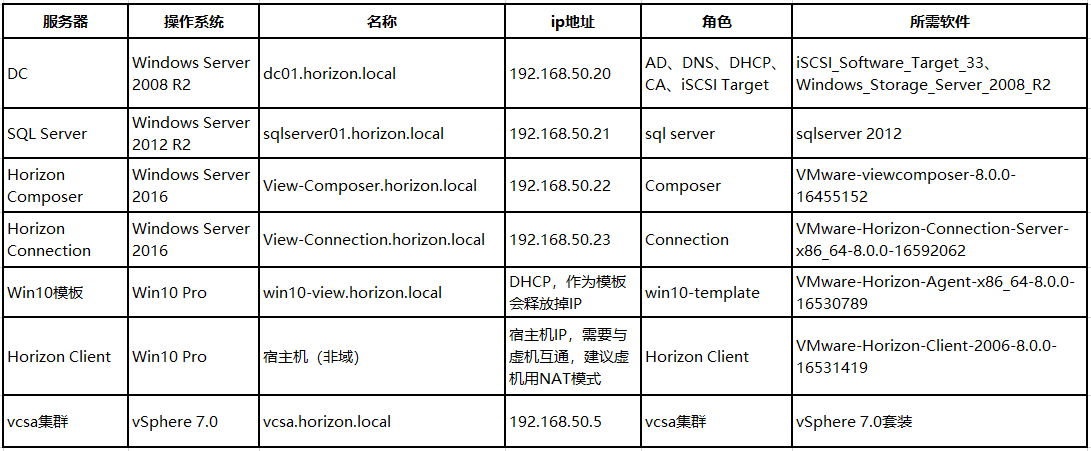
VMware Horizon 8 是VMware公司推出的一款虚拟环境部署解决方案,该软件以通过面向终端用户的单一平台,简化本地部署、云中、混合云或多云配置中的虚拟桌面和应用的管理和交付。除此之外,这款软件采用全面的工作空间环境管理并已针对软件定义的数据中心进行优化,有助于IT部门按照终端用户期望的速度和业务部门要求的效率,控制、管理和保护终端用户所需的全部 Windows 资源。 本篇文章介绍,最新版Horizon View 8 2006的整个部署过程,包括DC服务器、SQL SERVER服务器、Composer服务器、Connection服务器以及WIN10模板的制作,并在VC7.0集群里实现即时克隆桌面功能。 一. 前期基础环境准备: 本实验环境全部由vmware workstation虚拟机完成,Horizon View 8 2006产品对应VC7.0,所以需要提前部署好VCSA集群。 1.DC服务器: 包括AD域、DNS、DHCP、CA、iSCSI服务,由于VCSA需要共享Datastore,所以这里使用iSCSI,很多读者会问为什么不模拟vSAN,笔记做过测试,效果不是很好,速度很慢。 iSCSI教程:https://blog.51cto.com/10329031/1712328 ⑴ 创建Horizon用户和组: 创建Horizon组织单元,下边创建Horizon Users、Horizion Computers组织单元,用于存放虚拟桌面虚拟机、用户和组;创建horizon_view_group组,用于存放连接虚拟桌面的用户。 ⑵ Horizon服务器证书准备: 这里我就不介绍那么详细了,毕竟已经做过一遍了,就不重复步骤了,就告诉大家应该注意几点。 大家可以参考这篇文章,步骤没有什么问题,就是在配置证书模板时,权限那块需要注意,需要添加证书模板的相应权限,不然是无法注册的;还有就是颁发证书模板后需要重启composer和connection服务器,否则找不到该证书。 https://blog.51cto.com/hujizhou/2156942 证书模板颁发前,权限设置: 给予Domain Computers,读取+注册的权限 给予Authenticated Users,读取+注册的权限 然后再按照那篇文章,一步步进行就行了,注意composer和connection服务器都需要注册。 2.vSphere集群,(包括3台ESXi、1台VCSA、iSCSI Datastore ),搭建攻略网上自行寻找,很多。 3.Horizon服务器(包括composer、connection、win10模板,都需要加入到AD域)。 4.虚拟机配置: dc、SQL服务器,随意; composer服务器,推荐8G内存; connection服务器,推荐10G内存; win10模板,2核4G内存。 二. 安装Horizon Connection Server: 安装 选择Horizon标准版 输入数据恢复密码 自动配置防火墙 选择初始管理员,可以是本地或域管理员 安装完成 在Windows Server 2016中启用Flash Player 管理员CMD运行: dism/online/add-package/packagepath:"C:\Windows\servicing\Packages\Adobe-Flash-For-Windows-Package~31bf3856ad364e35~amd64~~10.0.14393.0.mum" 以管理员权限登录,https://fqdn/admin 测试用ip登录的话,提示无法登录,所以必须用fqdn登录: 三. 安装Horizon Composer Server(可选): View Composer用于部署链接克隆桌面池,这个功能将在Horizon 8.1无法使用,这里就简单介绍一下。 1. 登录到SQL SERVER服务器上新建数据库: 创建ComposerDB数据库 创建View事件数据库 2. 安装Composer: 配置ODBC数据库 注意此处,点选“系统DSN”,一定不能点错 数据源名称,选择数据库服务器 使用sa账户登录 选择默认的数据库 默认,点完成 测试连接 输入刚创建的ODBC名称,账户、密码 设置SOAP端口,并选择证书 要求重启系统 四. 安装View Agent(WIN10模板): 建议进行一些系统优化,关闭防火墙之类的操作,再安装Agent 选中“VMware Horizon Instant Clone”,即时克隆功能,注意:即时克隆和链接克隆,只能选其一,不能全部选择 启用远程桌面 重启系统 CMD释放IP地址,然后关闭虚机 ipconfig/release 对虚机进行快照 五. 配置Horizon Connection Server: 1. 注册产品许可证: 2. 配置事件数据库: 3. 配置vCenter Server: 添加vCenter Server 输入VC地址、SSO域管理员 接受证书 配置view composer服务器地址,用户和密码 添加view composer域 存储 4. 创建即时克隆桌面池: 创建前,先添加即时克隆域账号 ⑴ 创建即时克隆桌面池 选择即时克隆 用户分配 存储策略管理,由于没有配置vSAN,跳过 桌面池ID 置备设置,指定命名模式(win10-{n:fixed=3})代表从001-999自动编号 vCenter设置 桌面池设置 远程显示协议,如果有vGPU虚拟化,可以选择 客户端自定义,选择好AD容器 完成后,可以看到新建的桌面池 在vCenter里查看虚机正在被克隆 看到可用虚机与置备的虚机 回到connection,可以看到可用虚机 ⑵ 给虚机桌面分配用户: 查找用户和组,添加用户和组 桌面池显示为已授权 点击桌面池ID,可以看到详细信息 六. 客户端登录: VMware Horizon Client客户端支持多种平台:Windows、Mac OS、Linux、iOS、Android,客户端必须可以解析到Horizon Connection Server的域名。 如果是非域客户端,需要修改hosts文件,将ip+fqdn加入到文件,如192.168.50.23 view-connection.horizon.local 1. 使用Horizon Client客户端连接: 双击安装程序 填写“默认连接服务器” 由于是非域客户端,需要提前把2个证书(ad域证书和view-connection证书)导入到“受信任的根证书颁发机构” 安装完成后,双击桌面图标 用域账号密码登录,由于这里是非域环境,域账号登录需要加“域名\域账号“方式登录 登录成功后,看到已经创建好的桌面池 点击进入,会提示是否共享,根据自己需求选择 回到管理页面,可以看到计算机已经分配给登录用户 如果出现以下报错,就说明没有hosts文件或证书没有正常导入,检查自己的系统环境 2. 使用浏览器连接: 推荐使用谷歌浏览器或火狐浏览器 输入https://连接服务器的fqdn https://view-connection.horizon.local 也是按照域名\域账号登录 点击后,会出现,如下报错,这是由于设置了安全网关导致 关闭2个安全网关 设置好后,可以正常登录了 3. 即时克隆桌面测试: 创建多个用户,并设置桌面池最大4个桌面、置备1个桌面。 去VCSA登录查看,会发现4个桌面,全部已可用,并且1个置备可用,并且即时克隆桌面大概是2秒就可以置备完成1个桌面可用。 至此,实验就全部完毕了,如果想实验“链接克隆桌面池”的读者,按照“即时克隆桌面池”设置即可,区别不大。

优秀的个人博客,低调大师

Docker自动化双主MySQL-01:安装docker并使用docker 获取镜像

nstall with yum1.shell>sudo yum update2.添加dockeryum$ sudo tee /etc/yum.repos.d/docker.repo <<-'EOF'[dockerrepo]name=Docker Repositorybaseurl=https://yum.dockerproject.org/repo/main/centos/7/enabled=1gpgcheck=1gpgkey=https://yum.dockerproject.org/gpgEOF 3.安装docker的包shell>sudo yum install docker-engine4.将docker加到服务里面$ sudo systemctl enable docker.service5.启动docker$ sudo systemctl start docker6.在容器中运行镜像看docker是否安装成功 $ sudo docker run --rm hello-world 二、使用docker 获取镜像:1.查看docker是否运行:[root@localhost ~]# ps aux | grep dockerroot 8229 1.6 0.6 944968 49924 ? Ssl 10:54 0:13 /usr/bin/dockerdroot 8235 0.0 0.1 367832 12216 ? Ssl 10:54 0:00 docker-containerd -l unix:///var/run/docker/libcontainerd/docker-containerd.sock --shim docker-containerd-shim --metrics-interval=0 --start-timeout 2m --state-dir /var/run/docker/libcontainerd/containerd --runtime docker-runcroot 8827 0.0 0.0 112652 960 pts/1 S+ 11:07 0:00 grep --color=auto docker2.使用docker获取镜像: 可以使用 docker pull 命令来从仓库获取所需要的镜像 [root@localhost ~]#docker pull centos[root@localhost ~]# docker images 有哪些镜像REPOSITORY TAG IMAGE ID CREATED SIZEcentos latest 0584b3d2cf6d 6 weeks ago 196.5 MBhello-world latest c54a2cc56cbb 5 months ago 1.848 kB3.查看后台运行docker镜像[root@localhost ~]# docker psCONTAINER ID IMAGE COMMAND CREATED STATUS PORTS NAMESe793eb3f32c2 centos "/bin/bash" 3 minutes ago Up 3 minutes alisql4.进入docker里面[root@localhost ~]# docker exec -it e793eb3f32c2 /bin/bash[root@e793eb3f32c2 /]# 查看容器:[root@localhost opt]# docker psCONTAINER ID IMAGE COMMAND CREATED STATUS PORTS NAMESe793eb3f32c2 centos "/bin/bash" 6 hours ago Up 6 hours alisql将容器提交为镜像[root@localhost opt]# docker commit -m "install alisql" -a "wjj" e793eb3f32c2 alisql/m:5.6.32sha256:3dff1697293ac450627ce4d6283c215315dcef3256d00206be5cabb831314780 其中, -m 来指定提交的说明信息,跟我们使用的版本控制工具一样; -a 可以指定更新的用户信息;之后是用来创建镜像的容器的 ID;最后指定目标镜像的仓库名和 tag 信息。创建成功后会返回这个镜像的 ID 信息。使用 docker images 来查看新创建的镜像。 [root@localhost opt]# docker imagesREPOSITORY TAG IMAGE ID CREATED SIZEalisql/m 5.6.32 3dff1697293a About a minute ago 2.181 GB 之后,可以使用新的镜像来启动容器 导出镜像:[root@localhost opt]# docker imagesREPOSITORY TAG IMAGE ID CREATED SIZEalisql_m 5.6.32 e1b266255ad5 2 minutes ago 2.181 GB 3dff1697293a 8 minutes ago 2.181 GB 53c6ea2f5444 30 minutes ago 5.117 GBcentos latest 0584b3d2cf6d 6 weeks ago 196.5 MBhello-world latest c54a2cc56cbb 5 months ago 1.848 kB [root@localhost docker_images]# docker save -o alisql_m.tar alisql/m:5.6.32[root@localhost docker_images]# docker save -o alisql_s.tar alisql/s:5.6.32 save opt/alisql_m.tar的意思是把image 保存在opt目录里并命令为alisql_m.tar 使用新的镜像来启动容器:[root@localhost docker_images]# docker imagesREPOSITORY TAG IMAGE ID CREATED SIZEalisql/s 5.6.32 f502d6c3c562 3 minutes ago 2.456 GBalisql/m 5.6.32 ee0aea15ad83 4 minutes ago 2.497 GB docker run 就是运行容器的命令,具体格式我们会在后面的章节讲解,我们这里简要的说明一下上面用到的参数-ti:这是两个参数,一个是 -i:交互式操作,一个是 -t 终端。我们这里打算进入 bash 执行一些命令并查看返回结果,因此我们需要交互式终端。使用新的镜像来启动容器:[root@localhost ~]# docker run -t -i alisql_s:5.6.32 /bin/bash 827 docker ps -a 828 docker rm -f 79cab3e7e30a 829 docker rmi bc9edf41d6b2docker exec -it 容器名 执行脚本或者获取脚本位置 docker build -t ma . [root@localhost docker_mysql_5.6]# docker ps -aq0de7852c69928e3134e3ed0c4cbd4c39e33267f51a8e755b56d33b2836ea88dd6a8cf960d38476a689b658bfe5f40850d5c9fbe08387[root@localhost docker_mysql_5.6]# docker ps -aq | xargs docker rm -f0de7852c69928e3134e3ed0c4cbd4c39e33267f51a8e755b56d33b2836ea88dd6a8cf960d38476a689b658bfe5f40850d5c9fbe08387

优秀的个人博客,低调大师

目前本博主发现,功能最好用,免费的,云主机控制面板

vpsmate 安装需求 操作系统:CentOS/Redhat 5.4 或 5.4 以上版本,32位或64位均可,推荐使用 CentOS 6.2 64位。 内存大小:运行时占用约 20MB 左右的服务器内存。 请使用现代浏览器访问面板(IE8+、Firefox 14+、Chrome 21+),推荐使用 Chrome。 在线安装步骤 使用 SSH 连接工具,如 PuTTY、XShell、SecureCRT 等,连接到您的 Linux 服务器。 执行以下命令开始安装:# wget http://www.vpsmate.org/tools/install.py# python install.py 如下图所示: 安装完成后请设置管理员用户名和密码,如果直接回车,则使用默认的用户名admin和密码admin。 设置完后,打开给定的链接地址即可访问您的 VPSMate 面板。 如下图所示: 本文转自 技术花妞妞 51CTO博客,原文链接: http://blog.51cto.com/xiaogongju/2068328

优秀的个人博客,低调大师

Reroute Unassigned Shards——遇到主shard 出现的解决方法就是重新路由

Red Cluster! 摘自:http://blog.kiyanpro.com/2016/03/06/elasticsearch/reroute-unassigned-shards/ There are 3 cluster states: green: All primary and replica shards are active yellow: All primary shards are active, but not all replica shards are active red: Not all primary shards are active When cluster health is red, it means cluster is dead. And that means you can do nothing until it’s recovered, which is very bad indeed. I will share with you how to deal with one common situation:when cluster is red due to unassigned shards. Steps The general idea is pretty simple: find those shards which are unassigned, manually assign them to a node with reroute API. Let’s see how we can do that step by step. Then we can combine them into a configurable simple script. Step 1: Check Unassigned Shards To get cluster information, we usually use cat APIs. There is aGET /_cat/shardsendpoint to show a detailed view of what nodes contain which shards[1]. Cat shards 1 2 3 4 5 6 7 8 9 # cat shards verbose curl "http://your.elasticsearch.host.com:9200/_cat/shards?v" # cat shards index curl "http://your.elasticsearch.host.com:9200/_cat/shards/wiki2" # example return # wiki2 0 p STARTED 197 3.2mb 192.168.56.10 Stiletto # wiki2 1 p STARTED 205 5.9mb 192.168.56.30 Frankie Raye # wiki2 2 p STARTED 275 7.8mb 192.168.56.20 Commander Kraken By piping cat shards to fgrep, we can get all unassigned shards. Get unassigned shards 1 2 3 4 5 6 # cat shards with fgrep curl "http://your.elasticsearch.host.com:9200/_cat/shards" | fgrep UNASSIGNED # example return # wiki1 0 r UNASSIGNED ALLOCATION_FAILED # wiki1 1 r UNASSIGNED ALLOCATION_FAILED # wiki1 2 r UNASSIGNED ALLOCATION_FAILED If you don’t want to deal with shell script, you can also find these unassigned shards using another endpointPOST /_flush/synced[2]. This endpoint is actually not just some information. It allows an administrator to initiate a synced flush manually. This can be particularly useful for a planned (rolling) cluster restart where you can stop indexing and don’t want to wait the default 5 minutes for idle indices to be sync-flushed automatically. It returns with a json response. _flush/synced 1 curl -XPOST "http://your.elasticsearch.host.com:9200/twitter/_flush/synced" If there are failed shards in the response, we can iterate through a failures array to get all unassigned ones. Example response with failed shards 1 2 3 4 5 6 7 8 9 10 11 12 13 14 15 16 17 18 19 20 21 22 23 24 25 26 { "_shards": { "total":4, "successful":1, "failed":1 }, "twitter": { "total":4, "successful":3, "failed":1, "failures": [ { "shard":1, "reason":"unexpected error", "routing": { "state":"STARTED", "primary":false, "node":"SZNr2J_ORxKTLUCydGX4zA", "relocating_node":null, "shard":1, "index":"twitter" } } ] } } Step 2: Reroute The reroute command allows to explicitly execute a cluster reroute allocation command including specific commands[3]. An unassigned shard can be explicitly allocated on a specific node. Reroute example 1 2 3 4 5 6 7 8 9 10 11 12 13 14 15 curl -XPOST 'localhost:9200/_cluster/reroute' -d'{ "commands" : [ { "move" : { "index" : "test", "shard" : 0, "from_node" : "node1", "to_node" : "node2" } }, { "allocate" : { "index" : "test", "shard" : 1, "node" : "node3" } } ] }' There are 3 kinds of commands you can use: move: Move a started shard from one node to another node. Accepts index and shard for index name and shard number, from_node for the node to move the shard from, and to_node for the node to move the shard to. cancel: Cancel allocation of a shard (or recovery). Accepts index and shard for index name and shard number, and node for the node to cancel the shard allocation on. It also accepts allow_primary flag to explicitly specify that it is allowed to cancel allocation for a primary shard. This can be used to force resynchronization of existing replicas from the primary shard by cancelling them and allowing them to be reinitialized through the standard reallocation process. allocate: Allocate an unassigned shard to a node. Accepts the index and shard for index name and shard number, and node to allocate the shard to. It also accepts allow_primary flag to explicitly specify that it is allowed to explicitly allocate a primary shard (might result in data loss). Combining step 2 with the unassigned shards from Step 1, we can reroute all unassigned shards 1 by 1, thus getting faster cluster recovery from red state. Example Solutions Python Below is a python script I wrote usingPOST /_flush/syncedandPOST /reroute Shell Script Below is a shell script I found elsewhere in a blog post[4] 1 2 3 4 5 6 7 8 9 10 11 12 13 14 for shardin $(curl -XGET http://localhost:9200/_cat/shards | grep UNASSIGNED | awk'{print $2}');do curl -XPOST 'localhost:9200/_cluster/reroute' -d'{ "commands" : [ { "allocate" : { "index" : "t37", # index name "shard" : $shard, "node" : "datanode15", # node name "allow_primary" : true } } ] }' sleep 5 done EDIT: Based on Vincent’s comment I updated the shell script: Possible Unassigned Shard Reasons FYI, these are the possible reasons for a shard be in a unassigned state[1]: Name Comment INDEX_CREATED Unassigned as a result of an API creation of an index CLUSTER_RECOVERED Unassigned as a result of a full cluster recovery INDEX_REOPENED Unassigned as a result of opening a closed index DANGLING_INDEX_IMPORTED Unassigned as a result of importing a dangling index NEW_INDEX_RESTORED Unassigned as a result of restoring into a new index EXISTING_INDEX_RESTORED Unassigned as a result of restoring into a closed index REPLICA_ADDED Unassigned as a result of explicit addition of a replica ALLOCATION_FAILED Unassigned as a result of a failed allocation of the shard NODE_LEFT Unassigned as a result of the node hosting it leaving the cluster REROUTE_CANCELLED Unassigned as a result of explicit cancel reroute command REINITIALIZED When a shard moves from started back to initializing, for example, with shadow replicas REALLOCATED_REPLICA A better replica location is identified and causes the existing replica allocation to be cancelled References ElasticSearch Document Cat Shards ElasticSearch Document Synced Flush ElasticSearch Document Cluster Reroute How to fix your elasticsearch cluster stuck in initializing shards mode? 本文转自张昺华-sky博客园博客,原文链接:http://www.cnblogs.com/bonelee/p/7459408.html,如需转载请自行联系原作者


优秀的个人博客,低调大师

Sqoop找不到主类 Error: Could not find or load main class org.apache.sqoop.S...

最近由于要使用Sqoop来到出数据到hdfs,可是发现Sqoop1.4.5跟hadoop2.X不兼容,需要对Sqoop1.4.5进行编译,编译的具体方法见:http://my.codeweblog.com/AlbertHa/blog/318551 如果一切都顺利的话需要就不会遇到什么问题,但是有一个问题一直困扰了一周! 这是问题是什么呢? 就是每次执行$SQOOP_HOME/bin/sqoop脚本的时候总是抱一个错误: Error: Could not find or load main class org.apache.sqoop.Sqoop 这是因为找不到sqoop-1.4.5.jar文件导致的。 从网上搜了很多解决办法,具体的做法是:将sqoop-1.4.5.jar文件拷贝到$HADOOP_HOME/lib目录下一份,可是我照做的,但问题还是依旧,一周了,我实在是到了要放弃的地步了,开始怀疑自己的能力了都! 今天我在绝望之时,打开sqoop脚本看了一下,发现脚本的最后有这样一句: exec ${HADOOP_COMMON_HOME}/bin/hadoop org.apache.sqoop.Sqoop "$@" 这个应该就是执行hadoop jar命令的地方,看到这里或许你应该明白这个错误该怎么解决了吧? 解决办法: 修改$SQOOP_HOME/bin/sqoop脚本: * 修改前: exec ${HADOOP_COMMON_HOME}/bin/hadoop org.apache.sqoop.Sqoop "$@" * 修改后: exec ${HADOOP_COMMON_HOME}/bin/hadoopjar $SQOOP_HOME/sqoop-1.4.5.jarorg.apache.sqoop.Sqoop "$@" 即:显示指定sqoop-1.4.5.jar文件的所在位置。 然后执行sqoop help命令,就不会再报Could not find or load main class org.apache.sqoop.Sqoop 的错误了。 版本说明: Hadoop版本:Hadoop2.4.0 Sqoop版本:sqoop-1.4.5.bin__hadoop-2.0.4 不过视频上说直接可用,是不是因为我没在hxsyl下source /etc/profile,因为echo $SQOOP_HOME,还是以前的缓存,source就好了

资源下载

更多资源
腾讯云软件源

腾讯云软件源

为解决软件依赖安装时官方源访问速度慢的问题,腾讯云为一些软件搭建了缓存服务。您可以通过使用腾讯云软件源站来提升依赖包的安装速度。为了方便用户自由搭建服务架构,目前腾讯云软件源站支持公网访问和内网访问。

Nacos

Nacos

Nacos /nɑ:kəʊs/ 是 Dynamic Naming and Configuration Service 的首字母简称,一个易于构建 AI Agent 应用的动态服务发现、配置管理和AI智能体管理平台。Nacos 致力于帮助您发现、配置和管理微服务及AI智能体应用。Nacos 提供了一组简单易用的特性集,帮助您快速实现动态服务发现、服务配置、服务元数据、流量管理。Nacos 帮助您更敏捷和容易地构建、交付和管理微服务平台。

Rocky Linux

Rocky Linux

Rocky Linux(中文名:洛基)是由Gregory Kurtzer于2020年12月发起的企业级Linux发行版,作为CentOS稳定版停止维护后与RHEL(Red Hat Enterprise Linux)完全兼容的开源替代方案,由社区拥有并管理,支持x86_64、aarch64等架构。其通过重新编译RHEL源代码提供长期稳定性,采用模块化包装和SELinux安全架构,默认包含GNOME桌面环境及XFS文件系统,支持十年生命周期更新。

WebStorm

WebStorm

WebStorm 是jetbrains公司旗下一款JavaScript 开发工具。目前已经被广大中国JS开发者誉为“Web前端开发神器”、“最强大的HTML5编辑器”、“最智能的JavaScript IDE”等。与IntelliJ IDEA同源,继承了IntelliJ IDEA强大的JS部分的功能。

用户登录
用户注册