【Flutter 专题】98 易忽略的【小而巧】的技术点汇总 (六)
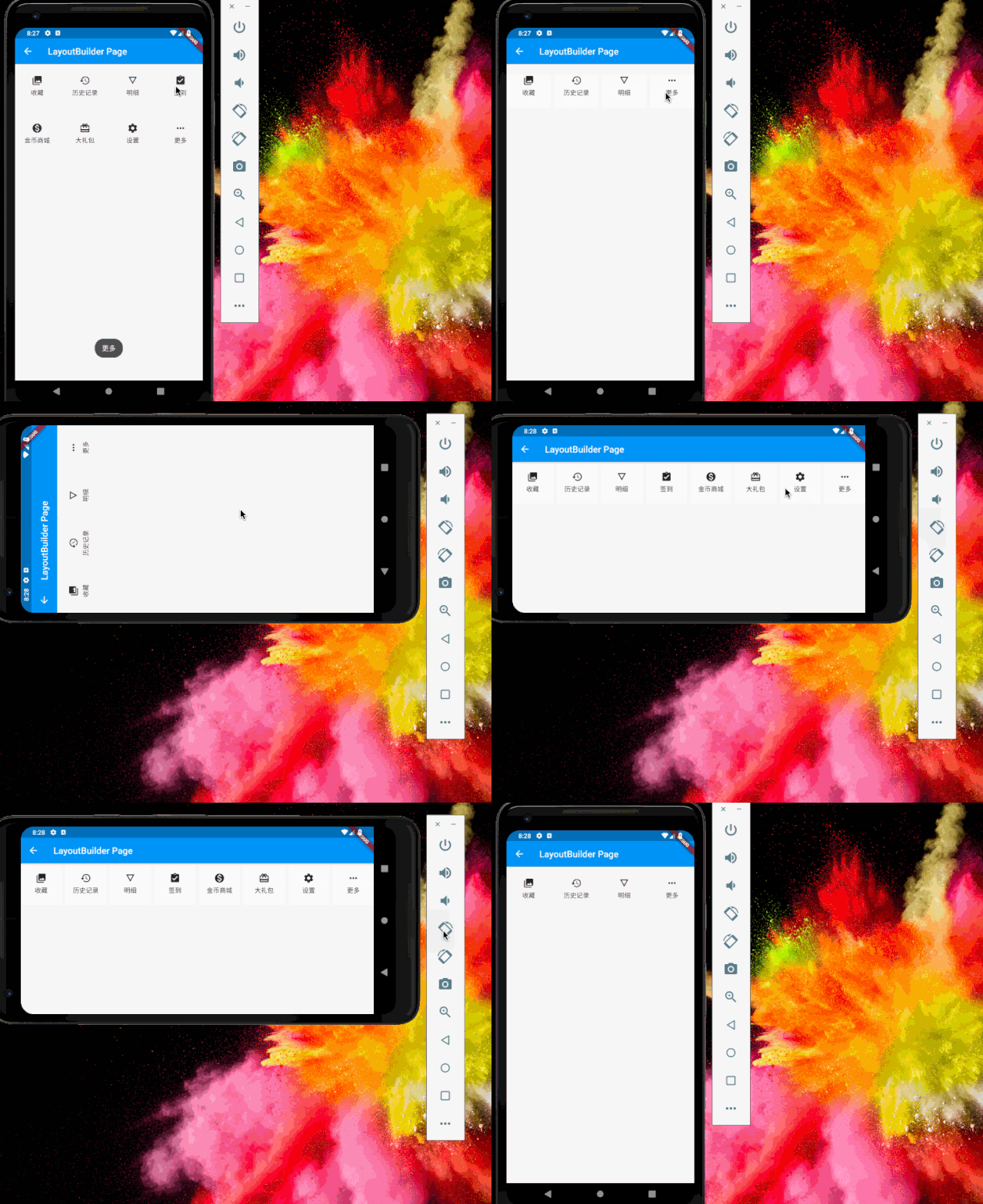
和尚继续补充日常学习中遇到的很实用的技术点; LayoutBuilder 和尚在一些场景下需要根据父类布局大小不同展示不同的子类 Widget,例如和尚在适配大尺寸平板或横竖屏切换等场景时,此时需要用到 LayoutBuilder 和尚理解为尺寸布局构造器; 源码分析 简单分析源码可得,LayoutBuilder 是一个继承自 ConstrainedLayoutBuilder 的构造器;通过 builder 获取一个 BoxConstraints 对象,之后通过检查 constraints 来确定要展示的内容; classLayoutBuilderextendsConstrainedLayoutBuilder<BoxConstraints>{ constLayoutBuilder({ Keykey, LayoutWidgetBuilderbuilder, }):super(key:key,builder:builder); } 案例尝试 和尚通过 GridView 默认展示一行的图标,预期是在大部分设备上展示 4个 item,随着屏幕的变大尽可能多的展示 item,当屏幕允许展示所有 item 时为上限;于是和尚设定了单个 item 宽基础为 90,根据 size.maxWidth 进行判断; LayoutBuilder(builder:(context,size){ if(size.maxWidth~/90>=4&& size.maxWidth~/90<=_dataList.length){ _length=size.maxWidth~/90; }elseif(size.maxWidth~/90>_dataList.length){ _length=_dataList.length; }else{ _length=4; } return_gridWid(); } _gridWid(){ returnGridView.builder( physics:ScrollPhysics(), primary:false,shrinkWrap:true, gridDelegate:SliverGridDelegateWithFixedCrossAxisCount( crossAxisCount:_length,mainAxisSpacing:8.0, crossAxisSpacing:8.0,childAspectRatio:1), itemCount:_showMore?_dataList.length:_length, itemBuilder:(context,index){ vardataItem=_dataList[index]; if(index<_length-1||_showMore){ dataItem=_dataList[index]; }else{ dataItem=_dataList[_dataList.length-1]; } returnGestureDetector( child:Container(color:Colors.white70, child:Column(mainAxisAlignment:MainAxisAlignment.center, children:<Widget>[ Icon(dataItem.icon), SizedBox(height:4), Text(dataItem.text) ])), onTap:(){ if(_length<_dataList.length&&dataItem.text=='更多'){ _showMore=!_showMore;setState((){}); } Toast.show(dataItem.text=='更多'?'更多':_dataList[index].text,context,duration:Toast.LENGTH_SHORT,gravity:Toast.BOTTOM); }); }); } ReorderableListView 和尚刚尝试了 Draggable + DragTarget 实现的基本的拖拽 GridView,今天尝试一下系统提供的 ReorderableListView 拖拽列表; 源码分析 简单分析源码可得 ReorderableListView 主要实现 children 子类 item 加载与 onReorder 拖拽子 item 到新的位置时回调; ReorderableListView({ Keykey, this.header,//列表头部标题 @requiredthis.children,//列表子类item @requiredthis.onReorder,//拖拽到新位置时回调 this.scrollDirection=Axis.vertical,//滑动方向,水平或竖直 this.padding,//内边距,仅用于children this.reverse=false,//是否反转 }) 案例尝试 1. onReorder onReorder 是当 item 拖拽到新的位置时 ReorderCallback 回调,其中回调中返回新旧两个数组下标用于标记; @override Widgetbuild(BuildContextcontext){ returnScaffold( appBar:AppBar(title:Text('ReorderableListViewPage')), body:ReorderableListView( header:Container(height:200.0, child:ACEWave(waveWidth,waveHeight,200.0, startOffsetXList:startOffsetX,startOffsetYList:startOffsetY, durationList:duration,waveColorList:colorList)), reverse:false, children:_listWid(), onReorder:(oldIndex,newIndex){ if(newIndex==_dataList.length)--newIndex; finaltemp=_dataList.removeAt(oldIndex); _dataList.insert(newIndex,temp); setState((){}); })); } _listData(index){ returnPadding( key:ValueKey(_dataList[index]), padding:EdgeInsets.all(20.0), child:Row(children:<Widget>[ Icon(_dataList[index].icon,color:Colors.black38), SizedBox(width:10.0), Expanded(child:Text(_dataList[index].text)), Icon(Icons.arrow_right,color:Colors.black38) ])); } _listWid()=><Widget>[for(inti=0;i<_dataList.length;i++)_listData(i)]; 2. scrollDirection scrollDirection 为列表滑动方向,与普通 ListView一致,分为 Axis.horizontal 横行和 Axis.vertical 纵向两种; scrollDirection:Axis.horizontal, 3. header header 为当前列表标题头部; _headerWid(horizontal){ returnhorizontal ?Container() :Container(height:200.0, child:ACEWave(waveWidth,waveHeight,200.0, startOffsetXList:startOffsetX, startOffsetYList:startOffsetY, durationList:duration, waveColorList:colorList)); } 4. reverse reverse 为是否反转,即初始时是否是从最后开始; reverse:true, 5. padding padding 为内边距,但仅针对列表 children 部分,对于头部 header 并不起效果; padding:EdgeInsets.all(40.0), 注意事项 ReorderableListView 没有类似于 ListView.builder 等构造方法,需要把 List 中所有 item 一次性加载完; ReorderableListView 中所有 children item 最外层必须要有唯一的 Key; 和尚测试过程中,当拖拽到最后一个时,因为先 remove 掉这个 item 再 insert 添加 item 时,此时 dataList 数量已经减少,newIndex 需要减一处理; LayoutBuilder 案例尝试 + ReorderableListView 案例尝试 和尚还会继续对日常应用的小知识点进行学习和尝试;对于底层的研究还不够深入,如有错误,请多多指导! 来源:阿策小和尚 本文分享自微信公众号 - 阿策小和尚(gh_8297e718c166)。 如有侵权,请联系 support@oschina.cn 删除。 本文参与“OSC源创计划”,欢迎正在阅读的你也加入,一起分享。