高可用架构篇 MySQL源码编译安装(CentOS-6.6+MySQL-5.6)
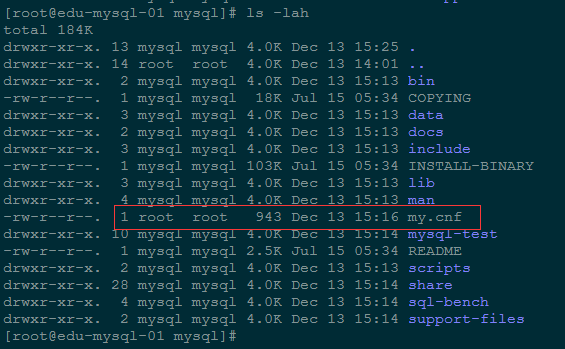
部署环境 操作系统:CentOS-6.6-x86_64-bin-DVD1.iso MySQL版本:mysql-5.6.26.tar.gz 操作用户:root 系统IP:192.168.1.205 主机名:edu-mysql-01 配置:4核、4G内存 一、服务器配置: 1、配置网络 #vi /etc/sysconfig/network-scripts/ifcfg-eth0 DEVICE=eth0 BOOTPROTO=static NM_CONTROLLED=no ONBOOT=yes TYPE=Ethernet HWADDR=00:50:56:a1:12:53 IPADDR=192.168.1.205 NETMASK=255.255.255.0 GATEWAY=192.168.1.1 DNS1=223.5.5.5 DNS2=223.6.6.6 2、设置主机名 #vi /etc/sysconfig/network NETWORKING=yes HOSTNAME=edu-mysql-01 3、设置IP与主机名的映射 #vi /etc/hosts 127.0.0.1 edu-mysql-01 192.168.1.205 edu-mysql-01 4、两台数据库服务器的的selinux都要disable (永久关闭selinux,请修改/etc/selinux/config,将SELINUX改为disabled) #vi /etc/selinux/config SELINUX=disabled 5、重启操作系统 #reboot 二、源码安装MySQL5.6.26: 1、使用下面的命令检查是否安装有MySQL Server: #rpm -qa | grep mysql mysql-libs-5.1.73-3.el6_5.x86_64 如果是CentOS7以上,请使用以下命令查看: #rpm -qa | grep mariadb mariadb-libs-5.5.41-2.el7_0.x86_64 (因为没有MySQL服务,因此没必要卸载。mysql-libs是MySQL的必要包) (如果有的话可通过下面的命令来卸载掉,rpm -e mysql //普通删除模式) 2、改防火墙设置,打开3306端口: #vi /etc/sysconfig/iptables 增加如下行: ## MySQL -A INPUT -p tcp -m state --state NEW -m tcp --dport 3306 -j ACCEPT 重启防火墙: #service iptables restart 3、新增mysql用户组: #groupadd mysql 4、新增mysql用户,并添加到mysql用户组: #useradd -r -g mysql mysql 5、新建MySQL执行文件目录(后面会把编译好的mysql程序安装到这个目录): #mkdir -p /usr/local/mysql (-p 参数的作用是:如果最终目录的父目录不存在也会一并创建) 6、新建MySQL数据库数据文件目录: #mkdir -p /home/mysql/data #mkdir -p /home/mysql/logs #mkdir -p /home/mysql/temp (注意:上面的logs及temp目录是为了以后将MySQL的数据文件与执行程序文件分离,如果你打算设置到不同的路径,注意修改对应的执行命令和数据库初始化脚本。正式生产环境,建议数据目录和日志目录都使用单独的分区来挂载,不同分区属于不同的磁盘或磁盘组。) 7、增加PATH环境变量搜索路径: #vi /etc/profile ##在profile文件末尾增加两行 # mysql env param PATH=/usr/local/mysql/bin:/usr/local/mysql/lib:$PATH export PATH 使PATH搜索路径立即生效: #source /etc/profile 8、安装编译MySQL需要的依赖包: (mysql从5.5版本开始,不再使用./configure编译,而是使用cmake编译器,具体的cmake编译参数可以参考mysql官网文档 http://dev.mysql.com/doc/refman/5.5/en/source-configuration-options.html,安装基本依赖包,先用yum安装cmake、automake 、autoconf ,另MySQL 5.5.x需要最少安装的包有:bison,gcc、gcc-c++、ncurses-devel): #yum install make cmake gcc gcc-c++ bison bison-devel ncurses ncurses-develautoconf automake 9、进入/usr/local/src目录,上传mysql-5.6.26.tar.gz源代码到/usr/local/src目录: #cd /usr/local/src 10、开始编译安装mysql-5.6.26: 解压缩源码包: #tar -zxvf mysql-5.6.26.tar.gz 进入解压缩源码目录: #cd mysql-5.6.26 使用cmake源码安装mysql(如果你打算安装到不同的路径,注意修改下面语句中/usr/local/mysql和/home/mysql/data路径!) [root@edu-mysql-01 mysql-5.6.26]#cmake \ -DCMAKE_INSTALL_PREFIX=/usr/local/mysql\ -DMYSQL_UNIX_ADDR=/usr/local/mysql/mysql.sock\ -DDEFAULT_CHARSET=utf8\ -DDEFAULT_COLLATION=utf8_general_ci\ -DWITH_MYISAM_STORAGE_ENGINE=1\ -DWITH_INNOBASE_STORAGE_ENGINE=1\ -DWITH_ARCHIVE_STORAGE_ENGINE=1 \ -DWITH_BLACKHOLE_STORAGE_ENGINE=1 \ -DWITH_MEMORY_STORAGE_ENGINE=1 \ -DWITH_READLINE=1 \ -DENABLED_LOCAL_INFILE=1 \ -DMYSQL_DATADIR=/home/mysql/data\ -DMYSQL_USER=mysql\ -DMYSQL_TCP_PORT=3306\ -DENABLE_DOWNLOADS=1 上面的这些复制完,回车,然后就开始cmake的过程,一般时间不会很长。 配置解释: -DCMAKE_INSTALL_PREFIX=/usr/local/mysql设置安装目录 -DMYSQL_DATADIR=/home/mysql/data设置数据库存放目录 -DMYSQL_UNIX_ADDR=/usr/local/mysql/mysql.sock设置UNIX socket目录 -DMYSQL_USER=mysql设置运行用户 -DDEFAULT_CHARSET=utf8设置默认字符集,默认latin1 -DEFAULT_COLLATION=utf8_general_ci设置默认校对规则,默认latin1_general_ci -DWITH_INNOBASE_STORAGE_ENGINE=1添加InnoDB引擎支持 -DENABLE_DOWNLOADS=1自动下载可选文件,比如自动下载谷歌的测试包 -DMYSQL_TCP_PORT=3306设置服务器监听端口,默认3306 -DSYSCONFDIR=/etc设置my.cnf所在目录,默认为安装目录) 执行过程中会出现: CMake Error: Problem with tar_extract_all(): Invalid argument CMake Error: Problem extracting tar: /usr/local/src/mysql-5.6.26/source_downloads/gmock-1.6.0.zip 解决方法: cd mysql目录下面会发现有一个source_downloads目录,需要解压unzip gmock-1.6.0.zip,然后再重新执行上述配置过程。当然你也可以去掉-DENABLE_DOWNLOADS=1这个选项,不编译谷歌的测试包也没有什么问题,但是之前的某些版本会出现无法编译的问题. 11、cmake结束后开始编译源码,这一步时间会较长,请耐心等待: #make 12、安装编译好的程序: #make install (注意:如果需要重装mysql,在/usr/local/src/mysql-5.6.26在执行下make install就可以了,不需要再cmake和make) 13、清除安装临时文件: #make clean 14、修改mysql目录拥有者为mysql用户: #chown -Rf mysql:mysql /usr/local/mysql #chown -Rf mysql:mysql /home/mysql 15、进入mysql执行程序的安装路径: #cd /usr/local/mysql 16、执行初始化配置脚本,创建系统自带的数据库和表(注意:路径/home/mysql/data需要换成你自定定义的数据库存放路径): #scripts/mysql_install_db --user=mysql --basedir=/usr/local/mysql --datadir=/home/mysql/data Installing MySQL system tables...2015-12-13 15:21:53 0 [Warning] TIMESTAMP with implicit DEFAULT value is deprecated. Please use --explicit_defaults_for_timestamp server option (see documentation for more details). 2015-12-13 15:21:53 0 [Note] /usr/local/mysql/bin/mysqld (mysqld 5.6.26) starting as process 17362 ... 2015-12-13 15:21:53 17362 [Note] InnoDB: Using atomics to ref count buffer pool pages 2015-12-13 15:21:53 17362 [Note] InnoDB: The InnoDB memory heap is disabled 2015-12-13 15:21:53 17362 [Note] InnoDB: Mutexes and rw_locks use GCC atomic builtins 2015-12-13 15:21:53 17362 [Note] InnoDB: Memory barrier is not used 2015-12-13 15:21:53 17362 [Note] InnoDB: Compressed tables use zlib 1.2.3 2015-12-13 15:21:53 17362 [Note] InnoDB: Using CPU crc32 instructions 2015-12-13 15:21:53 17362 [Note] InnoDB: Initializing buffer pool, size = 128.0M 2015-12-13 15:21:53 17362 [Note] InnoDB: Completed initialization of buffer pool 2015-12-13 15:21:53 17362 [Note] InnoDB: The first specified data file ./ibdata1 did not exist: a new database to be created! 2015-12-13 15:21:53 17362 [Note] InnoDB: Setting file ./ibdata1 size to 12 MB 2015-12-13 15:21:53 17362 [Note] InnoDB: Database physically writes the file full: wait... 2015-12-13 15:21:53 17362 [Note] InnoDB: Setting log file ./ib_logfile101 size to 48 MB 2015-12-13 15:21:53 17362 [Note] InnoDB: Setting log file ./ib_logfile1 size to 48 MB 2015-12-13 15:21:53 17362 [Note] InnoDB: Renaming log file ./ib_logfile101 to ./ib_logfile0 2015-12-13 15:21:53 17362 [Warning] InnoDB: New log files created, LSN=45781 2015-12-13 15:21:53 17362 [Note] InnoDB: Doublewrite buffer not found: creating new 2015-12-13 15:21:53 17362 [Note] InnoDB: Doublewrite buffer created 2015-12-13 15:21:53 17362 [Note] InnoDB: 128 rollback segment(s) are active. 2015-12-13 15:21:53 17362 [Warning] InnoDB: Creating foreign key constraint system tables. 2015-12-13 15:21:53 17362 [Note] InnoDB: Foreign key constraint system tables created 2015-12-13 15:21:53 17362 [Note] InnoDB: Creating tablespace and datafile system tables. 2015-12-13 15:21:53 17362 [Note] InnoDB: Tablespace and datafile system tables created. 2015-12-13 15:21:53 17362 [Note] InnoDB: Waiting for purge to start 2015-12-13 15:21:53 17362 [Note] InnoDB: 5.6.26 started; log sequence number 0 2015-12-13 15:21:53 17362 [Note] Binlog end 2015-12-13 15:21:53 17362 [Note] InnoDB: FTS optimize thread exiting. 2015-12-13 15:21:53 17362 [Note] InnoDB: Starting shutdown... 2015-12-13 15:21:54 17362 [Note] InnoDB: Shutdown completed; log sequence number 1625977 OK Filling help tables...2015-12-13 15:21:54 0 [Warning] TIMESTAMP with implicit DEFAULT value is deprecated. Please use --explicit_defaults_for_timestamp server option (see documentation for more details). 2015-12-13 15:21:54 0 [Note] /usr/local/mysql/bin/mysqld (mysqld 5.6.26) starting as process 17384 ... 2015-12-13 15:21:54 17384 [Note] InnoDB: Using atomics to ref count buffer pool pages 2015-12-13 15:21:54 17384 [Note] InnoDB: The InnoDB memory heap is disabled 2015-12-13 15:21:54 17384 [Note] InnoDB: Mutexes and rw_locks use GCC atomic builtins 2015-12-13 15:21:54 17384 [Note] InnoDB: Memory barrier is not used 2015-12-13 15:21:54 17384 [Note] InnoDB: Compressed tables use zlib 1.2.3 2015-12-13 15:21:54 17384 [Note] InnoDB: Using CPU crc32 instructions 2015-12-13 15:21:54 17384 [Note] InnoDB: Initializing buffer pool, size = 128.0M 2015-12-13 15:21:54 17384 [Note] InnoDB: Completed initialization of buffer pool 2015-12-13 15:21:54 17384 [Note] InnoDB: Highest supported file format is Barracuda. 2015-12-13 15:21:54 17384 [Note] InnoDB: 128 rollback segment(s) are active. 2015-12-13 15:21:54 17384 [Note] InnoDB: Waiting for purge to start 2015-12-13 15:21:54 17384 [Note] InnoDB: 5.6.26 started; log sequence number 1625977 2015-12-13 15:21:55 17384 [Note] Binlog end 2015-12-13 15:21:55 17384 [Note] InnoDB: FTS optimize thread exiting. 2015-12-13 15:21:55 17384 [Note] InnoDB: Starting shutdown... 2015-12-13 15:21:56 17384 [Note] InnoDB: Shutdown completed; log sequence number 1625987 OK To start mysqld at boot time you have to copy support-files/mysql.server to the right place for your system PLEASE REMEMBER TO SET A PASSWORD FOR THE MySQL root USER ! To do so, start the server, then issue the following commands: /usr/local/mysql/bin/mysqladmin -u root password 'new-password' /usr/local/mysql/bin/mysqladmin -u root -h edu-mysql-02 password 'new-password' Alternatively you can run: /usr/local/mysql/bin/mysql_secure_installation which will also give you the option of removing the test databases and anonymous user created by default. This is strongly recommended for production servers. See the manual for more instructions. You can start the MySQL daemon with: cd . ; /usr/local/mysql/bin/mysqld_safe & You can test the MySQL daemon with mysql-test-run.pl cd mysql-test ; perl mysql-test-run.pl Please report any problems at http://bugs.mysql.com/ The latest information about MySQL is available on the web at http://www.mysql.com Support MySQL by buying support/licenses at http://shop.mysql.com New default config file was created as /usr/local/mysql/my.cnf and will be used by default by the server when you start it. You may edit this file to change server settings WARNING: Default config file /etc/my.cnf exists on the system This file will be read by default by the MySQL server If you do not want to use this, either remove it, or use the --defaults-file argument to mysqld_safe when starting the server 17、初始化脚本在/usr/local/mysql/下生成了配置文件my.cnf,需要更改该配置文件的所有者: #ls -lah [root@edu-mysql-01 mysql] #chown -Rf mysql:mysql /usr/local/mysql/my.cnf 18、注意: (1)Tips:在启动MySQL服务时,会按照一定次序搜索my.cnf,先在/etc目录下找,找不到则会搜索mysql程序目录下是否有my.cnf(2)需要注意CentOS 6版操作系统的最小安装完成后,即使没有安装mysql,在/etc目录下也会存在一个my.cnf文件,建议将此文件更名为其他的名字,否则该文件会干扰源码安装的MySQL的正确配置,造成无法启动。修改/etc/my.cnf操作如下: 可以:mv /etc/my.cnf /etc/my.cnf.bak 也可以:删除掉/etc/my.cnf这个文件:rm /etc/my.cnf 如果你需要用于生产环境,不要急着做下面的mysql启动操作。建议把上一步骤中mysql初始化生成的/usr/local/mysql/my.cnf删除,然后把你优化好的mysql配置文件my.cnf放到/etc下。(这是做mysql主从复制和mysql优化的经验!) (我们这里使用/etc/my.cnf) 19、编辑/etc/my.cnf: #vi /etc/my.cnf [client] port = 3306 socket = /usr/local/mysql/mysql.sock [mysqld] character-set-server = utf8 collation-server = utf8_general_ci skip-external-locking skip-name-resolve user = mysql port = 3306 basedir = /usr/local/mysql datadir = /home/mysql/data tmpdir = /home/mysql/temp # server_id = ..... socket = /usr/local/mysql/mysql.sock log-error = /home/mysql/logs/mysql_error.log pid-file = /home/mysql/mysql.pid open_files_limit = 10240 back_log = 600 max_connections=500 max_connect_errors = 6000 wait_timeout=605800 #open_tables = 600 #table_cache = 650 #opened_tables = 630 max_allowed_packet = 32M sort_buffer_size = 4M join_buffer_size = 4M thread_cache_size = 300 query_cache_type = 1 query_cache_size = 256M query_cache_limit = 2M query_cache_min_res_unit = 16k tmp_table_size = 256M max_heap_table_size = 256M key_buffer_size = 256M read_buffer_size = 1M read_rnd_buffer_size = 16M bulk_insert_buffer_size = 64M lower_case_table_names=1 default-storage-engine = INNODB innodb_buffer_pool_size = 2G innodb_log_buffer_size = 32M innodb_log_file_size = 128M innodb_flush_method = O_DIRECT ##################### thread_concurrency = 32 long_query_time= 2 slow-query-log = on slow-query-log-file = /home/mysql/logs/mysql-slow.log [mysqldump] quick max_allowed_packet = 32M [mysqld_safe] log-error=/var/log/mysqld.log pid-file=/var/run/mysqld/mysqld.pid 20、复制服务启动脚本: #cp /usr/local/mysql/support-files/mysql.server /etc/init.d/mysql 21、启动MySQL服务: #service mysql start Starting MySQL.. SUCCESS! (初次启动会在/usr/local/mysql目录下生成mysql.sock文件) 22、设置MySQL开机自动启动服务: #chkconfig mysql on 设置MySQL数据库root用户的本地登录密码(初始用户没有密码): #mysqladmin -u root password 'roncoo' 23、登录并修改MySQL用户root的密码: #mysql -uroot -p Enter password: Welcome to the MySQL monitor. Commands end with ; or \g. Your MySQL connection id is 2 Server version: 5.6.26-log Source distribution Copyright (c) 2000, 2015, Oracle and/or its affiliates. All rights reserved. Oracle is a registered trademark of Oracle Corporation and/or its affiliates. Other names may be trademarks of their respective owners. Type 'help;' or '\h' for help. Type '\c' to clear the current input statement. mysql> mysql>show databases; +--------------------+ | Database | +--------------------+ | information_schema | | mysql | | performance_schema | | test | +--------------------+ 4 rows in set (0.00 sec) mysql>use mysql; Reading table information for completion of table and column names You can turn off this feature to get a quicker startup with -A 修改root用户密码: mysql>update user set Password = password('roncoo.com') where User='root'; Query OK, 4 rows affected (0.00 sec) Rows matched: 5 Changed: 4 Warnings: 0 mysql>flush privileges; Query OK, 0 rows affected (0.00 sec) 允许root远程登录,设置远程登录密码:www.roncoo.com mysql>use mysql; mysql>GRANT ALL PRIVILEGES ON *.* TO 'root'@'%' IDENTIFIED BY 'www.roncoo.com' WITH GRANT OPTION; mysql>flush privileges; mysql>exit; 注意:真实生产环境,应用操作不要使用root用户。 重新登录 [root@edu-mysql-01 ~]#mysql -uroot -p Enter password: Welcome to the MySQL monitor. Commands end with ; or \g. Your MySQL connection id is 9 Server version: 5.6.26-log Source distribution Copyright (c) 2000, 2015, Oracle and/or its affiliates. All rights reserved. Oracle is a registered trademark of Oracle Corporation and/or its affiliates. Other names may be trademarks of their respective owners. Type 'help;' or '\h' for help. Type '\c' to clear the current input statement. mysql> 24、运行安全设置脚本,强烈建议生产服务器使用(可选): [root@edu-mysql-01 ~]#/usr/local/mysql/bin/mysql_secure_installation NOTE: RUNNING ALL PARTS OF THIS SCRIPT IS RECOMMENDED FOR ALL MySQL SERVERS IN PRODUCTION USE! PLEASE READ EACH STEP CAREFULLY! In order to log into MySQL to secure it, we'll need the current password for the root user. If you've just installed MySQL, and you haven't set the root password yet, the password will be blank, so you should just press enter here. Enter current password for root (enter for none):----->此处输入root密码 OK, successfully used password, moving on... Setting the root password ensures that nobody can log into the MySQL root user without the proper authorisation. You already have a root password set, so you can safely answer 'n'. Change the root password? [Y/n]n ----->上已为root设置了密码,此处可输n ... skipping. By default, a MySQL installation has an anonymous user, allowing anyone to log into MySQL without having to have a user account created for them. This is intended only for testing, and to make the installation go a bit smoother. You should remove them before moving into a production environment. Remove anonymous users? [Y/n]Y ------>删除匿名用户 ... Success! Normally, root should only be allowed to connect from 'localhost'. This ensures that someone cannot guess at the root password from the network. Disallow root login remotely? [Y/n]n ----->一般不允许root远程登录,可添加普通用户,然后设置允许远程登录 ... skipping. By default, MySQL comes with a database named 'test' that anyone can access. This is also intended only for testing, and should be removed before moving into a production environment. Remove test database and access to it? [Y/n]Y ----->删除test库及相应权限 - Dropping test database... ... Success! - Removing privileges on test database... ... Success! Reloading the privilege tables will ensure that all changes made so far will take effect immediately. Reload privilege tables now? [Y/n]Y ----->重新加载权限表使设置生效 ... Success! All done! If you've completed all of the above steps, your MySQL installation should now be secure. Thanks for using MySQL! Cleaning up... 25、重启服务器,检测mysql是否能开机自动启动: [root@edu-mysql-01 ~] #reboot 参考内容:基于Dubbo的分布式系统架构项目实战