首页 文章 精选 留言 我的

精选列表

搜索[模块],共10000篇文章
优秀的个人博客,低调大师

张高兴的 Windows 10 IoT 开发笔记:串口红外编解码模块 YS-IRTM

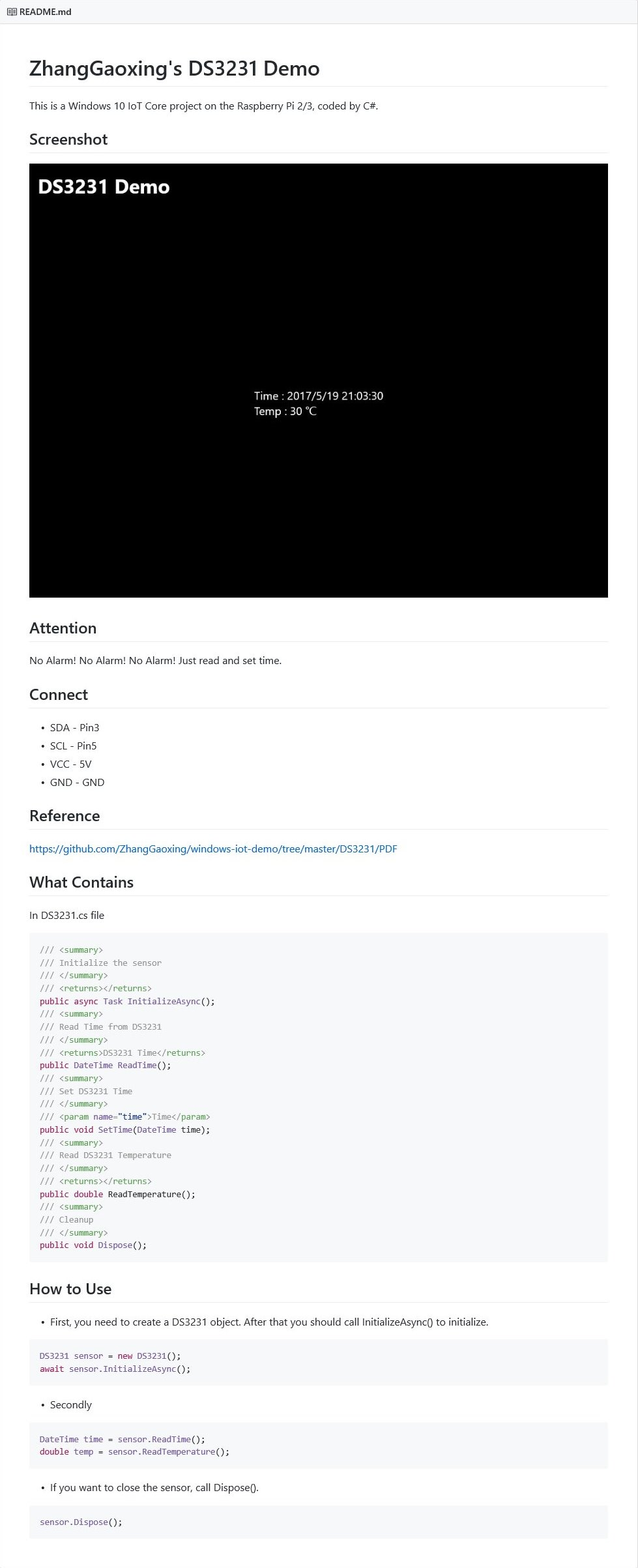
This is a Windows 10 IoT Core project on the Raspberry Pi 2/3, coded by C#. GitHub: https://github.com/ZhangGaoxing/windows-iot-demo/tree/master/IRTM Image Reference https://github.com/ZhangGaoxing/windows-iot-demo/tree/master/IRTM/Reference Connect RXD - UART0 TX (PIN 8) TXD - UART0 RX (PIN 10) VCC - 5V GND - GND Note There is one Serial UART available on the RPi2/3: UART0 Pin 8 - UART0 TX Pin 10 - UART0 RX You need add the following capability to the Package.appxmanifest file to use Serial UART. <Capabilities> <DeviceCapability Name="serialcommunication"> <Device Id="any"> <Function Type="name:serialPort" /> </Device> </DeviceCapability> </Capabilities> What Contains In IRTM.cs file /// <summary> /// Initialize YS-IRTM /// </summary> public async Task InitializeAsync(); /// <summary> /// Send Order /// </summary> /// <param name="code">Order</param> public async Task SendAsync(byte[] code); /// <summary> /// Read Order /// </summary> public async Task<byte[]> ReadAsync(); /// <summary> /// Set YS-IRTM Address /// </summary> /// <param name="address">Address from 1 to FF</param> public async Task SetAddressAsync(byte address); /// <summary> /// Set YS-IRTM Baud Rate /// </summary> /// <param name="rate">Baud Rate</param> public async Task SetBaudRateAsync(IrtmBaudRate rate); /// <summary> /// Return YS-IRTM /// </summary> /// <returns>YS-IRTM</returns> public SerialDevice GetDevice(); /// <summary> /// Cleanup /// </summary> public void Dispose(); How to Use First, you need to create a IRTM object. After that you should call InitializeAsync() to initialize. IRTM irtm = new IRTM(); await irtm.InitializeAsync(); Second, SendAsync(). irtm.SendAsync(new byte[] { 0x01, 0x02, 0x03 }); If you want to close the sensor, call Dispose(). irtm.Dispose();

优秀的个人博客,低调大师

eBook 功能模块一之颜色选择器【ColorPickerPreference】自定义Preference 对话框

在Api Demo里面有一个叫ColorPickerDialog的对话框,该对话框扩展了Dialog 的功能,使其具备颜色选择器的功能。具体可以参考Api Demo源代码,路径为:android-sdk-windows\samples\android-7\ApiDemos\src\com \example\android\apis\graphics\ColorPickerDialog.java 本功能是基于上述的颜色选择器对话框进行扩展,模仿PreferceActivity 组件的实现方式,新建一个名为ColorPickerPreference 的类使其继承自DialogPreference 并实现其内部功能菜单,如图: 在Api Demo里面的颜色选择器是不具备有黑色和白色的选择的,这里我们虽然使用api Demo 里面的颜色选择器但其内部我们稍稍改造了一下。使其支持黑色和白色的选择,如上图中间的一条颜色条,头部和尾部分别代表黑色和白色。 为了显示的友好性,如果用户选择了颜色应该应该会有一个内容窗口或者一个文本对用户的选择做出相应的预览效果,。我们这里使用了一个TextView 做为颜色的预览效果,我们知道,Preference 的summary 只支持字符串的操作,类似下面的图: 如上图,只支持类型类型为CharSequence和字符所在的资源ID位置,那么我们这里如何使其支持颜色的显示和动态更换颜色呢? 这一切都在神奇的回调函数,onCreateView 里面这个方法先于 onBindView 执行,在里面初始化视图并且返回视图。具体处理见下面代码: @Override protected ViewonCreateView(ViewGroupparent){ // TODOAuto-generatedmethodstub Viewview = LayoutInflater.from(getContext()).inflate( R.layout.preference, null ); TextViewtitle = (TextView)view.findViewById(R.id.title); title.setText(getTitle()); summary = (TextView)view.findViewById(R.id.summary); summary.setText(getSummary()); SharedPreferencesprefs = getPreferenceManager().getSharedPreferences(); mInitialColor = prefs.getInt(getKey(),Color.LTGRAY); summary.setTextColor(mInitialColor); return view; } 上面代码,我们通过LayoutInflater 函数引入一个外部的布局文件,然后设置其title 和summary 并初始其颜色,通过SharedPreferences类调用保存后的颜色值,布局文件如下: <? xmlversion="1.0"encoding="UTF-8" ?> < LinearLayout android:id ="@+id/LinearLayout01" android:layout_width ="fill_parent" android:layout_height ="fill_parent" xmlns:android ="http://schemas.android.com/apk/res/android" > < RelativeLayout android:layout_width ="fill_parent" android:gravity ="center" android:layout_height ="fill_parent" > < TextView android:id ="@+id/title" android:layout_width ="wrap_content" android:layout_marginLeft ="15dp" android:textAppearance ="?android:attr/textAppearanceLarge" android:layout_height ="wrap_content" ></ TextView > < ImageView android:src ="@drawable/ic_dialog_menu_generic" android:layout_marginRight ="15dp" android:layout_alignParentRight ="true" android:layout_width ="wrap_content" android:layout_height ="wrap_content" ></ ImageView > < TextView android:id ="@+id/summary" android:layout_below ="@id/title" android:layout_marginLeft ="15dp" android:layout_width ="wrap_content" android:layout_height ="wrap_content" ></ TextView > </ RelativeLayout > </ LinearLayout > 实始化对话框的回调函数里面我们为其添加一个ColorPickerDialog 本身的颜色改变的事件监听并为其初始化颜色值,代码如下: @Override protected void onPrepareDialogBuilder(Builderbuilder){ super.onPrepareDialogBuilder(builder); OnColorChangedListenerl = new OnColorChangedListener(){ public void colorChanged( int color){ mCurrentColor = color; onDialogClosed( true ); getDialog().dismiss(); } }; LinearLayoutlayout = new LinearLayout(getContext()); layout.setPadding( 20 , 20 , 20 , 20 ); layout.setOrientation(LinearLayout.VERTICAL); mCPView = new ColorPickerView(getContext(),l,mInitialColor); LinearLayout.LayoutParamsparams1 = new LinearLayout.LayoutParams( LinearLayout.LayoutParams.WRAP_CONTENT, LinearLayout.LayoutParams.WRAP_CONTENT); params1.gravity = Gravity.CENTER; mCPView.setLayoutParams(params1); layout.addView( this .mCPView); layout.setId(android.R.id.widget_frame); builder.setView(layout); } 当对话框关闭时,即选择完颜色后,我们就要马上回去更新文本的颜色和将颜色值保存到键值里面,代码如下: @Override protected void onDialogClosed(booleanpositiveResult){ if (positiveResult){ mCurrentColor = mCPView.getColor(); summary.setTextColor(mCurrentColor); SharedPreferences.Editoreditor = getEditor(); editor.putInt(getKey(),mCurrentColor); editor.commit(); callChangeListener( new Integer(mCurrentColor)); } } 通过重写,onDialogClosed 回调函数,到这一步整个的封装就己结束,在XML可以通过如下使用: < com.terry.util.ColorPickerPreference android:key ="colorpiker" android:persistent ="true" android:summary ="@string/app_name" android:dialogTitle ="@string/str_fontscolor" android:title ="@string/str_fontscolor" /> Tip:自己封装控件不论是自定义控件也好,preference 也好在XML里面都是无法智能提示的,只要自己把握好输入的属性准确无误就行。 完整代码如下: packagecom.terry.util; importandroid.app.AlertDialog.Builder; importandroid.content.Context; importandroid.content.SharedPreferences; importandroid.graphics.Canvas; importandroid.graphics.Color; importandroid.graphics.LinearGradient; importandroid.graphics.Paint; importandroid.graphics.RectF; importandroid.graphics.Shader; importandroid.graphics.SweepGradient; importandroid.preference.DialogPreference; importandroid.util.AttributeSet; importandroid.view.Gravity; importandroid.view.LayoutInflater; importandroid.view.MotionEvent; importandroid.view.View; importandroid.view.ViewGroup; importandroid.widget.LinearLayout; importandroid.widget.TextView; importcom.terry.eBook.R; public class ColorPickerPreferenceextendsDialogPreference{ private int mInitialColor; private int mCurrentColor; private ColorPickerViewmCPView; private TextViewsummary; private static class ColorPickerViewextendsView{ private PaintmPaint; private PaintmCenterPaint; private PaintmHSVPaint; private final int []mColors; private int []mHSVColors; private booleanmRedrawHSV; private OnColorChangedListenermListener; ColorPickerView(Contextc,OnColorChangedListenerl, int color){ super(c); mListener = l; mColors = new int []{ 0xFFFF0000 , 0xFFFF00FF , 0xFF0000FF , 0xFF00FFFF , 0xFF00FF00 , 0xFFFFFF00 , 0xFFFF0000 }; Shaders = new SweepGradient( 0 , 0 ,mColors, null ); mPaint = new Paint(Paint.ANTI_ALIAS_FLAG); mPaint.setShader(s); mPaint.setStyle(Paint.Style.STROKE); mPaint.setStrokeWidth( 55 ); mCenterPaint = new Paint(Paint.ANTI_ALIAS_FLAG); mCenterPaint.setColor(color); mCenterPaint.setStrokeWidth( 5 ); mHSVColors = new int []{ 0xFF000000 ,color, 0xFFFFFFFF }; mHSVPaint = new Paint(Paint.ANTI_ALIAS_FLAG); mHSVPaint.setStrokeWidth( 10 ); mRedrawHSV = true ; } private booleanmTrackingCenter; private booleanmHighlightCenter; public int getColor(){ return mCenterPaint.getColor(); } @Override protected void onDraw(Canvascanvas){ float r = CENTER_X - mPaint.getStrokeWidth() * 0.5f ; canvas.translate(CENTER_X,CENTER_X); int c = mCenterPaint.getColor(); if (mRedrawHSV){ mHSVColors[ 1 ] = c; mHSVPaint.setShader( new LinearGradient( - 100 , 0 , 100 , 0 , mHSVColors, null ,Shader.TileMode.CLAMP)); } canvas.drawOval( new RectF( - r, - r,r,r),mPaint); canvas.drawCircle( 0 , 0 ,CENTER_RADIUS,mCenterPaint); canvas.drawRect( new RectF( - 100 , 130 , 100 , 110 ),mHSVPaint); if (mTrackingCenter){ mCenterPaint.setStyle(Paint.Style.STROKE); if (mHighlightCenter){ mCenterPaint.setAlpha( 0xFF ); } else { mCenterPaint.setAlpha( 0x80 ); } canvas.drawCircle( 0 , 0 ,CENTER_RADIUS + mCenterPaint.getStrokeWidth(),mCenterPaint); mCenterPaint.setStyle(Paint.Style.FILL); mCenterPaint.setColor(c); } mRedrawHSV = true ; } @Override protected void onMeasure( int widthMeasureSpec, int heightMeasureSpec){ setMeasuredDimension(CENTER_X * 2 ,(CENTER_Y + 25 ) * 2 ); } private static final int CENTER_X = 100 ; private static final int CENTER_Y = 100 ; private static final int CENTER_RADIUS = 30 ; private int ave( int s, int d, float p){ return s + java.lang.Math.round(p * (d - s)); } private int interpColor( int colors[], float unit){ if (unit <= 0 ){ return colors[ 0 ]; } if (unit >= 1 ){ return colors[colors.length - 1 ]; } float p = unit * (colors.length - 1 ); int i = ( int )p; p -= i; // nowpisjustthefractionalpart[0...1)andiistheindex int c0 = colors[i]; int c1 = colors[i + 1 ]; int a = ave(Color.alpha(c0),Color.alpha(c1),p); int r = ave(Color.red(c0),Color.red(c1),p); int g = ave(Color.green(c0),Color.green(c1),p); int b = ave(Color.blue(c0),Color.blue(c1),p); return Color.argb(a,r,g,b); } private static final float PI = 3.1415926f ; @Override public booleanonTouchEvent(MotionEvent event ){ float x = event .getX() - CENTER_X; float y = event .getY() - CENTER_Y; booleaninCenter = java.lang.Math.sqrt(x * x + y * y) <= CENTER_RADIUS; switch ( event .getAction()){ case MotionEvent.ACTION_DOWN: mTrackingCenter = inCenter; if (inCenter){ mHighlightCenter = true ; invalidate(); break ; } case MotionEvent.ACTION_MOVE: if (mTrackingCenter){ if (mHighlightCenter != inCenter){ mHighlightCenter = inCenter; invalidate(); } } else if ((x >= - 100 & x <= 100 ) && (y <= 130 && y >= 110 )) // see // if // we're // in // the // hsv // slider { int a,r,g,b,c0,c1; float p; // setthecenterpainttothiscolor if (x < 0 ){ c0 = mHSVColors[ 0 ]; c1 = mHSVColors[ 1 ]; p = (x + 100 ) / 100 ; } else { c0 = mHSVColors[ 1 ]; c1 = mHSVColors[ 2 ]; p = x / 100 ; } a = ave(Color.alpha(c0),Color.alpha(c1),p); r = ave(Color.red(c0),Color.red(c1),p); g = ave(Color.green(c0),Color.green(c1),p); b = ave(Color.blue(c0),Color.blue(c1),p); mCenterPaint.setColor(Color.argb(a,r,g,b)); mRedrawHSV = false ; invalidate(); } else { float angle = ( float )java.lang.Math.atan2(y,x); // needtoturnangle[-PI...PI]intounit[0....1] float unit = angle / ( 2 * PI); if (unit < 0 ){ unit += 1 ; } mCenterPaint.setColor(interpColor(mColors,unit)); invalidate(); } break ; case MotionEvent.ACTION_UP: if (mTrackingCenter){ if (inCenter){ mListener.colorChanged(mCenterPaint.getColor()); } mTrackingCenter = false ; // sowedraww/ohalo invalidate(); } break ; } return true ; } } public interface OnColorChangedListener{ void colorChanged( int color); } public ColorPickerPreference(Contextcontex){ this (contex, null ); } public ColorPickerPreference(Contextcontext,AttributeSetattrs){ super(context,attrs); } public ColorPickerPreference(Contextcontext,AttributeSetattrs, int defStyle){ super(context,attrs,defStyle); } @Override protected void onDialogClosed(booleanpositiveResult){ if (positiveResult){ mCurrentColor = mCPView.getColor(); summary.setTextColor(mCurrentColor); SharedPreferences.Editoreditor = getEditor(); editor.putInt(getKey(),mCurrentColor); editor.commit(); callChangeListener( new Integer(mCurrentColor)); } } @Override protected ViewonCreateView(ViewGroupparent){ // TODOAuto-generatedmethodstub Viewview = LayoutInflater.from(getContext()).inflate( R.layout.preference, null ); TextViewtitle = (TextView)view.findViewById(R.id.title); title.setText(getTitle()); summary = (TextView)view.findViewById(R.id.summary); summary.setText(getSummary()); SharedPreferencesprefs = getPreferenceManager().getSharedPreferences(); mInitialColor = prefs.getInt(getKey(),Color.LTGRAY); summary.setTextColor(mInitialColor); return view; } @Override protected void onPrepareDialogBuilder(Builderbuilder){ super.onPrepareDialogBuilder(builder); OnColorChangedListenerl = new OnColorChangedListener(){ public void colorChanged( int color){ mCurrentColor = color; onDialogClosed( true ); getDialog().dismiss(); } }; LinearLayoutlayout = new LinearLayout(getContext()); layout.setPadding( 20 , 20 , 20 , 20 ); layout.setOrientation(LinearLayout.VERTICAL); mCPView = new ColorPickerView(getContext(),l,mInitialColor); LinearLayout.LayoutParamsparams1 = new LinearLayout.LayoutParams( LinearLayout.LayoutParams.WRAP_CONTENT, LinearLayout.LayoutParams.WRAP_CONTENT); params1.gravity = Gravity.CENTER; mCPView.setLayoutParams(params1); layout.addView( this .mCPView); layout.setId(android.R.id.widget_frame); builder.setView(layout); } } 完。 本文转自 terry_龙 51CTO博客,原文链接:http://blog.51cto.com/terryblog/393621,如需转载请自行联系原作者

资源下载

更多资源
Mario

Mario

马里奥是站在游戏界顶峰的超人气多面角色。马里奥靠吃蘑菇成长,特征是大鼻子、头戴帽子、身穿背带裤,还留着胡子。与他的双胞胎兄弟路易基一起,长年担任任天堂的招牌角色。

Nacos

Nacos

Nacos /nɑ:kəʊs/ 是 Dynamic Naming and Configuration Service 的首字母简称,一个易于构建 AI Agent 应用的动态服务发现、配置管理和AI智能体管理平台。Nacos 致力于帮助您发现、配置和管理微服务及AI智能体应用。Nacos 提供了一组简单易用的特性集,帮助您快速实现动态服务发现、服务配置、服务元数据、流量管理。Nacos 帮助您更敏捷和容易地构建、交付和管理微服务平台。

Spring

Spring

Spring框架(Spring Framework)是由Rod Johnson于2002年提出的开源Java企业级应用框架,旨在通过使用JavaBean替代传统EJB实现方式降低企业级编程开发的复杂性。该框架基于简单性、可测试性和松耦合性设计理念,提供核心容器、应用上下文、数据访问集成等模块,支持整合Hibernate、Struts等第三方框架,其适用范围不仅限于服务器端开发,绝大多数Java应用均可从中受益。

Rocky Linux

Rocky Linux

Rocky Linux(中文名:洛基)是由Gregory Kurtzer于2020年12月发起的企业级Linux发行版,作为CentOS稳定版停止维护后与RHEL(Red Hat Enterprise Linux)完全兼容的开源替代方案,由社区拥有并管理,支持x86_64、aarch64等架构。其通过重新编译RHEL源代码提供长期稳定性,采用模块化包装和SELinux安全架构,默认包含GNOME桌面环境及XFS文件系统,支持十年生命周期更新。


用户登录
用户注册