Harbor1.9 部署并配置https
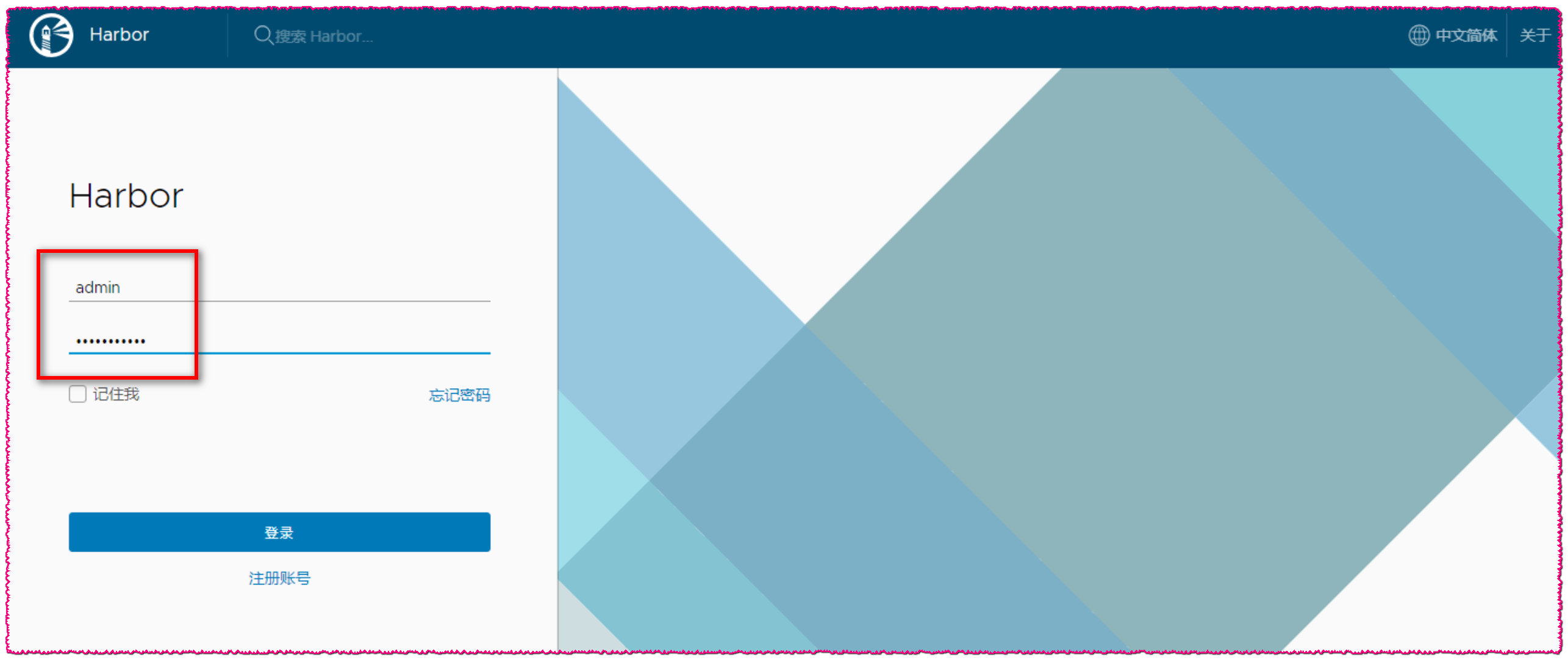
为什么要使用https协议 因为不用 https 协议的话,docker 客户端需要修改配置,如果 docker 客户端多的话配置起来就很麻烦。 版本信息 OS:CentOS Linux 7.6 Release Docker:18.09.6 Docker-compose:1.24.1 Harbor:harbor-offline-installer-v1.9.0 IP:172.0.0.11 1. 安装docker 1.1 配置repository: yum install -y yum-utils device-mapper-persistent-data lvm2 yum-config-manager --add-repo https://download.docker.com/linux/centos/docker-ce.repo 1.2 安装最新版本docker-ce yum install -y docker-ce 1.3 配置docker加速 参考docker.hub:https://www.daocloud.io/mirror curl -sSL https://get.daocloud.io/daotools/set_mirror.sh | sh -s http://f1361db2.m.daocloud.io systemctl restart docker.service 1.4 启动docker: systemctl start docker systemctl enable docker 2. 安装docker-compose 2.1 下载二进制文件 curl -L "https://github.com/docker/compose/releases/download/1.24.1/docker-compose-$(uname -s)-$(uname -m)" -o /usr/local/bin/docker-compose 如果需要安装其他版本的话,请修改上面命令中的版本号。 2.2 赋予二进制文件可执行权限 chmod +x /usr/local/bin/docker-compose ln -s /usr/local/bin/docker-compose /usr/bin/docker-compose 2.3 根据自己的情况决定是否安装命令补全功能 yum install -y bash-completion curl -L https://raw.githubusercontent.com/docker/compose/1.24.1/contrib/completion/bash/docker-compose -o /etc/bash_completion.d/docker-compose 2.4 测试是否安装成功 docker-compose --version 3. harbor开启https 如果使用 1.8 或者 1.9 版本,切记配置文件中 https 需要顶格,证书和 port 需要缩进相同单位,不然会报错。 3.1 创建 ca 证书 mkdir -p /data/cert cd /data/cert 3.2 生成 CA 的 key cd /data/cert openssl genrsa -out ca.key 4096 3.3 生成 CA 的 crt cd /data/cert openssl req -x509 -new -nodes -sha512 -days 3650 \ -subj "/C=CN/ST=Beijing/L=Beijing/O=chinatelecom/OU=ecloudcaas/CN=172.0.0.11" \ -key ca.key \ -out ca.crt 3.4 生成自己域名的 key cd /data/cert openssl genrsa -out 172.0.0.11.key 4096 3.5 生成自己域名的 csr cd /data/cert openssl req -sha512 -new \ -subj "/C=CN/ST=Beijing/L=Beijing/O=chinatelecom/OU=ecloudcaas/CN=172.0.0.11" \ -key 172.0.0.11.key \ -out 172.0.0.11.csr 3.6 生成一个 openssl 命令需要的外部配置文件 主要是subjectAltName,这里写的IP.1=yourip还可以写DNS.1=yourdomainname cd /data/cert cat > v3.ext <<-EOF authorityKeyIdentifier=keyid,issuer basicConstraints=CA:FALSE keyUsage = digitalSignature, nonRepudiation, keyEncipherment, dataEncipherment extendedKeyUsage = serverAuth subjectAltName = @alt_names [alt_names] IP=172.0.0.11 EOF 3.7 通过 ext 和 csr 生成 crt cd /data/cert openssl x509 -req -sha512 -days 3650 \ -extfile v3.ext \ -CA ca.crt -CAkey ca.key -CAcreateserial \ -in 172.0.0.11.csr \ -out 172.0.0.11.crt 3.8 将服务端的 crt 转换成客户端用的 cert cd /data/cert openssl x509 -inform PEM -in 172.0.0.11.crt -out 172.0.0.11.cert 3.9 将带域名的 cert,key 和 ca.crt 拷贝到 docker client 所在主机的 /etc/docker/certs.d/yourdomain/ 目录下 mkdir -p /etc/docker/cert/172.0.0.11 cp /data/cert/172.0.0.11.cert /etc/docker/cert/172.0.0.11/ cp /data/cert/172.0.0.11.key /etc/docker/cert/172.0.0.11/ cp /data/cert/ca.crt /etc/docker/cert/172.0.0.11/ 3.10 创建 /etc/docker/daemon cat > /etc/docker/daemon.json << EOF { "insecure-registries":["http://172.0.0.11"] } EOF 3.11 重启 docker systemctl daemon-reload systemctl restart docker 4. 安装 Harbor 4.1 下载 harbor 离线包 mkdir -p /home/harbor/ wget -P /home/harbor/ https://storage.googleapis.com/harbor-releases/release-1.9.0/harbor-offline-installer-v1.9.0.tgz cd /home/harbor/ tar xf harbor-offline-installer-v1.9.0.tgz cd /home/harbor/harbor cp harbor.yml harbor.yml.bak 4.2 修改配置文件 其他地方不修改,只改以下几处: cd /home/harbor/harbor/ [root@harbor harbor]# egrep -v "^#|^$" harbor.yml|grep -v "#" https: port: 443 certificate: /home/harbor/cert/172.0.0.11.crt private_key: /home/harbor/cert/172.0.0.11.key 4.3 更新参数 cd /home/harbor/harbor/ ./prepare 4.4 安装 cd /home/harbor/harbor/ ./install 4.5 查看 Harbor 的日常运维管理是通过 docker-compose 来完成的,Harbor 本身有多个服务进程,都放在 docker 容器之中运行,可以通过 docker ps 或者 docker-compose 来查看: cd /home/harbor/harbor/ [root@harbor harbor]# docker-compose ps Name Command State Ports ---------------------------------------------------------------------------------------------------------------------------------------------- harbor-adminserver /harbor/start.sh Restarting harbor-core /harbor/start.sh Up (health: starting) harbor-db /entrypoint.sh postgres Up (healthy) 5432/tcp harbor-jobservice /harbor/start.sh Up harbor-log /bin/sh -c /usr/local/bin/ ... Up (healthy) 127.0.0.1:1514->10514/tcp harbor-portal nginx -g daemon off; Up (healthy) 80/tcp nginx nginx -g daemon off; Up (healthy) 0.0.0.0:443->443/tcp, 0.0.0.0:4443->4443/tcp, 0.0.0.0:80->80/tcp redis docker-entrypoint.sh redis ... Up 6379/tcp registry /entrypoint.sh /etc/regist ... Up (healthy) 5000/tcp registryctl /harbor/start.sh Up (healthy) [root@harbor harbor]# 5. 网页登录和创建项目 在浏览器输入: https://172.0.0.11; 默认账号密码: admin / Harbor12345; 创建一个项目:os; 6. 镜像的推送 6.1 下载官方的 centos 镜像 docker pull centos:7.4.1708 6.2 修改 TAG docker tag centos:7.4.1708 172.0.0.11/os/centos:7.4.1708 docker images | grep centos 172.0.0.11/os/centos 7.4.1708 3afd47092a0e 2 months ago 197MB centos 7.4.1708 3afd47092a0e 2 months ago 197MB 6.3 命令行登录 harbor cat > /etc/docker/daemon.json << EOF { "insecure-registries":["http://172.0.0.11"] } EOF systemctl daemon-reload systemctl restart docker [root@harbor harbor]# docker login 172.0.0.11 Username: admin Password: Harbor12345 WARNING! Your password will be stored unencrypted in /root/.docker/config.json. Configure a credential helper to remove this warning. See https://docs.docker.com/engine/reference/commandline/login/#credentials-store Login Succeeded 6.4 推送镜像到harbor(需要login) docker push 172.0.0.11/os/centos:7.4.1708 6.5 在 harbor 中查看 7. 镜像的拉取 假设是一台没有登录此 harbor 的 docker 客户端 7.1 创建 /etc/docker/daemon.json 文件 { "registry-mirrors": ["https:mirror.ccs.tencentyun.com","https://kuamavit.mirror.aliyuncs.com", "https://registry.docker-cn.com", "https://docker.mirrors.ustc.edu.cn"], "insecure-registries" : ["http://172.0.0.11"], "max-concurrent-downloads": 10, "log-driver": "json-file", "log-level": "warn", "log-opts": { "max-size": "10m", "max-file": "3" } } 7.2 重启Docker生效 systemctl daemon-reload systemctl restart docker 7.3 拉取 harbor 中的镜像 docker login 172.0.0.11 docker pull 172.0.0.11/os/centos:7.4.1708