首页 文章 精选 资源 留言

精选列表

搜索[centos7],共1048篇文章
优秀的个人博客,低调大师

CentOS7添加en_US.UTF-8字符集

1. 问题/现象 今天我在使用PMMdocker的时候,发现连最基本的en_US.UTF-8字符集都没有。 2. 解决办法 搜了很久的资料,发现如下命令即可解决。 localedef -v -c -i en_US -f UTF-8 en_US.UTF-8 查看结果: localedef命令以前还真没用过,其实在linux下,还有很多命令不常用,平时可以多留意,以备不时之需。 本文转自 ygqygq2 51CTO博客,原文链接:http://blog.51cto.com/ygqygq2/1949109,如需转载请自行联系原作者

优秀的个人博客,低调大师

Hadoop项目之基于CentOS7的Cloudera 5.10.1(CDH)的安装部署

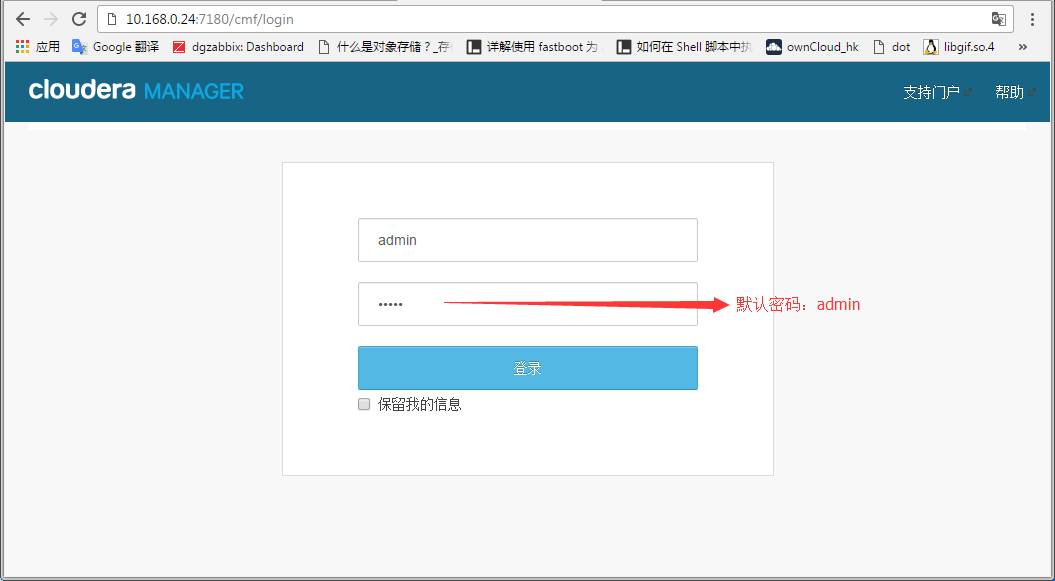
1 前言 现在借着做项目的机会在CentOS 7.3环境中再次部署了一套比较新的版本。基于共享的精神,本文给有需要的人参阅。 旧一点的版本安装请参阅(CentOS 6): http://cmdschool.blog.51cto.com/2420395/1775398 2 实践部分 2.1 基本信息 Hostname=HD0[1-5].cmdschool.org Ipaddress=10.168.0.2[4-8] OS Version=CentOS 7.3 2.2 环境配置 2.2.1 配置IP地址 In HD01-05: 1 2 3 4 5 6 7 8 9 10 11 nmcliconnectiondelete "Wiredconnection1" nmcliconnectionshow nmclideviceshow nmcliconnectionaddifnameens192con-nameens192 type ethernet nmcliconnectionmodifyens192ipv4.address "10.168.0.XX/24" nmcliconnectionmodifyens192ipv4.gateway "10.168.0.1" nmcliconnectionmodifyens192ipv4.dns "202.96.128.86202.96.128.166" nmcliconnectionmodifyens192ipv4.methodmanual nmcliconnectionmodifyens192ipv6.methodignore nmcliconnectionmodifyens192connection.autoconnect yes nmcliconnectionupens192 注:第五行的“XX”部分是主机号 2.2.2 配置主机名称 In HD01-05: hostnamectl set-hostname HDXX.sae.com.hk 注:“XX”部分是主机名称编号 2.2.3 关闭SELinux In HD01-05: 1 getenforce 如果显示如下: 1 Enforcing 则执行: 1 2 setenforce0 sed -i 's/SELINUX=enforcing/SELINUX=disabled/g' /etc/selinux/config 2.2.4 配置名称解析 In HD01-05: 1 2 3 4 5 echo '10.168.0.24hd01.cmdschool.org' >> /etc/hosts echo '10.168.0.25hd02.cmdschool.org' >> /etc/hosts echo '10.168.0.26hd03.cmdschool.org' >> /etc/hosts echo '10.168.0.27hd04.cmdschool.org' >> /etc/hosts echo '10.168.0.28hd05.cmdschool.org' >> /etc/hosts 2.2.5 配置时区 In HD01-05: 1 2 rm /etc/localtime ln -s /usr/share/zoneinfo/Asia/Shanghai /etc/localtime 2.2.6 关闭防火墙并设置开机不启动 In HD01-05: 1 2 systemctlstopfirewalld systemctldisablefirewalld 2.2.7 优化虚拟内存需求率 In HD01-05: 1)检查虚拟内存需求率 1 cat /proc/sys/vm/swappiness 显示如下: 1 30 2)临时降低虚拟内存需求率 1 sysctlvm.swappiness=0 3)永久降低虚拟内存需求率 1 echo 'vm.swappiness=0' > /etc/sysctl .d /swappiness .conf 并运行如下命令使生效 1 sysctl-p 2.2.8 解决透明大页面问题 In HD01-05: 1)检查透明大页面问题 1 cat /sys/kernel/mm/transparent_hugepage/defrag 如果显示为: 1 [always]madvisenever 2)临时关闭透明大页面问题 1 echo never> /sys/kernel/mm/transparent_hugepage/defrag 确认配置生效: 1 cat /sys/kernel/mm/transparent_hugepage/defrag 应该显示为: 1 alwaysmadvise[never] 3)配置开机自动生效 1 2 echo 'echonever>/sys/kernel/mm/transparent_hugepage/defrag' >> /etc/rc . local chmod +x /etc/rc .d /rc . local 2.2.9 安装JDK In HD01-05: 1)查询是否存在yum安装的java包 1 rpm-qa| grep java 注意:存在yum安装的rpm包可能导致Sqoop无法启动 2)安装jdk1.8 1 2 3 4 mkdir /usr/java cd /usr/java wgethttp: //download .oracle.com /otn-pub/java/jdk/8u121-b13/e9e7ea248e2c4826b92b3f075a80e441/jdk-8u121-linux-x64 . tar .gz tar -xfjdk-8u121-linux-x64. tar .gz 2)配置jdk变量环境 1 2 3 4 echo 'exportJAVA_HOME=/usr/java/jdk1.8.0_121' >> /etc/profile echo 'exportJRE_HOME=${JAVA_HOME}/jre' >> /etc/profile echo 'exportCLASSPATH=.:${JAVA_HOME}/lib:${JRE_HOME}/lib' >> /etc/profile echo 'exportPATH=${JAVA_HOME}/bin:$PATH' >> /etc/profile 3)导入java环境变量 1 source /etc/profile 4)测试jdk的配置 1 java-version 2.3 yum源的安装配置 In HD01-05: 2.3.1 yum源配置 1)增加yum源 1 2 curlhttps: //archive .cloudera.com /cm5/redhat/7/x86_64/cm/cloudera-manager .repo> /etc/yum .repos.d /cloudera-manager .repo yum install -yhttps: //dev .mysql.com /get/mysql57-community-release-el7-10 .noarch.rpm 注:此出隐含条件是有系统默认的yum源并可在线更新 2)开启5.6版的源 1 vim /etc/yum .repos.d /mysql-community .repo 开启5.6的源并修改如下: 1 2 3 4 5 6 7 8 9 10 11 12 13 [mysql56-community] name=MySQL5.6CommunityServer baseurl=http: //repo .mysql.com /yum/mysql-5 .6-community /el/7/ $basearch/ enabled=1 gpgcheck=1 gpgkey= file : ///etc/pki/rpm-gpg/RPM-GPG-KEY-mysql [mysql57-community] name=MySQL5.7CommunityServer baseurl=http: //repo .mysql.com /yum/mysql-5 .7-community /el/7/ $basearch/ enabled=0 gpgcheck=1 gpgkey= file : ///etc/pki/rpm-gpg/RPM-GPG-KEY-mysql 注:修改enabled选项等于1表示开启,0表示关闭(其他源都配置为0) 2.3.2 安装基本的工具 In HD02-05: 1)安装配置工具 1 yum install -yvimwgetopenssh-clients 2)安装python 1 yum install -ypython 3)安装ntpd 1 yum install -ychrony 2.3.3 Cloudera Manager端yum源配置 In HD01: 1)安装Cloudera Manager包 1 yum install -ycloudera-manager-daemonscloudera-manager-server 2)安装mysql 1 yum install -ymysql-community-servermysql-community-develmysql-community-clientmysql-community-libsmysql-community-commonmysql-community-libs-compat 2.3.4 Cloudera Manager Agent端yum源配置 In HD01-05: 安装Cloudera Manager Agent包 1 yum install -ycloudera-manager-agentcloudera-manager-daemons 2.4 配置前的准备配置 2.4.1权限检查(单用户模式适用,可选) In HD01-05: 检查以下目录cloudera-scm用户具有完全的权限 检查当前目录权限: 1 ls -ld /opt/cloudera/ 显示如下: 1 drwxr-xr-x.4cloudera-scmcloudera-scm36Apr1519:35 /opt/cloudera/ 检查子目录权限: 1 ls -lR /opt/cloudera/ 显示如下 1 2 3 4 5 6 7 8 9 10 /opt/cloudera/ : total0 drwxr-xr-x.2cloudera-scmcloudera-scm6Mar1923:26csd drwxr-xr-x.2cloudera-scmcloudera-scm6Mar1923:26parcel-repo /opt/cloudera/csd : total0 /opt/cloudera/parcel-repo : total0 同样,检查服务器或客户端目录权限 1 2 3 4 ls -ld /var/log/cloudera-scm-server/ ls -lR /var/log/cloudera-scm-server/ ls -ld /var/lib/cloudera-scm-agent/ ls -lR /var/lib/cloudera-scm-agent/ 2.4.2 检查线程限制配置 In HD01-05: 1 vim /etc/security/limits .d /cloudera-scm .conf 修改配置如下: 1 2 3 4 5 6 7 8 9 # #(c)Copyright2014Cloudera,Inc. # cloudera-scmsoftnofile32768 cloudera-scmsoftnproc65536 cloudera-scmhardnofile1048576 cloudera-scmhardnprocunlimited cloudera-scmhardmemlockunlimited cloudera-scmsoftmemlockunlimited 2.4.3 指定运行单用户模式的用户名(单用户模式适用,不配置) In HD01-05: 1 vim /etc/default/cloudera-scm-agent 并取消以下行的注释 1 USER= "cloudera-scm" 2.4.4 创建压缩包存放目录 1 2 mkdir -p /opt/cloudera/parcels chown cloudera-scm:cloudera-scm /opt/cloudera/parcels 2.4.5 配置无密码的sudo访问(非默认单用户模式适用,可选) In HD01-05: 1 visudo 增加如下组: 1 %cloudera-scmALL=(ALL)NOPASSWD:ALL 确认包含如下行: 1 Defaultssecure_path= /sbin : /bin : /usr/sbin : /usr/bin 2.4.6 配置su的limit In HD01-05: 1 vim /etc/pam .d /su 加入如下配置: 1 sessionrequiredpam_limits.so 2.4.7 NTP的配置 In HD01-5: 1)确认包含如下配置: 1 cat /etc/chrony .conf 应该包含如下配置: 1 2 3 4 server0.centos.pool.ntp.orgiburst server1.centos.pool.ntp.orgiburst server2.centos.pool.ntp.orgiburst server3.centos.pool.ntp.orgiburst 2)启动并配置ntpd服务自动启动 1 2 systemctlrestartchronyd systemctl enable chronyd 3)触发时间同步 1 chronycsources 2.4.8 安装MySQL JDBC Driver In HD01-05: 1 2 3 4 5 cd ~ wgethttp: //dev .mysql.com /get/Downloads/Connector-J/mysql-connector-java-5 .1.39. tar .gz tar zxvfmysql-connector-java-5.1.39. tar .gz mkdir /usr/share/java/ cp mysql-connector-java-5.1.39 /mysql-connector-java-5 .1.39-bin.jar /usr/share/java/mysql-connector-java .jar 2.4.9 配置公钥认证 In HD01: 1)生成秘钥 ssh-keygen -t rsa 注:以上一路回车 2)复制公钥到各个被登录的服务器 1 2 3 4 5 ssh -copy- id -i~/. ssh /id_rsa .pubroot@10.168.0.24 ssh -copy- id -i~/. ssh /id_rsa .pubroot@10.168.0.25 ssh -copy- id -i~/. ssh /id_rsa .pubroot@10.168.0.26 ssh -copy- id -i~/. ssh /id_rsa .pubroot@10.168.0.27 ssh -copy- id -i~/. ssh /id_rsa .pubroot@10.168.0.28 3)测试免密码登录 1 2 3 4 5 ssh 10.168.0.24 ssh 10.168.0.25 ssh 10.168.0.26 ssh 10.168.0.27 ssh 10.168.0.28 注:以上如果无需密码登记即成功 2.5 Cloudera Manager安装配置 In HD01: 2.5.1 修改mysql参数 1)关闭数据库 1 systemctlstopmysqld 2)备份ib_logfile文件 1 2 3 mkdir /var/lib/backup cd /var/lib/mysql/ mv ib_logfile* /var/lib/backup/ 3)修改MySQL配置 1 2 cp /etc/my .cnf /etc/my .cnf.default vim /etc/my .cnf 修改参数如下: 1 2 3 4 5 6 7 8 9 10 11 12 13 14 15 16 17 18 19 20 21 22 23 24 25 26 27 28 29 30 31 32 33 34 35 36 37 38 39 40 41 42 43 44 45 46 47 48 49 50 51 52 [mysqld] datadir= /var/lib/mysql socket= /var/lib/mysql/mysql .sock user=mysql #RecommendedinstandardMySQLsetup sql_mode=NO_ENGINE_SUBSTITUTION,STRICT_TRANS_TABLES transaction-isolation=READ-COMMITTED #Disablingsymbolic-linksisrecommendedtopreventassortedsecurityrisks; #todoso,uncommentthisline: #symbolic-links=0 key_buffer_size=32M max_allowed_packet=32M thread_stack=256K thread_cache_size=64 query_cache_limit=8M query_cache_size=64M query_cache_type=1 max_connections=550 #expire_logs_days=10 #max_binlog_size=100M #log_binshouldbeonadiskwithenoughfreespace.Replace'/var/lib/mysql/mysql_binary_log'withanappropriatepathforyoursystem #andchownthespecifiedfoldertothemysqluser. log_bin= /var/lib/mysql/mysql_binary_log server- id =1 #ForMySQLversion5.1.8orlater.Commentoutbinlog_formatforolderversions. binlog_format=mixed read_buffer_size=2M read_rnd_buffer_size=16M sort_buffer_size=8M join_buffer_size=8M #InnoDBsettings innodb_file_per_table=1 innodb_flush_log_at_trx_commit=2 innodb_log_buffer_size=64M innodb_buffer_pool_size=4G innodb_thread_concurrency=8 innodb_flush_method=O_DIRECT innodb_log_file_size=512M [mysqld_safe] log-error= /var/log/mysqld .log pid- file = /var/run/mysqld/mysqld .pid sql_mode=STRICT_ALL_TABLES 2.5.2 启动并设置开机自动启动 1 2 systemctlstartmysqld systemctl enable mysqld 2.5.3 初始化数据库 1 mysql_secure_installation 向导如下: 1 2 3 4 5 6 7 8 9 10 11 12 13 14 15 [...] Entercurrentpassword for root(enter for none): OK,successfullyusedpassword,movingon... [...] Setrootpassword?[Y /n ]y Newpassword: Re-enternewpassword: Removeanonymous users ?[Y /n ]y [...] Disallowrootloginremotely?[Y /n ]n [...] Remove test databaseandaccesstoit[Y /n ]y [...] Reloadprivilegetablesnow?[Y /n ]y All done ! 2.5.4 准备scm库 数据库配置: 1 2 3 4 mysql-uroot-p createdatabasescmdefaultcharacter set utf8; grantallprivilegeson*.*toscm@ 'hd01.cmdschool.org' identifiedby 'scm' ; flushprivileges; 修改数据库连接参数: 1 2 cp /etc/cloudera-scm-server/db .properties /etc/cloudera-scm-server/db .properties.default vim /etc/cloudera-scm-server/db .properties 修改如下参数: 1 2 3 4 5 6 com.cloudera.cmf.db. type =mysql com.cloudera.cmf.db.host=hd01.cmdschool.org com.cloudera.cmf.db.name=scm com.cloudera.cmf.db.user=scm com.cloudera.cmf.db.password=scm com.cloudera.cmf.db.setupType=EXTERNAL 2.5.5 创建附加数据库(可选) 1)附加数据库列表 Role Database User Password ActivityMonitor amon amon amon_password Reports Manager rman rman rman_password Hive Metastore Server metastore hive hive_password Sentry Server sentry sentry sentry_password Cloudera Navigator Audit Server nav nav nav_password Cloudera Navigator Metadata Server navms navms navms_password 2)创建数据库并配置管理账号密码 1 2 3 4 5 6 7 8 9 10 11 12 13 14 15 16 17 18 19 20 mysql-uroot-p createdatabaseamondefaultcharacter set utf8; grantallprivilegesonamon.*to 'amon' @ '%' identifiedby 'amon_password' ; createdatabasermandefaultcharacter set utf8; grantallprivilegesonrman.*to 'rman' @ '%' identifiedby 'rman_password' ; createdatabasemetastoredefaultcharacter set utf8; grantallprivilegesonmetastore.*to 'hive' @ '%' identifiedby 'hive_password' ; createdatabasesentrydefaultcharacter set utf8; grantallprivilegesonsentry.*to 'sentry' @ '%' identifiedby 'sentry_password' ; createdatabasenavdefaultcharacter set utf8; grantallprivilegesonnav.*to 'nav' @ '%' identifiedby 'nav_password' ; createdatabasenavmsdefaultcharacter set utf8; grantallprivilegesonnavms.*to 'navms' @ '%' identifiedby 'navms_password' ; flushprivileges; 2.5.6 配置Oozie库(可选) 1)数据库权限配置 1 2 3 4 5 mysql-uroot-p createdatabaseooziedefaultcharacter set utf8; grantallprivilegesonoozie.*to 'oozie' @ 'localhost' identifiedby 'oozie' ; grantallprivilegesonoozie.*to 'oozie' @ '%' identifiedby 'oozie' ; flushprivileges; 2)配置Oozie库所需软连接 1 2 cd /opt/cloudera/parcels/CDH/lib/oozie/lib/ ln -s /usr/share/java/mysql-connector-java .jarmysql-connector-java.jar 2.5.7 启动服务并配置开机启动 1 2 /etc/init .d /cloudera-scm-server start chkconfigcloudera-scm-serveron 2.5.8 故障排除 1 tail -f /var/log/cloudera-scm-server/cloudera-scm-server .out 2.6 Cloudera Manager Agent安装 In HD01-05: 2.6.1 创建压缩包存放目录 1 2 mkdir -p /opt/cloudera/parcels chown cloudera-scm:cloudera-scm /opt/cloudera/parcels 2.6.2 指定管理服务器和指定包存放目录 1 vim /etc/cloudera-scm-agent/config .ini 确保参数如下并启用: 1 2 3 server_host=hd01.cmdschool.org server_port=7182 parcel_dir= /opt/cloudera/parcels 2.6.3 指定运行单用户模式的用户名(仅用于单用户模式,不配置) 1 vim /etc/default/cloudera-scm-agent 取消以下行的注释 1 USER= "cloudera-scm" 2.6.4 启动服务并配置服务器开机启动 1 2 /etc/init .d /cloudera-scm-agent start chkconfigcloudera-scm-agenton 2.6.5 故障排除 如下命令监控启动服务的错误输出 1 tail -f /var/log/cloudera-scm-agent/cloudera-scm-agent .out 2.7 登陆配置 In HD01: http://10.168.0.24:7180/cmf/login 注:界面部分请跟着向导走,相对容易,这是不再详述。 本文转自 tanzhenchao 51CTO博客,原文链接:http://blog.51cto.com/cmdschool/1916322,如需转载请自行联系原作者

优秀的个人博客,低调大师

企业私有云之共享存储ceph在centos7安装与应用

构建云设施,存储是一个重要组件,所以本文主要介绍一下我这里如何使用ceph的。 云软件选择openstack,版本是Mitaka,部署系统是centos 7.1,ceph版本是10.2.2. 选择ceph的原因是,免费、开源、支持多,并且市面上大部分都是选择ceph做云存储。 另外本文是参考了http://www.vpsee.com/2015/07/install-ceph-on-centos-7/ 目录 一、ceph安装 二、openstack里应用ceph集群 三、glance应用ceph 四、删除osd节点 五、ceph使用混合磁盘 下面是开始安装 可以参考官方的http://docs.ceph.com/docs/master/start/quick-ceph-deploy/ 一、ceph安装 主机环境 一个adm,3个mon,3个osd,复制2份 下面是hosts配置(每个主机都有) 1 2 3 4 5 6 7 10.10.128.18ck-ceph-adm 10.10.128.19ck-ceph-mon1 10.10.128.20ck-ceph-mon2 10.10.128.21ck-ceph-mon3 10.10.128.22ck-ceph-osd1 10.10.128.23ck-ceph-osd2 10.10.128.24ck-ceph-osd3 另外需要对mon与osd节点进行一些优化 1 2 3 4 5 6 7 8 9 10 11 12 13 14 15 16 绑定盘符 ll /sys/block/sd *| awk '{print$NF}' | sed 's/..//' | awk -F

优秀的个人博客,低调大师

阿里云服务器CentOS7启动tomcat7巨慢

自己再阿里云申请了一台1G1核的机器,每次重启自己的服务tomcat都需要卡住很长时间经过在网上搜索,找到了原因: Tomcat 7/8都使用org.apache.catalina.util.SessionIdGeneratorBase.createSecureRandom类产生安全随机类SecureRandom的实例作为会话ID,这里花去了342秒,也即接近6分钟。 SHA1PRNG算法是基于SHA-1算法实现且保密性较强的伪随机数生成器。 在SHA1PRNG中,有一个种子产生器,它根据配置执行各种操作。 1)如果Java.security.egd属性或securerandom.source属性指定的是”file:/dev/random”或”file:/dev/urandom”,那么JVM会使用本地种子产生器NativeSeedGenerator,它会调用super()方法,即调用SeedGenerator.URLSeedGenerator(/dev/random)方法进行初始化。 2)如果java.security.egd属性或securerandom.source属性指定的是其它已存在的URL,那么会调用SeedGenerator.URLSeedGenerator(url)方法进行初始化。 这就是为什么我们设置值为”file:///dev/urandom”或者值为”file:/./dev/random”都会起作用的原因。 在这个实现中,产生器会评估熵池(entropy pool)中的噪声数量。随机数是从熵池中进行创建的。当读操作时,/dev/random设备会只返回熵池中噪声的随机字节。/dev/random非常适合那些需要非常高质量随机性的场景,比如一次性的支付或生成密钥的场景。 当熵池为空时,来自/dev/random的读操作将被阻塞,直到熵池收集到足够的环境噪声数据。这么做的目的是成为一个密码安全的伪随机数发生器,熵池要有尽可能大的输出。对于生成高质量的加密密钥或者是需要长期保护的场景,一定要这么做。 那么什么是环境噪声? 随机数产生器会手机来自设备驱动器和其它源的环境噪声数据,并放入熵池中。产生器会评估熵池中的噪声数据的数量。当熵池为空时,这个噪声数据的收集是比较花时间的。这就意味着,Tomcat在生产环境中使用熵池时,会被阻塞较长的时间。 基本上就是这样,这里讲的更详细! 下面说解决方式: 网上说: 通过修改Tomcat启动文件-Djava.security.egd=file:/dev/urandom 通过修改JRE中的java.security文件securerandom.source=file:/dev/urandom 这两种方式在我这都失败,不起作用,不知道是我的问题,还是其他问题。 最终解决方式: yum install rng-tools安装rngd服务(熵服务) systemctl start rngd启动服务 如果你的CPU不支持DRNG特性或者像我一样使用虚拟机,可以使用/dev/unrandom来模拟。 cp /usr/lib/systemd/system/rngd.service /etc/systemd/system 编辑/etc/systemd/system/rngd.service service小结,ExecStart=/sbin/rngd -f -r /dev/urandom systemctl daemon-reload重新载入服务 systemctl restart rngd重启服务 这样安装了熵服务后问题就解决了,Tomcat启动又回到了以往的速度。

优秀的个人博客,低调大师

阿里云 Centos7 部署Java web [jar/war/nginx+域名服务]

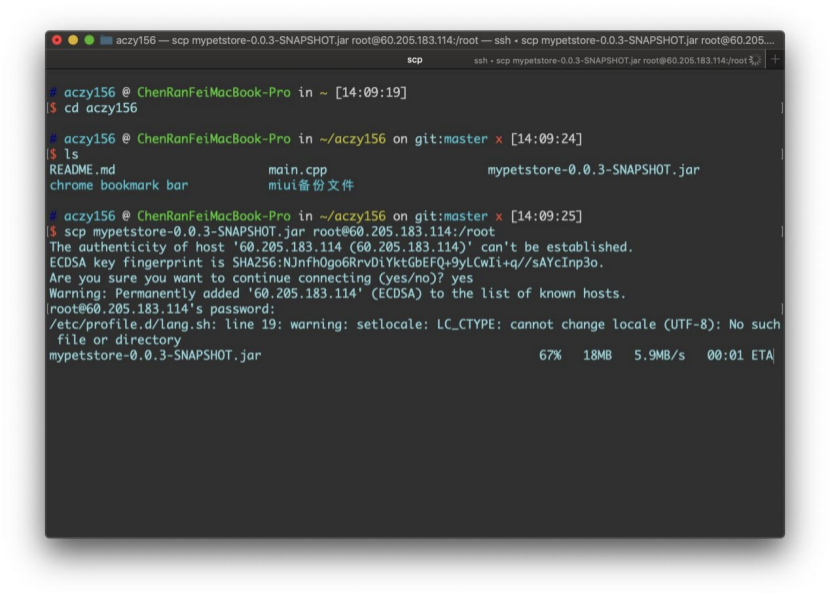
(一)第一部分:最基本的jar包运行(无需配置tomcat) [http://60.205.183.114:8081/] 1、配置阿里云(Esc学生服务器、镜像Centos7.7),并远程连接进入终端。 2、安装并配置JDK(参考https://www.jianshu.com/p/093413f2a04f) a)安装jdk。b)寻找jdk路径配置环境变量。c)简单的Java hello world测试确保安装成功。 3、安装并配置mysql(mariadb)(参考https://blog.csdn.net/DaSo_CSDN/article/details/54754936) a)安装mysql、mariadb server。b)systemctl 开启服务。c) 打开端口。(阿里云要在控制台打开,参考https://yq.aliyun.com/articles/701181)d) 更改mysql 的root密码,对应于项目配置文件中的密码。 4、利用scp进行文件传输(参考https://www.cnblogs.com/tugenhua0707/p/8278772.html) a)传输spring maven 的快照版本用于测试。b)传输数据库sql文件。 5、导入数据库 a)创建sql文件对应的数据库。b)利用文件重定向运行sql文件。c)检查数据库是否导入成功 6、运行jar文件,控制台获取公网IP,本机输入IP:8081测试。 7、设置后台运行(已设置:http://60.205.183.114:8081/) a)contrl+c中止。b)然后通过nohup 和 & 来后台运行。c)ps通过pid来停止后台运行进程。 运行结果整体过程: [root@iZ2ze4r3b4xcztbcsey08cZ ~]# history 1 MAKRER=SHOW_LOCALE;printf $MAKRER""; locale; MAKRER=SHOW_LOCALE;printf $MAKRER""; 2 yum install -y mysql 3 yum install -y mariadb-server mariadb 4 systemctl start mariadb 5 systemctl enable mariadb 6 yum install -y mysql-devel 7 firewall-cmd --zone=public --add-port=3306/tcp --permanent 8 CHECK_TYPE=SHELL; echo "INFO=${CHECK_TYPE} PID=$$ PPID=$PPID TTY=$(tty) SHELL=$0 HOME=$HOME PWD=$PWD| CHECK_SHELL_END" 9 ls 10 ifconfig 11 ls 12 yum list 13 java -version 14 ls 15 yum search java-1.8 16 yum -y install java-1.8.0-openjdk-devel.x86_64 17 java -version 18 cd /usr/lib/jvm/java-1.8.0-openjdk-1.8.0.252.b09-2.el7_8.x86_64/ 19 pwd 20 vim /etc/profile 21 . /etc/profile 22 vim Demo.java 23 javac Demo.java 24 java Demo 25 su 26 MAKRER=SHOW_LOCALE;printf $MAKRER""; locale; MAKRER=SHOW_LOCALE;printf $MAKRER""; 27 CHECK_TYPE=SHELL; echo "INFO=${CHECK_TYPE} PID=$$ PPID=$PPID TTY=$(tty) SHELL=$0 HOME=$HOME PWD=$PWD| CHECK_SHELL_END" 28 mysql -u root 29 ls 30 pwd 31 ifconfig 32 ls 33 mysql 34 mysql -u root jpetstore < jpetstore.sql 35 mariadb 36 mysql 37 java -jar mypetstore-0.0.3-SNAPSHOT.jar 38 nohup java -jar mypetstore-0.0.3-SNAPSHOT.jar & 39 ps 40 history [root@iZ2ze4r3b4xcztbcsey08cZ ~]# 控制台开端口 利用scp传文件 运行mysql 文件 [root@iZ2ze4r3b4xcztbcsey08cZ ~]# mysql Welcome to the MariaDB monitor. Commands end with ; or \g. Your MariaDB connection id is 3 Server version: 5.5.65-MariaDB MariaDB Server Copyright (c) 2000, 2018, Oracle, MariaDB Corporation Ab and others. Type 'help;' or '\h' for help. Type '\c' to clear the current input statement. MariaDB [(none)]> create database jpetstore; Query OK, 1 row affected (0.00 sec) MariaDB [(none)]> quit Bye [root@iZ2ze4r3b4xcztbcsey08cZ ~]# mysql -u root jpetstore < jpetstore.sql [root@iZ2ze4r3b4xcztbcsey08cZ ~]# mariadb -bash: mariadb: command not found [root@iZ2ze4r3b4xcztbcsey08cZ ~]# mysql Welcome to the MariaDB monitor. Commands end with ; or \g. Your MariaDB connection id is 5 Server version: 5.5.65-MariaDB MariaDB Server Copyright (c) 2000, 2018, Oracle, MariaDB Corporation Ab and others. Type 'help;' or '\h' for help. Type '\c' to clear the current input statement. MariaDB [(none)]> show databases; +--------------------+ | Database | +--------------------+ | information_schema | | jpetstore | | mysql | | performance_schema | | test | +--------------------+ 5 rows in set (0.00 sec) MariaDB [(none)]> use jpetstore; Reading table information for completion of table and column names You can turn off this feature to get a quicker startup with -A Database changed MariaDB [jpetstore]> show tables; +---------------------+ | Tables_in_jpetstore | +---------------------+ | account | | addlog | | bannerdata | | browselog | | cart | | cartitem | | category | | inventory | | item | | lineitem | | orders | | orderstatus | | product | | profile | | sequence | | signon | | supplier | +---------------------+ 17 rows in set (0.00 sec) 访问http://60.205.183.114:8081/ (二)第二部分:利用Tomcat容器对war包进行处理(需要Tomcat) [http://60.205.183.114:8080/myJPetStore_war/index.jsp] 1、安装Tomcat(参考https://www.digitalocean.com/community/tutorials/how-to-install-apache-tomcat-8-on-centos-7) a)本地下载tomcat,然后利用scp文件传输b)设置访问权限c)设置服务配置d)输入IP:8080测试是否已经开启服务 2、数据库/端口配置 a)数据库root 密码 和服务器对应b)端口配置,在上面已经开启了8080端口 3、利用scp传输war包,放到webapp里边(直接会解析出文件) 4、重启tomcat服务 a)bin下的shutdown.shb)bin下的startup.sh 5、本机测试访问 a)注意要添加访问的资源的路径/myJPetStore_war/index.jsp,然后tomcat容器会自动到webapp下去寻找b) 已设置tomcat容器:http://60.205.183.114:8080/myJPetStore_war/index.jsp 运行结果整体过程 52 ls 53 sudo mkdir /opt/tomcat 54 sudo tar xvf apache-tomcat-8*tar.gz -C /opt/tomcat --strip-components=1 55 cd /opt/tomcat 56 sudo chgrp -R tomcat /opt/tomcat 57 sudo chmod -R g+r conf 58 sudo chmod g+x conf 59 sudo chown -R tomcat webapps/ work/ temp/ logs/ 60 sudo vi /etc/systemd/system/tomcat.service 61 sudo systemctl daemon-reload 62 sudo systemctl start tomcat 63 sudo systemctl status tomcat 64 sudo systemctl enable tomcat 65 ls 66 cd webapps/ 67 pwd 68 ls 69 sudo systemctl restart tomcat 70 cd ../bin/ 71 ls 72 sh shutdown.sh 73 sh startup.sh 74 history [root@iZ2ze4r3b4xcztbcsey08cZ bin]# 利用systemctl查看tomcat的状态 验证是否开启tomcat服务 将war包直接传入webapp中 然后webapp会自动解析war包(即myJPetStore_war) [root@iZ2ze4r3b4xcztbcsey08cZ webapps]# pwd /opt/tomcat/webapps [root@iZ2ze4r3b4xcztbcsey08cZ webapps]# ls docs examples host-manager manager myJPetStore_war myJPetStore_war.war ROOT 访问http://60.205.183.114:8080/myJPetStore_war/index.jsp (三)第三部分:指定域名进行访问 [http://crf.codes/] 1、配置virmach vps,达到可以通过IP进行访问 a)过程同第一步,最后设置为后台运行。b) 已配置:http://198.12.120.212:8081/ 2、服务器安装web server (安装nginx,参考http://blog.kenyang.net/2019/02/26/upgrade-nginx-to-latest-version-on-centos) 3、在域名提供商 name(或者cloudflare)进行DNS域名解析,进行请求中转。a)ping 域名(ping crf.codes)查看是否绑定成功。 4、修改nginx 配置文件 a)Web server 设定域名b)Location 配置index界面c)开放Linux系统防火墙d)访问crf.code http://crf.codes/ 运行结果域名提供商(name)配置dns 验证dns是否配置成功ping crf.codes,可以看到 修改nginx配置文件 server { listen 80; server_name crf.codes; #charset koi8-r; access_log /var/log/nginx/host.access.log main; location / { # root /usr/share/nginx/html; index index.html index.htm; proxy_pass http://127.0.0.1:8081/; # proxy_set_header X-Forwarded-For $proxy_add_x_forwarded_for; } #error_page 404 /404.html; # redirect server error pages to the static page /50x.html # error_page 500 502 503 504 /50x.html; location = /50x.html { root /usr/share/nginx/html; } # proxy the PHP scripts to Apache listening on 127.0.0.1:80 # #location ~ \.php$ { # proxy_pass http://127.0.0.1; #} # pass the PHP scripts to FastCGI server listening on 127.0.0.1:9000 # #location ~ \.php$ { # root html; # fastcgi_pass 127.0.0.1:9000; # fastcgi_index index.php; # fastcgi_param SCRIPT_FILENAME /scripts$fastcgi_script_name; # include fastcgi_params; #} # deny access to .htaccess files, if Apache's document root # concurs with nginx's one # #location ~ /\.ht { # deny all; #} } 访问crf.codes

优秀的个人博客,低调大师

centos7中使用docker建立wordpress博客,以及部分踩坑记录

首先前提准备 1.安装docker,这个到菜鸟教程里面就可以搜索到安装教程 2.安装python3环境,因为centos中预装了python2,所以需要下载重新配置下 3.docker安装wordpress的.yml文件 文章目录 问题1:docker-compose无法安装,docker-compose version命令不存在 问题2:安装docker-compose过程中报错 -----------------------更新分割线--------------------------------- 1.安装docker 2.centos7环境下安装python3环境 2.1 安装 2.1.1 、安装依赖环境 2.1.2 安装pip,用pip装wget 2.1.3 wget下载安装包 2.1.4 编译安装 2.1.5 建立python3的软链接 2.2 部分坑记录 2.2.1 3.docker安装wordpress的.yml文件 3.1 docker-compose安装 3.2 最后 docker-compose.yml文件 更新 补充: 问题1:docker-compose无法安装,docker-compose version命令不存在 cd /usr/local/bin/ wget https://github.com/docker/compose/releases/download/1.14.0-rc2/docker-compose-Linux-x86_64 rename docker-compose-Linux-x86_64 docker-compose docker-compose-Linux-x86_64 chmod +x /usr/local/bin/docker-compose 参考:https://blog.csdn.net/countofdane/article/details/95206131 问题2:安装docker-compose过程中报错 报错内容 ERROR: Command errored out with exit status 1: command: /usr/bin/python2 -c 'import sys, setuptools, tokenize; sys.argv[0] = '"'"'/tmp/pip-install-zItSn5/pycparser/setup.py'"'"'; __file__='"'"'/tmp/pip-install-zItSn5/pycparser/setup.py'"'"';f=getattr(tokenize, '"'"'open'"'"', open)(__file__);code=f.read().replace('"'"'\r\n'"'"', '"'"'\n'"'"');f.close();exec(compile(code, __file__, '"'"'exec'"'"'))' egg_info --egg-base pip-egg-info cwd: /tmp/pip-install-zItSn5/pycparser/ Complete output (17 lines): Traceback (most recent call last): File "<string>", line 1, in <module> File "/tmp/pip-install-zItSn5/pycparser/setup.py", line 65, in <module> cmdclass={'install': install, 'sdist': sdist}, File "/usr/lib64/python2.7/distutils/core.py", line 112, in setup _setup_distribution = dist = klass(attrs) File "/usr/lib/python2.7/site-packages/setuptools/dist.py", line 269, in __init__ _Distribution.__init__(self,attrs) File "/usr/lib64/python2.7/distutils/dist.py", line 287, in __init__ self.finalize_options() File "/usr/lib/python2.7/site-packages/setuptools/dist.py", line 302, in finalize_options ep.load()(self, ep.name, value) File "/usr/lib/python2.7/site-packages/pkg_resources/__init__.py", line 2341, in load return self.resolve() File "/usr/lib/python2.7/site-packages/pkg_resources/__init__.py", line 2351, in resolve raise ImportError(str(exc)) ImportError: 'module' object has no attribute 'check_specifier' ---------------------------------------- ERROR: Command errored out with exit status 1: python setup.py egg_info Check the logs for full command output. 解决方法: sudo pip install --upgrade pip sudo pip install --upgrade setuptools 参考: https://www.cnblogs.com/liubiaos/p/9444485.html https://blog.csdn.net/liuyunshengsir/article/details/79136379 -----------------------更新分割线--------------------------------- 1.安装docker 在菜鸟教程官网有下载教程,搜索即可https://www.runoob.com/docker/docker-compose.html 或者看我写的一个教程 https://blog.csdn.net/weixin_42245375/article/details/103447571 2.centos7环境下安装python3环境 部分小命令整理: 1.Linux系统下如何查看当前所处目录位置 #pwd 2.centos7更新pip版本 pip install --upgrade pip 2.1 安装 2.1.1 、安装依赖环境 yum -y install zlib-devel bzip2-devel openssl-devel ncurses-devel sqlite-devel readline-devel tk-devel gdbm-devel db4-devel libpcap-devel xz-devel 2.1.2 安装pip,用pip装wget yum -y install epel-release yum install python-pip#安装pip pip install wget #安装wget 2.1.3 wget下载安装包 sudo mkdir /usr/local/python3 # 创建安装目录 wget --no-check-certificate https://www.python.org/ftp/python/3.7.0/Python-3.7.0.tgz #下载文件 tar -xzvf Python-3.7.0.tgz # 解压 cd Python-3.7.0 #进入 2.1.4 编译安装 sudo ./configure --prefix=/usr/local/python3 # 指定创建的目录 sudo make && sudo make install 2.1.5 建立python3的软链接 sudo ln -s /usr/local/python3/bin/python3 /usr/bin/python3 **备注:**关于建立软链接这部分,我是这个写法,其他博主也有说直接软链接到默认的python的,那样为防止对yum有影响,需要修改yum配置文件,如下 sudo ln -s /usr/local/python3/bin/python3 /usr/bin/python 修改 yum 配置文件 sudo vi /usr/bin/yum 将第一行指定的 python 版本改为 python2.7(#!/usr/bin/python 改为 #!/usr/bin/python2.7) vi /usr/libexec/urlgrabber-ext-down 2.2 部分坑记录 2.2.1 解决也很简单,但是一开始没想到,我们单独装这个 more-itertools 库,装 5.0.0 版本就好。 pip install more-itertools==5.0.0 再次执行安装最新版本 pip install sentry 3.docker安装wordpress的.yml文件 3.1 docker-compose安装 pip install docker-compose 3.2 最后 docker-compose.yml文件 文件内容: version: '3.3' services: db: image: mysql:5.7 volumes: - db_data:/var/lib/mysql restart: always environment: MYSQL_ROOT_PASSWORD: somewordpress MYSQL_DATABASE: wordpress MYSQL_USER: wordpress MYSQL_PASSWORD: wordpress wordpress: depends_on: - db image: wordpress:latest ports: - "8000:80" restart: always environment: WORDPRESS_DB_HOST: db:3306 WORDPRESS_DB_USER: wordpress WORDPRESS_DB_PASSWORD: wordpress WORDPRESS_DB_NAME: wordpress volumes: db_data: {} 进入该文件所在目录,一行命令运行 docker-compose up -d 最后通过浏览器访问url: ip:8000 即可访问博客主页 完成。。


优秀的个人博客,低调大师

centos7系统源码编译安装PHP7.3.5版本详细步骤

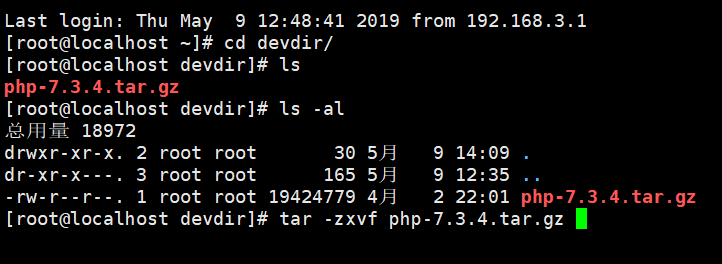
新增系统用户组和用户: [root@localhost ~]# groupadd webg [root@localhost ~]# useradd -g webg webu 下载 PHP7.3.5 [root@localhost ~]# mkdir devdir [root@localhost ~]# cd devdir/ [root@localhost devdir]# wget https://www.php.net/distributions/php-7.3.5.tar.gz -bash: wget: 未找到命令 [root@localhost devdir]# rpm -qa|grep wget [root@localhost devdir]# yum -y install wget [root@localhost devdir]# rpm -qa|grep wget wget-1.14-18.el7.x86_64 下载PHP7 解压 编译 wget -chttps://downloads.php.net/~cmb/php-7.3.4.tar.gz 编译参数解释 --with-fpm-user=webu--with-fpm-group=webg 添加PHP运行用户和用户组 ./configure --prefix=/usr/local/php --with-fpm-user=webu --with-fpm-group=webg --with-freetype-dir --with-gd --with-gettext --with-iconv-dir --with-kerberos --with-libdir=lib64 --with-libxml-dir --with-mysqli --with-openssl --with-pcre-regex --with-pdo-mysql --with-pdo-sqlite --with-pear --with-png-dir --with-jpeg-dir --with-xmlrpc --with-xsl --with-bz2 --with-mhash --enable-fpm --enable-bcmath --enable-libxml --enable-inline-optimization --enable-mbregex --enable-mbstring --enable-opcache --enable-pcntl --enable-shmop --enable-soap --enable-sockets --enable-sysvsem --enable-sysvshm --enable-xml --enable-fpm 配置信息出错: configure: error: in `/root/devdir/php-7.3.4': configure: error: no acceptable C compiler found in $PATH See `config.log' for more details [root@localhost php-7.3.4]# vim config.log 下载gcc软件编译器 yum install -y gcc configure: error: libxml2 not found. Please check your libxml2 installation. checking for pkg-config... /usr/bin/pkg-config configure: error: libxml2 not found. Please check your libxml2 installation. [root@localhost php-7.3.4]# rpm -qa|grep libxml2 libxml2-2.9.1-6.el7_2.3.x86_64 [root@localhost php-7.3.4]# [root@localhost php-7.3.4]# yum install -y libxml2-devel checking for pkg-config... /usr/bin/pkg-config configure: error: Cannot find OpenSSL's <evp.h> [root@localhost php-7.3.4]# rpm -qa|grep openssl openssl-1.0.2k-16.el7.x86_64 openssl-libs-1.0.2k-16.el7.x86_64 [root@localhost php-7.3.4]# yum install -y openssl-devel 已加载插件:fastestmirror Loading mirror speeds from cached hostfile * base: mirrors.nwsuaf.edu.cn * extras: mirror.lzu.edu.cn checking for BZip2 in default path... not found configure: error: Please reinstall the BZip2 distribution [root@localhost php-7.3.4]# yum install -y bzip2-devel 已加载插件:fastestmirror Loading mirror speeds from cached hostfile * base: mirrors.cn99.com * extras: mirrors.163.com checking for cURL 7.15.5 or greater... configure: error: cURL version 7.15.5 or later is required to compile php with cURL support [root@localhost php-7.3.4]# rpm -qa|grep curl curl-7.29.0-51.el7.x86_64 libcurl-7.29.0-51.el7.x86_64 python-pycurl-7.19.0-19.el7.x86_64 [root@localhost php-7.3.4]# yum install -y curl-devel 已加载插件:fastestmirror Loading mirror speeds from cached hostfile * base: mirrors.nwsuaf.edu.cn * extras: mirrors.cn99.com checking whether to enable JIS-mapped Japanese font support in GD... no If configure fails try --with-webp-dir=<DIR> configure: error: jpeglib.h not found. [root@localhost php-7.3.4]# yum install -y libjpeg-devel 已加载插件:fastestmirror Loading mirror speeds from cached hostfile * base: mirrors.nwsuaf.edu.cn configure: error: png.h not found. [root@localhost php-7.3.4]# yum install -y libpng-devel 已加载插件:fastestmirror If configure fails try --with-xpm-dir=<DIR> configure: error: freetype-config not found. [root@localhost php-7.3.4]# yum install -y freetype-devel 已加载插件:fastestmirror configure: error: xslt-config not found. Please reinstall the libxslt >= 1.1.0 distribution [root@localhost php-7.3.4]# yum install -y libxslt-devel 已加载插件:fastestmirror configure: error: Please reinstall the libzip distribution [root@localhost php-7.3.4]# rpm -qa|grep libzip [root@localhost php-7.3.4]# yum install -y libzip 已加载插件:fastestmirror [root@localhost php-7.3.4]# rpm -qa|grep libzip libzip-0.10.1-8.el7.x86_64 [root@localhost php-7.3.4]# yum install -y libzip-devel 已加载插件:fastestmirror checking for libzip... configure: error: system libzip must be upgraded to version >= 0.11 [root@localhost php-7.3.4]# 下载libzip-1.5.2.tar.gz https://libzip.org/download/libzip-1.5.2.tar.gz [root@localhost devdir]# pwd /root/devdir [root@localhost devdir]# wget -c https://libzip.org/download/libzip-1.5.2.tar.gz--2019-05-09 15:02:31-- https://libzip.org/download/libzip-1.5.2.tar.gz 正在解析主机 libzip.org (libzip.org)... 5.2.73.210, 2a04:52c0:101:2e6::de6c 正在连接 libzip.org (libzip.org)|5.2.73.210|:443... 已连接。 已发出 HTTP 请求,正在等待回应... 200 OK 长度:1203524 (1.1M) [application/x-gzip] 正在保存至: “libzip-1.5.2.tar.gz” 100%[======================================>] 1,203,524 44.8KB/s 用时 36s 2019-05-09 15:03:14 (32.8 KB/s) - 已保存 “libzip-1.5.2.tar.gz” [1203524/1203524]) [root@localhost devdir]# tar zxvf libzip-1.5.2.tar.gz libzip-1.5.2/ [root@localhost libzip-1.5.2]# ls API-CHANGES.md CMakeLists.txt INSTALL.md man src appveyor.yml cmake-zipconf.h.in lib NEWS.md THANKS AUTHORS examples libzip.pc.in README.md TODO.md cmake-config.h.in FindNettle.cmake LICENSE regress [root@localhost libzip-1.5.2]# mkdir build && cd build [root@localhost build]# cmake -DCMAKE_INSTALL_PREFIX=/usr/local/libzip .. -bash: cmake: 未找到命令 [root@localhost build]# yum install -y cmake 【版本太低所以安装cmake最新版】 [root@localhost build]# rm -f CMakeCache.txt [root@localhost build]# cmake -DCMAKE_INSTALL_PREFIX=/usr/local/libzip .. CMake Error at CMakeLists.txt:4 (CMAKE_MINIMUM_REQUIRED): CMake 3.0.2 or higher is required. You are running version 2.8.12.2 -- Configuring incomplete, errors occurred! [root@localhost build]# yum remove -y cmake 已加载插件:fastestmirror [root@localhost devdir]# wget -c https://github.com/Kitware/CMake/releases/download/v3.14.3/cmake-3.14.3.tar.gz [root@localhost devdir]# tar -zxvf cmake-3.14.3.tar.gz [root@localhost devdir]# cd cmake-3.14.3 [root@localhost cmake-3.14.3]# ./configure --------------------------------------------- CMake 3.14.3, Copyright 2000-2019 Kitware, Inc. and Contributors C compiler on this system is: cc --------------------------------------------- Error when bootstrapping CMake: Cannot find a C++ compiler that supports both C++11 and the specified C++ flags. Please specify one using environment variable CXX. [root@localhost cmake-3.14.3]# yum install -y gcc-c++ 【安装gcc-c++编译环境】 [root@localhost cmake-3.14.3]# ./bootstrap [root@localhost cmake-3.14.3]# gmake &&gmake install [root@localhost cmake-3.14.3]# which cmake /usr/local/bin/cmake [root@localhost cmake-3.14.3]# cmake --version -bash: /usr/bin/cmake: 没有那个文件或目录 [root@localhost cmake-3.14.3]# cmake -bash: /usr/bin/cmake: 没有那个文件或目录 [root@localhost cmake-3.14.3]# vim /etc/profile 文件末尾 PATH="$PATH=/usr/local/bin" export PATH [root@localhost cmake-3.14.3]# source /etc/profile [root@localhost cmake-3.14.3]# cmake --version cmake version 3.14.3 CMake suite maintained and supported by Kitware (kitware.com/cmake). [root@localhost cmake-3.14.3]# 解决libzip 和cmake版本问题 重新配置PHP7编译环境参数 checking for libzip... not found configure: error: Please reinstall the libzip distribution [root@localhost php-7.3.4]# yum -y install libzip-devel checking for pkg-config... (cached) /usr/bin/pkg-config checking for libzip... configure: error: system libzip must be upgraded to version >= 0.11 [root@localhost php-7.3.4]# which libzip /usr/bin/which: no libzip in (/usr/local/sbin:/usr/local/bin:/usr/sbin:/usr/bin:/usr/local/bin:/root/bin) [root@localhost php-7.3.4]# ll /usr/local/lib lib/ lib64/ libexec/ libzip/ [root@localhost php-7.3.4]# ll /usr/local/libzip/ bin/ include/ lib64/ share/ [root@localhost php-7.3.4]# ll /usr/local/libzip/bin/zip zipcmp zipmerge ziptool [root@localhost php-7.3.4]# ll /usr/local/libzip/bin 总用量 80 -rwxr-xr-x. 1 root root 24392 5月 9 16:04 zipcmp -rwxr-xr-x. 1 root root 18880 5月 9 16:04 zipmerge -rwxr-xr-x. 1 root root 34928 5月 9 16:04 ziptool [root@localhost php-7.3.4]# vim /etc/profile unset i PATH="$PATH:/usr/local/bin:/usr/local/libzip/bin" export PATH [root@localhost php-7.3.4]# source /etc/profile [root@localhost php-7.3.4]# libzip-1.5.2 无法安装,已经取消了。 /root/devdir/libzip-1.5.2/build [root@localhost build]# cd ../../ [root@localhost devdir]# wget -c https://nih.at/libzip/libzip-1.2.0.tar.gz [root@localhost devdir]# tar -zxvf libzip-1.2.0.tar.gz [root@localhost devdir]# cd libzip-1.2.0 [root@localhost libzip-1.2.0]# ls aclocal.m4 config.sub libzip-uninstalled.pc.in README.md API-CHANGES configure LICENSE regress AUTHORS configure.ac ltmain.sh src cmake-config.h.in depcomp m4 test-driver CMakeLists.txt examples Makefile.am THANKS cmake-zipconf.h.in INSTALL Makefile.in TODO.md compile install-sh man xcode config.guess lib missing config.h.in libzip.pc.in NEWS.md [root@localhost libzip-1.2.0]# ./configure [root@localhost libzip-1.2.0]# make -j4 &&make install 【最终解决方案】 cp ../libzip-1.5.2/build/lib/libzip.so /lib64/ 提示off_t类型没有定义 undefind,解决方法: [root@localhost ~]# cd devdir/php-7.3.4 [root@localhost php-7.3.4]# vim /etc/ld.so.conf ld.so.conf ld.so.conf.d/ [root@localhost php-7.3.4]# vim /etc/ld.so.conf [root@localhost php-7.3.4]# vim /usr/lib64/ Display all 588 possibilities? (y or n) [root@localhost php-7.3.4]# vim /usr/lib64/l Display all 538 possibilities? (y or n) [root@localhost php-7.3.4]# vim /usr/lib64/lib Display all 535 possibilities? (y or n) [root@localhost php-7.3.4]# vim /etc/ld.so.conf include ld.so.conf.d/*.conf /usr/local/lib64 /usr/local/lib /usr/lib /usr/lib64 [root@localhost php-7.3.4]# ldconfig -v ldconfig: 多次给出路径“/lib” 编译安装 In file included from /root/devdir/php-7.3.4/ext/zip/php_zip.h:31:0, from /root/devdir/php-7.3.4/ext/zip/php_zip.c:36: /usr/local/include/zip.h:59:21: 致命错误:zipconf.h:没有那个文件或目录 #include <zipconf.h> ^ 编译中断。 make: *** [ext/zip/php_zip.lo] 错误 1 解决方案: cp /usr/local/lib/libzip/include/zipconf.h /usr/local/include/zipconf.h [root@localhost php-7.3.4]# cp /usr/local/lib/libzip/include/zipconf.h /usr/local/include/ 测试PHP是否安装成功 Installing PEAR environment: /usr/local/php/lib/php/ [PEAR] Archive_Tar - installed: 1.4.5 [PEAR] Console_Getopt - installed: 1.4.2 [PEAR] Structures_Graph- installed: 1.1.1 [PEAR] XML_Util - installed: 1.4.3 [PEAR] PEAR - installed: 1.10.9 Wrote PEAR system config file at: /usr/local/php/etc/pear.conf You may want to add: /usr/local/php/lib/php to your php.ini include_path /root/devdir/php-7.3.4/build/shtool install -c ext/phar/phar.phar /usr/local/php/bin ln -s -f phar.phar /usr/local/php/bin/phar Installing PDO headers: /usr/local/php/include/php/ext/pdo/ [root@localhost php-7.3.4]# php -v -bash: php: 未找到命令 [root@localhost php-7.3.4]# ll /usr/local/php/ bin/ etc/ include/ lib/ php/ sbin/ var/ [root@localhost php-7.3.4]# ll /usr/local/php/bin/p pear pecl phar.phar php-cgi phpdbg peardev phar php php-config phpize [root@localhost php-7.3.4]# vim /etc/profile [root@localhost php-7.3.4]# source /etc/profile [root@localhost php-7.3.4]# php -v PHP 7.3.4 (cli) (built: May 9 2019 17:39:42) ( NTS ) Copyright (c) 1997-2018 The PHP Group Zend Engine v3.3.4, Copyright (c) 1998-2018 Zend Technologies [root@localhost php-7.3.4]#

优秀的个人博客,低调大师

CentOS7系统云服务器Java Web环境镜像部署操作演示

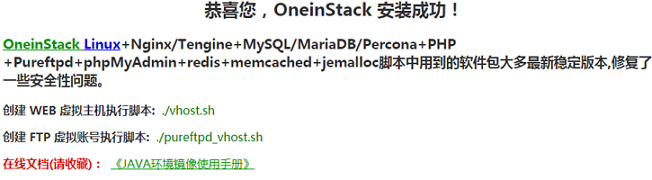
Tomcat 作为一个开源且免费的 Java Web 服务器,常用来作为 Web 开发的工具。它可以托管由 Servlet、JSP 页面(动态内容)、HTML 页面、JS、样式表、图片(静态内容)组成的 Java Web 应用程序。本篇文档介绍如何在ECS实例上使用镜像部署Java Web环境。 部署方式 JAVA 镜像部署 一键安装包部署 手动部署(源码编译安装/YUM安装) 使用Cloud Toolkit for Eclipse插件部署 一般推荐使用镜像部署,尤其适合新手,使用更加快捷方便(阿里云的云市场提供了丰富的镜像软件,单击查看)。而安装包部署以及手动部署适合对 Linux 命令有基本了解的用户,可以满足用户个性化部署的要求。本文主要介绍镜像和手工部署的方式。 镜像部署 单击JAVA 环境(CentOS7.4 Nginx Tomcat8 JDK)进入镜像详情页。 单击立即购买,按提示步骤购买 ECS 实例。 登录ECS管理控制台ECS 管理控制台。 在左边导航栏中,单击实例,进入 ECS 实例列表页。 选择所购 ECS 实例所在的地域,找到已购的 ECS 实例,在IP 地址列获取该实例的公网 IP 地址。 在浏览器地址栏中输入http://公网 IP 地址后,收藏在线文档。 说明若输入公网后无法显示下述页面,请检查安全组公网入方向已开通80端口。 使用 Putty 登录 Linux 服务器,参考使用SSH密钥对连接Linux实例。 说明若创建实例时未设置密码,root需重置实例密码。 将/data/wwwroot/default文件夹里的index.html更名为index.html_bk。 cd/data/wwwroot/defaultmvindex.htmlindex.html_bk 在Winscp工具里用公网 IP 地址连接Linux实例,然后从Winscp左侧的文件夹目录树中按/data/wwwroot/default路径进入default文件夹,将 Java 代码放入此文件夹中。 默认 Tomcat 是以一般 www 用户运行,将网站代码权限改为 www,执行命令: chown-Rwww.www/data/wwwroot 重启 Tomcat。 servicetomcatrestart 在浏览器地址栏中输入公网 IP 地址,完成验证。 使用Web服务为ECS Linux实例配置网站及绑定域名。

优秀的个人博客,低调大师

CentOS7(1708)制作docker镜像之后,开启sshd服务失败的处理办法

最近我把公司产品迁移到了CentOS1708环境下,于是就开始制作对应的docker镜像(虽然我一直“错误”的把docker当成虚机用,用着方便就好) 制作镜像完成之后,创建的容器需要自启动sshd服务,发现ssh无法连接,于是使用docker exec进去查看原因,ps -ef|grep sshd,发现服务没有sshd服务,于是手工启动systemctl start sshd,居然报错。 报错:Failed to get D-Bus connection: Operation not permitted 我在网上查资料(亲测可用): docker run -tid-v /opt/apps:/opt/apps--privileged --name=wang-base-node --hostname=wang-base-node --network=bridge wang-centos7-base /usr/sbin/init 注:关键在于使用 /usr/sbin/init作为入口,同时设置--privileged为超级权限启动,希望对docker初学者能有所帮助!

优秀的个人博客,低调大师

解决u盘安装centos7 /dev/root does not exist 导致无法安装方案

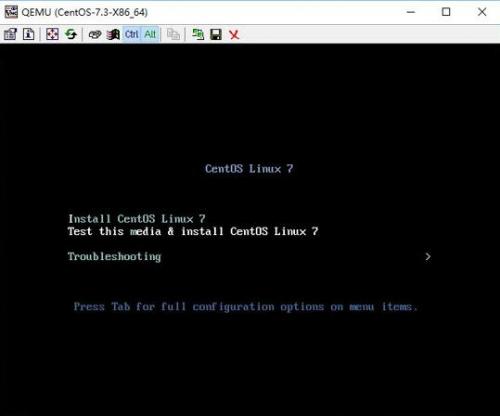
方案1: 本人下的是这个CentOS-7.0-1406-x86_64-DVD.iso,在163镜像中下载的,然后用UltraISO 9.6制作的U盘启动盘,不过在安装的时候出现了这个错误然后也是搜了好久,试了一下,下面这个方法,是正确可行的.在最后我会解释原因 第一步: 制作完成之后,将U盘的标签名字改掉,随便改成什么,不过最好简单一点,因为待会会用到 第二步: 开始安装,在进入安装界面,显示 Install CentOS 7 的这个界面的时候,选择第一个选项,也就是Install CentOS 7,按e编辑启动项,将CentOS 7 x86_64…那一串改成 你自己改成的字符串,然后ctrl+x启动 方案2; 正常步骤至此的话,我们应该选择 “Install CentOS 7" 按下Enter 然后进入安装界面。但实际的结果是我们到不了安装界面,而是会出错,如下图: 这个问题是木有找到你的U盘,这个配置是需要在上一步需要完成的,但在上一步我们并不知道U盘的文件名,所以索性在这一步查看一下U盘的设备名,然后再回到上一步完成配置。 在#后面输入:cd /dev,然后会看到如下界面: sda 是我的硬盘对应的文件名(我机子只有一块硬盘),所以sdb就是U盘对应的文件名了,可以看到是sdb4。至此我们重启一下,回到第一个图片所示的界面处,然后按下Tab键,将vmlinuz initrd=initrd.imginst.stage2=hd:LABEL=CentOS\x207\x20x86_64 rd.live.check quiet改为:vmlinuz initrd=initrd.img inst.stage2=hd:/dev/sdb4 quite 然后按下enter 键进入安装界面,就可以顺利开始安装了。

优秀的个人博客,低调大师

CentOS7/RHEL7.0配置网络IP的三种方法

RHEL7里面的网卡命名方式从eth0,1,2的方式变成了enoXXXXX的格式。 en代表的是enthernet (以太网),o 代表的是onboard (内置),那一串数字是主板的某种索引编号自动生成,以便保证其唯一性。和原先的命名方式对比,这种新的方式比较长,难以记忆,不过优点在于编号唯一,做系统迁移的时候不容易出错。 1.修改/etc/sysconfig/network-scripts/eno16777736 查看你的网卡名称(本机是eno16777736): [root@linuxprobe Desktop]# ifconfig eno16777736: flags=4163 mtu 1500 inet 192.168.1.100 netmask 255.255.255.0 broadcast 192.168.1.255 inet6 fe80::20c:29ff:feb8:2b07 prefixlen 64 scopeid 0x20 inet6 fde0:b912:e3a9:0:20c:29ff:feb8:2b07 prefixlen 64 scopeid 0x0 ether 00:0c:29:b8:2b:07 txqueuelen 1000 (Ethernet) RX packets 37 bytes 5428 (5.3 KiB) RX errors 0 dropped 0 overruns 0 frame 0 TX packets 62 bytes 8269 (8.0 KiB) TX errors 0 dropped 0 overruns 0 carrier 0 collisions 0 lo: flags=73 mtu 65536 inet 127.0.0.1 netmask 255.0.0.0 inet6 ::1 prefixlen 128 scopeid 0x10 loop txqueuelen 0 (Local Loopback) RX packets 134 bytes 10928 (10.6 KiB) RX errors 0 dropped 0 overruns 0 frame 0 TX packets 134 bytes 10928 (10.6 KiB) TX errors 0 dropped 0 overruns 0 carrier 0 collisions 0 [root@linuxprobe Desktop]# 编辑ifcfg-eno16777736 文件: 红色为需要修改或者添加的内容,保存并退出。 部分释义: TYPE=Ethernet #网络接口类型 BOOTPROTO=static #动态为dhcp DEFROUTE=yes IPV4_FAILURE_FATAL=yes IPV6INIT=yes #是否支持IPV6 IPV6_AUTOCONF=yes IPV6_DEFROUTE=yes IPV6_FAILURE_FATAL=no NAME=eno16777736 #网卡名称 UUID=72cf53fd-534c-4765-912b-3df575a10a7d ONBOOT=yes #开启自动启用网络连接 IPADDRO=192.168.1.20 #设置IP地址 GATEWAY0=192.168.1.1 #设置网关 PREFIX0=24 #设置子网掩码 DNS1=192.168.1.1 #设置DNS HWADDR=00:0C:29:B8:2B:07 PEERDNS=yes PEERROUTES=yes IPV6_PEERDNS=yes IPV6_PEERROUTES=yes 重启网卡并测试网络: [root@linuxprobe Desktop]# systemctl restart network 2.图形工具nmtui 在终端执行命令: [root@linuxprobe Desktop]# nmtui 你依然需要重启网卡才能生效,并测试网络。 3.图形工具nm-connection-editor 终端执行命令: [root@linuxprobe Desktop]# nm-connection-editor 三种方法只要会一种就可以上网,配置你所需要的服务,是不是非常简单啊! 本文转载自:http://www.linuxprobe.com/rhel7-configure-network/

资源下载

更多资源
优质分享Android(本站安卓app)

优质分享Android(本站安卓app)

近一个月的开发和优化,本站点的第一个app全新上线。该app采用极致压缩,本体才4.36MB。系统里面做了大量数据访问、缓存优化。方便用户在手机上查看文章。后续会推出HarmonyOS的适配版本。

Oracle Database,又名Oracle RDBMS

Oracle Database,又名Oracle RDBMS

Oracle Database,又名Oracle RDBMS,或简称Oracle。是甲骨文公司的一款关系数据库管理系统。它是在数据库领域一直处于领先地位的产品。可以说Oracle数据库系统是目前世界上流行的关系数据库管理系统,系统可移植性好、使用方便、功能强,适用于各类大、中、小、微机环境。它是一种高效率、可靠性好的、适应高吞吐量的数据库方案。

Eclipse(集成开发环境)

Eclipse(集成开发环境)

Eclipse 是一个开放源代码的、基于Java的可扩展开发平台。就其本身而言,它只是一个框架和一组服务,用于通过插件组件构建开发环境。幸运的是,Eclipse 附带了一个标准的插件集,包括Java开发工具(Java Development Kit,JDK)。

Java Development Kit(Java开发工具)

Java Development Kit(Java开发工具)

JDK是 Java 语言的软件开发工具包,主要用于移动设备、嵌入式设备上的java应用程序。JDK是整个java开发的核心,它包含了JAVA的运行环境(JVM+Java系统类库)和JAVA工具。