首页 文章 精选 留言 我的

精选列表

搜索[android things],共10000篇文章
优秀的个人博客,低调大师

android canvas drawText()文字居中

最近也是在学习自定义控件,以前只自己随便玩了下,一直觉得比较难,正好现在工作轻松,每天闲着就看看书看看帖子学习自定义控件,你还别说自定义控件学起来还是蛮有趣的!! 这里也跟大家分享下我关于drawText()文字居中的方法. 先附上drawText()的方法说明 说实话当时看了这个,我也没明白这个x,y坐标到底表达的啥意思,还一直以为是绘制文字中心的坐标,后来发现这个理解是错误的 要想理解这个首先看张图 像图上这样安卓的文字绘制是相对于基线绘制的,也就是图中的红线,而top+bottom的长度就等于字体高度.即等于|top|+|bottom|绝对值 实际绘制的时候取决于基线上一个点来绘制文字,而这个点有三种分别对应为left,center,right如下图 而drawText()方法中x,y坐标所指的点就是上图基线上三个点中的一个,具体是哪一个根据paint的setTextAlign()方法设置,默认为left 示例代码如下 [java] view plain copy Rectrect=newRect(100,100,500,500);//画一个矩形 PaintrectPaint=newPaint(); rectPaint.setColor(Color.BLUE); rectPaint.setStyle(Paint.Style.FILL); canvas.drawRect(rect,rectPaint); PainttextPaint=newPaint(); textPaint.setColor(Color.WHITE); textPaint.setTextSize(50); textPaint.setStyle(Paint.Style.FILL); //该方法即为设置基线上那个点究竟是left,center,还是right这里我设置为center textPaint.setTextAlign(Paint.Align.CENTER); Paint.FontMetricsfontMetrics=textPaint.getFontMetrics(); floattop=fontMetrics.top;//为基线到字体上边框的距离,即上图中的top floatbottom=fontMetrics.bottom;//为基线到字体下边框的距离,即上图中的bottom intbaseLineY=(int)(rect.centerY()-top/2-bottom/2);//基线中间点的y轴计算公式 canvas.drawText("你好世界",rect.centerX(),baseLineY,textPaint); 这里有点要注意textPaint.getFontMetrics()这个方法一定要在设置字体大小或者样式等等一系列会影响字体的方法后在调用,不然获取到的top和bottom值不准. 效果如下 正好是在中间的,即证明等式是没有问题的,再来分析这个等式是如何计算的 之所以drawText()方法中x,y指的是基线中间的那个点,是因为setTextAlign(Paint.Align.Center) 那么要想在正中间显示文字,x只要为矩形的中点x坐标即可 x = rect.centerX() 要计算的就是基线中间图上红色点的y坐标了,看图可以发现红色点的y为矩形中点黑色点的y坐标+图中黑色点和红色点之间的距离 矩形y坐标为 rect.centerY() 黑色点和红色点之间的距离为相对于基线的(top+bottom)/2 - bottom 而 top是相对于基线的所以为负数,所以公式为 (-top+bottom)/2 - bottom简化下为-top/2 - bottom/2 所以最后计算为rect.centerY - top/2 - bottom/2. 到此相信大家应该明白了吧,有什么疑问不对的地方欢迎提出. 本文转自 一点点征服 博客园博客,原文链接:http://www.cnblogs.com/ldq2016/p/6690305.html,如需转载请自行联系原作者

优秀的个人博客,低调大师

Android笔记:代码编写布局

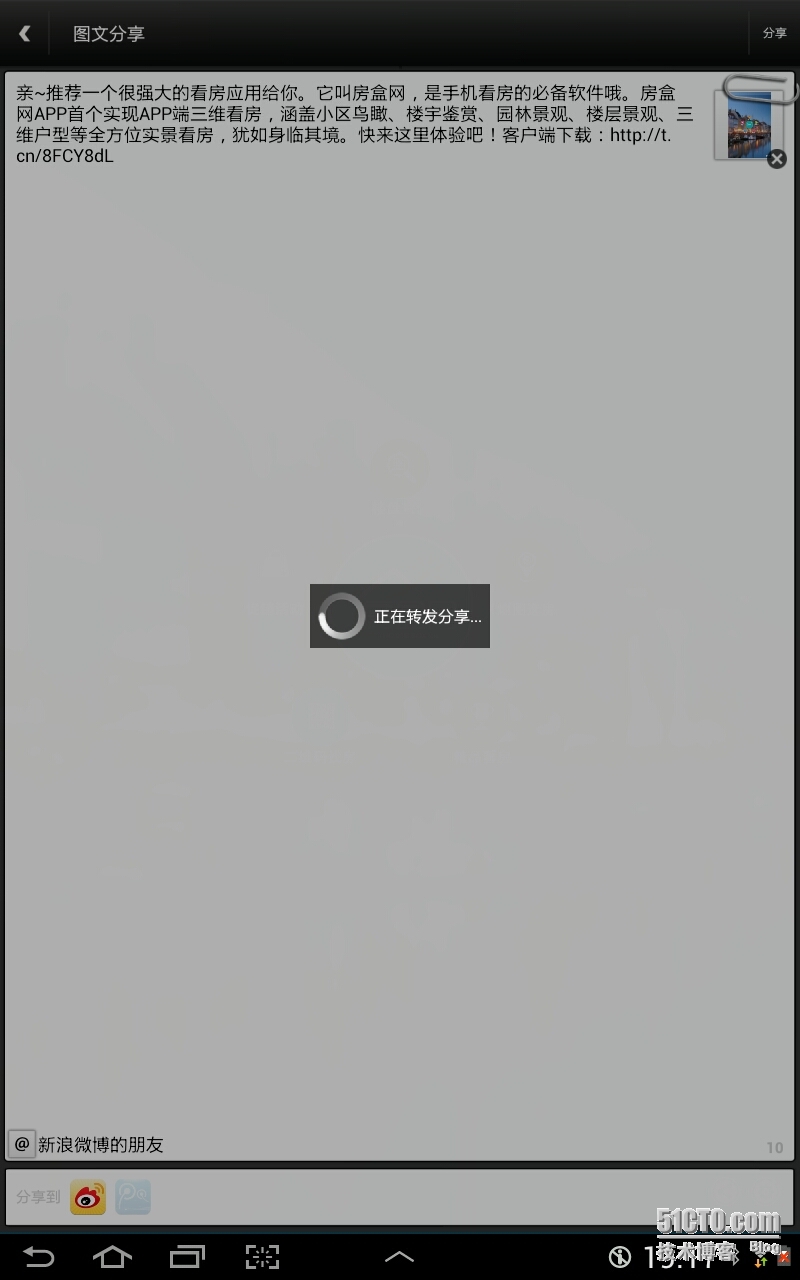
自己在shareSdk原有布局中添加一个加载过程的布局: 1 2 3 4 5 6 7 8 9 10 11 12 13 14 15 16 17 18 19 20 21 22 23 24 25 26 27 28 29 30 31 32 33 34 35 36 37 38 39 40 41 42 43 44 /** 新增:分享发送进度 **/ private void setLoadingUI() { // 页面父布局 pageLayout = new RelativeLayout(getContext()); pageLayout.setLayoutParams( new RelativeLayout.LayoutParams(LayoutParams.FILL_PARENT, LayoutParams.FILL_PARENT)); // 填充编辑页布局 RelativeLayout.LayoutParams llPageLp = new RelativeLayout.LayoutParams(LayoutParams.FILL_PARENT, LayoutParams.FILL_PARENT); llPage.setLayoutParams(llPageLp); pageLayout.addView(llPage); // 加载过程布局 loadReLayout = new RelativeLayout(getContext()); loadReLayout.setLayoutParams( new RelativeLayout.LayoutParams(LayoutParams.FILL_PARENT, LayoutParams.FILL_PARENT)); loadReLayout.setClickable( true ); loadReLayout.setBackgroundColor( 0x50000000 ); loadReLayout.setVisibility(View.GONE); pageLayout.addView(loadReLayout); // 加载过程中间布局 LinearLayout loadCenterLayout = new LinearLayout(getContext()); RelativeLayout.LayoutParams lcLp = new RelativeLayout.LayoutParams(LayoutParams.WRAP_CONTENT, LayoutParams.WRAP_CONTENT); lcLp.addRule(RelativeLayout.CENTER_IN_PARENT); loadCenterLayout.setPadding( 8 , 8 , 8 , 8 ); loadCenterLayout.setBackgroundColor( 0xa5000000 ); loadCenterLayout.setOrientation(LinearLayout.HORIZONTAL); loadReLayout.addView(loadCenterLayout, lcLp); // 进度条和加载中说明 ProgressBar pb = new ProgressBar(getContext()); pb.setLayoutParams( new LinearLayout.LayoutParams(LayoutParams.WRAP_CONTENT, LayoutParams.WRAP_CONTENT)); loadCenterLayout.addView(pb); TextView loadText = new TextView(getContext()); LayoutParams ltlp = new LinearLayout.LayoutParams(LayoutParams.WRAP_CONTENT, LayoutParams.WRAP_CONTENT); ltlp.setMargins( 8 , 0 , 0 , 0 ); ltlp.gravity = Gravity.CENTER_VERTICAL; loadText.setLayoutParams(ltlp); loadText.setText( "正在转发分享..." ); loadText.setTextSize( 16 ); loadText.setTextColor(Color.WHITE); loadCenterLayout.addView(loadText); } 原布局部分代码: 1 2 3 4 5 6 7 8 9 10 11 12 13 14 15 16 17 18 19 20 21 22 23 24 25 26 27 28 29 30 31 32 33 34 35 36 37 38 39 40 41 42 43 44 45 46 47 48 49 50 51 52 53 54 55 56 57 58 59 60 61 62 63 64 65 66 private void initPageView() { // 编辑页父布局 llPage = new LinearLayout(getContext()); llPage.setBackgroundColor( 0xff323232 ); llPage.setOrientation(LinearLayout.VERTICAL); // 新增:分享发送过程 setLoadingUI(); // 标题栏 llTitle = new TitleLayout(getContext()); llTitle.setBackgroundResource(R.drawable.title_back); llTitle.getBtnBack().setOnClickListener( this ); llTitle.getTvTitle().setText(R.string.multi_share); llTitle.getBtnRight().setVisibility(View.VISIBLE); llTitle.getBtnRight().setText(R.string.share); llTitle.getBtnRight().setOnClickListener( this ); llTitle.setLayoutParams( new LinearLayout.LayoutParams(LayoutParams.FILL_PARENT, LayoutParams.WRAP_CONTENT)); llPage.addView(llTitle); FrameLayout flPage = new FrameLayout(getContext()); LinearLayout.LayoutParams lpFl = new LinearLayout.LayoutParams(LayoutParams.FILL_PARENT, LayoutParams.WRAP_CONTENT); lpFl.weight = 1 ; flPage.setLayoutParams(lpFl); llPage.addView(flPage); // 页面主体 LinearLayout llBody = new LinearLayout(getContext()); llBody.setOrientation(LinearLayout.VERTICAL); FrameLayout.LayoutParams lpLl = new FrameLayout.LayoutParams(LayoutParams.FILL_PARENT, LayoutParams.FILL_PARENT); lpLl.gravity = Gravity.LEFT | Gravity.TOP; llBody.setLayoutParams(lpLl); flPage.addView(llBody); // 别针图片 ivPin = new ImageView(getContext()); ivPin.setImageResource(R.drawable.pin); int dp_80 = cn.sharesdk.framework.utils.R.dipToPx(getContext(), 80 ); int dp_36 = cn.sharesdk.framework.utils.R.dipToPx(getContext(), 36 ); FrameLayout.LayoutParams lpPin = new FrameLayout.LayoutParams(dp_80, dp_36); lpPin.topMargin = cn.sharesdk.framework.utils.R.dipToPx(getContext(), 6 ); lpPin.gravity = Gravity.RIGHT | Gravity.TOP; ivPin.setLayoutParams(lpPin); flPage.addView(ivPin); ImageView ivShadow = new ImageView(getContext()); ivShadow.setBackgroundResource(R.drawable.title_shadow); ivShadow.setImageResource(R.drawable.title_shadow); FrameLayout.LayoutParams lpSd = new FrameLayout.LayoutParams(LayoutParams.FILL_PARENT, LayoutParams.WRAP_CONTENT); ivShadow.setLayoutParams(lpSd); flPage.addView(ivShadow); LinearLayout llInput = new LinearLayout(getContext()); llInput.setMinimumHeight(cn.sharesdk.framework.utils.R.dipToPx(getContext(), 150 )); llInput.setBackgroundResource(R.drawable.edittext_back); LinearLayout.LayoutParams lpInput = new LinearLayout.LayoutParams(LayoutParams.FILL_PARENT, LayoutParams.WRAP_CONTENT); int dp_3 = cn.sharesdk.framework.utils.R.dipToPx(getContext(), 3 ); lpInput.setMargins(dp_3, dp_3, dp_3, dp_3); lpInput.weight = 1 ; llInput.setLayoutParams(lpInput); llBody.addView(llInput); //... } 效果图: 本文转自 glblong 51CTO博客,原文链接:http://blog.51cto.com/glblong/1370018,如需转载请自行联系原作者

资源下载

更多资源
Mario

Mario

马里奥是站在游戏界顶峰的超人气多面角色。马里奥靠吃蘑菇成长,特征是大鼻子、头戴帽子、身穿背带裤,还留着胡子。与他的双胞胎兄弟路易基一起,长年担任任天堂的招牌角色。

腾讯云软件源

腾讯云软件源

为解决软件依赖安装时官方源访问速度慢的问题,腾讯云为一些软件搭建了缓存服务。您可以通过使用腾讯云软件源站来提升依赖包的安装速度。为了方便用户自由搭建服务架构,目前腾讯云软件源站支持公网访问和内网访问。

Nacos

Nacos

Nacos /nɑ:kəʊs/ 是 Dynamic Naming and Configuration Service 的首字母简称,一个易于构建 AI Agent 应用的动态服务发现、配置管理和AI智能体管理平台。Nacos 致力于帮助您发现、配置和管理微服务及AI智能体应用。Nacos 提供了一组简单易用的特性集,帮助您快速实现动态服务发现、服务配置、服务元数据、流量管理。Nacos 帮助您更敏捷和容易地构建、交付和管理微服务平台。

Rocky Linux

Rocky Linux

Rocky Linux(中文名:洛基)是由Gregory Kurtzer于2020年12月发起的企业级Linux发行版,作为CentOS稳定版停止维护后与RHEL(Red Hat Enterprise Linux)完全兼容的开源替代方案,由社区拥有并管理,支持x86_64、aarch64等架构。其通过重新编译RHEL源代码提供长期稳定性,采用模块化包装和SELinux安全架构,默认包含GNOME桌面环境及XFS文件系统,支持十年生命周期更新。

用户登录
用户注册