首页 文章 精选 留言 我的

精选列表

搜索[部署],共10003篇文章
优秀的个人博客,低调大师

Docker部署私有仓库

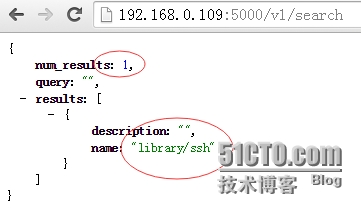
今天和大家聊聊Docker的私有仓库。 前段时间啊在CentOS6.x上玩Docker的私有仓库,由于https认证的原因,一直没有能解决,最后听群上的一朋友说,换成CentOS 7试试,也别说,最后实验成功啦! 所以我建议朋友在玩docker的私有仓库的时候,也能现在CentOS7.x系统上玩,确定对整个过程熟悉后,然后换成你熟悉的6.x的系统,这样也是一个循循渐进的过程吧! 一、准备 1、地址规划 1 2 Docker私有仓库地址:192.168.0.109 Docker客户端地址:192.168.0.110 2、激活网卡 1 2 3 4 #vim/etc/sysconfig/network-scripts/ifcfg-eno16777728 修改此行 ONBOOT= yes #/etc/init.d/networkrestart 3、关闭本地防火墙并设置开机不自启动 1 2 #systemctlstopfirewalld.service #systemctldisablefirewalld.service 4、关闭本地selinux防火墙 1 2 3 #vi/etc/sysconfig/selinux SELINUX=disabled #setenforce0 5、安装ifconfig工具 1 #yuminstallnet-tools 二、安装 1、安装docker 1 2 3 4 #yuminstalldocker #yumupgradedevice-mapper-libs #servicedockerstart #chkconfigdockeron 2、本地私有仓库registry 1 2 3 4 5 6 7 8 9 10 11 12 13 14 15 16 17 18 19 20 [root@localhost~] #dockerpullregistry Tryingtopullrepositorydocker.io /registry ... 24dd746e9b9f:Downloadcomplete 706766fe1019:Downloadcomplete a62a42e77c9c:Downloadcomplete 2c014f14d3d9:Downloadcomplete b7cf8f0d9e82:Downloadcomplete d0b170ebeeab:Downloadcomplete 171efc310edf:Downloadcomplete 522ed614b07a:Downloadcomplete 605ed9113b86:Downloadcomplete 22b93b23ebb9:Downloadcomplete 2ac557a88fda:Downloadcomplete 1f3b4c532640:Downloadcomplete 27ebaac643a7:Downloadcomplete ce630195cb45:Downloadcomplete Status:Downloadednewerimage for docker.io /registry :latest [root@localhost~] #dockerimages REPOSITORYTAGIMAGEIDCREATEDVIRTUALSIZE docker.io /registry latest24dd746e9b9f3daysago413.8MB 3、基于私有仓库镜像运行容器 1 2 3 4 5 [root@localhost~] #dockerrun-d-p5000:5000-v/opt/data/registry:/tmp/registrydocker.io/registry bb2c0d442df94e281479332c2608ef144f378e71743c5410e36b80c465771a95 [root@localhost~] #dockerps-a CONTAINERIDIMAGECOMMANDCREATEDSTATUSPORTSNAMES bb2c0d442df9docker.io /registry :latest "docker-registry" 10secondsagoUp7seconds0.0.0.0:5000->5000 /tcp serene_hopper 4、访问私有仓库 1 2 [root@localhost~] #curl127.0.0.1:5000/v1/search { "num_results" :0, "query" : "" , "results" :[]} // 私有仓库为空,没有提交新镜像到仓库中 5、从Docker Hub上下载一个ssh镜像 1 2 3 4 5 6 7 8 9 10 11 12 13 14 15 16 17 18 19 [root@localhost~] #dockersearch-s10ssh NAMEDESCRIPTIONSTARSOFFICIALAUTOMATED docker.io:docker.io /fedora/ssh 18[OK] [root@localhost~] #dockerpullfedora/ssh Tryingtopullrepositorydocker.io /fedora/ssh ... 2aeb2b6d9705:Downloadcomplete 511136ea3c5a:Downloadcomplete 00a0c78eeb6d:Downloadcomplete 834629358fe2:Downloadcomplete 571e8a51403c:Downloadcomplete 87d5d42e693c:Downloadcomplete 92b5ef05fe68:Downloadcomplete 92d3910dc33c:Downloadcomplete cf2e9fa11368:Downloadcomplete Status:Downloadednewerimage for docker.io /fedora/ssh :latest [root@localhost~] #dockerimages REPOSITORYTAGIMAGEIDCREATEDVIRTUALSIZE docker.io /registry latest24dd746e9b9f3daysago413.8MB docker.io /fedora/ssh latest2aeb2b6d97059daysago254.4MB 6、创建镜像链接或为基础镜像打个标签 1 2 3 4 5 6 [root@localhost~] #dockertagdocker.io/fedora/ssh127.0.0.1:5000/ssh [root@localhost~] #dockerimages REPOSITORYTAGIMAGEIDCREATEDVIRTUALSIZE docker.io /registry latest24dd746e9b9f3daysago413.8MB docker.io /fedora/ssh latest2aeb2b6d97059daysago254.4MB 127.0.0.1:5000 /ssh latest2aeb2b6d97059daysago254.4MB 7、修改Docker配置文件制定私有仓库url 1 2 3 4 5 [root@localhost~] #vim/etc/sysconfig/docker 修改此行 OPTIONS= '--selinux-enabled--insecure-registry192.168.0.109:5000' [root@localhost~] #servicedockerrestart Redirectingto /bin/systemctl restartdocker.service 8、提交镜像到本地私有仓库中 1 2 3 4 5 6 7 8 9 10 11 12 13 14 [root@localhost~] #dockerpush127.0.0.1:5000/ssh Thepushreferstoarepository[127.0.0.1:5000 /ssh ](len:1) Sendingimagelist Pushingrepository127.0.0.1:5000 /ssh (1tags) 511136ea3c5a:Imagesuccessfullypushed 00a0c78eeb6d:Imagesuccessfullypushed 834629358fe2:Imagesuccessfullypushed 571e8a51403c:Imagesuccessfullypushed 87d5d42e693c:Imagesuccessfullypushed 92b5ef05fe68:Imagesuccessfullypushed 92d3910dc33c:Imagesuccessfullypushed cf2e9fa11368:Imagesuccessfullypushed 2aeb2b6d9705:Imagesuccessfullypushed Pushingtag for rev[2aeb2b6d9705]on{http: //127 .0.0.1:5000 /v1/repositories/ssh/tags/latest } 9、查看私有仓库是否存在对应的镜像 1 2 [root@localhost~] #curl127.0.0.1:5000/v1/search { "num_results" :1, "query" : "" , "results" :[{ "description" : "" , "name" : "library/ssh" }]} 10、查看镜像的存储目录和文件 1 2 3 4 5 6 7 8 9 10 [root@localhost~] #tree/opt/data/registry/repositories/ /opt/data/registry/repositories/ └──library └── ssh ├──_index_images ├──json ├──tag_latest └──taglatest_json 2directories,4files 三、从私有仓库中下载已有的镜像 1、登陆另外一台Docker客户端 1 2 3 4 5 6 7 [root@localhost~] #sshroot@192.168.0.110 Theauthenticityofhost '192.168.0.110(192.168.0.110)' can'tbeestablished. ECDSAkeyfingerprintis5b:81:4b:66:d6: dd :48:16:9f:85:58:72:21:bd:ba:39. Areyousureyouwantto continue connecting( yes /no )? yes Warning:Permanentlyadded '192.168.0.110' (ECDSA)tothelistofknownhosts. root@192.168.0.110'spassword: Lastlogin:SunApr2614:39:512015from192.168.0.103 2、修改Docker配置文件 1 2 3 4 5 [root@localhost~] #vim/etc/sysconfig/docker 修改此行 OPTIONS= '--selinux-enabled--insecure-registry192.168.0.109:5000' // 添加私有仓库地址 [root@localhost~] #servicedockerrestart Redirectingto /bin/systemctl restartdocker.service 3、从私有仓库中下载已有的镜像 1 2 3 4 5 6 7 8 9 10 11 12 13 14 15 [root@localhost~] #dockerpull192.168.0.109:5000/ssh Tryingtopullrepository192.168.0.109:5000 /ssh ... 2aeb2b6d9705:Downloadcomplete 511136ea3c5a:Downloadcomplete 00a0c78eeb6d:Downloadcomplete 834629358fe2:Downloadcomplete 571e8a51403c:Downloadcomplete 87d5d42e693c:Downloadcomplete 92b5ef05fe68:Downloadcomplete 92d3910dc33c:Downloadcomplete cf2e9fa11368:Downloadcomplete Status:Downloadednewerimage for 192.168.0.109:5000 /ssh :latest [root@localhost~] #dockerimages REPOSITORYTAGIMAGEIDCREATEDVIRTUALSIZE 192.168.0.109:5000 /ssh latest2aeb2b6d97059daysago254.4MB 四、浏览器访问仓库 本文转自zys467754239 51CTO博客,原文链接:http://blog.51cto.com/467754239/1638770,如需转载请自行联系原作者

优秀的个人博客,低调大师

部署docker-gitlab

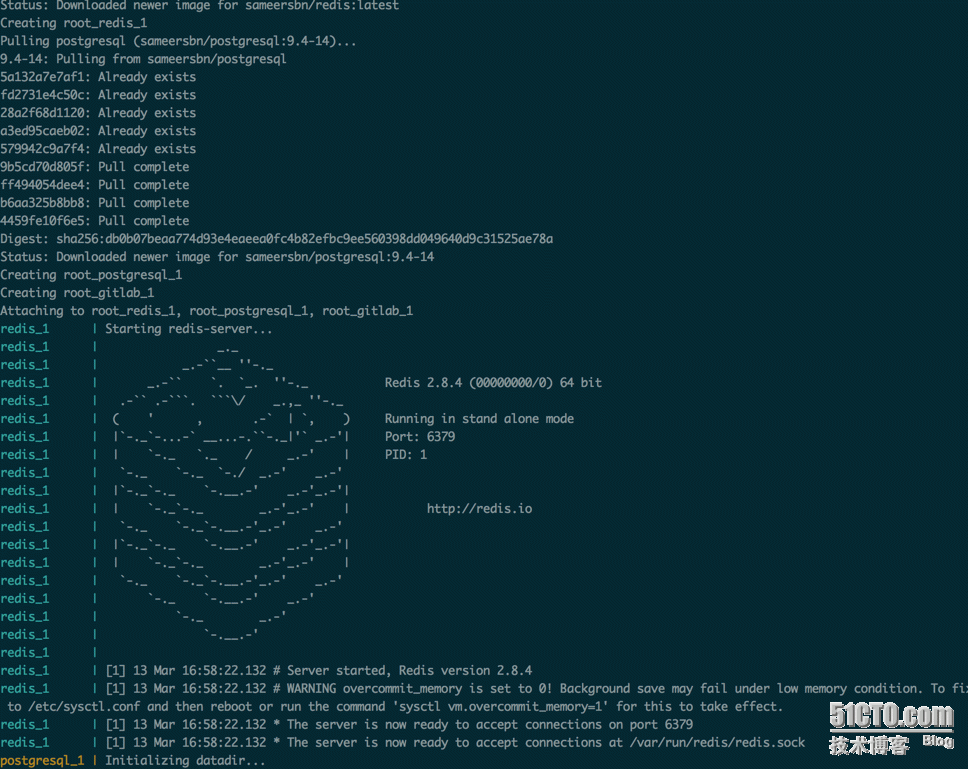
Gitlab的docker化,找了些资料,后来发现其实人们早就已经做好了,并且在github上就有。最近学到了一个思想,”不重复造轮子“, 我这里简单照着文档做下总结。 GitLab是利用 Ruby on Rails 一个开源的版本管理系统,使用Git作为代码管理工具,并在此基础上搭建起来的web服务.实现一个自托管的Git项目仓库,可通过Web界面进行访问公开的或者私人项目。它拥有与Github类似的功能,能够浏览源代码,管理缺陷和注释。可以管理团队对仓库的访问,它非常易于浏览提交过的版本并提供一个文件历史库。团队成员可以利用内置的简单聊天程序(Wall)进行交流。它还提供一个代码片段收集功能可以轻松实现代码复用,便于日后有需要的时候进行查找。 Docker 是一个开源的应用容器引擎,让开发者可以打包他们的应用以及依赖包到一个可移植的容器中,然后发布到任何流行的Linux机器上,也可以实现虚拟化。容器是完全使用沙箱机制,相互之间不会有任何接口(类似 iPhone 的 app)。几乎没有性能开销,可以很容易地在机器和数据中心中运行。最重要的是,他们不依赖于任何语言、框架包括系统。 安装docker: 1 #wget-qO-https://get.docker.com/|sh 安装docker-gitlab: 安装对应版本的gitlab镜像: 1 #dockerpullsameersbn/gitlab:8.5.5 如果想安装最新版,使用: 1 #dockerpullsameersbn/gitlab:latest 启动gitlab: 最快的启动方式是使用docker-compose: 1 #wgethttps://raw.githubusercontent.com/sameersbn/docker-gitlab/master/docker-compose.yml yml文件里存放了相应服务的配置,可根据情况更改;可以使用如下命令生成一个64位是随机字符串,用于GITLAB_SECRETS_DB_KEY_BASE 1 2 #pwgen-Bsv164 qs7KxxMx3wrWpFMH3CxFpbnCNHPfxsxcgRTJcNMgjMJhwLfvmh4HrmwKc4mMcRc7 1 -GITLAB_SECRETS_DB_KEY_BASE=qs7KxxMx3wrWpFMH3CxFpbnCNHPfxsxcgRTJcNMgjMJhwLfvmh4HrmwKc4mMcRc7 另外docker-gitlab默认使用/home/git/data这个目录用来存放提交上来的代码,我修改成了自己的路径: 1 2 volumes: - /srv/docker/gitlab/gitlab : /data/code 启动gitlab,这个过程需要等待一段时间: 1 #docker-composeup 执行完成之后查看启动结果: 1 2 3 4 5 root@gitlab:~ #dockerps-a CONTAINERIDIMAGECOMMANDCREATEDSTATUSPORTSNAMES aefaf4098b00sameersbn /gitlab :8.5.5 "/sbin/entrypoint.sh" 13hoursagoUp13hours443 /tcp ,0.0.0.0:10022->22 /tcp ,0.0.0.0:10080->80 /tcp root_gitlab_1 a8ed7a4dd879sameersbn /postgresql :9.4-14 "/sbin/entrypoint.sh" 13hoursagoUp13hours5432 /tcp root_postgresql_1 a9e519dcb183sameersbn /redis :latest "/sbin/entrypoint.sh" 13hoursagoUp13hours6379 /tcp root_redis_1 如果不用docker-compose的方式,也可以手动 launch: 1、启动postgresql: 1 2 3 4 5 dockerrun--namegitlab-postgresql-d\ -- env 'DB_NAME=gitlabhq_production' \ -- env 'DB_USER=gitlab' -- env 'DB_PASS=password' \ --volume /srv/docker/gitlab/postgresql : /var/lib/postgresql \ sameersbn /postgresql :9.4-14 2、启动redis: 1 2 3 dockerrun--namegitlab-redis-d\ --volume /srv/docker/gitlab/redis : /var/lib/redis \ sameersbn /redis :latest 3、启动gitlab: 1 2 3 4 5 6 7 dockerrun--namegitlab-d\ --linkgitlab-postgresql:postgresql--linkgitlab-redis:redisio\ --publish10022:22--publish10080:80\ -- env 'GITLAB_PORT=10080' -- env 'GITLAB_SSH_PORT=10022' \ -- env 'GITLAB_SECRETS_DB_KEY_BASE=long-and-random-alpha-numeric-string' \ --volume /srv/docker/gitlab/gitlab : /home/git/data \ sameersbn /gitlab :8.5.5 上面的命令将使用10080作为Gitlab的Web访问端口,10022将作为ssh push和pull代码的端口。 在本地可以使用浏览器打开http://localhost:10080来访问Gitlab,初始登录网站使用root账户,用户名为root,密码为:5iveL!fe,登录后需要立即修改密码。 登陆: http://localhost:10080 登陆进去之后修改密码就可以进行项目管理了~ 本文转自Jx战壕 51CTO博客,原文链接:http://blog.51cto.com/xujpxm/1750968,如需转载请自行联系原作者

优秀的个人博客,低调大师

RDO部署openstack(2)

配置ML2和VXLAN 1. 安装和配置Neutron ML2 框架 (1) 安装在控制节点上(运行Neutron-server的节点) service neutron-server stop yum install openstack-neutron-ml2 python-pyudev -y ln -s /etc/neutron/plugins/ml2/ml2_conf.ini /etc/neutron/plugin.ini -f (2) 配置ML2参数 crudini --set /etc/neutron/neutron.conf DEFAULT core_plugin neutron.plugins.ml2.plugin.Ml2Plugin # 启用L3路由服务,这里还可以在后面增加LBaaS、VPNaaS、FWaaS插件,插件间用逗号分隔即可。 crudini --set /etc/neutron/neutron.conf DEFAULT service_plugins neutron.services.l3_router.l3_router_plugin.L3RouterPlugin # 启动Mechanism插件,默认启用了OpenvSwitch,LinuxBridge和L2Population。 crudini --set /etc/neutron/plugins/ml2/ml2_conf.ini ml2 mechanism_drivers openvswitch,linuxbridge,l2population # 启动Type插件,目前默认支持local、flat、vlan、gre、vxlan。 crudini --set /etc/neutron/plugins/ml2/ml2_conf.ini ml2 type_drivers local,flat,vlan,gre,vxlan # 租户网络类型,这边我们选择vxlan crudini --set /etc/neutron/plugins/ml2/ml2_conf.ini ml2 tenant_network_types vxlan # 数据库配置,可直接参考/etc/neutron/neutron.conf crudini --set /etc/neutron/plugins/ml2/ml2_conf.ini database sql_connectionmysql://neutron:<password>@<host>/neutron_ml2 # 防火墙驱动 crudini --set /etc/neutron/plugins/ml2/ml2_conf.ini securitygroup firewall_driver neutron.agent.linux.iptables_firewall.OVSHybridIptablesFirewallDriver # 给每类Type插件,定义参数 crudini --set /etc/neutron/plugins/ml2/ml2_conf.ini ml2_type_vlan network_vlan_ranges <same range syntax as openvswitch> crudini --set /etc/neutron/plugins/ml2/ml2_conf.ini ml2_type_flat flat_networks <list of physical_networks or *> crudini --set /etc/neutron/plugins/ml2/ml2_conf.ini ml2_type_gre tunnel_id_ranges <list of ranges> # 这里我们为vxlan配置vni范围,在1:10000。 crudini --set /etc/neutron/plugins/ml2/ml2_conf.ini ml2_type_vxlan vni_ranges 1:10000 (3) 数据库初始化 mysql -e "drop database if exists neutron_ml2;" mysql -e "create database neutron_ml2 character set utf8;" mysql -e "grant all on neutron_ml2.* to 'neutron'@'%';" neutron-db-manage --config-file /usr/share/neutron/neutron-dist.conf --config-file /etc/neutron/neutron.conf --config-file /etc/neutron/plugin.ini upgrade head service neutron-server start (4) 在网络节点和计算节点上配置 /etc/neutron/plugins/openvswitch/ovs_neutron_plugin.ini: [ovs] tunnel_id_ranges=1:10000 tenant_network_type=vxlan enable_tunneling=True tunnel_type = vxlan local_ip = 192.168.188.136 [agent] tunnel_types = vxlan l2_population = True service neutron-openvswitch-agent restart (5) 配置IPtables策略,开放vxlan端口 /etc/sysconfig/iptables: -A INPUT -p udp --dport 4789 -j ACCEPT 本文转自feisky博客园博客,原文链接:http://www.cnblogs.com/feisky/p/3844283.html,如需转载请自行联系原作者

优秀的个人博客,低调大师

docker swarm集群部署

docker swarm 集群构建: swarm 在docker 1.12 版本后内置 #h官方文档tps://docs.docker.com/engine/swarm/#feature-highlights 系统环境: centos7.3 docker17.06 1、初始化manager节点: docker swarm init 为实现高可用,manager节点需要有奇数个,类似zookerper选举制度。 2、复制生成的命令,在node节点运行。 #docker swarm join-token manager To add a manager to this swarm, run the following command: docker swarm join --token SWMTKN-1-1hwdongcnsvzh92s1wnd33w9p08k1o18vobvkzu7z509xoduif-2ezofrbnkaamwuuby9d1w0wn5 10.39.3.25:2377 # docker swarm join-token worker To add a worker to this swarm, run the following command: docker swarm join --token SWMTKN-1-1hwdongcnsvzh92s1wnd33w9p08k1o18vobvkzu7z509xoduif-1j43vxwnsrc3cyz2y7ips3d3g 10.39.3.25:2377 示例: 如目前有 10.39.3.25--29 集群, 选其中3个25、26、27 做为manager节点,用于管理swarm集群和实现高可用。 # docker node ls ID HOSTNAME STATUS AVAILABILITY MANAGER STATUS dga3oelektv4tbofub2ii9d36 cephnode5 Ready Active j0hmbmvn9pwnpr1n9zm20j67k * cephnode3 Ready Active Reachable k7pb8msn85c6xzflbe4r57itd cephnode1 Ready Active Reachable mmlszdi5lcr0zt2nk44pcjvya cephnode4 Ready Active t9f91au60k3cgf406cqe1pn2t cephnode2 Ready Active Leader 2个manager是无法实现高可用的,主节点异常后,备用节点运行命令将报错如下: #docker node ls Error response from daemon: rpc error: code = 2 desc = The swarm does not have a leader. It's possible that too few managers are online. Make sure more than half of the managers are online.

优秀的个人博客,低调大师

RDO部署openstack(1)

1. 安装系统CentOS 6.5 2. 网络配置 Eth0 设置 # cat /etc/sysconfig/network-scripts/ifcfg-eth0 DEVICE=eth0 ONBOOT=yes HWADDR=00:E0:81:D8:42:F6 TYPE=Ethernet BOOTPROTO=static IPADDR=10.1.199.8 NETMASK=255.255.255.0 Eth1 设置 # cat /etc/sysconfig/network-scripts/ifcfg-eth1 DEVICE=eth1 TYPE=Ethernet ONBOOT=yes DEVICETYPE=ovs OVS_BRIDGE=br-ex TYPE=OVSPort 重启网络,生效 /etc/init.d/network restart 3. 改用163源 cd /etc/yum.repos.d/ wget http://mirrors.163.com/.help/CentOS6-Base-163.repo yum list; yum makecache 4.根据 http://openstack.redhat.com/Quickstart安装 sudo yum install -y http://rdo.fedorapeople.org/rdo-release.rpm sudo yum install -y http://rdo.fedorapeople.org/openstack-icehouse/rdo-release-icehouse.rpm (J版:yum install http://rdo.fedorapeople.org/openstack-juno/rdo-release-juno.rpm) sudo yum install -y openstack-packstack Packstack takes the work out of manually setting up OpenStack. For a single node OpenStack deployment, run the following command. packstack --allinone If you have run packstack previously, there will be a file in your home directory named something like packstack-answers-20130722-153728.txt You will probably want to use that file again, using the --answer-file option, so that any passwords you've already set (eg, mysql) will be reused. The installer will ask you to enter the root password for each host node you are installing on the network, to enable remote configuration of the host so it can remotely configure each node using Puppet. Once the process is complete, you can log in to the OpenStack web interface "Horizon" by going tohttp://$YOURIP/dashboard. The username is "admin". The password can be found in the file keystonerc_admin in the /root/ directory of the control node. 高级功能 你可以通过生成配置文件,进行修改 packstack --gen-answer-file my_answers.txt 对my_answers.txt 进行设置,然后 packstack --answer-file my_answers.txt

优秀的个人博客,低调大师

Hadoop单机部署方法

安装Java JDK: 到sun网站上下载jdk chmod +x jdk-6u30-linux-x64.bin ./jdk-6u30-linux-x64.bin 下载Hadoop wgethttp://labs.renren.com/apache-mirror/hadoop/common/hadoop-0.20.205.0/hadoop-0.20.205.0.tar.gz tar zxvf hadoop-0.20.205.0.tar.gz 安装必要软件 yum install ssh rsync 修改配置文件 conf/core-site.xml: <configuration> <property> <name>fs.default.name</name> <value>hdfs://localhost:9000</value> </property> </configuration> conf/hdfs-site.xml: <configuration> <property> <name>dfs.replication</name> <value>1</value> </property> </configuration> conf/mapred-site.xml: <configuration> <property> <name>mapred.job.tracker</name> <value>localhost:9001</value> </property> </configuration> conf/hadoop-env.sh export JAVA_HOME=/root/jdk1.6.0_30 bin/hadoop 以root用户运行会报-jvm参数不存在的错误,故将 if [[ $EUID -eq 0 ]]; then HADOOP_OPTS="$HADOOP_OPTS -jvm server $HADOOP_DATANODE_OPTS" else HADOOP_OPTS="$HADOOP_OPTS -server $HADOOP_DATANODE_OPTS" fi 修改为 elif [ "$COMMAND" = "datanode" ] ; then CLASS='org.apache.hadoop.hdfs.server.datanode.DataNode' HADOOP_OPTS="$HADOOP_OPTS -server $HADOOP_DATANODE_OPTS" SSH设置 $ ssh-keygen -t dsa -P '' -f ~/.ssh/id_dsa$ cat ~/.ssh/id_dsa.pub >> ~/.ssh/authorized_keys 启动hadoop $ bin/hadoop namenode -format$ bin/start-all.sh 此时,通过本地的50070和50030端口就可以分别浏览到NameNode和JobTracker: NameNode -http://localhost:50070/ JobTracker -http://localhost:50030/ 测试wordcount 生成测试数据: [root hadoop-0.20.205.0]# mkdir input [root hadoop-0.20.205.0]# echo "hello world" >> input/a.txt [root hadoop-0.20.205.0]# echo "hello hadoop" >> input/b.txt 将本地数据复制到HDFS中: [root hadoop-0.20.205.0]# bin/hadoop fs -put input in 执行测试任务: [root hadoop-0.20.205.0]# bin/hadoop jar hadoop-examples-0.20.205.0.jar wordcount in out 12/02/05 21:00:47 INFO input.FileInputFormat: Total input paths to process : 2 12/02/05 21:00:48 INFO mapred.JobClient: Running job: job_201202052055_0001 12/02/05 21:00:49 INFO mapred.JobClient: map 0% reduce 0% 12/02/05 21:01:07 INFO mapred.JobClient: map 100% reduce 0% 12/02/05 21:01:19 INFO mapred.JobClient: map 100% reduce 100% 12/02/05 21:01:24 INFO mapred.JobClient: Job complete: job_201202052055_0001 12/02/05 21:01:24 INFO mapred.JobClient: Counters: 29 12/02/05 21:01:24 INFO mapred.JobClient: Job Counters 12/02/05 21:01:24 INFO mapred.JobClient: Launched reduce tasks=1 12/02/05 21:01:24 INFO mapred.JobClient: SLOTS_MILLIS_MAPS=22356 12/02/05 21:01:24 INFO mapred.JobClient: Total time spent by all reduces waiting after reserving slots (ms)=0 12/02/05 21:01:24 INFO mapred.JobClient: Total time spent by all maps waiting after reserving slots (ms)=0 12/02/05 21:01:24 INFO mapred.JobClient: Launched map tasks=2 12/02/05 21:01:24 INFO mapred.JobClient: Data-local map tasks=2 12/02/05 21:01:24 INFO mapred.JobClient: SLOTS_MILLIS_REDUCES=10801 12/02/05 21:01:24 INFO mapred.JobClient: File Output Format Counters 12/02/05 21:01:24 INFO mapred.JobClient: Bytes Written=25 12/02/05 21:01:24 INFO mapred.JobClient: FileSystemCounters 12/02/05 21:01:24 INFO mapred.JobClient: FILE_BYTES_READ=55 12/02/05 21:01:24 INFO mapred.JobClient: HDFS_BYTES_READ=235 12/02/05 21:01:24 INFO mapred.JobClient: FILE_BYTES_WRITTEN=64345 12/02/05 21:01:24 INFO mapred.JobClient: HDFS_BYTES_WRITTEN=25 12/02/05 21:01:24 INFO mapred.JobClient: File Input Format Counters 12/02/05 21:01:24 INFO mapred.JobClient: Bytes Read=25 12/02/05 21:01:24 INFO mapred.JobClient: Map-Reduce Framework 12/02/05 21:01:24 INFO mapred.JobClient: Map output materialized bytes=61 12/02/05 21:01:24 INFO mapred.JobClient: Map input records=2 12/02/05 21:01:24 INFO mapred.JobClient: Reduce shuffle bytes=61 12/02/05 21:01:24 INFO mapred.JobClient: Spilled Records=8 12/02/05 21:01:24 INFO mapred.JobClient: Map output bytes=41 12/02/05 21:01:24 INFO mapred.JobClient: CPU time spent (ms)=2900 12/02/05 21:01:24 INFO mapred.JobClient: Total committed heap usage (bytes)=398852096 12/02/05 21:01:24 INFO mapred.JobClient: Combine input records=4 12/02/05 21:01:24 INFO mapred.JobClient: SPLIT_RAW_BYTES=210 12/02/05 21:01:24 INFO mapred.JobClient: Reduce input records=4 12/02/05 21:01:24 INFO mapred.JobClient: Reduce input groups=3 12/02/05 21:01:24 INFO mapred.JobClient: Combine output records=4 12/02/05 21:01:24 INFO mapred.JobClient: Physical memory (bytes) snapshot=422445056 12/02/05 21:01:24 INFO mapred.JobClient: Reduce output records=3 12/02/05 21:01:24 INFO mapred.JobClient: Virtual memory (bytes) snapshot=1544007680 12/02/05 21:01:24 INFO mapred.JobClient: Map output records=4 查看结果: [root hadoop-0.20.205.0]# bin/hadoop fs -cat out/* hadoop1 hello2 world1 cat: File does not exist: /user/root/out/_logs 将结果从HDFS复制到本地并查看: [root hadoop-0.20.205.0]# bin/hadoop fs -get out output [root hadoop-0.20.205.0]# cat output/* cat: output/_logs: Is a directory hadoop1 hello2 world1 此时,从JobTracker网页中也可以看到任务的执行情况: 本文转自feisky博客园博客,原文链接:http://www.cnblogs.com/feisky/archive/2012/02/05/2339311.html,如需转载请自行联系原作者

优秀的个人博客,低调大师

Postgresql服务部署

PostgreSQL 是一种非常复杂的对象-关系型数据库管理系统(ORDBMS),也是目前功能最强大,特性最丰富和最复杂的自由软件数据库系统。os:centos6.5 x64 ip:192.168.85.130 hostname: vm2.lansgg.com pg 版本:postgresql-9.2.4.tar.bz2 一、yum安装二、源码安装 三、系统数据库 1、yum安装 [root@vm2~]#wget [root@vm2~]#rpm-vhipgdg-redhat92-9.2-8.noarch.rpm [root@vm2~]#yuminstallpostgresql92-serverpostgresql92-contrib-y 1.2、初始化并启动数据库 [root@vm2~]#/etc/init.d/postgresql-9.2initdb 正在初始化数据库:[确定] [root@vm2~]#/etc/init.d/postgresql-9.2start 启动postgresql-9.2服务:[确定] [root@vm2~]#echo"PATH=/usr/pgsql-9.2/bin:$PATH">>/etc/profile [root@vm2~]#echo"exportPATH">>/etc/profile 1.3、测试 [root@vm2~]#su-postgres -bash-4.1$psql psql(9.2.19) 输入"help"来获取帮助信息. postgres=#\l 资料库列表 名称|拥有者|字元编码|校对规则|Ctype|存取权限 -----------+----------+----------+-------------+-------------+----------------------- postgres|postgres|UTF8|zh_CN.UTF-8|zh_CN.UTF-8| template0|postgres|UTF8|zh_CN.UTF-8|zh_CN.UTF-8|=c/postgres+ |||||postgres=CTc/postgres template1|postgres|UTF8|zh_CN.UTF-8|zh_CN.UTF-8|=c/postgres+ |||||postgres=CTc/postgres (3行记录) postgres=# 1.4、修改管理员密码 修改PostgreSQL 数据库用户postgres的密码(注意不是linux系统帐号)PostgreSQL 数据库默认会创建一个postgres的数据库用户作为数据库的管理员,默认密码为空,我们需要修改为指定的密码,这里设定为’postgres’。 postgres=#select*frompg_shadow; usename|usesysid|usecreatedb|usesuper|usecatupd|userepl|passwd|valuntil|useconfig ----------+----------+-------------+----------+-----------+---------+--------+----------+----------- postgres|10|t|t|t|t||| (1行记录) postgres=#ALTERUSERpostgresWITHPASSWORD'postgres'; ALTERROLE postgres=#select*frompg_shadow; usename|usesysid|usecreatedb|usesuper|usecatupd|userepl|passwd|valuntil|useconfig ----------+----------+-------------+----------+-----------+---------+-------------------------------------+----------+----------- postgres|10|t|t|t|t|md53175bce1d3201d16594cebf9d7eb3f9d|| (1行记录) postgres=# 1.5、创建测试数据库 postgres=#createdatabasetestdb; CREATEDATABASE postgres=#\ctestdb; 您现在已经连线到数据库"testdb",用户"postgres". testdb=# 1.6、创建测试表 testdb=#createtabletest(idinteger,nametext); CREATETABLE testdb=#insertintotestvalues(1,'lansgg'); INSERT01 testdb=#select*fromtest; id|name ----+-------- 1|lansgg (1行记录) 1.7、查看表结构 testdb=#\dtest; 资料表"public.test" 栏位|型别|修饰词 ------+---------+-------- id|integer| name|text| 1.8、修改PostgresSQL 数据库配置实现远程访问 修改postgresql.conf 文件 如果想让PostgreSQL 监听整个网络的话,将listen_addresses 前的#去掉,并将 listen_addresses = 'localhost' 改成 listen_addresses = '*'修改客户端认证配置文件pg_hba.conf [root@vm2~]#vim/var/lib/pgsql/9.2/data/pg_hba.conf hostallall127.0.0.1/32ident hostallallallmd5 [root@vm2~]#/etc/init.d/postgresql-9.2restart 停止postgresql-9.2服务:[确定] 启动postgresql-9.2服务:[确定] [root@vm2~]# 2、源码安装 停止上面yum安装的pgsql服务,下载PostgreSQL 源码包 [root@vm2~]#/etc/init.d/postgresql-9.2stop 停止postgresql-9.2服务:[确定] [root@vm2~]#wget [root@vm2~]#tarjxvfpostgresql-9.2.4.tar.bz2 [root@vm2~]#cdpostgresql-9.2.4 查看INSTALL 文件more INSTALLINSTALL 文件中Short Version 部分解释了如何安装PostgreSQL 的命令,Requirements 部分描述了安装PostgreSQL 所依赖的lib,比较长,先configure 试一下,如果出现error,那么需要检查是否满足了Requirements 的要求。开始编译安装PostgreSQL 数据库。 [root@vm2postgresql-9.2.4]#./configure [root@vm2postgresql-9.2.4]#gmake [root@vm2postgresql-9.2.4]#gmakeinstall [root@vm2postgresql-9.2.4]#echo"PGHOME=/usr/local/pgsql">>/etc/profile [root@vm2postgresql-9.2.4]#echo"exportPGHOME">>/etc/profile [root@vm2postgresql-9.2.4]#echo"PGDATA=/usr/local/pgsql/data">>/etc/profile [root@vm2postgresql-9.2.4]#echo"exportPGDATA">>/etc/profile [root@vm2postgresql-9.2.4]#echo"PATH=$PGHOME/bin:$PATH">>/etc/profile [root@vm2postgresql-9.2.4]#echo"exportPATH">>/etc/profile [root@vm2postgresql-9.2.4]#source/etc/profile [root@vm2postgresql-9.2.4]# 2.2、初始化数据库 useradd-d/opt/postgrespostgres######如果没有此账户就创建,前面yum安装的时候已经替我们创建了 [root@vm2postgresql-9.2.4]#mkdir/usr/local/pgsql/data [root@vm2postgresql-9.2.4]#chownpostgres.postgres/usr/local/pgsql/data/ [root@vm2postgresql-9.2.4]#su-postgres -bash-4.1$/usr/local/pgsql/bin/initdb-D/usr/local/pgsql/data/ Thefilesbelongingtothisdatabasesystemwillbeownedbyuser"postgres". Thisusermustalsoowntheserverprocess. Thedatabaseclusterwillbeinitializedwithlocale"zh_CN.UTF-8". Thedefaultdatabaseencodinghasaccordinglybeensetto"UTF8". initdb:couldnotfindsuitabletextsearchconfigurationforlocale"zh_CN.UTF-8" Thedefaulttextsearchconfigurationwillbesetto"simple". fixingpermissionsonexistingdirectory/usr/local/pgsql/data...ok creatingsubdirectories...ok selectingdefaultmax_connections...100 selectingdefaultshared_buffers...32MB creatingconfigurationfiles...ok creatingtemplate1databasein/usr/local/pgsql/data/base/1...ok initializingpg_authid...ok initializingdependencies...ok creatingsystemviews...ok loadingsystemobjects'descriptions...ok creatingcollations...ok creatingconversions...ok creatingdictionaries...ok settingprivilegesonbuilt-inobjects...ok creatinginformationschema...ok loadingPL/pgSQLserver-sidelanguage...ok vacuumingdatabasetemplate1...ok copyingtemplate1totemplate0...ok copyingtemplate1topostgres...ok WARNING:enabling"trust"authenticationforlocalconnections Youcanchangethisbyeditingpg_hba.conforusingtheoption-A,or --auth-localand--auth-host,thenexttimeyouruninitdb. Success.Youcannowstartthedatabaseserverusing: /usr/local/pgsql/bin/postgres-D/usr/local/pgsql/data or /usr/local/pgsql/bin/pg_ctl-D/usr/local/pgsql/data-llogfilestart -bash-4.1$ 1.3、添加到系统服务 -bash-4.1$exit logout [root@vm2postgresql-9.2.4]#cp/root/postgresql-9.2.4/contrib/start-scripts/linux/etc/init.d/postgresql [root@vm2postgresql-9.2.4]#chmod+x/etc/init.d/postgresql [root@vm2postgresql-9.2.4]#/etc/init.d/postgresqlstart StartingPostgreSQL:ok [root@vm2postgresql-9.2.4]#chkconfig--addpostgresql [root@vm2postgresql-9.2.4]#chkconfigpostgresqlon [root@vm2postgresql-9.2.4]# 1.4、测试使用 [root@vm2postgresql-9.2.4]#su-postgres -bash-4.1$psql-l Listofdatabases Name|Owner|Encoding|Collate|Ctype|Accessprivileges -----------+----------+----------+-------------+-------------+----------------------- postgres|postgres|UTF8|zh_CN.UTF-8|zh_CN.UTF-8| template0|postgres|UTF8|zh_CN.UTF-8|zh_CN.UTF-8|=c/postgres+ |||||postgres=CTc/postgres template1|postgres|UTF8|zh_CN.UTF-8|zh_CN.UTF-8|=c/postgres+ |||||postgres=CTc/postgres (3rows) -bash-4.1$psql psql(9.2.4) Type"help"forhelp. postgres=#createdatabasetestdb; CREATEDATABASE postgres=#\ctestdb; Youarenowconnectedtodatabase"testdb"asuser"postgres". testdb=#createtabletest(idint,nametext,ageint); CREATETABLE testdb=#\dtest Table"public.test" Column|Type|Modifiers --------+---------+----------- id|integer| name|text| age|integer| testdb=#insertintotestvalues(1,'lansgg',25); INSERT01 testdb=#select*fromtest; id|name|age ----+--------+----- 1|lansgg|25 (1row) testdb=# 3、系统数据库 在创建数据集簇之后,该集簇中默认包含三个系统数据库template1、template0和postgres。其中template0和postgres都是在初始化过程中从template1拷贝而来的。 template1和template0数据库用于创建数据库。PostgreSQL中采用从模板数据库复制的方式来创建新的数据库,在创建数据库的命令中可以用“-T”选项来指定以哪个数据库为模板来创建新数据库。 template1数据库是创建数据库命令默认的模板,也就是说通过不带“-T”选项的命令创建的用户数据库是和template1一模一样的。template1是可以修改的,如果对template1进行了修改,那么在修改之后创建的用户数据库中也能体现出这些修改的结果。template1的存在允许用户可以制作一个自定义的模板数据库,在其中用户可以创建一些应用需要的表、数据、索引等,在日后需要多次创建相同内容的数据库时,都可以用template1作为模板生成。 由于template1的内容有可能被用户修改,因此为了满足用户创建一个“干净”数据库的需求,PostgreSQL提供了template0数据库作为最初始的备份数据,当需要时可以用template0作为模板生成“干净”的数据库。 而第三个初始数据库postgres用于给初始用户提供一个可连接的数据库,就像Linux系统中一个用户的主目录一样。 上述系统数据库都是可以删除的,但是两个模板数据库在删除之前必须将其在pg_database中元组的datistemplate属性改为FALSE,否则删除时会提示“不能删除一个模板数据库”

资源下载

更多资源
Mario

Mario

马里奥是站在游戏界顶峰的超人气多面角色。马里奥靠吃蘑菇成长,特征是大鼻子、头戴帽子、身穿背带裤,还留着胡子。与他的双胞胎兄弟路易基一起,长年担任任天堂的招牌角色。

Spring

Spring

Spring框架(Spring Framework)是由Rod Johnson于2002年提出的开源Java企业级应用框架,旨在通过使用JavaBean替代传统EJB实现方式降低企业级编程开发的复杂性。该框架基于简单性、可测试性和松耦合性设计理念,提供核心容器、应用上下文、数据访问集成等模块,支持整合Hibernate、Struts等第三方框架,其适用范围不仅限于服务器端开发,绝大多数Java应用均可从中受益。

Rocky Linux

Rocky Linux

Rocky Linux(中文名:洛基)是由Gregory Kurtzer于2020年12月发起的企业级Linux发行版,作为CentOS稳定版停止维护后与RHEL(Red Hat Enterprise Linux)完全兼容的开源替代方案,由社区拥有并管理,支持x86_64、aarch64等架构。其通过重新编译RHEL源代码提供长期稳定性,采用模块化包装和SELinux安全架构,默认包含GNOME桌面环境及XFS文件系统,支持十年生命周期更新。

Sublime Text

Sublime Text

Sublime Text具有漂亮的用户界面和强大的功能,例如代码缩略图,Python的插件,代码段等。还可自定义键绑定,菜单和工具栏。Sublime Text 的主要功能包括:拼写检查,书签,完整的 Python API , Goto 功能,即时项目切换,多选择,多窗口等等。Sublime Text 是一个跨平台的编辑器,同时支持Windows、Linux、Mac OS X等操作系统。

用户登录
用户注册