首页 文章 精选 留言 我的

精选列表

搜索[ios],共10000篇文章
优秀的个人博客,低调大师

iOS开发-Alpha,Hidden与Opaque区别

UIView中的这三个属性用的比较多,尤其是Alpha和Opaque之间有的时候不是很好分别,稍微整理下: Alpha(不透明度) alpha是不透明度,属性为浮点类型的值,取值范围从0到1.0,表示从完全透明到完全不透明,其特性有当前UIView的alpha值会被其所有subview继承。alpha值会影响到UIView跟其所有subview,alpha具有动画效果。当alpha为0时,跟hidden为YES时效果一样,但是alpha主要用于实现隐藏的动画效果,在动画块中将hidden设置为YES没有动画效果。 1 2 3 4 5 6 7 8 UIView *view=[[UIView alloc]initWithFrame:CGRectMake(30, 100, CGRectGetWidth(self.view.bounds)-60, 150)]; [view setBackgroundColor:[UIColor redColor]]; [view setAlpha:0.5]; [self.view addSubview:view]; UIView *childView=[[UIView alloc]initWithFrame:CGRectMake(20, 30, 100, 80)]; [childView setBackgroundColor:[UIColor blueColor]]; [view addSubview:childView]; 设置backgroundColor的alpha值只影响当前UIView的背景,并不会影响其所有subview。Clear Color就是backgroundColor的alpha为1.0。alpha值会影响backgroundColor最终的alpha,假设UIView的alpha为0.8,backgroundColor的alpha为0.5,那么backgroundColor最终的alpha为0.4(0.8*0.5)。 Hidden(隐藏) Hidden表示UIView是否隐藏,Hidden设置为YES表示当前UIView的所有subview也会被隐藏,忽略subview的hidden属性。Hidden只要设置为YES,所有的subview都会隐藏。UIView隐藏之后也会从当前的响应者事件中移除。 Opaque opaque也是表示当前的UIView的不透明度,设置是否之后对于UIView的显示并没有什么影响,官方文档的意思简单点说就是opaque默认为YES,如果alpha小于1,那么应该设置opaque设置为NO,但是如果alpha为1,opaque设置为NO,产生的后果是不可预料的~ 1 2 3 4 5 This property provides a hint to the drawing system as to how it should treat the view. If set to YES, the drawing system treats the view as fully opaque, which allows the drawing system to optimize some drawing operations and improve performance. If set to NO, the drawing system composites the view normally with other content. The default value of this property is YES. An opaque view is expected to fill its bounds with entirely opaque content—that is , the content should have an alpha value of 1.0. If the view is opaque and either does not fill its bounds or contains wholly or partially transparent content, the results are unpredictable. You should always set the value of this property to NO if the view is fully or partially transparent. You only need to set a value for the opaque property for subclasses of UIView that draw their own content using the drawRect: method. The opaque property has no effect for system provided classes such as UIButton, UILabel, UITableViewCell, etc. 如果了解opaque,需要点屏幕绘制的知识,屏幕上的每个像素点都是通过RGBA值(Red、Green、Blue三原色再配上Alpha透明度)表示的,当纹理(UIView在绘图系统中对应的表示项)出现重叠时,GPU会按照Result = Source + Destination * (1 - SourceAlpha)公式计算重叠部分的像素。 Result是结果RGB值,Source为处在重叠顶部纹理的RGB值,Destination为处在重叠底部纹理的RGB值。 当SourceAlpha为1时,绘图系统认为下面的颜色全部被遮盖住了,Result=Source,如果Source的Alpha不为0,上下层颜色就会进行合成,所以opaque默认设置YES,提升绘制性能,如果开发中UIView是不透明的,opaque设置为YES, 如果opaque设置NO,那么Alpha应该小于1. 本文转自Fly_Elephant博客园博客,原文链接:http://www.cnblogs.com/xiaofeixiang/p/5149765.html,如需转载请自行联系原作者

优秀的个人博客,低调大师

iOS开发-NSDate获取当前时区时间

NSDate Date默认显示的是格林尼治所在地的标准时间(GMT),转换为中国时区需要加上八个小时,针对与这个情况你可以直接在获取时间之后加上八个小时,也可以转换到当前时区,都很简单,代码参考如下: 1 2 3 4 5 6 7 8 NSDate *date=[NSDate date]; NSLog( @"格林尼治时间 %@" ,date); NSInteger interval = [[NSTimeZone systemTimeZone] secondsFromGMTForDate: date]; NSDate *localeDate = [date dateByAddingTimeInterval: interval]; NSLog( @"第一种时间转换---%@" ,localeDate); NSDate *secondDate=[date dateByAddingTimeInterval:(8*60*60)]; NSLog( @"第二种date时间--%@" ,secondDate); 本文转自Fly_Elephant博客园博客,原文链接:http://www.cnblogs.com/xiaofeixiang/p/5076315.html,如需转载请自行联系原作者

优秀的个人博客,低调大师

iOS:制作九宫格

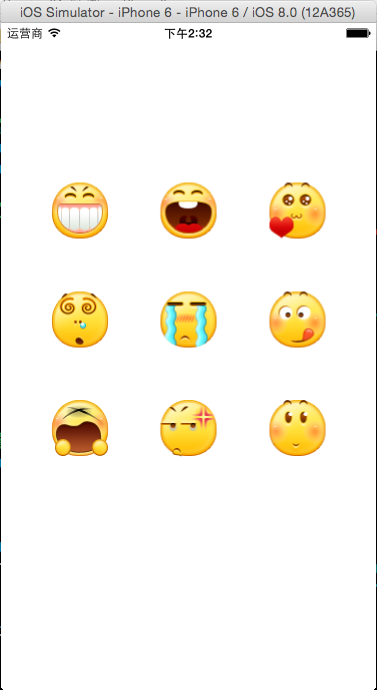
制作简单的九宫格: 源码如下: 1 #import "ViewController.h" 2 3 @interface ViewController () 4 5 @end 6 7 @implementation ViewController 8 9 - (void)viewDidLoad { 10 [super viewDidLoad]; 11 12 //创建九宫格 13 NSInteger col = 3; //每行几列 14 NSInteger total = 9;//总个数 15 16 //格子的宽度、高度 17 UIImage *image = [UIImage imageNamed:@"0.png"]; 18 CGFloat cellWidth = image.size.width; 19 CGFloat cellHeight = image.size.height; 20 21 CGFloat screenWidth = self.view.frame.size.width; 22 23 CGFloat gapX = (screenWidth-cellWidth*col)/(col+1);//x方向的间隔 24 CGFloat gapY = gapX;//y方向的间隔 25 26 27 //计算行数 28 NSInteger row = 0; 29 30 for(int i=0; i<total; i++) 31 { 32 UIButton *button = [[UIButton alloc]init]; 33 [button setBackgroundImage:[UIImage imageNamed:[NSString stringWithFormat:@"%d.png",i]] forState:UIControlStateNormal]; 34 35 //计算是否需要换行 36 if(i%col == 0) 37 { 38 row++; 39 } 40 CGFloat x = gapX+(cellWidth+gapX)*(i%col); 41 CGFloat y = gapY+(cellHeight+gapY)*row; 42 button.frame = CGRectMake(x, y, cellWidth, cellHeight); 43 44 [self.view addSubview:button]; 45 } 46 } 47 48 @end 程序猿神奇的手,每时每刻,这双手都在改变着世界的交互方式! 本文转自当天真遇到现实博客园博客,原文链接:http://www.cnblogs.com/XYQ-208910/p/4767729.html,如需转载请自行联系原作者

优秀的个人博客,低调大师

IOS应用开发-数据库创建

一、前言 数据库作为一种数据载体被我们频繁地使用。一般情况下我们会在程序的入口方法处完成数据库的创建。下面通过实例简单介绍两种创建数据库的方法。 二、需求 在documents目录下创建一个 test.sqlite数据库,里面包含表User。User表含username和password两个varchar类型的字段。 方法一:使用SQLiteManager创建数据库和表,并将创建好的数据库文件拖入项目中,最后调用以下代码将数据库复制到documents目录; /** * 将数据库文件复制进沙盒 */ -(void)createEditableCopyOfDatabaseIfNeeded { // 先判断 sandbox 下面的 documents 子文件夹里面有没有数据库文件 test.sqlite NSFileManager *fileManager = [NSFileManager defaultManager]; NSError *error; NSArray *paths = NSSearchPathForDirectoriesInDomains(NSDocumentDirectory, NSUserDomainMask, YES); NSString *documentsDirectory = [paths objectAtIndex:0]; NSString *writableDBPath = [documentsDirectory stringByAppendingPathComponent:@"test.sqlite"]; BOOL ifFind = [fileManager fileExistsAtPath:writableDBPath]; if (ifFind) { // NSLog(@"数据库已存在"); return; } else{ NSLog(@"数据库不存在,需要复制"); } // 如果不存在数据库文件,则复制数据库文件 NSString *defaultDBPath = [[NSBundle mainBundle] pathForResource:@"test" ofType:@"sqlite"]; BOOL ifSuccess = [fileManager copyItemAtPath:defaultDBPath toPath:writableDBPath error:&error]; if (!ifSuccess) { NSLog(@"Failed to create writable database file with message '%@'.", [error localizedDescription]); }else { NSLog(@"createEditableCopyOfDatabaseIfNeeded 初始化成功"); } return; } 方法二:利用开源的FMDB库代码创建数据库; /** * 代码创建数据库 */ - (void)createDatabaseIfNeeded { // 数据库路径 NSArray *paths = NSSearchPathForDirectoriesInDomains(NSDocumentDirectory, NSUserDomainMask, YES); NSString *doc = [paths objectAtIndex:0]; NSString *path = [doc stringByAppendingPathComponent:@"test.sqlite"]; NSFileManager * fileManager = [NSFileManager defaultManager]; if ([fileManager fileExistsAtPath:path] == NO) { // create it FMDatabase * db = [FMDatabase databaseWithPath:path]; if ([db open]) { // 建立User表 NSMutableString *sql = [NSMutableString stringWithFormat:@"%@",@"CREATE TABLE User"]; [sql appendString:@"("]; [sql appendString:@"username varchar,"]; [sql appendString:@"password varchar"]; [sql appendString:@")"]; BOOL res = [db executeUpdate:sql]; if (!res) { debugLog(@"error when creating table User"); } else { debugLog(@"succ to creating table User"); } [db close]; } else { debugLog(@"error when open db"); } } } 注:FMDB库使用教程http://blog.devtang.com/blog/2012/04/22/use-fmdb/ 三、总结 1、第一种方法创建数据库在需求变动的情况下(如增加几张表)容错率稍高,推荐使用第一种方法; 2、两种方法均是先判断数据库是否存在然后再决定要不要创建/复制数据库。在一种特殊情况下-应用更新版本,其实原来的数据库文件是会从老的版本中拷贝到新版本中(参考:http://blog.csdn.net/zyx586/article/details/18989199),所以更新版本后数据库文件是不会做任何改变的,就算你在新的版本中完全改变数据库的结构。所以如果存在数据库变动的需要在应用版本升级后重新创建一个全新的数据库并备份旧的数据; 最新内容请见作者的GitHub页:http://qaseven.github.io/

优秀的个人博客,低调大师

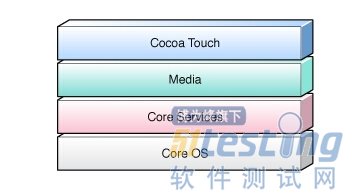
IOS操作系统的层次结构

1、Core OS 核心层:包含Accelerate Framework、External Accessory Framework、Security Framework、System等几个框架,基本都是基于c语言的接口 2、Core Services核心服务层:包含Address Book Framework、CFNetwork Framework、Core Data Framework、Core Foundation Framework、Core Location Framework、Core Media Framework、Core Telephony Framework、Event Kit Framework、Foundation Framework、Mobile Core Services Framework、Quick Look Framework、Store Kit Framework、System Configuration Framework、Block Objects、Grand Central Dispatch 、In App Purchase、Location Services、SQLite、XML Support等一些框架,也基本都是基于c语言的接口。 3、Mediah媒体层:包含Core Graphics、Core Animation、OpenGL ES、Core Text、Image I/O、Assets Library Framework、Media Player Framework、AV Foundation、OpenAL、Core Audio Frameworks、Core Media等等 4、 Cocoa Touch 触摸层:包括Address Book UI Framework、Event Kit UI Framework、Game Kit Framework、iAd Framework、Map Kit Framework、Message UI Framework、UIKit Framework等等,这一层基本都是基于 Objective-c的接口 最新内容请见作者的GitHub页:http://qaseven.github.io/

资源下载

更多资源
优质分享App

优质分享App

近一个月的开发和优化,本站点的第一个app全新上线。该app采用极致压缩,本体才4.36MB。系统里面做了大量数据访问、缓存优化。方便用户在手机上查看文章。后续会推出HarmonyOS的适配版本。

Mario

Mario

马里奥是站在游戏界顶峰的超人气多面角色。马里奥靠吃蘑菇成长,特征是大鼻子、头戴帽子、身穿背带裤,还留着胡子。与他的双胞胎兄弟路易基一起,长年担任任天堂的招牌角色。

Nacos

Nacos

Nacos /nɑ:kəʊs/ 是 Dynamic Naming and Configuration Service 的首字母简称,一个易于构建 AI Agent 应用的动态服务发现、配置管理和AI智能体管理平台。Nacos 致力于帮助您发现、配置和管理微服务及AI智能体应用。Nacos 提供了一组简单易用的特性集,帮助您快速实现动态服务发现、服务配置、服务元数据、流量管理。Nacos 帮助您更敏捷和容易地构建、交付和管理微服务平台。

Rocky Linux

Rocky Linux

Rocky Linux(中文名:洛基)是由Gregory Kurtzer于2020年12月发起的企业级Linux发行版,作为CentOS稳定版停止维护后与RHEL(Red Hat Enterprise Linux)完全兼容的开源替代方案,由社区拥有并管理,支持x86_64、aarch64等架构。其通过重新编译RHEL源代码提供长期稳定性,采用模块化包装和SELinux安全架构,默认包含GNOME桌面环境及XFS文件系统,支持十年生命周期更新。

用户登录
用户注册
修改密码
忘记密码