Keepalived高可用+HAproxy实现Nginx+wordpress动静分离
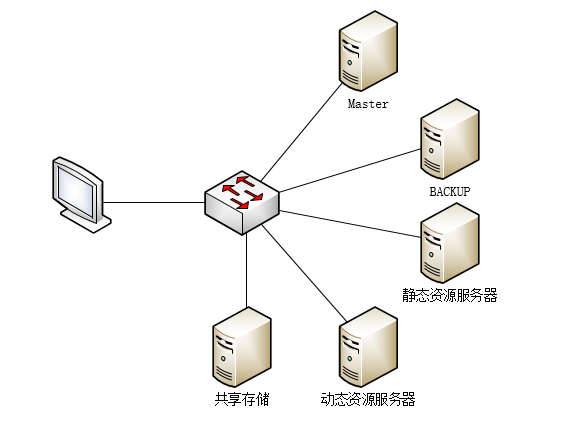
背景介绍 随着时代的更新发展,我们对于网络访问的速度,容错性,冗余性,都要不断的提高,当然提高访问资源速度的方法有很多,其中动态资源与静态资源分类也是其中的一种,这里给出如何使用Keepalived、HAproxy、Nginx、WordPress实现动、静分离的资源请求。 以HAproxy做动、静资源调度,使用Nginx做动态和静态的服务站点、使用Keepalived实现HAproxy的冗余性。 一、基础环境介绍 物理拓扑 逻辑拓扑 访问流程 动态资源: 用户请求动态资源时,通过Master-HAproxy的ACL访问控制,将用户请求发送给后端的动态服务器,动态服务中Nginx反向代理php-fpm,Nginx将请求发送给php-fpm处理,资源在共享存储中,php-fpm需要到共享存储里处理内容,处理完毕后,将响应发送给Nginx,由Nginx发送给Master-HAproxy,最后在发给用户。 静态资源: 用户请求动态资源时,通过Master-HAproxy的ACL访问控制,将用户请求发送给后端的静态服务器,静态服务器中的Nginx接受请求时,到共享存储中找寻静态资源后,将响应报文发送回Master-HAproxy,最后由HAproxy发送回用户 操作系统:CentOS7.3、Openfiler。 共有5台服务器: MASTER: 主机名:shiyan1 IP地址:172.18.17.31 BACKUP: 主机名:shiyan2 IP地址:172.18.17.32 动态资源服务器: 主机名:shiyan3 IP地址:172.18.17.33 静态资源服务器: 主机名:shiyan4 IP地址:172.18.17.35 共享存储(使用Openfiler) 主机名:localhost IP地址:172.18.17.200 二、初始化配置 (4台服务器的相同配置,除去共享存储) 同步时间(需要自行配置时间服务器) ,我使用的时间服务器不在拓扑中。 [root@yum~]#vim/etc/ntp.conf restrict127.0.0.1 restrict-6::1 #Hostsonlocalnetworkarelessrestricted. restrict172.18.17.0mask255.255.0.0#nomodifynotrap #Usepublicserversfromthepool.ntp.orgproject. #Pleaseconsiderjoiningthepool(http://www.pool.ntp.org/join.html). server172.18.17.11prefer server127.127.1.0 fudge127.127.1.0stratum10 #配置好重启服务: [root@yum~]#systemctlrestartntp #同步时间的命令是:ntpdateNTP-Server的IP地址 配置hosts文件 [root@shiyan3~]#cat/etc/hosts 127.0.0.1localhostlocalhost.localdomainlocalhost4localhost4.localdomain4 ::1localhostlocalhost.localdomainlocalhost6localhost6.localdomain6 172.18.17.31shiyan1 172.18.17.32shiyan2 172.18.17.33shiyan3 172.18.17.35shiyan5 172.18.17.30VIP 关闭防火墙 [root@shiyan1~]#iptables-F [root@shiyan1~]#systemctlstopfirewalld [root@shiyan1~]#systemctldisablefirewalld 关闭SElinux [root@shiyan1~]#vim/etc/selinux/config SELINUX=disabled 安装软件 MASTER/BACKUP安装keepalived、haproxy。 [root@shiyan1~]#yuminstallkeepalivedhaproxy 动态资源服务器安装nginx、php-fpm、php-mysql、mariadb-server。(安装Nginx需要epel源) [root@shiyan1~]#yuminstallnginxphp-fpmphp-mysqlmariadb-server 静态资源服务器安装nginx [root@shiyan1~]#yuminstallnginx 三、具体配置步骤 共享存储配置,这里我使用的是NFS,有能力的话也可以从Linux系统自己搭建一个。(我这里使用的Openfiler,具体如何建立逻辑卷的配置我就不贴图了) 配置动态服务器 #配置NFS [root@shiyan5~]#mkdir-p/app/word/#创建目录 [root@shiyan5~]#showmount-e172.18.17.200#查看172.18.17.200的共享信息 Exportlistfor172.18.17.200: /mnt/vg0/lv0-1/word172.18.17.0/255.255.0.0 [root@shiyan5~]#mount172.18.17.200:/mnt/vg0/lv0-1/word/app/word#挂载172.18.17.200的目录 #配置PHP-FPM [root@shiyan3~]#vim/etc/php-fpm.d/www.conf#配置php-fpm listen=9000#将listen这里直接改为监听9000 ;listen.allowed_clients=127.0.0.1#注释掉;listen.allowed_clients以分号注释 user=nginx#用户名改为nginx group=nginx#组名改为nginx #配置Nginx #注释掉/etc/nginx/nginx.conf中server的全部内容 [root@shiyan3~]#vim/etc/nginx/conf.d/default.conf server{ listen80; server_namelocalhost; location/{ root/app/word/wordpress; indexindex.phpindex.htmlindex.htm; } location~\.php${ root/app/word/wordpress/; fastcgi_pass127.0.0.1:9000; fastcgi_indexindex.php; fastcgi_paramSCRIPT_FILENAME$document_root$fastcgi_script_name; includefastcgi_params; } } #配置Mariadb-Server [root@shiyan3~]#systemctlstartmariadb#打开mariadb,默认是关闭的 [root@shiyan3~]#mysql#进入mysql MariaDB[(none)]>createdatabasewpdb;#建立wqdb数据库 MariaDB[(none)]>grantallonwpdb.*tomyuser@127.0.0.1identifiedby'mypass'; #建立用户创建密码赋予权限 MariaDB[(none)]>FLUSHPRIVILEGES;#刷新权限 MariaDB[(none)]>exit#退出 #配置wordpress [root@shiyan3~]#cd/app/word [root@shiyan3~]#cp~/wordpress-4.7.4-zh_CN.tar.gz. [root@shiyan3~]#tarxvfwordpress-4.7.4-zh_CN.tar.gz [root@shiyan3~]#chownnginx.nginx-R/app/word/wordpress #开启服务 [root@shiyan3~]#systemctlrestartphp-fpm [root@shiyan3~]#systemctlrestartnginx 配置wordpress 访问http://172.18.17.33 添加之前的配置信息 配置wordpress的信息 配置WordPress信息完成 静态服务器配置 #配置NFS [root@shiyan5~]#mkdir-p/app/word/ [root@shiyan5~]#showmount-e172.18.17.200 Exportlistfor172.18.17.200: /mnt/vg0/lv0-1/word172.18.17.0/255.255.0.0 [root@shiyan5~]#mount172.18.17.200:/mnt/vg0/lv0-1/word/app/word #配置Nginx #注释掉/etc/nginx/nginx.conf中server的全部内容 [root@shiyan5~]#vim/etc/nginx/conf.d/default.conf server{ listen80; location/{ root/app/word/wordpress/wp-content/uploads/2017/05;#此处是wordpress的图片库 indexindex.htmlindex.htm; } location/p_w_picpaths/{ alias/app/word/wordpress/wp-content/uploads/2017/05/; autoindexon;#此处是开启目录浏览模式 } } #开启服务 [root@shiyan3~]#systemctlrestartnginx 配置Keepalived-Master、HAproxy #配置Keepalived-主节点 [root@shiyan1~]#vim/etc/keepalived/keepalived.conf global_defs{ notification_email{ root } notification_email_fromAlexandre.Cassen@firewall.loc smtp_server127.0.0.1 smtp_connect_timeout30 router_idshiyan1 vrrp_mcast_group4224.0.101.19 } vrrp_instanceHP-1{ stateMASTER#主节点 interfaceens33#网卡 virtual_router_id11#虚拟路由ID priority100#优先级 advert_int1 authentication{ auth_typePASS auth_passNaner2010@ } virtual_ipaddress{ 172.18.17.30/16devens33#虚拟IP地址及绑定的网卡 } } #配置HAproxy [root@shiyan1~]#vim/etc/haproxy/haproxy.cfg frontendtianrandai*:80 aclurl_staticpath_beg-i/static/p_w_picpaths/javascript/stylesheets #以/static/p_w_picpaths...开头的 aclurl_staticpath_end-i.jpg.gif.png.css.js.html #或者以.jpg.gif.png...结尾的 use_backendstaticifurl_static#调度到static中 default_backenddoutai#不是则调度到doutai中 listenstat#管理页面 bind*:9909#管理页面端口 statsenable#开启管理页面 statsuri/Randai?Tian#管理页面自定义URI statsadminifTRUE#判断是否开启管理模式 statsauthTianRandai:abc123#使用的用户名密码 #--------------------------------------------------------------------- #staticbackendforservingupp_w_picpaths,stylesheetsandsuch #--------------------------------------------------------------------- backendstatic balanceroundrobin使用的算法 serverstatic1172.18.17.35:80check后端服务器IP #--------------------------------------------------------------------- #roundrobinbalancingbetweenthevariousbackends #--------------------------------------------------------------------- backenddoutai balanceroundrobin serverdoutai1172.18.17.33:80check #开启服务 [root@shiyan1~]#systemctlstarthaproxy [root@shiyan1~]#systemctlstartkeepalived #配置好HAproxy后直接同步到BACKUP节点中就可以 #scp /etc/haproxy/haproxy.cfg 172.18.17.32:/etc/haproxy/haproxy.cfg 配置配置Keepalived-Backup、HAproxy #配置Keepalived-主节点 [root@shiyan1~]#vim/etc/keepalived/keepalived.conf global_defs{ notification_email{ root } notification_email_fromAlexandre.Cassen@firewall.loc smtp_server127.0.0.1 smtp_connect_timeout30 router_idshiyan1 vrrp_mcast_group4224.0.101.19 } vrrp_instanceHP-1{ stateMASTER#被节点 interfaceens33#网卡 virtual_router_id11#虚拟路由ID priority100#优先级 advert_int1 authentication{ auth_typePASS auth_passNaner2010@ } virtual_ipaddress{ 172.18.17.30/16devens33 } } #HAproxy已经从从主配置文件中复制过来直接运行即可 #开启服务 [root@shiyan1~]#systemctlstarthaproxy [root@shiyan1~]#systemctlstartkeepalived 四、测试 输入VIP地址访问资源,在HAproxy中定义的是默认补加访问具体资源的话,访问的则是动态页面 上传几张图片,用来测试静态站点 测试静态页面 直接访问静态资源 访问静态资源目录,这里可以看到上传的三张图片 关闭Master测试Backup能否提供服务 [root@shiyan1~]#systemctlstopkeepalived.service [root@shiyan1~]#ipal 2:ens33:<BROADCAST,MULTICAST,UP,LOWER_UP>mtu1500qdiscpfifo_faststateUPqlen1000 link/ether00:0c:29:1b:f5:aebrdff:ff:ff:ff:ff:ff inet172.18.17.31/16brd172.18.255.255scopeglobalens33 valid_lftforeverpreferred_lftforever inet6fe80::9030:4641:56bf:2b28/64scopelink valid_lftforeverpreferred_lftforever #这里可以看到VIP已经不再MASTER上了 #查看BACKUP上的IP信息,可以看到VIP在ENS33的网卡上 [root@shiyan2~]#ipal 2:ens33:<BROADCAST,MULTICAST,UP,LOWER_UP>mtu1500qdiscpfifo_faststateUPqlen1000 link/ether00:0c:29:ea:79:6cbrdff:ff:ff:ff:ff:ff inet172.18.17.32/16brd172.18.255.255scopeglobalens33 valid_lftforeverpreferred_lftforever inet172.18.17.30/16scopeglobalsecondaryens33 valid_lftforeverpreferred_lftforever inet6fe80::397f:ba12:d70:e1da/64scopelink valid_lftforeverpreferred_lftforever 刷新页面可以看到页面正常被访问。