Linux系统集群架构线上项目配置实战(三)
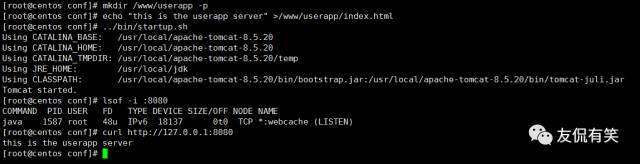
写在前面 前面介绍了分发文件管理、前端反向代理与管理后台服务器的配置操作,今天介绍下前端负载与APP服务器(用户与商家)、官网、FTP服务器的配置操作 01前端负载均衡配置 安装所需的依赖包 yum install pcre-devel zlib-devle openssl-devel gcc-c++ –y 编译安装nginx cd /download/tools/ wget http://nginx.org/download/nginx-1.12.1.tar.gz tar zxf nginx-1.12.1.tar.gz cd nginx-1.12.1 ./configure --prefix=/app/nginx-1.12.1 make && make install [root@centos ~]# cd /app/ [root@centos app]# ln -s nginx-1.12.1 nginx [root@centos ~]# cd /app/nginx/conf/ [root@centos conf]# mkdir extra [root@centos conf]# cp nginx.conf nginx.conf.bak 在nginx.conf文件后增加下面的配置 include extra/*.conf; [root@centos conf]# cd extra/ oot@centos extra]# vim user.app.conf # # HTTPS server configuration # upstream userapp { server 10.0.0.4:8080; server 10.0.0.4:8081; } server { listen 80; server_name app.mingongge.com; location / { proxy_pass http://userapp; proxy_connect_timeout 600; proxy_read_timeout 600; proxy_send_timeout 600; } [root@centos conf]# cd extra/ [root@centos conf]# vim sj.app.conf # # HTTPS server configuration # upstream sjapp { server 10.0.0.5:8080; server 10.0.0.5:8081; } server { listen 80; server_name sjapp.mingongge.com; location / { proxy_pass http://sjapp; proxy_connect_timeout 600; proxy_read_timeout 600; proxy_send_timeout 600; } } 02后端APP服务器配置 后端APP服务器JAVA环境安装配置 [root@centos tools]# ll total 181168 -rw-r--r-- 1 root root 185515842 Sep 20 15:52 jdk-8u144-linux-x64.tar.gz [root@centos tools]# tar zxf jdk-8u144-linux-x64.tar.gz -C /usr/local/ [root@centos tools]# ln -s /usr/local/jdk1.8.0_144 /usr/local/jdk [root@centos tools]# cat >>/etc/profile<<EOF export JAVA_HOME=/usr/local/jdk export CLASSPATH=.CLASSPATH:$JAVA_HOME/lib/dt.jar:$JAVA_HOME/lib/tools.jar export PATH=$JAVA_HOME/bin:$PATH EOF [root@centos tools]# tail -3 /etc/profile export JAVA_HOME=/usr/local/jdk export CLASSPATH=.CLASSPATH:/lib/dt.jar:/lib/tools.jar export PATH=$JAVA_HOME/bin:$PATH [root@centos tools]# source /etc/profile [root@centos tools]# java -version java version "1.8.0_144" Java(TM) SE Runtime Environment (build 1.8.0_144-b01) Java HotSpot(TM) 64-Bit Server VM (build 25.144-b01, mixed mode) 后端tomcat 配置 wget http://mirrors.hust.edu.cn/apache/tomcat/tomcat-8/v8.5.20/bin/apache-tomcat-8.5.20.tar.gz [root@centos tools]# tar zxf apache-tomcat-8.5.20.tar.gz -C /usr/local/ [root@centos tools]# ln -s /usr/local/apache-tomcat-8.5.20 /usr/local/tomcat [root@centos tools]# cd /usr/local/apache-tomcat-8.5.20/conf/ [root@centos conf]# vim server.xml -------------此处省略N行-------------- <Valve className="org.apache.catalina.valves.AccessLogValve" directory="logs" prefix="localhost_access_log" suffix=".txt" pattern="%h %l %u %t "%r" %s %b" /> <Context path="" docBase="/www/userapp" debug="0" reloadable="true" crossContext="true" /> #增加上述站点目录 [root@centos conf]# mkdir /www/userapp -p echo "this is the frist userapp server" >/www/userapp/index.html [root@centos conf]# ../bin/startup.sh Using CATALINA_BASE: /usr/local/apache-tomcat-8.5.20 Using CATALINA_HOME: /usr/local/apache-tomcat-8.5.20 Using CATALINA_TMPDIR: /usr/local/apache-tomcat-8.5.20/temp Using JRE_HOME:/usr/local/jdk Using CLASSPATH:/usr/local/apache-tomcat-8.5.20/bin/bootstrap.jar:/usr/local/apache-tomcat-8.5.20/bin/tomcat-juli.jar Tomcat started. [root@centos conf]# lsof -i :8080 COMMAND PID USER FD TYPE DEVICE SIZE/OFF NODE NAME java 1587 root48u IPv618137 0t0TCP *:webcache (LISTEN) 另外一台用户APP 服务器按上述的配置进行 [root@centos conf]# mkdir /www/userapp -p echo "this is the second userapp ">/www/userapp/index.html 商家APP环境配置请参考上面的配置 [root@centos conf]# mkdir /www/sjapp -p echo "this is the frist sjapp ">/www/userapp/index.html echo "this is the second sjapp ">/www/userapp/index.html 接下来测试下负载均衡 前端负载均衡测试 [root@centos conf]# curl http://10.0.0.1 this is the userapp server [root@centos conf]# curl http://10.0.0.1 this is the second userapp [root@centos conf]# curl http://app.mingongge.com this is the userapp server [root@centos conf]# curl http://app.mingongge.com this is the second userapp [root@centos extra]# curl http://sjapp.mingongge.com this is the first sjapp server [root@centos extra]# curl http://sjapp.mingongge.com this is the second sjapp 浏览器访问测试 本地浏览器测试需要配置hosts文件 10.0.0.1 app.mingongge.com 10.0.0.1 sjapp.mingongge.com 03官网与图片服务器配置 基本的架构也是一样使用反向代理,为了后期整体架构扩展 Nginx FTP的安装就不再描述了,太简单了,扯多了累 前面反向代理配置如下 [root@centos extra]# vim web.mingongge.conf # # HTTPS server configuration # server { listen 80; server_name www.mingongge.com; location / { proxy_pass http://10.0.0.8; proxy_connect_timeout 600; proxy_read_timeout 600; proxy_send_timeout 600; } } [root@centos extra]# vim ftp.mingongge.com # # HTTPS server configuration # server { listen 80; server_name ftp.mingongge.com; location / { proxy_pass http://10.0.0.8:88; proxy_connect_timeout 600; proxy_read_timeout 600; proxy_send_timeout 600; } } 后端WEB服务器配置 [root@centos html]# vim index.html welcome to mingongge.s web stie!!!!!!!!!!!!! [root@centos ~]# /usr/local/nginx/sbin/nginx -t nginx: the configuration file /usr/local/nginx/conf/nginx.conf syntax is ok nginx: configuration file /usr/local/nginx/conf/nginx.conf test is successful [root@centos ~]# /usr/local/nginx/sbin/nginx [root@centos ~]# curl 10.0.0.8 welcome to mingongge.s web stie!!!!!!!!!!!!! FTP这块的配置其实是就是管理后台通过应用程序上传图片,前面用户通过nginx能访问到正确的页面即可,由于线下测试环境,不可能拿生产代码来做实验,因此管理后台上传图片无法模拟,过程就是后台上传图片是通过FTP的功能上传到指定的目录,然后前端通过nginx来调用这个图片去显示 因此就配置下访问图片即可 [root@centos conf]# cd extra/ [root@centos extra]# vim ftp.mingongge.conf server { listen 88; server_name localhost; location / { root /www/ftp; } 上传图片进行测试 通过前端反向代理直接访问域名来读取图,来实现应用程序调用图片的功能在其它前台页面展示的功能 发现也是可以正常访问的 写在最后 此次项目实战的所有文章,凡是每篇都转发三个渠道或以上的朋友(转发后可截图保存等整个项目文档发布结束后发给我),我会在整个项目文档完成之后将文档整理发送给他,并且会抽取其中某篇文章留言点赞前十(需超过20个赞)的朋友,我提供此项目线下测试环境搭建的过程中全程问题解答!!!!!