Android 分享两个你学习android 平台开发必须碰到的几个知识点的组件【天气预报、日期】View 组件
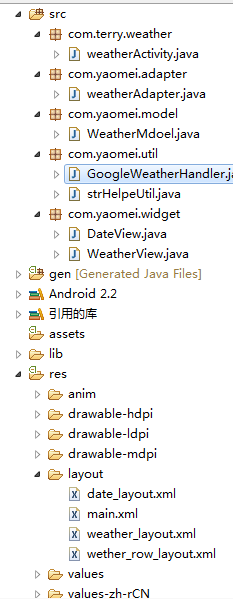
本篇文章将分享两个VIEW组件,一个天气组件和一个日期组件,这两个组件本来是一个App Widget 后来,我看着好玩,将他们弄成一个VIEW的组件,可以像使用Windows Phone 7 的用户控件一样拖放到你想要的项目中。本篇将演示这两个组件的编写过程,工程文件如下: 包名介绍: com.terry.weather 程序的入口包 com.yaomei.adapter 天气预报组件使用到的数据源 com.yaomei.model 天气预报使用到的模型包 com.yaomei.util 获取天气信息的工具包 com.yaomei.widget 天气预报组件、日期组件的存放位置 从包名可以看出,编写一个天气预报所需要的代码量比编写一个日期VIEW所需要的代码量要多得多 ,那么我们先把天气预报的一些实现思路跟大家讲讲。 首先,本实例使用的天气预报是一个可以自己国际化的天气组件VIEW,可以看上图,将所需要的URL都放入ANDROID 自己的国际化文件夹里面,比如中文的话就这样写: < string name ="googleWeatherApi" > <![CDATA[ http://www.google.com/ig/api?hl=zh-cn&weather= ]]> </ string > 那么是英语环境的就只需要在默认的VALUES里面的string.xml这样写即可: < string name ="googleWeatherApi" > <![CDATA[ http://www.google.com/ig/api?hl=en&weather= ]]> </ string > 这是本篇一个要注意的一点,另外还有需要注意的是,这个天气组件提供可供用户选择更新频率,这里比如我们使用3个小时更新一次,那么当用户退出程序时,再打开是否还要再去Google 上面读天气呢?答案是NO,因为既然用户选择了更新频率,那么在一定的时间内,我们最好不要自动去更新,除非用户自己点击更新才去执行。那么要如何得到之前的数据呢? 这里使用到的是SharePreference 将一些天气的信息保存进去,连同天气的图片也一并保存。保存天气图片是将google 天气的图片使用Base64转成字符串,然后保存进Sharepreference ,如果更新频率条件未满足则进去SharePrference 将天气预报数据取出来 。因为Android 并未提供将图片转成字符串的API,这里使用到的是apache 的一个Jar包,可在这里下载:点击这里 思路上面给出了,下面给出天气预报组件VIEW的核心代码,其他附属代码可在后面的附件下载得到,代码如下: package com.yaomei.widget; import java.io.ByteArrayInputStream; import java.io.ByteArrayOutputStream; import java.util.ArrayList; import java.util.Calendar; import java.util.List; import java.util.Timer; import java.util.TimerTask; import org.apache.commons.codec.binary.Base64; import android.app.Activity; import android.content.Context; import android.content.SharedPreferences; import android.content.res.TypedArray; import android.graphics.Bitmap.CompressFormat; import android.graphics.drawable.BitmapDrawable; import android.graphics.drawable.Drawable; import android.os.Handler; import android.os.Message; import android.text.Html; import android.util.AttributeSet; import android.view.LayoutInflater; import android.view.View; import android.widget.GridView; import android.widget.ImageView; import android.widget.LinearLayout; import android.widget.TextView; import android.widget.Toast; import com.terry.weather.R; import com.yaomei.adapter.weatherAdapter; import com.yaomei.model.WeatherMdoel; import com.yaomei.util.strHelpeUtil; public class WeatherView extends LinearLayout{ private static final StringHour_COMPARE = " hour_compare " ; private static final StringDAY_OF_WEEK = " day_of_week " ; private static final StringLOW = " low " ; private static final StringHIGH = " high " ; private static final StringCONDITION = " condition " ; private static final StringIMAGE = " image " ; private static final StringDATE_COMPARE = " date_compare " ; private static final StringCITYNAE_SHARE = " cityNameShare " ; private ImageViewiv_weather; private TextViewtv_state,tv_position,tv; WeatherMdoelmodel; private List < WeatherMdoel > weatherList = null ; GridViewgv; Timertimer; Handlerhandler = new Handler(){ public void handleMessage(Messagemsg){ if (msg.arg1 == 1 ){ if (weatherList.size() > 0 ){ gv .setAdapter( new weatherAdapter(getContext(), weatherList)); init(); } else { Toast.makeText(getContext(), " 查询不到数据 " , 1000 ).show(); } // msg.recycle(); } }; }; /** *自动加载天气 */ private boolean autoLoad = false ; public boolean getAutoLoad(){ return autoLoad; } public void setAutoLoad( boolean isLoad){ this .autoLoad = isLoad; } /** *城市名称 */ private StringcityName = "" ; public StringgetCityName(){ return cityName; } public void setCityName(StringcityName){ this .cityName = cityName; } /** *设置每几小时更新一次 */ private int updateHour; public int getUpdateHour(){ return updateHour; } public void setUpdateHour( int hour){ this .updateHour = hour; } public WeatherView(Contextcontext){ this (context, null ); // TODOAuto-generatedconstructorstub } public WeatherView(Contextcontext,AttributeSetattrs){ super (context,attrs); int resouceID = - 1 ; TypedArraytyedArray = context.obtainStyledAttributes(attrs, R.styleable.WeatherView); int N = tyedArray.getIndexCount(); for ( int i = 0 ;i < N;i ++ ){ int attr = tyedArray.getIndex(i); switch (attr){ case R.styleable.WeatherView_AutoLoad: setAutoLoad(tyedArray.getBoolean( R.styleable.WeatherView_AutoLoad, false )); break ; case R.styleable.WeatherView_CityName: resouceID = tyedArray.getResourceId( R.styleable.WeatherView_CityName, 0 ); setCityName(resouceID > 0 ? tyedArray.getResources().getText( resouceID).toString():tyedArray .getString(R.styleable.WeatherView_CityName)); break ; case R.styleable.WeatherView_UpdateHour: setUpdateHour(tyedArray.getInteger( R.styleable.WeatherView_UpdateHour, 3 )); break ; } } Viewview = LayoutInflater.from(getContext()).inflate( R.layout.weather_layout, this ); tv = (TextView)view.findViewById(R.id.tv_temperature); gv = (GridView)view.findViewById(R.id.grid); iv_weather = (ImageView)view.findViewById(R.id.iv_weather); tv_state = (TextView)view.findViewById(R.id.tv_state); tv_position = (TextView)view.findViewById(R.id.tv_position); timer = new Timer(); if (getAutoLoad()){ startLoadWeather(); } tyedArray.recycle(); } /** *开始加载 */ public void startLoadWeather(){ timer.schedule( new TimerTask(){ @Override public void run(){ SharedPreferencesshare = getContext().getSharedPreferences( " weather " ,Activity.MODE_PRIVATE); long time = System.currentTimeMillis(); final CalendarmCalendar = Calendar.getInstance(); mCalendar.setTimeInMillis(time); StringtempDate = mCalendar.get(Calendar.YEAR) + " - " + mCalendar.get(Calendar.MONTH) + " - " + mCalendar.get(Calendar.DAY_OF_MONTH); if (share.contains(DATE_COMPARE)){ if (share.getString(CITYNAE_SHARE, "" ).equals(cityName)){ int time_cop = mCalendar.get(Calendar.HOUR) - share.getInt(Hour_COMPARE, 0 ); Stringdate = share.getString(DATE_COMPARE, "" ); if (time_cop >= getUpdateHour() || ! date.equals(tempDate)){ saveWeatherList(mCalendar.get(Calendar.HOUR), tempDate); } else if (time_cop < getUpdateHour()){ weatherList = new ArrayList < WeatherMdoel > (); for ( int i = 0 ;i < 4 ;i ++ ){ WeatherMdoelmodel = new WeatherMdoel(); model.setWeek(share.getString(DAY_OF_WEEK + i, "" )); model.setLowTemp(share.getString(LOW + i, "" )); model .setHighTemp(share.getString(HIGH + i, "" )); model.setConditions(share.getString(CONDITION + i, "" )); Stringimage = share.getString(IMAGE + i, "" ); byte []base64Bytes = Base64.decodeBase64(image .getBytes()); ByteArrayInputStreambais = new ByteArrayInputStream( base64Bytes); model.setImageUrl( "" ); model .setImageDrawable(Drawable .createFromStream(bais, " weather_image " )); weatherList.add(model); } } } else { saveWeatherList(mCalendar.get(Calendar.HOUR),tempDate); } } else { saveWeatherList(mCalendar.get(Calendar.HOUR),tempDate); } // 把必要的操作放在于线程中执行,不阻塞UI if (handler.hasMessages( 1 )) handler.obtainMessage().recycle(); else { Messagemsg = handler.obtainMessage(); msg.arg1 = 1 ; msg.sendToTarget(); } } }, 0 ,getUpdateHour() * 3600 * 1000 ); } /** *第一次或者另外重新加载 */ void saveWeatherList( int hour,Stringday){ weatherList = new ArrayList < WeatherMdoel > (); weatherList = strHelpeUtil.searchWeather(Html.fromHtml( getContext().getResources() .getString(R.string.googleWeatherApi)).toString(), getCityName()); SharedPreferences.EditorshareEditor = getContext() .getSharedPreferences( " weather " ,Activity.MODE_PRIVATE).edit(); shareEditor.clear(); int i = 0 ; for (WeatherMdoelmodel:weatherList){ shareEditor.putString(DAY_OF_WEEK + i,model.getWeek()); shareEditor.putString(LOW + i,model.getLowTemp()); shareEditor.putString(HIGH + i,model.getHighTemp()); shareEditor.putString(CONDITION + i,model.getConditions()); /** *将图片存入 */ ByteArrayOutputStreambaos = new ByteArrayOutputStream(); ((BitmapDrawable)strHelpeUtil.loadImage(model.getImageUrl())) .getBitmap().compress(CompressFormat.JPEG, 50 ,baos); StringImageBase64 = new String(Base64.encodeBase64(baos .toByteArray())); shareEditor.putString(IMAGE + i,ImageBase64); i ++ ; } shareEditor.putString(DATE_COMPARE,day); shareEditor.putInt(Hour_COMPARE,hour); shareEditor.putString(CITYNAE_SHARE,cityName); shareEditor.commit(); } /** *初始化组件信息 */ void init(){ model = weatherList.get( 0 ); iv_weather.setImageDrawable(model.getImageUrl() == "" ? model .getImageDrawable():strHelpeUtil.loadImage(model .getImageUrl())); tv_state.setText(model.getConditions()); tv_position.setText(getCityName()); tv.setText(getContext().getResources().getString(R.string.temp_format, model.getLowTemp(),model.getHighTemp())); } /** *释放对象 */ public void releaseTimer(){ timer.cancel(); weatherList = null ; } } 学习这个类,你能够学到的知识点为:为应用程序添加属性,编写组件,SharePreference 的使用,Timer和Handler 异步处理UI等知识点。 日期VIEW显示VIEW组件,是一个显示当前系统时间的组件,当第一次运行时,得到当前的秒数在以60秒减去当前秒,得到第一次运行时下一次运行需要的秒数,当这一次更新完毕后,下一次每次60秒更新一次时间,这个组件也是以分更新UI的操作,学习本类,你可以学到两个Handler 是如何协作处理UI,代码如下: package com.yaomei.widget; import java.util.Calendar; import java.util.Date; import android.content.Context; import android.os.Handler; import android.util.AttributeSet; import android.view.LayoutInflater; import android.view.View; import android.widget.FrameLayout; import android.widget.TextView; import com.terry.weather.R; import com.yaomei.util.strHelpeUtil; public class DateView extends FrameLayout{ private TextViewtv_date_time,tv_week,tv_date; int second; Handlerhandler = new Handler(){ public void handleMessage(android.os.Messagemsg){ init(); handler.sendMessageDelayed(handler.obtainMessage(), 60 * 1000 ); }; }; public DateView(Contextcontext){ this (context, null ); } public DateView(Contextcontext,AttributeSetattrs){ super (context,attrs); // this.setBackgroundDrawable(getContext().getResources().getDrawable( // R.drawable.date_background)); Viewview = LayoutInflater.from(getContext()).inflate( R.layout.date_layout, this ); tv_date_time = (TextView)view.findViewById(R.id.tv_date_time); tv_week = (TextView)view.findViewById(R.id.tv_week); tv_date = (TextView)view.findViewById(R.id.tv_date); init(); final Calendarcalendar = Calendar.getInstance(); second = calendar.get(Calendar.SECOND); handler.sendMessageDelayed(handler.obtainMessage(), ( 60 - second) * 1000 ); } void init(){ java.text.DateFormatdf = new java.text.SimpleDateFormat( " HH:mm " ); tv_date_time.setText(df.format( new Date())); tv_week.setText(strHelpeUtil.getWeekOfDate( new Date())); strHelpeUtilstr = new strHelpeUtil(getContext()); tv_date.setText(str.toString()); } } 上篇运行效果如下: 由于没有为其提供背景颜色,使用的同学可以自己为它们加上一个好看的背景颜色,效果会更加。 上面的天气组件,其实可以使用AsyncTask也是起到同样的效果,AsyncTask使用起来会觉得优雅一点,这里也顺便把一些AsyncTask在使用上一些注意事项跟大家谈一谈: 在doInBackground 里面不要直接操作UI,比如设置UI的可见性操作。 在doInBackground 所在的操作只负责帮你得到数据,然后把UI处理都放在onPostExecute 里面。 同时启动几个AsyncTask 注意线程加锁,使用synchronized 必须每次都创建一个新的AsyncTask 对象,否则会提示“ataskcanbeexecutedonlyonce” 的错误信息。 本篇的所有源码下载地址:组件 本文转自 terry_龙 51CTO博客,原文链接:http://blog.51cto.com/terryblog/486341,如需转载请自行联系原作者