首页 文章 精选 留言 我的

精选列表

搜索[笔记工具],共10000篇文章
优秀的个人博客,低调大师

【技术分享】《深入理解Elasticsearch》读书笔记

题记 由于之前已经梳理过Elasticsearch基础概念且在项目中实战过Elasticsearch的增删改查、聚类、排序等相关操作,对Elasticsearch算是有了一定的认知。但是,仍然对于一些底层的原理认知模糊,特买来《深入理解Elasticsearch》过了一遍,第一章到第四章偏应用,跟着敲一遍代码基本就能理解原理,第五章到第九章偏理论。现将书中一些细节知识点结合官网文档梳理如下。 第五章 分布式索引架构 如何选择合适的分片和副本数? 目的:规划索引及配置,适应应用的变化。 正确认知:分片数索引创建后不可以修改,副本数索引创建后可以通过API随时修改。 多副本的缺点:额外副本占据了额外的存储空间,构建索引副本的开销也随之增大。 同时要注意:如果不创建副本,当主分片发生问题时,可能会造成数据的丢失。 配置参考:最理想的分片数量应该依赖于节

优秀的个人博客,低调大师

Android笔记:视屏播放、VideoView、surfaceView,简易视频播放

一、VideoView方法 1.activity_video.xml 1 2 3 4 5 6 7 8 9 10 11 12 13 14 <RelativeLayoutxmlns:android= "http://schemas.android.com/apk/res/android" xmlns:tools= "http://schemas.android.com/tools" android:layout_width= "match_parent" android:layout_height= "match_parent" tools:context= ".VideoActivity" > <VideoView android:id= "@+id/video_videoView" android:layout_width= "fill_parent" android:layout_height= "fill_parent" android:layout_alignParentLeft= "true" android:layout_alignParentTop= "true" /> </RelativeLayout> 2.代码 1 2 3 4 5 6 7 8 9 10 11 12 13 14 15 16 17 18 19 20 21 22 23 24 25 26 27 28 29 30 31 32 33 34 35 36 37 38 39 40 41 42 43 44 45 46 47 48 49 50 51 52 53 54 55 56 57 58 59 60 61 62 63 64 65 66 67 68 69 70 71 72 73 74 75 76 77 78 79 80 81 82 83 84 85 86 87 package com.example.vediotest; import android.media.MediaPlayer; import android.net.Uri; import android.os.Bundle; import android.app.Activity; import android.content.pm.ActivityInfo; import android.view.Menu; import android.view.Window; import android.view.WindowManager; import android.widget.MediaController; import android.widget.VideoView; public class VideoActivity extends Activity { private VideoViewvideoView; private UrimUri; private int mPositionWhenPaused; @Override protected void onCreate(BundlesavedInstanceState) { super .onCreate(savedInstanceState); requestWindowFeature(Window.FEATURE_NO_TITLE); getWindow().setFlags(WindowManager.LayoutParams.FLAG_FULLSCREEN,WindowManager.LayoutParams.FLAG_FULLSCREEN); //设置成全屏模式 setRequestedOrientation(ActivityInfo.SCREEN_ORIENTATION_LANDSCAPE); //强制为横屏 setContentView(R.layout.activity_video); Stringurl= "http://videofile.xxxx.cn/Upload/Video/File/20140411/201404110228168972.mp4" ; //Stringurl= //"http://player.youku.com/player.php/sid/XNDYwOTEzNzQ4/v.swf"; mUri=Uri.parse(url); videoView=(VideoView)findViewById(R.id.video_videoView); MediaControllermediaController= new MediaController( this ); videoView.setMediaController(mediaController); //videoView.setVideoPath("/sdcard/xyx.3gp"); //videoView.setVideoURI(mUri); //videoView.requestFocus(); //videoView.start(); } public void onStart() { //PlayVideo videoView.setVideoURI(mUri); videoView.start(); super .onStart(); } public void onPause() { //Stopvideowhentheactivityispause. mPositionWhenPaused=videoView.getCurrentPosition(); videoView.stopPlayback(); super .onPause(); } public void onResume() { //Resumevideoplayer if (mPositionWhenPaused>= 0 ) { videoView.seekTo(mPositionWhenPaused); mPositionWhenPaused=- 1 ; } super .onResume(); } public boolean onError(MediaPlayerplayer, int arg1, int arg2) { return false ; } public void onCompletion(MediaPlayermp) { this .finish(); } } 二、surfaceView方法 (一) 1.activity_video_surface.xml 1 2 3 4 5 6 7 8 9 10 11 12 13 14 15 16 17 18 <LinearLayoutxmlns:android= "http://schemas.android.com/apk/res/android" android:layout_width= "fill_parent" android:layout_height= "fill_parent" android:orientation= "vertical" > <TextView android:layout_width= "fill_parent" android:layout_height= "wrap_content" android:text= "标题" /> <SurfaceView android:id= "@+id/surfaceVideo_surfaceView" android:layout_width= "wrap_content" android:layout_height= "wrap_content" android:layout_gravity= "center" > </SurfaceView> </LinearLayout> 2.代码 1 2 3 4 5 6 7 8 9 10 11 12 13 14 15 16 17 18 19 20 21 22 23 24 25 26 27 28 29 30 31 32 33 34 35 36 37 38 39 40 41 42 43 44 45 46 47 48 49 50 51 52 53 54 55 56 57 58 59 60 61 62 63 64 65 66 67 68 69 70 71 72 73 74 75 76 77 78 79 80 81 82 83 84 85 86 87 88 89 90 91 92 93 94 95 96 97 98 99 100 101 102 103 104 105 106 107 108 109 110 111 112 113 114 115 116 117 118 119 120 121 122 123 124 125 package com.example.vediotest; import android.media.AudioManager; import android.media.MediaPlayer; import android.media.MediaPlayer.OnBufferingUpdateListener; import android.media.MediaPlayer.OnCompletionListener; import android.media.MediaPlayer.OnPreparedListener; import android.net.Uri; import android.os.Bundle; import android.app.Activity; import android.util.Log; import android.view.Menu; import android.view.SurfaceHolder; import android.view.SurfaceHolder.Callback; import android.view.SurfaceView; public class SurfaceVideoActivity extends Activity implements Callback,OnBufferingUpdateListener,OnCompletionListener,OnPreparedListener { private int width= 0 ; private int height= 0 ; private MediaPlayermMediaPlayer= null ; private SurfaceViewmSurfaceView= null ; private SurfaceHolderholder= null ; private Stringpath= "" ; @Override protected void onCreate(BundlesavedInstanceState) { super .onCreate(savedInstanceState); setContentView(R.layout.activity_video_surface); mSurfaceView=(SurfaceView) this .findViewById(R.id.surfaceVideo_surfaceView); holder=mSurfaceView.getHolder(); holder.addCallback( this ); holder.setType(SurfaceHolder.SURFACE_TYPE_PUSH_BUFFERS); //设置风格 } public void playVedio() { try { path=android.os.Environment.getExternalStorageDirectory()+ "/moto_0012.3gp" ; mMediaPlayer= new MediaPlayer(); //mMediaPlayer.setDataSource(path); Stringurl= "http://videofile.housebox.cn/Upload/Video/File/20140411/201404110228168972.mp4" ; //Stringurl="http://player.youku.com/player.php/sid/XNDYwOTEzNzQ4/v.swf"; mMediaPlayer.setDataSource( this ,Uri.parse(url)); mMediaPlayer.setAudioStreamType(AudioManager.STREAM_MUSIC); mMediaPlayer.setDisplay(holder); mMediaPlayer.prepare(); //准备 Log.e( "TAG-Duration" ,mMediaPlayer.getDuration()+ "" ); mMediaPlayer.setOnBufferingUpdateListener( this ); mMediaPlayer.setOnCompletionListener( this ); mMediaPlayer.setOnPreparedListener( this ); } catch (Exceptionex) { } } public void onBufferingUpdate(MediaPlayermp, int percent) { //TODOAuto-generatedmethodstub Log.i( "TAG-onBufferingUpdate" ,percent+ "|" +mMediaPlayer.getCurrentPosition()); } public void onCompletion(MediaPlayermp) { //TODOAuto-generatedmethodstub Log.i( "TAG-onCompletion" , "Completion" ); } public void onPrepared(MediaPlayermp) { //TODOAuto-generatedmethodstub width=mMediaPlayer.getVideoWidth(); height=mMediaPlayer.getVideoHeight(); if (width!= 0 &&height!= 0 ) { holder.setFixedSize(width,height); //设置视频高宽 mMediaPlayer.start(); Log.i( "TAG-Duration2" ,mMediaPlayer.getDuration()+ "" ); } } public void surfaceChanged(SurfaceHolderholder, int format, int width, int height) { //TODOAuto-generatedmethodstub } public void surfaceCreated(SurfaceHolderholder) { //TODOAuto-generatedmethodstub playVedio(); } public void surfaceDestroyed(SurfaceHolderholder) { //TODOAuto-generatedmethodstub Log.i( "TAG-surfaceDestroyed" , "surfaceDestroyed" ); } @Override protected void onPause() { super .onPause(); if (mMediaPlayer!= null ) { if (mMediaPlayer.isPlaying()) { mMediaPlayer.stop(); } mMediaPlayer.reset(); mMediaPlayer.release(); mMediaPlayer= null ; } } } (二) activity_video_surface2.xml 1 2 3 4 5 6 7 8 9 10 11 12 <RelativeLayoutxmlns:android= "http://schemas.android.com/apk/res/android" android:layout_width= "fill_parent" android:layout_height= "fill_parent" > <SurfaceView android:id= "@+id/surface2_surfaceView" android:layout_width= "wrap_content" android:layout_height= "wrap_content" android:layout_gravity= "center" > </SurfaceView> </RelativeLayout> 2.代码 1 2 3 4 5 6 7 8 9 10 11 12 13 14 15 16 17 18 19 20 21 22 23 24 25 26 27 28 29 30 31 32 33 34 35 36 37 38 39 40 41 42 43 44 45 46 47 48 49 50 51 52 53 54 55 56 57 58 59 60 61 62 63 64 65 66 67 68 69 70 71 72 73 74 75 76 77 78 79 80 81 82 83 84 85 86 87 88 89 90 91 92 93 94 95 96 97 98 99 100 101 102 103 104 105 106 107 108 109 110 111 112 113 114 115 116 117 118 119 120 121 122 package com.example.vediotest; import java.io.IOException; import android.media.AudioManager; import android.media.MediaPlayer; import android.media.MediaPlayer.OnBufferingUpdateListener; import android.media.MediaPlayer.OnCompletionListener; import android.net.Uri; import android.os.Bundle; import android.app.Activity; import android.content.pm.ActivityInfo; import android.util.Log; import android.view.Menu; import android.view.SurfaceHolder; import android.view.SurfaceView; import android.view.Window; public class SurfaceVideo2Activity extends Activity implements OnBufferingUpdateListener,OnCompletionListener,MediaPlayer.OnPreparedListener, SurfaceHolder.Callback { private MediaPlayermediaPlayer; private SurfaceViewsurfaceView; private SurfaceHoldersurfaceHolder; private int videoWidth; private int videoHeight; @Override protected void onCreate(BundlesavedInstanceState) { super .onCreate(savedInstanceState); requestWindowFeature(Window.FEATURE_NO_TITLE); setContentView(R.layout.activity_video_surface2); setRequestedOrientation(ActivityInfo.SCREEN_ORIENTATION_LANDSCAPE); //强制为横屏 this .surfaceView=(SurfaceView) this .findViewById(R.id.surface2_surfaceView); this .surfaceHolder= this .surfaceView.getHolder(); this .surfaceHolder.addCallback( this ); this .surfaceHolder.setType(SurfaceHolder.SURFACE_TYPE_PUSH_BUFFERS); Log.v( "cat" , ">>>createok." ); } private void playVideo() throws IllegalArgumentException,IllegalStateException,IOException { Stringurl= "http://videofile.housebox.cn/Upload/Video/File/20140411/201404110228168972.mp4" ; //Stringurl="http://player.youku.com/player.php/sid/XNDYwOTEzNzQ4/v.swf"; this .mediaPlayer= new MediaPlayer(); //this.mediaPlayer.setDataSource("/sdcard/daoxiang.3gp"); this .mediaPlayer.setDataSource( this ,Uri.parse(url)); this .mediaPlayer.setDisplay( this .surfaceHolder); this .mediaPlayer.prepare(); this .mediaPlayer.setOnBufferingUpdateListener( this ); this .mediaPlayer.setOnPreparedListener( this ); this .mediaPlayer.setAudioStreamType(AudioManager.STREAM_MUSIC); Log.i( "mplayer" , ">>>playvideo" ); } @Override public void surfaceChanged(SurfaceHolderarg0, int arg1, int arg2, int arg3) { Log.i( "cat" , ">>>surfacechanged" ); } @Override public void surfaceCreated(SurfaceHolderholder) { try { this .playVideo(); } catch (Exceptione) { Log.i( "cat" , ">>>error" ,e); } Log.i( "cat" , ">>>surfacecreated" ); } @Override public void surfaceDestroyed(SurfaceHolderholder) { Log.v( "mplayer" , ">>>surfacedestroyed" ); } @Override public void onCompletion(MediaPlayerarg0) { //TODOAuto-generatedmethodstub } @Override public void onBufferingUpdate(MediaPlayermp, int percent) { //TODOAuto-generatedmethodstub } @Override public void onPrepared(MediaPlayerarg0) { this .videoWidth= this .mediaPlayer.getVideoWidth(); this .videoHeight= this .mediaPlayer.getVideoHeight(); if ( this .videoHeight!= 0 && this .videoWidth!= 0 ) { this .surfaceHolder.setFixedSize( this .videoWidth, this .videoHeight); this .mediaPlayer.start(); } } @Override protected void onDestroy() { super .onDestroy(); if ( this .mediaPlayer!= null ) { this .mediaPlayer.release(); this .mediaPlayer= null ; } } } 本文转自 glblong 51CTO博客,原文链接:http://blog.51cto.com/glblong/1414232,如需转载请自行联系原作者

优秀的个人博客,低调大师

Android开发学习笔记:BroadcastReceiver简介和注册方式

一.BroadcastReceiver简介 BraodcastReceiver(广播接收器)是为了实现系统广播而提供的一种组件,它和事件处理机制类似,但是事件处理机制是程序组件级别的,而广播事件处理机制是系统级别的。比如,我们可以发出一种广播来测试手机电量的变化,这时候就可以定义一个BraodcastReceiver来接受广播,当手机电量较低时提示用户。我们既可以用Intent来启动一个组件,也可以用sendBroadcast()方法发起一个系统级别的事件广播来传递消息。我们同样可以在自己的应用程序中实现BroadcastReceiver来监听和响应广播的Intent。 在程序中使用BraodcastReceiver是比较简单的。首先要定义一个类继承BraodcastReceiver,并且覆盖onReceiver()方法来响应事件。然后注册在程序中BraodcastReceiver。最后构建Intent对象调用sendBroadcast()方法将广播发出。 二.BroadcastReceiver的注册方式 1.静态注册方式 静态注册方式是在AndroidManifest.xml的application里面定义receiver并设置要接收的action。静态注册方式的特点:不管改应用程序是否处于活动状态,都会进行监听,比如某个程序时监听 下面是具体的例子: MainActivity.java packagecom.android.broadcast; importandroid.app.Activity; importandroid.content.Intent; importandroid.os.Bundle; importandroid.view.View; importandroid.view.View.OnClickListener; importandroid.widget.Button; publicclassMainActivityextendsActivity{ //定义action常量 protectedstaticfinalStringACTION="com.android.broadcast.RECEIVER_ACTION"; //定义Button对象 privateButtonbtnBroadcast; @Override publicvoidonCreate(BundlesavedInstanceState){ super.onCreate(savedInstanceState); setContentView(R.layout.main); btnBroadcast=(Button)findViewById(R.id.btnBroadcast); //为按钮设置单击监听器 btnBroadcast.setOnClickListener(newOnClickListener(){ @Override publicvoidonClick(Viewv){ //实例化Intent Intentintent=newIntent(); //设置Intent的action属性 intent.setAction(ACTION); //发出广播 sendBroadcast(intent); } }); } } 在“com.android.broadcast”包中定义一个MyReceiver类,继承于BroadcastReceiver,覆盖onReceive()方法。 MyReceiver.java packagecom.android.broadcast; importandroid.content.BroadcastReceiver; importandroid.content.Context; importandroid.content.Intent; importandroid.util.Log; publicclassMyReceiverextendsBroadcastReceiver{ //定义日志标签 privatestaticfinalStringTAG="Test"; @Override publicvoidonReceive(Contextcontext,Intentintent){ //输出日志信息 Log.i(TAG,"MyReceiveronReceive--->"); } } main.xml <?xmlversion="1.0"encoding="utf-8"?> <LinearLayoutxmlns:android="http://schemas.android.com/apk/res/android" android:orientation="vertical" android:layout_width="fill_parent" android:layout_height="fill_parent" > <Button android:id="@+id/btnBroadcast" android:layout_width="match_parent" android:layout_height="wrap_content" android:text="发送Broadcast" /> </LinearLayout> 在AndroidManifest.xml配置文件中16~20行声明receiver <?xmlversion="1.0"encoding="utf-8"?> <manifestxmlns:android="http://schemas.android.com/apk/res/android" package="com.android.broadcast" android:versionCode="1" android:versionName="1.0"> <uses-sdkandroid:minSdkVersion="10"/> <applicationandroid:icon="@drawable/icon"android:label="@string/app_name"> <activityandroid:name=".MainActivity" android:label="@string/app_name"> <intent-filter> <actionandroid:name="android.intent.action.MAIN"/> <categoryandroid:name="android.intent.category.LAUNCHER"/> </intent-filter> </activity> <receiverandroid:name="MyReceiver"> <intent-filter> <actionandroid:name="com.android.broadcast.RECEIVER_ACTION"/> </intent-filter> </receiver> </application> </manifest> 效果图: 当我们点击按钮的时候,程序会调用onReceive()方法,LogCat输出信息如下: 2.动态注册方式 动态注册方式在activity里面调用函数来注册,和静态的内容差不多。一个形参是receiver,另一个是IntentFilter,其中里面是要接收的action。动态注册方式特点:在代码中进行注册后,当应用程序关闭后,就不再进行监听。 下面是具体的例子: MainActivity.java packagecom.android.broadcast; importandroid.app.Activity; importandroid.content.Intent; importandroid.content.IntentFilter; importandroid.os.Bundle; importandroid.view.View; importandroid.view.View.OnClickListener; importandroid.widget.Button; publicclassMainActivityextendsActivity{ //定义Action常量 protectedstaticfinalStringACTION="com.android.broadcast.RECEIVER_ACTION"; privateButtonbtnBroadcast; privateButtonregisterReceiver; privateButtonunregisterReceiver; privateMyReceiverreceiver; @Override publicvoidonCreate(BundlesavedInstanceState){ super.onCreate(savedInstanceState); setContentView(R.layout.main); btnBroadcast=(Button)findViewById(R.id.btnBroadcast); //创建事件监听器 btnBroadcast.setOnClickListener(newOnClickListener(){ @Override publicvoidonClick(Viewv){ Intentintent=newIntent(); intent.setAction(ACTION); sendBroadcast(intent); } }); registerReceiver=(Button)findViewById(R.id.btnregisterReceiver); //创建事件监听器 registerReceiver.setOnClickListener(newOnClickListener(){ @Override publicvoidonClick(Viewv){ receiver=newMyReceiver(); IntentFilterfilter=newIntentFilter(); filter.addAction(ACTION); //动态注册BroadcastReceiver registerReceiver(receiver,filter); } }); unregisterReceiver=(Button)findViewById(R.id.btnunregisterReceiver); //创建事件监听器 unregisterReceiver.setOnClickListener(newOnClickListener(){ @Override publicvoidonClick(Viewv){ //注销BroadcastReceiver unregisterReceiver(receiver); } }); } } 在“com.android.broadcast”包中定义一个MyReceiver类,继承于BroadcastReceiver,覆盖onReceive()方法。 MyReceiver.java packagecom.android.broadcast; importandroid.content.BroadcastReceiver; importandroid.content.Context; importandroid.content.Intent; importandroid.util.Log; publicclassMyReceiverextendsBroadcastReceiver{ //定义日志标签 privatestaticfinalStringTAG="Test"; @Override publicvoidonReceive(Contextcontext,Intentintent){ //输出日志信息 Log.i(TAG,"MyReceiveronReceive--->"); } } main.xml <?xmlversion="1.0"encoding="utf-8"?> <LinearLayoutxmlns:android="http://schemas.android.com/apk/res/android" android:orientation="vertical" android:layout_width="fill_parent" android:layout_height="fill_parent" > <Button android:id="@+id/btnBroadcast" android:layout_width="match_parent" android:layout_height="wrap_content" android:text="发送广播" /> <Button android:id="@+id/btnregisterReceiver" android:layout_width="match_parent" android:layout_height="wrap_content" android:text="注册广播接收器" /> <Button android:id="@+id/btnunregisterReceiver" android:layout_width="match_parent" android:layout_height="wrap_content" android:text="注销广播接听器" /> </LinearLayout> 效果图: ①当我们首先点击按钮的时候,因为程序没有注册BraodcastReceiver,所以LogCat没有输出任何信息。 ②当我们先点击再点击按钮的时候,这时程序会动态的注册BraodcastReceiver,之后会调用onReceive()方法,LogCat输出信息如下: ③当我们点击按钮的时候,这时程序会注销BraodcastReceiver,再点击,LogCat没有输出任何信息。 三.BroadcastReceiver的生命周期 一个BroadcastReceiver 对象只有在被调用onReceive(Context, Intent)的才有效的,当从该函数返回后,该对象就无效的了,结束生命周期。 本文转自 lingdududu 51CTO博客,原文链接:http://blog.51cto.com/liangruijun/655885

优秀的个人博客,低调大师

Android开发学习笔记:浅谈Tab选项卡

Tab选项卡是一个非常方便的组件。 一.使用Tab组件的步骤: 1.在布局文件中使用FrameLayout列出Tab组件以及Tab中的内容组件 2.Activity要继承TabActivity 3.调用TabActivity的getTabHost( )方法来获得TabHost对象 4.通过TabHost创建Tab选项 二.实现不同Tab里面的内容有两种方式: 1.切换不同的Tab时候,不同Tab里面的内容在同一个Activity显示,主要是通过修改布局文件里面的id来实现的。下面是一个具体的例子: MainActivity.java packagecom.android.tab.activity; importandroid.app.TabActivity; importandroid.os.Bundle; importandroid.view.LayoutInflater; importandroid.widget.TabHost; publicclassMainActivityextendsTabActivity{ @Override publicvoidonCreate(BundlesavedInstanceState){ super.onCreate(savedInstanceState); //获得TabHost对象 TabHosttah=getTabHost(); //from(this)从TabActivity获取LayoutInflater //R.layout.main存放Tab布局 //通过TabHost获得存放Tab标签页内容的FrameLayout //是否将inflate加到根布局元素上 LayoutInflater.from(this).inflate(R.layout.main,tah.getTabContentView(),true); //设置Tab标签的内容和显示内容 tah.addTab(tah.newTabSpec("tab1").setIndicator("图片1").setContent(R.id.TextView01)); tah.addTab(tah.newTabSpec("tab2").setIndicator("图片2").setContent(R.id.TextView02)); tah.addTab(tah.newTabSpec("tab3").setIndicator("图片3").setContent(R.id.TextView03)); } } main.xml <?xmlversion="1.0"encoding="utf-8"?> <FrameLayoutxmlns:android="http://schemas.android.com/apk/res/android" android:id="@+id/FrameLayout01" android:layout_width="wrap_content" android:layout_height="wrap_content" > <TabHost android:id="@+id/TabHost01" android:layout_width="wrap_content" android:layout_height="wrap_content" /> <TextView android:id="@+id/TextView01" android:background="@drawable/pic1" android:layout_width="wrap_content" android:layout_height="wrap_content" /> <TextView android:id="@+id/TextView02" android:background="@drawable/pic2" android:layout_width="wrap_content" android:layout_height="wrap_content" /> <TextView android:id="@+id/TextView03" android:background="@drawable/pic3" android:layout_width="wrap_content" android:layout_height="wrap_content" /> </FrameLayout> 效果图: 1.切换不同的Tab时候,不同Tab里面的内容在不同的Activity显示 先创建三个类FirstActivity.java,SecondActivity.java,ThirdActivity.java,都是继承Activity FirstActivity.java packagecom.android.tabtest.activity; importandroid.app.Activity; importandroid.os.Bundle; importandroid.widget.TextView; publicclassFirstActivityextendsActivity{ publicvoidonCreate(BundlesavedInstanceState){ super.onCreate(savedInstanceState); TextViewtextview=newTextView(this); textview.setText("这是Tab1"); setContentView(textview); } } SecondActivity.java packagecom.android.tabtest.activity; importandroid.app.Activity; importandroid.os.Bundle; importandroid.widget.TextView; publicclassSecondActivityextendsActivity{ publicvoidonCreate(BundlesavedInstanceState){ super.onCreate(savedInstanceState); TextViewtextview=newTextView(this); textview.setText("这是Tab2"); setContentView(textview); } } ThirdActivity.java packagecom.android.tabtest.activity; importandroid.app.Activity; importandroid.os.Bundle; importandroid.widget.TextView; publicclassThirdActivityextendsActivity{ publicvoidonCreate(BundlesavedInstanceState){ super.onCreate(savedInstanceState); TextViewtextview=newTextView(this); textview.setText("这是Tab3"); setContentView(textview); } } 在layout文件夹中对main.xml进行修改 <?xmlversion="1.0"encoding="utf-8"?> <TabHostandroid:id="@android:id/tabhost"android:layout_width="fill_parent" android:layout_height="fill_parent"xmlns:android="http://schemas.android.com/apk/res/android"> <LinearLayout android:orientation="vertical" android:layout_width="fill_parent" android:layout_height="fill_parent" > <TabWidget android:id="@android:id/tabs" android:layout_width="fill_parent" android:layout_height="wrap_content" /> <FrameLayout android:id="@android:id/tabcontent" android:layout_width="fill_parent" android:layout_height="fill_parent" android:padding="5dp" /> </LinearLayout> </TabHost> 新建一个测试Tab的类TabDemo.java,继承于TabActivity类 packagecom.android.tabtest.activity; importandroid.app.TabActivity; importandroid.content.Intent; importandroid.content.res.Resources; importandroid.os.Bundle; importandroid.widget.TabHost; importandroid.widget.TabHost.TabSpec; publicclassTabDemoextendsTabActivity{ /**Calledwhentheactivityisfirstcreated.*/ @Override publicvoidonCreate(BundlesavedInstanceState){ super.onCreate(savedInstanceState); setContentView(R.layout.main);//这里使用了上面创建的xml文件(Tab页面的布局) Resourcesres=getResources();//ResourceobjecttogetDrawables TabHosttabHost=getTabHost();//TheactivityTabHost TabSpecspec; Intentintent;//ReusableIntentforeachtab //第一个Tab intent=newIntent(this,FirstActivity.class);//新建一个Intent用作Tab1显示的内容 spec=tabHost.newTabSpec("tab1")//新建一个Tab .setIndicator("Tab1",res.getDrawable(android.R.drawable.ic_media_play))//设置名称以及图标 .setContent(intent);//设置显示的intent,这里的参数也可以是R.id.xxx tabHost.addTab(spec);//添加进tabHost //第二个Tab intent=newIntent(this,SecondActivity.class);//第二个Intent用作Tab1显示的内容 spec=tabHost.newTabSpec("tab2")//新建一个Tab .setIndicator("Tab2",res.getDrawable(android.R.drawable.ic_menu_edit))//设置名称以及图标 .setContent(intent);//设置显示的intent,这里的参数也可以是R.id.xxx tabHost.addTab(spec);//添加进tabHost //第三个Tab intent=newIntent(this,SecondActivity.class);//第二个Intent用作Tab1显示的内容 spec=tabHost.newTabSpec("tab2")//新建一个Tab .setIndicator("Tab3",res.getDrawable(android.R.drawable.ic_menu_help))//设置名称以及图标 .setContent(intent);//设置显示的intent,这里的参数也可以是R.id.xxx tabHost.addTab(spec);//添加进tabHost tabHost.setCurrentTab(0);//设置当前的选项卡,这里为Tab1 } } 在AndroidManifest.xml里加入9~29行的声明代码 <?xmlversion="1.0"encoding="utf-8"?> <manifestxmlns:android="http://schemas.android.com/apk/res/android" package="com.android.tabtest.activity" android:versionCode="1" android:versionName="1.0"> <uses-sdkandroid:minSdkVersion="10"/> <applicationandroid:icon="@drawable/icon"android:label="@string/app_name"> <activityandroid:name=".TabDemo" android:label="@string/app_name"> <intent-filter> <actionandroid:name="android.intent.action.MAIN"/> <categoryandroid:name="android.intent.category.LAUNCHER"/> </intent-filter> </activity> <activityandroid:name=".FirstActivity" android:label="@string/app_name"> <intent-filter> <actionandroid:name="android.intent.action.MAIN"/> <categoryandroid:name="android.intent.category.LAUNCHER"/> </intent-filter> </activity> <activityandroid:name=".SecondActivity" android:label="@string/app_name"> <intent-filter> <actionandroid:name="android.intent.action.MAIN"/> <categoryandroid:name="android.intent.category.LAUNCHER"/> </intent-filter> </activity> </application> </manifest> 效果图: 本文转自 lingdududu 51CTO博客,原文链接: http://blog.51cto.com/liangruijun/643043

优秀的个人博客,低调大师

Android菜鸟的成长笔记(27)——ViewPager的使用

ViewPager是Android 3.0以上能够使用的API。 一、ViewPager能干什么? 1、微信5.0中连带滑动用ViewPager能够轻松实现。 2、实现相似于新浪微博的导航引导界面。 3、实现其它导航或菜单。 二、ViewPager的使用 1、加入布局 <LinearLayout xmlns:android="http://schemas.android.com/apk/res/android" android:layout_width="fill_parent" android:layout_height="fill_parent" android:orientation="vertical" > <android.support.v4.view.ViewPager android:id="@+id/viewpager" android:layout_width="wrap_content" android:layout_height="wrap_content" android:layout_gravity="center"/> </LinearLayout> 2、载入要显示的布局文件(View) LayoutInflater lf = getLayoutInflater().from(this); view1 = lf.inflate(R.layout.layout_0, null); view2 = lf.inflate(R.layout.layout_1, null); view3 = lf.inflate(R.layout.layout_2, null); 3、创建View集合 mListViews = new ArrayList<View>(); mListViews.add(view1); mListViews.add(view2); mListViews.add(view3); 4、创建PagerAdapter ViewPager的适配器是PagerAdapter,要实现PagerAdapter至少要实现以下方法: (1)instantiateItem(ViewGroup, int) //加入 (2)destroyItem(ViewGroup, int, Object) //删除 (3)getCount() (4)isViewFromObject(View, Object) private class MyPageAdapter extends PagerAdapter { private List<View> mListViews; public MyPageAdapter(List<View> mListViews) { this.mListViews = mListViews; } /** * 删除页卡 */ @Override public void destroyItem(View container, int position, Object object) { ((ViewPager) container).removeView(mListViews.get(position)); } /** * 实例化页卡 */ @Override public Object instantiateItem(View container, int position) { ((ViewPager)container).addView(mListViews.get(position)); return mListViews.get(position); } /** * 返回页卡的数量 */ @Override public int getCount() { return mListViews.size(); } @Override public boolean isViewFromObject(View arg0, Object arg1) { return arg0 == arg1; //官方提示这样写 } } 5、配置适配器 mViewPager.setAdapter(new MyPageAdapter(mListViews)); 所有代码例如以下: package com.example.viewpagetest; import java.util.ArrayList; import java.util.List; import android.app.Activity; import android.os.Bundle; import android.support.v4.view.PagerAdapter; import android.support.v4.view.ViewPager; import android.view.LayoutInflater; import android.view.View; public class MainActivity extends Activity { private List<View> mListViews; private View view1; private View view2; private View view3; private ViewPager mViewPager; @Override protected void onCreate(Bundle savedInstanceState) { super.onCreate(savedInstanceState); setContentView(R.layout.activity_main); mViewPager = (ViewPager) findViewById(R.id.viewpager); //载入要显示的选项卡 LayoutInflater lf = getLayoutInflater().from(this); view1 = lf.inflate(R.layout.layout_0, null); view2 = lf.inflate(R.layout.layout_1, null); view3 = lf.inflate(R.layout.layout_2, null); mListViews = new ArrayList<View>(); mListViews.add(view1); mListViews.add(view2); mListViews.add(view3); mViewPager.setAdapter(new MyPageAdapter(mListViews)); } private class MyPageAdapter extends PagerAdapter { private List<View> mListViews; public MyPageAdapter(List<View> mListViews) { this.mListViews = mListViews; } /** * 删除页卡 */ @Override public void destroyItem(View container, int position, Object object) { ((ViewPager) container).removeView(mListViews.get(position)); } /** * 实例化页卡 */ @Override public Object instantiateItem(View container, int position) { ((ViewPager)container).addView(mListViews.get(position)); return mListViews.get(position); } /** * 返回页卡的数量 */ @Override public int getCount() { return mListViews.size(); } @Override public boolean isViewFromObject(View arg0, Object arg1) { return arg0 == arg1; //官方提示这样写 } } } 各个页面代码: <?xml version="1.0" encoding="utf-8"?> <LinearLayout xmlns:android="http://schemas.android.com/apk/res/android" android:orientation="vertical" android:layout_width="match_parent" android:layout_height="match_parent"> <TextView android:layout_width="match_parent" android:layout_height="match_parent" android:text="1" android:gravity="center" android:textSize="120sp" android:textColor="#33b5e5" /> </LinearLayout> 执行效果: 三、实现微信的菜单联动 android.support.v4.view包中的接口和类例如以下: 从上面图片中我们能够看到PagerTabStrip和PagerTitleStrip 从字面意思上理解,PagerTabStrip是能够点击的导航选项卡,而PagerTitleStrip是不能互动的(点击)的导航选项卡。 以下我们改动布局文件例如以下: <LinearLayout xmlns:android="http://schemas.android.com/apk/res/android" android:layout_width="fill_parent" android:layout_height="fill_parent" android:orientation="vertical" > <android.support.v4.view.ViewPager android:id="@+id/viewpager" android:layout_width="wrap_content" android:layout_height="wrap_content" android:layout_gravity="center"> <android.support.v4.view.PagerTabStrip android:id="@+id/pagertab" android:layout_width="wrap_content" android:layout_height="wrap_content" android:layout_gravity="top"/> </android.support.v4.view.ViewPager> </LinearLayout> layout_gravity能够设置Tab的位置 改动MainActvity mTitleList = new ArrayList<String>(); mTitleList.add("聊天"); mTitleList.add("发现"); mTitleList.add("通讯录"); 在PagerAdapter中加入以下代码: @Override public CharSequence getPageTitle(int position) { return mTitleList.get(position); } 贴出所有代码,例如以下: package com.example.viewpagetest; import java.util.ArrayList; import java.util.List; import android.app.Activity; import android.os.Bundle; import android.support.v4.view.PagerAdapter; import android.support.v4.view.ViewPager; import android.view.LayoutInflater; import android.view.View; public class MainActivity extends Activity { private List<String> mTitleList; private List<View> mListViews; private ViewPager mViewPager; @Override protected void onCreate(Bundle savedInstanceState) { super.onCreate(savedInstanceState); setContentView(R.layout.activity_main); mViewPager = (ViewPager) findViewById(R.id.viewpager); //载入要显示的选项卡 LayoutInflater lf = getLayoutInflater().from(this); View view1 = lf.inflate(R.layout.layout_0, null); View view2 = lf.inflate(R.layout.layout_1, null); View view3 = lf.inflate(R.layout.layout_2, null); mListViews = new ArrayList<View>(); mListViews.add(view1); mListViews.add(view2); mListViews.add(view3); mTitleList = new ArrayList<String>(); mTitleList.add("聊天"); mTitleList.add("发现"); mTitleList.add("通讯录"); mViewPager.setAdapter(new MyPageAdapter(mListViews)); } private class MyPageAdapter extends PagerAdapter { private List<View> mListViews; public MyPageAdapter(List<View> mListViews) { this.mListViews = mListViews; } /** * 删除页卡 */ @Override public void destroyItem(View container, int position, Object object) { ((ViewPager) container).removeView(mListViews.get(position)); } /** * 实例化页卡 */ @Override public Object instantiateItem(View container, int position) { ((ViewPager)container).addView(mListViews.get(position)); return mListViews.get(position); } /** * 返回页卡的数量 */ @Override public int getCount() { return mListViews.size(); } @Override public boolean isViewFromObject(View arg0, Object arg1) { return arg0 == arg1; //官方提示这样写 } /** * 设置Tab */ @Override public CharSequence getPageTitle(int position) { return mTitleList.get(position); } } } 执行效果: 上面尽管有了Tab,并能随着页面的切换改变,可是这个并非我们要达到的效果。以下我们自己做一个静态的Tab底部和一个动画来实现。 <?xml version="1.0" encoding="utf-8"?> <LinearLayout xmlns:android="http://schemas.android.com/apk/res/android" android:layout_width="fill_parent" android:layout_height="fill_parent" android:background="#eeeeee" android:orientation="vertical" > <LinearLayout android:id="@+id/linearLayout1" android:layout_width="fill_parent" android:layout_height="32.0dip" android:background="#eeeeee" > <TextView android:id="@+id/text1" android:layout_width="fill_parent" android:layout_height="fill_parent" android:layout_weight="1.0" android:gravity="center" android:text="聊天" android:textColor="#000000" android:textSize="16.0dip" /> <TextView android:id="@+id/text2" android:layout_width="fill_parent" android:layout_height="fill_parent" android:layout_weight="1.0" android:gravity="center" android:text="发现" android:textColor="#000000" android:textSize="16.0dip" /> <TextView android:id="@+id/text3" android:layout_width="fill_parent" android:layout_height="fill_parent" android:layout_weight="1.0" android:gravity="center" android:text="通讯录" android:textColor="#000000" android:textSize="16.0dip" /> </LinearLayout> <ImageView android:id="@+id/cursor" android:layout_width="fill_parent" android:layout_height="wrap_content" android:scaleType="matrix" android:src="@drawable/a"/> <ImageView android:layout_width="match_parent" android:layout_height="1px" android:background="#cccccc"/> <android.support.v4.view.ViewPager android:id="@+id/vPager" android:layout_width="wrap_content" android:layout_height="0dp" android:layout_gravity="center" android:layout_weight="1.0" android:flipInterval="30" android:background="#ffffff" android:persistentDrawingCache="animation" /> </LinearLayout> package com.example.wuye001; import java.util.ArrayList; import java.util.List; import android.app.Activity; import android.graphics.BitmapFactory; import android.graphics.Matrix; import android.os.Bundle; import android.support.v4.view.PagerAdapter; import android.support.v4.view.ViewPager; import android.support.v4.view.ViewPager.OnPageChangeListener; import android.util.DisplayMetrics; import android.view.LayoutInflater; import android.view.View; import android.view.View.OnClickListener; import android.view.ViewGroup; import android.view.animation.Animation; import android.view.animation.TranslateAnimation; import android.widget.ImageView; import android.widget.TextView; import android.widget.Toast; public class MainActivity extends Activity { private ViewPager viewPager;//页卡内容 private ImageView imageView;// 动绘图片 private TextView textView1,textView2,textView3; private List<View> views;// Tab页面列表 private int offset = 0;// 动绘图片偏移量 private int currIndex = 0;// 当前页卡编号 private int bmpW;// 动绘图片宽度 private View view1,view2,view3;//各个页卡 @Override protected void onCreate(Bundle savedInstanceState) { super.onCreate(savedInstanceState); setContentView(R.layout.activity_main); InitImageView(); InitTextView(); InitViewPager(); } private void InitViewPager() { viewPager=(ViewPager) findViewById(R.id.vPager); views=new ArrayList<View>(); LayoutInflater inflater=getLayoutInflater(); view1=inflater.inflate(R.layout.layout_0, null); view2=inflater.inflate(R.layout.layout_1, null); view3=inflater.inflate(R.layout.layout_2, null); views.add(view1); views.add(view2); views.add(view3); viewPager.setAdapter(new MyViewPagerAdapter(views)); viewPager.setCurrentItem(0); viewPager.setOnPageChangeListener(new MyOnPageChangeListener()); } /** * 初始化头标 */ private void InitTextView() { textView1 = (TextView) findViewById(R.id.text1); textView2 = (TextView) findViewById(R.id.text2); textView3 = (TextView) findViewById(R.id.text3); textView1.setOnClickListener(new MyOnClickListener(0)); textView2.setOnClickListener(new MyOnClickListener(1)); textView3.setOnClickListener(new MyOnClickListener(2)); } /** * 初始化动画,这个就是页卡滑动时。以下的横线也滑动的效果,在这里须要计算一些数据 */ private void InitImageView() { imageView= (ImageView) findViewById(R.id.cursor); bmpW = BitmapFactory.decodeResource(getResources(), R.drawable.a).getWidth();// 获取图片宽度 DisplayMetrics dm = new DisplayMetrics(); getWindowManager().getDefaultDisplay().getMetrics(dm); int screenW = dm.widthPixels;// 获取分辨率宽度 offset = (screenW / 3 - bmpW) / 2;// 计算偏移量 Matrix matrix = new Matrix(); matrix.postTranslate(offset, 0); imageView.setImageMatrix(matrix);// 设置动画初始位置 } /** * * 头标点击监听 3 */ private class MyOnClickListener implements OnClickListener{ private int index=0; public MyOnClickListener(int i){ index=i; } public void onClick(View v) { viewPager.setCurrentItem(index); } } public class MyViewPagerAdapter extends PagerAdapter{ private List<View> mListViews; public MyViewPagerAdapter(List<View> mListViews) { this.mListViews = mListViews; } @Override public void destroyItem(ViewGroup container, int position, Object object) { container.removeView(mListViews.get(position)); } @Override public Object instantiateItem(ViewGroup container, int position) { container.addView(mListViews.get(position), 0); return mListViews.get(position); } @Override public int getCount() { return mListViews.size(); } @Override public boolean isViewFromObject(View arg0, Object arg1) { return arg0==arg1; } } public class MyOnPageChangeListener implements OnPageChangeListener{ int one = offset * 2 + bmpW;// 页卡1 -> 页卡2 偏移量 int two = one * 2;// 页卡1 -> 页卡3 偏移量 public void onPageScrollStateChanged(int arg0) { } public void onPageScrolled(int arg0, float arg1, int arg2) { } public void onPageSelected(int arg0) { /*两种方法。这个是一种,以下另一种。显然这个比較麻烦 Animation animation = null; switch (arg0) { case 0: if (currIndex == 1) { animation = new TranslateAnimation(one, 0, 0, 0); } else if (currIndex == 2) { animation = new TranslateAnimation(two, 0, 0, 0); } break; case 1: if (currIndex == 0) { animation = new TranslateAnimation(offset, one, 0, 0); } else if (currIndex == 2) { animation = new TranslateAnimation(two, one, 0, 0); } break; case 2: if (currIndex == 0) { animation = new TranslateAnimation(offset, two, 0, 0); } else if (currIndex == 1) { animation = new TranslateAnimation(one, two, 0, 0); } break; } */ Animation animation = new TranslateAnimation(one*currIndex, one*arg0, 0, 0);//显然这个比較简洁,仅仅有一行代码。 currIndex = arg0; animation.setFillAfter(true);// True:图片停在动画结束位置 animation.setDuration(300); imageView.startAnimation(animation); } } } 执行效果: 本文转自mfrbuaa博客园博客,原文链接:http://www.cnblogs.com/mfrbuaa/p/5094697.html,如需转载请自行联系原作者

优秀的个人博客,低调大师

Android开发学习笔记:数据存取之Preference浅析

一.Preference的简介 Preference(配置)提供了一种轻量级的数据存取方法,主要应用于数据比较少的配置信息。它以“key-value”(是一个Map)对的方式将数据保存在一个XML配置文件中,例如,手机的开机问候语,可以将其以Preference方式来进行配置。也可以保存一些用户个性化设置的字体、颜色、位置等参数信息。 二.Preference存取数据的方法 使用到的接口: SharedPreferences接口和SharedPreferences.Editor接口,它们都是来自于andorid.content包。 ①SharedPreferences接口提供保存数据的方法 我们可以调用Context.getSharedPreferences(String name,int mode)方法得到SharedPreferences接口。该方法的第一个参数是文件名称,第二个参数是操作模式。操作模式有三种: MODE_PRIVATE(私有) MODE_WORLD_READABLE(可读) MODE_WORLD_WRITEABLE(可写) SharedPreferences接口的常用方法 方法名称 方法描述 edit() 返回SharedPreferences的内部接口SharedPreferences.Editor contains(String key) 判断是否包含该键值 getAll() 返回所有配置信息Map getBoolean(String key,Boolean defValue) 获得一个boolean值 getFloat(String key,float defValue) 获得一个float值 getInt(String key,int defValue) 获得一个int值 getLong(String key,long defValue) 获得一个long值 getString(String key,String defValue) 获得一个String值 ②SharedPreferences.Editor接口提供获得数据的方法 SharedPreferences.Editor接口中的getString(String key,String defValue)、getInt(String key,int defValue)等。调用SharedPreferences的edit()方法返回SharedPreferences.Editor内部接口,该接口中提供了保存数据的方法,如putString(String key,String value)、pubInt(String key,int value)等,调用该接口的commit方法可以将数据进行保存。 SharedPreferences.Editor接口常用的方法 方法名称 方法描述 clear() 清楚所有值 commit() 保存 getAll() 返回所有配置信息Map putBoolean(String key,Boolean value) 保存一个boolean值 putFloat(String key,float value) 保存一个float值 putInt(String key,int value) 保存一个int值 putLong(String key,long value) 保存一个long值 putString(String key,String value) 保存一个String值 remove(String key) 删除该键对应的键 下面是保存临时记事本内容的例子 当我们在手机上用记事本编写备忘录,日志的时候,突然要返回接电话,看短信的时候。我们就要停止编写,退出去听接电话,看短信。然而,当我们打完电话或者看完短信回来的时候,发现刚刚编写的内容还在记事本上,这就是Preference的作用了。 创建一个Activity,在其中放置一个EditText保存短信内容,放置一个Button用于发送信息。在onCreate()中通过getSharedPreferences()方法获得SharedPreferences接口,调用接口的getString()方法,获得保存内容,将内容设置到EditText中。 在onStop()方法中保存内容,使用getSharedPreferences().edit()方法获得SharedPreferences.Editor接口,调用SharedPreferences.Editor的putString()方法保存短信内容,调用commit()方法提交内容。 MainActivity.java packagecom.android.preference; importandroid.app.Activity; importandroid.content.SharedPreferences; importandroid.os.Bundle; importandroid.widget.Button; importandroid.widget.EditText; publicclassMainActivityextendsActivity{ privateEditTextmyEditText; privateButtonbtn; privatestaticfinalStringTEMP_INFO="temp_info"; @Override publicvoidonCreate(BundlesavedInstanceState){ super.onCreate(savedInstanceState); setContentView(R.layout.main); myEditText=(EditText)findViewById(R.id.EditText1); btn=(Button)findViewById(R.id.Button1); //获得SharedPreferences实例 SharedPreferencessp=getSharedPreferences(TEMP_INFO,MODE_WORLD_READABLE); //从SharedPreferences获得备忘录的内容 Stringcontent=sp.getString("info_content",""); //在EditText中显示备忘录内容 myEditText.setText(content); } @Override protectedvoidonStop(){ super.onStop(); //获得编辑器 SharedPreferences.Editoreditor=getSharedPreferences(TEMP_INFO,MODE_WORLD_WRITEABLE).edit(); //将EditText中的文本内容添加到编辑器 editor.putString("info_content",myEditText.getText().toString()); //提交编辑器内容 editor.commit(); } } main.xml <?xml version="1.0" encoding="utf-8"?> <LinearLayout xmlns:android="http://schemas.android.com/apk/res/android" android:orientation="vertical" android:layout_width="fill_parent" android:layout_height="fill_parent" > <TextView android:layout_width="fill_parent" android:layout_height="wrap_content" android:text="备忘录" /> <EditText android:text="" android:id="@+id/EditText1" android:layout_width="fill_parent" android:layout_height="wrap_content" /> <Button android:id="@+id/Button1" android:layout_width="wrap_content" android:layout_height="wrap_content" android:text="保存" /> </LinearLayout> 效果图: 当我们退出屏幕再返回的时候,发现原来备忘录里编辑了一半的内容还在那里,其实它是把要保存的内容做诶XML文件保存在/data/data/package/shsared_prefs/下面了。 本文转自 lingdududu 51CTO博客,原文链接:http://blog.51cto.com/liangruijun/658521

优秀的个人博客,低调大师

Text-to-speech 入门与进阶学习笔记(android)

1,入门:让TEXT朗读起来 //1,先写一个用来检查tts是否安装的方法privatefinalstaticintCHECK_CODE=1; publicvoidcheckTts(){ IntentcheckIntent=newIntent();checkIntent.setAction(TextToSpeech.Engine.ACTION_CHECK_TTS_DATA); startActivityForResult(checkIntent,CHECK_CODE);} //创建一个TTS privateTextToSpeechmTts; //这个自己先去了解下onActivityResult是怎么回事,这里不作详解 @OverrideprotectedvoidonActivityResult(intrequestCode,intresultCode,Intentdata){ //TODOAuto-generatedmethodstubsuper.onActivityResult(requestCode,resultCode,data); if(requestCode==CHECK_CODE){ if(resultCode==TextToSpeech.Engine.CHECK_VOICE_DATA_PASS){ //成功创建一个TTS mTts=newTextToSpeech(this,this); }else{ //否则安装一个 IntentinstallIntent=newIntent();installIntent.setAction(TextToSpeech.Engine.ACTION_INSTALL_TTS_DATA);startActivity (installIntent);}}} //2,让TTS朗读起来 //onCreate方法中 //检查TTS是否正常checkTts(); //创建用组件privatespeakValue=(EditText) findViewById(R.id.speakValue); privatespeakButton=(Button) findViewById(R.id.sayHello); speakButton.setOnClickListener(newOnClickListener(){ @Override publicvoidonClick(Viewv){ //TODOAuto-generatedmethodstub Stringtext=speakValue.getText().toString(); Log.d("result","text--&gt;"+text);sayTts(text);}}); //TTs朗读用privatevoidsayTts(Stringtext){ //最简单的例子mTts.speak(text,TextToSpeech.QUEUE_FLUSH,null); } //补充,使用TTS朗读,一定要实现OnInitListener 接口 //TTs对象创建后初始化 @OverridepublicvoidonInit(intstatus){ if(status==TextToSpeech.SUCCESS){ //设置语言区域intresult=mTts.setLanguage(Locale.US); //如果是不支持语言 if(result==TextToSpeech.LANG_MISSING_DATA||result==TextToSpeech.LANG_NOT_SUPPORTED){ Log.e("error","不支持");}}} 就这么点代码就可以正常运行了… 2,进阶使用:改变我们朗读播放的类型,回调函数的使用与自定义文字发音 1,更改播放的流类型(暂且这样说,希望,有人解释一下) //更改播放使用的流类型 //在sayTts作以下修改 //TTs朗读用privatevoidsayTts(Stringtext){HashMap<String,String>myAlarm=newHashMap(); //把播放类型,通过闹钟流实现myHashAlarm.put(TextToSpeech.Engine.KEY_PARAM_STREAM,String.valueOf(AudioManager.STREAM_ALARM)); //你播放的tts在音频播放的闹钟类型流中mTts.speak(text,TextToSpeech.QUEUE_FLUSH,myAlarm); //英语原文是这样,我了解的就是以上我注释的内容 //我感觉不是很了解,希望有人帮帮 //OnAndroid,eachaudiostreamthatisplayedisassociatedwithone //streamtype,asdefinedinandroid.media.AudioManager.Foratalking //alarmclock,wewouldlikeourtexttobeplayedonthe //AudioManager.STREAM_ALARMstreamtypesothatitrespectsthealarm //settingstheuserhaschosenonthedevice. } 2,回调函数的使用 //在sayTts()中实现.. //需要实现OnUtteranceCompletedListener这个接口 //TTs朗读用 privateToasttoast;prvateContextcontext=getApplicationContext(); privatevoidsayTts(Stringtext){HashMap<String,String>myAlarm=newHashMap();mTts.setOnUtteranceCompletedListener(this); myAlarm.put(TextToSpeech.Engine.KEY_PARAM_UTTERANCE_ID,"metoo"); toast=Toast.makeText(context,"metoo",Toast.LENGTH_LONG); //最简单的例子mTts.speak(text,TextToSpeech.QUEUE_FLUSH,myAlarm);} //回调函数@OverridepublicvoidonUtteranceCompleted(StringutteranceId){speakPlayBack(utteranceId);} privatevoidspeakPlayBack(Stringstr){Log.d("result","playBack-->"+str);toast.show();} 3,录制TTS朗读保存到SD卡中 //把TTS朗读结果保存 privatevoidsayTofile(Stringtext){ HashMap<String,String>ttsRender=newHashMap<String,String>(); StringdestFileName="/sdcard/tts/"+text+".wav";ttsRender.put(TextToSpeech.Engine.KEY_PARAM_UTTERANCE_ID,text);mTts.synthesizeToFile(text,ttsRender,destFileName); } //在 你就可以看到你刚才朗读的Text被保存了 4,自定义Text发音 //自定义文字播放 privatevoidsayTrue(Stringtext){ StringdestFileName="/sdcard/tts/"+text+".wav";mTts.addSpeech(text,destFileName); mTts.speak(text,TextToSpeech.QUEUE_FLUSH,null);} //在onclick方法中运行sayTrue(); 亲测,MP3也可以播放… 5,销毁 @OverrideprotectedvoidonDestroy(){super.onDestroy(); if(mTts!=null){ mTts.stop(); mTts.shutdown();}}

优秀的个人博客,低调大师

CentOS 6.5 LVM磁盘管理学习笔记

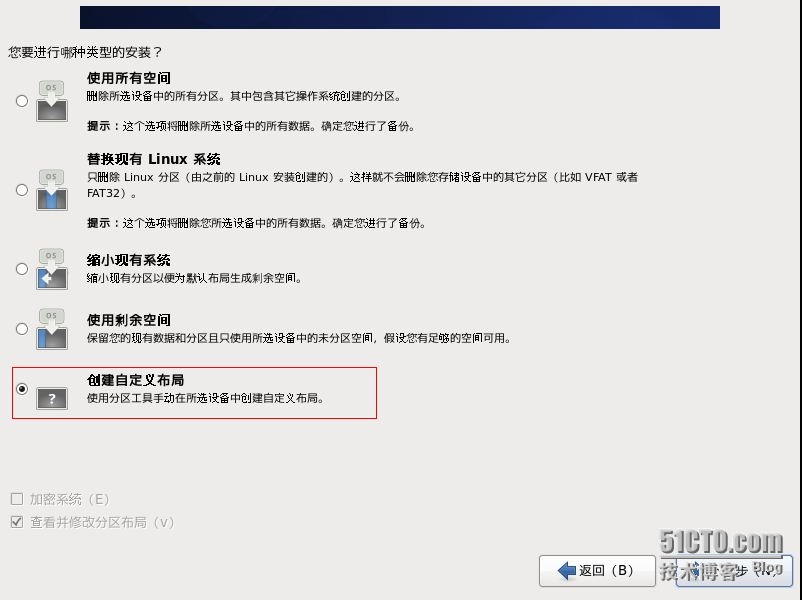
在系统运维和服务器管理过程中,经常遇到服务器磁盘容量不足,需要在线扩容的情况。普通磁盘分区的管理方式在逻辑分区划好之后就无法改变其大小。而LVM可以实现Linux服务器下面磁盘空间的在线扩容和动态管理,相对于普通的磁盘分区有很大的灵活性。 一、LVM简介 LVM是Logical VolumeManager(逻辑卷管理)的简写,它是Linux环境下对磁盘分区进行管理的一种机制,它由Heinz Mauelshagen在Linux 2.4内核上实现。LVM将一个或多个硬盘的分区在逻辑上进行组合,做为一个大的硬盘空间来使用,当硬盘的剩余空间不够的时候,可以将其它的硬盘加入到分区当中,这样可以实现磁盘空间的动态管理。 二、LVM基本术语 物理卷(physical volume,PV):物理卷就是指硬盘分区,也可以是整个硬盘或已创建的RAID,是LVM的基本存储设备,与普通物理存储介质的区别是该设备包含有LVM相关的管理参数。 卷组(volume group,VG):卷组是由一个或多个物理卷所组成的存储池,在卷组上能创建一个或多个“LVM分区”(逻辑卷)。 逻辑卷(logical volume,LV):LVM的逻辑卷类似于非LVM系统中的硬盘分区,它建立在卷组之上,是一个标准的块设备,在逻辑卷之上可以建立文件系统。 物理块(physical extent,PE):物理卷以大小相等的物理块为存储的基本单位,同时也是LVM寻址的最小单元。 逻辑块(logical extent,LE):逻辑卷以大小相等的逻辑块为存储的基本单位,在同一个卷组中,LE的大小和PE是相等的,并且一一对应。 三、通过LVM分区方式安装Centos 1.选择安装类型,选择最后一个复选框,即创建自定义布局。 2.首先划分/boot分区,/boot分区建议使用物理分区。 3.将剩余空间划分为一个物理卷(PV)。 4.创建一个卷组(VG)。默认卷组名为VolGroup00,修改卷组名为vg51cto_lv。 5.在VG上面创建逻辑卷(LV)。逻辑卷默认为LogVol00,LogVol01……末两位由00开始依次递增。 6.LVM分区完成。 7.df -h查看磁盘空间。 1 2 3 4 5 6 7 8 [root@hadoop01~] #df-h FilesystemSizeUsedAvailUse%Mountedon /dev/mapper/vg51cto_lv-LogVol01 9.9G1.2G8.2G13%/ tmpfs495M0495M0% /dev/shm /dev/sda1 194M29M155M16% /boot /dev/mapper/vg51cto_lv-LogVol03 20G172M19G1% /data /dev/mapper/vg51cto_lv-LogVol02 5.0G138M4.6G3% /home /dev/mapper/vg51cto_lv-LogVol04 23G173M22G1% /usr/local 四、LVM管理 第一部分:卷组(volume group,VG)相关的操作。 1.查看卷组(VG)名,卷组名为vg51cto_lv。 1 2 3 [root@hadoop01~] #vgscan Readingallphysicalvolumes.Thismaytakeawhile... Foundvolumegroup "vg51cto_lv" usingmetadata type lvm2 2.查看卷组(VG)包含的PV、LV信息。 1 2 3 4 5 6 7 8 9 10 11 12 13 14 15 16 17 18 19 20 21 22 23 24 25 26 27 28 29 30 31 32 33 34 35 36 37 38 39 40 41 42 43 44 45 46 47 48 49 50 51 52 53 54 55 56 57 58 59 60 61 62 63 64 65 66 67 68 69 70 71 72 73 74 75 76 77 78 79 80 81 82 83 84 85 86 87 88 89 90 91 92 93 94 95 96 97 98 99 100 101 102 103 104 105 106 107 108 109 110 111 112 113 114 [root@hadoop01~] #vgdisplay-vvg51cto_lv Usingvolumegroup(s)on command line Findingvolumegroup "vg51cto_lv" ---Volumegroup--- VGNamevg51cto_lv SystemID Formatlvm2 MetadataAreas1 MetadataSequenceNo6 VGAccess read /write VGStatusresizable MAXLV0 CurLV5 OpenLV5 MaxPV0 CurPV1 ActPV1 VGSize59.80GiB PESize4.00MiB TotalPE15309 AllocPE /Size 15309/59.80GiB FreePE/Size0/0 VGUUIDuF4S1y-21AZ-KOfs-rNIF-lFmN-wQ75-2sX7F1 ---Logicalvolume--- LVPath /dev/vg51cto_lv/LogVol04 LVNameLogVol04 VGNamevg51cto_lv LVUUIDrvOZeO-Oz2G-wx7Z-u0b6-CvXj-FKEj-RwCLXO LVWriteAccess read /write LVCreationhost, time hadoop01,2015-11-0517:30:51+0800 LVStatusavailable #open1 LVSize22.80GiB CurrentLE5837 Segments1 Allocationinherit Readaheadsectorsauto -currentlysetto256 Blockdevice253:2 ---Logicalvolume--- LVPath /dev/vg51cto_lv/LogVol01 LVNameLogVol01 VGNamevg51cto_lv LVUUIDd6YKrd-fWMJ-x61I-cfWG-v2me-Hn8V-xdm96L LVWriteAccess read /write LVCreationhost, time hadoop01,2015-11-0517:30:56+0800 LVStatusavailable #open1 LVSize10.00GiB CurrentLE2560 Segments1 Allocationinherit Readaheadsectorsauto -currentlysetto256 Blockdevice253:0 ---Logicalvolume--- LVPath /dev/vg51cto_lv/LogVol00 LVNameLogVol00 VGNamevg51cto_lv LVUUIDhSyH2r-mvMV-th7q-geKg-sVpm-O1zJ-D6DwT8 LVWriteAccess read /write LVCreationhost, time hadoop01,2015-11-0517:30:58+0800 LVStatusavailable #open1 LVSize2.00GiB CurrentLE512 Segments1 Allocationinherit Readaheadsectorsauto -currentlysetto256 Blockdevice253:1 ---Logicalvolume--- LVPath /dev/vg51cto_lv/LogVol03 LVNameLogVol03 VGNamevg51cto_lv LVUUIDgKHLfz-O5Lm-TGMq-2LcF-xcH1-ASea-QCVVNc LVWriteAccess read /write LVCreationhost, time hadoop01,2015-11-0517:30:58+0800 LVStatusavailable #open1 LVSize20.00GiB CurrentLE5120 Segments1 Allocationinherit Readaheadsectorsauto -currentlysetto256 Blockdevice253:3 ---Logicalvolume--- LVPath /dev/vg51cto_lv/LogVol02 LVNameLogVol02 VGNamevg51cto_lv LVUUIDlkqKmO-Dt0u-3CnB-UqeD-d6gc-2rmP-gWtKVp LVWriteAccess read /write LVCreationhost, time hadoop01,2015-11-0517:31:00+0800 LVStatusavailable #open1 LVSize5.00GiB CurrentLE1280 Segments1 Allocationinherit Readaheadsectorsauto -currentlysetto256 Blockdevice253:4 ---Physicalvolumes--- PVName /dev/sda2 PVUUIDpKC6SA-fkfe-OAl2-scVr-tq0h-EAXD-AWpwgX PVStatusallocatable TotalPE /Free PE15309/0 3.修改卷组名,由vg51cto_lv修改成vg51cto。 1)修改卷组名的命令为vgrename,语法如下: vgrename OldVolumeGroupNameNew VolumeGroupName 1 2 [root@hadoop01~] #vgrenamevg51cto_lvvg51cto Volumegroup "vg51cto_lv" successfullyrenamedto "vg51cto" 2)修改/etc/fstab配置文件,把vg51cto_lv修改成vg51cto。 1 2 3 4 5 6 7 8 9 10 11 12 13 14 15 16 17 18 [root@hadoop01~] #vim/etc/fstab # #/etc/fstab #CreatedbyanacondaonThuNov517:33:462015 # #Accessiblefilesystems,byreference,aremaintainedunder'/dev/disk' #Seemanpagesfstab(5),findfs(8),mount(8)and/orblkid(8)formoreinfo # /dev/mapper/vg51cto-LogVol01 /ext4defaults11 UUID=9c02e519-3b85-4918-b9fd-395535cab496 /boot ext4defaults12 /dev/mapper/vg51cto-LogVol03 /data ext4defaults12 /dev/mapper/vg51cto-LogVol02 /home ext4defaults12 /dev/mapper/vg51cto-LogVol04 /usr/local ext4defaults12 /dev/mapper/vg51cto-LogVol00 swapswapdefaults00 tmpfs /dev/shm tmpfsdefaults00 devpts /dev/pts devptsgid=5,mode=62000 sysfs /sys sysfsdefaults00 proc /proc procdefaults00 3)修改grub.conf配置文件,把vg51cto_lv修改成vg51cto。 1 2 3 4 5 6 7 8 9 10 11 12 13 14 15 16 17 18 [root@hadoop01~] #vim/etc/grub.conf #grub.confgeneratedbyanaconda # #Notethatyoudonothavetorerungrubaftermakingchangestothisfile #NOTICE:Youhavea/bootpartition.Thismeansthat #allkernelandinitrdpathsarerelativeto/boot/,eg. #root(hd0,0) #kernel/vmlinuz-versionroroot=/dev/mapper/vg51cto_lv-LogVol01 #initrd/initrd-[generic-]version.img #boot=/dev/sda default=0 timeout=5 splashimage=(hd0,0) /grub/splash .xpm.gz hiddenmenu titleCentOS(2.6.32-431.el6.x86_64) root(hd0,0) kernel /vmlinuz-2 .6.32-431.el6.x86_64roroot= /dev/mapper/vg51cto-LogVol01 rd_NO_LUKSrd_LVM_LV=vg51cto /LogVol01 rd_LVM_LV=vg51cto /LogVol00 rd_NO_MDcrashkernel=autoLANG=zh_CN.UTF-8KEYBOARDTYPE=pcKEYTABLE=usrd_NO_DMrhgbquiet initrd /initramfs-2 .6.32-431.el6.x86_64.img 4)reboot重启后用df -h查看。 1 2 3 4 5 6 7 8 [root@hadoop01~] #df-h FilesystemSizeUsedAvailUse%Mountedon /dev/mapper/vg51cto-LogVol01 9.9G1.2G8.2G13%/ tmpfs495M0495M0% /dev/shm /dev/sda1 194M29M155M16% /boot /dev/mapper/vg51cto-LogVol03 20G172M19G1% /data /dev/mapper/vg51cto-LogVol02 5.0G138M4.6G3% /home /dev/mapper/vg51cto-LogVol04 23G173M22G1% /usr/local 第二部分:逻辑卷(logical volume,LV)相关的操作。 1.查看逻辑卷(LV)名。 使用LVM安装系统时,默认的卷组名为VolGroup00,卷组内的逻辑卷为LogVol00,LogVol01……末两位由00开始依次递增。 1 2 3 4 5 6 [root@hadoop01~] #lvscan ACTIVE '/dev/vg51cto/LogVol04' [22.80GiB]inherit ACTIVE '/dev/vg51cto/LogVol01' [10.00GiB]inherit ACTIVE '/dev/vg51cto/LogVol00' [2.00GiB]inherit ACTIVE '/dev/vg51cto/LogVol03' [20.00GiB]inherit ACTIVE '/dev/vg51cto/LogVol02' [5.00GiB]inherit 2.查看逻辑卷详细信息 lvdisplay命令查看所有逻辑卷的详细信息 lvdisplay 逻辑卷名称 1 2 3 4 5 6 7 8 9 10 11 12 13 14 15 16 17 [root@hadoop01~] #lvdisplay/dev/vg51cto/LogVol00 ---Logicalvolume--- LVPath /dev/vg51cto/LogVol00 LVNameLogVol00 VGNamevg51cto LVUUIDhSyH2r-mvMV-th7q-geKg-sVpm-O1zJ-D6DwT8 LVWriteAccess read /write LVCreationhost, time hadoop01,2015-11-0517:30:58+0800 LVStatusavailable #open1 LVSize2.00GiB CurrentLE512 Segments1 Allocationinherit Readaheadsectorsauto -currentlysetto256 Blockdevice253:1 3.修改逻辑卷名 1)修改逻辑卷命令为lvrename,语法如下: 1 2 3 4 5 6 7 8 9 10 11 lvrenameOldLogicalVolumePathNewLogicalVolumePath [root@hadoop01~] #lvrename/dev/vg51cto/LogVol00/dev/vg51cto/lv_swap Renamed "LogVol00" to "lv_swap" in volumegroup "vg51cto" [root@hadoop01~] #lvrename/dev/vg51cto/LogVol01/dev/vg51cto/lv_root Renamed "LogVol01" to "lv_root" in volumegroup "vg51cto" [root@hadoop01~] #lvrename/dev/vg51cto/LogVol02/dev/vg51cto/lv_home Renamed "LogVol02" to "lv_home" in volumegroup "vg51cto" [root@hadoop01~] #lvrename/dev/vg51cto/LogVol03/dev/vg51cto/lv_data Renamed "LogVol03" to "lv_data" in volumegroup "vg51cto" [root@hadoop01~] #lvrename/dev/vg51cto/LogVol04/dev/vg51cto/lv_usr Renamed "LogVol04" to "lv_usr" in volumegroup "vg51cto" 2)修改/etc/fstab配置文件。 1 2 3 4 5 6 7 8 9 10 11 12 13 14 15 16 17 18 [root@hadoop01~] #vim/etc/fstab # #/etc/fstab #CreatedbyanacondaonThuNov517:33:462015 # #Accessiblefilesystems,byreference,aremaintainedunder'/dev/disk' #Seemanpagesfstab(5),findfs(8),mount(8)and/orblkid(8)formoreinfo # /dev/mapper/vg51cto-lv_root /ext4defaults11 UUID=9c02e519-3b85-4918-b9fd-395535cab496 /boot ext4defaults12 /dev/mapper/vg51cto-lv_data /data ext4defaults12 /dev/mapper/vg51cto-lv_home /home ext4defaults12 /dev/mapper/vg51cto-lv_usr /usr/local ext4defaults12 /dev/mapper/vg51cto-lv_swap swapswapdefaults00 tmpfs /dev/shm tmpfsdefaults00 devpts /dev/pts devptsgid=5,mode=62000 sysfs /sys sysfsdefaults00 proc /proc procdefaults00 3)修改grub.conf配置文件。 1 2 3 4 5 6 7 8 9 10 11 12 13 14 15 16 17 18 [root@hadoop01~] #vim/etc/grub.conf #grub.confgeneratedbyanaconda # #Notethatyoudonothavetorerungrubaftermakingchangestothisfile #NOTICE:Youhavea/bootpartition.Thismeansthat #allkernelandinitrdpathsarerelativeto/boot/,eg. #root(hd0,0) #kernel/vmlinuz-versionroroot=/dev/mapper/vg51cto_lv-LogVol01 #initrd/initrd-[generic-]version.img #boot=/dev/sda default=0 timeout=5 splashimage=(hd0,0) /grub/splash .xpm.gz hiddenmenu titleCentOS(2.6.32-431.el6.x86_64) root(hd0,0) kernel /vmlinuz-2 .6.32-431.el6.x86_64roroot= /dev/mapper/vg51cto-lv_root rd_NO_LUKSrd_LVM_LV=vg51cto /lv_root rd_LVM_LV=vg51cto /lv_swap rd_NO_MDcrashkernel=autoLANG=zh_CN.UTF-8KEYBOARDTYPE=pcKEYTABLE=usrd_NO_DMrhgbquiet initrd /initramfs-2 .6.32-431.el6.x86_64.img 第三部分:物理卷(physical volume,PV)相关操作。 1.查看物理卷(PV)名,这里为/dev/sda2,linux中SCSI的第1块硬盘为/dev/sda,第2块硬盘为/dev/sdb,依此类推。 1 2 3 [root@hadoop01~] #pvscan PV /dev/sda2 VGvg51ctolvm2[59.80GiB/0 free ] Total:1[59.80GiB]/ in use:1[59.80GiB]/ in noVG:0[0] 2.查看物理卷详细信息。 1 2 3 4 5 6 7 8 9 10 11 [root@hadoop01~] #pvdisplay ---Physicalvolume--- PVName /dev/sda2 VGNamevg51cto PVSize59.80GiB/notusable3.00MiB Allocatable yes (butfull) PESize4.00MiB TotalPE15309 FreePE0 AllocatedPE15309 PVUUIDpKC6SA-fkfe-OAl2-scVr-tq0h-EAXD-AWpwgX 四、LVM空间管理 1.LVM减少LV空间 举例:减少/data空间,从20G减少到10G。 1)卸载设备(Unmount thefilesystem) 1 [root@hadoop01~] #umount/data/ 2)e2fsck命令检查文件系统(Checkthe filesystem) 1 2 3 4 5 6 7 8 [root@hadoop01~] #e2fsck-f/dev/mapper/vg51cto-lv_data e2fsck1.41.12(17-May-2010) 第一步:检查inode,块,和大小 第二步:检查目录结构 第3步:检查目录连接性 Pass4:Checkingreferencecounts 第5步:检查簇概要信息 /dev/mapper/vg51cto-lv_data :11 /1310720files (0.0%non-contiguous),126289 /5242880 blocks 3)resize2fs命令调整lv大小,10G表示调整后/data剩余空间。 1 2 3 4 [root@hadoop01~] #resize2fs/dev/mapper/vg51cto-lv_data10G resize2fs1.41.12(17-May-2010) Resizingthefilesystemon /dev/mapper/vg51cto-lv_data to2621440(4k)blocks. Thefilesystemon /dev/mapper/vg51cto-lv_data isnow2621440blockslong. 4)lvreduce命令减少文件系统大小(Resizethe filesystem),表示将/data的空间减少9G。 1 2 3 4 5 6 [root@hadoop01~] #lvreduce-L-9G/dev/mapper/vg51cto-lv_data WARNING:Reducingactivelogicalvolumeto11.00GiB THISMAYDESTROYYOURDATA(filesystemetc.) Doyoureallywanttoreducelv_data?[y /n ]:y Reducinglogicalvolumelv_datato11.00GiB Logicalvolumelv_datasuccessfullyresized 5)vgs命令查看卷组剩余空间为9G。 6)mount文件系统并查看磁盘空间剩余空间。 2.LVM增加LV空间 举例:将刚才9G空间增加到/home分区。 1)vgs命令查看是否有空闲空间可以扩容。 1 2 3 [root@hadoop01~] #vgs VG #PV#LV#SNAttrVSizeVFree vg51cto150wz--n-59.80g9.00g 2)df -h查看当前磁盘空间 3)lvextend命令将home分区空间增加9G。 1 2 3 4 5 6 7 8 [root@hadoop01~] #lvextend-L+9G-f-r/dev/mapper/vg51cto-lv_home Extendinglogicalvolumelv_hometo14.00GiB Logicalvolumelv_homesuccessfullyresized resize2fs1.41.12(17-May-2010) Filesystemat /dev/mapper/vg51cto-lv_homeis mountedon /home ;on-lineresizingrequired olddesc_blocks=1,new_desc_blocks=1 Performinganon-lineresizeof /dev/mapper/vg51cto-lv_home to3670016(4k)blocks. Thefilesystemon /dev/mapper/vg51cto-lv_home isnow3670016blockslong. 4)查看分区是否增加成功。 五、LVM在线扩容 服务器磁盘空间不足,添加新的硬盘后,需要把空间添加当前分区当中。 linux中SCSI的第1个硬盘/dev/sda,第2个硬盘/dev/sdb依此类推。其中服务器第一块硬盘/dev/sda已经划分为LVM分区。/dev/sdb是新加的硬盘。 1)用pvcreate /dev/sdb命令初始化分区sdb为物理卷(PV)。 1 2 [root@hadoop01~] #pvcreate/dev/sdb Physicalvolume "/dev/sdb" successfullycreated 2)pvdisplay命令显示物理卷的信息 1 2 3 4 5 6 7 8 9 10 11 12 13 14 15 16 17 18 19 20 21 22 23 [root@hadoop01~] #pvdisplay ---Physicalvolume--- PVName /dev/sda2 VGNamevg51cto PVSize59.80GiB/notusable3.00MiB Allocatable yes (butfull) PESize4.00MiB TotalPE15309 FreePE0 AllocatedPE15309 PVUUIDpKC6SA-fkfe-OAl2-scVr-tq0h-EAXD-AWpwgX "/dev/sdb" isanewphysicalvolumeof "40.00GiB" ---NEWPhysicalvolume--- PVName /dev/sdb VGName PVSize40.00GiB AllocatableNO PESize0 TotalPE0 FreePE0 AllocatedPE0 PVUUIDdMeOLS-Sks3-8k3q-pVWp-Iuz2-0Hh2-8njjhY 3)vgextend命令将pv加入到vg,vgcreate命令为新创建vg(vgcreate vg51cto /dev/sdb),这里的vg51cto已经存在,只需要用vgextend加入即可。 1 2 [root@hadoop01~] #vgextendvg51cto/dev/sdb Volumegroup "vg51cto" successfullyextended 4)用vgdisplay命令查看vg信息,看到已经有40G空闲PE。 5)lvextend命令扩展分区,将40G空间全部添加到/data分区。 直接增加40G空间不足,报下面的错误,因此添加39.9G的空间。 Insufficient free space:10240 extents needed, but only 10239 available 1 2 3 4 [root@hadoop01~] #lvextend-L+39.99G/dev/mapper/vg51cto-lv_data Roundingsizetoboundarybetweenphysicalextents:39.99GiB Extendinglogicalvolumelv_datato50.99GiB Logicalvolumelv_datasuccessfullyresized 6)上一步操作只是增加了逻辑卷的大小,用resize2fs命令重新定义文件系统的大小。 1 2 3 4 5 6 [root@hadoop01~] #resize2fs/dev/mapper/vg51cto-lv_data resize2fs1.41.12(17-May-2010) Filesystemat /dev/mapper/vg51cto-lv_datais mountedon /data ;on-lineresizingrequired olddesc_blocks=1,new_desc_blocks=4 Performinganon-lineresizeof /dev/mapper/vg51cto-lv_data to13367296(4k)blocks. Thefilesystemon /dev/mapper/vg51cto-lv_data isnow13367296blockslong. 7)查看磁盘在线扩容是否正常。 总结: 1)/分区不能umount,说明/分区只能扩容,不能减少/分区的空间。 2)减少分区的时候需要卸载分区,进行umount操作。 3)扩容的分区的时候不需要卸载分区。 4)重命名vg,lv命名后,需要修改/etc/fstab和/etc/grub.conf引导文件。 本文转自 sfzhang 51CTO博客,原文链接:http://blog.51cto.com/sfzhang88/1710059,如需转载请自行联系原作者

优秀的个人博客,低调大师

(Portal 开发读书笔记) Portal开发常用概念

Portal是什么? Portal是一组小的web应用(也就是Portlet)的集合。它提供了如下的功能比如:个人化,内容聚合(从各个不同的信息源),认证,定制。换句话说,它提供了整体页面。Portal不仅仅聚合Portlet,还要聚合其他页帧片断,这也片断也许根本juice不是Portlet. Portlet是什么? Portlet是一个可以插入的UI组件,它可以提供指定的内容,这些内容可以来自于信息系统。它的主要责任是产生标记语言的片断,并且显示于Portlet Window中,然后多个Portlet Window共同被Portal页面所包含。换句话说,它提供了页面的一个区域。 Portal架构: Portal架构包含Portlet 容器和Portal服务器: Portlet 容器: 它负责管理Portlet实例的生命周期,并且负责发送Portlet产生的页帧到Portal服务器去聚合。 Portal服务器: 它负责提交来自Portal页面上的用户请求到Portlet容器,并且负责聚合多个Portlet产生的页帧到Portal页面,还负责为Portal页面提供一致的外观。 这些概念关系如下图所示: 本文转自 charles_wang888 51CTO博客,原文链接:http://blog.51cto.com/supercharles888/847767,如需转载请自行联系原作者

优秀的个人博客,低调大师

Android开发学习笔记:5大布局方式详解

Android中常用的5大布局方式有以下几种: 线性布局(LinearLayout):按照垂直或者水平方向布局的组件。 帧布局(FrameLayout):组件从屏幕左上方布局组件。 表格布局(TableLayout):按照行列方式布局组件。 相对布局(RelativeLayout):相对其它组件的布局方式。 绝对布局(AbsoluteLayout):按照绝对坐标来布局组件。 1. 线性布局 线性布局是Android开发中最常见的一种布局方式,它是按照垂直或者水平方向来布局,通过“android:orientation”属性可以设置线性布局的方向。属性值有垂直(vertical)和水平(horizontal)两种。 常用的属性: android:orientation:可以设置布局的方向 android:gravity:用来控制组件的对齐方式 layout_weight:控制各个组件在布局中的相对大小 第一个实例 ①效果图: ②核心代码如下: main.xml <?xmlversion="1.0"encoding="utf-8"?> <LinearLayoutxmlns:android="http://schemas.android.com/apk/res/android" android:orientation="vertical" android:layout_width="fill_parent" android:layout_height="fill_parent" > <LinearLayout android:layout_width="fill_parent" android:layout_height="wrap_content" android:orientation="vertical" > <EditText android:layout_width="fill_parent" android:layout_height="wrap_content" /> </LinearLayout> <LinearLayout android:layout_width="fill_parent" android:layout_height="wrap_content" android:orientation="horizontal" android:gravity="right" > <!--android:gravity="right"表示Button组件向右对齐--> <Button android:layout_height="wrap_content" android:layout_width="wrap_content" android:text="确定" /> <Button android:layout_height="wrap_content" android:layout_width="wrap_content" android:text="取消" /> </LinearLayout> </LinearLayout> 第二个实例 ①效果图: ②核心代码: mian.xml <?xmlversion="1.0"encoding="utf-8"?> <LinearLayoutxmlns:android="http://schemas.android.com/apk/res/android" android:orientation="vertical"android:layout_width="fill_parent" android:layout_height="fill_parent"> <LinearLayout android:orientation="horizontal" android:layout_width="fill_parent" android:layout_height="fill_parent" android:layout_weight="1"> <TextView android:text="red" android:gravity="center_horizontal" android:background="#aa0000" android:layout_width="wrap_content" android:layout_height="fill_parent" android:layout_weight="1" /> <!--android:gravity="center_horizontal"水平居中--> <!--layout_weight属性以控制各个控件在布局中的相对大小。layout_weight属性是一个非负整数值。 线性布局会根据该控件layout_weight值与其所处布局中所有控件layout_weight值之和的比值为该控件分配占用的区域。 例如,在水平布局的LinearLayout中有两个Button,这两个Button的layout_weight属性值都为1, 那么这两个按钮都会被拉伸到整个屏幕宽度的一半。如果layout_weight指为0,控件会按原大小显示,不会被拉伸; 对于其余layout_weight属性值大于0的控件,系统将会减去layout_weight属性值为0的控件的宽度或者高度, 再用剩余的宽度或高度按相应的比例来分配每一个控件显示的宽度或高度--> <TextView android:text="Teal" android:gravity="center_horizontal" android:background="#008080" android:layout_width="wrap_content" android:layout_height="fill_parent" android:layout_weight="1"/> <TextView android:text="blue" android:gravity="center_horizontal" android:background="#0000aa" android:layout_width="wrap_content" android:layout_height="fill_parent" android:layout_weight="1" /> <TextView android:text="orange" android:gravity="center_horizontal" android:background="#FFA500" android:layout_width="wrap_content" android:layout_height="fill_parent" android:layout_weight="1" /> </LinearLayout> <LinearLayout android:orientation="vertical" android:layout_width="fill_parent" android:layout_height="fill_parent" android:layout_weight="1"> <TextView android:text="rowone" android:textSize="15pt" android:background="#aa0000" android:layout_width="fill_parent" android:layout_height="wrap_content" android:layout_weight="1" /> <!----> <TextView android:text="rowtwo" android:textSize="15pt" android:background="#DDA0DD" android:layout_width="fill_parent" android:layout_height="wrap_content" android:layout_weight="1" /> <TextView android:text="rowthree" android:textSize="15pt" android:background="#008080" android:layout_width="fill_parent" android:layout_height="wrap_content" android:layout_weight="1" /> <TextView android:text="rowfour" android:textSize="15pt" android:background="#FFA500" android:layout_width="fill_parent" android:layout_height="wrap_content" android:layout_weight="1" /> </LinearLayout> </LinearLayout> 2. 帧布局 帧布局是从屏幕的左上角( 0,0)坐标开始布局,多个组件层叠排列,第一个添加的组件放到最底层,最后添加到框架中的视图显示在最上面。上一层的会覆盖下一层的控件。 简单的例子 ①效果图: ②核心代码: main.xml <?xmlversion="1.0"encoding="utf-8"?> <FrameLayoutxmlns:android="http://schemas.android.com/apk/res/android" android:layout_width="fill_parent" android:layout_height="fill_parent" > <TextView android:layout_width="300dp" android:layout_height="300dp" android:background="#00BFFF" /> <TextView android:layout_width="260dp" android:layout_height="260dp" android:background="#FFC0CB" /> <TextView android:layout_width="220dp" android:layout_height="220dp" android:background="#0000FF" /> </FrameLayout> 3. 表格布局 表格布局是一个 ViewGroup以表格显示它的子视图(view)元素,即行和列标识一个视图的位置。 表格布局常用的属性如下: android:collapseColumns:隐藏指定的列 android:shrinkColumns:收缩指定的列以适合屏幕,不会挤出屏幕 android:stretchColumns:尽量把指定的列填充空白部分 android:layout_column:控件放在指定的列 android:layout_span:该控件所跨越的列数 简单的列子: ①效果图: ②核心代码: main.xml <?xmlversion="1.0"encoding="utf-8"?> <TableLayoutxmlns:android="http://schemas.android.com/apk/res/android" android:layout_width="fill_parent" android:layout_height="fill_parent" > <TableRow> <Button android:text="Button1" /> <Button android:text="Button2" /> <Button android:text="Button3" /> </TableRow> <TableRow> <Button android:text="Button4" /> <Button android:layout_span="2" android:text="Button5" /> </TableRow> </TableLayout> 4. 相对布局 相对布局是按照组件之间的相对位置来布局,比如在某个组件的左边,右边,上面和下面等。 相对布局常用属性请参考我博客的: http://liangruijun.blog.51cto.com/3061169/631816 简单的例子 ①效果图: ②核心代码: main.xml <?xmlversion="1.0"encoding="utf-8"?> <RelativeLayoutxmlns:android="http://schemas.android.com/apk/res/android" android:layout_width="fill_parent" android:layout_height="wrap_content" android:padding="10px" > <TextView android:id="@+id/tev1" android:layout_width="wrap_content" android:layout_height="wrap_content" android:layout_marginBottom="30dp" android:text="PleaseTypeHere:" /> <EditText android:id="@+id/tx1" android:layout_width="match_parent" android:layout_height="wrap_content" android:layout_below="@id/tev1" /> <Button android:id="@+id/btn1" android:layout_height="wrap_content" android:layout_width="wrap_content" android:layout_below="@id/tx1" android:layout_alignParentRight="true" android:text="确定" /> <Button android:id="@+id/btn2" android:layout_height="wrap_content" android:layout_width="wrap_content" android:layout_below="@id/tx1" android:layout_toLeftOf="@id/btn1" android:layout_marginRight="30dp" android:text="取消" /> </RelativeLayout> 5. 绝对布局 绝对布局通过指定子组件的确切 X,Y坐标来确定组件的位置,在Android2.0 API文档中标明该类已经过期,可以使用FrameLayout或者RelativeLayout来代替。所以这里不再详细介绍。 本文转自 lingdududu 51CTO博客,原文链接:http://blog.51cto.com/liangruijun/632532

资源下载

更多资源
Mario

Mario

马里奥是站在游戏界顶峰的超人气多面角色。马里奥靠吃蘑菇成长,特征是大鼻子、头戴帽子、身穿背带裤,还留着胡子。与他的双胞胎兄弟路易基一起,长年担任任天堂的招牌角色。

腾讯云软件源

腾讯云软件源

为解决软件依赖安装时官方源访问速度慢的问题,腾讯云为一些软件搭建了缓存服务。您可以通过使用腾讯云软件源站来提升依赖包的安装速度。为了方便用户自由搭建服务架构,目前腾讯云软件源站支持公网访问和内网访问。

Nacos

Nacos

Nacos /nɑ:kəʊs/ 是 Dynamic Naming and Configuration Service 的首字母简称,一个易于构建 AI Agent 应用的动态服务发现、配置管理和AI智能体管理平台。Nacos 致力于帮助您发现、配置和管理微服务及AI智能体应用。Nacos 提供了一组简单易用的特性集,帮助您快速实现动态服务发现、服务配置、服务元数据、流量管理。Nacos 帮助您更敏捷和容易地构建、交付和管理微服务平台。

Spring

Spring

Spring框架(Spring Framework)是由Rod Johnson于2002年提出的开源Java企业级应用框架,旨在通过使用JavaBean替代传统EJB实现方式降低企业级编程开发的复杂性。该框架基于简单性、可测试性和松耦合性设计理念,提供核心容器、应用上下文、数据访问集成等模块,支持整合Hibernate、Struts等第三方框架,其适用范围不仅限于服务器端开发,绝大多数Java应用均可从中受益。

用户登录
用户注册