自制WheelView沉浸式菜单及Dialog样式Activity
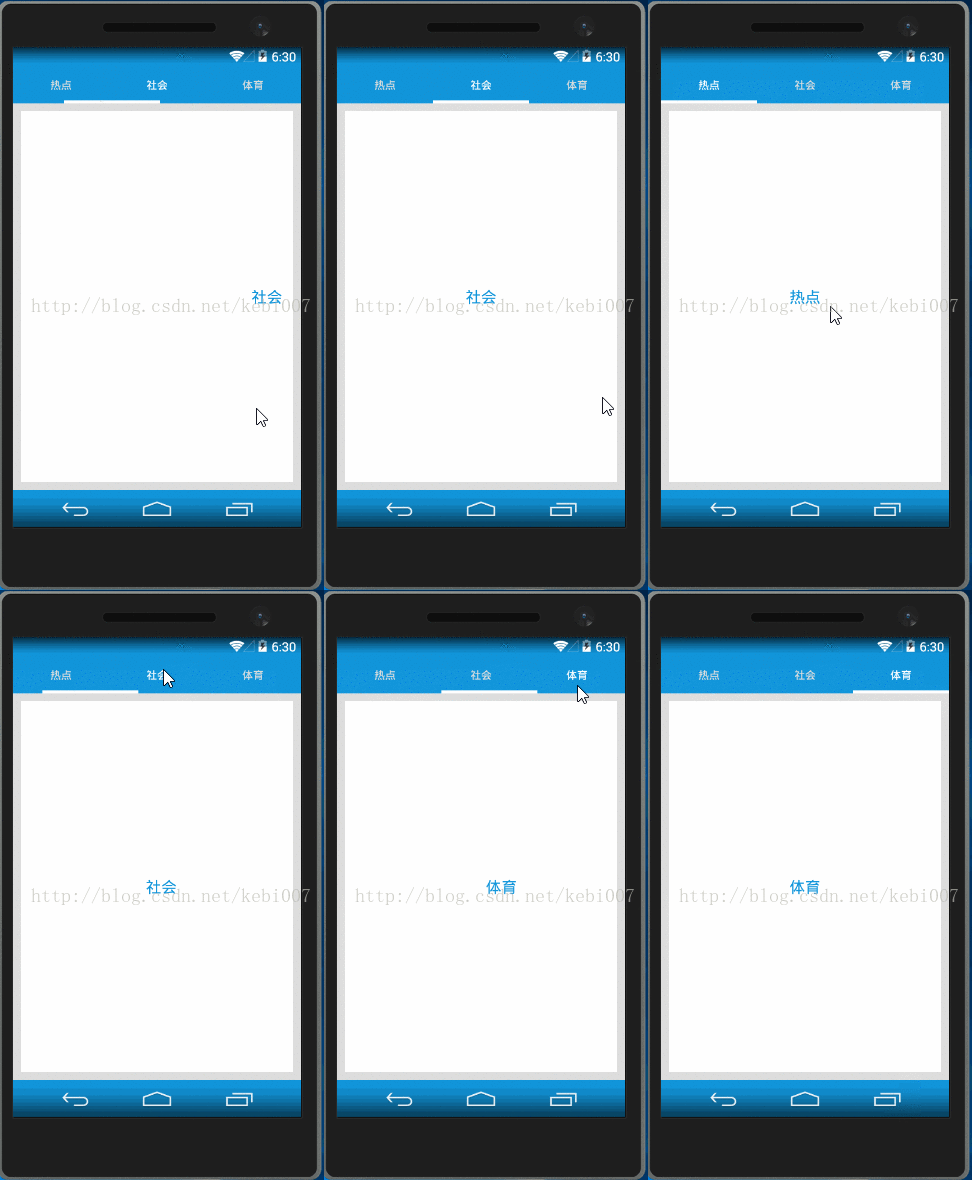
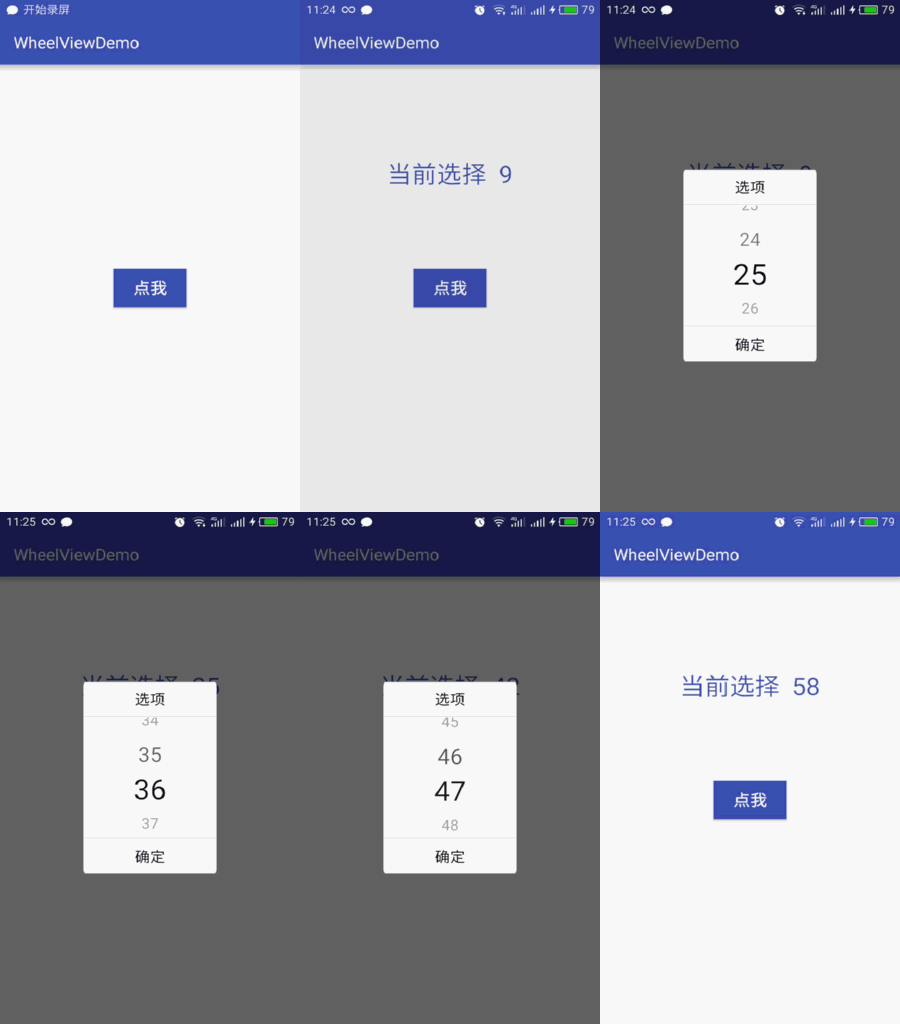
自制一个简单的WheelView控件,配合Dialog样式的Activity使用 为什么不直接用Dialog呢? 因为感觉Dialog有时候传值会很麻烦,而且写起来也不方便。用Activity仿的话就很方便,效果也不错。 当然用Dialog也是可以的,具体根据项目需求和个人习惯而定。 效果图如下: 那么直接贴核心代码,源码我会在博客底部发链接 Dialog样式的Activity布局: <?xmlversion="1.0"encoding="utf-8"?> <RelativeLayoutxmlns:android="http://schemas.android.com/apk/res/android" xmlns:tools="http://schemas.android.com/tools" android:layout_width="match_parent" android:layout_height="wrap_content" android:layout_gravity="center" android:layout_margin="80dp"> <TextView android:id="@+id/rate_tv" android:layout_width="fill_parent" android:layout_height="45dp" android:background="@drawable/more_top_nor" android:gravity="center" android:text="选项" android:drawableBottom="@drawable/cell_cut_line" android:textColor="@android:color/black" android:textSize="18sp"/> <com.lg.wheelviewdemo.PickerView android:id="@+id/pickerview" android:layout_below="@id/rate_tv" android:background="@drawable/more_content_nor" android:layout_width="match_parent" android:layout_height="150dp"/> <TextView android:onClick="onClick" android:layout_width="fill_parent" android:layout_height="45dp" android:drawableTop="@drawable/cell_cut_line" android:layout_below="@id/pickerview" android:text="确定" android:textColor="@android:color/black" android:textSize="18sp" android:gravity="center" android:background="@drawable/more_bottom_nor"/> </RelativeLayout> PickerView也就是自制的WheelView,代码如下: /** *滚动选择器 */ publicclassPickerViewextendsView{ publicstaticfinalStringTAG="PickerView"; /** *text之间间距和minTextSize之比 */ publicstaticfinalfloatMARGIN_ALPHA=2.3f; /** *自动回滚到中间的速度 */ publicstaticfinalfloatSPEED=2; privateList<String>mDataList; /** *选中的位置,这个位置是mDataList的中心位置,一直不变 */ privateintmCurrentSelected; privatePaintmPaint; privatefloatmMaxTextSize=30; privatefloatmMinTextSize=15; privatefloatmMaxTextAlpha=255; privatefloatmMinTextAlpha=100; privateintmViewHeight; privateintmViewWidth; privatefloatmLastDownY; /** *滑动的距离 */ privatefloatmMoveLen=0; privatebooleanisInit=false; privateonSelectListenermSelectListener; privateTimertimer; privateMyTimerTaskmTask; HandlerupdateHandler=newHandler(){ @Override publicvoidhandleMessage(Messagemsg){ if(Math.abs(mMoveLen)<SPEED){ mMoveLen=0; if(mTask!=null){ mTask.cancel(); mTask=null; performSelect(); } }else //这里mMoveLen/Math.abs(mMoveLen)是为了保有mMoveLen的正负号,以实现上滚或下滚 mMoveLen=mMoveLen-mMoveLen/Math.abs(mMoveLen)*SPEED; invalidate(); } }; publicPickerView(Contextcontext){ super(context); init(); } publicPickerView(Contextcontext,AttributeSetattrs){ super(context,attrs); init(); } publicvoidsetOnSelectListener(onSelectListenerlistener){ mSelectListener=listener; } privatevoidperformSelect(){ if(mSelectListener!=null) mSelectListener.onSelect(mDataList.get(mCurrentSelected)); } publicvoidsetData(List<String>datas){ mDataList=datas; mCurrentSelected=datas.size()/2; invalidate(); } /** *选择选中的item的index * *@paramselected */ publicvoidsetSelected(intselected){ mCurrentSelected=selected; intdistance=mDataList.size()/2-mCurrentSelected; if(distance<0) for(inti=0;i<-distance;i++){ moveHeadToTail(); mCurrentSelected--; } elseif(distance>0) for(inti=0;i<distance;i++){ moveTailToHead(); mCurrentSelected++; } invalidate(); } /** *选择选中的内容 * *@parammSelectItem */ publicvoidsetSelected(StringmSelectItem){ for(inti=0;i<mDataList.size();i++) if(mDataList.get(i).equals(mSelectItem)){ setSelected(i); break; } } privatevoidmoveHeadToTail(){ Stringhead=mDataList.get(0); mDataList.remove(0); mDataList.add(head); } privatevoidmoveTailToHead(){ Stringtail=mDataList.get(mDataList.size()-1); mDataList.remove(mDataList.size()-1); mDataList.add(0,tail); } @Override protectedvoidonMeasure(intwidthMeasureSpec,intheightMeasureSpec){ super.onMeasure(widthMeasureSpec,heightMeasureSpec); mViewHeight=getMeasuredHeight(); mViewWidth=getMeasuredWidth(); //按照View的高度计算字体大小 mMaxTextSize=mViewHeight/4.0f; mMinTextSize=mMaxTextSize/2f; isInit=true; invalidate(); } privatevoidinit(){ timer=newTimer(); mDataList=newArrayList<String>(); mPaint=newPaint(Paint.ANTI_ALIAS_FLAG); mPaint.setStyle(Style.FILL); mPaint.setTextAlign(Align.CENTER); mPaint.setColor(Color.WHITE); } @Override protectedvoidonDraw(Canvascanvas){ super.onDraw(canvas); //根据index绘制view if(isInit) drawData(canvas); } privatevoiddrawData(Canvascanvas){ //先绘制选中的text再往上往下绘制其余的text floatscale=parabola(mViewHeight/4.0f,mMoveLen); floatsize=(mMaxTextSize-mMinTextSize)*scale+mMinTextSize; mPaint.setTextSize(size); mPaint.setColor(this.getResources().getColor(android.R.color.black)); mPaint.setAlpha((int)((mMaxTextAlpha-mMinTextAlpha)*scale+mMinTextAlpha)); //text居中绘制,注意baseline的计算才能达到居中,y值是text中心坐标 floatx=(float)(mViewWidth/2.0); floaty=(float)(mViewHeight/2.0+mMoveLen); FontMetricsIntfmi=mPaint.getFontMetricsInt(); floatbaseline=(float)(y-(fmi.bottom/2.0+fmi.top/2.0)); canvas.drawText(mDataList.get(mCurrentSelected),x,baseline,mPaint); //绘制上方data for(inti=1;(mCurrentSelected-i)>=0;i++){ drawOtherText(canvas,i,-1); } //绘制下方data for(inti=1;(mCurrentSelected+i)<mDataList.size();i++){ drawOtherText(canvas,i,1); } } /** *@paramcanvas *@paramposition距离mCurrentSelected的差值 *@paramtype1表示向下绘制,-1表示向上绘制 */ privatevoiddrawOtherText(Canvascanvas,intposition,inttype){ floatd=(float)(MARGIN_ALPHA*mMinTextSize*position+type *mMoveLen); floatscale=parabola(mViewHeight/4.0f,d); floatsize=(mMaxTextSize-mMinTextSize)*scale+mMinTextSize; mPaint.setTextSize(size); mPaint.setAlpha((int)((mMaxTextAlpha-mMinTextAlpha)*scale+mMinTextAlpha)); floaty=(float)(mViewHeight/2.0+type*d); FontMetricsIntfmi=mPaint.getFontMetricsInt(); floatbaseline=(float)(y-(fmi.bottom/2.0+fmi.top/2.0)); canvas.drawText(mDataList.get(mCurrentSelected+type*position), (float)(mViewWidth/2.0),baseline,mPaint); } /** *抛物线 * *@paramzero零点坐标 *@paramx偏移量 *@returnscale */ privatefloatparabola(floatzero,floatx){ floatf=(float)(1-Math.pow(x/zero,2)); returnf<0?0:f; } @Override publicbooleanonTouchEvent(MotionEventevent){ switch(event.getActionMasked()){ caseMotionEvent.ACTION_DOWN: doDown(event); break; caseMotionEvent.ACTION_MOVE: doMove(event); break; caseMotionEvent.ACTION_UP: doUp(event); break; } returntrue; } privatevoiddoDown(MotionEventevent){ if(mTask!=null){ mTask.cancel(); mTask=null; } mLastDownY=event.getY(); } privatevoiddoMove(MotionEventevent){ mMoveLen+=(event.getY()-mLastDownY); if(mMoveLen>MARGIN_ALPHA*mMinTextSize/2){ //往下滑超过离开距离 moveTailToHead(); mMoveLen=mMoveLen-MARGIN_ALPHA*mMinTextSize; }elseif(mMoveLen<-MARGIN_ALPHA*mMinTextSize/2){ //往上滑超过离开距离 moveHeadToTail(); mMoveLen=mMoveLen+MARGIN_ALPHA*mMinTextSize; } mLastDownY=event.getY(); invalidate(); } privatevoiddoUp(MotionEventevent){ //抬起手后mCurrentSelected的位置由当前位置move到中间选中位置 if(Math.abs(mMoveLen)<0.0001){ mMoveLen=0; return; } if(mTask!=null){ mTask.cancel(); mTask=null; } mTask=newMyTimerTask(updateHandler); timer.schedule(mTask,0,10); } classMyTimerTaskextendsTimerTask{ Handlerhandler; publicMyTimerTask(Handlerhandler){ this.handler=handler; } @Override publicvoidrun(){ handler.sendMessage(handler.obtainMessage()); } } publicinterfaceonSelectListener{ voidonSelect(Stringtext); } Dialog样式Activity: privatePickerViewpickerView; privateList<String>mDatas; @Override protectedvoidonCreate(BundlesavedInstanceState){ super.onCreate(savedInstanceState); setContentView(R.layout.activity_wheel); pickerView=(PickerView)findViewById(R.id.pickerview); mDatas=newArrayList<>(); for(inti=1;i<60;i++){ mDatas.add(""+i); } pickerView.setData(mDatas); pickerView.setSelected(MainActivity.num-1); pickerView.setOnSelectListener(newPickerView.onSelectListener(){ @Override publicvoidonSelect(Stringtext){ MainActivity.num=Integer.parseInt(text); } }); } publicvoidonClick(Viewview){ MainActivity.tv.setText("当前选择"+MainActivity.num); finish(); } 接下来要给Activity换上Dialog样式 在styles.xml中加上 <stylename="MyDialogStyle"parent="Theme.AppCompat.Dialog"> <itemname="android:windowFrame">@null</item> <itemname="windowNoTitle">true</item> <!--边框--> <itemname="android:windowIsFloating">true</item> <!--是否浮现在activity之上--> <itemname="android:windowIsTranslucent">true</item> <!--半透明--> <itemname="android:windowNoTitle">true</item> <!--无标题--> <itemname="android:windowBackground">@android:color/transparent</item> <!--背景透明--> <itemname="android:backgroundDimEnabled">true</item> <!--模糊--> </style> AndroidManifest.xml中: <activityandroid:name=".WheelActivity" android:theme="@style/MyDialogStyle"/> 源码地址:http://down.51cto.com/data/2223518