kibana.yml(中文配置详解)
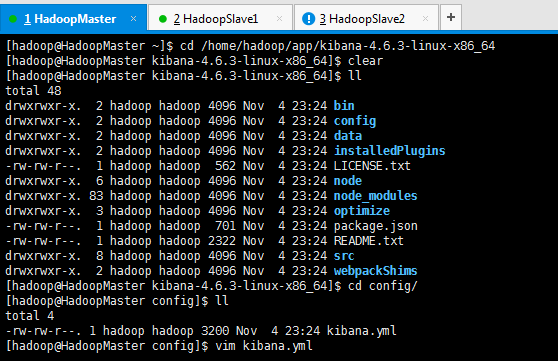
# Kibana is served by a back end server. This controls which port to use. # server.port: 5601 # The host to bind the server to. # server.host: "0.0.0.0" # If you are running kibana behind a proxy, and want to mount it at a path, # specify that path here. The basePath can't end in a slash. # server.basePath: "" # The maximum payload size in bytes on incoming server requests. # server.maxPayloadBytes: 1048576 # The Elasticsearch instance to use for all your queries. # elasticsearch.url: "http://localhost:9200" # preserve_elasticsearch_host true will send the hostname specified in `elasticsearch`. If you set it to false, # then the host you use to connect to *this* Kibana instance will be sent. # elasticsearch.preserveHost: true # Kibana uses an index in Elasticsearch to store saved searches, visualizations # and dashboards. It will create a new index if it doesn't already exist. # kibana.index: ".kibana" # The default application to load. # kibana.defaultAppId: "discover" # If your Elasticsearch is protected with basic auth, these are the user credentials # used by the Kibana server to perform maintenance on the kibana_index at startup. Your Kibana # users will still need to authenticate with Elasticsearch (which is proxied through # the Kibana server) # elasticsearch.username: "user" # elasticsearch.password: "pass" # SSL for outgoing requests from the Kibana Server to the browser (PEM formatted) # server.ssl.cert: /path/to/your/server.crt # server.ssl.key: /path/to/your/server.key # Optional setting to validate that your Elasticsearch backend uses the same key files (PEM formatted) # elasticsearch.ssl.cert: /path/to/your/client.crt # elasticsearch.ssl.key: /path/to/your/client.key # If you need to provide a CA certificate for your Elasticsearch instance, put # the path of the pem file here. # elasticsearch.ssl.ca: /path/to/your/CA.pem # Set to false to have a complete disregard for the validity of the SSL # certificate. # elasticsearch.ssl.verify: true # Time in milliseconds to wait for elasticsearch to respond to pings, defaults to # request_timeout setting # elasticsearch.pingTimeout: 1500 # Time in milliseconds to wait for responses from the back end or elasticsearch. # This must be > 0 # elasticsearch.requestTimeout: 30000 # Header names and values that are sent to Elasticsearch. Any custom headers cannot be overwritten # by client-side headers. # elasticsearch.customHeaders: {} # Time in milliseconds for Elasticsearch to wait for responses from shards. # Set to 0 to disable. # elasticsearch.shardTimeout: 0 # Time in milliseconds to wait for Elasticsearch at Kibana startup before retrying # elasticsearch.startupTimeout: 5000 # Set the path to where you would like the process id file to be created. # pid.file: /var/run/kibana.pid # If you would like to send the log output to a file you can set the path below. # logging.dest: stdout # Set this to true to suppress all logging output. # logging.silent: false # Set this to true to suppress all logging output except for error messages. # logging.quiet: false # Set this to true to log all events, including system usage information and all requests. # logging.verbose: false 本文转自大数据躺过的坑博客园博客,原文链接:http://www.cnblogs.com/zlslch/p/6614006.html,如需转载请自行联系原作者