首页 文章 精选 留言 我的

精选列表

搜索[centos],共5623篇文章
优秀的个人博客,低调大师

centos 上安装nodejs v8.0.0

新建目录www 下载nodejs wget https://npm.taobao.org/mirrors/node/v8.0.0/node-v8.0.0-linux-x64.tar.xz 解压 tar -xvf node-v8.0.0-linux-x64.tar.xz 测试是否安装成功 进入解压目录下的bin目录,执行ls命令 cd node-v8.0.0-linux-x64/bin && ls 有node和npm 测试 ./node -v 安装成功 现在node和npm还不能全局使用,做个链接 ln -s /www/node-v8.0.0-linux-x64/bin/node /usr/local/bin/node ln -s /www/node-v8.0.0-linux-x64/bin/npm /usr/local/bin/npm 可以在任何目录下执行node和npm命令 npm WARN optional SKIPPING OPTIONAL DEPENDENCY: fsevents@^1.0.0 (node_modules/chokidar/node_modules/fsevents): npm WARN notsup SKIPPING OPTIONAL DEPENDENCY: Unsupported platform for fsevents@1.0.14: wanted {"os":"darwin","arch":"any"} (current: {"os":"linux","arch":"x64"}) 最主要的原因还是在NPM上,因为用了n来管理nodejs的版本,npm依赖的是nodejs,而n管理node的版本时因为也要依赖node所以有时候会出现一些问题,去找了一下tj大神的n发布页面,上面提到在使用n来切换版本之后,需要修复一下node与npm之间的关系,否则npm很可能出现问题。即在使用完n切换版本之后,需要运行以下脚本,来修复npm $ curl -0 -L https://npmjs.org/install.sh | sudo sh 视你终端的配置,取舍后面的sudo 参考:https://segmentfault.com/q/1010000007163713 https://github.com/tj/n

优秀的个人博客,低调大师

WDCP + CentOS 6.x + EduSoho + Nginx

版权声明:转载请注明出处:http://blog.csdn.net/dajitui2024 https://blog.csdn.net/dajitui2024/article/details/79396629 参考:http://www.qiqiuyu.com/course/20/task/798/show注意:本教程基于wdcp最新版本安装。切记:我们的edusoho访问目录是edusoho/web,只有在nginx或者Apache配置里面把根目录定位到web目录下,才不会出现奇怪的问题,否则就会出现图片不能显示或者文件无法上传的问题。本教程主要分为以下几个步骤:安装wdcp、创建站点、下载EduSoho并解压、配置PHP、 安装并配置EduSoho,测试Edusoho。

优秀的个人博客,低调大师

RabbitMQ安装下载(CentOS7)

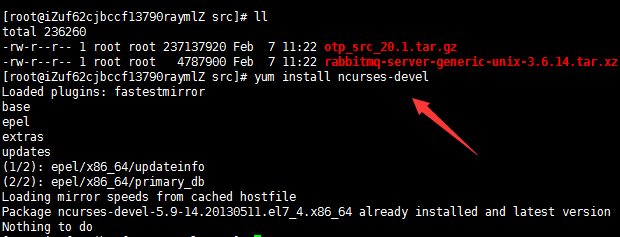
安装erlang yum install ncurses-devel tar xf otp_src_20.1.tar.gz 进入解压后目录 ./configure --prefix=/usr/local/erlang20 --without-javac make -j 4 make install 验证erlang安装成功 安装rabbitmq xz -d rabbitmq-server-generic-unix-3.6.14.tar.xz tar xf rabbitmq-server-generic-unix-3.6.14.tar yum install python -y yum install xmlto -y yum install python-simplejson -y mv rabbitmq_server-3.6.14 /usr/local/rabbitmq 切换到此目录下 image.png

优秀的个人博客,低调大师

CentOS/etc/fstab文件中的参数

一,作用 /etc/fstab是用来存放文件系统的静态信息的文件,当系统启动时,系统会自动地从这个文件读取信息,并且会自动将此文件中指定的文件系统挂在到执行的目录 二,挂载的限制 1,根目录是必须挂载的,而且一定要先于其他mount point被挂载.因为mount是所有目录的根目录,其他目录都是由根目录/ 衍生出来的 2,挂载点的指定可以任意,但必须遵守必要的系统目录架构原则 3,挂载点必须是已经存在的目录 4,所有挂载点在同一时间只能被挂载一次 5,所有分区在同一时间只能挂在一次 6,若进行卸载,必须将工作目录退出挂载点(及其子目录)之外 三,/etc/fstab文件中的参数 cat /etc/fstab 查看当前系统已经存在的挂载信息 [root@server ~]# cat /etc/fstab # # /etc/fstab # Created by anaconda on Fri Mar 24 19:30:39 2017 # # Accessible filesystems, by reference, are maintained under '/dev/disk' # See man pages fstab(5), findfs(8), mount(8) and/or blkid(8) for more info # UUID=fd93d9dc-e277-4926-8a83-c731b5600f8b / ext4 defaults 1 1 UUID=c9517f8f-081d-444f-8510-92d236671b37 /boot ext4 defaults 1 2 UUID=bd841c60-daf5-4c5d-8392-95d4e8b9f4e7 /opt ext4 defaults 1 2 UUID=fe6dd69c-99f4-478d-acc7-ef7e156e5bc5 /usr/local ext4 defaults 1 2 UUID=1e71b8a2-bb4e-4e39-a894-e04fb6480e2e swap swap defaults 0 0 tmpfs /dev/shm tmpfs defaults 0 0 devpts /dev/pts devpts gid=5,mode=620 0 0 sysfs /sys sysfs defaults 0 0 proc /proc proc defaults 0 0 第一列:Device:磁盘设备文件或者该设备的Label或者UUID The first field, (fs_spec), describes the block special device or remote filesystem to be mounted. 1),查看分区的label和uuid Label就是分区的标签,在最初安装系统时填写的挂载点就是标签的名字.可以通过查看一个分区的superblock中的信息找到UUID和Label Name 如:要查看/dev/sda1这个设备的uuid和label name 命令1:dumpe2fs -h /dev/sda1 [root@server ~]# dumpe2fs -h /dev/sda1 dumpe2fs 1.41.12 (17-May-2010) Filesystem volume name: <none> Last mounted on: /boot ---->这个就是Label name Filesystem UUID: c9517f8f-081d-444f-8510-92d236671b37 ---->UUID Filesystem magic number: 0xEF53 命令2:blkid [root@server ~]# blkid /dev/sda1: UUID="c9517f8f-081d-444f-8510-92d236671b37" TYPE="ext4" /dev/sda2: UUID="1e71b8a2-bb4e-4e39-a894-e04fb6480e2e" TYPE="swap" 2),使用设备名和label及uuid作为标识的不同 使用设备名称(/dev/sda)来挂载分区时是被固定死的,一旦磁盘的插槽顺序发生了变化,就会出现名称不对应的问题。因为这个名称是会改变的。 不过使用label挂载就不用担心插槽顺序方面的问题。不过要随时注意label name,至于uuid,每个分区被格式化以后就会有一个UUID作为唯一的标识好。使用UUID作为唯一的标识号,使用UUID挂载的话就不用担心会发生错乱的问题 第二列: Mount point:设备的挂载点,就是要挂载到哪个目录下 The second field, (fs_file), describes the mount point for the filesystem. For swap partitions, this field should be specified as ‘none’. If the name of the mount point contains spaces these can be escaped as ‘\040’. 第三列:filesystem:磁盘文件系统的格式,支持许多不同的文件系统:ext2,ext3,ext4,reiserfs,xfs,jfs,smbfs,iso9660,vfat,swap及auto,设置成auto类型,mount命令会猜测使用的文件系统类型,对CDROM和DVD等移动设备是非常有用的 The third field, (fs_vfstype), describes the type of the filesystem. Linux supports lots of filesystem types, such as adfs,affs, autofs, coda, coherent, cramfs, devpts, efs, ext2, ext3, hfs, hpfs, iso9660, jfs, minix, msdos, ncpfs, nfs, ntfs, proc,qnx4, reiserfs, romfs, smbfs, sysv, tmpfs, udf, ufs, umsdos, vfat, xenix, xfs, and possibly others. For more details, see mount(8). For the filesystems currently supported by the running kernel, see /proc/filesystems. An entry swap denotes a file or partition to be used for swapping, cf. swapon(8). An entry ignore causes the line to be ignored. This is useful to show disk partitions which are currently unused. An entry none is useful for bind or move mounts. 第四列:parameters:文件系统的参数 The fourth field, (fs_mntops), describes the mount options associated with the filesystem. 参数 用途说明 auto 在启动时或键入了mount -a命令时,自动挂载 noauto 只在命令下被挂载 exec 允许执行此分区的二进制文件 noexec 不允许执行此文件系统上的二进制文件 ro 以只读模式挂载文件系统 rw 以读写模式挂载文件系统 user 允许任意用户挂载此文件系统,若无显示定义,隐含启用noexec、nosuid、nodev参数 users 允许所有users组中的用户挂载此文件系统 nouser 只能被root挂载 owner 允许设备所有者挂载 sync I/0同步进行 async I/O异步进行 dev 不解析文件系统上的块特殊设备 suid 允许suid操作和设定sgid位,这一参数通常用于一些reshuffle任务,使一般用户运行程序时提升权限 nosuid 禁止suid操作和设定sgid位 noatime 不更新文件系统上的inode访问记录,可以提升性能 nodiratime 不更新文件系统上的目录的inode访问记录 relatime 实时更新inode access记录,只有在记录中的访问时间早于当前访问才会被更新(与noatime相似,但不会打断如mutt或其它程序探测文件在上次访问后是否被修改的进程) flush - vfat的选项 频繁的刷新数据,复制对话框或进度条在全部数据都写入后才消失 defaults 使用文件系统的默认挂载参数,例如:ext4的默认参数为:rw,suid,dev,exec,auto,nouser,async 第五列:能否被dump备份命令作用:dump是一个用来作为备份的命令,通常这个参数的值为0或1 The fifth field, (fs_freq), is used for these filesystems by the dump(8) command to determine which filesystems need to be dumped. If the fifth field is not present, a value of zero is returned and dump will assume that the filesystem does not need to be dumped. 数值 说明 0 代表不要做dump备份 1 代表要每天进行dump的操作 2 代表不定日期的进行dump操作 第六列:是否检验扇区:开机的过程中,系统默认会以fsck检验我们系统是否为完整(clean) The sixth field, (fs_passno), is used by the fsck(8) program to determine the order in which filesystem checks are done at reboot time. The root filesystem should be specified with a fs_passno of 1, and other filesystems should have a fs_passno of 2. Filesystems within a drive will be checked sequentially, but filesystems on different drives will be checked at the same time to utilize parallelism available in the hardware. If the sixth field is not present or zero, a value of zero is returned and fsck will assume that the filesystem does not need to be checked. 数值 说明 0 不要检验 1 最早检验(一般根目录会选择) 2 1级别检验完成之后进行检验 每天记录一点,就能多学一点,充实一点


优秀的个人博客,低调大师

CentOS下Nginx 配置多站点vhost

假设你想在Linux Nginx中用不同的域名访问不同的目录,这时就要配置多个vhost,具体配置如下,假设网站根目录设定在/var/www/ 1、在/var/www/下新建两个目录 /var/www/ushark.net /var/www/ushark.wang 2、编辑/etc/nginx/nginx.conf http { include /etc/nginx/mime.types; default_type application/octet-stream; log_format main '$remote_addr - $remote_user [$time_local] "$request" ' '$status $body_bytes_sent "$http_referer" ' '"$http_user_agent" "$http_x_forwarded_for"'; access_log /var/log/nginx/access.log main; sendfile on; #tcp_nopush on; keepalive_timeout 65; #gzip on; include /etc/nginx/conf.d/*.conf; #主要是加入此行,如有则忽略 } 3、在/etc/nginx/conf.d下新建两个conf文件, /etc/nginx/conf.d/ushark.net.conf /etc/nginx/conf.d/ushark.wang.conf 4、复制如下配置信息到两个文件中,只要修改红色部分内容 !!! server_name与root保持一致即目录和域名一一对应 !!! server { listen 80; server_name www.ushark.net; #charset koi8-r; #access_log /var/log/nginx/host.access.log main; root /var/www/ushark.net/; if (!-e $request_filename){ # rewrite可根据网站需要增删 rewrite ^/(.*) /index.php last; } location / { index index.php index.html index.htm; } #error_page 404 /404.html; # redirect server error pages to the static page /50x.html # error_page 500 502 503 504 /50x.html; location = /50x.html { root /var/www/ushark.net/; } # proxy the PHP scripts to Apache listening on 127.0.0.1:80 # #location ~ \.php$ { # proxy_pass http://127.0.0.1; #} # pass the PHP scripts to FastCGI server listening on 127.0.0.1:9000 # location ~* \.php$ { fastcgi_index index.php; fastcgi_pass 127.0.0.1:9000; include fastcgi_params; fastcgi_param SCRIPT_FILENAME $document_root$fastcgi_script_name; fastcgi_param SCRIPT_NAME $fastcgi_script_name; } # deny access to .htaccess files, if Apache's document root # concurs with nginx's one # #location ~ /\.ht { # deny all; #} } 5、重启Nginx systemctl restart nginx 6、 编辑/etc/hosts !!! 核心步骤 !!! [root@bogon ~]# vi 127.0.0.1 localhost.localdomain localhost ::1 localhost6.localdomain6 localhost6 127.0.0.1 www.ushark.net 127.0.0.1 www.ushark.wang 7、设置成功

优秀的个人博客,低调大师

CentOS 7 配置Apache服务【转发+新增】

一、Apache简介 Apache HTTP Server(简称Apache)是Apache软件基金会的一个开放源代码的网页服务器软件,可以在大多数电脑操作系统中运行,由于其跨平台和安全性(尽管不断有新的漏洞被发现,但由于其开放源代码的特点,漏洞总能被很快修补。因此总合来说,其安全性还是相当高的。)。被广泛使用,是最流行的Web服务器软件之一。它快速、可靠并且可通过简单的API扩充,将Perl/Python等解释器编译到服务器中。 软件图标 二、安装Apache httpd 安装httpd以配置Web服务器, HTTP使用80 / TCP [1] 安装 httpd. [root@linuxprobe ~]# yum -y install httpd # 删除默认欢迎页面 [root@linuxprobe ~]# rm -f /etc/httpd/conf.d/welcome.conf [2] 配置httpd,将服务器名称替换为您自己的环境 [root@linuxprobe ~]# vi /etc/httpd/conf/httpd.conf # line 86: 改变管理员的邮箱地址 ServerAdmin root@linuxprobe.org # line 95: 改变域名信息 ServerName www.linuxprobe.org:80 # line 151: none变成All AllowOverride All # line 164: 添加只能使用目录名称访问的文件名 DirectoryIndex index.html index.cgi index.php # add follows to the end # server's response header(安全性) ServerTokens Prod # keepalive is ON KeepAlive On [root@linuxprobe ~]# systemctl start httpd [root@linuxprobe ~]# systemctl enable httpd [3] 如果Firewalld正在运行,请允许HTTP服务。,HTTP使用80 / TCP [root@linuxprobe ~]# firewall-cmd --add-service=http --permanent success [root@linuxprobe ~]# firewall-cmd --reload success [4] 创建一个HTML测试页,并使用Web浏览器从客户端PC访问它。如果显示以下页面,是正确的 [root@linuxprobe ~]# vi /var/www/html/index.html <html> <body> <div style="width: 100%; font-size: 40px; font-weight: bold; text-align: center;"> Welcome access LinuxProbe.org,This is Test Page! </div> </body> </html> 三、支持Perl 启用CGI执行并使用Perl脚本 1 [1] 安装Perl. 2 [root@linuxprobe ~]# yum -y install perl perl-CGI 3 [2] 默认情况下,在“/var/www/cgi-bin”目录下允许CGI。 4 可以使用Perl Scripts放在目录下。然而,它下面的所有文件都被处理为CGI。 5 # 下面的设置是CGI的设置 6 [root@linuxprobe ~]# grep -n "^ *ScriptAlias" /etc/httpd/conf/httpd.conf 7 247: ScriptAlias /cgi-bin/ "/var/www/cgi-bin/" 8 [3] 如果你想允许在其他目录中的CGI,配置如下。 9 例如,在“/var/www/html/cgi-enabled”中允许。 10 [root@linuxprobe ~]# vi /etc/httpd/conf.d/cgi-enabled.conf 11 # create new 12 # processes .cgi and .pl as CGI scripts 13 <Directory "/var/www/html/cgi-enabled"> 14 Options +ExecCGI 15 AddHandler cgi-script .cgi .pl 16 </Directory> 17 [root@linuxprobe ~]# systemctl restart httpd 18 [4] 如果SELinux被启用,并且允许CGI在不是像上面[3]的默认目录下,更改规则如下。 19 [root@linuxprobe ~]# chcon -R -t httpd_sys_script_exec_t /var/linuxprobe/html/cgi-enabled 20 [root@linuxprobe ~]# semanage fcontext -a -t httpd_sys_script_exec_t /var/www/html/cgi-enabled 21 [5] 创建一个CGI测试页面,并使用Web浏览器从客户端PC访问它。如果显示以下页面,说明配置正确。 22 [root@linuxprobe ~]# vi /var/www/html/cgi-enabled/index.cgi 23 #!/usr/bin/perl 24 print "Content-type: text/html\n\n"; 25 print "<html>\n<body>\n"; 26 print "<div style=\"width: 100%; font-size: 40px; font-weight: bold; text-align: center;\">\n"; 27 print "CGI Test Page"; 28 print "\n</div>\n"; 29 print "</body>\n</html>\n"; 30 [root@linuxprobe ~]# chmod 705 /var/www/html/cgi-enabled/index.cgi 四、支持PHP 配置httpd以使用PHP脚本 1 [1] 安装PHP. 2 [root@linuxprobe ~]# yum -y install php php-mbstring php-pear 3 [root@linuxprobe ~]# vi /etc/php.ini 4 # line 878: 取消注释,设置时区 5 date.timezone = "Asia/Shanghai" 6 [root@linuxprobe ~]# systemctl restart httpd 7 8 [2] 创建一个PHP测试页面,并使用Web浏览器从客户端PC访问它。如果显示以下页面,它是确定。 9 [root@linuxprobe ~]# vi /var/www/html/index.php 10 <html> 11 <body> 12 <div style="width: 100%; font-size: 40px; font-weight: bold; text-align: center;"> 13 <?php 14 print Date("Y/m/d"); 15 ?> 16 </div> 17 </body> 18 </html> 1 [3] 创建phpinfo测试页,确认是都开启php支持 2 [root@linuxprobe ~]# echo "<?php phpinfo(); ?>" > /var/www/html/phpinfo.php 五、支持Ruby 配置httpd以将Ruby脚本用作CGI 1 [1] 安装Ruby. 2 [root@linuxprobe ~]# yum -y install ruby 3 4 [2] 默认情况下,在“/var/www/cgi-bin”目录下允许CGI。 5 可以使用Perl Scripts放在目录下。然而,它下面的所有文件都被处理为CGI。 6 # 下面的设置是CGI的设置 7 [root@linuxprobe ~]# grep -n "^ *ScriptAlias" /etc/httpd/conf/httpd.conf 8 247: ScriptAlias /cgi-bin/ "/var/www/cgi-bin/" 9 10 [3] 如果你想允许在其他目录中的CGI,配置如下。 11 例如,在“/var/www/html/cgi-enabled”中允许。 12 [root@linuxprobe ~]# vi /etc/httpd/conf.d/cgi-enabled.conf 13 # create new 14 # processes .rb as CGI scripts 15 <Directory "/var/www/html/cgi-enabled"> 16 Options +ExecCGI 17 AddHandler cgi-script .rb 18 </Directory> 19 [root@linuxprobe ~]# systemctl restart httpd 20 21 [4] 如果SELinux被启用,并且允许CGI在不是像上面[3]的默认目录下,更改规则如下。 22 [root@linuxprobe ~]# chcon -R -t httpd_sys_script_exec_t /var/www/html/cgi-enabled 23 24 [root@linuxprobe ~]# semanage fcontext -a -t httpd_sys_script_exec_t /var/www/html/cgi-enabled 25 26 [5] Create a CGI test page and access to it from client PC with web browser. It's OK if following page is shown. 27 [root@linuxprobe ~]# vi /var/www/html/cgi-enabled/index.rb 28 29 #!/usr/bin/ruby 30 print "Content-type: text/html\n\n" 31 print "<html>\n<body>\n" 32 print "<div style=\"width: 100%; font-size: 40px; font-weight: bold; text-align: center;\">\n" 33 print "Ruby Script Test Page" 34 print "\n</div>\n" 35 print "</body>\n</html>\n" 36 [root@linuxprobe ~]# chmod 705 /var/www/html/cgi-enabled/index.rb 六、支持Python 启用CGI执行并使用Python脚本 1 [1] 安装python. 2 [root@linuxprobe ~]# yum -y install python 3 4 [2] 默认情况下,在“/var/www/cgi-bin”目录下允许CGI。 5 可以使用Perl Scripts放在目录下。然而,它下面的所有文件都被处理为CGI。 6 # 下面的设置是CGI的设置 7 [root@linuxprobe ~]# grep -n "^ *ScriptAlias" /etc/httpd/conf/httpd.conf 8 247: ScriptAlias /cgi-bin/ "/var/www/cgi-bin/" 9 10 [3] 如果你想允许在其他目录中的CGI,配置如下。 11 例如,在“/var/www/html/cgi-enabled”中允许。 12 [root@linuxprobe ~]# vi /etc/httpd/conf.d/cgi-enabled.conf 13 # create new 14 # processes .py as CGI scripts 15 <Directory "/var/www/html/cgi-enabled"> 16 Options +ExecCGI 17 AddHandler cgi-script .py 18 </Directory> 19 [root@linuxprobe ~]# systemctl restart httpd 20 21 [4] 如果SELinux被启用,并且允许CGI在不是像上面[3]的默认目录下,更改规则如下。 22 [root@linuxprobe ~]# chcon -R -t httpd_sys_script_exec_t /var/www/html/cgi-enabled 23 [root@linuxprobe ~]# semanage fcontext -a -t httpd_sys_script_exec_t /var/www/html/cgi-enabled 24 25 [5] Create a CGI test page and access to it from client PC with web browser. It's OK if following page is shown. 26 [root@linuxprobe ~]# vi /var/www/html/cgi-enabled/index.py 27 28 #!/usr/bin/env python 29 30 print "Content-type: text/html\n\n" 31 print "<html>\n<body>\n" 32 print "<div style=\"width: 100%; font-size: 40px; font-weight: bold; text-align: center;\">\n" 33 print "Python Script Test Page" 34 print "\n</div>\n" 35 print "</body>\n</html>\n" 36 37 [root@linuxprobe ~]# chmod 705 /var/www/html/cgi-enabled/index.py 7、支持Userdir 启用userdir,用户可以使用此设置创建网站 1 [1] 配置 httpd. 2 [root@linuxprobe ~]# vi /etc/httpd/conf.d/userdir.conf 3 # line 17: comment out 4 #UserDir disabled 5 # line 24: uncomment 6 UserDir public_html 7 # line 31 - 35 8 9 <Directory "/home/*/public_html"> 10 AllowOverride All 11 # change 12 13 Options None 14 # change 15 16 Require method GET POST OPTIONS 17 </Directory> 18 [root@linuxprobe ~]# systemctl restart httpd 19 20 [2] 创建一个测试页,使用普通用户通过客户端PC与Web浏览器和访问它,如果显示以下页面,就是正确的 21 [cent@linuxprobe ~]$ mkdir public_html 22 23 [cent@linuxprobe ~]$ chmod 711 /home/cent 24 25 [cent@linuxprobe ~]$ chmod 755 /home/cent/public_html 26 27 [cent@linuxprobe ~]$ vi ./public_html/index.html 28 29 <html> 30 <body> 31 <div style="width: 100%; font-size: 40px; font-weight: bold; text-align: center;"> 32 UserDir Test Page 33 </div> 34 </body> 35 </html> 浏览器访问:http://linuxprobe.org/~wang/,出现如下界面 8、设置虚拟主机 配置虚拟主机以使用多个域名。 以下示例在域名为[linuxprobe.org],虚拟域名为[virtual.host(根目录[/home/wang/public_html]]的环境中设置。 必须为此示例设置Userdir的设置 1 [1] 配置虚拟主机 2 [root@linuxprobe ~]# vi /etc/httpd/conf.d/vhost.conf 3 # for original domain 4 5 <VirtualHost *:80> 6 DocumentRoot /var/www/html 7 ServerName www.linuxprobe.org 8 </VirtualHost> 9 # for virtual domain 10 11 <VirtualHost *:80> 12 DocumentRoot /home/cent/public_html 13 ServerName www.virtual.host 14 ServerAdmin webmaster@virtual.host 15 ErrorLog logs/virtual.host-error_log 16 CustomLog logs/virtual.host-access_log combined 17 </VirtualHost> 18 [root@linuxprobe ~]# systemctl restart httpd 19 20 [2]创建测试页并使用Web浏览器从客户端计算机访问它。如果显示以下页面,则是正确的: 21 [cent@linuxprobe ~]$ vi ~/public_html/virtual.php 22 <html> 23 <body> 24 <div style="width: 100%; font-size: 40px; font-weight: bold; text-align: center;"> 25 Virtual Host Test Page 26 </div> 27 </body> 28 </html> 29 [3]如果访问测试时看不到相应页面,可通过下面命令进行测试: 30 [root@linuxprobe ~]# yum -y install elinks^C 31 [root@linuxprobe ~]# elinks http://www.virtual.host/virtual.php 9、创建SSL证书 创建自己的SSL证书。但是,如果您使用您的服务器作为业务,最好购买和使用来自Verisigh的正式证书等。 1 [root@linuxprobe ~]# cd /etc/pki/tls/cert 2 cert.pem certs/ 3 [root@linuxprobe ~]# cd /etc/pki/tls/certs/ 4 [root@linuxprobe certs]# make server.key 5 umask 77 ; \ 6 /usr/bin/openssl genrsa -aes128 2048 > server.key 7 Generating RSA private key, 2048 bit long modulus 8 ...............................................................+++ 9 ....................................................................................................+++ 10 e is 65537 (0x10001) 11 Enter pass phrase: 12 Verifying - Enter pass phrase: 13 [root@linuxprobe certs]# openssl rsa -in server.key -out server.key 14 Enter pass phrase for server.key: 15 writing RSA key 16 [root@linuxprobe certs]# make server.csr 17 umask 77 ; \ 18 /usr/bin/openssl req -utf8 -new -key server.key -out server.csr 19 You are about to be asked to enter information that will be incorporated 20 into your certificate request. 21 What you are about to enter is what is called a Distinguished Name or a DN. 22 There are quite a few fields but you can leave some blank 23 For some fields there will be a default value, 24 If you enter '.', the field will be left blank. 25 ----- 26 Country Name (2 letter code) [XX]:CN #国家后缀 27 State or Province Name (full name) []:Shanghai #省 28 Locality Name (eg, city) [Default City]:Shanghai #市 29 Organization Name (eg, company) [Default Company Ltd]:LinuxProbe #公司 30 Organizational Unit Name (eg, section) []:DevOps #部门 31 Common Name (eg, your name or your server's hostname) []:linuxprobe.org #主机名 32 Email Address []:root@linuxprobe.org #邮箱 33 34 Please enter the following 'extra' attributes 35 to be sent with your certificate request 36 A challenge password []: #默认 37 An optional company name []: #默认 38 # 39 [root@linuxprobe certs]# openssl x509 -in server.csr -out server.crt -req -signkey server.key -days 3650 40 Signature ok 41 subject=/C=CN/ST=Shanghai/L=Shanghai/O=LinuxProbe/OU=DevOps/CN=linuxprobe.org/emailAddress=root@linuxprobe.org 42 Getting Private key 10、配置SSL 1 [1] 配置SSL. 2 [root@linuxprobe ~]# yum -y install mod_ssl 3 [root@linuxprobe ~]# vi /etc/httpd/conf.d/ssl.conf 4 # line 59: 取消注释 5 DocumentRoot "/var/www/html" 6 # line 60: 取消注释,定义域名 7 ServerName linuxprobe.org:443 8 # line 75: 改变SSLProtocol 9 SSLProtocol -All +TLSv1 +TLSv1.1 +TLSv1.2 10 11 # line 100: 改成刚刚创建的server.crt 12 SSLCertificateFile /etc/pki/tls/certs/server.crt 13 # line 107: 改成刚刚创建的server.key 14 SSLCertificateKeyFile /etc/pki/tls/certs/server.key 15 [root@www ~]# systemctl restart httpd 16 17 [2] 如果Firewalld正在运行,请允许HTTPS服务。 HTTPS使用443 / TCP 18 [root@www ~]# firewall-cmd --add-service=https --permanent 19 success 20 [root@www ~]# firewall-cmd --reload 21 success 22 [3] 使用Web浏览器通过HTTPS从客户端计算机访问测试页。下面的示例是Fiorefix。显示以下屏幕,因为证书是自己创建的,但它没有ploblem,继续下一步。 11、启用基本身份验证 启用基本身份验证以限制特定网页的访问 1 [1]例如,在目录[/var/www/html/auth-basic]下设置基本身份验证设置。 2 [root@linuxprobe ~]# vi /etc/httpd/conf.d/auth_basic.conf 3 # 创建新配置文件 4 <Directory /var/www/html/auth-basic> 5 AuthType Basic 6 AuthName "Basic Authentication" 7 AuthUserFile /etc/httpd/conf/.htpasswd 8 require valid-user 9 </Directory> 10 # 添加用户:使用“-c”创建新文件(仅为初始注册添加“-c”选项) 11 [root@linuxprobe ~]# htpasswd -c /etc/httpd/conf/.htpasswd wang 12 13 New password: # set password 14 15 Re-type new password: # confirm 16 17 Adding password for user wang 18 [root@linuxprobe ~]# systemctl restart httpd 19 [root@linuxprobe ~]# mkdir /var/www/html/auth-basic 20 21 [root@linuxprobe ~]# vi /var/www/html/auth-basic/index.html 22 # create a test page 23 24 <html> 25 <body> 26 <div style="width: 100%; font-size: 40px; font-weight: bold; text-align: wanger;"> 27 Test Page for Basic Auth 28 </div> 29 </body> 30 </html> 31 32 [2] 使用Web浏览器从客户端计算机访问测试页。然后需要认证,如下所示作为设置,用在[1]中添加的用户回答 [3] 访问成功 12、基本Auth + PAM 限制特定网页上的访问,并使用OS用户通过SSL连接进行身份验证 1 [1] 创建证书,请参照上文所述。 2 [2] 例如,在[/var/www/html/auth-pam]目录下设置Basic Auth。 3 # install from EPEL 4 [root@linuxprobe ~]# yum --enablerepo=epel -y install mod_authnz_external pwauth 5 [root@linuxprobe ~]# vi /etc/httpd/conf.d/authnz_external.conf 6 # add to the end 7 8 <Directory /var/www/html/auth-pam> 9 SSLRequireSSL 10 AuthType Basic 11 AuthName "PAM Authentication" 12 AuthBasicProvider external 13 AuthExternal pwauth 14 require valid-user 15 </Directory> 16 17 [root@linuxprobe ~]# mkdir /var/www/html/auth-pam 18 19 [root@linuxprobe ~]# vi /var/www/html/auth-pam/index.html 20 # create a test page 21 22 <html> 23 <body> 24 <div style="width: 100%; font-size: 40px; font-weight: bold; text-align: center;"> 25 Test Page for PAM Auth 26 </div> 27 </body> 28 </html> 29 30 [root@linuxprobe ~]# systemctl restart httpd 31 [3] 在客户端上使用Web浏览器访问测试页面https://linuxprobe.org/auth-pam/,并与操作系统上的用户进行身份验证。 13、使用WebDAV 下面是使用SSL连接配置WebDAV设置的示例 1 [1] 创建证书,请参照上文所述 2 [2] 例如,创建一个目录[webdav],它使得可以仅通过SSL连接到WebDAV目录。 3 [root@linuxprobe ~]# mkdir /home/webdav 4 [root@linuxprobe ~]# chown apache. /home/webdav 5 [root@linuxprobe ~]# chmod 770 /home/webdav 6 [root@linuxprobe ~]# vi /etc/httpd/conf.d/webdav.conf 7 # create new 8 DavLockDB "/tmp/DavLock" 9 Alias /webdav /home/webdav 10 <Location /webdav> 11 DAV On 12 SSLRequireSSL 13 Options None 14 AuthType Basic 15 AuthName WebDAV 16 AuthUserFile /etc/httpd/conf/.htpasswd 17 <RequireAny> 18 Require method GET POST OPTIONS 19 Require valid-user 20 </RequireAny> 21 </Location> 22 23 # 添加用户:使用“-c”创建新文件(仅为初始注册添加“-c”选项) 24 [root@linuxprobe ~]# htpasswd -c /etc/httpd/conf/.htpasswd wang 25 New password: # set password 26 Re-type new password: 27 Adding password for user wang 28 # **注意:用户wang的htpasswd已经创建过,不需要重复创建** 29 [root@linuxprobe ~]# systemctl restart httpd 30 31 [3] 如果启用了SELinux,请更改以下规则。 32 [root@linuxprobe ~]# chcon -R -t httpd_sys_rw_content_t /home/webdav 33 [root@linuxprobe ~]# semanage fcontext -a -t httpd_sys_rw_content_t /home/webdav 34 35 [4] 这是PC上的WebDAV客户端的设置(Windows 10)。 36 下载“CarotDAV”,这是一个免费的WebDAV客户端,从以下网站⇒ http://www.rei.to/carotdav_en.html ,下载后,安装并启动CarotDAV,然后显示以下屏幕,单击“文件”按钮并选择“WebDAV”。 1 [5]在“设置名称”字段中输入任何名称,并在“URI”字段中输入[服务器名称/ webdav目录],并输入用户名和密码 1 [7]配置添加如下,点击它连接到服务器。 1 [8] waring显示如下,它的SSL证书没有安装在您的电脑上,它没有ploblem,点击“忽略”,然后去下一步。 1 [9] 到webdav目录下创建测试目录和文件 2 [root@linuxprobe tmp]# cd /home/webdav/ 3 [root@linuxprobe webdav]# mkdir linuxprobe 4 [root@linuxprobe webdav]# mkdir linuxcool 5 [root@linuxprobe webdav]# touch vdevops.txt 6 [root@linuxprobe webdav]# touch linuxcool.txt

优秀的个人博客,低调大师

CentOS通过yum命令在线安装jdk

一、通过yum命令在线安装jdk 1.查看云端目前支持安装的jdk版本 [root@localhost ~]# yum search java|grep jdk ldapjdk-javadoc.noarch : Javadoc for ldapjdk java-1.6.0-openjdk.x86_64 : OpenJDK Runtime Environment java-1.6.0-openjdk-demo.x86_64 : OpenJDK Demos java-1.6.0-openjdk-devel.x86_64 : OpenJDK Development Environment java-1.6.0-openjdk-javadoc.x86_64 : OpenJDK API Documentation java-1.6.0-openjdk-src.x86_64 : OpenJDK Source Bundle java-1.7.0-openjdk.x86_64 : OpenJDK Runtime Environment java-1.7.0-openjdk-accessibility.x86_64 : OpenJDK accessibility connector java-1.7.0-openjdk-demo.x86_64 : OpenJDK Demos java-1.7.0-openjdk-devel.x86_64 : OpenJDK Development Environment java-1.7.0-openjdk-headless.x86_64 : The OpenJDK runtime environment without java-1.7.0-openjdk-javadoc.noarch : OpenJDK API Documentation java-1.7.0-openjdk-src.x86_64 : OpenJDK Source Bundle java-1.8.0-openjdk.i686 : OpenJDK Runtime Environment java-1.8.0-openjdk.x86_64 : OpenJDK Runtime Environment java-1.8.0-openjdk-accessibility.i686 : OpenJDK accessibility connector java-1.8.0-openjdk-accessibility.x86_64 : OpenJDK accessibility connector java-1.8.0-openjdk-accessibility-debug.i686 : OpenJDK accessibility connector java-1.8.0-openjdk-accessibility-debug.x86_64 : OpenJDK accessibility connector java-1.8.0-openjdk-debug.i686 : OpenJDK Runtime Environment with full debug on java-1.8.0-openjdk-debug.x86_64 : OpenJDK Runtime Environment with full debug on java-1.8.0-openjdk-demo.i686 : OpenJDK Demos java-1.8.0-openjdk-demo.x86_64 : OpenJDK Demos java-1.8.0-openjdk-demo-debug.i686 : OpenJDK Demos with full debug on java-1.8.0-openjdk-demo-debug.x86_64 : OpenJDK Demos with full debug on java-1.8.0-openjdk-devel.i686 : OpenJDK Development Environment java-1.8.0-openjdk-devel.x86_64 : OpenJDK Development Environment java-1.8.0-openjdk-devel-debug.i686 : OpenJDK Development Environment with full java-1.8.0-openjdk-devel-debug.x86_64 : OpenJDK Development Environment with java-1.8.0-openjdk-headless.i686 : OpenJDK Runtime Environment java-1.8.0-openjdk-headless.x86_64 : OpenJDK Runtime Environment java-1.8.0-openjdk-headless-debug.i686 : OpenJDK Runtime Environment with full java-1.8.0-openjdk-headless-debug.x86_64 : OpenJDK Runtime Environment with full java-1.8.0-openjdk-javadoc.noarch : OpenJDK API Documentation java-1.8.0-openjdk-javadoc-debug.noarch : OpenJDK API Documentation for packages java-1.8.0-openjdk-javadoc-zip.noarch : OpenJDK API Documentation compressed in java-1.8.0-openjdk-javadoc-zip-debug.noarch : OpenJDK API Documentation java-1.8.0-openjdk-src.i686 : OpenJDK Source Bundle java-1.8.0-openjdk-src.x86_64 : OpenJDK Source Bundle java-1.8.0-openjdk-src-debug.i686 : OpenJDK Source Bundle for packages with java-1.8.0-openjdk-src-debug.x86_64 : OpenJDK Source Bundle for packages with ldapjdk.noarch : The Mozilla LDAP Java SDK 2.选择版本后,安装(执行以下命令会自动安装jdk相关依赖) [root@localhost ~]# yum install -y java-1.8.0-openjdk 已加载插件:fastestmirror Loading mirror speeds from cached hostfile * base: mirrors.zju.edu.cn * extras: mirror.bit.edu.cn * updates: mirrors.aliyun.com 正在解决依赖关系 --> 正在检查事务 ---> 软件包 java-1.8.0-openjdk.x86_64.1.1.8.0.151-5.b12.el7_4 将被 安装 --> 正在处理依赖关系 java-1.8.0-openjdk-headless(x86-64) = 1:1.8.0.151-5.b12.el7_4,它被软件包 1:java-1.8.0-openjdk-1.8.0.151-5.b12.el7_4.x86_64 需要 --> 正在处理依赖关系 xorg-x11-fonts-Type1,它被软件包 1:java-1.8.0-openjdk-1.8.0.151-5.b12.el7_4.x86_64 需要 --> 正在处理依赖关系 libpng15.so.15(PNG15_0)(64bit),它被软件包 1:java-1.8.0-openjdk-1.8.0.151-5.b12.el7_4.x86_64 需要 --> 正在处理依赖关系 libjvm.so(SUNWprivate_1.1)(64bit),它被软件包 1:java-1.8.0-openjdk-1.8.0.151-5.b12.el7_4.x86_64 需要 --> 正在处理依赖关系 libjpeg.so.62(LIBJPEG_6.2)(64bit),它被软件包 1:java-1.8.0-openjdk-1.8.0.151-5.b12.el7_4.x86_64 需要 --> 正在处理依赖关系 libjli.so(SUNWprivate_1.1)(64bit),它被软件包 1:java-1.8.0-openjdk-1.8.0.151-5.b12.el7_4.x86_64 需要 --> 正在处理依赖关系 libjava.so(SUNWprivate_1.1)(64bit),它被软件包 1:java-1.8.0-openjdk-1.8.0.151-5.b12.el7_4.x86_64 需要 --> 正在处理依赖关系 fontconfig(x86-64),它被软件包 1:java-1.8.0-openjdk-1.8.0.151-5.b12.el7_4.x86_64 需要 --> 正在处理依赖关系 libpng15.so.15()(64bit),它被软件包 1:java-1.8.0-openjdk-1.8.0.151-5.b12.el7_4.x86_64 需要 --> 正在处理依赖关系 libjvm.so()(64bit),它被软件包 1:java-1.8.0-openjdk-1.8.0.151-5.b12.el7_4.x86_64 需要 --> 正在处理依赖关系 libjpeg.so.62()(64bit),它被软件包 1:java-1.8.0-openjdk-1.8.0.151-5.b12.el7_4.x86_64 需要 --> 正在处理依赖关系 libjli.so()(64bit),它被软件包 1:java-1.8.0-openjdk-1.8.0.151-5.b12.el7_4.x86_64 需要 --> 正在处理依赖关系 libjava.so()(64bit),它被软件包 1:java-1.8.0-openjdk-1.8.0.151-5.b12.el7_4.x86_64 需要 --> 正在处理依赖关系 libgif.so.4()(64bit),它被软件包 1:java-1.8.0-openjdk-1.8.0.151-5.b12.el7_4.x86_64 需要 --> 正在处理依赖关系 libawt.so()(64bit),它被软件包 1:java-1.8.0-openjdk-1.8.0.151-5.b12.el7_4.x86_64 需要 --> 正在处理依赖关系 libXtst.so.6()(64bit),它被软件包 1:java-1.8.0-openjdk-1.8.0.151-5.b12.el7_4.x86_64 需要 --> 正在处理依赖关系 libXrender.so.1()(64bit),它被软件包 1:java-1.8.0-openjdk-1.8.0.151-5.b12.el7_4.x86_64 需要 --> 正在处理依赖关系 libXi.so.6()(64bit),它被软件包 1:java-1.8.0-openjdk-1.8.0.151-5.b12.el7_4.x86_64 需要 --> 正在处理依赖关系 libXext.so.6()(64bit),它被软件包 1:java-1.8.0-openjdk-1.8.0.151-5.b12.el7_4.x86_64 需要 --> 正在处理依赖关系 libXcomposite.so.1()(64bit),它被软件包 1:java-1.8.0-openjdk-1.8.0.151-5.b12.el7_4.x86_64 需要 --> 正在处理依赖关系 libX11.so.6()(64bit),它被软件包 1:java-1.8.0-openjdk-1.8.0.151-5.b12.el7_4.x86_64 需要 ... ... 3.安装完成,验证是否安装成功 [root@localhost ~]# java -version openjdk version "1.8.0_151" OpenJDK Runtime Environment (build 1.8.0_151-b12) OpenJDK 64-Bit Server VM (build 25.151-b12, mixed mode) 4.通过搜索java文件,查找jdk默认安装目录 [root@localhost ~]# find / -name 'java' /etc/pki/ca-trust/extracted/java /etc/pki/java /etc/java /etc/alternatives/java /var/lib/alternatives/java /usr/bin/java /usr/lib/java /usr/lib/jvm/java-1.8.0-openjdk-1.8.0.151-5.b12.el7_4.x86_64/jre/bin/java /usr/share/java 备注:通过yum命令在线安装jdk简单、快捷、无需配置环境变量即可使用java相关服务。

优秀的个人博客,低调大师

Centos7安装与配置Nginx

安装与配置 1.安装nginx yum intsall nginx sudo systemctl start nginx 启动服务 sudo firewall-cmd --permanent --zone=public --add-service=http 允许http通信 sudo firewall-cmd --permanent --zone=public --add-service=https 允许https通信 sudo firewall-cmd --reload 重新加载配置 2.配置 在 /etc/nginx/conf.d 目录中新建一个my.conf文件,在此之前先将nginx.conf 配置文件中的server节点注释掉 server { listen 80; #映射端口 location / { proxy_pass http://localhost:5000; #监听端口 proxy_http_version 1.1; proxy_set_header Upgrade $http_upgrade; proxy_set_header Connection keep-alive; proxy_set_header Host $host; proxy_cache_bypass $http_upgrade; } } 3.使用新配置启动nginx 执行这两个命令中的任一个重置nginx nginx -s reload 重新加载配置文件 systemctl nginx restart 重启nginx 4.访问网站 此时通过80端口访问网站应该是一切正常,但不凡意外发生 异常情况502 进入 /var/log/nginx/ 目录中查看错误日志,如果是以下错误,可以尝试用下面的方法解决 getsebool -a |grep httpd_can_network_connect //检查http网络访问权限情况 我们可以看到它是关闭状态的 执行 setsebool -P httpd_can_network_connect 1 //开启网络访问权限 开启后 http_can_network_connect 状态为on 此时在访问应该不会再有问题了,此文仅为学习时记录,我自己重现了三次,应该是没什么问题的。最后 跟jesse 一起学习.Net Core 。

优秀的个人博客,低调大师

CentOS下Apache 高并发 性能优化

Apache的配置是针对原先较低的服务器来配置的,原先的配置显然已经不适合了,所以今天开始研究下Apache配置的问题。 1. 首先要了解Apache采用的MPM(Multi -Processing Modules,多道处理模块) MPM是Apache的核心,它的作用是管理网络连接、调度请求。 Apache2.0中MPM分为3种(perfork、worker、event)。perfork从Apache1.3中继承下来的,它采用的是进程管理方式,所以它可以提供更可靠的性能和更好的兼容性;worker是Apache2.0中新增加的方式,它采用了线程控制方法,可以比perfork更节约系统开销、处理更多的数据量,但同时兼容性并不是很好,很多旧的程序无法工作在worker下;event仍处于试验阶段,它为每个任务分配不同的进程池,目前不应该采用。 通过命令httpd -l可以获取目前Apache采用的是哪种MPM 本文仅针对perfork方式进行讨论 2. 了解perfork的工作方式 查看Apache2.0的配置文件httpd.conf,可以看到perfork的配置段,大致如下: ServerLimit 256 StartServers 5 MinSpareServers 10 MaxSpareServers 15 MaxClients 256 MaxRequestsPerChild 4000 当Apache被启动时,Apache会自动创建StartServers个进程,并且尽力将空闲进程数保持在MinSpareServers和MaxSpareServers之间。 如果空闲进程小于MinSpareServers,Apache将会以大约每秒1个的速度新建进程。 如果空闲进程小于MaxSpareServers,Apache将会删除多余的空闲进程,释放服务器资源。 进程数的最大值由MaxClients控制,在Apache1.3中最大只能设置为256,但在Apache2.0中,可以通过在配置开头增加ServerLimit项目来突破256的限制,此时必须MaxClients ≤ ServerLimit ≤ 20000 MaxRequestsPerChild用来控制每个进程在处理了多少次请求之后自动销毁,这个参数可以设置为0表示无限(即不销毁进程)。 3. 优化perfork 首先,对于一个负载相对较高的网站来说,256的进程限制是不够的,如果服务器已经达到256的极限,那么接下去的访问就需要排队,这也就是为什么某些服务器负载不高,但是访问却很慢的原因之一。所以首先应该了解服务器在繁忙时的进程数量。 通过命令ps -ef|grep httpd|wc -l可以了解到当前系统中Apache进程数,通过设置ServerLimit和MaxClients来达到为服务器软扩容的目的。 然后,在访问量高峰期,经常会出现的情况是突然之间发生非常多的并发连接,然后突然之间减少了很多访问。如果Apache没有准备足够数量的预备进程,那访问只能等待Apache每秒1个的新增进程,随后又要将多余的进程删除,那Apache只能一直忙于新建和销毁进程,大大地降低了访问速度。可以适当增加StartServers、MinSpareServers、MaxSpareServers来使得Apache不需要一直忙于作无用功。 最后,强烈推荐MaxRequestsPerChild不要设置为0,设置为非0,可以保护Apache进程免遭内存泄漏的影响,因为你不知道运行在Apache上的应用程式在什么时候会出错导致内存泄漏。 设置完之后大致是这样的: ServerLimit 1000 StartServers 30 MinSpareServers 30 MaxSpareServers 45 MaxClients 1000 MaxRequestsPerChild 4000 -----------------------------------------------------------------------------------分割线------------------------------------------------------------------- apache高负载性能调优2011-09-13 21:03:05 分类:LINUX 先阅读apache配置优化建议如下,再对相关参数进行调整,观察服务器状况. Apache配置优化建议: 进入/usr/local/apache2/conf/extra 目录下 Apache优化, 经过上述操作后,Apache已经能够正常运行。但是,对于访问量稍大的站点,Apache的这些默认配置是无法满足需求的,我们仍需调整Apache的一些参数,使Apache能够在大访问量环境下发挥出更好的性能。以下我们对Apache配置文件httpd.conf中对性能影响较大的参数进行一些说明。 (1) Timeout 该参数指定Apache在接收请求或发送所请求内容之前的最长等待时间(秒),若超过该时间Apache则放弃处理该请求,并释放连接。该参数默认值为120,推荐设置为60,对于访问量较大的网站可以设置为30或15。 (2) KeepAlive 该参数控制Apache是否允许在一个连接中有多个请求,默认打开。但对于大多数论坛类型站点来说,通常设置为off以关闭该支持。 (3) MPM - prefork.c 在默认情况下Apache使用Prefork(进程)工作模式,可以说这部分的参数设置是对Apache性能影响的核心和关键。用户可以在配置文档中找到以下配置段: StartServers 5 MinSpareServers 5 MaxSpareServers 10 MaxClients 15 MaxRequestsPerChild0 这就是控制Apache进程工作的配置段,为了更好的理解上述配置中的各项参数,下面让我们先了解一下Apache是如何控制进程工作的。我们知道,在Unix系统中,很多服务(Service)的守护进程(Daemon)在启动时会创建一个进程以准备应答可能的连接请求,服务即进入了端口监听状态,当一个来自客户端(Client)的请求被发送至服务所监听的端口时,该服务进程即会处理该请求,在处理过程中,该进程处于独占状态,也就是说如果此时有其他请求到达,这些请求只能“排队”等待当前请求处理完成且服务进程释放。这样就会导致越来越多的请求处于队列等待状态,实际表现就是该服务处理能力非常低下。Apache使用Prefork模式很好的解决了这一问题。下面我们来看看Apache实际上是如何高效率工作的。 当Apache启动时,Apache会启动StartSpareServers个空闲进程同时准备接收处理请求,当多个请求到来时,StarSpareServers进行会越来越少,当空闲进程减少到MinSpareServers个时,Apache为了能够继续有充裕的进程处理请求,它会再启动StartsServers个进程备用,这样就大大减少了请求队列等待的可能,使得服务效率提高,这也是为什么叫做Pre-fork的原因;让我们继续跟踪Apache的工作,我们假设Apache已经启动了200个进程来处理请求,理论上来说,此时Apache一共有205个进程,而过了一段时间,假设有100个请求都得到了Apache的响应和处理,那么此时这100个进程就被释放成为空闲进程,那么此时Apache有105个空闲进程。而对于服务而言,启动太多的空闲进程时没有任何意义的,反而会降低服务器的整体性能,那么Apache真的会有105个空闲进程么?当然不会!实际上Apache随时在检查自己,当发现有超过MaxSpareServers个空闲进程时,则会自动停止关闭一些进程,以保证空闲进程不过过多。说到这里,用户应该对Apache的工作方式有了一定的了解,如果想获得更多更详细的说明请参阅Apache手册文档。 我们还有两个参数没有介绍:MaxClients和MaxRequestPerchild;MaxClients指定Apache在同一时间内最多允许有多少客户端能够与其连接,如果超过MaxClients个连接,客户端将会得到一个“服务器繁忙”的错误页面。我们看到默认情况下MaxClients设置为15,这对一些中型站点和大型站点显然是远远不够的!也许您需要同时允许512个客户端连接才能满足应用需求,好吧,那么就让我们把MaxClients修改为512,保存httpd.conf并退出,重启Apache,很遗憾,在重启过程当中您看到了一些错误提示,Apache重启失败。错误提示中告诉您MaxClients最大只能设定为256,相信您一定很失望。不过不要沮丧,Apache作为世界一流的Web Server一定不会如此单薄的!在默认情况下,MaxClients的确只能设定为不超过256的整数,但是,如果您有需要完全可以随意定制,此时就需要使用ServerLimit参数来配合使用,简单的说ServerLimit就像是水桶,而MaxClients就像是水,您可以通过更换更大的水桶(将ServerLimit设定为一个较大值)来容纳更多的水(MaxClients),但要注意,MaxClients的设定数值是不能大于ServerLimit的设定数值的! 注:MaxClents < ServerLimit 下面让我们了解一下MaxRequestPerChild参数,该参数指定一个连接进程中可以有多少个线程同时工作。也许这样解释过于专业,那么您只要想想“网络蚂蚁”、“网际快车FlashGet”中的“多点同时下载”即可,该参数实际上就是限制最多可以用几个“点”。默认设置为0,即为:不限制。但需要注意,如果将该值设置的过小会引起访问问题,如果没有特殊需要或者访问量压力并非很大可以保持默认值,如果访问量很大则推荐设置为2048。 好了,解释了这么多,让我们看看经过修改后Perfork.c配置段的推荐配置: StartServers 5 MinSpareServers 5 MaxSpareServers 10 ServerLimit 1024 MaxClients 768 MaxRequestsPerChild0 完成了上述对Apache的调整,Apache已经获得了较大的性能改善。 有关apache性能优化 高并发借鉴相关知识点网址: 25个apache性能优化技巧: http://wenku.baidu.com/link?url=QS_bRiFc-MJ5h0ZQSWhJ2vc7oEH_H667Nsx-43XPqAtdGrKWQGzbIUSs55ricEazYvr-gn3mka1a17w9iQ-TEx2pu1ud2Laf14KpbVNAtRy apache负载调优: http://blog.chinaunix.net/uid-22120556-id-2827648.html apache性能优化: http://sookk8.blog.51cto.com/455855/275759/

优秀的个人博客,低调大师

CentOS充下负载监控常用指令

1. load 查看:top | grep load、uptime命令可以查看 说明:表示过去一段时间,平均有多少核心在计算,超过计算机核数表示负债比较大,达到2倍表示要宕机了,三个值分别是1分钟,5分钟,10分钟内 2. cpu利用率 查看:top | grep Cpu,按住SHIFT+H根据进程查看, top -p 进程号查看进程的情况 说明:用户时间(User Time)、系统时间(System Time)、Nice时间(Nice Time,系统调整进程优先级的时候花费的时间)、空闲时间(Idle Time)、等待时间(Waiting Time,等待IO的时间)、硬件中断处理时间(Hard Irq Time)、软件中断处理时间(Soft Irq TIme)、丢失时间(Steal Time) 其他: vmstat、 mpstat 说明: 1.对于每一个CPU来说运行队列不要超过3,例如,如果是双核CPU就不要超过6; 2.如果CPU在满负荷运行,应该符合下列分布, a) User Time:65%~70% b) System Time:30%~35% c) Idle:0%~5% 3. 磁盘剩余空间 查看:df -h 说明:第二行表示总硬盘的使用量为25% 查看:du -d 1 -h /home/tomcat,-d表示深度,-h格式化输出文件大小 4. 网络traffic 查看:sar -n DEV 1 1,-n表示汇报网络情况,DEV表示查看全部网卡,1表示每秒抽样一次,1表示总抽样一次 说明:rxpcks/s每秒接收的数据包量、txpcks/s每秒发出的数据包量、rxKB/s每秒接收的字节数、txKB/s每秒发送的字节数、rxcmp/s每秒收到的压缩包的数量、txcmp/s表示每秒发送的压缩包数量、rxmcst/s每秒收到广播包数量、平均时间表示多次取样的数量 5. 磁盘I/O 查看:iostat -d -k ,-d表示查看磁盘使用情况,-k表示以kb为单位显示 说明:Device设备名称,tps每秒处理的IO次数,kB_read/s每秒从设备读取的数据量,kB_wrtn/s每秒从设备写的数据量,kB_read读取的数据总量,kB_wrtn写入的数据总量 6. 内存使用情况 查看:free -m 说明:total内存总共大小,used已使用内存大小,free可使用内存大小,shared多个线程共享的内存空间大小,buff/cache缓冲区的大小,available缓存的大小 查看:vmstat 查看swapIO的情况,swapIO比较大会严重影响系统的性能 说明:si磁盘交换到内存的数量量,单位kb/s,so内存交换到磁盘的数据量,单位kb/s

优秀的个人博客,低调大师

CentOS下内存查看工具—Smem

物理内存不足对Linux桌面系统和服务器系统的性能影响都很大。当你的计算机变慢时,要做的第一件事就是释放内存。尤其是在多用户环境以及执行关键任务的服务器环境下,内存消耗会变得更加关键,因为多个用户和应用线程会同时竞争更多的内存空间。 如果要监测系统内各种资源的使用情况(比如说CPU或内存),图形化显示是一种高效的方法,通过图形界面可以快速分析各用户和进程的资源消耗情况。在linux下图形化分析内存使用情况的方法,使用到命令行工具是smem. 物理内存使用情况: RSS、PSS和USS 由于Linux使用到了虚拟内存(virtual memory),因此要准确的计算一个进程实际使用的物理内存就不是那么简单。 只知道进程的虚拟内存大小也并没有太大的用处,因为还是无法获取到实际分配的物理内存大小。 ·RSS(Residentset size),使用top命令可以查询到,是最常用的内存指标,表示进程占用的物理内存大小。但是,将各进程的RSS值相加,通常会超出整个系统的内存消耗,这是因为RSS中包含了各进程间共享的内存。 ·PSS(Proportionalset size)会更准确一些,它将共享内存的大小进行平均后,再分摊到各进程上去。 ·USS(Unique set size )是PSS中自己的部分,它只计算了进程独自占用的内存大小,不包含任何共享的部分。 常用参数 $ smem 默认情况下,如果不带参数,将显示所有进程的内存使用情况,而且是一次显示,不是动态显示。 $ smem -m 显示每个库使用内存的情况 $ smem -p | grepfirefox 按百分比显示使用情况 $ smem -u -p 按用户统计使用情况 图形结果 如果你使用的图形界面,还可以生成图形结果 圆饼图 smem --pie name -s uss 柱状图 smem --bar pid -c “pss uss rss”

优秀的个人博客,低调大师

centos中安装mysql详细步骤说明

1、安装依赖 [root@node001 ~]#yum install -y perl Loaded plugins: fastestmirror Loading mirror speeds from cached hostfile base | 3.7 kB 00:00 extras | 3.4 kB 00:00 updates | 3.4 kB 00:00 Setting up Install Process Package 4:perl-5.10.1-144.el6.x86_64 already installed and latest version Nothing to do 2、卸载旧版本的mysql及插件 [root@node001 ~]#rpm -qa | grep mysql mysql-5.1.73-8.el6_8.x86_64 mysql-libs-5.1.73-8.el6_8.x86_64 mysql-server-5.1.73-8.el6_8.x86_64 [root@node001 ~]#rpm -e mysql-5.1.73-8.el6_8.x86_64 --nodeps [root@node001 ~]#rpm -e mysql-libs-5.1.73-8.el6_8.x86_64--nodeps [root@node001 ~]#rpm -e mysql-server-5.1.73-8.el6_8.x86_64--nodeps (--nodeps:忽略其他依赖,直接卸载) 3、 安装rpm(4个) 安装包 [root@node001 ~]#tar zxvf mysql.tar.gz MySQL-client-5.6.28-1.el6.x86_64.rpm MySQL-devel-5.6.28-1.el6.x86_64.rpm MySQL-server-5.6.28-1.el6.x86_64.rpm numactl-2.0.9-2.el6.x86_64.rpm [root@node001 ~]#rpm -ivh MySQL-client-5.6.28-1.el6.x86_64.rpm warning: MySQL-client-5.6.28-1.el6.x86_64.rpm: Header V3 DSA/SHA1 Signature, key ID 5072e1f5: NOKEY Preparing... ########################################### [100%] 1:MySQL-client ########################################### [100%] [root@node001 ~]#rpm -ivh MySQL-devel-5.6.28-1.el6.x86_64.rpm warning: MySQL-devel-5.6.28-1.el6.x86_64.rpm: Header V3 DSA/SHA1 Signature, key ID 5072e1f5: NOKEY Preparing... ########################################### [100%] 1:MySQL-devel ########################################### [100%] [root@node001 ~]#rpm -ivh numactl-2.0.9-2.el6.x86_64.rpm Preparing... ########################################### [100%] 1:numactl ########################################### [100%] [root@node001 ~]#rpm -ivh MySQL-server-5.6.28-1.el6.x86_64.rpm warning: MySQL-server-5.6.28-1.el6.x86_64.rpm: Header V3 DSA/SHA1 Signature, key ID 5072e1f5: NOKEY Preparing... ########################################### [100%] 1:MySQL-server ########################################### [100%] 2017-12-24 05:39:08 0 [Warning] TIMESTAMP with implicit DEFAULT value is deprecated. Please use --explicit_defaults_for_timestam p server option (see documentation for more details).2017-12-24 05:39:08 0 [Note] /usr/sbin/mysqld (mysqld 5.6.28) starting as process 1287 ... 2017-12-24 05:39:08 1287 [Note] InnoDB: Using atomics to ref count buffer pool pages 2017-12-24 05:39:08 1287 [Note] InnoDB: The InnoDB memory heap is disabled 2017-12-24 05:39:08 1287 [Note] InnoDB: Mutexes and rw_locks use GCC atomic builtins 2017-12-24 05:39:08 1287 [Note] InnoDB: Memory barrier is not used 2017-12-24 05:39:08 1287 [Note] InnoDB: Compressed tables use zlib 1.2.3 2017-12-24 05:39:08 1287 [Note] InnoDB: Using Linux native AIO 2017-12-24 05:39:08 1287 [Note] InnoDB: Using CPU crc32 instructions 2017-12-24 05:39:08 1287 [Note] InnoDB: Initializing buffer pool, size = 128.0M 2017-12-24 05:39:08 1287 [Note] InnoDB: Completed initialization of buffer pool 2017-12-24 05:39:08 1287 [Note] InnoDB: The first specified data file ./ibdata1 did not exist: a new database to be created! 2017-12-24 05:39:08 1287 [Note] InnoDB: Setting file ./ibdata1 size to 12 MB 2017-12-24 05:39:08 1287 [Note] InnoDB: Database physically writes the file full: wait... 2017-12-24 05:39:09 1287 [Note] InnoDB: Setting log file ./ib_logfile101 size to 48 MB 2017-12-24 05:39:10 1287 [Note] InnoDB: Setting log file ./ib_logfile1 size to 48 MB 2017-12-24 05:39:11 1287 [Note] InnoDB: Renaming log file ./ib_logfile101 to ./ib_logfile0 2017-12-24 05:39:11 1287 [Warning] InnoDB: New log files created, LSN=45781 2017-12-24 05:39:11 1287 [Note] InnoDB: Doublewrite buffer not found: creating new 2017-12-24 05:39:11 1287 [Note] InnoDB: Doublewrite buffer created 2017-12-24 05:39:11 1287 [Note] InnoDB: 128 rollback segment(s) are active. 2017-12-24 05:39:11 1287 [Warning] InnoDB: Creating foreign key constraint system tables. 2017-12-24 05:39:11 1287 [Note] InnoDB: Foreign key constraint system tables created 2017-12-24 05:39:11 1287 [Note] InnoDB: Creating tablespace and datafile system tables. 2017-12-24 05:39:11 1287 [Note] InnoDB: Tablespace and datafile system tables created. 2017-12-24 05:39:11 1287 [Note] InnoDB: Waiting for purge to start 2017-12-24 05:39:11 1287 [Note] InnoDB: 5.6.28 started; log sequence number 0 A random root password has been set. You will find it in '/root/.mysql_secret'. 2017-12-24 05:39:11 1287 [Note] Binlog end 2017-12-24 05:39:11 1287 [Note] InnoDB: FTS optimize thread exiting. 2017-12-24 05:39:11 1287 [Note] InnoDB: Starting shutdown... 2017-12-24 05:39:13 1287 [Note] InnoDB: Shutdown completed; log sequence number 1625977 2017-12-24 05:39:13 0 [Warning] TIMESTAMP with implicit DEFAULT value is deprecated. Please use --explicit_defaults_for_timestam p server option (see documentation for more details).2017-12-24 05:39:13 0 [Note] /usr/sbin/mysqld (mysqld 5.6.28) starting as process 1309 ... 2017-12-24 05:39:13 1309 [Note] InnoDB: Using atomics to ref count buffer pool pages 2017-12-24 05:39:13 1309 [Note] InnoDB: The InnoDB memory heap is disabled 2017-12-24 05:39:13 1309 [Note] InnoDB: Mutexes and rw_locks use GCC atomic builtins 2017-12-24 05:39:13 1309 [Note] InnoDB: Memory barrier is not used 2017-12-24 05:39:13 1309 [Note] InnoDB: Compressed tables use zlib 1.2.3 2017-12-24 05:39:13 1309 [Note] InnoDB: Using Linux native AIO 2017-12-24 05:39:13 1309 [Note] InnoDB: Using CPU crc32 instructions 2017-12-24 05:39:13 1309 [Note] InnoDB: Initializing buffer pool, size = 128.0M 2017-12-24 05:39:13 1309 [Note] InnoDB: Completed initialization of buffer pool 2017-12-24 05:39:13 1309 [Note] InnoDB: Highest supported file format is Barracuda. 2017-12-24 05:39:13 1309 [Note] InnoDB: 128 rollback segment(s) are active. 2017-12-24 05:39:13 1309 [Note] InnoDB: Waiting for purge to start 2017-12-24 05:39:13 1309 [Note] InnoDB: 5.6.28 started; log sequence number 1625977 2017-12-24 05:39:13 1309 [Note] Binlog end 2017-12-24 05:39:13 1309 [Note] InnoDB: FTS optimize thread exiting. 2017-12-24 05:39:13 1309 [Note] InnoDB: Starting shutdown... 2017-12-24 05:39:15 1309 [Note] InnoDB: Shutdown completed; log sequence number 1625987 A RANDOM PASSWORD HAS BEEN SET FOR THE MySQL root USER ! You will find that password in '/root/.mysql_secret'. You must change that password on your first connect, no other statement but 'SET PASSWORD' will be accepted. See the manual for the semantics of the 'password expired' flag. Also, the account for the anonymous user has been removed. In addition, you can run: /usr/bin/mysql_secure_installation which will also give you the option of removing the test database. This is strongly recommended for production servers. See the manual for more instructions. Please report any problems at http://bugs.mysql.com/ The latest information about MySQL is available on the web at http://www.mysql.com Support MySQL by buying support/licenses at http://shop.mysql.com New default config file was created as /usr/my.cnf and will be used by default by the server when you start it. You may edit this file to change server settings 4、上传mysql配置文件my.cnf [root@node001 ~]#cd /etc 上传文件 [root@node001 etc]#ls /etc/my.cnf /etc/my.cnf 5、初始化 [root@node001 etc]#/usr/bin/mysql_install_db Installing MySQL system tables...2017-12-24 05:41:57 0 [Note] /usr/sbin/mysqld (mysqld 5.6.28-log) starting as process 1353 ... 2017-12-24 05:41:57 1353 [Note] InnoDB: Using atomics to ref count buffer pool pages 2017-12-24 05:41:57 1353 [Note] InnoDB: The InnoDB memory heap is disabled 2017-12-24 05:41:57 1353 [Note] InnoDB: Mutexes and rw_locks use GCC atomic builtins 2017-12-24 05:41:57 1353 [Note] InnoDB: Memory barrier is not used 2017-12-24 05:41:57 1353 [Note] InnoDB: Compressed tables use zlib 1.2.3 2017-12-24 05:41:57 1353 [Note] InnoDB: Using Linux native AIO 2017-12-24 05:41:57 1353 [Note] InnoDB: Using CPU crc32 instructions 2017-12-24 05:41:57 1353 [Note] InnoDB: Initializing buffer pool, size = 64.0M 2017-12-24 05:41:57 1353 [Note] InnoDB: Completed initialization of buffer pool 2017-12-24 05:41:57 1353 [Note] InnoDB: Highest supported file format is Barracuda. 2017-12-24 05:41:57 1353 [Warning] InnoDB: Resizing redo log from 2*3072 to 3*2048 pages, LSN=1625987 2017-12-24 05:41:57 1353 [Warning] InnoDB: Starting to delete and rewrite log files. 2017-12-24 05:41:57 1353 [Note] InnoDB: Setting log file ./ib_logfile101 size to 32 MB 2017-12-24 05:41:58 1353 [Note] InnoDB: Setting log file ./ib_logfile1 size to 32 MB 2017-12-24 05:41:58 1353 [Note] InnoDB: Setting log file ./ib_logfile2 size to 32 MB 2017-12-24 05:41:58 1353 [Note] InnoDB: Renaming log file ./ib_logfile101 to ./ib_logfile0 2017-12-24 05:41:58 1353 [Warning] InnoDB: New log files created, LSN=1625987 2017-12-24 05:41:58 1353 [Note] InnoDB: 128 rollback segment(s) are active. 2017-12-24 05:41:58 1353 [Note] InnoDB: Waiting for purge to start 2017-12-24 05:41:58 1353 [Note] InnoDB: 5.6.28 started; log sequence number 1625987 2017-12-24 05:41:59 1353 [Note] Binlog end 2017-12-24 05:41:59 1353 [Note] InnoDB: FTS optimize thread exiting. 2017-12-24 05:41:59 1353 [Note] InnoDB: Starting shutdown... 2017-12-24 05:42:00 1353 [Note] InnoDB: Shutdown completed; log sequence number 1626134 OK Filling help tables...2017-12-24 05:42:00 0 [Note] /usr/sbin/mysqld (mysqld 5.6.28-log) starting as process 1376 ... 2017-12-24 05:42:00 1376 [Note] InnoDB: Using atomics to ref count buffer pool pages 2017-12-24 05:42:00 1376 [Note] InnoDB: The InnoDB memory heap is disabled 2017-12-24 05:42:00 1376 [Note] InnoDB: Mutexes and rw_locks use GCC atomic builtins 2017-12-24 05:42:00 1376 [Note] InnoDB: Memory barrier is not used 2017-12-24 05:42:00 1376 [Note] InnoDB: Compressed tables use zlib 1.2.3 2017-12-24 05:42:00 1376 [Note] InnoDB: Using Linux native AIO 2017-12-24 05:42:00 1376 [Note] InnoDB: Using CPU crc32 instructions 2017-12-24 05:42:00 1376 [Note] InnoDB: Initializing buffer pool, size = 64.0M 2017-12-24 05:42:00 1376 [Note] InnoDB: Completed initialization of buffer pool 2017-12-24 05:42:00 1376 [Note] InnoDB: Highest supported file format is Barracuda. 2017-12-24 05:42:00 1376 [Note] InnoDB: 128 rollback segment(s) are active. 2017-12-24 05:42:00 1376 [Note] InnoDB: Waiting for purge to start 2017-12-24 05:42:00 1376 [Note] InnoDB: 5.6.28 started; log sequence number 1626134 2017-12-24 05:42:01 1376 [Note] Binlog end 2017-12-24 05:42:01 1376 [Note] InnoDB: FTS optimize thread exiting. 2017-12-24 05:42:01 1376 [Note] InnoDB: Starting shutdown... 2017-12-24 05:42:02 1376 [Note] InnoDB: Shutdown completed; log sequence number 1626144 OK To start mysqld at boot time you have to copy support-files/mysql.server to the right place for your system PLEASE REMEMBER TO SET A PASSWORD FOR THE MySQL root USER ! To do so, start the server, then issue the following commands: /usr/bin/mysqladmin -u root password 'new-password' /usr/bin/mysqladmin -u root -h 192.168.178.161 password 'new-password' Alternatively you can run: /usr/bin/mysql_secure_installation which will also give you the option of removing the test databases and anonymous user created by default. This is strongly recommended for production servers. See the manual for more instructions. You can start the MySQL daemon with: cd /usr ; /usr/bin/mysqld_safe & You can test the MySQL daemon with mysql-test-run.pl cd mysql-test ; perl mysql-test-run.pl Please report any problems at http://bugs.mysql.com/ The latest information about MySQL is available on the web at http://www.mysql.com Support MySQL by buying support/licenses at http://shop.mysql.com WARNING: Found existing config file /usr/my.cnf on the system. Because this file might be in use, it was not replaced, but was used in bootstrap (unless you used --defaults-file) and when you later start the server. The new default config file was created as /usr/my-new.cnf, please compare it with your file and take the changes you need. WARNING: Default config file /etc/my.cnf exists on the system This file will be read by default by the MySQL server If you do not want to use this, either remove it, or use the --defaults-file argument to mysqld_safe when starting the server 6、 启动mysql [root@node001 etc]#service mysql start Starting MySQL....... SUCCESS! 7、重置密码 查看初始化密码 [root@node001 etc]#cat /root/.mysql_secret # The random password set for the root user at Sun Dec 24 05:39:11 2017 (local time):DMBe85LznCxRo16N [root@node001 etc]#mysql -u root -pDMBe85LznCxRo16N Warning: Using a password on the command line interface can be insecure. Welcome to the MySQL monitor. Commands end with ; or \g. Your MySQL connection id is 2 Server version: 5.6.28-log Copyright (c) 2000, 2015, Oracle and/or its affiliates. All rights reserved. Oracle is a registered trademark of Oracle Corporation and/or its affiliates. Other names may be trademarks of their respective owners. Type 'help;' or '\h' for help. Type '\c' to clear the current input statement. mysql>set password=password('mysql'); Query OK, 0 rows affected (0.00 sec) mysql>show databases; +--------------------+ | Database | +--------------------+ | information_schema | | mysql | | performance_schema | | test | +--------------------+ 4 rows in set (0.00 sec) 8、远程授权 原因:默认远程无法连接 授权命令: mysql>grant all privileges on *.* to 'root'@'%' identified by 'mysql' with grant option; Query OK, 0 rows affected (0.00 sec) mysql>flush privileges; Query OK, 0 rows affected (0.01 sec)

资源下载

更多资源
Mario

Mario

马里奥是站在游戏界顶峰的超人气多面角色。马里奥靠吃蘑菇成长,特征是大鼻子、头戴帽子、身穿背带裤,还留着胡子。与他的双胞胎兄弟路易基一起,长年担任任天堂的招牌角色。

Nacos

Nacos

Nacos /nɑ:kəʊs/ 是 Dynamic Naming and Configuration Service 的首字母简称,一个易于构建 AI Agent 应用的动态服务发现、配置管理和AI智能体管理平台。Nacos 致力于帮助您发现、配置和管理微服务及AI智能体应用。Nacos 提供了一组简单易用的特性集,帮助您快速实现动态服务发现、服务配置、服务元数据、流量管理。Nacos 帮助您更敏捷和容易地构建、交付和管理微服务平台。

Rocky Linux

Rocky Linux

Rocky Linux(中文名:洛基)是由Gregory Kurtzer于2020年12月发起的企业级Linux发行版,作为CentOS稳定版停止维护后与RHEL(Red Hat Enterprise Linux)完全兼容的开源替代方案,由社区拥有并管理,支持x86_64、aarch64等架构。其通过重新编译RHEL源代码提供长期稳定性,采用模块化包装和SELinux安全架构,默认包含GNOME桌面环境及XFS文件系统,支持十年生命周期更新。

Sublime Text

Sublime Text

Sublime Text具有漂亮的用户界面和强大的功能,例如代码缩略图,Python的插件,代码段等。还可自定义键绑定,菜单和工具栏。Sublime Text 的主要功能包括:拼写检查,书签,完整的 Python API , Goto 功能,即时项目切换,多选择,多窗口等等。Sublime Text 是一个跨平台的编辑器,同时支持Windows、Linux、Mac OS X等操作系统。

用户登录
用户注册