「作者推荐」【JVM性能优化】字节码指令集调用执行流程分析(语法分析篇)
# 文章介绍 - 这篇文章讲解了在Java虚拟机上Java代码是如何编译成字节码并执行的。理解在Java虚拟机中**Java代码如何别被编译成字节码并执行**是非常重要的,因为这可以帮助你理解你的程序在运行时发生了什么。 - 这种理解不仅能确保你对语言特性有逻辑上的认识而且做具体的讨论时可以理解在语言特性上的妥协和副作用。 > **在字节码中每条指令(或操作码)前面的数字指示了这个字节的位置。** - **比如一条指令如1: iconst_1仅一个字节的长度,没有操作数,所以,接下来的字节码的位置为2**。 - **再比如这样一条指令1: bipush 5将会占两个字节,操作码bipush占一个字节,操作数5占一个字节。** - **那么,接下来的字节码的位置为3,因为操作数占用的字节在位置2。** > **Java虚拟机是基于栈的架构。当一个方法包括初始化main方法执行,在栈上就会创建一个栈帧(frame),栈帧中存放着方法中的局部变量**。 # 变量 ## 局部变量 局部变量数组(**local veriable array**)包含在**方法执行期间用到的所有变量包括一个引用变量this**,所有的方法参数和在方法体内定义的变量。 - **类方法(比如:static方法)方法参数从0开始。** - **实例方法,第0个slot用来存放this,所以参数需要从1开始哦!**。 ### 局部变量类型 - boolean - byte - char - long - short - int - float - double - reference - returnAddress ------ - **除了long和double所有的类型在本地变量数组中占用一个slot,long和double需要两个连续的slot因为这两个类型为64位类型**。 - **当在操作数栈上创建一个新的变量来存放一个这个新变量的值。这个新变量的值随后会被存放到局部变量数组对应的位置上**。 - **如果这个变量不是一个基本类型,对应的slot上值存放指向这个变量的引用。这个引用指向存放在堆中的一个对象**。 #### 例如 ```java int i = 5; ``` #### 被编译为字节码为 ```` 0: bipush 5(占用两个字节) 2: istore_0 ```` ##### bipush > **将一个字节作为一个整数推送到操作数栈。在这个例子中5被推送到操作数栈**。 ##### istore_0 > **它是一组格式为 istore_n 操作数的其中之一,它们都是将一个整数存储到局部变量表中**。 n为在局部变量表中的位置,取值只能为**0,1,2,3**。**另一个操作码用作值大于3的情况**,为istore w,**它将一个操作数放到本地变量数组中合适的位置,后面会详细进行介绍!**。 上面的代码在内存中执行的情况如下: 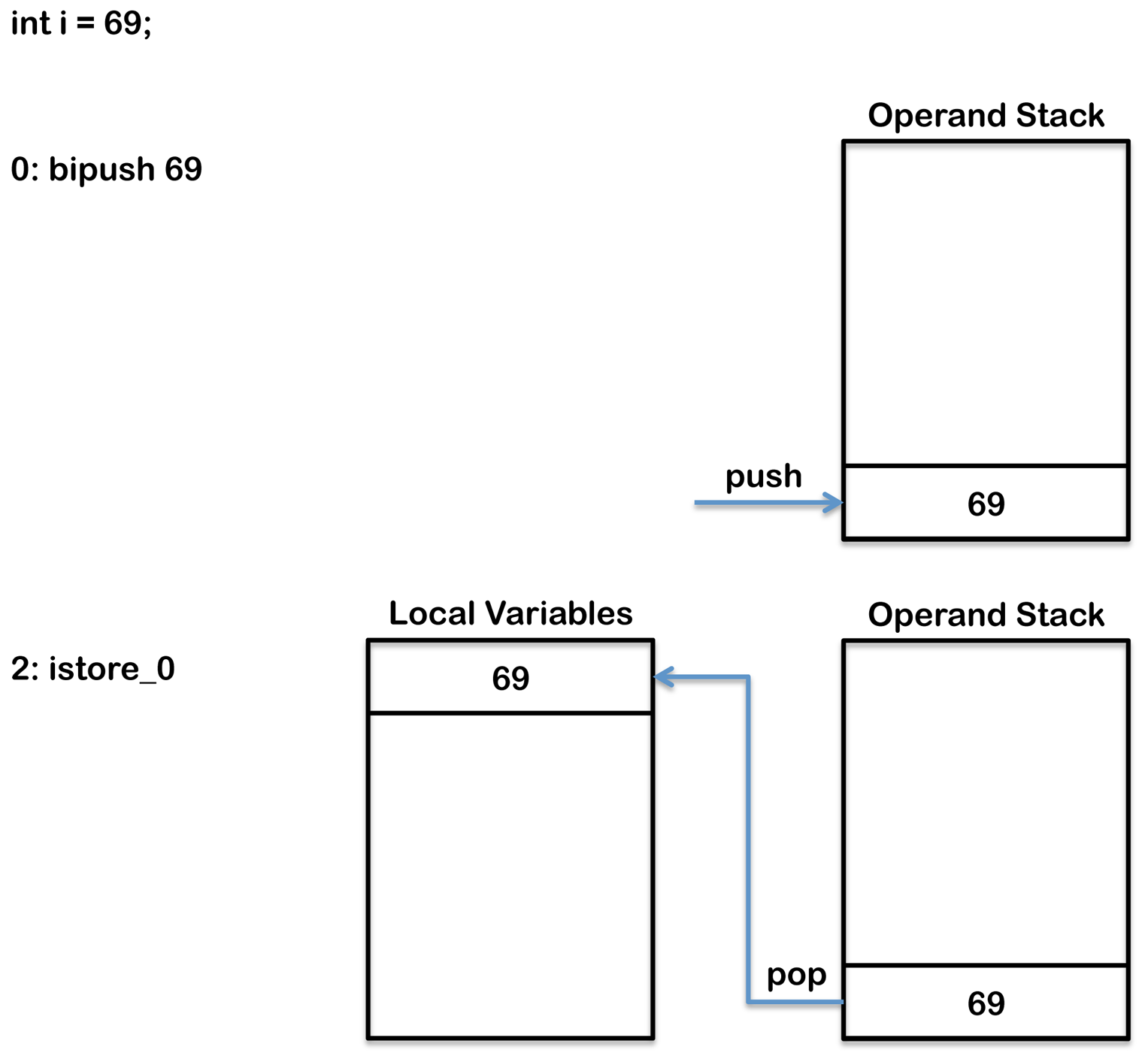 这个类文件中对应每一个方法还包含一个**局部变量表(local veribale table)**,**如果这段代码被包含在一个方法中,在类文件对应于这个方法的本地变量表中你将会得到下面的实体(entry)**: ```` LocalVariableTable: Start Length Slot Name Signature 0 1 1 i I ```` ## 成员变量(类变量) > **一个成员变量(field)被作为一个类实例(或对象)的一部分存储在堆上。关于这个成员变量的信息被定义到在类文件class字节码中field_info[] 数组中,如下**: ```` ClassFile { u4 magic; u2 minor_version; u2 major_version; u2 constant_pool_count; cp_info contant_pool[constant_pool_count – 1]; u2 access_flags; u2 this_class; u2 super_class; u2 interfaces_count; u2 interfaces[interfaces_count]; u2 fields_count; field_info fields[fields_count]; u2 methods_count; method_info methods[methods_count]; u2 attributes_count; attribute_info attributes[attributes_count]; } ```` > 另外,如果这个变量被初始化,**进行初始化操作的字节码将被添加到实例构造器中**。 ### 当如下的代码被编译: ```java public class SimpleClass{ public int simpleField = 100; } ``` **一个额外的小结将会使用javap命令来演示将成员变量添加到field_info数组中**。 ```` public int simpleField; Signature: I flags: ACC_PUBLIC ```` 进行初始化操作的字节码被添加到构造器中,如下: ```` public SimpleClass(); Signature: ()V flags: ACC_PUBLIC Code: stack=2, locals=1, args_size=1 0: aload_0 1: invokespecial #1 // Method java/lang/Object." ":()V 4: aload_0 5: bipush 100 7: putfield #2 // Field simpleField:I 10: return ```` #### aload_0 **将本地变量数组slot中一个对象引用推送到操作数栈栈顶**。 > **尽管,上面的代码中显示没有构造器对成员变量进行初始化,实际上,编译器会创建一个默认的构造器对成员变量进行初始化**。 - **第一个局部变量实际上指向this。** - **aload_0操作码将this这个引用变量推送到操作数栈**。 - **aload_0是一组格式为aload_的操作数中其中一员,它们的作用都是将一个对象引用推送到操作数栈**。 1. **其中n指的是被访问的本地变量数组中这个对象引用所在的位置,取值只能为0,1,2或3**。 2. **与之类似的操作码有iload_,lload_,fload_和dload_,不过这些操作码是用来加载值而不是一个对象引用,这里的i指的是int,l指的是long,f指的是float,d指的是double**。 3. **本地变量的索引大于3的可以使用iload,lload,fload,dload和aload来加载,这些操作码都需要一个单个的操作数指定要加载的本地变量的索引**。 #### invokespecial > **invokespecial指令用来调用实例方法,私有方法和当前类的父类的方法,构造方法等**。 方式调用方法的操作码的一部分: - invokedynamic(MethodHandle、Lamdba) - invokeinterface(接口方法) - invokespecial(构造器、父类方法、私有方法) - invokestatic(静态方法) - invokevirtual(实例方法) > **invokespecial指令在这段代码用来调用父类的构造器**。 #### bipush > **将一个字节作为一个整数推送到操作数栈。在这个例子中100被推送到操作数栈。** #### putfield > **后面跟一个操作数 #2,这个操作数是运行时常量池(cp_info)中一个成员变量的引用,在这个例子中这个成员变量叫做simpleField**。**给这个成员变量赋值,然后包含这个成员变量的对象一起被弹出操作数栈**。 **前面的`aload_0`指令将包含这个成员变量的对象和前面的`bipush`指令将100分别推送到操作数栈顶**。**`putfield`随后将它们都从操作数栈顶移除(弹出)。最终结果就是在这个对象上的成员变量simpleFiled的值被更新为100**。 ##### 上面的代码在内存中执行的情况如下: java_class_variable_creation_byte_code **`putfield`操作码有一个单个的操作数指向在常量池中第二个位置**。 **JVM维护了一个常量池**,一**个类似于符号表的运行时数据结构,但是包含了更多的数据**。 **Java中的字节码需要数据,通常由于这种数据太大而不能直接存放在字节码中,而是放在常量池中,字节码中持有一个指向常量池中的引用**。当一个类文件被创建时,其中就有一部分为常量池,如下所示: ```` Constant pool: #1 = Methodref #4.#16 // java/lang/Object." ":()V #2 = Fieldref #3.#17 // SimpleClass.simpleField:I #3 = Class #13 // SimpleClass #4 = Class #19 // java/lang/Object #5 = Utf8 simpleField #6 = Utf8 I #7 = Utf8 #8 = Utf8 ()V #9 = Utf8 Code #10 = Utf8 LineNumberTable #11 = Utf8 LocalVariableTable #12 = Utf8 this #13 = Utf8 SimpleClass #14 = Utf8 SourceFile #15 = Utf8 SimpleClass.java #16 = NameAndType #7:#8 // " ":()V #17 = NameAndType #5:#6 // simpleField:I #18 = Utf8 LSimpleClass; #19 = Utf8 java/lang/Object ```` ## 常量(类常量) > **被final修饰的变量我们称之为常量,在类文件中我们标识为ACC_FINAL**。 ### 例如: ```java public class SimpleClass { public final int simpleField = 100; public int simpleField2 = 100; } ``` > **变量描述中多了一个ACC_FINAL参数:** ```` public static final int simpleField = 100; Signature: I flags: ACC_PUBLIC, ACC_FINAL ConstantValue: int 100 ```` > **不过,构造器中的初始化操作并没有受影响:** ```` 4: aload_0 5: bipush 100 7: putfield #2 // Field simpleField2:I ```` # 静态变量 > 被static修饰的变量,我们称之为静态类变量,在类文件中被标识为ACC_STATIC,如下所示: ```` public static int simpleField; Signature: I flags: ACC_PUBLIC, ACC_STATIC ```` > **在实例构造器中并没有发现用来对静态变量进行初始化的字节码**。**静态变量的初始化是在类构造器中,使用putstatic操作码而不是putfield字节码,是类构造器的一部分**。 ```` static {}; Signature: ()V flags: ACC_STATIC Code: stack=1, locals=0, args_size=0 0: bipush 100 2: putstatic #2 // Field simpleField:I 5: return ```` # 条件语句 > **条件流控制,比如,if-else语句和switch语句,在字节码层面都是通过使用一条指令来与其它的字节码比较两个值和分支**。 - **for循环和while循环这两条循环语句也是使用类似的方式来实现的,不同的是它们通常还包含一条goto指令,来达到循环的目的**。 - **do-while循环不需要任何goto指令因为他们的条件分支位于字节码的尾部。更多的关于循环的细节可以查看loops section**。 一些操作码可以比较两个整数或者两个引用,然后在一个单条指令中执行一个分支。其它类型之间的比较如double,long或float需要分为两步来实现。 首先,进行比较后将1,0或-1推送到操作数栈顶。接下来,基于操作数栈上值是大于,小于还是等于0执行一个分支。 首先,我们拿if-else语句为例进行讲解,其他用来进行分支跳转的不同的类型的指令将会被包含在下面的讲解之中。 ### if-else > **下面的代码展示了一条简单的用来比较两个整数大小的if-else语句**。 ```java public int greaterThen(int intOne, int intTwo) { if (intOne > intTwo) { return 0; } else { return 1; } } ``` > **这个方法编译成如下的字节码**: ```` 0: iload_1 1: iload_2 2: if_icmple 7 5: iconst_0 6: ireturn 7: iconst_1 8: ireturn ```` - 首先,**使用iload_1和iload_2将两个参数推送到操作数栈**。 - 然后,**使用if_icmple比较操作数栈栈顶的两个值**。 - **如果intOne小于或等于intTwo,这个操作数分支变成字节码7,跳转到字节码指令行7line**。 > **注意,在Java代码中if条件中的测试与在字节码中是完全相反的,因为在字节码中如果if条件语句中的测试成功执行,则执行else语句块中的内容,而在Java代码,如果if条件语句中的测试成功执行,则执行if语句块中的内容**。 > **换句话说,if_icmple指令是在测试如果if条件不为true,则跳过if代码块。if代码块的主体是序号为5和6的字节码,else代码块的主体是序号为7和8的字节码**。 java_if_else_byte_code 下面的代码示例展示了一个稍微复杂点的例子,需要一个两步比较: ```java public int greaterThen(float floatOne, float floatTwo) { int result; if (floatOne > floatTwo) { result = 1; } else { result = 2; } return result; } ``` 这个方法产生如下的字节码: ```` 0: fload_1 1: fload_2 2: fcmpl 3: ifle 11 6: iconst_1 7: istore_3 8: goto 13 11: iconst_2 12: istore_3 13: iload_3 14: ireturn ```` 在这个例子中,首先使用fload_1和fload_2将两个参数推送到操作数栈栈顶。这个例子与上一个例子不同在于这个需要两步比较。**fcmpl首先比较floatOne和floatTwo**,然后将结果推送到操作数栈栈顶。如下所示: ```` floatOne > floatTwo -> 1 floatOne = floatTwo -> 0 floatOne < floatTwo -> -1 floatOne or floatTwo= Nan -> 1 ```` > **接下来,如果fcmpl的结果是<=0,ifle用来跳转到索引为11处的字节码**。 - **这个例子和上一个例子的不同之处还在于这个方法的尾部只有一个单个的return语句,而在if语句块的尾部还有一条goto指令用来防止else语句块被执行**。 - **goto分支对应于序号为13处的字节码iload_3,用来将局部变量表中第三个slot中存放的结果推送扫操作数栈顶,这样就可以由return语句来返回**。 java_if_else_byte_code_extra_goto **和存在进行数值比较的操作码一样,也有进行引用相等性比较的操作码比如==,与null进行比较比如 == null和 != null,测试一个对象的类型比如 instanceof**。 - `if_cmp eq ne lt le gt ge `这组操作码用于操作数栈栈顶的两个整数并跳转到一个新的字节码处。可取的值有: ```` eq – 等于 ne – 不等于 lt – 小于 le – 小于或等于 gt – 大于 ge – 大于或等于 ```` - `if_acmp eq ne ` 这两个操作码用于测试两个引用相等(eq)还是不相等(ne),然后跳转到由操作数指定的新一个新的字节码处。 - `ifnonnull/ifnull`这两个字节码用于测试两个引用是否为null或者不为null,然后跳转到由操作数指定的新一个新的字节码处。 - `lcmp`**这个操作码用于比较在操作数栈栈顶的两个整数,然后将一个值推送到操作数栈,如下所示:** 如果 value1 > value2 -> 推送1 如果 value1 = value2 -> 推送0 如果 value1 < value2 -> 推送-1 fcmp l g / dcmp l g 这组操作码用于比较两个float或者double值,然后将一个值推送的操作数栈,如下所示: 如果 value1 > value2 -> 推送1 如果 value1 = value2 -> 推动0 如果value1 < value2 -> 推送-1 以l或g类型操作数结尾的差别在于它们如何处理NaN。 - fcmpg和dcmpg将int值1推送到操作数栈而fcmpl和dcmpl将-1推送到操作数栈。这就确保了在测试时如果两个值中有一个为NaN(Not A Number),测试就不会成功。 - **比如,如果x > y(这里x和y都为doube类型),x和y中如果有一个为NaN,fcmpl指令就会将-1推送到操作数栈**。 - **接下来的操作码总会是一个ifle指令,如果这是栈顶的值小于0,就会发生分支跳转。结果,x和y中有一个为NaN,ifle就会跳过if语句块,防止if语句块中的代码被执行到**。 - **instanceof 如果操作数栈栈顶的对象一个类的实例,这个操作码将一个int值1推送到操作数栈。这个操作码的操作数用来通过提供常量池中的一个索引来指定类**。如果这个对象为null或者不是指定类的实例则int值0就会被推送到操作数栈。 **`if eq ne lt le gt ge`所有的这些操作码都是用来将操作数栈栈顶的值与0进行比较,然后跳转到操作数指定位置的字节码处**。 如果比较成功,这些指令总是被用于更复杂的,不能用一条指令完成的条件逻辑,例如,测试一个方法调用的结果。 # switch > 一个Java switch表达式允许的类型可以为char,byte,short,int,Character,Byte,Short.Integer,String或者一个enum类型。为了支持switch语句。 Java虚拟机使用两个特殊的指令:**tableswitch和lookupswitch**,它们背后都是通过整数值来实现的。仅使用整数值并不会出现什么问题,因为char,byte,short和enum类型都可以在内部被提升为int类型。 **在Java7中添加对String的支持,背后也是通过整数来实现的。tableswitch通过速度更快,但是通常占用更多的内存。** **tableswitch通过列举在最小和最大的case值之间所有可能的case值来工作。最小和最大值也会被提供,所以如果switch变量不在列举的case值的范围之内,JVM就会立即跳到default语句块。在Java代码没有提供的case语句的值也会被列出,不过指向default语句块,确保在最小值和最大值之间的所有值都会被列出来**。 > 例如,执行下面的swicth语句: ```java public int simpleSwitch(int intOne) { switch (intOne) { case 0: return 3; case 1: return 2; case 4: return 1; default: return -1; } ``` 这段代码产生如下的字节码: ```` 0: iload_1 1: tableswitch { default: 42 min: 0 max: 4 0: 36 1: 38 2: 42 3: 42 4: 40 } 36: iconst_3 37: ireturn 38: iconst_2 39: ireturn 40: iconst_1 41: ireturn 42: iconst_m1 43: ireturn ```` > **tableswitch指令拥有值0,1和4去匹配Java代码中提供的case语句,每一个值指向它们对应的代码块的字节码。tableswitch指令还存在值2和3,它们并没有在Java代码中作为case语句提供,它们都指向default代码块。当这些指令被执行时,在操作数栈栈顶的值会被检查看是否在最大值和最小值之间。如果值不在最小值和最大值之间,代码执行就会跳到default分支,在上面的例子中它位于序号为42的字节码处。为了确保default分支的值可以被tableswitch指令发现,所以它总是位于第一个字节处(在任何需要的对齐补白之后)。如果值位于最小值和最大值之间,就用于索引tableswitch内部,寻找合适的字节码进行分支跳转**。 例如,值为,则代码执行会跳转到序号为38处的字节码。 下图展示了这个字节码是如何执行的: java_switch_tableswitch_byte_code > **如果在case语句中的值”离得太远“(比如太稀疏),这种方法就会不太可取,因为它会占用太多的内存。当switch中case比较稀疏时,可以使用lookupswitch来替代tableswitch。lookupswitch会为每一个case语句例举出分支对应的字节码,但是不会列举出所有可能的值**。 - **当执行lookupswitch时,位于操作数栈栈顶的值会同lookupswitch中的每一个值进行比较,从而决定正确的分支地址。使用lookupswitch,JVM会查找在匹配列表中查找正确的匹配,这是一个耗时的操作。而使用tableswitch,JVM可以快速定位到正确的值。** - **当一个选择语句被编译时,编译器必须在内存和性能二者之间做出权衡,决定选择哪一种选择语句。下面的代码,编译器会使用lookupswitch**: ```java public int simpleSwitch(int intOne) { switch (intOne) { case 10: return 1; case 20: return 2; case 30: return 3; default: return -1; } } ``` 这段代码产生的字节码,如下: ```` 0: iload_1 1: lookupswitch { default: 42 count: 3 10: 36 20: 38 30: 40 } 36: iconst_1 37: ireturn 38: iconst_2 39: ireturn 40: iconst_3 41: ireturn 42: iconst_m1 43: ireturn ```` **为了更高效的搜索算法(比线性搜索更高效),lookupswitch会提供匹配值个数并对匹配值进行排序。下图显示了上述代码是如何被执行的**: java_switch_lookupswitch_byte_code ## String switch > 在Java7中,switch语句增加了对字符串类型的支持。虽然现存的实现switch语句的操作码仅支持int类型且没有新的操作码加入。**字符串类型的switch语句分为两个部分完成。首先,比较操作数栈栈顶和每个case语句对应的值之间的哈希值**。**这一步可以通过lookupswitch或者tableswitch来完成(取决于哈希值的稀疏度)**。 **这也会导致一个分支对应的字节码去调用String.equals()进行一次精确地匹配。一个tableswitch指令将利用String.equlas()的结果跳转到正确的case语句的代码处**。 ```java public int simpleSwitch(String stringOne) { switch (stringOne) { case "a": return 0; case "b": return 2; case "c": return 3; default: return 4; } } ``` 这个字符串switch语句将会产生如下的字节码: ```` 0: aload_1 1: astore_2 2: iconst_m1 3: istore_3 4: aload_2 5: invokevirtual #2 // Method java/lang/String.hashCode:()I 8: tableswitch { default: 75 min: 97 max: 99 97: 36 98: 50 99: 64 } 36: aload_2 37: ldc #3 // String a 39: invokevirtual #4 // Method java/lang/String.equals:(Ljava/lang/Object;)Z 42: ifeq 75 45: iconst_0 46: istore_3 47: goto 75 50: aload_2 51: ldc #5 // String b 53: invokevirtual #4 // Method java/lang/String.equals:(Ljava/lang/Object;)Z 56: ifeq 75 59: iconst_1 60: istore_3 61: goto 75 64: aload_2 65: ldc #6 // String c 67: invokevirtual #4 // Method java/lang/String.equals:(Ljava/lang/Object;)Z 70: ifeq 75 73: iconst_2 74: istore_3 75: iload_3 76: tableswitch { default: 110 min: 0 max: 2 0: 104 1: 106 2: 108 } 104: iconst_0 105: ireturn 106: iconst_2 107: ireturn 108: iconst_3 109: ireturn 110: iconst_4 111: ireturn ```` 这个类包含这段字节码,同时也包含下面由这段字节码引用的常量池值。了解更多关于常量池的知识可以查看JVM内部原理这篇文章的 运行时常量池 部分。 ```` Constant pool: #2 = Methodref #25.#26 // java/lang/String.hashCode:()I #3 = String #27 // a #4 = Methodref #25.#28 // java/lang/String.equals:(Ljava/lang/Object;)Z #5 = String #29 // b #6 = String #30 // c #25 = Class #33 // java/lang/String #26 = NameAndType #34:#35 // hashCode:()I #27 = Utf8 a #28 = NameAndType #36:#37 // equals:(Ljava/lang/Object;)Z #29 = Utf8 b #30 = Utf8 c #33 = Utf8 java/lang/String #34 = Utf8 hashCode #35 = Utf8 ()I #36 = Utf8 equals #37 = Utf8 (Ljava/lang/Object;)Z ```` 注意,执行这个switch需要的字节码的数量包括两个tableswitch指令,几个invokevirtual指令去调用 String.equals()。**了解更多关于invokevirtual的更多细节可以参看下篇文章方法调用的部分**。下图显示了在输入“b”时代码是如何执行的: 如果不同case匹配到的哈希值相同,比如,字符串”FB”和”Ea”的哈希值都是28。这可以通过像下面这样轻微的调整equlas方法流来处理。注意,序号为34处的字节码:ifeg 42 去调用另一个String.equals() 来替换上一个不存在哈希冲突的例子中的 lookupsswitch操作码。 ```java public int simpleSwitch(String stringOne) { switch (stringOne) { case "FB": return 0; case "Ea": return 2; default: return 4; } } ``` 上面代码产生的字节码如下: ```` 0: aload_1 1: astore_2 2: iconst_m1 3: istore_3 4: aload_2 5: invokevirtual #2 // Method java/lang/String.hashCode:()I 8: lookupswitch { default: 53 count: 1 2236: 28 } 28: aload_2 29: ldc #3 // String Ea 31: invokevirtual #4 // Method java/lang/String.equals:(Ljava/lang/Object;)Z 34: ifeq 42 37: iconst_1 38: istore_3 39: goto 53 42: aload_2 43: ldc #5 // String FB 45: invokevirtual #4 // Method java/lang/String.equals:(Ljava/lang/Object;)Z 48: ifeq 53 51: iconst_0 52: istore_3 53: iload_3 54: lookupswitch { default: 84 count: 2 0: 80 1: 82 } 80: iconst_0 81: ireturn 82: iconst_2 83: ireturn 84: iconst_4 85: ireturn ```` # 循环 - 条件流控制,比如,if-else语句和switch语句都是通过使用一条指令来比较两个值然后跳转到相应的字节码来实现的。了解更多关于条件语句的细节可以查看 conditionals section 。 - 循环包括for循环和while循环也是通过类似的方法来实现的除了它们通常一个goto指令来实现字节码的循环。do-while循环不需要任何goto指令,因为它们的条件分支位于字节码的末尾。 - 一些字节码可以比较两个整数或者两个引用,然后使用一个单个的指令执行一个分支。其他类型之间的比较如double,long或者float需要两步来完成。首先,执行比较,将1,0,或者-1 推送到操作数栈栈顶。接下来,基于操作数栈栈顶的值是大于0,小于0还是等于0执行一个分支。了解更多关于进行分支跳转的指令的细节可以 see above 。 # while循环 > while循环一个条件分支指令比如 if_fcmpge或 if_icmplt(如上所述)和一个goto语句。在循环过后就理解执行条件分支指令,如果条件不成立就终止循环。循环中最后一条指令是goto,用于跳转到循环代码的起始处,直到条件分支不成立,如下所示: ```java public void whileLoop() { int i = 0; while (i < 2) { i++; } } ``` 被编译成: ```` 0: iconst_0 1: istore_1 2: iload_1 3: iconst_2 4: if_icmpge 13 7: iinc 1, 1 10: goto 2 13: return ```` > if_cmpge指令测试在位置1处的局部变量是否等于或者大于10,如果大于10,这个指令就跳到序号为14的字节码处完成循环。goto指令保证字节码循环直到if_icmpge条件在某个点成立,循环一旦结束,程序执行分支立即就会跳转到return指令处。iinc指令是为数不多的在操作数栈上不用加载(load)和存储(store)值可以直接更新一个局部变量的指令之一。在这个例子中,iinc将第一个局部变量的值加 1。 ## for循环 > for循环和while循环在字节码层面使用了完全相同的模式。这并不令人惊讶因为所有的while循环都可以用一个相同的for循环来重写。上面那个简单的的while循环的例子可以用一个for循环来重写,并产生完全一样的字节码,如下所示: ```java public void forLoop() { for(int i = 0; i < 2; i++) { } } ``` ## do-while循环 do-while循环和for循环以及while循环也非常的相似,除了它们不需要将goto指令作为条件分支成为最后一条指令用于回退到循环起始处。 ```java public void doWhileLoop() { int i = 0; do { i++; } while (i < 2); } ``` 产生的字节码如下: ```` 0: iconst_0 1: istore_1 2: iinc 1, 1 5: iload_1 6: iconst_2 7: if_icmplt 2 10: return ````