Data Structure_JavaSwing
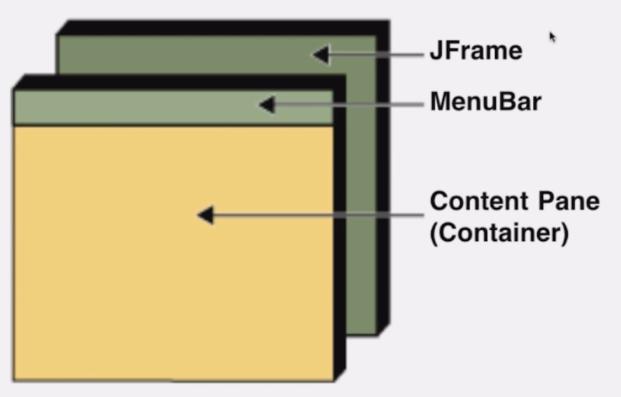
Java Swing的基础 首先需要注意的就是JFrame这个类,如果在main类整直接new一个出来是没有任何的变化,需要设置一个setvisible为true来显示出来。 public class AlgorFrame extends JFrame { private int canvasWith; private int canvasHeight; public AlgorFrame(String title, int cancasWidth, int canvasHeight) { super(title); this.canvasHeight = canvasHeight; this.canvasWith = cancasWidth; this.setSize(cancasWidth, canvasHeight); this.setResizable(false); this.setDefaultCloseOperation(JFrame.EXIT_ON_CLOSE); this.setVisible(true); } 这是一个标准的模板,设置窗口大小不可重新改变,关闭窗口时整个程序同时关闭。 JFrame是最上层的一个窗口,如果要绘制的话是不可以在窗口本身绘制的。MenuBar就是最大化最小化关闭等等的操作。Content Pane其实是一个容器,可以装载其他的组件,最常用的就是面板,Jpanel就是一个面板,后面的绘制都会画在Jpanel上。也就是说想要画上东西就需要在Jframe上加入Jpanel。这个时候窗口大小和画布大小就是两个不一样的大小了,如果想要窗口大小自适应画布大小,就可以调用pack这个函数自适应。 绘制 在Jpanel类里面有一个paintComponent方法,这个方法是自带的一个方法,需要绘制的操作都要在这里面画。paintComponent带了一个画笔参数。 private class AlgoCanvas extends JPanel { @Override public void paintComponent(Graphics g) { super.paintComponent(g); g.drawOval(50, 50, 300, 300); } } 画一个简单的圆。 但其实如果是仅仅在2D图像上画其实可以使用Graphic2D来画,把Graphic转换成Graphic2D就好了,而paintComponent是没有2D的这个参数的。这个时候画法就不一样了。 private class AlgoCanvas extends JPanel { @Override public void paintComponent(Graphics g) { super.paintComponent(g); Graphics2D graphics2D = (Graphics2D)g; Ellipse2D cirle = new Ellipse2D.Float(50, 50, 300, 300); graphics2D.draw(cirle); //g.drawOval(50, 50, 300, 300); } } 如果想要设置颜色,就可以直接调用setColor即可,而这个条件会一直持续要后面结束为止。 抗锯齿 可以看到上面画出的图片有点锯齿边界,不好看。之所以有抗锯齿是因为我们总是把一个像素是非黑即白,抗锯齿就很简单了,利用边缘的透明度灰度就好了,这样在视觉上看就会平滑一些。 双缓存 这种技术表现在动画上。首先看一下单缓存,比如要在画布上画上一个圆,现在要挪动这个圆的位置,那么就必须把这个画布上的圆抹掉,然后再新的位置画上。在我们视觉上就会看到闪烁了一下,有一个经典的解决方法,就是用双缓存,也就是两个画布,用画布的切换来演示动画的运行。要开启其实很简单: public AlgoCanvas(){ super(true); } 简单动画 EventQueue.invokeLater(() -> { AlgorFrame algorFrame = new AlgorFrame("Welcome", 500, 500); new Thread(() -> { while (true) { algorFrame.render(circles); try { Thread.sleep(20); } catch (InterruptedException e) { e.printStackTrace(); } for (Circle circle : circles) { circle.move(); } } }).start(); }); } } MVC 用一个弹球动画演示。首先Frame层就是一个view试图层,小球类就是属于model数据层,还差一个控制层把两个逻辑连接起来。 public class AlgoVisualizer { private Circle[] circles; private AlgorFrame algorFrame; public AlgoVisualizer(int sceneWidth, int sceneHeight, int n) { circles = new Circle[n]; for (int i = 0; i < n; i++) { Circle circle = new Circle(30, 30, 5, new Random().nextInt(5), new Random().nextInt(5)); circles[i] = circle; } EventQueue.invokeLater(() -> { algorFrame = new AlgorFrame("Welcome", 500, 500); new Thread(() -> { run(); }).start(); }); } private void run() { while (true) { algorFrame.render(circles); try { Thread.sleep(20); } catch (InterruptedException e) { e.printStackTrace(); } for (Circle circle : circles) { circle.move(0, 0, algorFrame.getCanvasWith(), algorFrame.getCanvasHeight()); } } } } 这个就作为控制类。在后面写算法的时候,可视化的操作就可以放在run方法里面写了。 交互 现在添加一个暂停功能。实现键盘监听有两个方法,第一个就是实现接口KeyListener,第二个就是继承KeyAdapter,KeyAdapter其实就是实现了刚刚的那个接口而已,只不过是空方法而已。 private class AlgoKeyListener extends KeyAdapter { @Override public void keyReleased(KeyEvent e) { if (e.getKeyChar() == ' ') { isAnimated = !isAnimated; } } } 鼠标也是一样的,写好监听器,然后注册即可。 private class AlgoMouseListener extends MouseAdapter { @Override public void mousePressed(MouseEvent event) { //System.out.println(event.getPoint()); event.translatePoint(0, -(algorFrame.getBounds().height - algorFrame.getCanvasHeight())); System.out.println(event.getPoint()); } } 简单的界面交互就到这来了。对于上面的实现基本是可以成一个模板的: package ApplicationOfAlgorithm.Probability; import javax.swing.*; import java.awt.*; public class AlgorithmFrame extends JFrame { private int canvasWidth; private int canvasHeight; public AlgorithmFrame(String title, int canvasWidth, int canvasHeight) { super(title); this.canvasWidth = canvasWidth; this.canvasHeight = canvasHeight; } private class AlgorithmCanvas extends JPanel { public AlgorithmCanvas() { super(true); } @Override public void paintComponent(Graphics graphics) { super.paintComponent(graphics); Graphics2D graphics2D = (Graphics2D) graphics; RenderingHints hints = new RenderingHints( RenderingHints.KEY_ANTIALIASING, RenderingHints.VALUE_ANTIALIAS_ON ); hints.put(RenderingHints.KEY_RENDERING, RenderingHints.VALUE_ALPHA_INTERPOLATION_QUALITY); graphics2D.addRenderingHints(hints); } @Override public Dimension getPreferredSize(){ return new Dimension(canvasWidth, canvasHeight); } } } view层的模板。 package ApplicationOfAlgorithm.Probability; import java.awt.*; import java.awt.event.KeyAdapter; import java.awt.event.MouseAdapter; public class AlgorithmVisualizer { private Object data; private AlgorithmFrame frame; public AlgorithmVisualizer(int sceneWidth, int sceneHeight) { EventQueue.invokeLater(() -> { frame = new AlgorithmFrame("title", sceneWidth, sceneHeight); frame.addKeyListener(new AlgoKeyListener()); frame.addMouseListener(new AlgoMouseListener()); new Thread(() -> { run(); }).start(); }); } private void run() { } private class AlgoKeyListener extends KeyAdapter { } private class AlgoMouseListener extends MouseAdapter { } } 控制层模板。 package ApplicationOfAlgorithm.Probability; import javax.swing.*; import java.awt.*; import java.awt.geom.Ellipse2D; import java.awt.geom.Rectangle2D; public class AlgorithmHelper { private AlgorithmHelper() { } public static final Color Red = new Color(0xF44336); public static final Color Pink = new Color(0xE91E63); public static final Color Purple = new Color(0x9C27B0); public static final Color DeepPurple = new Color(0x673AB7); public static final Color Indigo = new Color(0x3F51B5); public static final Color Blue = new Color(0x2196F3); public static final Color LightBlue = new Color(0x03A9F4); public static final Color Cyan = new Color(0x00BCD4); public static final Color Teal = new Color(0x009688); public static final Color Green = new Color(0x4CAF50); public static final Color LightGreen = new Color(0x8BC34A); public static final Color Lime = new Color(0xCDDC39); public static final Color Yellow = new Color(0xFFEB3B); public static final Color Amber = new Color(0xFFC107); public static final Color Orange = new Color(0xFF9800); public static final Color DeepOrange = new Color(0xFF5722); public static final Color Brown = new Color(0x795548); public static final Color Grey = new Color(0x9E9E9E); public static final Color BlueGrey = new Color(0x607D8B); public static final Color Black = new Color(0x000000); public static final Color White = new Color(0xFFFFFF); public static void strokeCircle(Graphics2D graphics2D, int x, int y, int r) { Ellipse2D circle = new Ellipse2D.Double(x - r, y - r, 2 * r, 2 * r); graphics2D.draw(circle); } public static void fillCircle(Graphics2D graphics2D, int x, int y, int r) { Ellipse2D circle = new Ellipse2D.Double(x - r, y - r, 2 * r, 2 * r); graphics2D.fill(circle); } public static void strokeRectangle(Graphics2D g, int x, int y, int w, int h) { Rectangle2D rectangle = new Rectangle2D.Double(x, y, w, h); g.draw(rectangle); } public static void fillRectangle(Graphics2D g, int x, int y, int w, int h) { Rectangle2D rectangle = new Rectangle2D.Double(x, y, w, h); g.fill(rectangle); } public static void setColor(Graphics2D g, Color color) { g.setColor(color); } public static void setStrokeWidth(Graphics2D g, int w) { int strokeWidth = w; g.setStroke(new BasicStroke(strokeWidth, BasicStroke.CAP_ROUND, BasicStroke.JOIN_ROUND)); } public static void pause(int t) { try { Thread.sleep(t); } catch (InterruptedException e) { e.printStackTrace(); } } public static void putImage(Graphics2D graphics2D, int x, int y, String imageURL) { ImageIcon imageIcon = new ImageIcon(imageURL); Image image = imageIcon.getImage(); graphics2D.drawImage(image, x, y, null); } public static void drawText(Graphics2D g, String text, int centerx, int centery) { if (text == null) throw new IllegalArgumentException("Text is null in drawText function!"); FontMetrics metrics = g.getFontMetrics(); int w = metrics.stringWidth(text); int h = metrics.getDescent(); g.drawString(text, centerx - w / 2, centery + h); } } model层的模板。


)