任何一个应用程序都要依赖数据存储,而且这种存储必须不丢失数据,并且有效、简便使用和更新这些数据。在 Android 操作系统中一共提供了4种数据存储方式,但是由于存储的这些数据都是私有的,所以如果需要共享其他应用程序的数据,就需要我们上篇文章说到的 Content Provider。4种数据存储方式分别为如下:
- 1、Shared Preferences。
用来存储 “键-值”格式的数据。
- 2、Files。
通过FileInputStream和FileOutputStream对文件进行操作。
- 3、SQLite。
标准数据库,支持SQL语句。
- NetWork。
通过网络存储和获取数据。
本篇中主要讲述4种之一的Shared Preferences,因为在前几篇己经有SQLite的用法做了简单介绍,所以在以下的几篇将会跳过SQLite的讲解。下面开始讲述Shared Preferences。主要内容如下:
- 1、Shared Preferences 是什么?
- 2、如何使用 Shared Preferences 获得数据?
- 3、如何使用 Shared Preferences 保存数据?
- 3.1、使用getPreferences方法创建文件的模式。
- 4、模拟用户参数设置。
- 5、查看 Preferences 产生的文件。
1、Shared Preferences 是什么?
Shared Preferences 类似于winform中做一些小型配置的ini文件,用来保存一些用户设置的参数。例如,可以通过它保存上一次用户所做的修改或者自定义参数设定,当再次启动程序后依然保持原有设置。
2、如何使用 Shared Preferences 保存数据?
Shared Preferences提供了getPreferences方法来获得Preferences对象,取得该对象了,即可以使用Editor取得编辑对象
3、如何使用 Shared Preferences 保存数据?
上文获得Editor对象之后即可通过 Android 提供的各自操作函数进行数据提交,如:putBoolean()提交一个键值 为bool值的数据,最后通过commit方法保存这些数据。
3.1、使用getPreferences方法创建文件的模式
在 Android系统提供的API中, 获取 Preferences对象有四种类型,分别如下:
- 文件创建模式:Activity.MODE_APPEND
如果该文件已经存在,然后将数据写入,而不是抹掉它现有文件的末尾。
- 文件创建模式:MODE_PRIVATE
默认模式,在那里创建的文件只能由应用程序调用,即为私有的
- 文件创建模式:Activity.MODE_WORLD_READABLE
允许所有其他应用程序有读取和创建文件的权限。
- 文件创建模式:Activity.MODE_WORLD_WRITEABLE
允许所有其他应用程序具有写入、访问和创建的文件权限。
本例中使用到了私有的文件创建模式,来获取Preferences对象。
4、 模拟用户参数设置
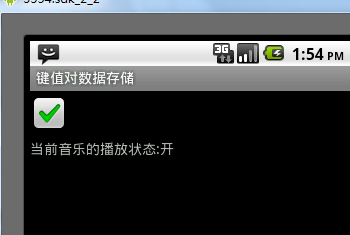
在模拟的例子中,我们放了一个复选框和一个文本显示控件,然后通过播放音乐来达到模拟效果。当复选框选中时打开音乐,文本显示控件显示当前音乐为:打开,如果反选复选框则音乐停止,文本显示控件显示当前音乐为:关闭。如果你按下模拟器的返回按钮退出的同时保存当前的状态,如果复选框选中则一打开程序立刻播放音乐,反之则不播放音乐。代码如下:
![]() 音乐播放示例代码
音乐播放示例代码
package
com.terry;
import
android.app.Activity;
import
android.content.SharedPreferences;
import
android.os.Bundle;
import
android.view.KeyEvent;
import
android.widget.CheckBox;
import
android.widget.CompoundButton;
import
android.widget.TextView;
import
android.widget.CompoundButton.OnCheckedChangeListener;
public
class
sharedPreActivity
extends
Activity {
private
TextView myTextView;
private
CheckBox myBox;
private
playMusic PLAYER
=
null
;
private
boolean
isplay
=
false
;
/**
Called when the activity is first created.
*/
@Override
public
void
onCreate(Bundle savedInstanceState) {
super
.onCreate(savedInstanceState);
setContentView(R.layout.main);
myTextView
=
(TextView)findViewById(R.id.TextView01);
myBox
=
(CheckBox)findViewById(R.id.CheckBox01);
PLAYER
=
new
playMusic(
this
);
/*
* 文件创建模式:Activity.MODE_APPEND
* 如果该文件已经存在,然后将数据写入,而不是抹掉它现有文件的末尾。
*/
/*
* 文件创建模式:MODE_PRIVATE
* 默认模式,在那里创建的文件只能由应用程序调用,即为私有的
*/
/*
* 文件创建模式:Activity.MODE_WORLD_READABLE
* 允许所有其他应用程序有读取和创建文件的权限。
*/
/*
* 文件创建模式:Activity.MODE_WORLD_WRITEABLE
* 允许所有其他应用程序具有写入、访问和创建的文件权限。
*/
SharedPreferences settings
=
getPreferences(Activity.MODE_PRIVATE);
isplay
=
settings.getBoolean(
"
isplay
"
,
false
);
//
通过key值找到value,如果不存在即返回false
myBox.setChecked(isplay);
if
(isplay){
myTextView.setText(
"
当前音乐的播放状态:开
"
);
isplay
=
true
;
PLAYER.Play();
}
else
{
myTextView.setText(
"
当前音乐的播放状态:关
"
);
}
myBox.setOnCheckedChangeListener(
new
OnCheckedChangeListener() {
@Override
public
void
onCheckedChanged(CompoundButton buttonView,
boolean
isChecked) {
//
TODO Auto-generated method stub
if
(isChecked)
{
myTextView.setText(
"
当前音乐的播放状态:开
"
);
isplay
=
true
;
PLAYER.Play();
}
else
{
myTextView.setText(
"
当前音乐的播放状态:关
"
);
isplay
=
false
;
PLAYER.FreeMusc();
}
}
});
}
@Override
public
boolean
onKeyDown(
int
keyCode, KeyEvent event) {
//
TODO Auto-generated method stub
if
(keyCode
==
KeyEvent.KEYCODE_BACK){
SharedPreferences uiState
=
getPreferences(
0
);
SharedPreferences.Editor editor
=
uiState.edit();
editor.putBoolean(
"
isplay
"
, isplay);
editor.commit();
if
(isplay)
{
PLAYER.FreeMusc();
}
this
.finish();
return
true
;
}
return
super
.onKeyDown(keyCode, event);
}
}
其中,
settings.getBoolean提供了两个参数,第一个参数为键值,第二个则为默认值。当通过键值获取空数据时,则返回第二个参数。
以上代码的音乐播放类如下:
![ExpandedBlockStart.gif]()
package
com.terry;
import
java.io.IOException;
import
android.content.Context;
import
android.media.MediaPlayer;
public
class
playMusic {
public
MediaPlayer music
=
null
;
private
Context myContext;
public
playMusic(Context cc)
{
myContext
=
cc;
}
public
void
Play()
{
music
=
MediaPlayer.create(myContext, R.raw.start);
music.setLooping(
true
);
try
{
music.prepare();
}
catch
(IllegalStateException e) {
//
TODO: handle exception
e.printStackTrace();
}
catch
(IOException e) {
//
TODO: handle exception
e.printStackTrace();
}
music.start();
}
public
void
FreeMusc()
{
if
(music
!=
null
)
{
music.stop();
music.release();
}
}
}
5、查看 Preferences 产生的文件
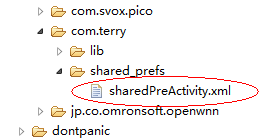
通过上面的例子和代码的实现,己经实现了我们当初期望得到的效果,如果说它像winform中的ini文件,那么它就会创建在一个地方咯。没错,下面我们就来找到它。
在每安装一个Android 应用程序时,data/data目录下都会产生一个文件夹,如果应用程序中使用了 Preferences 则会在该应用程序文件夹下产生一个shared_prefs文件夹,我们产生的文件正安静的躺在那里等着我们呢。。。。(YY中。。。),查看步骤要求:
- 必须启动模拟器,运行程序。
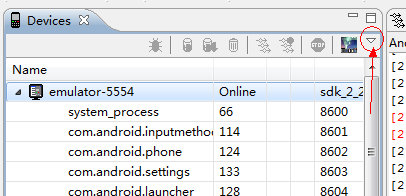
- 在 你使用的IDE中切换到DDMS视图,选择File Explorer标签。注意:如果你的File Explorer里面没有任何东西,请根据此步骤找回--》DDMS-在Devices标签中选择
![]()
点击Reset adb即可将你的 File Explorer还原。
- 找到/data/data目录中对应的项目文件夹下的shared_prefs文件夹
好了,今天的数据存储就讲到这里,例子的运行图如下:
本文转自 terry_龙 51CTO博客,原文链接:http://blog.51cto.com/terryblog/336754,如需转载请自行联系原作者