安卓系统提供了VideoView用来播放一些特定格式的视频,与MediaController结合使用可以对视频播放进行简单控制
例如:
在布局文件中先声明个VideoView:
<?xml version="1.0" encoding="utf-8"?>
<RelativeLayout xmlns:android="http://schemas.android.com/apk/res/android"
    android:id="@+id/content_main2"
    android:layout_width="match_parent"
    android:layout_height="match_parent">

    <VideoView
        android:id="@+id/videoView"
        android:layout_width="match_parent"
        android:layout_height="wrap_content" />

</RelativeLayout>
然后,在存储卡的根目录下先放置一个命名为“00.MP4”的视频文件
@Override
    protected void onCreate(Bundle savedInstanceState) {
        super.onCreate(savedInstanceState);
        setContentView(R.layout.activity_main2);
        VideoView videoView = (VideoView) findViewById(R.id.videoView);
        MediaController mediaController = new MediaController(this);
        videoView.setMediaController(mediaController);
        mediaController.setMediaPlayer(videoView);
        //为videoView设置视频路径
        String path = Environment.getExternalStorageDirectory().getAbsolutePath();
        videoView.setVideoPath(path + "/00.mp4");
    }
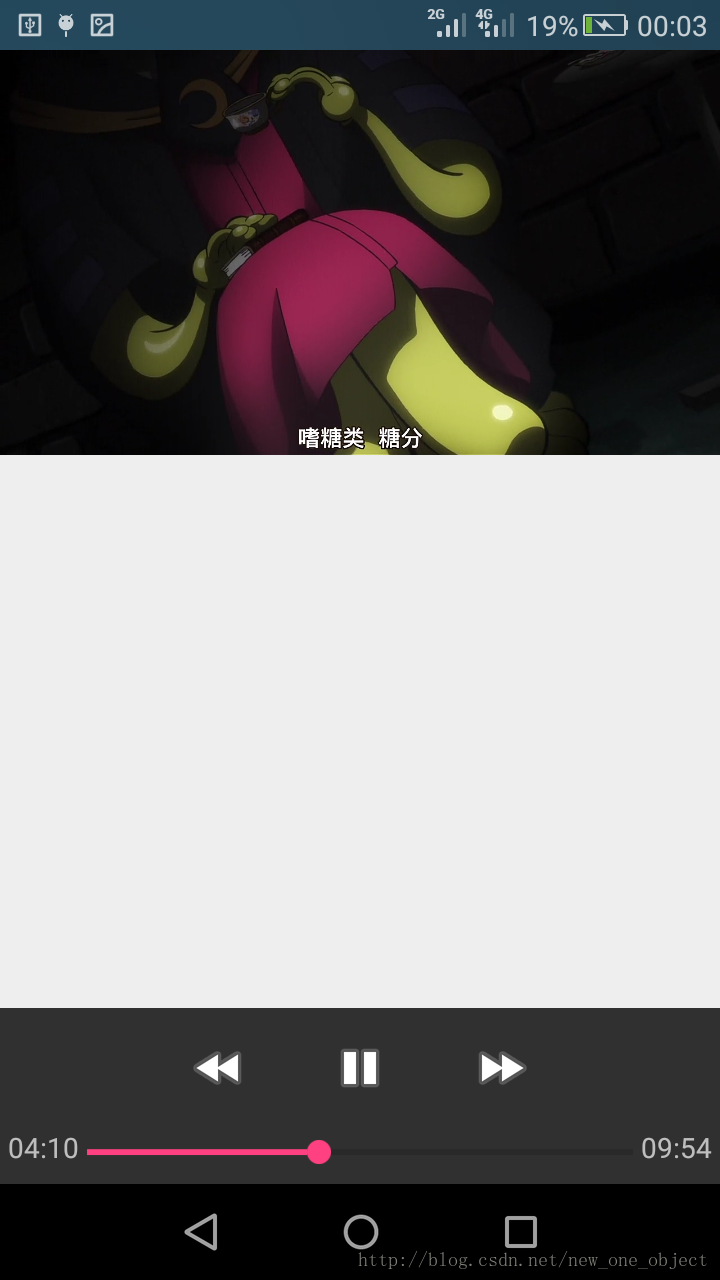
播放效果如下:
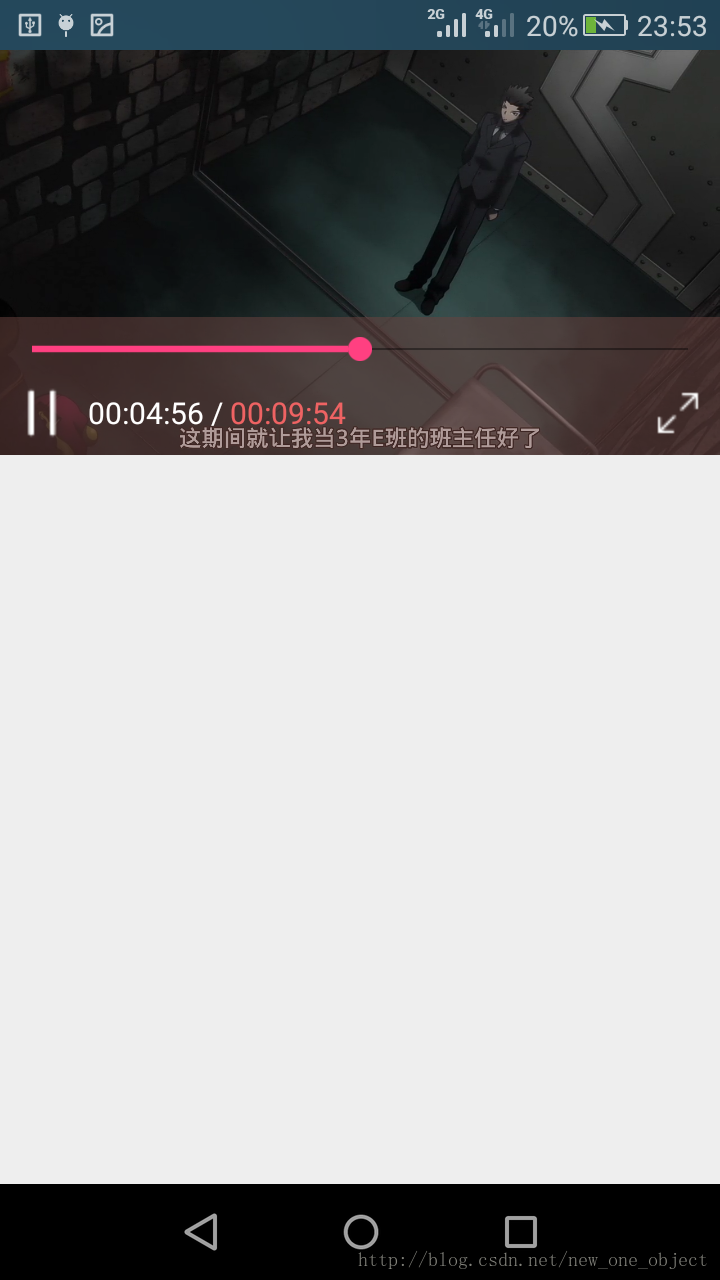
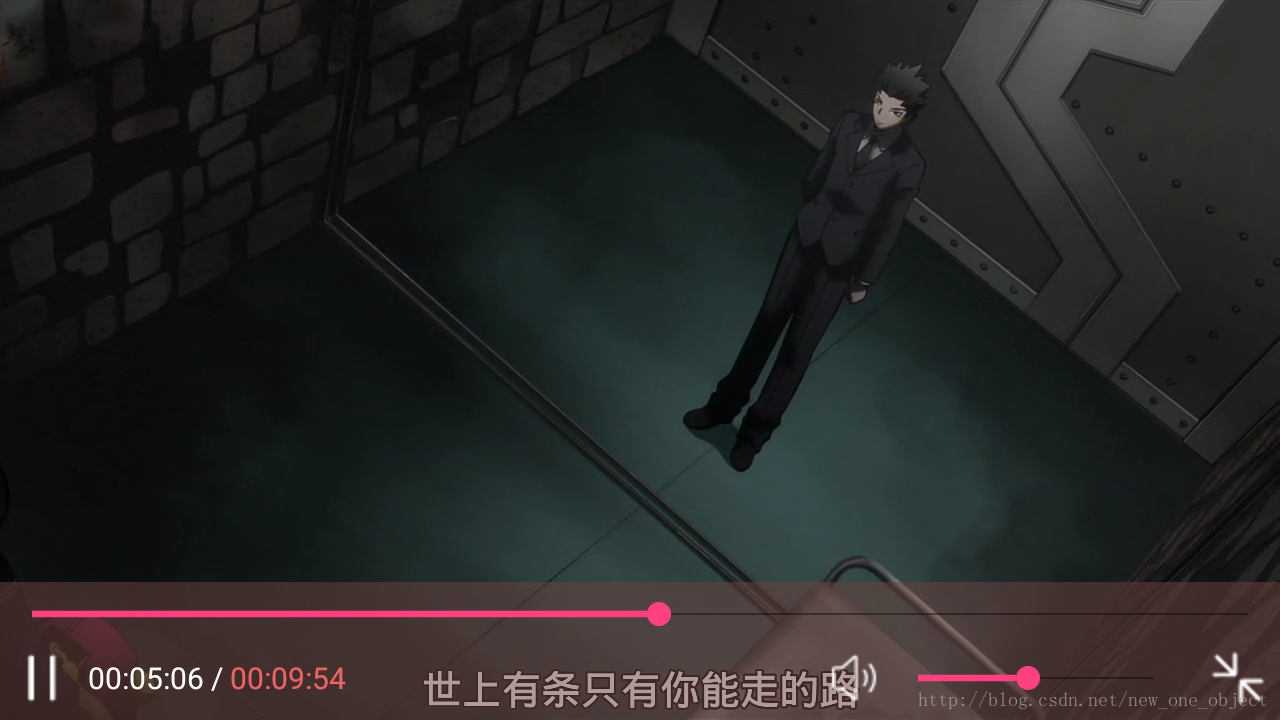
这里再来自定义视频播放控制界面与控制逻辑,增添音量调节,亮度调节,沉浸式状态栏等功能
竖屏状态效果如下:
横屏状态下效果如下:
首先要先设计布局样式
<?xml version="1.0" encoding="utf-8"?>
<LinearLayout xmlns:android="http://schemas.android.com/apk/res/android"
    android:layout_width="match_parent"
    android:layout_height="match_parent"
    android:orientation="vertical">

    <RelativeLayout
        android:id="@+id/rl_video"
        android:layout_width="match_parent"
        android:layout_height="240dp">

        <VideoView
            android:id="@+id/vv_player"
            android:layout_width="match_parent"
            android:layout_height="240dp" />

        <LinearLayout
            android:id="@+id/ll_control"
            android:layout_width="match_parent"
            android:layout_height="wrap_content"
            android:layout_alignBottom="@id/vv_player"
            android:background="#8768423e"
            android:orientation="vertical">

            <SeekBar
                android:id="@+id/sb_play"
                android:layout_width="match_parent"
                android:layout_height="wrap_content"
                android:indeterminate="false" />

            <RelativeLayout
                android:layout_width="match_parent"
                android:layout_height="wrap_content"
                android:gravity="center_horizontal">

                <LinearLayout
                    android:id="@+id/ll_playControl"
                    android:layout_width="wrap_content"
                    android:layout_height="wrap_content"
                    android:layout_marginBottom="5dp"
                    android:layout_marginLeft="5dp"
                    android:gravity="center"
                    android:orientation="horizontal">

                    <ImageView
                        android:id="@+id/iv_playControl"
                        android:layout_width="wrap_content"
                        android:layout_height="wrap_content"
                        android:clickable="true"
                        android:src="@drawable/play_btn_style" />

                    <TextView
                        android:id="@+id/tv_currentTime"
                        android:layout_width="wrap_content"
                        android:layout_height="wrap_content"
                        android:layout_marginLeft="7dp"
                        android:text="00:00:00"
                        android:textColor="#ffffff"
                        android:textSize="15sp" />

                    <TextView
                        android:layout_width="wrap_content"
                        android:layout_height="wrap_content"
                        android:text=" / "
                        android:textColor="#ffffff"
                        android:textSize="15sp" />

                    <TextView
                        android:id="@+id/tv_totalTime"
                        android:layout_width="wrap_content"
                        android:layout_height="wrap_content"
                        android:text="00:00:00"
                        android:textColor="#ef6363"
                        android:textSize="15sp" />

                </LinearLayout>

                <ImageView
                    android:id="@+id/iv_screenSwitch"
                    android:layout_width="wrap_content"
                    android:layout_height="wrap_content"
                    android:layout_alignParentRight="true"
                    android:layout_marginRight="5dp"
                    android:src="@drawable/full_screen" />

                <LinearLayout
                    android:id="@+id/ll_volumeControl"
                    android:layout_width="wrap_content"
                    android:layout_height="wrap_content"
                    android:layout_marginRight="10dp"
                    android:layout_toLeftOf="@id/iv_screenSwitch"
                    android:gravity="end"
                    android:orientation="horizontal"
                    android:visibility="gone">

                    <ImageView
                        android:id="@+id/iv_volume"
                        android:layout_width="wrap_content"
                        android:layout_height="wrap_content"
                        android:src="@drawable/volume" />

                    <SeekBar
                        android:id="@+id/sb_volume"
                        android:layout_width="150dp"
                        android:layout_height="wrap_content"
                        android:indeterminate="false" />

                </LinearLayout>

            </RelativeLayout>

        </LinearLayout>
    </RelativeLayout>

    <ListView
        android:layout_width="match_parent"
        android:layout_height="wrap_content" />

</LinearLayout>
id为“ll_control”的LinearLayout包含了所有的控制View,将之置于VideoView上且设置半透明背景色,音量调节seekBar在竖屏状态下不可见
主要代码如下:
初始化UI
private void initUI() {
        videoView = (VideoView) findViewById(R.id.vv_player);
        sb_play = (SeekBar) findViewById(R.id.sb_play);
        sb_volume = (SeekBar) findViewById(R.id.sb_volume);
        iv_playControl = (ImageView) findViewById(R.id.iv_playControl);
        iv_screenSwitch = (ImageView) findViewById(R.id.iv_screenSwitch);
        iv_volume = (ImageView) findViewById(R.id.iv_volume);
        tv_currentTime = (TextView) findViewById(R.id.tv_currentTime);
        tv_totalTime = (TextView) findViewById(R.id.tv_totalTime);
        ll_volumeControl = (LinearLayout) findViewById(R.id.ll_volumeControl);
        ll_control = (LinearLayout) findViewById(R.id.ll_control);
        rl_video = (RelativeLayout) findViewById(R.id.rl_video);
        sb_volume.setMax(audioManager.getStreamMaxVolume(AudioManager.STREAM_MUSIC));
        sb_volume.setProgress(audioManager.getStreamVolume(AudioManager.STREAM_MUSIC));
    }
初始化各种事件
private void initEvent() {
        iv_playControl.setOnClickListener(new View.OnClickListener() {
            @Override
            public void onClick(View v) {
                if (videoView.isPlaying()) {
                    setPauseStatus();
                    videoView.pause();
                    uiHandler.removeMessages(UPDATE_TIME);
                } else {
                    setPlayStatus();
                    videoView.start();
                    uiHandler.sendEmptyMessage(UPDATE_TIME);
                }
            }
        });
        sb_play.setOnSeekBarChangeListener(new SeekBar.OnSeekBarChangeListener() {
            @Override
            public void onProgressChanged(SeekBar seekBar, int progress, boolean fromUser) {
                if (fromUser) {
                    videoView.seekTo(progress);
                    Utils.updateTimeFormat(tv_currentTime, progress);
                }
            }

            @Override
            public void onStartTrackingTouch(SeekBar seekBar) {
                uiHandler.removeMessages(UPDATE_TIME);
                if (!videoView.isPlaying()) {
                    setPlayStatus();
                    videoView.start();
                }
            }

            @Override
            public void onStopTrackingTouch(SeekBar seekBar) {
                uiHandler.sendEmptyMessage(UPDATE_TIME);
            }
        });
        sb_volume.setOnSeekBarChangeListener(new SeekBar.OnSeekBarChangeListener() {
            @Override
            public void onProgressChanged(SeekBar seekBar, int progress, boolean fromUser) {
                audioManager.setStreamVolume(AudioManager.STREAM_MUSIC, progress, 0);
            }

            @Override
            public void onStartTrackingTouch(SeekBar seekBar) {

            }

            @Override
            public void onStopTrackingTouch(SeekBar seekBar) {

            }
        });
        videoView.setOnCompletionListener(new MediaPlayer.OnCompletionListener() {
            @Override
            public void onCompletion(MediaPlayer mp) {
                iv_playControl.setImageResource(R.drawable.play_btn_style);
                videoView.seekTo(0);
                sb_play.setProgress(0);
                Utils.updateTimeFormat(tv_currentTime, 0);
                videoView.pause();
                uiHandler.removeMessages(UPDATE_TIME);
            }
        });
        iv_screenSwitch.setOnClickListener(new View.OnClickListener() {
            @Override
            public void onClick(View v) {
                if (getResources().getConfiguration().orientation == Configuration.ORIENTATION_LANDSCAPE) {
                    setRequestedOrientation(ActivityInfo.SCREEN_ORIENTATION_PORTRAIT);
                    iv_screenSwitch.setImageResource(R.drawable.exit_full_screen);
                } else if (getResources().getConfiguration().orientation == Configuration.ORIENTATION_PORTRAIT) {
                    setRequestedOrientation(ActivityInfo.SCREEN_ORIENTATION_LANDSCAPE);
                    iv_screenSwitch.setImageResource(R.drawable.full_screen);
                }
            }
        });
        videoView.setOnTouchListener(this);
    }
在横屏和竖屏切换时,会回调以下方法
public void onConfigurationChanged(Configuration newConfig)
在此要对View的大小进行调整以适应屏幕
@Override
    public void onConfigurationChanged(Configuration newConfig) {
        super.onConfigurationChanged(newConfig);
        screenWidth = getResources().getDisplayMetrics().widthPixels;
        screenHeight = getResources().getDisplayMetrics().heightPixels;
        if (newConfig.orientation == Configuration.ORIENTATION_LANDSCAPE) {
            setSystemUiHide();
            setVideoViewScale(ViewGroup.LayoutParams.MATCH_PARENT, ViewGroup.LayoutParams.MATCH_PARENT);
            iv_screenSwitch.setImageResource(R.drawable.exit_full_screen);
            ll_volumeControl.setVisibility(View.VISIBLE);
        } else if (newConfig.orientation == Configuration.ORIENTATION_PORTRAIT) {
            setVideoViewScale(ViewGroup.LayoutParams.MATCH_PARENT, Utils.dp2px(MainActivity.this, 240f));
            iv_screenSwitch.setImageResource(R.drawable.full_screen);
            ll_volumeControl.setVisibility(View.GONE);
            setSystemUiVisible();
        }
    }
View大小调节
 /**
     * 设置布局大小
     *
     * @param width  宽度
     * @param height 高度
     */
    private void setVideoViewScale(int width, int height) {
        ViewGroup.LayoutParams params = rl_video.getLayoutParams();
        params.width = width;
        params.height = height;
        rl_video.setLayoutParams(params);
        ViewGroup.LayoutParams layoutParams = videoView.getLayoutParams();
        layoutParams.width = width;
        layoutParams.height = height;
        videoView.setLayoutParams(layoutParams);
    }
此外,为了使视频在全屏播放时更加和谐,调用以下方法对系统状态栏和虚拟按键进行隐藏与显示
private void setSystemUiHide() {
        if (Build.VERSION.SDK_INT >= 19) {
            View decorView = getWindow().getDecorView();
            decorView.setSystemUiVisibility(
                    View.SYSTEM_UI_FLAG_LAYOUT_STABLE
                            | View.SYSTEM_UI_FLAG_LAYOUT_HIDE_NAVIGATION
                            | View.SYSTEM_UI_FLAG_LAYOUT_FULLSCREEN
                            | View.SYSTEM_UI_FLAG_HIDE_NAVIGATION
                            | View.SYSTEM_UI_FLAG_FULLSCREEN
                            | View.SYSTEM_UI_FLAG_IMMERSIVE_STICKY);
        }
    }

    private void setSystemUiVisible() {
        if (Build.VERSION.SDK_INT >= 19) {
            View decorView = getWindow().getDecorView();
            decorView.setSystemUiVisibility(View.SYSTEM_UI_FLAG_VISIBLE);
        }
    }
此外,通过手势识别可以对亮度和音量进行调节
private void changeVolume(float offset) {
        int maxVolume = audioManager.getStreamMaxVolume(AudioManager.STREAM_MUSIC);
        int currentVolume = audioManager.getStreamVolume(AudioManager.STREAM_MUSIC);
        int index = (int) (offset / screenHeight * maxVolume);
        int volume = Math.max(currentVolume + index, 0);
        volume = Math.min(volume, maxVolume);
        audioManager.setStreamVolume(AudioManager.STREAM_MUSIC, volume, 0);
        sb_volume.setProgress(volume);
    }

    private void changeBrightness(float offset) {
        WindowManager.LayoutParams attributes = getWindow().getAttributes();
        float brightness = attributes.screenBrightness;
        float index = offset / screenHeight / 2;
        brightness = Math.max(brightness + index, WindowManager.LayoutParams.BRIGHTNESS_OVERRIDE_OFF);
        brightness = Math.min(WindowManager.LayoutParams.BRIGHTNESS_OVERRIDE_FULL, brightness);
        attributes.screenBrightness = brightness;
        getWindow().setAttributes(attributes);
    }
关于手势识别 OnGestureListener的使用在我的上一篇博客也介绍过了
此外,为了使seekBar的进度能够在用户通过音量键调节音量时也能自动变化,需要再加上一个广播接收器
/**
 * 音量变化广播接收器
 * Created by CZY on 2017/1/31.
 */
public class VolumeReceiver extends BroadcastReceiver {

    private ImageView iv_volume;

    private SeekBar seekBar_volume;

    /**
     * 音频管理器
     */
    private AudioManager audioManager;

    public VolumeReceiver(Context context, ImageView iv_volume, SeekBar seekBar_volume) {
        this.iv_volume = iv_volume;
        this.seekBar_volume = seekBar_volume;
        audioManager = (AudioManager) context.getSystemService(Context.AUDIO_SERVICE);
    }

    @Override
    public void onReceive(Context context, Intent intent) {
        if (intent.getAction().equals("android.media.VOLUME_CHANGED_ACTION")) {
            int volume = audioManager.getStreamVolume(AudioManager.STREAM_MUSIC);
            if (volume == 0) {
                iv_volume.setImageResource(R.drawable.mute);
            } else {
                iv_volume.setImageResource(R.drawable.volume);
            }
            seekBar_volume.setProgress(volume);
        }
    }

}
为了在屏幕切换时可以不重新创建Activity而只是回调onConfigurationChanged 函数,可以为Activity增添以下属性
android:configChanges="orientation|screenSize|keyboard|keyboardHidden"
且程序要读取存储卡文件,需要申请权限
<uses-permission android:name="android.permission.READ_EXTERNAL_STORAGE" />
代码中使用到的图标我都是从一个公开图标库中下载的,个人感觉还是挺不错的
网址:http://iconfont.cn/collections
这里也提高源代码下载:简单定制一个视频播放器