首页 文章 精选 留言 我的

精选列表

搜索[fragment],共1096篇文章
优秀的个人博客,低调大师

ScrollView滑动—仿微博主页标题栏渐变悬浮及Fragment实现多个内容页面切换

作为一名热爱学习的Android开发工程si,刷微博的时候居然还想着技术呢,觉得自己也是够够了........哈哈哈 image.png 进入今天的正题,微博主页大家肯定是看过的,先看一下微博的效果。 (小提示:该Demo是采用kotlin语言编写的,需要配置Kotlin开发环境哦!) wb.gif 微博的效果大家都看到了,先看看这标题栏悬停的效果。实现方式很多种,我的思路很简单:顶部有一个默认隐藏的标题栏在上面,然后通过计算ScrollView向上滑动的距离,动态控制头部标题导航栏的显示隐藏。 简单分析一下页面布局的结构: image.png 页面布局代码: <?xml version="1.0" encoding="utf-8"?> <RelativeLayout xmlns:android="http://schemas.android.com/apk/res/android" android:id="@+id/parent_view" android:layout_width="match_parent" android:layout_height="match_parent" android:background="#ffffff" android:orientation="vertical"> <FrameLayout android:layout_width="match_parent" android:layout_height="match_parent"> <ScrollView android:id="@+id/scrollView" android:layout_width="match_parent" android:layout_height="match_parent" android:fillViewport="true"> <RelativeLayout android:layout_width="match_parent" android:layout_height="match_parent"> <ImageView android:id="@+id/iv_img" android:layout_width="match_parent" android:layout_height="200dp" android:scaleType="fitXY" android:src="@mipmap/bg_wb" /> <include android:id="@+id/ll_tab" layout="@layout/layout_suspencial_title" android:layout_width="match_parent" android:layout_height="wrap_content" android:layout_below="@+id/iv_img"></include> <FrameLayout android:id="@+id/fl_container" android:layout_width="match_parent" android:layout_height="match_parent" android:layout_below="@+id/ll_tab"></FrameLayout> </RelativeLayout> </ScrollView> <RelativeLayout android:layout_width="match_parent" android:layout_height="wrap_content" android:orientation="vertical"> <TextView android:id="@+id/tv_title_text" android:layout_width="match_parent" android:layout_height="35dp" android:gravity="center" android:text="歌手李健" android:textColor="#ffffff" android:textSize="18sp" /> <View android:id="@+id/title_divider" android:layout_width="match_parent" android:layout_height="1dp" android:layout_below="@+id/tv_title_text" android:background="#e6e6e6" android:visibility="gone"></View> <!--悬停导航标题栏--> <include android:id="@+id/ll_sus_tab" layout="@layout/layout_suspencial_title" android:layout_width="match_parent" android:layout_height="wrap_content" android:layout_below="@+id/title_divider" android:visibility="invisible"></include> </RelativeLayout> </FrameLayout> </RelativeLayout> 设置标题栏导航栏悬停和标题栏渐变的核心代码:给ScrollView设置滑动的监听 scrollView.setOnScrollViewListener(object : MyScrollView.OnScrollViewListener { override fun onScrollChanged(scrollX: Int, scrollY: Int, oldx: Int, oldY: Int) { //如果向上滑动的距离>=iv_img.height - tv_title_text.height,隐藏的标题导航栏设置显示 var distanceScrollY = iv_img.height - tv_title_text.height if (scrollY >= distanceScrollY) { ll_sus_tab.visibility = View.VISIBLE // ll_tab.visibility = View.INVISIBLE title_divider.visibility = View.VISIBLE } else { ll_sus_tab.visibility = View.INVISIBLE // ll_tab.visibility = View.VISIBLE title_divider.visibility = View.GONE } //设置标题栏渐变 if (scrollY <= 0) { //初始位置:未滑动时,设置标题背景透明 tv_title_text.setBackgroundColor(Color.TRANSPARENT) tv_title_text.setTextColor(Color.WHITE) } else if (scrollY > 0 && scrollY <= distanceScrollY) { var scale: Float = (scrollY.toFloat()) / distanceScrollY var alpha: Float = 255 * scale tv_title_text.setBackgroundColor(Color.argb(alpha.toInt(), 255, 255, 255)) tv_title_text.setTextColor(Color.argb(alpha.toInt(), 0, 0, 0)) } else { tv_title_text.setBackgroundColor(Color.argb(255, 255, 255, 255)) tv_title_text.setTextColor(Color.argb(255, 0, 0, 0)) } // } }) 最后实现的效果: re.gif 注意注意注意了:如果使用原生ScrollView,会报如下的警告,如果你是用API大于等于23(Android6.0)的手机测试,不会有什么问题,程序正常运行。但是要是低于这个版本的手机,就会导致奔溃,报 java.lang.NoClassDefFoundError: image.png 解决办法很简单,就是自定义一个ScrollView,写一个接口将onScrollChange()暴露出去。 源码下载请戳: https://github.com/zj593743143/WeiboDetail_Demo

优秀的个人博客,低调大师

9.kotlin安卓实践课程-用kotlin写第一个fragment的recyclerView的adapter具体实现

简介 主要会通过安卓实战来讲解kotlin语法和实际应用,本教程设及知识点包括框架模式mvp+mvvm, Databinding(数据绑定框架),Dagger2(依赖注入框架),DeepLink(页面路由框架),Rxjava,RxAndroid(异步操作框架),Retrofit,Okhtttp等,不过本教程重点在kotlin所以这些框架需要了解可自行百度。 针对人群:Android中级以上,kotlin入门 本系列最后一篇我们看看recyclerView的adapter怎么实现的 首先先看一下代码 /** * Created by bigman on 18-05-18. */ class AndroidAdapter(private val mList: List<AndroidBean>) :BaseBindingAdapter<ItemAndroidBinding>() { override fun getItemCount(): Int { return mList.size } override fun onBindViewHolder(holder: DataBoundViewHolder<ItemAndroidBinding>, position: Int) { super.onBindViewHolder(holder, position) //数据绑定 holder.binding.androidbean = mList[position] //数据立即绑定而不是在下一帧的时候才绑定,避免闪烁和数据错乱 holder.binding.executePendingBindings() } override fun onCreateViewHolder(parent: ViewGroup, viewType: Int): DataBoundViewHolder<ItemAndroidBinding> { return DataBoundViewHolder( ItemAndroidBinding.inflate(LayoutInflater.from(parent.context), parent, false)) } } 首先看主构造函数和继承 class AndroidAdapter(private val mList: List<AndroidBean>) :BaseBindingAdapter<ItemAndroidBinding>() 主构造函数传入一个List<AndroidBean>类型的mList只读变量 继承至BaseBindingAdapter<ItemAndroidBinding>() 下一步我们看一下基类BaseBindingAdapter的具体实现 /** * Created by bigman on 18-05-18. */ abstract class BaseBindingAdapter<B : ViewDataBinding> : RecyclerView.Adapter<DataBoundViewHolder<B>>() { var mListener: ((pos: Int) -> Unit)? = null override fun onBindViewHolder(holder: DataBoundViewHolder<B>, position: Int) { holder.binding.root.setOnClickListener { mListener?.invoke(holder.adapterPosition) } } fun setOnItemClickListener(listener: ((pos: Int) -> Unit)) { mListener = listener } } 大家可以看到BaseBindingAdapter需要传入ViewDataBinding类型,这个ViewDataBinding是databinding里面所有视图bingding类的基类, 然后毫无疑问它必须继承于RecyclerView.Adapter<DataBoundViewHolder<B>>,这个我们平时写java的RecyclerView.Adapter的时候都需要继承的 这里还有一个DataBoundViewHolder<B>,看一下代码实现 /** * Created by bigman on 18-05-18. */ class DataBoundViewHolder<T : ViewDataBinding>(val binding:T) : RecyclerView.ViewHolder(binding.root) { } 其实它就是一个RecyclerView.ViewHolder,只是这里我们传入了通用的ViewDataBinding使它变成可以绑定任意视图 回到BaseBindingAdapter,这个基类主要功能就是实现一个通用的databinding用的适配器,只要传入databinding视图类型即可,类内部提供了一个点击事件的回调方法 然后再回到AndroidAdapter 这里主要由三个方法, getItemCount ()返回绑定列表长度, onBindViewHolder ()实现视图数据绑定,这里用的databingding的数据绑定,holder.binding.executePendingBindings(),这句代码比较重要不加可能导致数据错乱或者页面闪烁 onCreateViewHolder()主要是完成databinding的holder构建 override fun onCreateViewHolder(parent: ViewGroup, viewType: Int): DataBoundViewHolder<ItemAndroidBinding> { return DataBoundViewHolder( ItemAndroidBinding.inflate(LayoutInflater.from(parent.context), parent, false)) } 这里的 ItemAndroidBinding是databinding根据我们的布局文件自动生成的,我们看一下我们这个列表条目布局代码,名称item_android.xml注意对比databinding生成的binding类名称 <?xml version="1.0" encoding="utf-8"?> <layout xmlns:app="http://schemas.android.com/apk/res-auto"> <data> <import type="android.view.View" /> <variable name="androidbean" type="com.bigman.kotlin.bean.AndroidBean" /> </data> <android.support.v7.widget.CardView xmlns:android="http://schemas.android.com/apk/res/android" android:layout_marginLeft="2dp" android:layout_marginRight="2dp" android:layout_width="match_parent" android:layout_height="wrap_content" android:layout_marginTop="10dp" android:background="#fff" android:orientation="vertical" app:cardCornerRadius="5dp" android:paddingTop="10dp"> <LinearLayout android:layout_width="match_parent" android:layout_height="wrap_content" android:layout_marginTop="10dp" android:orientation="vertical" android:paddingLeft="16dp" android:paddingBottom="10dp" android:paddingRight="16dp"> <TextView android:layout_width="wrap_content" android:layout_height="wrap_content" android:text="@{androidbean.desc}" android:textColor="#000" android:textSize="16sp" /> <ImageView android:layout_width="match_parent" android:layout_height="200dp" android:layout_marginTop="10dp" android:scaleType="center" android:visibility="@{androidbean.hasImg()?View.VISIBLE:View.GONE}" app:load_image="@{androidbean.images[0]}" /> <LinearLayout android:layout_width="match_parent" android:layout_height="wrap_content" android:orientation="horizontal"> <TextView android:layout_marginTop="10dp" android:text="@{androidbean.who}" android:layout_weight="1" android:layout_width="0dp" android:layout_height="wrap_content" /> <TextView android:layout_marginTop="10dp" android:text = "@{androidbean.create()}" android:layout_width="wrap_content" android:layout_height="wrap_content" /> </LinearLayout> </LinearLayout> </android.support.v7.widget.CardView> </layout> 具体代码和前面说过的布局没啥太大区别,主要就是data数据的传入和数据绑定 眼神比较犀利的同学可能会看到几个比较不一样的地方而存在疑惑,我们看看是哪里 <ImageView android:layout_width="match_parent" android:layout_height="200dp" android:layout_marginTop="10dp" android:scaleType="center" android:visibility="@{androidbean.hasImg()?View.VISIBLE:View.GONE}" app:load_image="@{androidbean.images[0]}" /> 这里的app:load_image这是''databinding允许的一个函数绑定形式 我们看一下具体实现: /** * Created by bigman on 18-05-18. */ @BindingAdapter("load_image") fun loadImage(imageView: ImageView, url: String?) = Glide.with(imageView.context).load(url) .crossFade() .into(imageView) @BindingAdapter("set_text") fun setText(textView: TextView, string: String) { textView.setText("bigman" + string) } @BindingAdapter("load_asset") fun loadAsset(imageView: ImageView, id: Int) = Glide.with(imageView.context).load(id).into(imageView) 这几个函数被我卸载随意的一个kt文件里面,然后通过 @BindingAdapter注解,我们的databinding框架就能很容易的找到它 那么我们这一系列kotlin 安卓实战内容到这里结束了,虽然kotlin知识点讲的不错,但是基本的运用知道这些也差不多够了,大家可以自己动手写一下,本系列主要目的已经达到,就是kotlin在这种mvp+mvvm目前最合理框架上的具体应用 欢迎一起交流,有问题加群交流 kotlin实战交流群群二维码.png

优秀的个人博客,低调大师

【Android UI设计与开发】6.底部菜单栏(三)使用Fragment+PopupWindow仿QQ空间最新版底部菜单栏

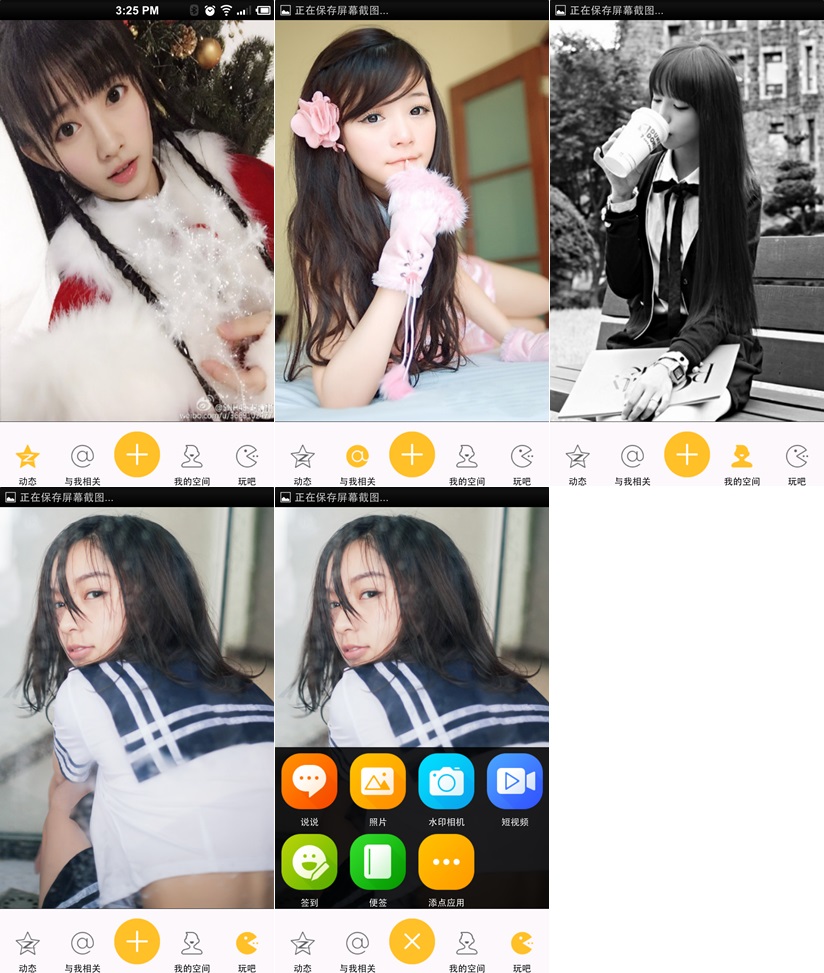
直接看栗子吧,效果基本实现,界面微调和弹窗的优化,去做的话会很耗时说,暂时就酱紫了。上传效果动态图太大了,直接手机截图的效果图如下: 至于代码的实现主要就是自定义的菜单栏,和用 PopupWindow 实现弹窗了。仔细看代码很好懂的。 1.主界面布局代码如下: activity_main.xml 2.弹窗布局,就是几个图标的显示,比较简单的,可以看代码 3.然后就是主界面逻辑代码了,菜单栏按钮事件控制页面的显示,可以图标的选中状态,已经弹窗的实现,代码如下: MainActivity 4.其他的请看源代码吧 o(∩_∩)o 本文转自叶超Luka博客园博客,原文链接:http://www.cnblogs.com/yc-755909659/p/4288260.html,如需转载请自行联系原作者

资源下载

更多资源
Mario

Mario

马里奥是站在游戏界顶峰的超人气多面角色。马里奥靠吃蘑菇成长,特征是大鼻子、头戴帽子、身穿背带裤,还留着胡子。与他的双胞胎兄弟路易基一起,长年担任任天堂的招牌角色。

腾讯云软件源

腾讯云软件源

为解决软件依赖安装时官方源访问速度慢的问题,腾讯云为一些软件搭建了缓存服务。您可以通过使用腾讯云软件源站来提升依赖包的安装速度。为了方便用户自由搭建服务架构,目前腾讯云软件源站支持公网访问和内网访问。

Rocky Linux

Rocky Linux

Rocky Linux(中文名:洛基)是由Gregory Kurtzer于2020年12月发起的企业级Linux发行版,作为CentOS稳定版停止维护后与RHEL(Red Hat Enterprise Linux)完全兼容的开源替代方案,由社区拥有并管理,支持x86_64、aarch64等架构。其通过重新编译RHEL源代码提供长期稳定性,采用模块化包装和SELinux安全架构,默认包含GNOME桌面环境及XFS文件系统,支持十年生命周期更新。

Sublime Text

Sublime Text

Sublime Text具有漂亮的用户界面和强大的功能,例如代码缩略图,Python的插件,代码段等。还可自定义键绑定,菜单和工具栏。Sublime Text 的主要功能包括:拼写检查,书签,完整的 Python API , Goto 功能,即时项目切换,多选择,多窗口等等。Sublime Text 是一个跨平台的编辑器,同时支持Windows、Linux、Mac OS X等操作系统。

用户登录
用户注册