首页 文章 精选 留言 我的

精选列表

搜索[笔记工具],共10000篇文章
优秀的个人博客,低调大师

Android笔记:触摸事件的分析与总结----MotionEvent对象

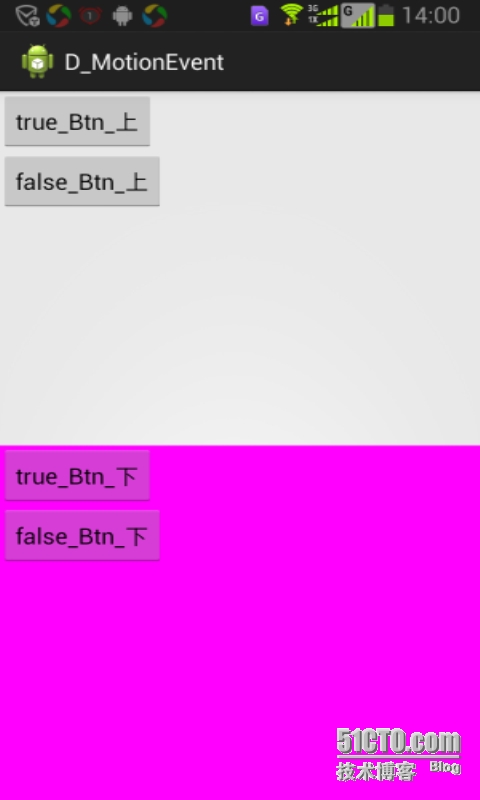
一、MotionEvent对象 当用户触摸屏幕时,将创建一个MontionEvent对象。MotionEvent包含了关于发生触摸的位置和时间的信息,以及触摸事件的其他细节。 获取MontionEvent对象的方法有: 1.重载Activity中的onTouchEvent(MotionEvent event)方法; 2.View对象调用View.setOnTouchListener接口实现onTouch(View v, MotionEvent event)方法; 获得MontionEvent对象后,可以通过以下常用方法进一步获取触控事件的具体信息: 1 2 3 4 5 6 7 8 9 event.getAction() //获取触控动作比如ACTION_DOWN event.getPointerCount(); //获取触控点的数量,比如2则可能是两个手指同时按压屏幕 event.getPointerId(nID); //对于每个触控的点的细节,我们可以通过一个循环执行getPointerId方法获取索引 event.getX(nID); //获取第nID个触控点的x位置 event.getY(nID); //获取第nID个点触控的y位置 event.getPressure(nID); //LCD可以感应出用户的手指压力,当然具体的级别由驱动和物理硬件决定的 event.getDownTime() //按下开始时间 event.getEventTime() //事件结束时间 event.getEventTime()-event.getDownTime()); //总共按下时花费时间 触控对象中的主要相关常量: 1 2 3 4 5 6 7 8 9 10 11 12 13 14 15 16 17 18 19 20 21 22 23 24 25 26 27 28 29 30 31 32 33 34 35 36 37 38 39 40 41 42 43 44 45 46 47 48 49 /** *用于多点触控进行操作 */ public static final int ACTION_MASK= 0xff ; /** *手指按下时 */ public static final int ACTION_DOWN= 0 ; /** *手指放开时 */ public static final int ACTION_UP= 1 ; /** *移动操作时 */ public static final int ACTION_MOVE= 2 ; /** *用户无规则的操作时可能触发.此操作用于表明,一个触摸序列在未发生任何实际操作的情况下结束. */ public static final int ACTION_CANCEL= 3 ; /** *触摸操作发生在窗口之外,但仍然能够找到该操作的特殊情况下设置. */ public static final int ACTION_OUTSIDE= 4 ; /** * */ public static final int ACTION_POINTER_DOWN= 5 ; /** * */ public static final int ACTION_POINTER_UP= 6 ; /** * */ public static final int ACTION_HOVER_MOVE= 7 ; /** *Android3.1开始引入的常量,来自于输入设备(如鼠标),而非触摸屏. */ public static final int ACTION_SCROLL= 8 ; 二、MotionEvent对象处理过程 范例视图如下: activity_main.xml代码如下: 1 2 3 4 5 6 7 8 9 10 11 12 13 14 15 16 17 18 19 20 21 22 23 24 25 26 27 28 29 30 31 32 33 34 35 36 37 38 39 40 41 42 43 44 45 46 47 48 49 50 51 52 53 54 55 56 57 58 59 60 61 62 63 64 <RelativeLayoutxmlns:android= "http://schemas.android.com/apk/res/android" xmlns:tools= "http://schemas.android.com/tools" android:layout_width= "match_parent" android:layout_height= "match_parent" tools:context= ".MainActivity" > <LinearLayout android:layout_width= "match_parent" android:layout_height= "match_parent" android:layout_alignParentLeft= "true" android:layout_alignParentTop= "true" android:orientation= "vertical" > <LinearLayout android:id= "@+id/layout1" android:layout_width= "match_parent" android:layout_height= "0dp" android:layout_weight= "1" android:orientation= "vertical" android:tag= "true_Layout" > <com.example.d_motionevent.TrueButton android:id= "@+id/trueButton1" android:layout_width= "wrap_content" android:layout_height= "wrap_content" android:tag= "true_Btn_上" android:text= "true_Btn_上" /> <com.example.d_motionevent.FalseButton android:id= "@+id/falseButton1" android:layout_width= "wrap_content" android:layout_height= "wrap_content" android:tag= "false_Btn_上" android:text= "false_Btn_上" /> </LinearLayout> <LinearLayout android:id= "@+id/layout2" android:layout_width= "match_parent" android:layout_height= "0dp" android:layout_weight= "1" android:background= "#ff00ff" android:orientation= "vertical" android:tag= "false_Layout" > <com.example.d_motionevent.TrueButton android:id= "@+id/trueButton2" android:layout_width= "wrap_content" android:layout_height= "wrap_content" android:tag= "true_Btn_下" android:text= "true_Btn_下" /> <com.example.d_motionevent.FalseButton android:id= "@+id/falseButton2" android:layout_width= "wrap_content" android:layout_height= "wrap_content" android:tag= "false_Btn_下" android:text= "false_Btn_下" /> </LinearLayout> </LinearLayout> </RelativeLayout> 自定义Button类代码如下: 1 2 3 4 5 6 7 8 9 10 11 12 13 14 15 16 17 18 19 20 21 22 23 24 25 26 27 28 29 30 31 32 33 34 35 36 package com.example.d_motionevent; import android.content.Context; import android.util.AttributeSet; import android.util.Log; import android.view.MotionEvent; import android.widget.Button; /** * *@authorzeng */ public class BooleanButton extends Button { public BooleanButton(Contextcontext,AttributeSetattrs) { super (context,attrs); } protected boolean myValue() { return false ; } @Override public boolean onTouchEvent(MotionEventevent) { StringmyTag= this .getTag().toString(); Log.e(myTag, "===========" + "Button的onTouchEvent方法" + "===========" ); Log.e(myTag,MainActivity.describeEvent( this ,event)); Log.e(myTag, "父类onTouchEvent()=" + super .onTouchEvent(event)); Log.e(myTag, "该buttontouch=" +myValue()); return myValue(); } } TrueButton类代码: 1 2 3 4 5 6 7 8 9 10 11 12 13 14 15 16 17 18 19 20 21 22 package com.example.d_motionevent; import android.content.Context; import android.util.AttributeSet; /** *onTouchEvent返回true的Button. *@authorzeng */ public class TrueButton extends BooleanButton { public TrueButton(Contextcontext,AttributeSetattrs) { super (context,attrs); } @Override protected boolean myValue() { return true ; } } FalseButton类代码: 1 2 3 4 5 6 7 8 9 10 11 12 13 14 15 16 package com.example.d_motionevent; import android.content.Context; import android.util.AttributeSet; /** *onTouchEvent返回false的Button. *@authorzeng */ public class FalseButton extends BooleanButton { public FalseButton(Contextcontext,AttributeSetattrs) { super (context,attrs); } } MainActivity.class代码如下: 1 2 3 4 5 6 7 8 9 10 11 12 13 14 15 16 17 18 19 20 21 22 23 24 25 26 27 28 29 30 31 32 33 34 35 36 37 38 39 40 41 42 43 44 45 46 47 48 49 50 51 52 53 54 55 56 57 58 59 60 61 62 63 64 65 66 67 68 69 70 71 72 73 74 75 76 77 78 79 80 81 82 83 84 85 86 87 88 89 package com.example.d_motionevent; import android.os.Bundle; import android.app.Activity; import android.util.Log; import android.view.MotionEvent; import android.view.View; import android.view.View.OnTouchListener; import android.widget.Button; /** *地址:http://glblong.blog.51cto.com/3058613/1557683 *@authorzeng */ public class MainActivity extends Activity implements OnTouchListener { @Override protected void onCreate(BundlesavedInstanceState) { super .onCreate(savedInstanceState); setContentView(R.layout.activity_main); Viewlayout1=findViewById(R.id.layout1); layout1.setOnTouchListener( this ); ButtontrueButton1=(Button)findViewById(R.id.trueButton1); trueButton1.setOnTouchListener( this ); ButtonfalseButton1=(Button)findViewById(R.id.falseButton1); falseButton1.setOnTouchListener( this ); Viewlayout2=findViewById(R.id.layout2); layout2.setOnTouchListener( this ); ButtontrueButton2=(Button)findViewById(R.id.trueButton2); trueButton2.setOnTouchListener( this ); ButtonfalseButton2=(Button)findViewById(R.id.falseButton2); falseButton2.setOnTouchListener( this ); } @Override public boolean onTouch(Viewv,MotionEventevent) { StringmyTag=v.getTag().toString(); Log.e(myTag, "===========" + "Activity的onTouch方法" + "===========" ); Log.e(myTag, "被点击的View=" +myTag); Log.e(myTag,describeEvent(v,event)); if ( "true" .equals(myTag.substring( 0 , 4 ))) { Log.e(myTag, "==true" ); return true ; } else { Log.e(myTag, "==false" ); return false ; } } @Override public boolean onTouchEvent(MotionEventevent) { return super .onTouchEvent(event); } protected static StringdescribeEvent(Viewview,MotionEventevent) { StringBuildersb= new StringBuilder( 300 ); sb.append( "Action:" ).append(event.getAction()).append( "\n" ); //获取触控动作比如ACTION_DOWN sb.append( "相对坐标:" ).append(event.getX()).append( "*" ).append(event.getY()).append( "" ); sb.append( "绝对坐标:" ).append(event.getRawX()).append( "*" ).append(event.getRawY()).append( "\n" ); if (event.getX()< 0 ||event.getX()>view.getWidth()||event.getY()< 0 ||event.getY()>view.getHeight()) { sb.append( "未点击在View范围内" ); } sb.append( "Edgeflags:" ).append(event.getEdgeFlags()).append( "" ); //边缘标记,但是看设备情况,很可能始终返回0 sb.append( "Pressure:" ).append(event.getPressure()).append( "" ); //压力值,0-1之间,看情况,很可能始终返回1 sb.append( "Size:" ).append(event.getSize()).append( "\n" ); //指压范围 sb.append( "Downtime:" ).append(event.getDownTime()).append( "ms" ); sb.append( "Eventtime:" ).append(event.getEventTime()).append( "ms" ); sb.append( "Elapsed:" ).append(event.getEventTime()-event.getDownTime()).append( "ms\n" ); return sb.toString(); } } 点击过程分析: 1.点击上部的【true_Btn_上】,运行日志如下: 此时执行的是Activity上的onTouch方法并返回了True。 onTouch()方法返回true,因为编码TrueButton的目的是为返回true。返回true会告诉Android,MotionEvent对象已经被使用,不能将它提供给其他方法。 它还告诉Android,继续将此触摸序列的触摸事件发送到此方法。这就是为什么我们在ACTION_DOWN事件后还会看到ACTION_UP或ACTION_MOVE等其他事件。 当触摸【true_Btn_上】时,按钮并没有高亮颜色变化。这是因为,onTouch()是在调用任何按钮方法之前调用的,而且onTouch()方法返回了true,所以Android就不会再调用【true_Btn_上】按钮的onTouchEvent()方法了。 如果在onTouch()方法中,在返回true的行之前添加一行"v.onTouchEvent(event);",那么将会看到触摸时按钮会有颜色变化了。 2.点击上部的【false_Btn_上】,运行日志如下: 点击后,false_btn按钮会处于常亮状态。效果如图: Android接收到MotionEvent对象中的ACTION_DOWN事件,将它传递给MainActivity类中的onTouch()方法。onTouch()执行后返回false。 这个过程告诉Android,onTouch()方法未使用该事件,所以Android寻找要调用的下一个方法,也就是范例中的FalseButton类中重写的onTouchEvent()方法。参见BooleanButton.java中的onTouchEvent()方法,先执行父类的onTouchEvent()方法,然后再返回了false。此时打印出来的Logcat日志与之前的完全一样,因为我们仍然在同一个View对象FalseButton中。 根据日志可以看到,父类希望从onTouchEvent()返回true,但是FalseButton的该方法返回了false。通过返回false,再次告诉Android我们未使用此事件,所以Android不会将ACTION_UP事件发送到我们的按钮,以至于该按钮不知道手指是否已离开了触摸屏。这也是为什么FalseButton在被按下时一直停留在被按下的颜色状态。 简而言之,每次从收到MotionEvent对象的UI对象返回false时,Android就会停止将MotionEvent对象继续发送到该UI对象,同时还会不断的查找另一个UI对象来使用MotionEvent对象。 接着看日志,Android两次尝试找到ACTION_DOWN事件的使用者但都失败了,现在它前进道应用程序中下一个可能接收该事件的View,也就是按钮底层的布局true_Layout。 此时,Android再次调用了MainActivity类中的onTouch()方法,但是现在接收事件的对象变成了true_Layout。接收到的MotionEvent对象的所有信息也与之前相同,只有Y坐标除外,因为点击位置的Y坐标相对于布局左上角要比相对于按钮的左上角的距离来得大。因为true_Layout的onTouch()方法返回true,所以Android将触摸事件的剩余信息发送到了布局。 3.点击上部的【true_Btn_上】按钮不放,同时触摸其他区域。 触摸【true_Btn_上】按钮,在离开按钮之前,其他手指在屏幕上其他区域移动。此时,Logcat将显示接收触摸事件的对象都是【true_Btn_上】按钮。甚至手指离开【true_Btn_上】按钮,而另一手指仍然在屏幕上移动时,接收到触摸事件的仍然还是【true_Btn_上】按钮。 当从onTouch()返回true时,触摸事件序列将与【true_Btn_上】按钮相关联。这告诉了Android,它可以停止查找用来接收MotionEvent对象的UI对象了,只需将此触摸序列的所有未来MotionEvent对象发送给我们。即使在拖动手指时遇到了另一个视图,我们仍然会绑定到此序列的原始视图。 4.点击下部的【false_Btn_下】按钮,运行日志如下: 原理与前几点相同。此时若按住按钮的手指离开前,其他手指继续触摸屏幕,则将不再继续输出日志,因为Android找不到接收MotionEvent对象并返回true结果的UI对象,直到开始下一个新触摸序列。 范例源码见附件。地址:http://glblong.blog.51cto.com/3058613/1557683 三、MotionEvent回收 MotionEvent类中有个recycle()方法,但是不要通过此方法对MotionEvent对象进行回收。如果回调方法没有使用MotionEvent对象,并且返回了false,MotionEvent对象可能会被传递到其他某个方法、视图或我们的活动。 MotionEvent类中还有个obtain()方法,通过此方法可以创建一个MotionEvent的副本或者全新的MotionEvent,这个副本或全新的事件对象是在完成之后应该回收的对象。 四、小结 1.onTouch()方法与View类中的onTouchEvent()方法的区别 onTouch()是View.setOnTouchListener后调用的方法,如果一个View对象setOnTouchListener后,同时又重写了View类自身的onTouchEvent()方法,那么当屏幕触摸时会先调用哪个方法呢? 每当事件产生时,都要先经由dispatchTouchEvent方法来分发。看下View类中的dispatchTouchEvent()源码,如下: 1 2 3 4 5 6 7 8 9 10 11 12 13 14 15 16 17 18 19 20 21 22 23 24 25 26 27 28 29 30 31 32 33 34 35 36 37 38 39 /** *Passthetouchscreenmotioneventdowntothetargetview,orthisview *ifitisthetarget. * *@paramevent *Themotioneventtobedispatched. *@returnTrueiftheeventwashandledbytheview,falseotherwise. */ public boolean dispatchTouchEvent(MotionEventevent) { //用于测试目,直接忽略 if (mInputEventConsistencyVerifier!= null ) { mInputEventConsistencyVerifier.onTouchEvent(event, 0 ); } //上面代码的第2个标注。未被其他窗口遮盖 if (onFilterTouchEventForSecurity(event)) { //noinspectionSimplifiableIfStatement if (mOnTouchListener!= null &&(mViewFlags&ENABLED_MASK)==ENABLED&&mOnTouchListener.onTouch( this ,event)) { //如果有监听器,执行监听器的,不在执行当前视图的onTouchEvent方法 return true ; } //执行当前视图的onTouchEvent方法 if (onTouchEvent(event)) { return true ; } } //用于测试目,直接忽略 if (mInputEventConsistencyVerifier!= null ) { mInputEventConsistencyVerifier.onUnhandledEvent(event, 0 ); } return false ; } dispatchTouchEvent()方法里先是判断了是否有监听器,然后才会去判断onTouchEvent(event)。因此会先执行onTouch()方法,如果监听器的onTouch()返回false,则继续执行View的onTouchEvent()。 2.触摸事件的传递过程 1).触摸事件最先被最顶层的UI对象(比如范例中的Btn)接收,如果该View对象接收后返回false,则继续传向其上一层UI对象(比如范例中的layout),依此类推,直到最底层的Activity。 2).同一个View对象,接收到触摸事件时,如果有设置监听器,先执行View.setOnTouchListener里的onTouch(),然后执行View类中的onTouchEvent(event)方法。 3).当一个UI对象接收到触摸事件并返回true时,同时多指触摸的其他事件序列都会被该UI对象接收,直至下一个新的触摸事件序列产生。 4).当各层的UI对象接收触摸事件都返回false时,此刻同时多指触摸,由此产生的其他事件序列将找不到接收的UI对象。因为当前原始的接收UI对象返回false,系统会一直查找下一个可能接收事件并返回true的UI对象但却又无法找到。 本文转自 glblong 51CTO博客,原文链接:http://blog.51cto.com/glblong/1557683,如需转载请自行联系原作者

优秀的个人博客,低调大师

Android开发学习笔记:Service的简介和启动方式

一.Service的简介 1.Service 介绍和作用 Service是Android系统中的四大组件之一,它是一种长生命周期的,没有可视化界面,运行于后台的一种服务程序。比如我们播放音乐的时候,有可能想边听音乐边干些其他事情,当退出播放音乐的应用,如果不用Service,我 们就听不到歌了,所以这时候就得用到Service了。 2. Service生命周期 Service的生命周期并不像Activity那么复杂,它只继承了onCreate(),onStart(),onDestroy()三个方法,当第一次启动Service时,先后调用了onCreate(),onStart()这两个方法,当停止Service时,则执行onDestroy()方法,这里需要注意的是,如果Service已经启动了,当我们再次启动Service时,不会在执行onCreate()方法,而是直接执行onStart()方法。 二.Service的启动方式 Service的有两种启动方式: Context.startService()和Context.bindService(),这两种方式对 Service生命周期的影响是不同的。 1.Context.startService()方式启动 ①Context.startService()方式的生命周期:启动时,startService –> onCreate() –> onStart() 停止时,stopService –> onDestroy() 如果调用者直接退出而没有停止Service,则Service 会一直在后台运行 Context.startService()方法启动服务,在服务未被创建时,系统会先调用服务的onCreate()方法,接着调用onStart()方法。如果调用startService()方法前服务已经被创建,多次调用startService()方法并不会导致多次创建服务,但会导致多次调用onStart()方法。采用startService()方法启动的服务,只能调用Context.stopService()方法结束服务,服务结束时会调用onDestroy()方法。 ②Context.startService()方式启动 Service的方法: 下面是具体例子: MainActivity.java packagecom.android.service.activity; importandroid.app.Activity; importandroid.content.Intent; importandroid.os.Bundle; importandroid.view.View; importandroid.view.View.OnClickListener; importandroid.widget.Button; publicclassMainActivityextendsActivity { privateButtonstartBtn; privateButtonstopBtn; @Override publicvoidonCreate(BundlesavedInstanceState) { super.onCreate(savedInstanceState); setContentView(R.layout.main); startBtn=(Button)findViewById(R.id.startBtn); stopBtn=(Button)findViewById(R.id.stopBtn); //添加监听器 startBtn.setOnClickListener(listener); stopBtn.setOnClickListener(listener); } //启动监听器 privateOnClickListenerlistener=newOnClickListener() { @Override publicvoidonClick(Viewv) { Intentintent=newIntent(MainActivity.this,ServiceDemo.class); switch(v.getId()) { caseR.id.startBtn: startService(intent); break; caseR.id.stopBtn: stopService(intent); break; default: break; } } }; } ServiceDemo.java packagecom.android.service.activity; importandroid.app.Service; importandroid.content.Intent; importandroid.os.IBinder; importandroid.util.Log; publicclassServiceDemoextendsService { privatestaticfinalStringTAG="Test"; @Override //Service时被调用 publicvoidonCreate() { Log.i(TAG,"ServiceonCreate--->"); super.onCreate(); } @Override //当调用者使用startService()方法启动Service时,该方法被调用 publicvoidonStart(Intentintent,intstartId) { Log.i(TAG,"ServiceonStart--->"); super.onStart(intent,startId); } @Override //当Service不在使用时调用 publicvoidonDestroy() { Log.i(TAG,"ServiceonDestroy--->"); super.onDestroy(); } @Override //当使用startService()方法启动Service时,方法体内只需写returnnull publicIBinderonBind(Intentintent) { returnnull; } } main.xml <?xmlversion="1.0"encoding="utf-8"?> <LinearLayoutxmlns:android="http://schemas.android.com/apk/res/android" android:orientation="vertical" android:layout_width="fill_parent" android:layout_height="fill_parent" > <Button android:id="@+id/startBtn" android:layout_width="match_parent" android:layout_height="wrap_content" android:text="启动Service" /> <Button android:id="@+id/stopBtn" android:layout_width="match_parent" android:layout_height="wrap_content" android:text="停止Service" /> </LinearLayout> 在AndroidManifest.xml文件中添加16~21行的声明 <?xmlversion="1.0"encoding="utf-8"?> <manifestxmlns:android="http://schemas.android.com/apk/res/android" package="com.android.service.activity" android:versionCode="1" android:versionName="1.0"> <uses-sdkandroid:minSdkVersion="10"/> <applicationandroid:icon="@drawable/icon"android:label="@string/app_name"> <activityandroid:name=".MainActivity" android:label="@string/app_name"> <intent-filter> <actionandroid:name="android.intent.action.MAIN"/> <categoryandroid:name="android.intent.category.LAUNCHER"/> </intent-filter> </activity> <serviceandroid:name=".ServiceDemo"> <intent-filter> <actionandroid:name="android.intent.action.MAIN"/> <categoryandroid:name="android.intent.category.LAUNCHER"/> </intent-filter> </service> </application> </manifest> 效果图: 当点击按钮时,先后执行了Service中onCreate()->onStart()这两个方法,LogCat显示如下: 当点击按钮时,Service则执行了onDestroy()方法,LogCat显示如下: 当点击或按钮,进入Settings(设置)->Applications(应用)->Running Services(正在运行的服务)看一下我们新启动了的服务,效果图如下: 2 .Context.bindService() 方式启动: ①Context.bindService()方式的生命周期:绑定时,bindService -> onCreate() –> onBind() 调用者退出了,即解绑定时,Srevice就会unbindService –>onUnbind() –> onDestory() 用Context.bindService()方法启动服务,在服务未被创建时,系统会先调用服务的onCreate()方法,接着调用onBind()方法。这个时候调用者和服务绑定在一起,调用者退出了,系统就会先调用服务的onUnbind()方法,接着调用onDestroy()方法。如果调用bindService()方法前服务已经被绑定,多次调用bindService()方法并不会导致多次创建服务及绑定(也就是说onCreate()和onBind()方法并不会被多次调用)。如果调用者希望与正在绑定的服务解除绑定,可以调用unbindService()方法,调用该方法也会导致系统调用服务的onUnbind()-->onDestroy()方法。 ②Context.bindService()方式启动 Service的方法: 绑定Service需要三个参数:bindService(intent, conn, Service.BIND_AUTO_CREATE); 第一个:Intent对象 第二个:ServiceConnection对象,创建该对象要实现它的onServiceConnected()和onServiceDisconnected()来判断连接成功或者是断开连接 第三个:如何创建Service,一般指定绑定的时候自动创建 下面是具体的例子: MainActivity.java packagecom.android.bindservice.activity; importandroid.app.Activity; importandroid.app.Service; importandroid.content.ComponentName; importandroid.content.Intent; importandroid.content.ServiceConnection; importandroid.os.Bundle; importandroid.os.IBinder; importandroid.util.Log; importandroid.view.View; importandroid.view.View.OnClickListener; importandroid.widget.Button; publicclassMainActivityextendsActivity{ //声明Button privateButtonstartBtn,stopBtn,bindBtn,unbindBtn; @Override publicvoidonCreate(BundlesavedInstanceState){ super.onCreate(savedInstanceState); //设置当前布局视图 setContentView(R.layout.main); //实例化Button startBtn=(Button)findViewById(R.id.startBtn1); stopBtn=(Button)findViewById(R.id.stopBtn2); bindBtn=(Button)findViewById(R.id.bindBtn3); unbindBtn=(Button)findViewById(R.id.unbindBtn4); //添加监听器 startBtn.setOnClickListener(startListener); stopBtn.setOnClickListener(stopListener); bindBtn.setOnClickListener(bindListener); unbindBtn.setOnClickListener(unBindListener); } //启动Service监听器 privateOnClickListenerstartListener=newOnClickListener(){ @Override publicvoidonClick(Viewv){ //创建Intent Intentintent=newIntent(); //设置Class属性 intent.setClass(MainActivity.this,BindService.class); //启动该Service startService(intent); } }; //停止Service监听器 privateOnClickListenerstopListener=newOnClickListener(){ @Override publicvoidonClick(Viewv){ //创建Intent Intentintent=newIntent(); //设置Class属性 intent.setClass(MainActivity.this,BindService.class); //启动该Service stopService(intent); } }; //连接对象 privateServiceConnectionconn=newServiceConnection(){ @Override publicvoidonServiceConnected(ComponentNamename,IBinderservice){ Log.i("Service","连接成功!"); } @Override publicvoidonServiceDisconnected(ComponentNamename){ Log.i("Service","断开连接!"); } }; //綁定Service监听器 privateOnClickListenerbindListener=newOnClickListener(){ @Override publicvoidonClick(Viewv){ //创建Intent Intentintent=newIntent(); //设置Class属性 intent.setClass(MainActivity.this,BindService.class); //绑定Service bindService(intent,conn,Service.BIND_AUTO_CREATE); } }; //解除绑定Service监听器 privateOnClickListenerunBindListener=newOnClickListener(){ @Override publicvoidonClick(Viewv){ //创建Intent Intentintent=newIntent(); //设置Class属性 intent.setClass(MainActivity.this,BindService.class); //解除绑定Service unbindService(conn); } }; } BindService.java packagecom.android.bindservice.activity; importandroid.app.Service; importandroid.content.Intent; importandroid.os.IBinder; importandroid.util.Log; publicclassBindServiceextendsService{ privatestaticfinalStringTAG="Test"; //返回null publicIBinderonBind(Intentintent){ Log.i(TAG,"ServiceonBind--->"); returnnull; } //Service创建时调用 publicvoidonCreate(){ Log.i(TAG,"ServiceonCreate--->"); } //当客户端调用startService()方法启动Service时,该方法被调用 publicvoidonStart(Intentintent,intstartId){ Log.i(TAG,"ServiceonStart--->"); } //当Service不再使用时调用 publicvoidonDestroy(){ Log.i(TAG,"ServiceonDestroy--->"); } //当解除绑定时调用 publicbooleanonUnbind(Intentintent){ Log.i(TAG,"ServiceonUnbind--->"); returnsuper.onUnbind(intent); } } main.xml <?xmlversion="1.0"encoding="utf-8"?> <LinearLayoutxmlns:android="http://schemas.android.com/apk/res/android" android:orientation="vertical" android:layout_width="fill_parent" android:layout_height="fill_parent" > <Button android:text="启动Service" android:id="@+id/startBtn1" android:layout_width="match_parent" android:layout_height="wrap_content" /> <Button android:text="停止Service" android:id="@+id/stopBtn2" android:layout_width="match_parent" android:layout_height="wrap_content" /> <Button android:text="绑定Service" android:id="@+id/bindBtn3" android:layout_width="match_parent" android:layout_height="wrap_content" /> <Button android:text="解除绑定" android:id="@+id/unbindBtn4" android:layout_width="match_parent" android:layout_height="wrap_content" /> </LinearLayout> 在AndroidManifest.xml文件中添加16~21行的声明 <?xmlversion="1.0"encoding="utf-8"?> <manifestxmlns:android="http://schemas.android.com/apk/res/android" package="com.android.bindservice.activity" android:versionCode="1" android:versionName="1.0"> <uses-sdkandroid:minSdkVersion="10"/> <applicationandroid:icon="@drawable/icon"android:label="@string/app_name"> <activityandroid:name=".MainActivity" android:label="@string/app_name"> <intent-filter> <actionandroid:name="android.intent.action.MAIN"/> <categoryandroid:name="android.intent.category.LAUNCHER"/> </intent-filter> </activity> <serviceandroid:name=".BindService"> <intent-filter> <actionandroid:name="android.intent.action.MAIN"/> <categoryandroid:name="android.intent.category.LAUNCHER"/> </intent-filter> </service> </application> </manifest> 效果图: 当点击按钮时,先后执行了Service中onCreate()->onStart()这两个方法,LogCat显示如下: 当点击按钮,则Service执行了onUnbind()方法,LogCat显示如下: 当点击按钮,则Service执行了onUnbind()方法,LogCat显示如下: 本文转自 lingdududu 51CTO博客,原文链接:http://blog.51cto.com/liangruijun/647804

优秀的个人博客,低调大师

weekend110(Hadoop)的 第三天笔记

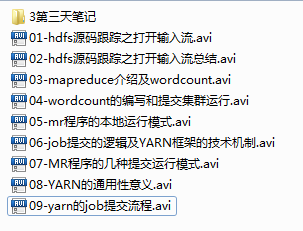
课程目录 01-hdfs源码跟踪之打开输入流 02-hdfs源码跟踪之打开输入流总结 03-mapreduce介绍及wordcount 04-wordcount的编写和提交集群运行 05-mr程序的本地运行模式 06-job提交的逻辑及YARN框架的技术机制 07-MR程序的几种提交运行模式 08-YARN的通用性意义 09-yarn的job提交流程 本文转自大数据躺过的坑博客园博客,原文链接:http://www.cnblogs.com/zlslch/p/5894876.html,如需转载请自行联系原作者

优秀的个人博客,低调大师

docker学习笔记(五)——Docker常用命令总结

1. 开启/停止/重启container(start/stop/restart) 容器可以通过run新建一个来运行,也可以重新start已经停止的container,但start不能够再指定容器启动时运行的指令,因为docker只能有一个前台进程。 容器stop(或Ctrl+D)时,会在保存当前容器的状态之后退出,下次start时保有上次关闭时更改。而且每次进入attach进去的界面是一样的,与第一次run启动或commit提交的时刻相同。 1 2 3 CONTAINER_ID=$(dockerstart<containner_id>) dockerstop$CONTAINER_ID dockerrestart$CONTAINER_ID 关于这几个命令可以通过一个完整的实例使用:docker如何创建一个运行后台进程的容器并同时提供shell终端。 2. 连接到正在运行中的container(attach) 要attach上去的容器必须正在运行,可以同时连接上同一个container来共享屏幕(与screen命令的attach类似)。 官方文档中说attach后可以通过CTRL-C来detach,但实际上经过我的测试,如果container当前在运行bash,CTRL-C自然是当前行的输入,没有退出;如果container当前正在前台运行进程,如输出nginx的access.log日志,CTRL-C不仅会导致退出容器,而且还stop了。这不是我们想要的,detach的意思按理应该是脱离容器终端,但容器依然运行。好在attach是可以带上--sig-proxy=false来确保CTRL-D或CTRL-C不会关闭容器。 1 #dockerattach--sig-proxy=false$CONTAINER_ID 3. 查看image或container的底层信息(inspect) inspect的对象可以是image、运行中的container和停止的container。 1 2 3 4 查看容器的内部IP #dockerinspect--format='{\{.NetworkSettings.IPAddress}}'$CONTAINER_ID 172.17.42.35 (注:由于代码块解析的问题,上面NetworkSettings前面的\去掉) 4. 删除一个或多个container、image(rm、rmi) 你可能在使用过程中会build或commit许多镜像,无用的镜像需要删除。但删除这些镜像是有一些条件的: 同一个IMAGE ID可能会有多个TAG(可能还在不同的仓库),首先你要根据这些 image names 来删除标签,当删除最后一个tag的时候就会自动删除镜像; 承上,如果要删除的多个IMAGE NAME在同一个REPOSITORY,可以通过docker rmi <image_id>来同时删除剩下的TAG;若在不同Repo则还是需要手动逐个删除TAG; 还存在由这个镜像启动的container时(即便已经停止),也无法删除镜像; TO-DO 如何查看镜像与容器的依存关系 删除容器docker rm <container_id/contaner_name> 1 2 3 删除所有停止的容器 docker rm $(docker ps -a-q) 删除镜像docker rmi <image_id/image_name ...> 下面是一个完整的示例: 1 2 3 4 5 6 7 8 9 10 11 12 13 14 15 16 17 18 19 20 21 22 23 24 25 26 #dockerimages<== ubuntu13.10195eb90b53494monthsago184.6MB ubuntusaucy195eb90b53494monthsago184.6MB seanlook /ubuntu rm_test195eb90b53494monthsago184.6MB 使用195eb90b5349启动、停止一个容器后,删除这个镜像 #dockerrmi195eb90b5349 Errorresponsefromdaemon:Conflict,cannotdeleteimage195eb90b5349becauseitis tagged in multiplerepositories,use-ftoforce 2014 /11/04 14:19:00Error:failedtoremoveoneor more images 删除seanlook仓库中的tag<== #dockerrmiseanlook/ubuntu:rm_test Untagged:seanlook /ubuntu :rm_test 现在删除镜像,还会由于container的存在不能rmi #dockerrmi195eb90b5349 Errorresponsefromdaemon:Conflict,cannotdelete195eb90b5349becausethe containereef3648a6e77isusingit,use-ftoforce 2014 /11/04 14:24:15Error:failedtoremoveoneor more images 先删除由这个镜像启动的容器<== #dockerrmeef3648a6e77 删除镜像<== #dockerrmi195eb90b5349 Deleted:195eb90b534950d334188c3627f860fbdf898e224d8a0a11ec54ff453175e081 Deleted:209ea56fda6dc2fb013e4d1e40cb678b2af91d1b54a71529f7df0bd867adc961 Deleted:0f4aac48388f5d65a725ccf8e7caada42f136026c566528a5ee9b02467dac90a Deleted:fae16849ebe23b48f2bedcc08aaabd45408c62b531ffd8d3088592043d5e7364 Deleted:f127542f0b6191e99bb015b672f5cf48fa79d974784ac8090b11aeac184eaaff 注意,上面的删除过程我所举的例子比较特殊——镜像被tag在多个仓库,也有启动过的容器。按照<==指示的顺序进行即可。 5. docker build使用此配置生成新的image build命令可以从Dockerfile和上下文来创建镜像:docker build [OPTIONS] PATH | URL | - 上面的PATH或URL中的文件被称作上下文,build image的过程会先把这些文件传送到docker的服务端来进行的。 如果PATH直接就是一个单独的Dockerfile文件则可以不需要上下文;如果URL是一个Git仓库地址,那么创建image的过程中会自动git clone一份到本机的临时目录,它就成为了本次build的上下文。无论指定的PATH是什么,Dockerfile是至关重要的,请参考Dockerfile Reference。 请看下面的例子: 1 2 3 4 5 6 7 8 9 10 11 12 13 14 15 16 17 #catDockerfile FROMseanlook /nginx :bash_vim EXPOSE80 ENTRYPOINT /usr/sbin/nginx -c /etc/nginx/nginx .conf&& /bin/bash #dockerbuild-tseanlook/nginx:bash_vim_Df. SendingbuildcontexttoDockerdaemon73.45MB SendingbuildcontexttoDockerdaemon Step0:FROMseanlook /nginx :bash_vim --->aa8516fa0bb7 Step1:EXPOSE80 --->Usingcache --->fece07e2b515 Step2:ENTRYPOINT /usr/sbin/nginx -c /etc/nginx/nginx .conf&& /bin/bash --->Running in e08963fd5afb --->d9bbd13f5066 Removingintermediatecontainere08963fd5afb Successfullybuiltd9bbd13f5066 上面的PATH为.,所以在当前目录下的所有文件(不包括.dockerignore中的)将会被tar打包并传送到docker daemon(一般在本机),从输出我们可以到Sending build context...,最后有个Removing intermediate container的过程,可以通过--rm=false来保留容器。 TO-DOdocker build github.com/creack/docker-firefox失败。 6. 给镜像打上标签(tag) tag的作用主要有两点:一是为镜像起一个容易理解的名字,二是可以通过docker tag来重新指定镜像的仓库,这样在push时自动提交到仓库。 1 2 3 4 将同一IMAGE_ID的所有tag,合并为一个新的 #dockertag195eb90b5349seanlook/ubuntu:rm_test 新建一个tag,保留旧的那条记录 #dockertagRegistry/Repos:TagNew_Registry/New_Repos:New_Tag 7. 查看容器的信息container(ps) docker ps命令可以查看容器的CONTAINER ID、NAME、IMAGE NAME、端口开启及绑定、容器启动后执行的COMMNAD。经常通过ps来找到CONTAINER_ID。docker ps默认显示当前正在运行中的containerdocker ps -a查看包括已经停止的所有容器docker ps -l显示最新启动的一个容器(包括已停止的) 8. 查看容器中正在运行的进程(top) 容器运行时不一定有/bin/bash终端来交互执行top命令,查看container中正在运行的进程,况且还不一定有top命令,这是docker top <container_id/container_name>就很有用了。实际上在host上使用ps -ef|grep docker也可以看到一组类似的进程信息,把container里的进程看成是host上启动docker的子进程就对了。 9. docker与宿主机文件互拷 将主机/www/runoob目录拷贝到容器96f7f14e99ab的/www目录下。 1 docker cp /www/runoob 96f7f14e99ab: /www/ 将主机/www/runoob目录拷贝到容器96f7f14e99ab中,目录重命名为www。 1 docker cp /www/runoob 96f7f14e99ab: /www 将容器96f7f14e99ab的/www目录拷贝到主机的/tmp目录中。 1 docker cp 96f7f14e99ab: /www /tmp/ 10、docker 容器保持后台运行的两种方式 10.1run一个容器: (推荐方法) 1 2 3 4 5 [root@localhost~] #dockerrun-dit--hostnamecentos--namecentos--restartalwaysa8493f5f50ff/bin/bash -dit是后台运行、交互模式、分配终端,容器启动后不会退出 如果没有it参数,run一个容器以后,docker ps -a容器状态就exited了 --restartalways容器可以随docker服务启动而启动 10.2run 一个容器,并一直发送ping包 1 [root@localhost~] #dockerrun-d--nametest--hostnametesta8493f5f50ffping127.0.0.1 开启ping进程,则主机一直运行 本文转自 jackjiaxiong 51CTO博客,原文链接:http://blog.51cto.com/xiangcun168/1958278

优秀的个人博客,低调大师

docker学习笔记(四)——Dockerfile创建自定义镜像

用Dockerfile创建docker,注意下,建议在空文件夹下创建 本篇我们将完成: 1、用Dockerfile创建docker 2、端口映射 3、卷挂载,即docker目录挂载到宿主机 1、用Dockerfile创建docker 在/opt/centos/目录下,创建Dockerfile 1 2 3 4 5 6 7 8 9 10 11 12 13 14 15 16 17 18 19 20 21 22 23 24 25 26 27 28 29 30 31 32 33 34 35 36 37 #CentosbasedcontainerwithJavaandTomcat FROM127.0.0.1:5000 /centos :v2 #镜像源,这里为私有 MAINTAINERjack.zhang #作者 ENVREFRESHED_AT2017-8-28 #日期 #Prepareenvironment#声明创建变量 ENVJAVA_HOME /opt/jdk1 .8.0_131 ENVJRE_HOME /opt/jdk1 .8.0_131 /jre ENVCLASSPATH.:$JAVA_HOME /lib :$JRE_HOME /lib :$CLASSPATH ENVPATH$JAVA_HOME /bin :$JRE_HOME /bin :$PATH RUN mkdir /data RUNyum install -ywget #建议搭建本地软件源,取包比较快,当时直接yum安装也可以,前提宿主机可以上网 RUNwgethttp: //192 .168.10.144:9098 /jdk-8u131-linux-x64 . tar .gz&&\ #下载10.144安装包 tar -xvfjdk-8u131-linux-x64. tar .gz-C /opt/ #InstallTomcat RUNwgethttp: //192 .168.10.144:9098 /tomcat . tar .gz&&\ tar -xvftomcat. tar .gz-C /data/ &&\ mv /data/tomcat /data/tomcat8 RUN chmod +x /data/tomcat8/bin/ *sh VOLUME[ "/data/tomcat8/webapps/" ] EXPOSE8090 #对外暴露的端口,即对外提供服务的端口 EXPOSE8009 ENTRYPOINT[ "/data/tomcat8/bin/catalina.sh" , "run" ] #启动tomcat,注意,docker里面的进程要一直挂起,要不然会退出,我们用这种办法启动 文件编辑完成后,我们来生成docker 1 2 3 4 5 6 7 8 9 注意命令后有个点,不要忘记,当前文件夹下面一定有Dockerfile #dockerbuild-ttest/test_app. 会打印一堆日志,这不影响,如果有异常可以找出对应问题, 创建后,我们看下是不是已经成功了 #dockerimages REPOSITORYTAGIMAGEIDCREATEDSIZE test /test_app latest29175ec8a72017hoursago836MB 2、端口映射 因为上面的端口已经暴露出来,只要tomcat启动了,端口就是通的,所以我们这里要做的就是启动docker并把端映射出来,这里的8090是docker提供服务的端口 1 2 3 4 5 6 7 启动docker并映射端口注意,-p就是端口映射 #dockerrun-d-p8090:8090--restart=always--nametomcattest/test_app 看下进程是否启动成功 #dockerps CONTAINERIDIMAGECOMMANDCREATEDSTATUSPORTSNAMES 923bc1dda78f test /test_app "/data/tomcat8/bin..." 29minutesagoUp29minutes8009 /tcp ,0.0.0.0:8090->8090 /tcp tomcat 用宿主机访问IP:端口,访问是不是可以访问到了? 需要说明的是,端口映射其它是基于iptables的,所以如果docker启动没问题,进程也存在,确认宿主机的iptables 是否启动 centos iptables 1 #systemctlstartfirewalld.service#启动firewall 3、卷挂载,即docker目录挂载到宿主机 其它挂载目录到宿主机,没什么特别的,有些文档介绍的好像有多么深奥,其实没啥 只是启动命令加下参数罢了, 先关闭运行中的docker 1 #dockerstop923bc1dda78f923bc1dda78f是docker的进程号,通过dockerps可以看得到 好了,挂载目录启动 1 2 3 4 5 6 7 8 9 10 11 12 13 14 15 16 - v 命令,注意前面的是宿主机的目录,后面提docker目录 即把宿主机的 /usr/share/nginx/html 挂载到docker的 /data/tomcat8/webapps/ROOT/ 下 #dockerrun-d-v/usr/share/nginx/html:/data/tomcat8/webapps/ROOT-p8090:8090--restart=always--nametomcatapptest/test_app 查看下进程 #dockerps CONTAINERIDIMAGECOMMANDCREATEDSTATUSPORTSNAMES 923bc1dda78f test /test_app "/data/tomcat8/bin..." 29minutesagoUp29minutes8009 /tcp ,0.0.0.0:8090->8090 /tcp tomcat 我们进入到dockershell看下是不是成功挂载 #dockerexec-it923bc1dda78f/bin/bash#923bc1dda78f为进程号 [root@923bc1dda78f/] #cd/data/tomcat8/webapps/ROOT/ [root@923bc1dda78fROOT] #ls 404.html50x.htmlapache-tomcat-8.5.15-src. tar .gzindex.htmljdk-8u131-linux-x64. tar .gznginx-logo.pngpoweredby.png 可以看到已经功能挂载 直接访问宿主机:端口,是不是首页不一样的~~ 这样是不是很方便了,我们直接维护宿主机的目录就相当于维护docker目录。 本文转自 jackjiaxiong 51CTO博客,原文链接:http://blog.51cto.com/xiangcun168/1958270

优秀的个人博客,低调大师

ndroid笔记:Webview 支持 input type=file选择上传图片

在一个带有input tpye=file标签的Html页面,通过WebView,上传android手机上的图片,发现不工作。(在Ios和微信上完全正常工作)所以,需要研究一下Android的WebView,来支持type=file的标签。 WebView设置WebChromeClient 重写WebChromeClient中关于文件选择的方法,onShowFileChooser和openFileChooser。(项目中只需要选择图片,所以加上了图片过滤。) 1 2 3 4 5 6 7 8 9 10 11 12 13 14 15 16 17 18 19 20 21 22 23 24 25 26 27 28 29 30 31 32 33 34 35 36 37 38 39 40 41 42 43 44 45 46 47 48 49 50 51 52 53 54 55 56 57 58 59 60 61 62 63 64 65 66 67 68 69 70 71 72 73 74 75 76 77 78 79 80 81 82 83 84 85 86 87 88 89 90 91 92 93 94 public static final int INPUT_FILE_REQUEST_CODE= 1 ; private ValueCallback<Uri>mUploadMessage; private final static int FILECHOOSER_RESULTCODE= 2 ; private ValueCallback<Uri[]>mFilePathCallback; private StringmCameraPhotoPath; private WebChromeClientmWebChromeClient= new WebChromeClient(){ //android5.0 public boolean onShowFileChooser( WebViewwebView,ValueCallback<Uri[]>filePathCallback, WebChromeClient.FileChooserParamsfileChooserParams){ if (mFilePathCallback!= null ){ mFilePathCallback.onReceiveValue( null ); } mFilePathCallback=filePathCallback; IntenttakePictureIntent= new Intent(MediaStore.ACTION_IMAGE_CAPTURE); if (takePictureIntent.resolveActivity(getPackageManager())!= null ){ //CreatetheFilewherethephotoshouldgo FilephotoFile= null ; try { photoFile=createImageFile(); takePictureIntent.putExtra( "PhotoPath" ,mCameraPhotoPath); } catch (IOExceptionex){ //ErroroccurredwhilecreatingtheFile Log.e( "WebViewSetting" , "UnabletocreateImageFile" ,ex); } //ContinueonlyiftheFilewassuccessfullycreated if (photoFile!= null ){ mCameraPhotoPath= "file:" +photoFile.getAbsolutePath(); takePictureIntent.putExtra(MediaStore.EXTRA_OUTPUT, Uri.fromFile(photoFile)); } else { takePictureIntent= null ; } } IntentcontentSelectionIntent= new Intent(Intent.ACTION_GET_CONTENT); contentSelectionIntent.addCategory(Intent.CATEGORY_OPENABLE); contentSelectionIntent.setType( "image/*" ); Intent[]intentArray; if (takePictureIntent!= null ){ intentArray= new Intent[]{takePictureIntent}; } else { intentArray= new Intent[ 0 ]; } IntentchooserIntent= new Intent(Intent.ACTION_CHOOSER); chooserIntent.putExtra(Intent.EXTRA_INTENT,contentSelectionIntent); chooserIntent.putExtra(Intent.EXTRA_TITLE, "ImageChooser" ); chooserIntent.putExtra(Intent.EXTRA_INITIAL_INTENTS,intentArray); startActivityForResult(chooserIntent,INPUT_FILE_REQUEST_CODE); return true ; } //Theundocumentedmagicmethodoverride //Eclipsewillswearatyouifyoutrytoput@Overridehere //ForAndroid3.0+ public void openFileChooser(ValueCallback<Uri>uploadMsg){ mUploadMessage=uploadMsg; Intenti= new Intent(Intent.ACTION_GET_CONTENT); i.addCategory(Intent.CATEGORY_OPENABLE); i.setType( "image/*" ); WebViewActivity. this .startActivityForResult(Intent.createChooser(i, "ImageChooser" ),FILECHOOSER_RESULTCODE); } //ForAndroid3.0+ public void openFileChooser(ValueCallbackuploadMsg,StringacceptType){ mUploadMessage=uploadMsg; Intenti= new Intent(Intent.ACTION_GET_CONTENT); i.addCategory(Intent.CATEGORY_OPENABLE); i.setType( "image/*" ); WebViewActivity. this .startActivityForResult( Intent.createChooser(i, "ImageChooser" ), FILECHOOSER_RESULTCODE); } //ForAndroid4.1 public void openFileChooser(ValueCallback<Uri>uploadMsg,StringacceptType,Stringcapture){ mUploadMessage=uploadMsg; Intenti= new Intent(Intent.ACTION_GET_CONTENT); i.addCategory(Intent.CATEGORY_OPENABLE); i.setType( "image/*" ); WebViewActivity. this .startActivityForResult(Intent.createChooser(i, "ImageChooser" ),WebViewActivity.FILECHOOSER_RESULTCODE); } }; 选择结果的回调 在onActivityResult中获取对应的选取文件的返回结果 1 2 3 4 5 6 7 8 9 10 11 12 13 14 15 16 17 18 19 20 21 22 23 24 25 26 27 28 29 30 31 32 33 34 35 36 37 38 39 40 41 public void onActivityResult( int requestCode, int resultCode,Intentdata){ if (requestCode==FILECHOOSER_RESULTCODE){ if ( null ==mUploadMessage) return ; Uriresult=data== null ||resultCode!=RESULT_OK? null :data.getData(); if (result!= null ){ StringimagePath=ImageFilePath.getPath( this ,result); if (!StrUtils.isEmpty(imagePath)){ result=Uri.parse( "file:///" +imagePath); } } mUploadMessage.onReceiveValue(result); mUploadMessage= null ; } else if (requestCode==INPUT_FILE_REQUEST_CODE&&mFilePathCallback!= null ){ //5.0的回调 Uri[]results= null ; //Checkthattheresponseisagoodone if (resultCode==Activity.RESULT_OK){ if (data== null ){ //Ifthereisnotdata,thenwemayhavetakenaphoto if (mCameraPhotoPath!= null ){ Logger.d( "camera_photo_path" ,mCameraPhotoPath); results= new Uri[]{Uri.parse(mCameraPhotoPath)}; } } else { StringdataString=data.getDataString(); Logger.d( "camera_dataString" ,dataString); if (dataString!= null ){ results= new Uri[]{Uri.parse(dataString)}; } } } mFilePathCallback.onReceiveValue(results); mFilePathCallback= null ; } else { super .onActivityResult(requestCode,resultCode,data); return ; } } 文件路径的获取 返回文件的解析,因为html页面需要的是文件,所以客户端需要返回的是对应文件的路径。这样,就会存在一个问题,在Android 4.4上,通过文件选择返回的结果都是对应以content开头格式的对应的路径。这就得需要咱们来进行判断,最终都需要转回成以file开头对应的格式文件。下面,我封装成了一个ImageFilePath的类,通过调用getPath方法来获取最终的结果。这个类的方法如下: 1 2 3 4 5 6 7 8 9 10 11 12 13 14 15 16 17 18 19 20 21 22 23 24 25 26 27 28 29 30 31 32 33 34 35 36 37 38 39 40 41 42 43 44 45 46 47 48 49 50 51 52 53 54 55 56 57 58 59 60 61 62 63 64 65 66 67 68 69 70 71 72 73 74 75 76 77 78 79 80 81 82 83 84 85 86 87 88 89 90 91 92 93 94 95 96 97 98 99 100 101 102 103 104 105 106 107 108 109 110 111 112 113 114 115 116 117 118 119 120 121 122 123 124 125 126 127 128 129 130 131 132 133 134 135 136 137 138 139 140 141 142 143 144 145 146 147 148 149 /** *MethodforreturnfilepathofGalleryimage * *@paramcontext *@paramuri *@returnpathoftheselectedimagefilefromgallery */ public static StringgetPath( final Contextcontext, final Uriuri){ //checkheretoKITKATornewversion final boolean isKitKat=Build.VERSION.SDK_INT>=Build.VERSION_CODES.KITKAT; //DocumentProvider if (isKitKat&&DocumentsContract.isDocumentUri(context,uri)){ //ExternalStorageProvider if (isExternalStorageDocument(uri)){ final StringdocId=DocumentsContract.getDocumentId(uri); final String[]split=docId.split( ":" ); final Stringtype=split[ 0 ]; if ( "primary" .equalsIgnoreCase(type)){ return Environment.getExternalStorageDirectory()+ "/" +split[ 1 ]; } } //DownloadsProvider else if (isDownloadsDocument(uri)){ final Stringid=DocumentsContract.getDocumentId(uri); final UricontentUri=ContentUris.withAppendedId( Uri.parse( "content://downloads/public_downloads" ), Long.valueOf(id)); return getDataColumn(context,contentUri, null , null ); } //MediaProvider else if (isMediaDocument(uri)){ final StringdocId=DocumentsContract.getDocumentId(uri); final String[]split=docId.split( ":" ); final Stringtype=split[ 0 ]; UricontentUri= null ; if ( "image" .equals(type)){ contentUri=MediaStore.Images.Media.EXTERNAL_CONTENT_URI; } else if ( "video" .equals(type)){ contentUri=MediaStore.Video.Media.EXTERNAL_CONTENT_URI; } else if ( "audio" .equals(type)){ contentUri=MediaStore.Audio.Media.EXTERNAL_CONTENT_URI; } final Stringselection= "_id=?" ; final String[]selectionArgs= new String[]{split[ 1 ]}; return getDataColumn(context,contentUri,selection, selectionArgs); } } //MediaStore(andgeneral) else if ( "content" .equalsIgnoreCase(uri.getScheme())){ //Returntheremoteaddress if (isGooglePhotosUri(uri)) return uri.getLastPathSegment(); return getDataColumn(context,uri, null , null ); } //File else if ( "file" .equalsIgnoreCase(uri.getScheme())){ return uri.getPath(); } return null ; } /** *GetthevalueofthedatacolumnforthisUri.Thisisusefulfor *MediaStoreUris,andotherfile-basedContentProviders. * *@paramcontext *Thecontext. *@paramuri *TheUritoquery. *@paramselection *(Optional)Filterusedinthequery. *@paramselectionArgs *(Optional)Selectionargumentsusedinthequery. *@returnThevalueofthe_datacolumn,whichistypicallyafilepath. */ public static StringgetDataColumn(Contextcontext,Uriuri, Stringselection,String[]selectionArgs){ Cursorcursor= null ; final Stringcolumn= "_data" ; final String[]projection={column}; try { cursor=context.getContentResolver().query(uri,projection, selection,selectionArgs, null ); if (cursor!= null &&cursor.moveToFirst()){ final int index=cursor.getColumnIndexOrThrow(column); return cursor.getString(index); } } finally { if (cursor!= null ) cursor.close(); } return null ; } /** *@paramuri *TheUritocheck. *@returnWhethertheUriauthorityisExternalStorageProvider. */ public static boolean isExternalStorageDocument(Uriuri){ return "com.android.externalstorage.documents" .equals(uri .getAuthority()); } /** *@paramuri *TheUritocheck. *@returnWhethertheUriauthorityisDownloadsProvider. */ public static boolean isDownloadsDocument(Uriuri){ return "com.android.providers.downloads.documents" .equals(uri .getAuthority()); } /** *@paramuri *TheUritocheck. *@returnWhethertheUriauthorityisMediaProvider. */ public static boolean isMediaDocument(Uriuri){ return "com.android.providers.media.documents" .equals(uri .getAuthority()); } /** *@paramuri *TheUritocheck. *@returnWhethertheUriauthorityisGooglePhotos. */ public static boolean isGooglePhotosUri(Uriuri){ return "com.google.android.apps.photos.content" .equals(uri .getAuthority()); } 本文转自 glblong 51CTO博客,原文链接:http://blog.51cto.com/glblong/1726034,如需转载请自行联系原作者

优秀的个人博客,低调大师

Android笔记:AndroidManifest.xml属性详解(一)之sharedUserId

一、sharedUserId 1 android:sharedUserId= "com.rongqin" userid的特点: 1. 作为APK身份的标识 2. userid对应一个Linux用户,所以不同APK(用户)间互相访问数据默认是禁止的. 不同APK之间如何通过userid进行数据互访? 在android系统中,apk之间可以相互读取数据的条件是:有同样的签名,并且AndroidManifest.xml文件中配置的android:sharedUserId属性值相同,那么两个apk运行在同一个进程中,可以互相访问任意数据。 通过userid访问其他apk资源的方法: 1.应用程序和插件(比如皮肤)程序的AndroidManifest.xml中配置相同的sharedUserId: 1 2 3 4 5 6 <?xmlversion= "1.0" encoding= "utf-8" ?> <manifestxmlns:android= "http://schemas.android.com/apk/res/android" package = "com.lonshine.skin" android:versionCode= "1" android:versionName= "1.0" android:sharedUserId= "com.rongqin" > 2.访问apk中的资源: 1 Contextcontext=createPackageContext( "com.lonshine.skin" ,Context.CONTEXT_IGNORE_SECURITY); 获取到com.lonshine.skin对应的Context,通过返回的context对象就可以访问到com.lonshine.skin中的任何资源。 例如,应用apk要获得插件apk中的bg.png: 1 Drawabledrawable=context.getResources().getDrawable(R.drawable.bg); 这样就得到了图片的引用,其他xml资源文件的获取方式也是类似的。 本文转自 glblong 51CTO博客,原文链接:http://blog.51cto.com/glblong/1561239,如需转载请自行联系原作者

优秀的个人博客,低调大师

Android开发笔记--Android开发时常用控件(二

MicrosoftInternetExplorer402DocumentNotSpecified7.8Normal0 RadioGroup,RadioButton(单选) CheckBox(多选) Toast(像一个遮罩层) 例1,<RadioGroupAndroid:id="@+id/genderGroup" Android:layout_width="wrap_content" Android:layout_height="wrap_content" Android:orientation="vertical"> <RadioButtonAndroid:id="@+id/female" Android:layout_width="wrap_content" Android:layout_height="wrap_content" Android:text="@string/female"/> <RadioButtonAndroid:id="@+id/male" Android:layout_width="wrap_content" Android:layout_height="wrap_content" Android:text="@string/male"/> </RadioGroup> 代码:1.控件对象声明 2.取得对象控件 3.设置监听器(只为RadioGroup注册一个) PublicvoidonCheckedChange(RadioGroupgroup,intcheckedId){ If(femaleButton.getId()==checkedId){ System.out.println("Female"); } Elseif(maleButton.getId()==checkedId){ System.out.println("Male"); } } 4.触发事件 //为RadioGroup设置 RadioGroup.setOnCheckedChangeListener(newRadioGroup.OnCheckedChangeListener()) 例2.<CheckBoxandroid:id="@+id/swim" Android:layout_width="wrap_content" Android:layout_height="wrap_content" Android:text="@string/swim"/> <CheckBoxandroid:id="@+id/run" Android:layout_width="wrap_content" Android:layout_height="wrap_content" Android:text="@string/run"/> <CheckBoxandroid:id="@+id/read" Android:layout_width="wrap_content" Android:layout_height="wrap_content" Android:text="@string/read"/> 代码:1.控件对象声明 2.取得对象控件 3.设置监听器(为每一个CheckBox注册监听器) PublicvoidonCheckedChanged(CompoundButtonbuttonView,booleanisChecked){ If(isChecked){ System.out.println("yes"); } Else{ System.out.println("NO"); } } 4.触发事件 CheckBox.setOnCheckedChangeLinstener(newCompoundButton.onCheckedChangeLinstener(){}) 例3.Toast Toast.makeText(this.class,displaystring,messageTime).show() 本文转自My_King1 51CTO博客,原文链接:http://blog.51cto.com/apprentice/1360574,如需转载请自行联系原作者

优秀的个人博客,低调大师

【swift学习笔记】三.使用xib自定义UITableViewCell

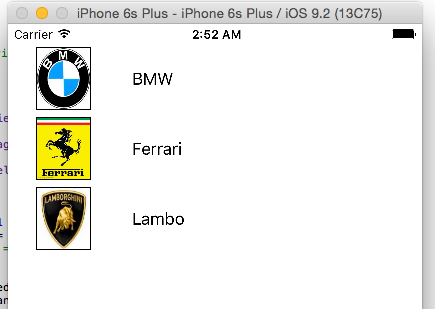
使用xib自定义tableviewCell看一下效果图 1.自定义列 新建一个xib文件 carTblCell,拖放一个UITableViewCell,再拖放一个图片和一个文本框到tableviewcell上 并给我们的xib一个标识 为了学习,我这里的xib和后台的class是分开建的。我们再建一个cocoa touch class文件名称为CarCellTableViewCell继承自UITableViewCell 并把我们的xib和新建的CarCellTableViewCell建立联接 在CarCellTableViewCell里建立和xib的图片和文本框的输出 import UIKit class CarCellTableViewCell: UITableViewCell { @IBOutlet weak var cellImg: UIImageView! @IBOutlet weak var lbCell: UILabel! override func awakeFromNib() { super.awakeFromNib() // Initialization code cellImg.layer.borderWidth = 1 cellImg.layer.masksToBounds = true //cellImg.layer.cornerRadius = 31 } override func setSelected(selected: Bool, animated: Bool) { super.setSelected(selected, animated: animated) // Configure the view for the selected state } } 2.关联cell和tableview 1. 在main.storyboard上拖放一个uitableview,并在后台代码建立输出联接 1.在load事件里注册xib 2.在tableveiw的方法里得到当前的列,指定数据源。 import UIKit class ViewController: UIViewController, UITableViewDelegate, UITableViewDataSource { @IBOutlet var tableView: UITableView! var tableData: [String] = ["BMW", "Ferrari", "Lambo"] override func viewDidLoad() { super.viewDidLoad() // Do any additional setup after loading the view, typically from a nib. let cellNib = UINib(nibName: "carTblCell", bundle: nil) tableView.registerNib(cellNib, forCellReuseIdentifier: "cell") } override func didReceiveMemoryWarning() { super.didReceiveMemoryWarning() // Dispose of any resources that can be recreated. } func tableView(tableView: UITableView, numberOfRowsInSection section: Int) -> Int { return tableData.count } func tableView(tableView: UITableView, cellForRowAtIndexPath indexPath: NSIndexPath) -> UITableViewCell { let cell: CarCellTableViewCell = self.tableView.dequeueReusableCellWithIdentifier("cell") as! CarCellTableViewCell cell.lbCell.text = tableData[indexPath.row] cell.cellImg.image = UIImage(named: tableData[indexPath.row]) return cell } func tableView(tableView: UITableView, didDeselectRowAtIndexPath indexPath: NSIndexPath) { print("\(indexPath.row)") } func tableView(tableView: UITableView, heightForRowAtIndexPath indexPath: NSIndexPath) -> CGFloat { return 70 } } 本文转自lpxxn博客园博客,原文链接: http://www.cnblogs.com/li-peng/p/5543415.html ,如需转载请自行联系原作者

优秀的个人博客,低调大师

【swift学习笔记】五.使用枚举优雅的管理Segue

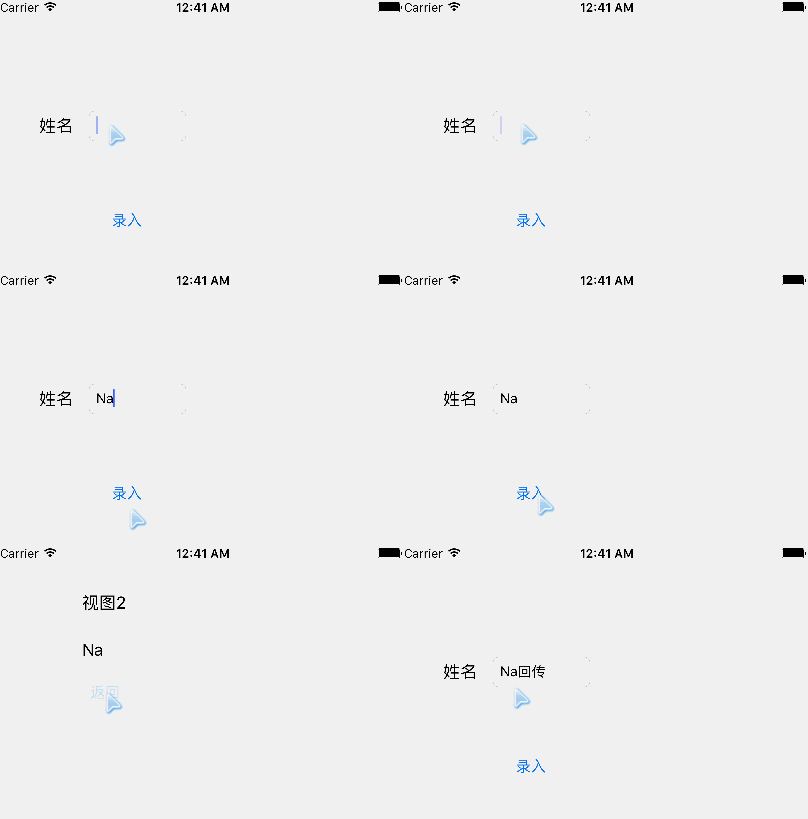
在做页面转跳的时候,我们要给Segue命名,如果Segue多了,管理他们就是一个恶梦。我们可以枚举更优雅的管理这些Segue。 1.我们先来建立一个protocol,他的功能就是让实现类实现一个SegueIdentifier别名,这个SegueIdentifier必需为RawRepresentable类型,在后边我们就会用 protocol SegueHandlerType { associatedtype SegueIdentifier: RawRepresentable } 2.我们要对上边的protocol扩展,并且实现protocol必须为UIViewControl,SegueIdentifier的原值要为String类型 这个扩展有两个方法一个是用要实现的别名来调用执行Segue方法performSegueWithIdentifier。另一个方法segueIdentifierForSegue通过Segue的identifier来得到SegueIdentifier. extension SegueHandlerType where Self: UIViewController, SegueIdentifier.RawValue == String { func performSegueWithIdentifier(segueIdentifier: SegueIdentifier, sender: AnyObject) { performSegueWithIdentifier(segueIdentifier.rawValue, sender: sender) } func segueIdentifierForSegue(segue: UIStoryboardSegue) -> SegueIdentifier { guard let identifier = segue.identifier, segueIdentifier = SegueIdentifier(rawValue: identifier) else { fatalError("invalid segue identifier \(segue.identifier)") } return segueIdentifier } } 3.用ViewController实现SegueHandlerType。再用一个枚举来实现SegueIdentifier并且为String,里面有两个case这两个就要我们要打开的新窗体的名称。 下边有两个按钮Action是用SegueIdentifier枚举来打开相应的窗体。 class ViewController: UIViewController, SegueHandlerType { enum SegueIdentifier: String { case ShowView1 case ShowView2 } override func viewDidLoad() { super.viewDidLoad() // Do any additional setup after loading the view, typically from a nib. } override func didReceiveMemoryWarning() { super.didReceiveMemoryWarning() // Dispose of any resources that can be recreated. } @IBAction func openView1(sender: AnyObject) { performSegueWithIdentifier(.ShowView1, sender: self) } @IBAction func openView2(sender: AnyObject) { performSegueWithIdentifier(.ShowView2, sender: self) } } 4.新建两个新窗体,分别用Segue联接这两个窗体。这两个Segue分别命名为我们的枚举类型的两个值:“ShowView1” “ShowView2”。再来两个Button连接后台的两个窗体的Action 源代码:segueTypeDemo.zip 本文转自lpxxn博客园博客,原文链接:http://www.cnblogs.com/li-peng/p/5561149.html,如需转载请自行联系原作者

资源下载

更多资源
Mario

Mario

马里奥是站在游戏界顶峰的超人气多面角色。马里奥靠吃蘑菇成长,特征是大鼻子、头戴帽子、身穿背带裤,还留着胡子。与他的双胞胎兄弟路易基一起,长年担任任天堂的招牌角色。

Spring

Spring

Spring框架(Spring Framework)是由Rod Johnson于2002年提出的开源Java企业级应用框架,旨在通过使用JavaBean替代传统EJB实现方式降低企业级编程开发的复杂性。该框架基于简单性、可测试性和松耦合性设计理念,提供核心容器、应用上下文、数据访问集成等模块,支持整合Hibernate、Struts等第三方框架,其适用范围不仅限于服务器端开发,绝大多数Java应用均可从中受益。

Sublime Text

Sublime Text

Sublime Text具有漂亮的用户界面和强大的功能,例如代码缩略图,Python的插件,代码段等。还可自定义键绑定,菜单和工具栏。Sublime Text 的主要功能包括:拼写检查,书签,完整的 Python API , Goto 功能,即时项目切换,多选择,多窗口等等。Sublime Text 是一个跨平台的编辑器,同时支持Windows、Linux、Mac OS X等操作系统。

WebStorm

WebStorm

WebStorm 是jetbrains公司旗下一款JavaScript 开发工具。目前已经被广大中国JS开发者誉为“Web前端开发神器”、“最强大的HTML5编辑器”、“最智能的JavaScript IDE”等。与IntelliJ IDEA同源,继承了IntelliJ IDEA强大的JS部分的功能。

用户登录
用户注册