Android 中文 API (36) —— Toast
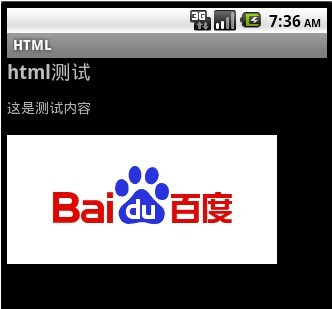
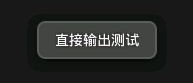
正文 一、结构 public classToastextendsObject java.lang.Object android.widget.Toast 二、概述 Toast是一种提供给用户简洁信息的视图。Toast类帮助你创建和显示该信息。 该视图已浮于应用程序之上的形式呈现给用户。因为它并不获得焦点,即使用户正在输入什么也不会受到影响。它的目标是尽可能已不显眼的方式,使用户看到你提供的信息。有两个例子就是音量控制和设置信息保存成功。 使用该类最简单的方法就是调用一个静态方法,让他来构造你需要的一切并返回一个新的Toast对象。 三、常量 int LENGTH_LONG 持续显示视图或文本提示较长时间。该时间长度可定制。 参见 setDuration(int) int LENGTH_SHORT 持续显示视图或文本提示较短时间。该时间长度可定制。该值为默认值。 参见 setDuration(int) 四、构造函数 public Toast (Context context) 构造一个空的Toast对象。在调用show()之前,必须先调用setView(View)。 (译者注:只有使用setView(View)的时候,才使用new Toast(Content content)来得到Toast对象,否则必须用makeText()方法来创建toast对象,并且这种方式获得Toast对象不能使用setText()方法。) 参数 context使用的上下文。通常是你的Application或Activity对象。 五、公共方法 public intcancel() 如果视图已经显示则将其关闭,还没有显示则不再显示。一般不需要调用该方法。正常情况下,视图会在超过存续期间后消失。 public intgetDuration() 返回存续期间 请参阅 setDuration(int) public intgetGravity() 取得提示信息在屏幕上显示的位置。 请参阅 Gravity setGravity() public floatgetHorizontalMargin() 返回横向栏外空白。 public floatgetVerticalMargin() 返回纵向栏外空白。 publicViewgetView() 返回View对象。 请参阅 setView(View) public intgetXOffset() 返回相对于参照位置的横向偏移像素量。 public intgetYOffset() 返回相对于参照位置的纵向偏移像素量。 public staticToastmakeText(Contextcontext, int resId, int duration) 生成一个从资源中取得的包含文本视图的标准Toast对象。 参数 context 使用的上下文。通常是你的Application或Activity对象。 resId 要使用的字符串资源ID,可以是已格式化文本。 duration 该信息的存续期间。值为LENGTH_SHORT或LENGTH_LON 异常 当资源未找到时抛异常Resources.NotFoundException public staticToastmakeText(Contextcontext,CharSequencetext, int duration) 生成一个包含文本视图的标准Toast对象。 参数 context 使用的上下文。通常是你的Application或Activity对象。 resId 要显示的文本,可以是已格式化文本。 duration 该信息的存续期间。值为LENGTH_SHORT或LENGTH_LONG public voidsetDuration(int duration) 设置存续期间。 请参阅 LENGTH_SHORT LENGTH_LONG public voidsetGravity(int gravity, int xOffset, int yOffset) 设置提示信息在屏幕上的显示位置。 (译者注:自定义Toast的显示位置,例如toast.setGravity(Gravity.CENTER_VERTICAL, 0, 0)可以把Toast定位在左上角。Toast提示的位置xOffset:大于0向右移,小于0向左移) 请参阅 Gravity getGravity() public voidsetMargin(float horizontalMargin, float verticalMargin) 设置视图的栏外空白。 参数 horizontalMargin容器的边缘与提示信息的横向空白(与容器宽度的比)。 verticalMargin容器的边缘与提示信息的纵向空白(与容器高度的比)。 public voidsetText(int resId) 更新之前通过makeText()方法生成的Toast对象的文本内容。 参数 resId为Toast指定的新的字符串资源ID。 public voidsetText(CharSequences) 更新之前通过makeText()方法生成的Toast对象的文本内容。 参数 s为Toast指定的新的文本。 public voidsetView(Viewview) 设置要显示的View。 (译者注:注意这个方法可以显示自定义的toast视图,可以包含图像,文字等等。是比较常用的方法。) 请参阅 getView() public voidshow() 按照指定的存续期间显示提示信息。 六、补充 文章链接 让Toast一直显示的解决方法 通知Toast详细用法(显示view) Android一种信息提示机制:Toast [推荐]android Toast大全(五种情形)建立属于你自己的Toast 示例代码 示例一:使用图片的Toast Toasttoast = new Toast( this ); ImageViewview = new ImageView( this ); view.setImageResource(R.drawable.icon); toast.setView(view); toast.show(); 示例二:带文字带图片Toast private void showToast(){ // 1创建Toast Toasttoast = Toast.makeText( this , " 图文显示 " ,Toast.LENGTH_LONG); // 2创建Layout,并设置为水平布局 LinearLayoutmLayout = new LinearLayout( this ); mLayout.setOrientation(LinearLayout.HORIZONTAL); ImageViewmImage = new ImageView( this ); // 用于显示图像的ImageView mImage.setImageResource(R.drawable.icon); ViewtoastView = toast.getView(); // 获取显示文字的ToastView mLayout.addView(mImage); // 添加到Layout mLayout.addView(toastView); // 3关键,设置Toast显示的View(上面生成的Layout). toast.setView(mLayout); toast.show(); } 示例三:综合Toast例子 Main.xml <? xmlversion="1.0"encoding="utf-8" ?> < LinearLayout xmlns:android ="http://schemas.android.com/apk/res/android" android:orientation ="vertical" android:layout_width ="fill_parent" android:layout_height ="fill_parent" > < Button android:id ="@+id/button1" android:layout_width ="fill_parent" android:layout_height ="wrap_content" android:text ="Toast显示View" /> < Button android:id ="@+id/button2" android:layout_width ="fill_parent" android:layout_height ="wrap_content" android:text ="Toast直接输出" /> < Button android:id ="@+id/button3" android:layout_width ="fill_parent" android:layout_height ="wrap_content" android:text ="VolumeToast应用" /> </ LinearLayout > Toast.xml <? xmlversion="1.0"encoding="utf-8" ?> < LinearLayout xmlns:android ="http://schemas.android.com/apk/res/android" android:orientation ="vertical" android:layout_width ="fill_parent" android:layout_height ="fill_parent" > < ImageView android:src ="@drawable/toast" android:layout_width ="wrap_content" android:layout_height ="wrap_content" /> < TextView android:id ="@+id/tv1" android:text ="" android:layout_width ="wrap_content" android:layout_height ="wrap_content" /> </ LinearLayout > Volumetoast.xml <? xmlversion="1.0"encoding="utf-8" ?> < LinearLayout xmlns:android ="http://schemas.android.com/apk/res/android" android:layout_width ="280dp" android:layout_height ="wrap_content" android:gravity ="center_horizontal" android:orientation ="vertical" > < TextView android:layout_width ="fill_parent" android:layout_height ="wrap_content" android:text ="Volume" /> < ProgressBar android:id ="@+id/progress" android:layout_width ="280dp" android:layout_height ="wrap_content" android:progress ="50" android:max ="100" style ="?android:attr/progressBarStyleHorizontal" /> </ LinearLayout > java文件 public class toasttest extends Activity{ /** Calledwhentheactivityisfirstcreated. */ @Override public void onCreate(BundlesavedInstanceState){ super .onCreate(savedInstanceState); setContentView(R.layout.main); Buttonbutton1 = (Button)findViewById(R.id.button1); button1.setOnClickListener(bt1lis); Buttonbutton2 = (Button)findViewById(R.id.button2); button2.setOnClickListener(bt2lis); Buttonbutton3 = (Button)findViewById(R.id.button3); button3.setOnClickListener(bt3lis); } OnClickListenerbt1lis = new OnClickListener(){ @Override public void onClick(Viewv){ showToast(); } }; OnClickListenerbt2lis = new OnClickListener(){ @Override public void onClick(Viewv){ Toast.makeText(toasttest. this , " 直接输出测试 " ,Toast.LENGTH_LONG).show(); } }; OnClickListenerbt3lis = new OnClickListener(){ @Override public void onClick(Viewv){ showvolumeToast(); } }; public void showToast(){ LayoutInflaterli = (LayoutInflater)getSystemService(Context.LAYOUT_INFLATER_SERVICE); Viewview = li.inflate(R.layout.toast, null ); // 把布局文件toast.xml转换成一个view Toasttoast = new Toast( this ); toast.setView(view); // 载入view,即显示toast.xml的内容 TextViewtv = (TextView)view.findViewById(R.id.tv1); tv.setText( " Toast显示View内容 " ); // 修改TextView里的内容 toast.setDuration(Toast.LENGTH_SHORT); // 设置显示时间,长时间Toast.LENGTH_LONG,短时间为Toast.LENGTH_SHORT,不可以自己编辑 toast.show(); } public void showvolumeToast(){ // TODOAuto-generatedmethodstub LayoutInflaterli = (LayoutInflater)getSystemService(Context.LAYOUT_INFLATER_SERVICE); ViewvolumeView = li.inflate(R.layout.volumetoast, null ); ((ProgressBar)volumeView.findViewById(R.id.progress)).setProgress(((ProgressBar)volumeView.findViewById(R.id.progress)).getProgress() + 10 ); // 这里还有点问题,就是progress的进度条不动,因为我们主要是想给大家展示 // Toast的用法,这里就不深究了 ToastvolumeToast = new Toast( this ); volumeToast.setGravity(Gravity.BOTTOM, 0 , 100 ); volumeToast.setView(volumeView); volumeToast.setDuration(Toast.LENGTH_SHORT); volumeToast.show(); } } 备注 我们的代码没有重复概述中的通过代码布局toast实现方法,我们是通过布局文件转换成view视图来实现复杂toast,这是两种常用的方法,大家可以根据具体情况进行选择。 下载 /Files/over140/2010/11/demo_Toast.rar 七、不足之处 现象:当点击一个按钮 可以显示一个四秒的toast,但是我要是连点两下就是8秒 三下十二秒 解决办法:只用一个Toast, 自己设置toast.setText(), setDuration(); 之后无论多少次.show()都能马上更新显示, 一会就消失了 本文转自over140 51CTO博客,原文链接:http://blog.51cto.com/over140/582633,如需转载请自行联系原作者