首页 文章 精选 留言 我的

精选列表

搜索[设置],共10023篇文章
优秀的个人博客,低调大师

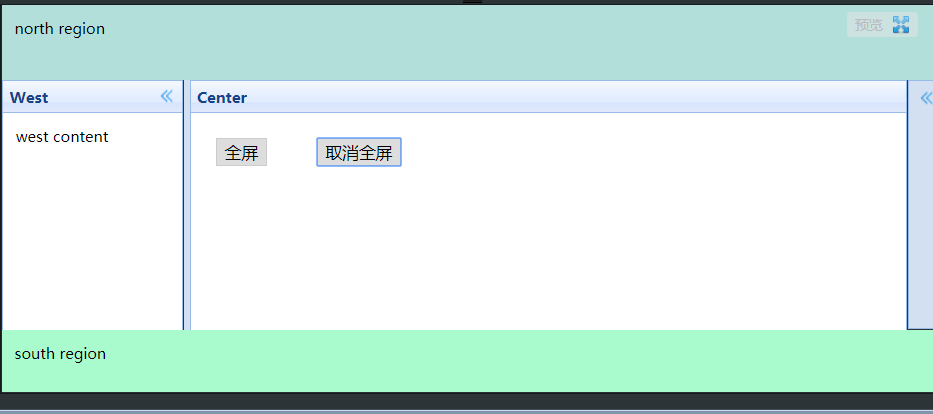
Easyui layout设置满屏效果

html文件: <!DOCTYPE html> <html> <head> <meta http-equiv="Content-Type" content="text/html; charset=UTF-8"> <title>Easyui Layout全屏</title> <link id="others_jquery_easyui_131" rel="stylesheet" type="text/css" class="library" href="/js/sandbox/jquery-easyui/themes/default/easyui.css"> <script id="jquery_183" type="text/javascript" class="library" src="/js/sandbox/jquery/jquery-1.8.3.min.js"></script> <script id="others_jquery_easyui_131" type="text/javascript" class="library" src="/js/sandbox/jquery-easyui/jquery.easyui.min.js"></script> </head> <body class="easyui-layout"> <div data-options="region:'north',border:false" style="height:60px;background:#B3DFDA;padding:10px">north region</div> <div data-options="region:'west',split:true,title:'West'" style="width:150px;padding:10px;">west content</div> <div data-options="region:'east',split:true,collapsed:true,title:'East'" style="width:100px;padding:10px;">east region</div> <div data-options="region:'south',border:false" style="height:50px;background:#A9FACD;padding:10px;">south region</div> <div data-options="region:'center',title:'Center'" id="center"> <button onclick="full()">全屏</button><button onclick="unFull()">取消全屏</button> </div> </body> </html> js文件: $.extend($.fn.layout.methods, { full : function (jq) { return jq.each(function () { var layout = $(this); var center = layout.layout('panel', 'center'); center.panel('maximize'); center.parent().css('z-index', 10); $(window).on('resize.full', function () { layout.layout('unFull').layout('resize'); }); }); }, unFull : function (jq) { return jq.each(function () { var center = $(this).layout('panel', 'center'); center.parent().css('z-index', 'inherit'); center.panel('restore'); $(window).off('resize.full'); }); } }); function full() { $("body").layout("full"); } function unFull() { $("body").layout("unFull"); } 普通 满屏 转载于:http://runjs.cn/code/2fjkfkuo

优秀的个人博客,低调大师

CentOS设置ssh密钥登录

一、生成密钥对(两种方式)并配置 方式1:使用ssh-keygen(1)生成并配置 (1)生成密钥对 [root@iZwz9catu2mrq92b07d1d0Z ~]# ssh-keygen -t rsa Generating public/private rsa key pair. //输入文件名称 Enter file in which to save the key (/root/.ssh/id_rsa): keys_root //输入私钥加密密码 Enter passphrase (empty for no passphrase): //再次输入密码 Enter same passphrase again: Your identification has been saved in keys_root. Your public key has been saved in keys_root.pub. The key fingerprint is: f4:f9:70:51:cf:09:f6:da:30:6a:b1:67:4f:dc:14:44 root@iZwz9catu2mrq92b07d1d0Z The key's randomart image is: +--[ RSA 2048]----+ | o+E | | ..ooo| | . ..o o+| | . . .+.*..| | S ++.+ +.| | .+o o | | . . | | | | | +-----------------+ //文件生成成功,keys_root为私钥,keys_root.pub为公钥 [root@iZwz9catu2mrq92b07d1d0Z ~]# ls keys_root keys_root.pub (2)配置公钥 //将生成的公钥写入到用户的authorized_keys [root@iZwz9catu2mrq92b07d1d0Z ~]# echo -e '#this is keys_root' >> ~/.ssh/authorized_keys ; cat ~/keys_root.pub >> ~/.ssh/authorized_keys [root@iZwz9catu2mrq92b07d1d0Z ~]# cat ~/.ssh/authorized_keys #this is keys_root ssh-rsa AAAAB3NzaC1yc2EAAAABIwAAAQEAyhp9SBxas8Nmwdi4dQfOuUULpMGRnGEFopU2DXhSF+PE/s80xrVS31Ycd5o4gU3iehKx2vo4OEB2lYZ2JCfptTc59HAj+Qwqh7i5S4YQuX/+31GkY+s8XKFR4QgH1ubQt9feU2cagfG1f+wWRsa0YtefE67Kjv6OZuKuA2bOdrAH4mzV1m71iLMUZYgaEnfJExXj2lbPAXRqCV+tdIj9h0jxhB5pQXsZ3NE38D22WYNKO4Sy8odfE7Oby1I0Emm8Uhiwqgx91HP22iY/WqzZOxeKZPF17CPWr9cChaPh9/DXM1Wd8KDCg33MO6hbpqAwh7iEughndXly0FY0oZNKnQ== root@iZwz9catu2mrq92b07d1d0Z (3)配置私钥 下载私钥到本地机器 [root@iZwz9catu2mrq92b07d1d0Z ~]# sz keys_root 启动Xshell 工具(Tools) 用户密钥管理者(User Key Manager) 导入已下载的 keys_root 文件(Import) 配置完成 方式2:使用Xshell生成并配置 启动Xshell 工具 新建用户密钥生成向导(New User Key Wizard) 按步骤选择下一步 输入密钥名称和私钥密码后选择下一步 密钥对生成成功,此时私钥已自动导入到Xshell中,需要我们手动保存公钥到本地机器 上传已保存的公钥文件到服务器并配置在用户的authorized_keys文件中 二、通过密钥登录服务器 新建会话,填写名称、主机等信息 选择左侧栏目用户身份验证,右侧方法选择Public Key,填写用户名,选择对应的用户密钥并填写密钥的密码,点击确定 连接会话 附录 [root@iZwz9catu2mrq92b07d1d0Z ~]# man ssh 1.ssh-keygen命令介绍 The user creates his/her key pair by running ssh-keygen(1). This stores the private key in ~/.ssh/identity (protocol 1), ~/.ssh/id_dsa (protocol 2 DSA), ~/.ssh/id_ecdsa (protocol 2 ECDSA), or ~/.ssh/id_rsa (protocol 2 RSA) and stores the public key in ~/.ssh/identity.pub (protocol 1), ~/.ssh/id_dsa.pub (protocol 2 DSA), ~/.ssh/id_ecdsa.pub (protocol 2 ECDSA), or ~/.ssh/id_rsa.pub (protocol 2 RSA) in the user’s home directory. The user should then copy the public key to ~/.ssh/authorized_keys in his/her home directoryon the remote machine. The authorized_keys file corresponds to the conventional ~/.rhosts file, and has one key per line, though the lines can be very long. After this, the user can log in without giving the password. 注:每个用户都拥有自己的authorized_keys 2.authorized_keys文件介绍 ~/.ssh/authorized_keys Lists the public keys (RSA/ECDSA/DSA) that can be used for logging in as this user. The format of this file is described in the sshd(8) manual page. This file is not highly sensitive, but the recommended permissions are read/writefor the user, and not accessible by others. 注:建议文件权限对拥有者为读写权限,其他用户无权限

优秀的个人博客,低调大师

Android WIFI检测与设置

WIFI是无线通信协议,可以允许手机直接连接到无线网络。在现在3G资费还比较贵的情况下,WIFI对于手机来说是很重要的,我们可以很方便的下载软件,音乐等资源。Android手机必须要有WIFI网卡才能支持WIFI。Android应用程序有时候需要对WIFI网卡进行操作,从而操作WIFI网络。 WIFI网卡有一些状态,由一系列的整形常量来表示。 常量名 常量值 网卡状态 WIFI_STATE_DISABLED 1 WIFI网卡不可用 WIFI_STATE_DISABLING 0 WIFI正在关闭 WIFI_STATE_ENABLED 3 WIFI网卡可用 WIFI_STATE_ENABLING 2 WIFI网卡正在打开 WIFI_STATE_UNKNOWN 4 未知网卡状态 在应用程序中操作WIFI网卡一定的权限。WIFI 的主要操作权限有四个:CHANGE_NETWORK_STATE :允许修改网络状态的权限。 CHANGE_WIFI_STATE :允许修改 WIFI 状态的权限。 ACCESS_NETWORK_STATE :允许访问网络状态的权限。 ACCESS_WIFI_STATE :允许访问 WIFI 状态的权限。 在AndroidManifest.xml文件中添加权限。 XML/HTML代码 <uses-permissionandroid:name="android.permission.CHANGE_NETWORK_STATE"></uses-permission> <uses-permissionandroid:name="android.permission.CHANGE_WIFI_STATE"></uses-permission> <uses-permissionandroid:name="android.permission.ACCESS_NETWORK_STATE"></uses-permission> <uses-permissionandroid:name="android.permission.ACCESS_WIFI_STATE"></uses-permission> 改变WIFI网卡的状态对WIFI网卡进行操作需要通过WifiManager对象来进行,获取该对象的方法如下: WifiManager wifiManger=(WifiManger)Context.getSystemService(Service.WIFI-SERVICE); 打开WIFI网卡 wifiManager.setWifiEnabled(true); 关闭WIFI网卡 wifiManager.setWifiEnabled(false); 获取网卡当前的状态 wifiManager.getWifiState(); 需要说明的是由于Android模拟器不支持WIFI和蓝牙所以程序执行时返回的网卡状态都是WIFI_STATE_UNKNOWN:网卡未知的状态。此程序需要在真机上进行调试才会显示正确的运行结果。 打开WIFI网卡: Java代码 WifiManagerwifiManager=(WifiManager).getSystemService(Context.WIFI_SERVICE); wifiManager.setWifiEnabled(true); 关闭WIFI网卡: Java代码 WifiManagerwifiManager=(WifiManager).getSystemService(Context.WIFI_SERVICE); wifiManager.setWifiEnabled(false); 本文转自06peng 51CTO博客,原文链接:http://blog.51cto.com/06peng/962819,如需转载请自行联系原作者

优秀的个人博客,低调大师

[Android1.6]继承BaseAdapter为GridView设置数据时设置setLayoutParams时注意

正文 一、问题代码 public ViewgetView( int position,ViewconvertView,ViewGroupparent){ if (convertView == null ){ TextViewitem = new TextView(context); item.setText( " Test " ); item.setLayoutParams( new LayoutParams( LayoutParams.WRAP_CONTENT, LayoutParams.WRAP_CONTENT)); return item; } else return convertView; } 代码说明: a). LayoutParams是指android.view.ViewGroup.LayoutParams。 b). 程序运行后将出错,错误很莫名其妙且不固定。 二、问题分析 经调试发现在获取LayoutParams时内部是将这个属性转到android.widget.AbsListView.LayoutParams,也就是这里setLayoutParams弄错了,这里正确的方法是使用GridView.LayoutParams,替换之后问题得以解决。 本文转自over140 51CTO博客,原文链接:http://blog.51cto.com/over140/582224,如需转载请自行联系原作者

资源下载

更多资源
优质分享App

优质分享App

近一个月的开发和优化,本站点的第一个app全新上线。该app采用极致压缩,本体才4.36MB。系统里面做了大量数据访问、缓存优化。方便用户在手机上查看文章。后续会推出HarmonyOS的适配版本。

Mario

Mario

马里奥是站在游戏界顶峰的超人气多面角色。马里奥靠吃蘑菇成长,特征是大鼻子、头戴帽子、身穿背带裤,还留着胡子。与他的双胞胎兄弟路易基一起,长年担任任天堂的招牌角色。

腾讯云软件源

腾讯云软件源

为解决软件依赖安装时官方源访问速度慢的问题,腾讯云为一些软件搭建了缓存服务。您可以通过使用腾讯云软件源站来提升依赖包的安装速度。为了方便用户自由搭建服务架构,目前腾讯云软件源站支持公网访问和内网访问。

Sublime Text

Sublime Text

Sublime Text具有漂亮的用户界面和强大的功能,例如代码缩略图,Python的插件,代码段等。还可自定义键绑定,菜单和工具栏。Sublime Text 的主要功能包括:拼写检查,书签,完整的 Python API , Goto 功能,即时项目切换,多选择,多窗口等等。Sublime Text 是一个跨平台的编辑器,同时支持Windows、Linux、Mac OS X等操作系统。