首页 文章 精选 留言 我的

精选列表

搜索[联网搜索API],共10000篇文章
优秀的个人博客,低调大师

Android 中文 API (17) —— TextSwitcher

正文 一、结构 public classTextSwitcherextendsViewSwitcher java.lang.Object android.view.View android.view.ViewGroup android.widget.FrameLayout android.widget.ViewAnimator android.widget.ViewSwitcher android.widget.TextSwitcher 二、类概述 ViewSwitcher仅仅包含子类型TextView。TextSwitcher被用来使屏幕上的label产生动画效果。每当setText(CharSequence)被调用时,TextSwitcher使用动画方式将当前的文字内容消失并显示新的文字内容。(译者注:改变文字时增加一些动画效果) 三、构造函数 public TextSwitcher (Context context) 创建一个新的空TextSwitcher 参数 context应用程序上下文 public TextSwitcher (Context context, AttributeSet attrs) 使用提供的context和attributes来创建一个空的TextSwitcher 参数 context应用程序环境 attrs属性集合 四、公共方法 public void addView (View child, int index, ViewGroup.LayoutParams params) 根据指定的布局参数新增一个子视图 参数 child新增的子视图 index新增子视图的位置 params新增子视图的布局参数 抛出异常 IllegalArgumentException当子视图不是一个TextView实例时 public void setCurrentText (CharSequence text) 设置当前显示的文本视图的文字内容。非动画方式显示。 参数 text需要显示的新文本内容 public void setText (CharSequence text) 设置下一视图的文本内容并切换到下一视图。可以动画的退出当前文本内容,显示下一文本内容。 参数 text需要显示的新文本内容 五、代码示例 5.1 摘自APIDemos->View->TextSwitcher 5.1.1 Java public class TextSwitcher1 extends Activity implements ViewSwitcher.ViewFactory, View.OnClickListener{ private TextSwitchermSwitcher; private int mCounter = 0 ; @Override protected void onCreate(BundlesavedInstanceState){ super .onCreate(savedInstanceState); setContentView(R.layout.text_switcher_1); mSwitcher = (TextSwitcher)findViewById(R.id.switcher); mSwitcher.setFactory( this ); Animationin = AnimationUtils.loadAnimation( this , android.R.anim.fade_in); Animationout = AnimationUtils.loadAnimation( this , android.R.anim.fade_out); mSwitcher.setInAnimation(in); mSwitcher.setOutAnimation(out); ButtonnextButton = (Button)findViewById(R.id.next); nextButton.setOnClickListener( this ); updateCounter(); } public void onClick(Viewv){ mCounter ++ ; updateCounter(); } private void updateCounter(){ mSwitcher.setText(String.valueOf(mCounter)); } public ViewmakeView(){ TextViewt = new TextView( this ); t.setGravity(Gravity.TOP | Gravity.CENTER_HORIZONTAL); t.setTextSize( 36 ); return t; } } 5.1.2 XML <? xmlversion="1.0"encoding="utf-8" ?> < LinearLayout xmlns:android ="http://schemas.android.com/apk/res/android" android:layout_width ="match_parent" android:layout_height ="match_parent" android:orientation ="vertical" > < Button android:id ="@+id/next" android:layout_width ="wrap_content" android:layout_height ="wrap_content" android:text ="@string/text_switcher_1_next_text" /> < TextSwitcher android:id ="@+id/switcher" android:layout_width ="match_parent" android:layout_height ="wrap_content" /> </ LinearLayout > 本文转自over140 51CTO博客,原文链接:http://blog.51cto.com/over140/582684,如需转载请自行联系原作者

优秀的个人博客,低调大师

Android中文API(116)——TableLayout

正文 一、结构 public classTableLayout extendsLinerLayout java.lang.Object android.view.View android.view.ViewGroup android.widget.LinearLayout android.widget.TableLayout 二、概述 按照行列来组织子视图的布局。表格布局包含一系列的TableRow对象,用于定义行(实际上你也可以使用其它子对象,将在后面进行解释)。表格布局不为它的行、列和单元格显示表格线。每个行可以包含0个以上(包括0)的单元格;每个单元格可以设置一个View对象.与行包含很多单元格一样,表格包含很多列。表格的单元格可以为空.单元格可以象HTML那样跨列。 列的宽度由该列所有行中最宽的一个单元格决定.不过表格布局可以通过setColumnShrinkable()方法或者setColumnStretchable()方法来标记某些列可以收缩或可以拉伸.如果标记为可以收缩,列宽可以收缩以使表格适合容器的大小。如果标记为可以拉伸,列宽可以拉伸以占用多余的空间。表格的总宽度由其父容器决定.记住列可以同时具有可拉伸和可收缩标记是很重要的。在列可以调整其宽度以占用可用空间,但不能超过限度时是很有用的.最后,你可以通过调用setColumnCollapsed()方法来隐藏列。 表格布局的子对象不能指定layout_width属性.宽度永远是MATCH_PARENT。不过子对象可以定义layout_height属性;其默认值是WRAP_CONTENT.如果子对象是TableRow,其高度永远是WRAP_CONTENT。 无论是在代码还是在XML布局文件中,单元格必须安装索引顺序加入表格行.列号是从0开始的.如果你不为子单元格指定列号,其将自动增值,使用下一个可用列号.如果你跳过某个列号,他在表格行中作为空可以改对待。参见ApiDemos中通过XML创建表格的布局示例。 虽然表格布局典型的子对象是表格行,实际上你可以使用任何视图类的子类,作为表格视图的直接子对象.视图会作为只有一行并结合了所有列的单元格显示。 参见 Table Layout tutorial 三、内部类 class TableLayout.LayoutParams 该类强制将子视图的宽度设为MATCH_PARENT,将没有设置高度的子视图的高度设为WRAP_CONTENT。 四、XML属性 属性名称 描述 android:collapseColumns 隐藏从0开始的索引列。列直接必须用逗号隔开:1, 2, 5。非法或重复的设置将被忽略。 相关方法 setColumnCollapsed(int,boolean) android:shrinkColumns 收缩从0开始的索引列。列直接必须用逗号隔开:1, 2, 5。非法或重复的设置将被忽略。你可以通过"*"代替收缩所有列。注意一列能同时表示收缩和拉伸。 相关方法 setColumnCollapsed(int,boolean) android:stretchColumns 拉伸从0开始的索引列。列直接必须用逗号隔开:1, 2, 5。非法或重复的设置将被忽略。你可以通过"*"代替收缩所有列。注意一列能同时表示收缩和拉伸。 相关方法 setColumnCollapsed(int,boolean) 五、构造函数 public TableLayout (Context context) 为给定的上下文创建表格布局。 参数 context 应用程序上下文 public TableLayout (Context context, AttributeSet attrs) 使用指定的属性集合为给定的上下文创建表格布局。 参数 context 应用程序上下文 attrs属性集合 六、公共方法 public voidaddView(View child) 添加子视图。如果子视图没有设置布局参数,则使用视图组(ViewGroup)的布局参数为该视图布局。 参数 child添加的子视图 public voidaddView(View child, int index) 添加子视图。如果子视图没有设置布局参数,则使用视图组(ViewGroup)的布局参数为该视图布局。 参数 child添加的子视图 index子视图加入的位置索引 public voidaddView(View child, int index, ViewGroup.LayoutParams params) 用指定的布局参数添加一个子视图。 参数 child添加的子视图 index子视图加入的位置索引 params 为子视图指定得布局参数 public void addView (View child, ViewGroup.LayoutParams params) 使用指定的布局参数添加子视图。 参数 child添加的子视图 params 设置到子视图上的布局参数 public TableLayout.LayoutParamsgenerateLayoutParams(AttributeSet attrs) 返回一组基于提供的属性集合的布局参数集合。 参数 attrs用于生成布局参数的属性集 返回值 ViewGroup.LayoutParams或其子类的实例 public booleanisColumnCollapsed(int columnIndex) 返回指定列的折叠状态。 参数 columnIndex 列索引 返回值 折叠时为true;否则为false public booleanisColumnShrinkable(int columnIndex) 返回指定的列是否可收缩。 参数 columnIndex 列索引 返回值 如果列可以收缩,返回true;否则返回false public booleanisColumnStretchable(int columnIndex) 返回指定的列是否可拉伸。 参数 columnIndex 列索引 返回值 如果列可以拉伸,返回true;否则返回false public booleanisShrinkAllColumns() 指示是否所有的列都是可收缩的。 返回值 如果所有列都可收缩,返回true;否则返回false public booleanisStretchAllColumns() 指示是否所有的列都是可拉伸的。 返回值 如果所有列都可拉伸,返回true;否则返回false public voidrequestLayout() 当某些变更导致视图的布局失效时调用该方法。该方法按照视图树的顺序调用。 public voidsetColumnCollapsed(int columnIndex, boolean isCollapsed) 折叠或恢复给定列。折叠时,列从屏幕上消失,其空间由其它列占用。 当列属于TableRow时才可以进行折叠/恢复操作。 调用该方法会请求布局操作。 相关XML属性 android:collapseColumns 参数 columnIndex 列索引 isCollapsed折叠时为true;否则为false public voidsetColumnShrinkable(int columnIndex, boolean isShrinkable) 设置指定列是否可收缩。当行太宽时,表格可以收缩该列以提供更多空间。 调用该方法会请求布局操作。 相关XML属性 android:shrinkColumns 参数 columnIndex 列索引 isShrinkable如果列可以收缩,设为真;否则设为假。默认是假。 public voidsetColumnStretchable(int columnIndex, boolean isStretchable) 设置指定列是否可拉伸。可拉伸时,列会尽可能多的占用行中的可用空间。 调用该方法会请求布局操作。 相关XML属性 android:stretchColumns 参数 columnIndex 列索引 isStretchable如果列可以拉伸,设为真;否则设为假.默认是假 public voidsetOnHierarchyChangeListener(ViewGroup.OnHierarchyChangeListener listener) 注册当从视图中添加或移除子视图时发生的回调函数。 参数 listener 层次结构变更时执行的回调函数 public voidsetShrinkAllColumns(boolean shrinkAllColumns) 标记所有列为可收缩的便利的方法。 相关XML属性 android:shrinkColumns 参数 shrinkAllColumns如果标记所有列为可收缩时为true public voidsetStretchAllColumns(boolean stretchAllColumns) 标记所有列为可拉伸的便利的方法。 相关XML属性 android:stretchColumns 参数 stretchAllColumns 如果标记所有列为可拉伸时为 true 七、受保护方法 protected booleancheckLayoutParams(ViewGroup.LayoutParams p) (译者注:检测是不是AbsoluteLayout.LayoutParams的实例) protected LinearLayout.LayoutParamsgenerateDefaultLayoutParams() 返回宽度为MATCH_PARENT,高度为WRAP_CONTENT的布局参数集合。 返回值 默认布局参数集合或空 protected LinearLayout.LayoutParamsgenerateLayoutParams(ViewGroup.LayoutParams p) 基于提供的布局参数返回一组安全的布局参数集合.当传入ViewGroup的视图的参数没有通过checkLayoutParams(android.view.ViewGroup.LayoutParams)的检测时,调用该方法.该方法会返回适合ViewGroup的新的布局参数,可能从指定的布局参数中复制适当的属性。 参数 p要转换为适合于ViewGroup的布局参数的集合 返回值 ViewGroup.LayoutParams或其子类的实例 protected voidonLayout(boolean changed, int l, int t, int r, int b) 该视图设置其子视图的大小及位置时调用.派生类可以重写此方法,并为其子类布局。 参数 changed是否为视图设置了新的大小和位置 l相对于父视图的左侧的位置 t相对于父视图的顶部的位置 r相对于父视图的右侧的位置 b相对于父视图的底部的位置 protected voidonMeasure(int widthMeasureSpec, int heightMeasureSpec) 评估视图及其内容,以决定其宽度和高度.此方法由measure(int, int)调用,子类可以重载以提供更精确、更有效率的衡量其内容尺寸的方法。 约定:覆盖该方法时,必须调用setMeasuredDimension(int, int)方法来保存评估结果的视图的宽度和高度.如果忘记将导致measure(int, int)方法抛出IllegalStateException异常.要有效的利用父类的onMeasure(int, int)方法。 基类测量的是背景的大小,除非MeasureSpec允许超过背景.子类应该重写onMeasure(int, int)方法,以为其内容提供更适合的大小。 如果重写了该方法,子类要确保其高度和宽度大于等于视图的最小高度和宽度.(getSuggestedMinimumHeight()和getSuggestedMinimumWidth()) 参数 widthMeasureSpec父视图要求的横向空间大小.该要求由View.MeasureSpec进行了编码处理。 heightMeasureSpec 父视图要求的纵向空间大小 . 该要求由 View.MeasureSpec 进行了编码处理。 八、补充 文章精选 Android UI学习- TableLayout TableLayout.LayoutParams 译者署名:madgoat 译者链接:http://madgoat.cn 版本:Android 3.0 r1 结构 继承关系 public static classTableLayout.LayoutParams extendsLinerLayout.LayoutParams java.lang.Object android.view.ViewGroup.LayoutParams android.view.ViewGroup.MarginLayoutParams android.widget.LinearLayout.LayoutParams android.widget.TableLayout.LayoutParams 概述 这种布局参数强制每个子元素的宽度为MATCH_PARENT和每个子元素的高度为WRAP_CONTENT,但只有在未指定高度的情况下。 构造函数 public TableLayout.LayoutParams (Context c, AttributeSet attrs) public TableLayout.LayoutParams (int w, int h) public TableLayout.LayoutParams (int w, int h, float initWeight) public TableLayout.LayoutParams () 设置子元素的宽为ViewGroup.LayoutParams高为WRAP_CONTENT。 public TableLayout.LayoutParams (ViewGroup.LayoutParams p) public TableLayout.LayoutParams (ViewGroup.MarginLayoutParams source) 公共方法 protected voidsetBaseAttributes(TypedArray a, int widthAttr, int heightAttr) 修改行宽度的参数为MATCH_PARENT;行高度的布局参数如果没有指定则修改为WRAP_CONTENT。 参数 a一组样式属性 widthAttr获取的宽度属性 heightAttr获取的高度属性 本文转自over140 51CTO博客,原文链接:http://blog.51cto.com/over140/582352,如需转载请自行联系原作者


优秀的个人博客,低调大师

Android中文API(118)——FilterQueryProvider

正文 一、结构 public interfaceFilterQueryProvider android.widget.FilterQueryProvider 二、概述 这个类可以被CursorAdapter和CursorTreeAdapter用来定义如何过滤适配器的内容。 参见 runQuery(CharSequence) 三、公共方法 public abstract CursorrunQuery(CharSequence constraint) 执行指定约束条件的过滤查询。这个查询要求通过过滤器将结果附加到适配器。约定:当约束条件为null或者空时,都必须返回过滤前的原始结果。(译者注:可以在这个方法里根据条件使用Like等语句执行SQL查询) 参数 constraint必须被过滤的查询约束条件 返回值 代表新查询结果的 Cursor (游标) 本文转自over140 51CTO博客,原文链接:http://blog.51cto.com/over140/582348,如需转载请自行联系原作者

优秀的个人博客,低调大师

Android API 中文 (112) —— ThumbnailUtils

正文 一、结构 public classThumbnailUtils extendsObject java.lang.Object android.media.ThumbnailUtils 二、概述 为媒体生成常规缩略图。( Android123 :该类为 Android2.2 新增类,可以帮助我们从 mediaprovider 中获取系统中的视频或图片文件的缩略图) 三、常量 public static final intOPTIONS_RECYCLE_INPUT 常量用于表示应该回收extractThumbnail(Bitmap, int, int, int)输入源图片(第一个参数),除非输出图片就是输入图片。 常量值:2 (0x00000002) 四、公共方法 public static BitmapcreateVideoThumbnail(String filePath, int kind) 创建一张视频的缩略图。如果视频已损坏或者格式不支持可能返回null。 参数 filePath 视频文件路径 kind可以为MINI_KIND或MICRO_KIND public static BitmapextractThumbnail(Bitmap source, int width, int height, int options) 创建所需尺寸居中缩放的位图。 参数 source原始位图源 width目标宽 height目标高 options 在缩略图抽取时提供的选项 public static BitmapextractThumbnail(Bitmap source, int width, int height) 创建所需尺寸居中缩放的位图。 参数 source原始位图源 width目标宽 height目标高 五、补充 文章链接 ThumbnailUtils - Android2.2新增类(Android123) [推荐]Android缩略图类源代码(Android123) 本文转自over140 51CTO博客,原文链接:http://blog.51cto.com/over140/582370,如需转载请自行联系原作者

优秀的个人博客,低调大师

Android 中文 API (36) —— Toast

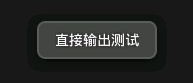
正文 一、结构 public classToastextendsObject java.lang.Object android.widget.Toast 二、概述 Toast是一种提供给用户简洁信息的视图。Toast类帮助你创建和显示该信息。 该视图已浮于应用程序之上的形式呈现给用户。因为它并不获得焦点,即使用户正在输入什么也不会受到影响。它的目标是尽可能已不显眼的方式,使用户看到你提供的信息。有两个例子就是音量控制和设置信息保存成功。 使用该类最简单的方法就是调用一个静态方法,让他来构造你需要的一切并返回一个新的Toast对象。 三、常量 int LENGTH_LONG 持续显示视图或文本提示较长时间。该时间长度可定制。 参见 setDuration(int) int LENGTH_SHORT 持续显示视图或文本提示较短时间。该时间长度可定制。该值为默认值。 参见 setDuration(int) 四、构造函数 public Toast (Context context) 构造一个空的Toast对象。在调用show()之前,必须先调用setView(View)。 (译者注:只有使用setView(View)的时候,才使用new Toast(Content content)来得到Toast对象,否则必须用makeText()方法来创建toast对象,并且这种方式获得Toast对象不能使用setText()方法。) 参数 context使用的上下文。通常是你的Application或Activity对象。 五、公共方法 public intcancel() 如果视图已经显示则将其关闭,还没有显示则不再显示。一般不需要调用该方法。正常情况下,视图会在超过存续期间后消失。 public intgetDuration() 返回存续期间 请参阅 setDuration(int) public intgetGravity() 取得提示信息在屏幕上显示的位置。 请参阅 Gravity setGravity() public floatgetHorizontalMargin() 返回横向栏外空白。 public floatgetVerticalMargin() 返回纵向栏外空白。 publicViewgetView() 返回View对象。 请参阅 setView(View) public intgetXOffset() 返回相对于参照位置的横向偏移像素量。 public intgetYOffset() 返回相对于参照位置的纵向偏移像素量。 public staticToastmakeText(Contextcontext, int resId, int duration) 生成一个从资源中取得的包含文本视图的标准Toast对象。 参数 context 使用的上下文。通常是你的Application或Activity对象。 resId 要使用的字符串资源ID,可以是已格式化文本。 duration 该信息的存续期间。值为LENGTH_SHORT或LENGTH_LON 异常 当资源未找到时抛异常Resources.NotFoundException public staticToastmakeText(Contextcontext,CharSequencetext, int duration) 生成一个包含文本视图的标准Toast对象。 参数 context 使用的上下文。通常是你的Application或Activity对象。 resId 要显示的文本,可以是已格式化文本。 duration 该信息的存续期间。值为LENGTH_SHORT或LENGTH_LONG public voidsetDuration(int duration) 设置存续期间。 请参阅 LENGTH_SHORT LENGTH_LONG public voidsetGravity(int gravity, int xOffset, int yOffset) 设置提示信息在屏幕上的显示位置。 (译者注:自定义Toast的显示位置,例如toast.setGravity(Gravity.CENTER_VERTICAL, 0, 0)可以把Toast定位在左上角。Toast提示的位置xOffset:大于0向右移,小于0向左移) 请参阅 Gravity getGravity() public voidsetMargin(float horizontalMargin, float verticalMargin) 设置视图的栏外空白。 参数 horizontalMargin容器的边缘与提示信息的横向空白(与容器宽度的比)。 verticalMargin容器的边缘与提示信息的纵向空白(与容器高度的比)。 public voidsetText(int resId) 更新之前通过makeText()方法生成的Toast对象的文本内容。 参数 resId为Toast指定的新的字符串资源ID。 public voidsetText(CharSequences) 更新之前通过makeText()方法生成的Toast对象的文本内容。 参数 s为Toast指定的新的文本。 public voidsetView(Viewview) 设置要显示的View。 (译者注:注意这个方法可以显示自定义的toast视图,可以包含图像,文字等等。是比较常用的方法。) 请参阅 getView() public voidshow() 按照指定的存续期间显示提示信息。 六、补充 文章链接 让Toast一直显示的解决方法 通知Toast详细用法(显示view) Android一种信息提示机制:Toast [推荐]android Toast大全(五种情形)建立属于你自己的Toast 示例代码 示例一:使用图片的Toast Toasttoast = new Toast( this ); ImageViewview = new ImageView( this ); view.setImageResource(R.drawable.icon); toast.setView(view); toast.show(); 示例二:带文字带图片Toast private void showToast(){ // 1创建Toast Toasttoast = Toast.makeText( this , " 图文显示 " ,Toast.LENGTH_LONG); // 2创建Layout,并设置为水平布局 LinearLayoutmLayout = new LinearLayout( this ); mLayout.setOrientation(LinearLayout.HORIZONTAL); ImageViewmImage = new ImageView( this ); // 用于显示图像的ImageView mImage.setImageResource(R.drawable.icon); ViewtoastView = toast.getView(); // 获取显示文字的ToastView mLayout.addView(mImage); // 添加到Layout mLayout.addView(toastView); // 3关键,设置Toast显示的View(上面生成的Layout). toast.setView(mLayout); toast.show(); } 示例三:综合Toast例子 Main.xml <? xmlversion="1.0"encoding="utf-8" ?> < LinearLayout xmlns:android ="http://schemas.android.com/apk/res/android" android:orientation ="vertical" android:layout_width ="fill_parent" android:layout_height ="fill_parent" > < Button android:id ="@+id/button1" android:layout_width ="fill_parent" android:layout_height ="wrap_content" android:text ="Toast显示View" /> < Button android:id ="@+id/button2" android:layout_width ="fill_parent" android:layout_height ="wrap_content" android:text ="Toast直接输出" /> < Button android:id ="@+id/button3" android:layout_width ="fill_parent" android:layout_height ="wrap_content" android:text ="VolumeToast应用" /> </ LinearLayout > Toast.xml <? xmlversion="1.0"encoding="utf-8" ?> < LinearLayout xmlns:android ="http://schemas.android.com/apk/res/android" android:orientation ="vertical" android:layout_width ="fill_parent" android:layout_height ="fill_parent" > < ImageView android:src ="@drawable/toast" android:layout_width ="wrap_content" android:layout_height ="wrap_content" /> < TextView android:id ="@+id/tv1" android:text ="" android:layout_width ="wrap_content" android:layout_height ="wrap_content" /> </ LinearLayout > Volumetoast.xml <? xmlversion="1.0"encoding="utf-8" ?> < LinearLayout xmlns:android ="http://schemas.android.com/apk/res/android" android:layout_width ="280dp" android:layout_height ="wrap_content" android:gravity ="center_horizontal" android:orientation ="vertical" > < TextView android:layout_width ="fill_parent" android:layout_height ="wrap_content" android:text ="Volume" /> < ProgressBar android:id ="@+id/progress" android:layout_width ="280dp" android:layout_height ="wrap_content" android:progress ="50" android:max ="100" style ="?android:attr/progressBarStyleHorizontal" /> </ LinearLayout > java文件 public class toasttest extends Activity{ /** Calledwhentheactivityisfirstcreated. */ @Override public void onCreate(BundlesavedInstanceState){ super .onCreate(savedInstanceState); setContentView(R.layout.main); Buttonbutton1 = (Button)findViewById(R.id.button1); button1.setOnClickListener(bt1lis); Buttonbutton2 = (Button)findViewById(R.id.button2); button2.setOnClickListener(bt2lis); Buttonbutton3 = (Button)findViewById(R.id.button3); button3.setOnClickListener(bt3lis); } OnClickListenerbt1lis = new OnClickListener(){ @Override public void onClick(Viewv){ showToast(); } }; OnClickListenerbt2lis = new OnClickListener(){ @Override public void onClick(Viewv){ Toast.makeText(toasttest. this , " 直接输出测试 " ,Toast.LENGTH_LONG).show(); } }; OnClickListenerbt3lis = new OnClickListener(){ @Override public void onClick(Viewv){ showvolumeToast(); } }; public void showToast(){ LayoutInflaterli = (LayoutInflater)getSystemService(Context.LAYOUT_INFLATER_SERVICE); Viewview = li.inflate(R.layout.toast, null ); // 把布局文件toast.xml转换成一个view Toasttoast = new Toast( this ); toast.setView(view); // 载入view,即显示toast.xml的内容 TextViewtv = (TextView)view.findViewById(R.id.tv1); tv.setText( " Toast显示View内容 " ); // 修改TextView里的内容 toast.setDuration(Toast.LENGTH_SHORT); // 设置显示时间,长时间Toast.LENGTH_LONG,短时间为Toast.LENGTH_SHORT,不可以自己编辑 toast.show(); } public void showvolumeToast(){ // TODOAuto-generatedmethodstub LayoutInflaterli = (LayoutInflater)getSystemService(Context.LAYOUT_INFLATER_SERVICE); ViewvolumeView = li.inflate(R.layout.volumetoast, null ); ((ProgressBar)volumeView.findViewById(R.id.progress)).setProgress(((ProgressBar)volumeView.findViewById(R.id.progress)).getProgress() + 10 ); // 这里还有点问题,就是progress的进度条不动,因为我们主要是想给大家展示 // Toast的用法,这里就不深究了 ToastvolumeToast = new Toast( this ); volumeToast.setGravity(Gravity.BOTTOM, 0 , 100 ); volumeToast.setView(volumeView); volumeToast.setDuration(Toast.LENGTH_SHORT); volumeToast.show(); } } 备注 我们的代码没有重复概述中的通过代码布局toast实现方法,我们是通过布局文件转换成view视图来实现复杂toast,这是两种常用的方法,大家可以根据具体情况进行选择。 下载 /Files/over140/2010/11/demo_Toast.rar 七、不足之处 现象:当点击一个按钮 可以显示一个四秒的toast,但是我要是连点两下就是8秒 三下十二秒 解决办法:只用一个Toast, 自己设置toast.setText(), setDuration(); 之后无论多少次.show()都能马上更新显示, 一会就消失了 本文转自over140 51CTO博客,原文链接:http://blog.51cto.com/over140/582633,如需转载请自行联系原作者

资源下载

更多资源
Mario

Mario

马里奥是站在游戏界顶峰的超人气多面角色。马里奥靠吃蘑菇成长,特征是大鼻子、头戴帽子、身穿背带裤,还留着胡子。与他的双胞胎兄弟路易基一起,长年担任任天堂的招牌角色。

腾讯云软件源

腾讯云软件源

为解决软件依赖安装时官方源访问速度慢的问题,腾讯云为一些软件搭建了缓存服务。您可以通过使用腾讯云软件源站来提升依赖包的安装速度。为了方便用户自由搭建服务架构,目前腾讯云软件源站支持公网访问和内网访问。

Nacos

Nacos

Nacos /nɑ:kəʊs/ 是 Dynamic Naming and Configuration Service 的首字母简称,一个易于构建 AI Agent 应用的动态服务发现、配置管理和AI智能体管理平台。Nacos 致力于帮助您发现、配置和管理微服务及AI智能体应用。Nacos 提供了一组简单易用的特性集,帮助您快速实现动态服务发现、服务配置、服务元数据、流量管理。Nacos 帮助您更敏捷和容易地构建、交付和管理微服务平台。

WebStorm

WebStorm

WebStorm 是jetbrains公司旗下一款JavaScript 开发工具。目前已经被广大中国JS开发者誉为“Web前端开发神器”、“最强大的HTML5编辑器”、“最智能的JavaScript IDE”等。与IntelliJ IDEA同源,继承了IntelliJ IDEA强大的JS部分的功能。

用户登录
用户注册