由于使用系统自带的GridView 不够灵活,不能允许拖拉控件,故自己结合LinearLayout 封装的一个GridView ,通过本篇文章的阅读你可以学会如何自定义控件,如何使用组合控件,如何为自己的组合控件添加数据源和如何为自定义控件添加属性。
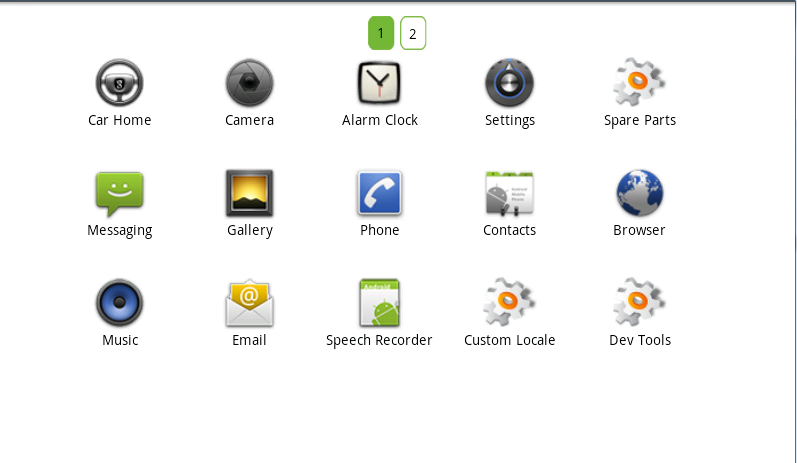
首先,我们要实现的效果是这样的:
![]()
上面1 2也是一个封装控件,用来为应用程序分页,具体如何实现下篇文章会提到,本篇先讲GridView。如图,这是一个标准的800*480大小的屏幕,所以设置了一页GridView 显示的应用程序数据为 三行五列,不足五列则按需显示。
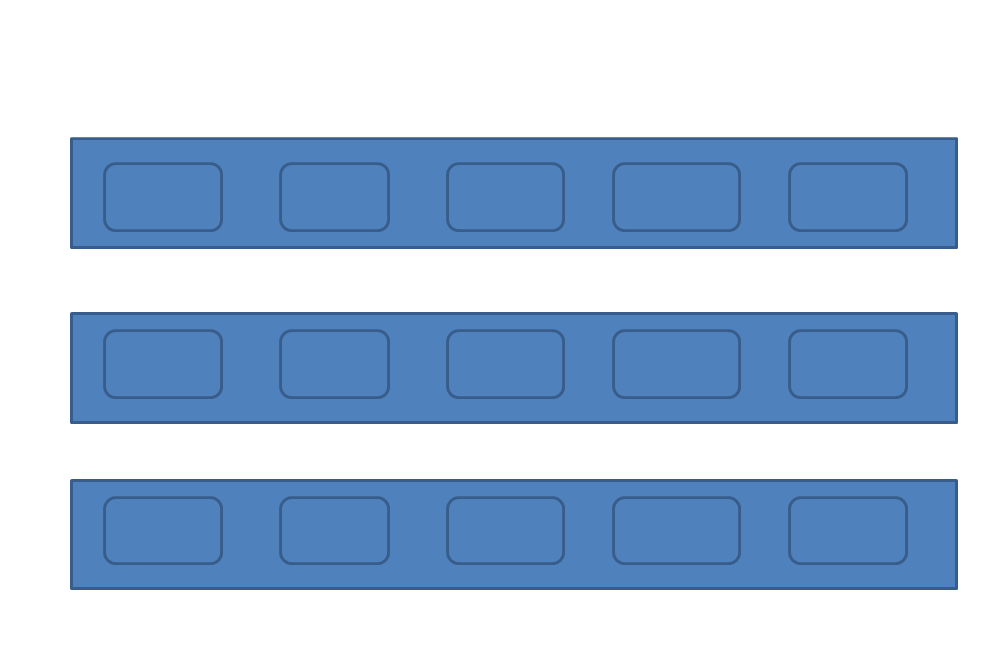
按照上面的图例需求,大致上可以把GridView 画成如下的方式:
![]()
思路如下:
默认将我们的组合控件设置为Orientation 是VERTICAL。 首先一行五个,那么一行以一个Orientation 为HORIZONTAL 的线性布局包起来。然后在一行结束后,将Orientation 的线性布局添加进组合控件里面来,不足五个则按需添加进来。
实现这一效果我们需要两个类,一个类用来表示GridView 的行,这里我们起名为TableRow,代码如下:
public
class
TableRow {
private
TableCell[] cell;
public
TableRow(TableCell[] cell) {
this
.cell
=
cell;
}
public
int
getSize() {
return
cell.length;
}
public
TableCell getCellValue(
int
index) {
if
(index
>=
getSize()) {
return
null
;
}
return
cell[index];
}
public
int
getCellCount() {
return
cell.length;
}
public
int
getLastCellCount() {
return
lastRowCount;
}
}
另外一个类用来表示GridView 每行的列个,这里我们取名为TableCell,代码如下:
static
public
class
TableCell {
private
Object value;
public
TableCell(Object value) {
this
.value
=
value;
}
public
Object getValue() {
return
value;
}
}
并且我们还需要为GridView 设置一个外部可添加数据的方法,代码如下:
public
void
setAdapter(AppsAdapter appsAdapter) {
this
.adapter
=
appsAdapter;
this
.setOrientation(LinearLayout.VERTICAL);
bindView();
}
其中,AppsAdapter 是一个自定义的BaseAdapter ,代码很简单,这里就不列出来了。关键的还是要看bindView ,这个方法是本篇GridView 显示数据的核心方法,代码如下:
void
bindView() {
removeAllViews();
int
count
=
adapter.getCount();
TableCell[] cell
=
null
;
int
j
=
0
;
LinearLayout layout;
tableRowsList
=
new
ArrayList
<
HashMap
<
String, Object
>>
();
for
(
int
i
=
0
; i
<
count; i
++
) {
j
++
;
final
int
position
=
i;
if
(j
>
getColumnCount()
||
i
==
0
) {
cell
=
new
TableCell[getColumnCount()];
}
final View view
=
adapter.getView(i,
null
,
null
);
view.setOnTouchListener(
new
OnTouchListener() {
@Override
public
boolean onTouch(View v, MotionEvent
event
) {
//
TODO Auto-generated method stub
unCheckPressed();
checkRowID
=
-
1
;
checkColumnID
=
-
1
;
if
(onItemClickEvent
!=
null
) {
onItemClickEvent.onItemClick(position,
event
, view);
}
return
false
;
}
});
view.setOnLongClickListener(
new
OnLongClickListener() {
@Override
public
boolean onLongClick(View v) {
if
(onLongPress
!=
null
) {
onLongPress.onLongPress(v);
}
return
true
;
}
});
cell[j
-
1
]
=
new
TableCell(view);
if
(j
==
getColumnCount()) {
lastRowCount
=
j;
j
=
0
;
HashMap
<
String, Object
>
map
=
new
HashMap
<
String, Object
>
();
TableRow tr
=
new
TableRow(cell);
map.put(
"
tableRow
"
, tr);
tableRowsList.add(map);
layout
=
new
LinearLayout(getContext());
addLayout(layout, cell, tr.getSize(), tr);
}
else
if
(i
>=
count
-
1
&&
j
>
0
) {
lastRowCount
=
j;
HashMap
<
String, Object
>
map
=
new
HashMap
<
String, Object
>
();
TableRow tr
=
new
TableRow(cell);
map.put(
"
tableRow
"
, tr);
tableRowsList.add(map);
layout
=
new
LinearLayout(getContext());
addLayout(layout, cell, j, tr);
}
}
}
getColumnCount()是一个属性,表示可以从xml或者从代码动态改变GridView 每列显示的个数,属性点的代码为如下:
public
gridViewExt(Context context, AttributeSet attrs) {
super(context, attrs);
int
resouceID
=
-
1
;
TypedArray typedArray
=
context.obtainStyledAttributes(attrs,
R.styleable.GridViewExt);
int
N
=
typedArray.getIndexCount();
for
(
int
i
=
0
; i
<
N; i
++
) {
int
attr
=
typedArray.getIndex(i);
switch
(attr) {
case
R.styleable.GridViewExt_ColumnCount:
resouceID
=
typedArray.getInt(
R.styleable.GridViewExt_ColumnCount,
0
);
setColumnCount(resouceID);
break
;
}
}
typedArray.recycle();
}
当然,你必须在res 创建属性xml ,这里不多讲,可以去我博客看看如何为 View 添加属性 。
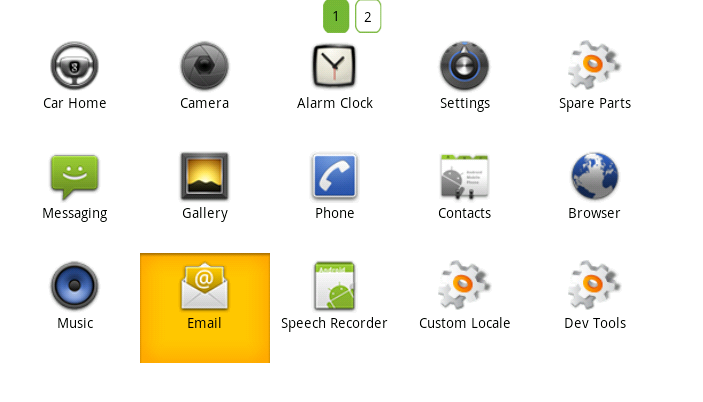
还有,还必须实现它的支持键盘的上下左右的焦点,下面的代码将会提供该功能,但还必须配合Activity 的操作,等下文再讲述。效果是这样的:
![]()
该 类的全部源码为:
![]() GridViewExt
GridViewExt
package com.yaomei.widget;
import java.util.ArrayList;
import java.util.HashMap;
import java.util.List;
import android.content.Context;
import android.content.Intent;
import android.content.res.TypedArray;
import android.util.AttributeSet;
import android.view.Gravity;
import android.view.MotionEvent;
import android.view.View;
import android.view.ViewGroup;
import android.widget.LinearLayout;
import android.widget.TextView;
import com.yaomei.activity.adapter.AppsAdapter;
import com.yaomei.activity.info.R;
public
class
gridViewExt extends LinearLayout {
public
List
<
HashMap
<
String, Object
>>
tableRowsList;
private
List
<
HashMap
<
String, Object
>>
app
=
new
ArrayList
<
HashMap
<
String, Object
>>
();
private
AppsAdapter adapter;
onItemClickListener onItemClickEvent;
onLongPressExt onLongPress;
int
checkRowID
=
-
1
;
//
选中行的下标
int
checkColumnID
=
-
1
;
//
选中列的下标
int
lastRowCount
=
-
1
;
//
最后一行的总数
private
int
ColumnCount;
//
每列的总数
public
void
setColumnCount(
int
count) {
this
.ColumnCount
=
count;
}
public
int
getColumnCount() {
return
ColumnCount;
}
public
interface
onItemClickListener {
public
boolean onItemClick(
int
position, MotionEvent
event
, View view);
}
public
interface
onLongPressExt {
public
boolean onLongPress(View view);
}
public
gridViewExt(Context context) {
this
(context,
null
);
//
TODO Auto-generated constructor stub
}
public
gridViewExt(Context context, AttributeSet attrs) {
super(context, attrs);
int
resouceID
=
-
1
;
TypedArray typedArray
=
context.obtainStyledAttributes(attrs,
R.styleable.GridViewExt);
int
N
=
typedArray.getIndexCount();
for
(
int
i
=
0
; i
<
N; i
++
) {
int
attr
=
typedArray.getIndex(i);
switch
(attr) {
case
R.styleable.GridViewExt_ColumnCount:
resouceID
=
typedArray.getInt(
R.styleable.GridViewExt_ColumnCount,
0
);
setColumnCount(resouceID);
break
;
}
}
typedArray.recycle();
}
public
void
setOnItemClickListener(onItemClickListener click) {
this
.onItemClickEvent
=
click;
}
public
void
setOnLongPressListener(onLongPressExt longPress) {
this
.onLongPress
=
longPress;
}
public
void
NotifyDataChange() {
removeAllViews();
}
void
bindView() {
removeAllViews();
int
count
=
adapter.getCount();
TableCell[] cell
=
null
;
int
j
=
0
;
LinearLayout layout;
tableRowsList
=
new
ArrayList
<
HashMap
<
String, Object
>>
();
for
(
int
i
=
0
; i
<
count; i
++
) {
j
++
;
final
int
position
=
i;
if
(j
>
getColumnCount()
||
i
==
0
) {
cell
=
new
TableCell[getColumnCount()];
}
final View view
=
adapter.getView(i,
null
,
null
);
view.setOnTouchListener(
new
OnTouchListener() {
@Override
public
boolean onTouch(View v, MotionEvent
event
) {
//
TODO Auto-generated method stub
unCheckPressed();
checkRowID
=
-
1
;
checkColumnID
=
-
1
;
if
(onItemClickEvent
!=
null
) {
onItemClickEvent.onItemClick(position,
event
, view);
}
return
false
;
}
});
view.setOnLongClickListener(
new
OnLongClickListener() {
@Override
public
boolean onLongClick(View v) {
if
(onLongPress
!=
null
) {
onLongPress.onLongPress(v);
}
return
true
;
}
});
cell[j
-
1
]
=
new
TableCell(view);
if
(j
==
getColumnCount()) {
lastRowCount
=
j;
j
=
0
;
HashMap
<
String, Object
>
map
=
new
HashMap
<
String, Object
>
();
TableRow tr
=
new
TableRow(cell);
map.put(
"
tableRow
"
, tr);
tableRowsList.add(map);
layout
=
new
LinearLayout(getContext());
addLayout(layout, cell, tr.getSize(), tr);
}
else
if
(i
>=
count
-
1
&&
j
>
0
) {
lastRowCount
=
j;
HashMap
<
String, Object
>
map
=
new
HashMap
<
String, Object
>
();
TableRow tr
=
new
TableRow(cell);
map.put(
"
tableRow
"
, tr);
tableRowsList.add(map);
layout
=
new
LinearLayout(getContext());
addLayout(layout, cell, j, tr);
}
}
}
private
void
addLayout(LinearLayout layout, TableCell[] cell,
int
size,
TableRow tr) {
LinearLayout.LayoutParams
params
=
new
LinearLayout.LayoutParams(
130
,
110
);
layout.setGravity(Gravity.LEFT);
layout.setOrientation(LinearLayout.HORIZONTAL);
for
(
int
k
=
0
; k
<
size; k
++
) {
View remoteView
=
(View) tr.getCellValue(k).getValue();
layout.addView(remoteView, k,
params
);
}
LinearLayout.LayoutParams firstParams
=
new
LinearLayout.LayoutParams(
LayoutParams.WRAP_CONTENT, LayoutParams.WRAP_CONTENT);
firstParams.leftMargin
=
60
;
addView(layout, firstParams);
}
public
void
setAdapter(AppsAdapter appsAdapter) {
this
.adapter
=
appsAdapter;
this
.setOrientation(LinearLayout.VERTICAL);
bindView();
}
public
void
checkPressed(
int
tableRowId,
int
tableRowColumnId) {
ViewGroup view
=
(ViewGroup)
this
.getChildAt(tableRowId);
checkColumnID
=
tableRowColumnId;
checkRowID
=
tableRowId;
changeImageState(view.getChildAt(tableRowColumnId), app);
}
public
void
onClick(
int
tableRowId,
int
tableRowColumnId, Context context) {
LinearLayout view
=
(LinearLayout) ((ViewGroup)
this
.getChildAt(tableRowId)).getChildAt(tableRowColumnId);
TextView tv
=
(TextView) view.findViewById(R.id.folder);
final String[] name
=
tv.getText().toString().split(
"
-
"
);
Intent intent
=
null
;
if
(name[
0
].toString().equals(
"
com.android.contacts
"
)) {
if
(name[
1
].toString().equals(
"
com.android.contacts.DialtactsActivity
"
)) {
intent
=
new
Intent(Intent.ACTION_DIAL);
}
if
(name[
1
].toString().equals(
"
com.android.contacts.DialtactsContactsEntryActivity
"
)) {
intent
=
new
Intent(Intent.ACTION_CALL_BUTTON);
}
}
else
{
intent
=
getContext().getPackageManager()
.getLaunchIntentForPackage(name[
0
].toString());
}
context.startActivity(intent);
}
/*
*
* 改变图片状态
*
* @param v
* @param list
*/
private
void
changeImageState(View v, List
<
HashMap
<
String, Object
>>
list) {
int
size
=
list.size();
for
(
int
i
=
0
; i
<
size; i
++
) {
View view
=
(View) list.
get
(i).
get
(
"
touch
"
);
view.setPressed(
false
);
list.remove(i);
}
v.setPressed(
true
);
HashMap
<
String, Object
>
map
=
new
HashMap
<
String, Object
>
();
map.put(
"
touch
"
, v);
list.add(map);
}
public
void
unCheckPressed() {
if
(checkColumnID
!=
-
1
&&
checkRowID
!=
-
1
) {
ViewGroup view
=
(ViewGroup)
this
.getChildAt(checkRowID);
view.getChildAt(checkColumnID).setPressed(
false
);
}
}
public
class
TableRow {
private
TableCell[] cell;
public
TableRow(TableCell[] cell) {
this
.cell
=
cell;
}
public
int
getSize() {
return
cell.length;
}
public
TableCell getCellValue(
int
index) {
if
(index
>=
getSize()) {
return
null
;
}
return
cell[index];
}
public
int
getCellCount() {
return
cell.length;
}
public
int
getLastCellCount() {
return
lastRowCount;
}
}
static
public
class
TableCell {
private
Object value;
public
TableCell(Object value) {
this
.value
=
value;
}
public
Object getValue() {
return
value;
}
}
}
每行显示的LAYOUT文件:
<
LinearLayout
android:orientation
="vertical"
android:background
="@drawable/lessbtn"
android:gravity
="center"
android:layout_width
="fill_parent"
android:id
="@+id/grid_layout"
android:layout_height
="fill_parent"
xmlns:android
="http://schemas.android.com/apk/res/android"
>
<
ImageView
android:id
="@+id/btn_appicon"
android:layout_width
="55dip"
android:layout_height
="55dip"
></
ImageView
>
<
TextView
android:id
="@+id/tv_name"
android:layout_width
="wrap_content"
android:textColor
="#030303"
android:layout_height
="wrap_content"
></
TextView
>
<
TextView
android:id
="@+id/folder"
android:layout_width
="wrap_content"
android:visibility
="invisible"
android:layout_height
="wrap_content"
></
TextView
>
</
LinearLayout
>
完成这一系列的编写后,你就可以在xml直接写或者在JAVA文件里面new 出来,但注意要设置它每列显示的个数。
下篇将讲述如何实现手势切屏,如何实现分页显示数据,如何实现封装分页控件。
本文转自 terry_龙 51CTO博客,原文链接:http://blog.51cto.com/terryblog/481005,如需转载请自行联系原作者