连接真机,使用monkeyrunner自动化测试工具运行脚本-提示脚本easy_device=EasyMonkeyDevice(device1)附近could not connect to view server
![]()
原因:
EasyMonkeyDevice模块用来通过ID访问控件,而EasyMonkeyDevice和这里没用到的Hierarchy Viewer只能连接开发版手机或模拟器,我们普通的商业手机是无法连上的
老版本的Hierarchy Viewer可以),所以出现了以上错误。
这句错误意思是:不能连接到View Server,View Server需要模拟机或开发机,还有可能是开发机没有开启这项服务。
可以试试下面:
a.检验一台手机是否开启了View Server '
adb shell service call window 3
b.打开View Server
adb shell service call window 1 i32 4939
如果还不行就果断换设备吧。
------------------命令自动录制,直接按照下面步骤做
这才是真正实用的功能,直接看代码,创建一个recoder.py:
- #!/usr/bin/env monkeyrunner
- # Copyright 2010, The Android Open Source Project
- #
- # Licensed under the Apache License, Version 2.0 (the "License");
- # you may not use this file except in compliance with the License.
- # You may obtain a copy of the License at
- #
- # http:
- #
- # Unless required by applicable law or agreed to in writing, software
- # distributed under the License is distributed on an "AS IS" BASIS,
- # WITHOUT WARRANTIES OR CONDITIONS OF ANY KIND, either express or implied.
- # See the License for the specific language governing permissions and
- # limitations under the License.
-
- from com.android.monkeyrunner import MonkeyRunner as mr
- from com.android.monkeyrunner.recorder import MonkeyRecorder as recorder
-
- device = mr.waitForConnection()
- recorder.start(device)
命令行下运行:
- monkeyrunner monkey_recorder.py
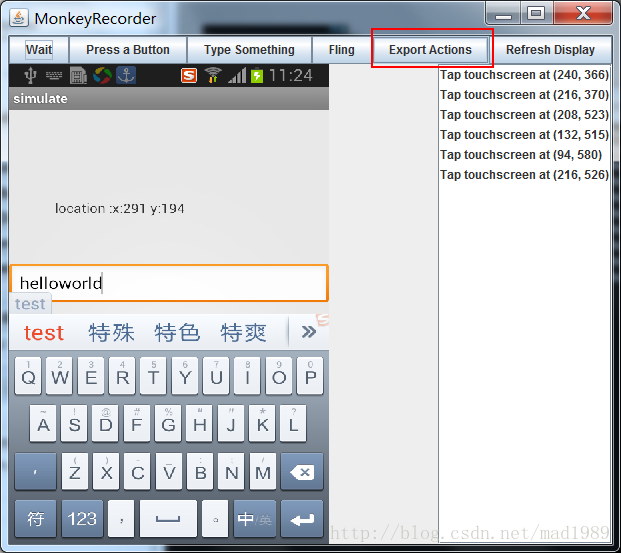
这时会弹出这样的界面:
![]()
按钮以及一些功能说明:
| Button |
Description |
| Wait |
等待时间 |
| Press a Button |
发送,MENU,HOME,or SEARCH 按钮.Press,Down,or Up事件 |
| Type Something |
发送一些字符串 |
| Fling |
用来操作虚拟键盘
 |
| Export Action |
将我们的脚本导出来 |
| Refresh Display |
刷新当前界面 |
自己随心所以创建一些事件脚本,想做什么就可以做什么,通过MonkeyRecorder这个工具来操作设备界面,事件编辑完后选择Export Actions,导出到我们tools目录下命名为:action.mr
我们看一下工具生成的action.mr脚本,如下:
- TOUCH|{'x':297,'y':533,'type':'downAndUp',}
- WAIT|{'seconds':2.0,}
- TOUCH|{'x':136,'y':278,'type':'downAndUp',}
- WAIT|{'seconds':2.0,}
- TOUCH|{'x':123,'y':356,'type':'downAndUp',}
- WAIT|{'seconds':10.0,}
- PRESS|{'name':'HOME','type':'downAndUp',}
- WAIT|{'seconds':2.0,}
- TOUCH|{'x':235,'y':720,'type':'downAndUp',}
- WAIT|{'seconds':2.0,}
- TOUCH|{'x':303,'y':630,'type':'downAndUp',}
- WAIT|{'seconds':2.0,}
- TOUCH|{'x':16,'y':71,'type':'downAndUp',}
- WAIT|{'seconds':2.0,}
- TOUCH|{'x':244,'y':735,'type':'downAndUp',}
然后需要制作一个运行这一系列动作的脚本:monkey_playback.py,保存到tools目录下:
- #!/usr/bin/env monkeyrunner
- # Copyright 2010, The Android Open Source Project
- #
- # Licensed under the Apache License, Version 2.0 (the "License");
- # you may not use this file except in compliance with the License.
- # You may obtain a copy of the License at
- #
- # http:
- #
- # Unless required by applicable law or agreed to in writing, software
- # distributed under the License is distributed on an "AS IS" BASIS,
- # WITHOUT WARRANTIES OR CONDITIONS OF ANY KIND, either express or implied.
- # See the License for the specific language governing permissions and
- # limitations under the License.
-
- import sys
- from com.android.monkeyrunner import MonkeyRunner
-
- # The format of the file we are parsing is very carfeully constructed.
- # Each line corresponds to a single command. The line is split into 2
- # parts with a | character. Text to the left of the pipe denotes
- # which command to run. The text to the right of the pipe is a python
- # dictionary (it can be evaled into existence) that specifies the
- # arguments for the command. In most cases, this directly maps to the
- # keyword argument dictionary that could be passed to the underlying
- # command.
-
- # Lookup table to map command strings to functions that implement that
- # command.
- CMD_MAP = {
- 'TOUCH': lambda dev, arg: dev.touch(**arg),
- 'DRAG': lambda dev, arg: dev.drag(**arg),
- 'PRESS': lambda dev, arg: dev.press(**arg),
- 'TYPE': lambda dev, arg: dev.type(**arg),
- 'WAIT': lambda dev, arg: MonkeyRunner.sleep(**arg)
- }
-
- # Process a single file for the specified device.
- def process_file(fp, device):
- for line in fp:
- (cmd, rest) = line.split('|')
- try:
- # Parse the pydict
- rest = eval(rest)
- except:
- print 'unable to parse options'
- continue
-
- if cmd not in CMD_MAP:
- print 'unknown command: ' + cmd
- continue
-
- CMD_MAP[cmd](device, rest)
-
-
- def main():
- file = sys.argv[1]
- fp = open(file, 'r')
-
- device = MonkeyRunner.waitForConnection()
-
- process_file(fp, device)
- fp.close();
-
-
- if __name__ == '__main__':
- main()
接下来运行我们的保存的脚本,然后,你就看到真机(模拟器),进行你刚才一样的操作~
- E:\android-sdk-windows\tools>monkeyrunner monkey_playback.py action.mr