首页 文章 精选 留言 我的

精选列表

搜索[学习],共10000篇文章
优秀的个人博客,低调大师

【iOS知识学习】_iOS动态改变TableView Cell高度

在做tableView的时候,我们有时候须要依据cell的高度动态来调整。近期在网上看到一段代码不错。跟大家Share一下。 在 -(UITableViewCell*)tableView:(UITableView*)tableView cellForRowAtIndexPath:(NSIndexPath*)indexPath{ 类中获取cell的高度: CGSize boundSize = CGSizeMake(216, CGFLOAT_MAX); cell.textLabel.text = @"12345678900123456789"; cell.userInteractionEnabled = NO; cell.textLabel.numberOfLines = 0; CGSize requiredSize = [cell.textLabel.text sizeWithFont:[UIFont systemFontOfSize:13] constrainedToSize:boundSize lineBreakMode:UILineBreakModeWordWrap]; CGRect rect = cell.frame; rect.size.height = requiredSize.height+5; cell.frame = rect;这时候获取到了cell的高度,然后在 - (CGFloat)tableView:(UITableView*)tableView heightForRowAtIndexPath:(NSIndexPath*)indexPath { 类中改变cell的高度: UITableViewCell *cell = [self tableView:tableView cellForRowAtIndexPath:indexPath]; NSLog(@"cell height %f",cell.frame.size.height); return cell.frame.size.height; 这样以来cell的高度就依据cell里label的内容自己主动改变啦。 其主要出发点就是我有一个label。然后我要把这个label展示出来。我依据字体的大小还有行数来获取一个高度,这样cell的高度就有啦。 本文转自mfrbuaa博客园博客,原文链接:http://www.cnblogs.com/mfrbuaa/p/5350356.html,如需转载请自行联系原作者

优秀的个人博客,低调大师

android学习之-随机色的定义与获取

在学取色的时候代码写的想当然了,结果弄了半天颜色一直不变,仔细看后才发现问题,见代码 packagesucre.android; importandroid.app.Activity; importandroid.os.Bundle; importandroid.view.View; importandroid.widget.Button; importandroid.widget.TextView; /** *通过定义一个color.xml,然后让字体随机变色,这里在取色的时候 *要注意一个问题,getResources().getColor(你定义的颜色)这样才 *能真正取到相应的颜色 *@authorqiaolei * */ publicclassEX03_13extendsActivity{ privateButtonbt; privateTextViewtv; privateint[]colors; privateintcolumn; /**Calledwhentheactivityisfirstcreated.*/ @Override publicvoidonCreate(BundlesavedInstanceState){ super.onCreate(savedInstanceState); setContentView(R.layout.main); //定义一个颜色数组 colors=newint[]{R.color.red,R.color.blue,R.color.black,R.color.green, R.color.yellow,R.color.orange,R.color.brown}; column=0; bt=(Button)findViewById(R.id.mButton); tv=(TextView)findViewById(R.id.changColor); bt.setOnClickListener(newButton.OnClickListener(){ publicvoidonClick(Viewv){ if(column<colors.length){ System.out.println(colors[column]+":"+getResources().getColor(colors[column])); //tv.setTextColor(colors[column]); //tv.setTextColor(-65536); tv.setTextColor(getResources().getColor(colors[column])); column++; }else{ column=0; } } }); } } 注意到文中的 tv.setTextColor(colors[column]); 这行代码了吗?这样是取不到颜色的,为了验证通过 System.out.println(colors[column]+":"+getResources().getColor(colors[column])); 这行代码得到结果 看到了-65536才是真正的颜色的值,直接这样写 tv.setTextColor(-65536); 也是可以变色的,所以取色的时候要这样取 getResources().getColor(colors[column]) 本文转自sucre03 51CTO博客,原文链接:http://blog.51cto.com/sucre/743483,如需转载请自行联系原作者

优秀的个人博客,低调大师

CCNA学习笔记--路由器的基本配置

路由器简介 路由器能起到隔离广播域的作用,还能在不同网络间转发数据包。路由器实际上是一台特殊用途的计算机,和常见的PC 机一样,路由器有CPU、内存、BOOTROM。路由器没有键盘、硬盘、显示器;然而比起计算机,路由器多了NVRAM、FLASH 以及各种各样的接口。路由器各个部件的作用如下: (1) CPU:中央处理单元,和计算机一样,它是路由器的控制和运算部件。 (2) RAM/DRAM:内存,用于存储临时的运算结果,如:路由表、ARP 表、快速交换缓存、缓冲数据包、数据队列、当前配置。众所周知,RAM 中的数据在路由器断电后是会丢失的。 (3) FLASH:可擦除、可编程的ROM,用于存放路由器的IOS,FLASH 的可擦除特性允许我们更新、升级IOS 而不用更换路由器内部的芯片。路由器断电后,FLASH 的内容不会丢失。FLASH 容量较大时,就可以存放多个IOS 版本。 (4) NVRAM:非易失性RAM,用于存放路由器的配置文件,路由器断电后,NVRAM 中的内容仍然保持。 (5) ROM:只读存储器,存储了路由器的开机诊断程序、引导程序和特殊版本的IOS 软件 (用于诊断等有限用途),ROM 中软件升级时需要更换芯片。 (6) 接口(Interface):用于网络连接,路由器就是通过这些接口和不同的网络进行连接的 路由器的使用与IOS 基本命令 实验拓扑: 1:用户模式和特权模式的切换 Router> //“Router”是路由器的名字,而“>”代表是在用户模式 Router>enable //“enable”命令可以使路由器从用户模式进入到特权模式 Router# Router#disable //“disable”命令则相反,在特权模式下的提示符为“#” Router> 2、IOS 编辑命令与历史命令缓存大小 Router#show history //显示历史命令 Router#terminal editing //打开编辑功能,实际上这是默认的。用上下左右光标键试试移动光标, Router#terminal history size 50 //以上把缓存的历史命令数改为50,默认值为10 Router#terminal no editing //关闭terminal 的编辑功能 Router#terminal editing 3、基本IOS 命令 先连接到R1 路由器上: Router>enable Router#configure terminal Router(config)#hostname R1 //改变路由器的名称为“R1”,设置立即生效。 R1(config)#enable password cisco //改变了enable 的密码为“cisco”,这个密码是从用户模式进入到特权模式的密码。 R1(config)#interface g0/0 //进入到接口模式,这里是千兆以太网口(第0 个插槽的第0 个接口,编号从0 开始)。 R1(config-if)#ip address 10.1.1.1 255.255.255.0 //给以太接口配置一个IP 地址10.1.1.1,掩码为255.255.255.0 。 R1(config-if)#no shutdown //开启以太网口,因为默认时路由器的各个接口是关闭的。 R1(config-if)#exit //退回到上一级模式 R1(config)#interface s0/0/0 //进入到接口模式,这里是串行接口 R1(config-if)#ip address 10.12.12.1 255.255.255.0 //给串行接口配置一个IP 地址 R1(config-if)#no shutdown //开启接口 R1(config-if)#end(或【Ctrl+Z】) //结束配置直接回到特权模式下。 R1#copy running-config startup-config //把内存中的配置保存到NVRAM 中,路由器开机时会读取它。 Destination filename [startup-config]? Building configuration... [OK] 4、连接到R2 路由器上,进行以下操作: Router>enable Router#configure terminal Enter configuration commands, one per line. End with CNTL/Z. Router(config)#hostname R2 R2(config)#enable password cisco R2(config)#interface g0/0 R2(config-if)#ip address 10.2.2.2 255.255.255.0 R2(config-if)#no shutdown R2(config-if)#exit R2(config)#interface s0/0/0 R2(config-if)#ip address 10.12.12.2 255.255.255.0 R2(config-if)#clock rate 128000 //R2 这一端是DCE,需要配置时钟 R2(config-if)#no shutdown R2(config-if)#end R2#copy running-config startup-config R2#ping 10.12.12.1 Type escape sequence to abort. Sending 5, 100-byte ICMP Echos to 10.1.14.126, timeout is 2 seconds: !!!!! Success rate is 100 percent (5/5), round-trip min/avg/max = 1/1/4 ms //从R2 ping R1 的串行接口,可以ping 通 本文转自1594cqb 51CTO博客,原文链接:http://blog.51cto.com/wolfchen/1088673,如需转载请自行联系原作者

优秀的个人博客,低调大师

Centos7.3 Docker安装部署学习记录1

一、Docker基础环境的安装 1. 环境说明 本机采用操作系统如下: CentOS-7.3-X86-64,内核3.10 x64位,docker 1.12.x版本。 建议采用CentOS7版本或ubuntu版本,本文采用CentOS7即CentOS-7-x86_64-DVD-1611.iso版本最小化安装。 Docker可以在虚拟机环境中运行进行使用测试。本文出自:http://koumm.blog.51cto.com/ 2. 主机网络 1)关闭firewalld防火墙和SELinux setenforce 0 sed -i 's#SELINUX=enforcing#SELINUX=disabled#g' /etc/sysconfig/selinux systemctl disable firewalld systemctl stop firewalld docker是必须要防火墙功能模块的,个人目前用iptables systemctl disable iptables.service systemctl stop iptables.service 注意最小化需要补充安装的软件包: yum install vim net-tools iptables-config 2)配置hosts文件(主机名称) echo "192.168.1.90 docker1" >> /etc/hosts 3. 安装Docker软件包 1)可以直接安装包yum源 # yum install -y docker 2)配置docker开机自启动以及启动服务 # systemctl start docker.service # systemctl enable docker.service 3)查看docker服务器,表示docker已安装成功 查看版本:docker version 帮助信息:docker --help 概要信息:docker info 镜像查看:docker images 进程查看:docker ps -a 搜索镜像:docker search centos #搜索可用docker镜像 示例: 表示docker已安装成功。 1 2 3 4 5 6 7 8 9 10 11 12 13 14 15 16 17 18 19 20 21 22 23 24 25 26 27 28 29 30 31 32 33 34 35 36 37 38 39 40 41 42 本文转自 koumm 51CTO博客,原文链接:http://blog.51cto.com/koumm/1936465 ,如需转载请自行联系原作者

优秀的个人博客,低调大师

openstack学习笔记六 多节点部署之keystone

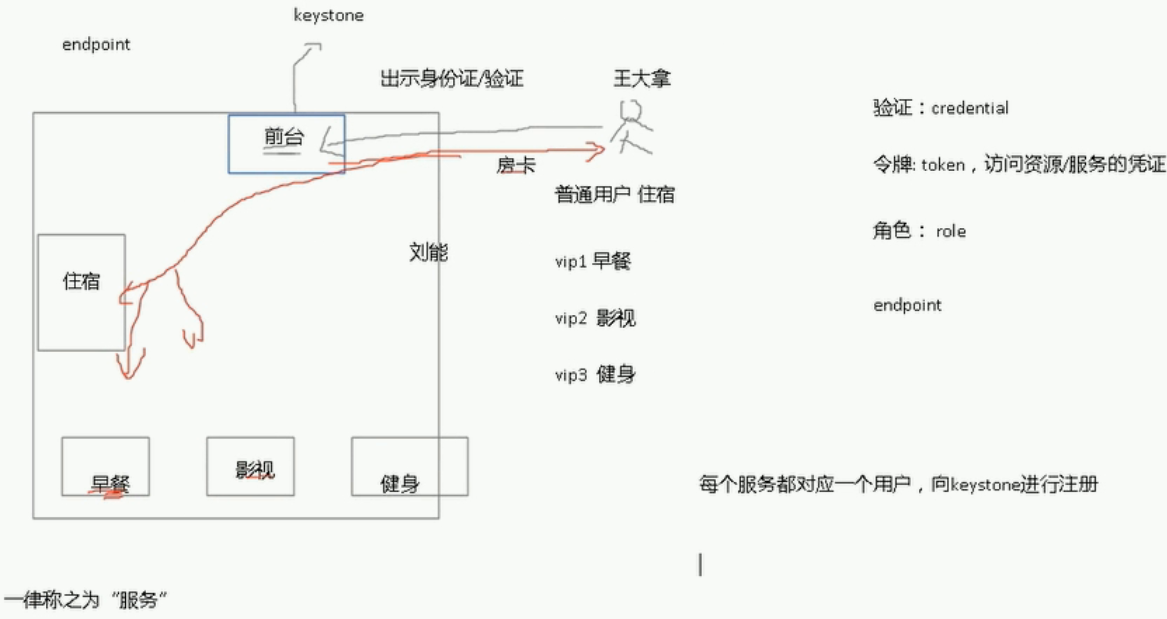
keystone 对用户进行验证,每个组件必须得实用一个用户向keystone进行注册,只有成功了,那么这个组件才能正常工作。所以当我们在创建其他组件的时候,也包括keystone本身,都得为这个组件创建一个用户名和密码 keystone也必须知道这些组件到底在什么地方,比如在那台主机上。 User 住宾馆的人 Credentials 开启房间的钥匙 Authentication 宾馆为了拒绝不必要的人进出宾馆,专门设置的机制,只有拥有钥匙的人才能进出 Token 也是一种钥匙,有点特别 Tenant 宾馆 Service 宾馆可以提供的服务类别,比如,饮食类,娱乐类 Endpoint 具体的一种服务,比如吃烧烤,打羽毛球 Role VIP 等级,VIP越高,享有越高的权限 1 2 3 4 5 6 7 8 9 10 11 12 13 14 15 16 17 [root@h1~] #sourcekeystonerc_admin [root@h1~(keystone_admin)] #keystoneendpoint-list +----------------------------------+-----------+-------------------------------------------------+-------------------------------------------------+--------------------------------------------+----------------------------------+ | id |region|publicurl|internalurl|adminurl|service_id| +----------------------------------+-----------+-------------------------------------------------+-------------------------------------------------+--------------------------------------------+----------------------------------+ |03bf88d48e2648149242a571684fbfce|RegionOne|http: //192 .168.1.201:9696|http: //192 .168.1.201:9696|http: //192 .168.1.201:9696|1100243c5a694bc5857218dd0543297b| |1b5ccdf306484fefadc63d1eeb20de5d|RegionOne|http: //127 .0.0.1:8774 /v3 |http: //127 .0.0.1:8774 /v3 |http: //127 .0.0.1:8774 /v3 |4bda82ded4db46f68428d4e00247c14c| |2408bc6cb5164053b86c0983fd39961a|RegionOne|http: //192 .168.1.201:8080 /v1/AUTH_ %(tenant_id)s|http: //192 .168.1.201:8080 /v1/AUTH_ %(tenant_id)s|http: //192 .168.1.201:8080|30c62c3c0797462a8bd4ff059a71296e| |432e655e85614a5eb69b7de5c5aacf34|RegionOne|http: //192 .168.1.201:8776 /v2/ %(tenant_id)s|http: //192 .168.1.201:8776 /v2/ %(tenant_id)s|http: //192 .168.1.201:8776 /v2/ %(tenant_id)s|5d60cb24769e403cb10bb70cb1077f2b| |4d5c1e505b30467c9966a5e5e93feef0|RegionOne|http: //192 .168.1.201:9292|http: //192 .168.1.201:9292|http: //192 .168.1.201:9292|87d30bb0dd8e44ccba00127f77831e9e| |8683d84884d74e7c8a73513260aec774|RegionOne|http: //192 .168.1.201:8080|http: //192 .168.1.201:8080|http: //192 .168.1.201:8080|e6ced100d94e4f3b86cccfc82e12b83a| |8fa0e177bac746f79e229f16954506fb|RegionOne|http: //192 .168.1.201:8776 /v1/ %(tenant_id)s|http: //192 .168.1.201:8776 /v1/ %(tenant_id)s|http: //192 .168.1.201:8776 /v1/ %(tenant_id)s|dc75a046272548db99e1cbbe93c2025c| |9006207b29a04700922ee55905a7f445|RegionOne|http: //192 .168.1.201:8774 /v2/ %(tenant_id)s|http: //192 .168.1.201:8774 /v2/ %(tenant_id)s|http: //192 .168.1.201:8774 /v2/ %(tenant_id)s|1c9e6e4d00824327bfe4e8e7175317e1| |a9ec253a705c4b3c9848b5bed32e9768|RegionOne|http: //192 .168.1.201:8773 /services/Cloud |http: //192 .168.1.201:8773 /services/Cloud |http: //192 .168.1.201:8773 /services/Admin |81bbcf83509a42e9a867914cde84e9d4| |bcab3bbc3281451494428315b24b0dba|RegionOne|http: //192 .168.1.201:8777|http: //192 .168.1.201:8777|http: //192 .168.1.201:8777|8f54fc4364de49efbeb72020bf2aa176| |e3d9a4fa64bd441ea3fe143b1d72b8a4|RegionOne|http: //192 .168.1.201:5000 /v2 .0|http: //192 .168.1.201:5000 /v2 .0|http: //192 .168.1.201:35357 /v2 .0|02ce8247c5924913a73422bcf5275c40| +----------------------------------+-----------+-------------------------------------------------+-------------------------------------------------+--------------------------------------------+----------------------------------+ 1 2 3 4 5 6 7 8 9 10 11 12 13 14 15 16 [root@h1~(keystone_admin)] #keystoneservice-list服务 +----------------------------------+------------+--------------+--------------------------------+ | id |name| type |description| +----------------------------------+------------+--------------+--------------------------------+ |8f54fc4364de49efbeb72020bf2aa176|ceilometer|metering|OpenstackMeteringService| |dc75a046272548db99e1cbbe93c2025c|cinder|volume|CinderService| |5d60cb24769e403cb10bb70cb1077f2b|cinderv2|volumev2|CinderServicev2| |87d30bb0dd8e44ccba00127f77831e9e|glance|image|OpenStackImageService| |02ce8247c5924913a73422bcf5275c40|keystone|identity|OpenStackIdentityService| |1100243c5a694bc5857218dd0543297b|neutron|network|NeutronNetworkingService| |1c9e6e4d00824327bfe4e8e7175317e1|nova|compute|OpenstackComputeService| |81bbcf83509a42e9a867914cde84e9d4|nova_ec2|ec2|EC2Service| |4bda82ded4db46f68428d4e00247c14c|novav3|computev3|OpenstackComputeServicev3| |30c62c3c0797462a8bd4ff059a71296e|swift|object-store|OpenstackObject-StoreService| |e6ced100d94e4f3b86cccfc82e12b83a|swift_s3|s3|OpenstackS3Service| +----------------------------------+------------+--------------+--------------------------------+ 1 2 3 4 5 6 7 8 9 [root@h1~(keystone_admin)] #keystonerole-list角色 +----------------------------------+---------------+ | id |name| +----------------------------------+---------------+ |7455105a501842e097e7825257eb5be4|ResellerAdmin| |5d2a5d2f80d442e09b9c3d514ded412e|SwiftOperator| |9fe2ff9ee4384b1894a90878d3e92bab|_member_| |794f590d02344bafb280f37ff29433ae|admin| +----------------------------------+---------------+ 1 2 3 4 5 6 7 8 [root@h1~(keystone_admin)] #keystonerole-create--nametest1 +----------+----------------------------------+ |Property|Value| +----------+----------------------------------+ | id |467d36315d9c4e529e9400c606f8d7a2| |name|test1| +----------+----------------------------------+ [root@h1~(keystone_admin)] #keystonerole-deletetest1 1 2 3 4 5 6 7 8 9 10 11 12 13 14 15 16 17 18 19 20 21 22 23 [root@h1~(keystone_admin)] #keystoneuser-list用户 +----------------------------------+------------+---------+----------------------+ | id |name|enabled|email| +----------------------------------+------------+---------+----------------------+ |1627cc3d61c04f9db9608e9703a01371|admin|True|root@localhost| |04247710cdf34914a7f5b315ab166731|ceilometer|True|ceilometer@localhost| |cb5e12e30a4a4c1dae57255c184b8b30|cinder|True|cinder@localhost| |632fb20205ea4c40988d7d65b2844ff6|glance|True|glance@localhost| |23c4fb48a5a247d68e50c6b74fb6f035|http|True|| |80069f5c8edc454b8038e7f116df4ff5|neutron|True|neutron@localhost| |adbcaaf58d09495988b57be8e82b4e6b|nova|True|nova@localhost| |4f488ff4859e4973afefea6e7872ed83|swift|True|swift@localhost| +----------------------------------+------------+---------+----------------------+ [root@h1~(keystone_admin)] #keystoneuser-create--namehequan--passhequan--emailhequan2011@sina.com +----------+----------------------------------+ |Property|Value| +----------+----------------------------------+ |email|hequan2011@sina.com| |enabled|True| | id |9d12907283b64b02a80f1e98074a9c84| |name|hequan| |username|hequan| +----------+----------------------------------+ 1 2 3 4 [root@h1~(keystone_admin)] #keystoneuser-gethequan##查看信息 [root@h1~(keystone_admin)] #keystoneuser-deletehequan [root@h1~(keystone_admin)] #keystoneuser-password-update--passhequan1hequan##密码更新 [root@h1~(keystone_admin)] #keystoneuser-role-add--userhequan--role_member_--tenant=http#划分角色和租户 1 2 3 4 5 6 7 8 [root@h1~(keystone_admin)] #keystonetenant-list租户 +----------------------------------+----------+---------+ | id |name|enabled| +----------------------------------+----------+---------+ |43986fb013804aa0a04ca277e4d0e69c|admin|True| |1af10fa8077e4b52b3427786bb15e968|http|True| |842da711a1b740ddbf006a9f0a7ee116|services|True| ##内置服务默认都属于services +----------------------------------+----------+---------+ 1 2 3 4 5 6 7 8 9 10 [root@h1~(keystone_admin)] #keystonetenant-create--name123###创建租户123 +-------------+----------------------------------+ |Property|Value| +-------------+----------------------------------+ |description|| |enabled|True| | id |c2a2e3aadf614bb08b1fc943157b668e| |name|123| +-------------+----------------------------------+ [root@h1~(keystone_admin)] #keystonetenant-delete123 配置安装keystone 首先创建数据库 使用token登陆keystone 创建服务 endpoint 创建用户 关闭token登陆,使用admin登陆 基本环境 1 2 3 4 5 6 7 192.168.1.204h4.hequan.comh4 ##keystone systemctlstopNetworkManager systemctldisableNetworkManager [root@h4~] #yuminstallcentos-release-openstack-liberty 1 2 3 4 5 6 7 8 9 [root@h4~] #yuminstallopenstack-keystoneopenstack-utilsopenstack-selinux-y [root@h4~] #openstack-db--init--servicekeystone--rootpw123456--passwordkeystone keystonedefaultDBisnotmysql.Wouldyouliketoresettomysqlnow?(y /n ):y mysql-serverisnotinstalled.Wouldyouliketo install itnow?(y /n ):y mysqldisnotrunning.Wouldyouliketostartitnow?(y /n ):y VerifiedconnectivitytoMySQL. Creating 'keystone' database. Initializingthekeystonedatabase,pleasewait... Complete! 1 2 3 4 5 6 7 8 9 10 11 12 13 14 15 16 17 18 19 20 [root@h4~] #mysql-uroot-p123456 MariaDB[(none)]>showdatabases; [root@h4keystone] #opensslrand-hex10 73fa731f6fa567630fdd [root@h4keystone] #pwd /etc/keystone [root@h4keystone] #vimkeystone.conf admin_token=73fa731f6fa567630fdd rabbit_host=localhost rabbit_port=5672 rabbit_hosts=$rabbit_host:$rabbit_port rabbit_use_ssl= false rabbit_userid=guest rabbit_password=guest rabbit_login_method=AMQPLAIN rabbit_virtual_host=/ connection=mysql: //keystone :keystone@192.168.1.204 /keystone ###用到上面写的用户名和密码 启动服务 1 2 3 4 5 6 [root@h4keystone] #systemctllist-unit-files|grepkeyston openstack-keystone.servicedisabled [root@h4keystone] #systemctlstartopenstack-keystone.service [root@h4keystone] #systemctlenableopenstack-keystone.service 现在没有用户,只有token 1 2 3 4 5 6 7 8 9 10 11 12 13 14 15 16 17 18 19 20 21 22 23 24 25 26 27 28 29 cat keystone_token ##创建文件 export SERVICE_TOKEN=73fa731f6fa567630fdd export SERVICE_ENDPOINT=http: //192 .168.1.204:35357/v2.0 export PS1= '[\u@\h\W(keystone_token)]\$' source keystone_token ps aux| grep keystone keystone33431.51.632184468704?Ss20:100:05 /usr/bin/python2 /usr/bin/keystone-all netstat -lntup| grep 35357 tcp000.0.0.0:353570.0.0.0:*LISTEN3343 /python2 keystoneservice-list [root@h4~] #keystoneservice-create--namekeystone--typeidentity--description="keystone" +-------------+----------------------------------+ |Property|Value| +-------------+----------------------------------+ |description|keystone| |enabled|True| | id |e0c6163cb7dd42098225f13a3fa4220e| |name|keystone| | type |identity| +-------------+----------------------------------+ 1 2 3 4 5 6 7 8 9 10 11 12 13 14 15 16 17 18 19 20 21 22 23 24 25 26 [root@h4~] #keystoneendpoint-create--service-ide0c6163cb7dd42098225f13a3fa4220e--publicurl''--internalurl''--adminurl'' 可以找一个模板去抄 [root@h1~(keystone_admin)] #keystoneendpoint-list +----------------------------------+-----------+-------------------------------------------------+-------------------------------------------------+--------------------------------------------+----------------------------------+ | id |region|publicurl|internalurl|adminurl|service_id| +----------------------------------+-----------+-------------------------------------------------+-------------------------------------------------+--------------------------------------------+----------------------------------+ |e3d9a4fa64bd441ea3fe143b1d72b8a4|RegionOne|http: //192 .168.1.201:5000 /v2 .0|http: //192 .168.1.201:5000 /v2 .0|http: //192 .168.1.201:35357 /v2 .0|02ce8247c5924913a73422bcf5275c40| [root@h1~(keystone_admin)] #keystoneservice-list |02ce8247c5924913a73422bcf5275c40|keystone|identity|OpenStackIdentityService| [root@h4~] #keystoneendpoint-create--service-ide0c6163cb7dd42098225f13a3fa4220e--publicurl'http://192.168.1.201:5000/v2.0'--internalurl''--adminurl''--publicurl'http://192.168.1.204:5000/v2.0'--internalurl'http://192.168.1.204:5000/v2.0'--adminurl'http://192.168.1.204:35357/v2.0' +-------------+----------------------------------+ |Property|Value| +-------------+----------------------------------+ |adminurl|http: //192 .168.1.204:35357 /v2 .0| | id |810e5faef22f44aebd17f55d1808e3c5| |internalurl|http: //192 .168.1.204:5000 /v2 .0| |publicurl|http: //192 .168.1.204:5000 /v2 .0| |region|regionOne| |service_id|e0c6163cb7dd42098225f13a3fa4220e| +-------------+----------------------------------+ 创建管理员 1 2 3 4 5 6 7 8 9 10 11 12 13 14 15 16 17 18 19 20 21 22 23 24 25 26 27 28 29 30 31 [root@h4~] #keystonetenant-create--nameadmin +-------------+----------------------------------+ |Property|Value| +-------------+----------------------------------+ |description|| |enabled|True| | id |3a331dd90062458b8fcc259ce84be0e5| |name|admin| +-------------+----------------------------------+ [root@h4~] #keystonerole-create--nameadmin +----------+----------------------------------+ |Property|Value| +----------+----------------------------------+ | id |c63ed09a433144108a23a592632e2e08| |name|admin| +----------+----------------------------------+ [root@h4~] #keystoneuser-create--nameadmin--pass123456 +----------+----------------------------------+ |Property|Value| +----------+----------------------------------+ |email|| |enabled|True| | id |172b6a61991e4fbeafe9039688eb2afc| |name|admin| |username|admin| +----------+----------------------------------+ [root@h4~] #keystoneuser-role-add--useradmin--tenantadmin--roleadmin 1 2 3 4 5 6 7 8 9 10 11 12 13 14 15 16 17 18 [root@h4~] #cpkeystone_tokenkeystone_token_admin [root@h4~(keystone_admin)] #catkeystone_token_admin unset SERVICE_TOKEN unset SERVICE_ENDPOINT export OS_TENANT_NAME=admin export OS_USERNAME=admin export OS_PASSWORD=123456 export OS_AUTH_URL=http: //192 .168.1.204:35357 /v2 .0 export PS1= '[\u@\h\W(keystone_admin)]\$' [root@h4~(keystone_admin)] #keystoneuser-list##可以看到就表示成功了 +----------------------------------+-------+---------+-------+ | id |name|enabled|email| +----------------------------------+-------+---------+-------+ |172b6a61991e4fbeafe9039688eb2afc|admin|True|| +----------------------------------+-------+---------+-------+ 关闭token验证 1 2 12 #admin_token=73fa731f6fa567630fdd 13 至此安装完成。 本文转自 295631788 51CTO博客,原文链接:http://blog.51cto.com/hequan/1796108,如需转载请自行联系原作者

优秀的个人博客,低调大师

Android学习笔记--Android开发时常用控件(一)

MicrosoftInternetExplorer402DocumentNotSpecified7.8Normal0 TextView,Button,EditText,Menu 例,实现一个简单的计算器功能 实现过程一1.在第一个Activity中,声明4个控件(2个编辑框,1个文本域,1个按钮) 2.要为其中的两个空间设置显示的值(文本域和按钮) 3.创建一个监听器.监听按钮事件 4.将监听器对象绑定到按钮对象上 在布局的xml文件中添加控件例: <EditText Android:id="@+id/eText1" Android:layout_width="fill_parent" Android:layout_height="wrap_content" /> <TextView Android:id="@+id/tView" Android:layout_width="fill_parent" Android:layout_height="wrap_content" /> <EditText Android:id="@+id/eText2" Android:layout_width="fill_parent" Android:layout_height="wrap_content" /> <Button Android:id="@+id/bBtn" Android:layout_width="fill_parent" Android:layout_height="wrap_content" /> 在使用空间的Activity页面中取出控件 例:publicclassActivityextendsActivity{ PrivateEditTexteText1; PrivateEditTexteText2; PrivateTextViewtView; PriveteButtonbBtn; @override PublicvoidonCreate(BundlesavedInstanceState){ super.onCreate(savedInstanceState); setContentView(R.layout.main); //根据控件的ID来取得代表控件的对象 eText1=(EditText)findViewById(R.id.eText1); eText2=(EditText)findViewById(R.id.eText2); tView=(TextView)findViewById(R.id.tView); tView,setText("乘以"); bBtn=(Button)findViewById(R.id.bBtn); bBtn.setText("计算");//为button设置值 //或设置在res/strings.xml中设置 //例:<stringname="bBtnText">计算</string> //bBtn.setText(R.string.bBtnText); //将监听器对象绑定按钮对象上去 bBtn.setOnClickLinstrener(newCalculateListener()); } //内部类监听器 ClassCalculateListenerimplementsOnClickListener{ @Override PublicvoidonClick(Viewv){ //取得两个编辑框的值 StringeText1=eText1.getText().toString(); StringeText2=eText2.getText().toString(); //将两个值放入到Intent对象之中 Intentintent=newIntent(); //使用这个Intent对象启动下一个Activity intent.putExtra("one",eText1); intent.putExtra("two",eText2); intent.setClass(Activity.this,ResultActivity.class); Activity.this.startActivity(intent); } } } 实现过程第二步: 1.接受从Activity当中传递的值 2.计算两个值的积 3.将计算的结果显示在当前的Activity中 //在当前的Activity中的xml文件中添加一个文本域 <TextView Android:id="@+id/tViewResult" Android:layout_width="fill_parent" Android:layout_height="wrap_content" /> 在onCreate中执行语句(不再累赘) 关键代码://取到RestltView的对象 Intentintent=getIntent(); StringtText1=intnet.getStringExtra("one"); StringtText2=intnet.getStringExtra("two"); InttText1int=Integer.parseInt(tText1); InttText2int=Integer.parseInt(tText2); Intresult=tText1int*tText2int; RestltView.setText(result+""); Menu对象的实现 复写函数onCreateOptionMenu() PublicbooleanonCreateOptionMenu(Menumenu){ //第二个参数就是itemid Menu.add(0,1,1,R.string.exit); Menu.add(0,2,2,R.string.about); Returnsuper.onCreate } 继续实现menuitem的事件方法 //当用户点击菜单的某一选项时,会调用该方法 复写onOPtionsItemSelected(MenuItemitem); PublicbooleanonOPtionsItemSelected(MenuItemitem){ If(item.getItemId()==1){ Finish(); } Returnsuper.onOptionsItemSelected(MenuItemitem); } 本文转自My_King1 51CTO博客,原文链接:http://blog.51cto.com/apprentice/1360577,如需转载请自行联系原作者

优秀的个人博客,低调大师

【swift学习笔记】四.swift使用Alamofire和swiftyJson

Alamofire是AFNetworking的swift版本,功能灰常强大。 github:https://github.com/Alamofire/Alamofire SwiftyJSON是操作json的非常棒的开源库 github:https://github.com/SwiftyJSON/SwiftyJSON 接下来我做一个简单的入门小例子, 我使用cocoaPods来管理依赖,需要在Podfile里添加我们需要的两个库 source 'https://github.com/CocoaPods/Specs.git' platform :ios, '9.0' use_frameworks! target 'AlamofireDemo' do pod 'Alamofire', '~> 3.4' pod 'SwiftyJSON', :git => 'https://github.com/SwiftyJSON/SwiftyJSON.git' end 在terminal里运行 cocoapods会为我们自动生成需要导入的第三方库的信息。 关闭工程打开cocoaPods为我们生成的工程文件,编辑通过后就能导入这两个库了 import Alamofire import SwiftyJSON 因为我们要访问网络,需要在info.plist里开放权限,加入下面的代码 <key>NSAppTransportSecurity</key> <dict> <key>NSAllowsArbitraryLoads</key> <true/> </dict> 接下来就可以用它Alamofire请求网络使用swiftyJson解析Json let currRequest = Alamofire.request(.POST, "http://www.yourweb.com", parameters: ["para1":"aaa", "para2":[0,1,2,3], "para3":NSNull()], encoding: .JSON, headers: ["Content-Type":"application/json"]) currRequest.responseJSON{(responseJson) -> Void in print(responseJson.response?.statusCode) print(responseJson.request) print(responseJson.response) print(responseJson.data) print(responseJson.result) switch responseJson.result { case .Success(let value): print("Value:\(value)") print("------") let swiftyJsonVar = JSON(value) print(swiftyJsonVar) case .Failure(let error): print(error) } } 好了这个简单的例子就写完了,还有一个更方便的方法就是用下边这个库,他是集成了上边说的两个库,有时间你可以玩一下 https://github.com/SwiftyJSON/Alamofire-SwiftyJSON 本文转自lpxxn博客园博客,原文链接:http://www.cnblogs.com/li-peng/p/5558551.html,如需转载请自行联系原作者

优秀的个人博客,低调大师

关于android的工具包—android学习笔记

android sdk提供了比较齐全的工具包,包含了大量的工具,分为两类,每一类都是一个工具集合,我称之为工具集. 这两类分别是:sdk工具集(SDK tools)和平台工具集(platform tools).sdk工具集是平台独立的,不和某个android平台相关联.平台工具集是专门为最新的android平台定制的,且能支持最新android平台的一些新特性. sdk工具集中常用的工具,根据android参考手册来看,是包括以下工具的: android 管理avd(android虚拟设备),已经安装好的sdk组件.在windows上这个工具是一个bat文件,它的运行结果和android安装目录下的"SDK Manager.exe"运行起来一样--都是启动了"Android SDK and AVD Manager". ddms Dalvik Debug Monitor Server,用来做Android应用程序的调试用的. dmtracedump 从跟踪日志文件生成图形化的调用栈图表.能将程序执行过程中的函数调用以树形方式展现出来,能拿来做程序优化分析. android emulator 传说中的android模拟器. hierarchyviewer 调试和优化android用户界面时用的.可以打印出页面布局中的view对象.给人感觉和firebug有点像. layoutopt 用来做应用程序的布局分析,可以帮助其优化. mksdcard 用来模拟一个外部存储卡,例如sd卡.这样就可以和模拟器中的虚拟设备交互使用. monkey 用来在模拟设备或者真实设备上做猴子测试的.说起猴子测试,想起先前在某本介绍软件测试的书上说过这样一句话,一群猴子在打字机上乱跳乱按,总是有可能把莎士比亚的一篇著作打印出来.猴子测试,是模拟用户的一些操作,但这些操作的顺序都是随机的. monkeyrunner 提供接口来编写程序以控制android设备或者模拟器.和猴子的功能有点像. sqlite3 让开发者可以访问android应用程序生成的sqlite数据库. traceview 提供一个图形化查看器来查看应用程序保存的执行日志. zipalign apik文件优化工具. 平台工具集会在每次更新android sdk随之更新.通常用到的平台工具为android Debug Bridage(adb).可以用adb来管理模拟器上一个已启动的android系统,也可以用它给一个设备上安装应用程序. 其他平台工具大都被adt调用,为我们开发android应用程序提供帮助. 本文转自leipei博客园博客,原文链接:http://www.cnblogs.com/leipei2352/archive/2011/08/10/2133483.html,如需转载请自行联系原作者

优秀的个人博客,低调大师

MongoDB学习笔记(四)--索引 && 性能优化

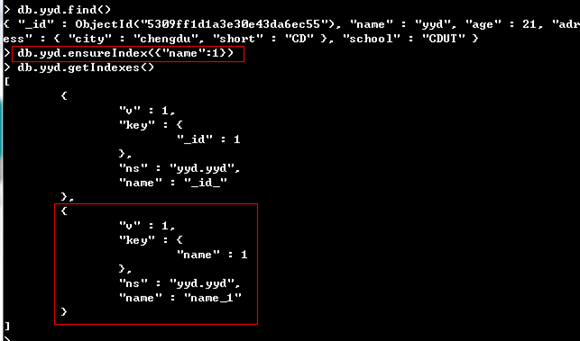
索引 基础索引 用到ensureIndex方法建立索引,1为升序,-1为降序。 MongoDB数据库在创建集合的时候,默认会为_id创建索引。 注:当系统已有大量数据时,创建索引就是一个非常耗时的工作,只需要指定backgroud:true即可。 db.yyd.ensureIndex({"name":1},{"backgroud:true"}) 文档索引 注:下面的查询将不会用到索引,因为查询的顺序与索引建立的顺序不一样。 db.yyd.find({"address":{"short":"CD","city":"chengdu"}}) 组合索引 此时,无论city和short的顺序是前是后,都会用到索引。 删除索引 为了后面方便查看,先把刚才建立的索引删除掉。 唯一索引 这里的唯一索引就像非NoSQL数据库里面的主键一样。如果集合中有重复的值,系统会报错。 强制使用索引 先向里面插入数据,使name和age为索引,当查询的时候用explain()方法来查看查询所用到的索引indexBounds参数。由上图看出,没用到索引。 现在通过hint命令强制使用索引。 索引名称 索引的名称是默认取好了的,一般是“索引_1”这样的,当然也可以自己设置索引的名字。 db.yyd.ensureIndex({"name":1},{"name":"index_name"}) 优化器profiler profiler相当于MySQL中的慢查询日志,但是比慢查询日志更详细。 使用profiler优化器就必须先开启它,在mongoDB中有两种方法控制profiler的开关和级别。 方法一: 在启动服务的时候加上 –profiler 参数,通过这个参数来设置profiler的级别。 方法二: db.setProfilingLevel(level,slowms) 在客户端调用setProfilingLevel()方法。 level为级别,0代表不开启,1代表记录慢命令(默认100ms),3代表记录所有命令。 slowms代表慢命令执行的时间,超过这个时间将写入日志中。 查询profiler日志 db.system.profile.find() show profile 性能优化 创建索引 限定返回结果数 只查询使用到的字段,而不查询所以字段 采用capped集合 采用Server Side Code Execution hint 采用profiling mongosniff底层监控 mongosniff --source NET lo mongostat查看运行中的实例统计信息 mongostat db.serverStatus查看实例运行状态 >db.serverStatus() db.stats查看数据库状态 >db.stats() 本文转自我爱物联网博客园博客,原文链接:http://www.cnblogs.com/yydcdut/p/3563704.html,如需转载请自行联系原作者

资源下载

更多资源
优质分享App

优质分享App

近一个月的开发和优化,本站点的第一个app全新上线。该app采用极致压缩,本体才4.36MB。系统里面做了大量数据访问、缓存优化。方便用户在手机上查看文章。后续会推出HarmonyOS的适配版本。

腾讯云软件源

腾讯云软件源

为解决软件依赖安装时官方源访问速度慢的问题,腾讯云为一些软件搭建了缓存服务。您可以通过使用腾讯云软件源站来提升依赖包的安装速度。为了方便用户自由搭建服务架构,目前腾讯云软件源站支持公网访问和内网访问。

Spring

Spring

Spring框架(Spring Framework)是由Rod Johnson于2002年提出的开源Java企业级应用框架,旨在通过使用JavaBean替代传统EJB实现方式降低企业级编程开发的复杂性。该框架基于简单性、可测试性和松耦合性设计理念,提供核心容器、应用上下文、数据访问集成等模块,支持整合Hibernate、Struts等第三方框架,其适用范围不仅限于服务器端开发,绝大多数Java应用均可从中受益。

Sublime Text

Sublime Text

Sublime Text具有漂亮的用户界面和强大的功能,例如代码缩略图,Python的插件,代码段等。还可自定义键绑定,菜单和工具栏。Sublime Text 的主要功能包括:拼写检查,书签,完整的 Python API , Goto 功能,即时项目切换,多选择,多窗口等等。Sublime Text 是一个跨平台的编辑器,同时支持Windows、Linux、Mac OS X等操作系统。

用户登录
用户注册