首页 文章 精选 留言 我的

精选列表

搜索[安卓设备管理],共8535篇文章
优秀的个人博客,低调大师

Sqlbean 安卓版 1.1.0 发布

Sqlbean是一款使用Java面向对象思想来编写并生成Sql语句的工具,在此基础上对Android SQLite实现轻量级插件支持。其中内置大量常用SQL执行的方法,可以非常方便的达到你想要的目的,相对复杂的SQL语句也得以支持,在常规的项目开发几乎做到不写SQL,可以有效的提高项目开发的效率,让开发者更专注于业务代码的编写。 🚀特点: 零入侵, 自动建表, 连表查询, 乐观锁,分页 💻环境: Android 4.0+ Sqlbean-Core与Java-Spring版请移步这里👉gitee,github 本次更新 1:优化生成的id以及自动生成的插入时间和更新时间注入到bean实体中; 2:重构简单条件,旧的where条件相关方法标识为过期,未来版本将会删除; 3:修改常量类生成由命名开头改为以命名开头改为以结尾(因为$开头开发工具无法提示); 4:更新pom依赖; 5:修复一些问题;

优秀的个人博客,低调大师

安卓to鸿蒙系列:ButterKnife(一)

目录: 1、基础知识 2、写一个乞丐版的ButterKnife 3、总结 本文是关于ButterKnife的移植的第一篇: 先介绍基础知识,理解apt是什么,最终输出一个乞丐版BufferKnife注入工具。 这是读懂BufferKnife源码的基础。 第二篇占坑:具体讲解BufferKnife的移植。 基础知识 apt技术的实际应用: Android Databinding绑定view ButterKnife绑定view Dagger2注入变量 ARouter生成路由表 真的好多,很重要。apt就是生产力工具! 什么是apt? 通俗讲:apt就是javac对外开放的一个插件,使javac在编译期间获取注解(Annotation),并做出相应的处理(多数都是生成一些java代码)。 从上图可以看出apt处理的是 java源文件 ,在编译期介入。 与之对比的是asm之类的工具,处理的是字节码文件,在编译后期介入。 apt与javac的约定 apt与javac约定在META-INF/services/javax.annotation.processing.Processor文件中注册apt插件。这样apt就参与到javac的编译过程中了。 写一个乞丐版BufferKnife 不想看文字,直接看源码,点击 https://gitee.com/andych008/aptDemo 初始代码fork自 https://github.com/LiMubai2017/aptDemo ,先对作者表示感谢。 乞丐版BufferKnife作为一款view注入工具,主要干了3件事, 解析注解 处理注解(生成模板类文件) 通过模板类注入view对象 第0步:准备工作 先定义注解BindView,被@BindView标记的变量会被注入。 一般注解都定义在一个单独的module(如取名apt-annotation),因为它会被apt-compiler和apt-api都依赖,属于公共代码。 apt-compiler是apt的主要代码所在,完成注解的解析、模板文件的生成。 apt-api则是对外的工具类,供用户使用,完成注入操作。 app是demo,其中定义了 @BindView(value = ResourceTable.Id_text_helloworld) public Text testTextView; 第一步:解析注解 在apt-compiler中定义类BindViewProcessor继承javax.annotation.processing.AbstractProcessor,实现其中的getSupportedAnnotationTypes()该方法注册要解析的注解。 第二步:处理注解(生成模板文件) 在BindViewProcessor中实现process()方法,处理注解。 先理解javax.lang.model.element.Element和javax.lang.model.type.TypeMirror,参考这里 有详细的解释。 简单讲: Element是描述java语言元素的类,比如包、类、变量、参数等。 TypeMirror是描述Element类型的类,比如各种基本类型、数组、类等。 很绕,只有多用才能真正理解。比如:demo中testTextView就是VariableElement元素类型 TypeElement enclosingElement = (TypeElement) variableElement.getEnclosingElement();//获取代表MainAbility的TypeElement String field = variableElement.getSimpleName().toString();//testTextView TypeMirror typeMirror = variableElement.asType();//ohos.agp.components.Text 通过log()方法,可以使用Messager打日志,验证我们的理解。 log(String.format("element : (%s) %s ", element.getKind(), element)); log(String.format("bind : (%s) %s <--> id = %d", typeMirror, field, id)); 输出日志: 注: element : (FIELD) testTextView 注: bind : (ohos.agp.components.Text) testTextView <--> id = 16777222 generateCodeByPoet()方法中,使用javapoet生成模板代码MainAbility$$Autobind.java(文件路径app/build/generated/source/annotation/debug/com/example/apt_demo/MainAbility$$Autobind.java) 关于javapoet的使用,直接看官方文档吧:https://github.com/square/javapoet 解释一下下面这段代码,让大家对javapoet有一直观的认识 MethodSpec.Builder injectMethod = MethodSpec.methodBuilder("inject")//生成一个方法,方法名是inject .addAnnotation(Override.class)//给方法加上"Override.class"注解 .addModifiers(Modifier.PUBLIC)//给方法加上访问控制符 .addParameter(Object.class, "target")//给方法加上参数 .addStatement("$T substitute = ($T)target", className, className);//在方法体内定义一条语名 上面的代码生成下面的代码(我用java代码生成java代码,这就是javapoet干的事情): @Override public void inject(Object target) { MainAbility substitute = (MainAbility)target; } 看完上面这一坨,你如果觉得难。请用JavaWriter生成java文件。你就会觉得javapoet真香。 第三步:通过模板类注入view对象 在apt-api中,我们定义一个AutoBind.java类封装对模板类MainAbility$$Autobind.java的操作。 按照模板类的命名规则xxx$$Autobind,通过反射实例化出MainAbility$$Autobind.java,调用 其中的inject方法,完成view的注入。 总结 apt只是一个工具,在这套工具框架下,怎么处理注解才是难点。 BufferKnife和我们的“乞丐版BufferKnife”本质上没有区别。除了注入view,还支持事件绑定、增量编译。 作者:没用的喵叔 想了解更多内容,请访问51CTO和华为合作共建的鸿蒙社区:https://harmonyos.51cto.com

优秀的个人博客,低调大师

用NumGo实现安卓动画

NumGo是对0~1在一段时间内的变化进行监听的数值生成器(支持插值器),可以根据这些数值实现动画。 项目源码在github,欢迎star:https://github.com/toly1994328/NumGo 一:简单使用:让textView旋转360度动画 mId_tv_hello = findViewById(R.id.id_tv_hello); new NumGo().setOnUpdate(new NumGo.OnUpdate() { @Override public void onUpdate(float rate) { mId_tv_hello.setRotation(rate *360); } }).go(); 简单使用效果 二:基本使用 NumGo numGo = new NumGo(true, 5, 1000); ///////////用构造函数,等价下面三句//////////////////////////// // //设置重复方式 是否是回返式,及0~1后再1~0 /// // numGo.setReverse(true);//0-->1--|1-->0 /// // //numGo.setReverse(false);//0-->1--|0-->1 /// // //设置重复次数 -1无限重复 /// // numGo.setRepeatCount(5); /// // //设置时间 /// // numGo.setTime(10000); /// //更新时监听 numGo.setOnUpdate(new NumGo.OnUpdate() { @Override public void onUpdate(float rate) { mId_tv_hello.setTranslationX(100 * rate); } }); //停止时监听 numGo.setOnStop(new NumGo.OnStop() { @Override public void onStop() { mId_tv_hello.setText("I was Stopped"); } }); //重复时监听 numGo.setOnRepeat(new NumGo.OnRepeat() { @Override public void onRepeat(int count) { mId_tv_hello.setText(mId_tv_hello.getText() + ":" + count); } }); numGo.go();//运行 // numGo.end();//停止 } 基本使用效果 三:插值器使用:目前定义四个简单的插值器 使用 mNumGo1.setInterpolator(new D_Sin_Inter()) 下面四种插值器效果比较 sin式减速 mNumGo1 = new NumGo(); mNumGo1.setInterpolator(new D_Sin_Inter()); mNumGo1.setOnUpdate(new NumGo.OnUpdate() { @Override public void onUpdate(float rate) { mSinD.setTranslationY(-1200 * rate); } }); sin式加速 mNumGo2 = new NumGo(); mNumGo2.setInterpolator(new A_Sin_Inter()); mNumGo2.setOnUpdate(new NumGo.OnUpdate() { @Override public void onUpdate(float rate) { mSinA.setTranslationY(-1200 * rate); } }); x平方式减速: mNumGo3 = new NumGo(); mNumGo3.setInterpolator(new D_X2_Inter()); mNumGo3.setOnUpdate(new NumGo.OnUpdate() { @Override public void onUpdate(float rate) { mXD.setTranslationY(-1200 * rate); } }); x平方式加速: mNumGo4 = new NumGo(); mNumGo4.setInterpolator(new A_X2_Inter()); mNumGo4.setOnUpdate(new NumGo.OnUpdate() { @Override public void onUpdate(float rate) { mXA.setTranslationY(-1200 * rate); } }); 运行: @OnClick(R.id.start) public void onViewClicked() { mNumGo1.go(); mNumGo2.go(); mNumGo3.go(); mNumGo4.go(); }

优秀的个人博客,低调大师

安卓注册登录界面示例

版权声明:本文可能为博主原创文章,若标明出处可随便转载。 https://blog.csdn.net/Jailman/article/details/78020173 AndroidManifest.xml <?xml version="1.0" encoding="utf-8"?> <manifest xmlns:android="http://schemas.android.com/apk/res/android" package="online.geekgalaxy.layoutlearn"> <application android:allowBackup="true" android:icon="@mipmap/ic_launcher" android:label="@string/app_name" android:roundIcon="@mipmap/ic_launcher_round" android:supportsRtl="true" android:theme="@style/AppTheme"> <activity android:name=".MainActivity"> <intent-filter> <action android:name="android.intent.action.MAIN" /> <category android:name="android.intent.category.LAUNCHER" /> </intent-filter> </activity> <activity android:name=".login"> <intent-filter> <action android:name="android.intent.action.MAIN" /> </intent-filter> </activity> <activity android:name=".register"> <intent-filter> <action android:name="android.intent.action.MAIN" /> </intent-filter> </activity> </application> </manifest> MainActivity.java package online.geekgalaxy.layoutlearn; import android.content.DialogInterface; import android.content.Intent; import android.support.v7.app.AlertDialog; import android.support.v7.app.AppCompatActivity; import android.os.Bundle; import android.view.View; import android.widget.Button; import android.widget.EditText; public class MainActivity extends AppCompatActivity { @Override protected void onCreate(Bundle savedInstanceState) { super.onCreate(savedInstanceState); setContentView(R.layout.activity_main); //login button final Button login = (Button) findViewById(R.id.button); final String user = "admin"; final String pass = "hello"; login.setOnClickListener(new View.OnClickListener() { public void onClick(View view) { String username = ""; EditText editText1 = (EditText)findViewById(R.id.editText); username = editText1.getText().toString(); String password = ""; EditText editText2 = (EditText)findViewById(R.id.editText2); password = editText2.getText().toString(); if (username.equals(user) & password.equals(pass)) { Intent intent = new Intent(MainActivity.this, login.class); startActivity(intent); } else { new AlertDialog.Builder(MainActivity.this).setTitle("Error!").setMessage("Wrong username or password.") .setNegativeButton("OK",null) .show(); } } }); //register button final Button register = (Button) findViewById(R.id.button2); register.setOnClickListener(new View.OnClickListener() { public void onClick(View view) { //提示框确定是否跳转 new AlertDialog.Builder(MainActivity.this).setTitle("Jump").setMessage("Ready to jump?") .setPositiveButton("Yes", new DialogInterface.OnClickListener() { public void onClick(DialogInterface dialog, int which) { Intent intent = new Intent(MainActivity.this, register.class); startActivity(intent); }}) .setNegativeButton("No",null) .show(); } }); } } login.java package online.geekgalaxy.layoutlearn; import android.app.Activity; import android.os.Bundle; /** * Created by jailman on 2017/9/18. */ public class login extends Activity { @Override protected void onCreate(Bundle savedInstanceState) { super.onCreate(savedInstanceState); setContentView(R.layout.login); } } register.java package online.geekgalaxy.layoutlearn; import android.app.Activity; import android.os.Bundle; /** * Created by jailman on 2017/9/18. */ public class register extends Activity{ @Override protected void onCreate(Bundle savedInstanceState) { super.onCreate(savedInstanceState); setContentView(R.layout.register); } } activity_main.xml <?xml version="1.0" encoding="utf-8"?> <android.support.constraint.ConstraintLayout xmlns:android="http://schemas.android.com/apk/res/android" xmlns:app="http://schemas.android.com/apk/res-auto" xmlns:tools="http://schemas.android.com/tools" android:layout_width="match_parent" android:layout_height="match_parent" android:layout_centerVertical="true" tools:context="online.geekgalaxy.layoutlearn.MainActivity"> <Button android:id="@+id/button" android:layout_width="wrap_content" android:layout_height="wrap_content" android:layout_marginRight="68dp" android:text="@string/login" app:layout_constraintRight_toLeftOf="@+id/button2" tools:layout_constraintTop_creator="1" android:layout_marginEnd="68dp" android:layout_marginTop="26dp" app:layout_constraintTop_toBottomOf="@+id/editText2" /> <Button android:id="@+id/button2" android:layout_width="wrap_content" android:layout_height="wrap_content" android:text="@string/register" tools:layout_constraintTop_creator="1" tools:layout_constraintRight_creator="1" android:layout_marginEnd="68dp" app:layout_constraintRight_toRightOf="parent" android:layout_marginTop="26dp" app:layout_constraintTop_toBottomOf="@+id/editText2" /> <EditText android:id="@+id/editText" android:layout_width="240dp" android:layout_height="45dp" android:layout_marginBottom="35dp" android:layout_marginEnd="68dp" android:layout_marginLeft="8dp" android:layout_marginRight="8dp" android:layout_marginStart="68dp" android:ems="10" android:hint="@string/username" android:inputType="textPersonName" app:layout_constraintBottom_toTopOf="@+id/editText2" app:layout_constraintHorizontal_bias="0.516" app:layout_constraintLeft_toLeftOf="@+id/editText2" app:layout_constraintRight_toRightOf="@+id/editText2" tools:layout_constraintLeft_creator="1" tools:layout_constraintRight_creator="1" tools:layout_editor_absoluteX="-15dp" tools:layout_editor_absoluteY="152dp" /> <EditText android:id="@+id/editText2" android:layout_width="240dp" android:layout_height="45dp" android:layout_marginEnd="69dp" android:layout_marginLeft="0dp" android:layout_marginRight="0dp" android:layout_marginStart="69dp" android:ems="10" android:hint="@string/password" android:inputType="textPassword" app:layout_constraintBottom_toBottomOf="parent" app:layout_constraintLeft_toLeftOf="@+id/button" app:layout_constraintRight_toRightOf="@+id/button2" app:layout_constraintTop_toTopOf="parent" tools:layout_constraintBottom_creator="1" tools:layout_constraintLeft_creator="1" tools:layout_constraintRight_creator="1" tools:layout_constraintTop_creator="1" /> <TextView android:id="@+id/textView2" android:layout_width="250dp" android:layout_height="65dp" android:layout_marginBottom="50dp" android:layout_marginLeft="8dp" android:layout_marginRight="8dp" android:autoText="false" android:text="Welcome" android:textAlignment="center" android:textSize="50sp" android:textStyle="bold" app:layout_constraintBottom_toTopOf="@+id/editText" app:layout_constraintHorizontal_bias="0.509" app:layout_constraintLeft_toLeftOf="@+id/editText" app:layout_constraintRight_toRightOf="@+id/editText" /> </android.support.constraint.ConstraintLayout> login.xml <?xml version="1.0" encoding="utf-8"?> <LinearLayout xmlns:android="http://schemas.android.com/apk/res/android" android:layout_width="match_parent" android:layout_height="match_parent" android:weightSum="1"> <TextView android:id="@+id/textView3" android:layout_width="0dp" android:layout_height="118dp" android:layout_marginTop="200dp" android:layout_weight="1" android:text="@string/great_you_ve_login" android:textAlignment="center" android:textSize="24sp" android:textStyle="bold" /> </LinearLayout> register.xml <?xml version="1.0" encoding="utf-8"?> <LinearLayout xmlns:android="http://schemas.android.com/apk/res/android" android:layout_width="match_parent" android:layout_height="match_parent"> <LinearLayout android:layout_width="match_parent" android:layout_height="match_parent" android:gravity="center_vertical|center_horizontal" android:orientation="vertical"> <EditText android:id="@+id/editText5" android:layout_width="270dp" android:layout_height="wrap_content" android:ems="10" android:hint="Username" android:inputType="textPersonName" /> <EditText android:id="@+id/editText6" android:layout_width="270dp" android:layout_height="wrap_content" android:ems="10" android:hint="Email" android:inputType="textPersonName" /> <EditText android:id="@+id/editText7" android:layout_width="270dp" android:layout_height="wrap_content" android:ems="10" android:hint="Password" android:inputType="textPassword" /> <EditText android:id="@+id/editText8" android:layout_width="270dp" android:layout_height="wrap_content" android:ems="10" android:hint="Confirm password" android:inputType="textPassword" /> <Button android:id="@+id/button3" android:layout_width="270dp" android:layout_height="wrap_content" android:text="Submit" /> </LinearLayout> </LinearLayout> strings.xml <resources> <string name="app_name">LayoutLearn</string> <string name="login">Login</string> <string name="register">Register</string> <string name="username">Username</string> <string name="password">Password</string> <string name="great_you_ve_login">Great, you\'ve logged in!</string> </resources> build.gradle apply plugin: 'com.android.application' android { compileSdkVersion 25 buildToolsVersion "25.0.3" defaultConfig { applicationId "online.geekgalaxy.layoutlearn" minSdkVersion 19 targetSdkVersion 25 versionCode 1 versionName "1.0" testInstrumentationRunner "android.support.test.runner.AndroidJUnitRunner" } buildTypes { release { minifyEnabled false proguardFiles getDefaultProguardFile('proguard-android.txt'), 'proguard-rules.pro' } } } dependencies { compile fileTree(dir: 'libs', include: ['*.jar']) androidTestCompile('com.android.support.test.espresso:espresso-core:2.2.2', { exclude group: 'com.android.support', module: 'support-annotations' }) compile 'com.android.support:appcompat-v7:25.3.1' compile 'com.android.support.constraint:constraint-layout:1.0.2' testCompile 'junit:junit:4.12' }

优秀的个人博客,低调大师

安卓框架——SlidingMenu使用技巧

SlidingMenu的一些常用属性 原文转载http://blog.csdn.net/zwl5670/article/details/48274109 [java] view plain copy //设置侧滑菜单的位置,可选值LEFT,RIGHT,LEFT_RIGHT(两边都有菜单时设置) menu.setMode(SlidingMenu.LEFT_RIGHT); //设置触摸屏幕的模式,可选只MARGIN,CONTENT menu.setTouchModeAbove(SlidingMenu.TOUCHMODE_MARGIN); //根据dimension资源文件的ID来设置阴影的宽度 menu.setShadowWidthRes(R.dimen.shadow_width); //根据资源文件ID来设置滑动菜单的阴影效果 menu.setShadowDrawable(R.drawable.shadow); //这两个都是设置滑动菜单视图的宽度,二选一 //设置SlidingMenu离屏幕的偏移量 menu.setBehindOffsetRes(R.dimen.slidingmenu_offset); //设置宽度 menu.setBehindWidth() //设置渐入渐出效果的值 menu.setFadeDegree(0.35f); //设置SlidingMenu与下方视图的移动的速度比,当为1时同时移动,取值0-1 menu.setBehindScrollScale(1.0f); //设置二级菜单的阴影效果 menu.setSecondaryShadowDrawable(R.drawable.shadow); //设置右边(二级)侧滑菜单 menu.setSecondaryMenu(R.layout.right_menu_frame); //为侧滑菜单设置布局 menu.setMenu(R.layout.leftmenu); //把滑动菜单添加进所有的Activity中,可选值SLIDING_CONTENT,SLIDING_WINDOW menu.attachToActivity(this,SlidingMenu.SLIDING_CONTENT); 1、在Activity中通过SlidingMenu构造方法,直接设置侧滑菜单 [java] view plain copy publicclassMainActivityextendsActivity{ @Override protectedvoidonCreate(BundlesavedInstanceState){ super.onCreate(savedInstanceState); setContentView(R.layout.activity_main); SlidingMenumenu=newSlidingMenu(this);//初始化滑动菜单 menu.setMode(SlidingMenu.LEFT);//设置触摸屏幕的模式 menu.setTouchModeAbove(SlidingMenu.TOUCHMODE_MARGIN); menu.setShadowWidthRes(R.dimen.shadow_width);//设置阴影的宽度 menu.setShadowDrawable(R.drawable.shadow);//设置滑动菜单的阴影效果 //设置滑动菜单视图的宽度 menu.setBehindOffsetRes(R.dimen.slidingmenu_offset); //设置渐入渐出效果的值 menu.setFadeDegree(0.35f); /** *SLIDING_WINDOWwillincludetheTitle/ActionBarinthecontent *sectionoftheSlidingMenu,whileSLIDING_CONTENTdoesnot. */ //把滑动菜单添加进所有的Activity中 menu.attachToActivity(this,SlidingMenu.SLIDING_CONTENT); //为侧滑菜单设置布局 menu.setMenu(R.layout.leftmenu); } } 2、通过把Activity继承SlidingActivity a、继承SlidingActivity b、然后在onCreate中setBehindContentView(R.layout.leftmenu); 设置侧滑菜单的布局 c、通过getSlidingMenu()得到SlidingMenu对象,然后设置样式 [java] view plain copy publicclassMainActivityextendsSlidingActivity{ @Override publicvoidonCreate(BundlesavedInstanceState){ super.onCreate(savedInstanceState); setContentView(R.layout.activity_main); setBehindContentView(R.layout.leftmenu); //configuretheSlidingMenu SlidingMenumenu=getSlidingMenu(); menu.setMode(SlidingMenu.LEFT); //设置触摸屏幕的模式 menu.setTouchModeAbove(SlidingMenu.TOUCHMODE_FULLSCREEN); menu.setShadowWidthRes(R.dimen.shadow_width); menu.setShadowDrawable(R.drawable.shadow); //设置滑动菜单视图的宽度 menu.setBehindOffsetRes(R.dimen.slidingmenu_offset); //设置渐入渐出效果的值 menu.setFadeDegree(0.35f); /** *SLIDING_WINDOWwillincludetheTitle/ActionBarinthecontent *sectionoftheSlidingMenu,whileSLIDING_CONTENTdoesnot. */ //menu.attachToActivity(this,SlidingMenu.SLIDING_CONTENT); //menu.setMenu(R.layout.leftmenu); } } 3、将SlidingMenu当作普通控件 可以把SlidingMenu作为普通的view,然后在布局中声明。 [java] view plain copy <RelativeLayoutxmlns:android="http://schemas.android.com/apk/res/android" xmlns:tools="http://schemas.android.com/tools" android:id="@+id/id_main_ly" android:layout_width="match_parent" android:layout_height="match_parent"> <LinearLayout android:layout_width="wrap_content" android:layout_height="wrap_content" android:layout_marginLeft="30dp" android:layout_marginTop="30dp"> <com.jeremyfeinstein.slidingmenu.lib.SlidingMenu xmlns:sliding="http://schemas.android.com/apk/res-auto" android:id="@+id/slidingmenulayout" android:layout_width="120dp" android:layout_height="170dp" android:background="#ffffffff" sliding:behindOffset="0dp" sliding:behindScrollScale="1" sliding:fadeDegree="0.3" sliding:fadeEnabled="true" sliding:touchModeAbove="fullscreen" sliding:viewAbove="@layout/pic"/> </LinearLayout> </RelativeLayout> pic布局: [plain] view plain copy <?xmlversion="1.0"encoding="utf-8"?> <ImageViewxmlns:android="http://schemas.android.com/apk/res/android" android:layout_width="120dp" android:layout_height="170dp" android:src="@drawable/zhy"/> MainActivity: [java] view plain copy packagecom.zhy.zhy_slidemenu_demo03; importandroid.app.Activity; importandroid.os.Bundle; importandroid.view.View; importandroid.view.View.OnClickListener; importcom.jeremyfeinstein.slidingmenu.lib.SlidingMenu; publicclassMainActivityextendsActivity { privateSlidingMenumLeftMenu; @Override protectedvoidonCreate(BundlesavedInstanceState) { super.onCreate(savedInstanceState); setContentView(R.layout.activity_main); mLeftMenu=(SlidingMenu)findViewById(R.id.slidingmenulayout); //configuretheSlidingMenu //SlidingMenumenu=newSlidingMenu(this); mLeftMenu.setMode(SlidingMenu.LEFT); //设置触摸屏幕的模式 mLeftMenu.setShadowWidthRes(R.dimen.shadow_width); mLeftMenu.setShadowDrawable(R.drawable.shadow); mLeftMenu.setMenu(R.layout.leftmenu); mLeftMenu.setOnClickListener(newOnClickListener() { @Override publicvoidonClick(Viewv) { if(mLeftMenu.isMenuShowing()) mLeftMenu.toggle(); } }); //设置滑动菜单视图的宽度 //设置渐入渐出效果的值 /** *SLIDING_WINDOWwillincludetheTitle/ActionBarinthecontent *sectionoftheSlidingMenu,whileSLIDING_CONTENTdoesnot. */ } } 4、SlidingMenu设置左右侧滑菜单例子 上面3个方法,SlidingMenu的布局中控件的事件都需要写在Activity中,这样代码比较臃肿,一般会使用Fragment作为侧滑菜单的布局容器。 核心代码: · [java] view plain copy FragmentleftMenuFragment=newMenuLeftFragment(); ·setBehindContentView(R.layout.left_menu_frame); ·getSupportFragmentManager().beginTransaction() ·.replace(R.id.id_left_menu_frame,leftMenuFragment).commit(); ·SlidingMenumenu=getSlidingMenu(); ·menu.setMode(SlidingMenu.LEFT_RIGHT); ·//设置触摸屏幕的模式 ·menu.setTouchModeAbove(SlidingMenu.TOUCHMODE_MARGIN); 先给侧滑菜单通过 setBehindContentView(R.layout.left_menu_frame); 设置一个布局,此布局中只有一个FrameLayout,然后使用FragmentManager将Fragment替换掉此Fragment,这样这个 Fragment就作为我们侧滑菜单的布局了,我们的事件处理代码也可以写在Fragement中,而不是Activity中。 MenuLeftFragment [java] view plain copy packagecom.zhy.zhy_slidemenu_demo04; importjava.util.Arrays; importjava.util.List; importandroid.os.Bundle; importandroid.support.v4.app.Fragment; importandroid.view.LayoutInflater; importandroid.view.View; importandroid.view.ViewGroup; importandroid.widget.ArrayAdapter; importandroid.widget.ListAdapter; importandroid.widget.ListView; publicclassMenuLeftFragmentextendsFragment { privateViewmView; privateListViewmCategories; privateList<String>mDatas=Arrays .asList("聊天","发现","通讯录","朋友圈","订阅号"); privateListAdaptermAdapter; @Override publicViewonCreateView(LayoutInflaterinflater,ViewGroupcontainer, BundlesavedInstanceState){ if(mView==null){ initView(inflater,container); } returnmView; } privatevoidinitView(LayoutInflaterinflater,ViewGroupcontainer){ mView=inflater.inflate(R.layout.left_menu,container,false); mCategories=(ListView)mView .findViewById(R.id.id_listview_categories); mAdapter=newArrayAdapter<String>(getActivity(), android.R.layout.simple_list_item_1,mDatas); mCategories.setAdapter(mAdapter); } } MenuRightFragment packagecom.zhy.zhy_slidemenu_demo04; importandroid.os.Bundle; importandroid.support.v4.app.Fragment; importandroid.view.LayoutInflater; importandroid.view.View; importandroid.view.ViewGroup; publicclassMenuRightFragmentextendsFragment{ privateViewmView; @Override publicViewonCreateView(LayoutInflaterinflater,ViewGroupcontainer, BundlesavedInstanceState){ if(mView==null){ mView=inflater.inflate(R.layout.right_menu,container,false); } returnmView; } } MainActivity [java] view plain copy publicclassMainActivityextendsSlidingFragmentActivity{ privateViewPagermViewPager; privateFragmentPagerAdaptermAdapter; privateList<Fragment>mFragments=newArrayList<Fragment>(); @Override publicvoidonCreate(BundlesavedInstanceState){ super.onCreate(savedInstanceState); this.requestWindowFeature(Window.FEATURE_NO_TITLE); setContentView(R.layout.activity_main); //初始化SlideMenu initRightMenu(); //初始化ViewPager initViewPager(); } privatevoidinitViewPager(){ mViewPager=(ViewPager)findViewById(R.id.id_viewpager); MainTab01tab01=newMainTab01(); MainTab02tab02=newMainTab02(); MainTab03tab03=newMainTab03(); mFragments.add(tab01); mFragments.add(tab02); mFragments.add(tab03); /** *初始化Adapter */ mAdapter=newFragmentPagerAdapter(getSupportFragmentManager()){ @Override publicintgetCount(){ returnmFragments.size(); } @Override publicFragmentgetItem(intarg0){ returnmFragments.get(arg0); } }; mViewPager.setAdapter(mAdapter); } privatevoidinitRightMenu(){ FragmentleftMenuFragment=newMenuLeftFragment(); setBehindContentView(R.layout.left_menu_frame); getSupportFragmentManager().beginTransaction() .replace(R.id.id_left_menu_frame,leftMenuFragment).commit(); SlidingMenumenu=getSlidingMenu(); menu.setMode(SlidingMenu.LEFT_RIGHT); //设置触摸屏幕的模式 menu.setTouchModeAbove(SlidingMenu.TOUCHMODE_MARGIN); menu.setShadowWidthRes(R.dimen.shadow_width); menu.setShadowDrawable(R.drawable.shadow); //设置滑动菜单视图的宽度 menu.setBehindOffsetRes(R.dimen.slidingmenu_offset); //设置渐入渐出效果的值 menu.setFadeDegree(0.35f); //menu.setBehindScrollScale(1.0f); menu.setSecondaryShadowDrawable(R.drawable.shadow); //设置右边(二级)侧滑菜单 menu.setSecondaryMenu(R.layout.right_menu_frame); FragmentrightMenuFragment=newMenuRightFragment(); getSupportFragmentManager().beginTransaction() .replace(R.id.id_right_menu_frame,rightMenuFragment).commit(); } publicvoidshowLeftMenu(Viewview){ getSlidingMenu().showMenu(); } publicvoidshowRightMenu(Viewview){ getSlidingMenu().showSecondaryMenu(); } } MainActivity继承的是SlidingFragmentActivity ,在Activity中FragmentPagerAdapter和viewPager作为主布局,然后分别初始化SlidingMenu的两边的菜单。


优秀的个人博客,低调大师

[安卓] 17、一个简单的例子学安卓侧滑设计——用开源slidingmenu

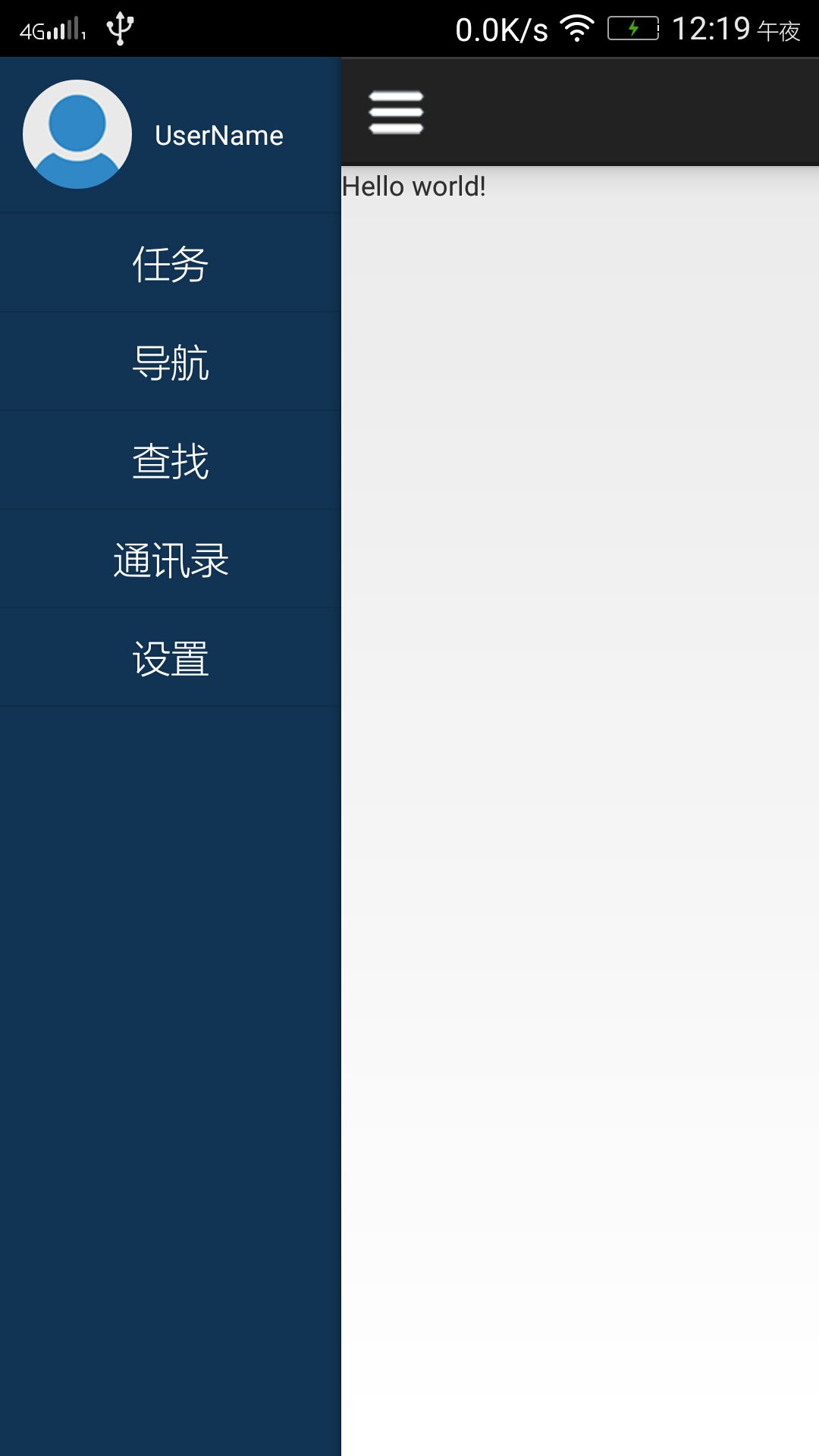
效果如下: 下面是工程结构: 整个工程包括android-v7、SlidingMenu-lib和主工程SlidingMenuTest部分 其中前两个作为lib,后一个为主工程 主工程包含两个lib工程方法为:(易错点) 选择主工程属性 而主工程包括: 逻辑部分:(SRC)其中MainActivity.java是主入口,在主入口内调用部分函数可加载MainFragment.java所对应的Fragment 而CircleImageView.java主要负责使头像呈圆形用的 显示部分:(layout)activity_main.xml对应主页面,layout_actionbar.xml对应actionbar(actionbar的形式可以通过这个调节), layout_menu.xml是侧栏,item_menu.xml是侧栏中的列表的item(上一节中讲了自定义列表和这个类似) 这里MainActivity协调整体逻辑: 该avtivity中代码比较简洁,一看便知道怎么用fragment的了——17、18 怎么设置侧滑——15 怎么设置bar——16 此外,在setmenu中对侧滑栏点击事件的监听和list一样——43to78 一看便会用~而fragment的java文件只写了个类(没内容),圆形头像相关的java不必看(会用即可) 1 public class MainActivity extends ActionBarActivity { 2 3 private LayoutInflater inflator; 4 public static FragmentManager fm; 5 private ActionBar actionBar; 6 private SlidingMenu menu; 7 private ListView menuList; 8 9 @Override 10 protected void onCreate(Bundle savedInstanceState) { 11 super.onCreate(savedInstanceState); 12 setContentView(R.layout.activity_main); 13 14 inflator = (LayoutInflater) MainActivity.this.getSystemService(Context.LAYOUT_INFLATER_SERVICE); 15 setMenu(); 16 setActionBar(); 17 fm=getSupportFragmentManager(); 18 fm.beginTransaction().replace(R.id.content_frame,new MainFragment()).commit();//用MainFragment替换原来的content_fram 19 } 20 21 private void setActionBar(){//自定义actionbar 22 actionBar = getSupportActionBar(); 23 actionBar.setDisplayShowHomeEnabled( false ); 24 actionBar.setDisplayShowCustomEnabled(true); 25 actionBar.setDisplayShowTitleEnabled(false); 26 actionBar.setDisplayHomeAsUpEnabled(false); 27 28 View view = inflator.inflate(R.layout.layout_actionbar, null); 29 ActionBar.LayoutParams layout = new ActionBar.LayoutParams(LayoutParams.FILL_PARENT, LayoutParams.FILL_PARENT); 30 actionBar.setCustomView(view,layout); 31 } 32 33 @SuppressLint("InflateParams") 34 private void setMenu(){ 35 menu = new SlidingMenu(this); 36 menu.setTouchModeAbove(SlidingMenu.TOUCHMODE_MARGIN); 37 menu.setShadowWidthRes(R.dimen.shadow_width); 38 menu.setShadowDrawable(R.drawable.shadow); 39 menu.setBehindWidthRes(R.dimen.slidingmenu_width); 40 menu.setFadeDegree(0.35f); 41 menu.attachToActivity(this, SlidingMenu.SLIDING_WINDOW); 42 43 View view = inflator.inflate(R.layout.layout_menu, null);//设置menu的list及点击监听 44 menuList=(ListView)view.findViewById(R.id.list_menu); 45 final String[] listItems=getResources().getStringArray(R.array.menu_item); 46 menuList.setAdapter(new ArrayAdapter<String>(this, R.layout.item_menu,R.id.text1, listItems)); 47 menuList.setOnItemClickListener(new OnItemClickListener(){ 48 49 @Override 50 public void onItemClick(AdapterView<?> parent, View view, int position, 51 long id) { 52 menu.toggle(); 53 String title; 54 if(position!=3){ 55 title=listItems[position].charAt(0)+" "+listItems[position].charAt(1); 56 }else{ 57 title=listItems[position]; 58 } 59 switch(position){ 60 case 0: 61 // fm.beginTransaction().replace(R.id.content_frame,new TrackFragment()).commit(); 62 break; 63 case 1: 64 // fm.beginTransaction().replace(R.id.content_frame,new TrafficFragment()).commit(); 65 break; 66 case 2: 67 // fm.beginTransaction().replace(R.id.content_frame,new SearchFragment()).commit(); 68 break; 69 case 3: 70 // fm.beginTransaction().replace(R.id.content_frame,new PhoneBookFragment()).commit(); 71 break; 72 case 4: 73 // fm.beginTransaction().replace(R.id.content_frame,new SettingFragment()).commit(); 74 break; 75 } 76 } 77 78 }); 79 menu.setMenu(view); 80 } 81 82 public void onClickMenu(View view){//这个是在layout_actionbar中说好的 83 menu.toggle(); 84 } 85 } 对于layout中的几个文件的关系是: activity_main.xml对应主页面,layout_actionbar.xml对应actionbar(actionbar的形式可以通过这个调节),layout_menu.xml是侧栏,item_menu.xml是侧栏中的列表的item(上一节中讲了自定义列表和这个类似) 这里的主界面就是最简单layout: 1 <RelativeLayout xmlns:android="http://schemas.android.com/apk/res/android" 2 xmlns:tools="http://schemas.android.com/tools" 3 android:id="@+id/content_frame" 4 android:layout_width="match_parent" 5 android:layout_height="match_parent" 6 tools:context="com.beautifulzzzz.ui.MainActivity" > 7 8 <TextView 9 android:layout_width="wrap_content" 10 android:layout_height="wrap_content" 11 android:text="@string/hello_world" /> 12 13 </RelativeLayout> actionbar则包含一个图片和一个textview: 这里要注意11行,actionbar上的图标的点击监听已经指明,必须要实现该函数 1 <?xml version="1.0" encoding="utf-8"?> 2 <RelativeLayout xmlns:android="http://schemas.android.com/apk/res/android" 3 android:layout_width="match_parent" 4 android:layout_height="match_parent" > 5 6 <ImageView 7 android:id="@+id/img_menu" 8 android:layout_width="wrap_content" 9 android:layout_height="wrap_content" 10 android:layout_centerVertical="true" 11 android:onClick="onClickMenu" 12 android:src="@drawable/selector_menu" /> 13 14 <TextView 15 android:id="@+id/tv_title" 16 android:layout_width="wrap_content" 17 android:layout_height="wrap_content" 18 android:layout_centerInParent="true" 19 android:textColor="@color/white" 20 android:textSize="20sp" /> 21 22 </RelativeLayout> 侧滑栏的样式稍微复杂点: 上面头像+用户名采用垂直的linearLayout布局,在其中左边是自定义圆形图片,右边是一个textview 这里的button只是为了作为头像部分和list部分的分割线,仅此而已!!! 1 <?xml version="1.0" encoding="utf-8"?> 2 <LinearLayout xmlns:android="http://schemas.android.com/apk/res/android" 3 xmlns:app="http://schemas.android.com/apk/res-auto" 4 android:layout_width="150dp" 5 android:layout_height="match_parent" 6 android:background="@color/myblue" 7 android:orientation="vertical"> 8 9 <LinearLayout 10 android:id="@+id/layout_user" 11 android:layout_width="150dp" 12 android:layout_height="wrap_content" 13 android:orientation="horizontal" > 14 15 <com.beautifulzzzz.widget.CircleImageView 16 android:id="@+id/image_userhead" 17 android:layout_width="48dp" 18 android:layout_height="48dp" 19 android:layout_margin="10dp" 20 android:src="@drawable/icon_user_default" 21 app:border_width="0dp" /> 22 23 <TextView 24 android:id="@+id/tv_username" 25 android:layout_width="wrap_content" 26 android:layout_height="wrap_content" 27 android:layout_gravity="center_vertical" 28 android:text="UserName" 29 android:textColor="@color/white" /> 30 </LinearLayout> 31 32 <Button 33 android:layout_width="150dp" 34 android:layout_height="1dp" 35 android:background="@color/blue_line" /> 36 37 <ListView 38 android:id="@+id/list_menu" 39 android:layout_width="150dp" 40 android:layout_height="match_parent" /> 41 42 </LinearLayout> 这里的list的item比较简单(当然你可以参照上一节做出很炫酷的list) 1 <?xml version="1.0" encoding="utf-8"?> 2 <TextView xmlns:android="http://schemas.android.com/apk/res/android" 3 android:id="@+id/text1" 4 android:layout_width="match_parent" 5 android:layout_height="wrap_content" 6 android:textColor="@color/white" 7 android:textSize="20sp" 8 android:padding="10dp" 9 android:gravity="center" /> 注意:整个工程还自定义了一些资源,包括颜色、drawable、按钮动画... 上述工程连接:(一个zip包含3个) http://pan.baidu.com/s/1dDyQjpZ 其他同类博文: 【Android UI设计与开发】9:滑动菜单栏(一)开源项目SlidingMenu的使用和示例 【Android UI设计与开发】第16期:滑动菜单栏(一)开源项目SlidingMenu的使用 @beautifulzzzz 2015-11-11 持续更新中~ 本文转自beautifulzzzz博客园博客,原文链接:http://www.cnblogs.com/zjutlitao/p/4957824.html,如需转载请自行联系原作者

资源下载

更多资源
腾讯云软件源

腾讯云软件源

为解决软件依赖安装时官方源访问速度慢的问题,腾讯云为一些软件搭建了缓存服务。您可以通过使用腾讯云软件源站来提升依赖包的安装速度。为了方便用户自由搭建服务架构,目前腾讯云软件源站支持公网访问和内网访问。

Nacos

Nacos

Nacos /nɑ:kəʊs/ 是 Dynamic Naming and Configuration Service 的首字母简称,一个易于构建 AI Agent 应用的动态服务发现、配置管理和AI智能体管理平台。Nacos 致力于帮助您发现、配置和管理微服务及AI智能体应用。Nacos 提供了一组简单易用的特性集,帮助您快速实现动态服务发现、服务配置、服务元数据、流量管理。Nacos 帮助您更敏捷和容易地构建、交付和管理微服务平台。

Spring

Spring

Spring框架(Spring Framework)是由Rod Johnson于2002年提出的开源Java企业级应用框架,旨在通过使用JavaBean替代传统EJB实现方式降低企业级编程开发的复杂性。该框架基于简单性、可测试性和松耦合性设计理念,提供核心容器、应用上下文、数据访问集成等模块,支持整合Hibernate、Struts等第三方框架,其适用范围不仅限于服务器端开发,绝大多数Java应用均可从中受益。

Rocky Linux

Rocky Linux

Rocky Linux(中文名:洛基)是由Gregory Kurtzer于2020年12月发起的企业级Linux发行版,作为CentOS稳定版停止维护后与RHEL(Red Hat Enterprise Linux)完全兼容的开源替代方案,由社区拥有并管理,支持x86_64、aarch64等架构。其通过重新编译RHEL源代码提供长期稳定性,采用模块化包装和SELinux安全架构,默认包含GNOME桌面环境及XFS文件系统,支持十年生命周期更新。

用户登录
用户注册