首页 文章 精选 留言 我的

精选列表

搜索[搭建],共10000篇文章
优秀的个人博客,低调大师

ELK日志分析平台搭建全程

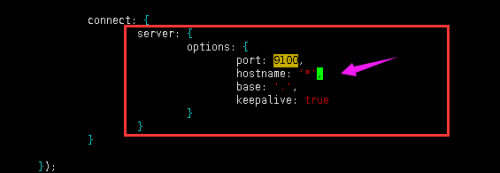
环境: OS:Centos 6.6 elasticsearch-5.6.3.tar.gz jdk-8u151-linux-x64.tar.gz kibana-5.6.3-linux-x86_64.tar.gz logstash-5.6.3.tar.gz node-v6.11.4-linux-x64.tar.xz 一、准备环境: 1、创建用户,并给安装目录设置权限 1 2 3 4 [root@1inux~]#groupaddelk [root@1inux~]#useradd-gelkelk [root@1inux~]#mkdir/elk [root@1inux~]#chown-Relk:elk/elk 修改系统某些参数值:【如不修改启动时会报错】 1 2 3 4 5 6 7 8 9 10 11 12 13 14 15 16 17 18 19 [root@1inux~]#vim/etc/security/limits.conf //添加一下内容 --------------------------- *softnofile 65536 *hardnofile 65536 *softnproc 2048 *hardnproc 4096 ---------------------------- [root@bogonelk]#vim/etc/security/limits.d/ 90 -nproc.conf //添加如下内容 *softnproc 2048 [root@1inux~]#vim/etc/sysctl.conf //添加以下内容 ------------------ fs.file- max = 65536 vm.max_map_count= 655360 ---------------------- [root@1inux~]#sysctl-p //查看vm.max_map_count值是否修改成功 修改进程数: [root@1inux~]#ulimit-u 2048 安装Java [root@1inux elk]# mkdir /usr/local/Java [root@1inux elk]# tar -zxvf jdk-8u151-linux-x64.tar.gz -C /usr/local/Java 添加环境变量: [root@1inux jdk1.8.0_151]# vim /etc/profile 添加如下: 1 2 3 exportJAVA_HOME=/usr/local/Java/jdk1.8.0_151 exportPATH=$PATH:$JAVA_HOME/bin exportCLASSPATH=.:$JAVA_HOME/lib/tools.jar:$JAVA_HOME/lib/dt.jar:$CLASSPAT 重新加载 [root@1inux jdk1.8.0_151]# source /etc/profile 查看是否安装成功: 1 2 3 4 [root@1inuxjdk1 .8. 0_151]#java-version javaversion" 1.8. 0_151" Java(TM)SERuntimeEnvironment(build 1.8. 0_151-b12) JavaHotSpot(TM) 64 -BitServerVM(build 25.151 -b12,mixedmode) 二:安装ELK 1、安装elasticsearch 1 2 3 4 5 6 #tar-zxvfelasticsearch-5.6.3.tar.gz 修改配置文件: vim./elasticsearch-5.6.3/config/elasticsearch.yml //设置监听IP及监听端口: network.host:0.0.0.0//设置监听IP http.port:9200//设置监听端口 注:elasticsearch不能使用root用户启动 启动elasticsearch//第一次启动有点慢: 1 2 3 4 5 6 7 [elk@1inuxroot]$cd/elk/elasticsearch-5.6.3/bin [elk@1inuxbin]$./elasticsearch 然后查看端口: [root@1inux~]#ss-tnl|grep9200 LISTEN0128::ffff:192.168.159.130:9200:::* [root@1inux~]# 1.1安装部署head 编辑elasticsearch配置文件做如下修改: 1 2 3 4 5 6 #vim/elk/elasticsearch-5.6.3/config/elasticsearch.yml node.name:node-1inux//修改集群名字 cluster.name:my-1inux//修改节点名字 //增加新的参数,这样head插件可以访问es http.cors.enabled:true http.cors.allow-origin: "*" 1)安装git 1 [root@ 1 inux/]#yum-yinstallgit 下载代码: 1 [root@ 1 inuxelk]#gitclonegit://github.com/mobz/elasticsearch-head.git 修改head目录权限: 1 [root@1inuxelk]#chown-Relk:elkelasticsearch-head 2)下载安装node https://nodejs.org/en/download/ 然后下载xz进行解压 1 2 3 #yum-yinstallxz [root@1inuxelk]#xz-dnode-v6.11.4-linux-x64.tar.xz [root@1inuxelk]#tar-xvfnode-v6.11.4-linux-x64.tar 添加node的环境变量 1 2 3 4 5 6 7 [root@ 1 inuxnode-v 6.11 . 4 -linux-x 64 ]#vim/etc/profile 添加如下: exportNODE_HOME=/elk/node-v 6.11 . 4 -linux-x 64 exportPATH=$PATH:$NODE_HOME/bin 重新加载 [root@ 1 inuxnode-v 6.11 . 4 -linux-x 64 ]#source/etc/profile 查看是否生效: 1 2 3 4 5 6 [root@1inuxnode-v6.11.4-linux-x64]#echo$NODE_HOME /elk/node-v6.11.4-linux-x64 [root@1inuxnode-v6.11.4-linux-x64]#node-v v6.11.4 [root@1inuxnode-v6.11.4-linux-x64]#npm-v 3.10.10 1 2 3 切换国内镜像源: npmconfig set registryhttps: //registry.npm.taobao.org npmconfig set disturlhttps: //npm.taobao.org/dist 3)安装grunt 1 2 [root@1inuxnode_modules]#npminstall-ggrunt [root@1inuxnode-v6.11.4-linux-x64]#npminstallgrunt-cli-g 查看是否安装成功: 1 2 [root@1inuxnode-v6 .11.4 -linux-x64]#grunt-version grunt-cliv1 .2.0 修改服务器监听地址 1 2 [root@1inuxelk]#vim/elk/elasticsearch-head/Gruntfile.js hostname:'*', 修改链接地址: 1 2 3 4 [root@1inuxelk]#vim/elk/elasticsearch-head/_site/app.js this .base_uri= this .config.base_uri|| this .prefs.get( "app-base_uri" )||" 修改为: this .base_uri= this .config.base_uri|| this .prefs.get( "app-base_uri" )|| "http://192.168.159.130:9200" ; 运行head 1 2 3 4 在head目录中执行 [root@1inuxelasticsearch-head]#npminstall 启动: [root@1inuxelasticsearch-head]#gruntserver 2、安装kibana [root@1inux elk]# tar -zxvf kibana-5.6.3-linux-x86_64.tar.gz 1 2 3 4 5 6 7 解压后编辑配置文件; [root@ 1 inuxbin]#vim../config/kibana.yml//修改为elasticsearch的访问地址及端口如下 #server.host: "localhost" server.host: "192.168.159.130" #elasticsearch.url: "http://localhost:9200" elasticsearch.url:" 然后保存启动如下; 1 2 3 4 5 6 7 8 [root@1inuxbin]#./kibana log [15:45:26.952][info][status][plugin:kibana@5.6.3]Statuschangedfromuninitializedtogreen-Ready log [15:45:27.067][info][status][plugin:elasticsearch@5.6.3]Statuschangedfromuninitializedtoyellow-WaitingforElasticsearch log [15:45:27.118][info][status][plugin:console@5.6.3]Statuschangedfromuninitializedtogreen-Ready log [15:45:27.136][info][status][plugin:metrics@5.6.3]Statuschangedfromuninitializedtogreen-Ready log [15:45:27.566][info][status][plugin:timelion@5.6.3]Statuschangedfromuninitializedtogreen-Ready log [15:45:27.697][info][listening]Serverrunningathttp://localhost:5601 log [15:45:27.699][info][status][uisettings]Statuschangedfromuninitializedtoyellow-Elasticsearchpluginisyellow 3、安装logstash-5.6.3.tar.gz 1 2 3 [root@ 1 inuxelk]#tar-zxvflogstash -5.6 . 3 .tar.gz 解压后编辑配置文件,然后就可以使用了 编写文件 1 2 3 4 5 6 7 8 9 10 11 12 13 14 15 16 17 18 编辑文件#vim/config/test.conf input{ file{ type=> "nginx_log" path=> "/var/log/nginx/access.log" start_position=> "beginning" } } output{ elasticsearch{ hosts=> "192.168.159.130" index=> "1inux" } stdout{codec=>rubydebug} } 启动: root@1inuxbin]#./logstash-f../config/test.conf 报错: 1、 1 2 3 [root@bogonelk]#./elasticsearch- 5.6.3 /bin/elasticsearch [ 2017 - 10 -25T06: 29 : 04 , 996 ][WARN][o . e . b . ElasticsearchUncaughtExceptionHandler][]uncaughtexception in thread[main] org . elasticsearch . bootstrap . StartupException:java . lang . RuntimeException:can not runelasticsearch as root 解决方案:使用elk用户启动 问题二、 1 2 3 4 5 6 ERROR:[4]bootstrapchecksfailed [1]:maxfiledescriptors[4096] for elasticsearchprocess is toolow,increasetoatleast[65536] [2]:maxnumberofthreads[1024] for user[elk] is toolow,increasetoatleast[2048] [3]:max virtual memoryareasvm.max_map_count[65530] is toolow,increasetoatleast[262144] 参考上面系统修改 问题三、 1 2 3 4 编辑elasticsearch配置文件 [ 4 ]:systemcallfiltersfailedtoinstall;checkthelogsandfixyourconfigurationordisablesystemcallfiltersatyourownrisk 在bootstrap.memory_lock下面添加: bootstrap.system_call_filter:false 本文转自 1inux 51CTO博客,原文链接:http://blog.51cto.com/1inux/1976229

优秀的个人博客,低调大师

centos下搭建docker私有仓库

目前Docker Registry已经升级到了v2,最新版的Docker已不再支持v1。Registry v2使用Go语言编写,在性能和安全性上做了很多优化,重新设计了镜像的存储格式。此文档是在v1的基础上写的,如果需要安装registry v2,只需下载registry:2.2即可,或者可以下载后面的安装脚本运行安装。 一、下载registry镜像 docker pull registry 二、启动私有仓库容器,默认情况下,会将仓库存放于容器内的/tmp/registry目录下,这样如果容器被删除,则存放于容器中的镜像也会丢失,所以我们一般情况下会指定本地一个目录挂载到容器内的/tmp/registry下 docker run -d -p 5000:5000 -v /data/docker/registry:/tmp/registry registry 三、查看启动进程 docker ps -a CONTAINER ID IMAGE COMMAND CREATED STATUS PORTS NAMES 9dc25301d44f registry "docker-registry" 20 seconds ago Up 18 seconds 0.0.0.0:5000->5000/tcp reverent_ptolemy 四、创建镜像链接或为基础镜像打个标签 docker tag docker.io/centos6.7-base 10.44.86.222:5000/centos6.7-base 五、提交镜像到本地私有仓库中 docker push 10.44.86.222:5000/centos6.7-base 六、如果报以下错误,需要修改/etc/sysconfig/docker文件 Error response from daemon: invalid registry endpoint https://10.44.86.222:5000/v0/: unable to ping registry endpoint https://10.44.86.222:5000/v0/ v2 ping attempt failed with error: Get https://10.44.86.222:5000/v2/: EOF v1 ping attempt failed with error: Get https://10.44.86.222:5000/v1/_ping: EOF. If this private registry supports only HTTP or HTTPS with an unknown CA certificate, please add `--insecure-registry 10.44.86.222:5000` to the daemon's arguments. In the case of HTTPS, if you have access to the registry's CA certificate, no need for the flag; simply place the CA certificate at /etc/docker/certs.d/10.44.86.222:5000/ca.crt 在/etc/sysconfig/docker文件添加以下选项: other_args='--insecure-registry 10.44.86.222:5000 --graph=/data/docker/images' OPTIONS='--selinux-enabled --insecure-registry 10.44.86.222:5000' 因为从docker1.3.2版本开始默认docker registry使用的是https 七、查看私有仓库是否存在对应的镜像 curl 10.44.86.222:5000/v1/search {"num_results": 1, "query": "", "results": [{"description": "", "name": "library/centos6.7-base"}]} 本文转自aaron428 51CTO博客,原文链接:http://blog.51cto.com/aaronsa/1740747,如需转载请自行联系原作者

优秀的个人博客,低调大师

搭建yum仓库定制rpm包

YUM源优先级 1年前 (2015-12-18) 听风吟 Linux攻略 0评论 来源:本站原创 155℃ 字体:小中大 生产案例:OpenStack Icehouse novncproxy无法启动解决 这个企业案例随着我们的课程升级已经过时了,但是解决问题的方法还是值得学习的。 广告:全国最新OpenStack之Liberty版本深度讲解,欲知详情,请加文末交流群。 使用启动脚本执行正常,但进程没有启动。手动启动发现报错 [root@linux-node1~]#nova-novncproxy--config-file=/etc/nova/nova.confTraceback(mostrecentcalllast):File"/usr/bin/nova-novncproxy",line10,in<module>sys.exit(main())File"/usr/lib/python2.6/site-packages/nova/cmd/novncproxy.py",line87,inmainwrap_cmd=None)File"/usr/lib/python2.6/site-packages/nova/console/websocketproxy.py",line47,in__init__ssl_target=None,*args,**kwargs)File"/usr/lib/python2.6/site-packages/websockify/websocketproxy.py",line231,in__init__websocket.WebSocketServer.__init__(self,RequestHandlerClass,*args,**kwargs)TypeError:__init__()gotanunexpectedkeywordargument'no_parent' 原因 是由于python-websockify这个包的版本造成的问题。其实在fedora源中也提供了一些python的依赖包。http://mirrors.aliyun.com/epel/6/x86_64/真坑,9月份更新的!!!python-websockify-0.6.0-3.el6.noarch.rpm04-Sep-201519:2963556https://repos.fedorapeople.org/repos/openstack/EOL/openstack-icehouse/epel-6/python-websockify-0.5.1-1.el6.noarch.rpm2013-09-1009:3158Khttp://mirrors.ustc.edu.cn/epel/6/x86_64/python-websockify-0.6.0-3.el6.noarch.rpm04-Sep-201519:2963556#应该是国外的总源换了为什么6版本不行https://bugs.launchpad.net/nova/+bug/1334327https://bugs.launchpad.net/nova/+bug/1333746 解决方法 优先使用icehouse源提供的软件包,这里涉及到yum源优先级的问题。有的包需要epel源,但有的包epel太新了,不能用,用了就出问题,因此优先使用icehouse源提供的包。一些关键的python包icehouse源也提供了,不需要下载epel源的 Yum Priorities插件可以用来强制保护源。它通过给各个源设定不同的优先级,使得系统管理员可以将某些源(比如Linux发行版的官方源)设定为最高优先级,从而保证系统的稳定性(同时也可能无法更新到其它源上提供的软件最新版本)。 1. 安装Yum Priorities yum -y install yum-priorities 2. 配置使用Yum Priorities vim/etc/yum/pluginconf.d/priorities.conf#确保配置文件中包含下面的行[main]enabled=1 3. 修改阿里epel源优先级 #icehouse源默认有优先级了[root@linux-node1~]#greppriority/etc/yum.repos.d/rdo-release.repopriority=98#在epel源加一行,使epel源的优先级低于icehouse源[root@linux-node1~]#vi/etc/yum.repos.d/epel.repo[epel]…………priority=99 注1:优先级由1 ~ 99的99个数表示,1的优先级最高。优先级小的源即使有某软件的较新版本,如果优先级高的源中没有,在启用该插件的情况下,系统也无法安装/升级到该较新版本。 注2:要禁用 YUM 优先级功能,只需要将/etc/yum/pluginconf.d/priorities.conf 的enable=1 改为 enable=0 即可。 来自为知笔记(Wiz) AD:官方群:运维交流08群384467551 架构师交流QQ群390642196 本文转自浅景尘51CTO博客,原文链接:http://blog.51cto.com/857803451/1933265 ,如需转载请自行联系原作者

优秀的个人博客,低调大师

elk单台环境搭建(1)

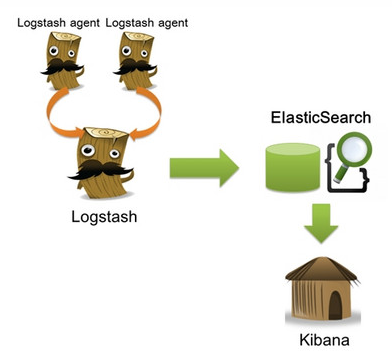
一、简介 1、核心组成 ELK由Elasticsearch、Logstash和Kibana三部分组件组成; Elasticsearch是个开源分布式搜索引擎,它的特点有:分布式,零配置,自动发现,索引自动分片,索引副本机制,restful风格接口,多数据源,自动搜索负载等。 Logstash是一个完全开源的工具,它可以对你的日志进行收集、分析,并将其存储供以后使用 Kibana是一个基于浏览器页面的Elasticsearch前端展示工具。Kibana全部使用HTML语言和Javascript编写的 2、组件作用 Logstash: logstash server端用来搜集日志; Elasticsearch: 存储各类日志; Kibana: web化接口用于查询和可视化日志; 3、ELK工作流程 在需要收集日志的所有服务上部署logstash,作为logstash agent(logstash shipper)用于监控并过滤收集日志,然后通过logstash indexer将日志收集在一起交给全文搜索服务ElasticSearch,可以用ElasticSearch进行自定义搜索通过Kibana 来结合自定义搜索进行页面展示。 二、下载所需软件 wgethttp://download.oracle.com/otn-pub/java/jdk/8u45-b14/jdk-8u45-linux-x64.tar.gz wgethttps://download.elastic.co/elasticsearch/elasticsearch/elasticsearch-1.7.2.tar.gz wgethttps://download.elastic.co/kibana/kibana/kibana-4.1.2-linux-x64.tar.gz wgethttps://download.elastic.co/logstash/logstash/logstash-1.5.4.tar.gz 三、安装步骤 1、首先安装jdk 安装jdk-8u45-linux-x64 root身份登录系统 将jdk-8u45-linux-x64.tar.gz拷贝到/opt下面 cd /opt tar zxvf jdk-8u45-linux-x64.tar.gz 解压后 生成的文件名字叫做jdk-8u45 vim /etc/profile 把如下代码放到文件的最后面 export JAVA_HOME=/opt/jdk-8u45 export JAVA_BIN=/opt/jdk-8u45/bin export JRE_HOME=$JAVA_HOME/jre export CLASSPATH=.:$JAVA_HOME/lib/dt.jar:$JAVA_HOME/lib/tools.jar:$JRE_HOME/lib/rt.jar export PATH=$PATH:$JAVA_HOME/bin:$JRE_HOME/bin export JAVA_HOME JAVA_BIN PATH CLASSPATH source /etc/profile 2、安装Logstash tar –zxf logstash-1.5.2.tar.gz -C /usr/local/ 安装完成后运行如下命令: /usr/local/logstash-1.5.2/bin/logstash agent -f logstash-test1.conf # /usr/local/logstash-1.5.2/bin/logstash -e 'input { stdin { } } output { stdout {} }' Logstash startup completed this is test! 2015-07-15T03:28:56.938Z dell-09 this is test! 我们可以看到,我们输入什么内容logstash按照某种格式输出,其中-e参数参数允许Logstash直接通过命令行接受设置。这点尤其快速的帮助我们反复的测试配置是否正确而不用写配置文件。使用CTRL-C命令可以退出之前运行的Logstash。 使用-e参数在命令行中指定配置是很常用的方式,不过如果需要配置更多设置则需要很长的内容。这种情况,我们首先创建一个简单的配置文件,并且指定logstash使用这个配置文件。例如:在logstash安装目录(/usr/local/logstash-1.5.2)下创建一个“基本配置”测试文件logstash-test.conf,文件内容如下: # cat logstash-test.conf input { stdin { } } output { stdout { codec=> rubydebug } } Logstash使用input和output定义收集日志时的输入和输出的相关配置,本例中input定义了一个叫"stdin"的input,output定义一个叫"stdout"的output。无论我们输入什么字符,Logstash都会按照某种格式来返回我们输入的字符,其中output被定义为"stdout"并使用了codec参数来指定logstash输出格式。 3、安装Elasticsearch # tar -zxf elasticsearch-1.6.0.tar.gz -C /usr/local/ 启动Elasticsearch两种方式: # /usr/local/elasticsearch-1.6.0/bin/elasticsearch # nohup /usr/local/elasticsearch-1.6.0/bin/elasticsearch >nohup & 后台启动 验证及确认elasticsearch的9200端口已监听,说明elasticsearch已成功运行 [root@dell-09 tmp]# ss -tunpl |grep 9200 tcp LISTEN 0 50 :::9200 :::* users:(("java",16633,99)) 接下来我们在logstash安装目录下创建一个用于测试logstash使用elasticsearch作为logstash的后端的测试文件logstash-test.conf,该文件中定义了stdout和elasticsearch作为output,这样的“多重输出”即保证输出结果显示到屏幕上,同时也输出到elastisearch中。 catlogstash-test-simple.conf input{stdin{}} output{ elasticsearch{host=>"localhost"} stdout{codec=>rubydebug} } /usr/local/logstash-1.5.2/bin/logstash agent -f logstash-test-simple.conf Logstash startup completed es logstash #手动添加 { "message" => "es logstash", "@version" => "1", "@timestamp" => "2016-12-06T01:58:49.672Z", "host" => "dell-09" } 验证 使用curl命令发送请求来查看ES是否接收到了数据: curl 'http://localhost:9200/_search?pretty' 如果看到上图内容说明已经可以用Elasticsearch和Logstash来收集日志数据了。 4、安装elasticsearch插件 Elasticsearch-kopf插件可以查询Elasticsearch中的数据,安装elasticsearch-kopf,只要在你安装Elasticsearch的目录中执行以下命令即可: # cd /usr/local/elasticsearch-1.7.2/bin # ./plugin -install lmenezes/elasticsearch-kopf 访问kopf: http://10.193.1.86:9200/_plugin/kopf/#!/nodes 5、安装Kibana # tar -zxf kibana-4.1.1-linux-x64.tar.gz -C /usr/local/ 启动kibana # /usr/local/kibana-4.1.1-linux-x64/bin/kibana 使用http://localhost:5601访问Kibana,登录后,首先,配置一个索引,默认,Kibana的数据被指向Elasticsearch,使用默认的logstash-*的索引名称,并且是基于时间的,点击“Create”即可。然后点击discover 如图: note: 碎碎念: ①单机的elk到这基本已经完成了,主要部署思路还是在需要收集日志的所有服务上部署logstash,作为logstash agent(logstash shipper)用于监控并过滤收集日志,然后logstash indexer将日志收集在一起交给全文搜索服务ElasticSearch,可以用ElasticSearch进行自定义搜索通过Kibana 来结合自定义搜索进行页面展示。 ②如果生产服务器过多,有很多日志处理的话建议用zookeeper+kafka+elk …… 本文转自卫庄的痛 51CTO博客,原文链接:http://blog.51cto.com/crfsz/1879858,如需转载请自行联系原作者

优秀的个人博客,低调大师

Openstack完整搭建系统整理版

Operating System How to login to Ubuntu(12.04) Server system Login as a normal user user: openstack password: password Obtain Root privilege sudo su - password: password Update Host configuration hostname controller echo "controller" > /etc/hostname cat > /etc/hosts << EOF 127.0.0.1 localhost 127.0.1.1 controller {put_eth0_ip_here} controller # The following lines are desirable for IPv6 capable hosts ::1 ip6-localhost ip6-loopback fe00::0 ip6-localnet ff00::0 ip6-mcastprefix ff02::1 ip6-allnodes ff02::2 ip6-allrouters EOF Configure the network Setup the network in Native OpenStack VM # NOTE: The current IP is statically assigned by our system. Please do not change it. vi /etc/network/interfaces # This file describes the network interfaces available on your system # and how to activate them. For more information, see interfaces(5). # The loopback network interface auto lo iface lo inet loopback auto eth0 iface eth0 inet static address 192.168.8.210 netmask 255.255.255.0 gateway 192.168.8.1 dns-nameservers 192.168.8.15 8.8.8.8 # 需在此配置DNS,不可直接修改/etc/resolv.conf文件 auto eth1 iface eth1 inet static address 192.168.8.211 netmask 255.255.255.0 auto eth2 iface eth2 inet static address 192.168.8.212 netmask 255.255.255.0 Restart the network service /etc/init.d/networking restart Enable IP forwarding # To permit IP packets pass through different networks,# the network card should be configured with routing capability. echo"net.ipv4.ip_forward = 1">>/etc/sysctl.conf sysctl -p Upgrade your system to the latest version Add software repository echo -en 'deb http://ubuntu-cloud.archive.canonical.com/ubuntu precise-updates/havana main\n deb-src http://ubuntu-cloud.archive.canonical.com/ubuntu precise-updates/havana main' \ >> /etc/apt/sources.list.d/havana.list Upgrade the system apt-get update && apt-get dist-upgrade Install NTP Install the package apt-get install -y ntp Update /etc/ntp.conf file # Here we set ntp.ubuntu.com as the direct source of time.# You will also find that a local time source # is also provided in case of internet time service interruption. sed -i 's/server ntp.ubuntu.com/ \ server ntp.ubuntu.com \ server 127.127.1.0 \ fudge 127.127.1.0 stratum 10/g' /etc/ntp.conf Restart NTP service service ntp restart Set the OpenStack installation environment # Create the environment variables cat > /root/novarc << EOF export OS_TENANT_NAME=admin export OS_USERNAME=admin export OS_PASSWORD=password export MYSQL_PASS=password export SERVICE_PASSWORD=password export RABBIT_PASSWORD=password export FIXED_RANGE=10.0.0.0/24 export FLOATING_RANGE=$(/sbin/ifconfig eth0 | awk '/inet addr/ {print $2}' \ | cut -f2 -d ":" | awk -F "." '{print $1"."$2"."$3}').224/27 export OS_AUTH_URL="http://localhost:5000/v2.0/" export SERVICE_ENDPOINT="http://localhost:35357/v2.0" export SERVICE_TOKEN=stackinsider export MASTER="$(/sbin/ifconfig eth0 \ | awk '/inet addr/ {print $2}' | cut -f2 -d ":")" export LOCAL_IP="$(/sbin/ifconfig eth1 \ | awk '/inet addr/ {print $2}' | cut -f2 -d ":")" EOF # Update the global environment variables.cat/root/novarc >>/etc/profile source /etc/profile MySQL Server Setup the MySQL password for administrator cat << MYSQL_PRESEED | debconf-set-selections mysql-server-5.5 mysql-server/root_password password $MYSQL_PASS mysql-server-5.5 mysql-server/root_password_again password $MYSQL_PASS mysql-server-5.5 mysql-server/start_on_boot boolean true MYSQL_PRESEED Install the packages apt-get -y install mysql-server python-mysqldb curl Allow external connections # Bind MySQL service to all network interfaces. sed-i 's/127.0.0.1/0.0.0.0/g' /etc/mysql/my.cnf Restart MySQL service service mysql restart Create Databases, Users, Privileges for OpenStack mysql -uroot -p$MYSQL_PASS << EOF CREATE DATABASE nova; GRANT ALL PRIVILEGES ON nova.* TO 'nova'@'%' IDENTIFIED BY '$MYSQL_PASS'; GRANT ALL PRIVILEGES ON nova.* TO 'nova'@'localhost' IDENTIFIED BY '$MYSQL_PASS'; GRANT ALL PRIVILEGES ON nova.* TO 'nova'@'controller' IDENTIFIED BY '$MYSQL_PASS'; CREATE DATABASE glance; GRANT ALL PRIVILEGES ON glance.* TO 'glance'@'%' IDENTIFIED BY '$MYSQL_PASS'; GRANT ALL PRIVILEGES ON glance.* TO 'glance'@'localhost' IDENTIFIED BY '$MYSQL_PASS'; GRANT ALL PRIVILEGES ON glance.* TO 'glance'@'controller' IDENTIFIED BY '$MYSQL_PASS'; CREATE DATABASE keystone; GRANT ALL PRIVILEGES ON keystone.* TO 'keystone'@'%' IDENTIFIED BY '$MYSQL_PASS'; GRANT ALL PRIVILEGES ON keystone.* TO 'keystone'@'localhost' IDENTIFIED BY '$MYSQL_PASS'; GRANT ALL PRIVILEGES ON keystone.* TO 'keystone'@'controller' IDENTIFIED BY '$MYSQL_PASS'; CREATE DATABASE cinder; GRANT ALL PRIVILEGES ON cinder.* TO 'cinder'@'%' IDENTIFIED BY '$MYSQL_PASS'; GRANT ALL PRIVILEGES ON cinder.* TO 'cinder'@'localhost' IDENTIFIED BY '$MYSQL_PASS'; GRANT ALL PRIVILEGES ON cinder.* TO 'cinder'@'controller' IDENTIFIED BY '$MYSQL_PASS'; CREATE DATABASE neutron; GRANT ALL PRIVILEGES ON neutron.* TO 'neutron'@'%' IDENTIFIED BY '$MYSQL_PASS'; GRANT ALL PRIVILEGES ON neutron.* TO 'neutron'@'localhost' IDENTIFIED BY '$MYSQL_PASS'; GRANT ALL PRIVILEGES ON neutron.* TO 'neutron'@'controller' IDENTIFIED BY '$MYSQL_PASS'; FLUSH PRIVILEGES; EOF Message Queue Server: RabbitMQ Install the packages # Install the messaging queue server. Typically it is RabbitMQ. apt-get-yinstallrabbitmq-server Change the default password rabbitmqctl change_password guest $RABBIT_PASSWORD OpenStack Identity Server: Keystone Install the packages apt-get -y install keystone Update /etc/keystone/keystone.conf sed -i -e " s/# admin_token = ADMIN/admin_token = $SERVICE_TOKEN/g; \ s/# bind_host = 0.0.0.0/bind_host = 0.0.0.0/g; \ s/# public_port = 5000/public_port = 5000/g; \ s/# admin_port = 35357/admin_port = 35357/g; \ s/# compute_port = 8774/compute_port = 8774/g; \ s/# verbose = True/verbose = True/g; \ s/# idle_timeout/idle_timeout/g" /etc/keystone/keystone.conf Update MySQL connection for Keyatone sed -i '/connection = .*/{s|sqlite:///.*|mysql://'"keystone"':'"$MYSQL_PASS"'@'"$MASTER"'/keystone|g}'\ /etc/keystone/keystone.conf Restart Keystone and Sync database service keystone restart keystone-manage db_sync Create users, tenants, services for OpenStack wget http://wiki.stackinsider.com/images/9/99/Ksdata.sh_.txt -O Ksdata.sh sed -i 's/quantum/neutron/g' Ksdata.sh sed -i 's/QUANTUM/NEUTRON/g' Ksdata.sh sh Ksdata.sh Create endpoints for OpenStack wget http://wiki.stackinsider.com/images/1/18/Ksendpoints.sh_.txt -O Ksendpoints.sh sed -i 's/quantum/neutron/g' Ksendpoints.sh sh Ksendpoints.sh OpenStack Image Server: Glance Install the packages apt-get -y install glance Update the credentials for Glance sed -i -e " s/%SERVICE_TENANT_NAME%/service/g; \ s/%SERVICE_USER%/glance/g; s/%SERVICE_PASSWORD%/$SERVICE_PASSWORD/g; \ " /etc/glance/glance-api.conf /etc/glance/glance-registry.conf Update MySQL connection for Glance sed -i '/sql_connection = .*/{s|sqlite:///.*|mysql://'"glance"':'"$MYSQL_PASS"'@'"$MASTER"'/glance|g}'\ /etc/glance/glance-registry.conf /etc/glance/glance-api.conf Setup notifier for Glance sed -i " s/notifier_strategy = noop/notifier_strategy = rabbit/g;\ s/rabbit_password = guest/rabbit_password = $RABBIT_PASSWORD/g;" \ /etc/glance/glance-api.conf Setup flavor for Glance cat << EOF >>/etc/glance/glance-api.conf flavor = keystone+cachemanagement EOF cat << EOF >>/etc/glance/glance-registry.conf flavor = keystone EOF Restart Glance services service glance-api restart service glance-registry restart Sync Glance database glance-manage db_sync Download Cirros image wget https://launchpad.net/cirros/trunk/0.3.0/+download/cirros-0.3.0-x86_64-disk.img Upload Cirros image to Glance glance add name=cirros-0.3.0-x86_64 is_public=truecontainer_format=bare \ disk_format=qcow2 </root/cirros-0.3.0-x86_64-disk.img Check the image # Check the image ID to confirm if Glance operates normally. glance index OpenStack Block Storage: Cinder Install the packages apt-get install -y cinder-api cinder-scheduler cinder-volume iscsitarget \ open-iscsi iscsitarget-dkms python-cinderclient Prepare the logical volumnes for Cinder You can manage Cinder via a pre-prepared logical volumes "cinder-volumes", the size of which is 1.2GB. fdisk -l pvcreate /dev/vdb vgcreate cinder-volumes /dev/vdb Volume group "cinder-volumes" successfully created iSCSI configuration Enable the iSCSI target service sed -i 's/false/true/g'/etc/default/iscsitarget Re-configure the kernel modules dpkg-reconfigure iscsitarget-dkms Restart iSCSI services service iscsitarget restart && service open-iscsi restart Update the configuration file of Cinder cat >/etc/cinder/cinder.conf <<EOF [DEFAULT] sql_connection = mysql://cinder:$MYSQL_PASS@$MASTER/cinder rootwrap_config = /etc/cinder/rootwrap.conf api_paste_confg = /etc/cinder/api-paste.ini iscsi_helper = tgtadm volume_name_template = volume-%s volume_group = cinder-volumes verbose = True auth_strategy = keystone state_path = /var/lib/cinder lock_path = /var/lock/cinder volumes_dir = /var/lib/cinder/volumes rabbit_password = $RABBIT_PASSWORD EOF Update the credentials of Cinder sed -i -e " s/%SERVICE_TENANT_NAME%/service/g; \ s/%SERVICE_USER%/cinder/g; s/%SERVICE_PASSWORD%/$SERVICE_PASSWORD/g; " \ /etc/cinder/api-paste.ini Synchronize the database of Cinder cinder-manage db sync Restart the services of Cinder service cinder-api restart service cinder-scheduler restart service cinder-volume restart OpenStack Network Server: Neutron Install the Open vSwitch apt-get install -y openvswitch-switch apt-get install module-assistant module-assistant auto-install openvswitch-datapath 若遇kernel-header错误,则执行以下命令,再执行上一步命令即可: ln -s /usr/src/linux-headers-`uname -r`/include/generated/uapi/linux/version.h /lib/modules/`uname -r`/build/include/linux/ Configure the network bridge Configure the bridge for internal communication ovs-vsctl add-br br-int Configure the bridge for external communication ovs-vsctl add-br br-eth2 # Enable external network access under nested Open vSwitchifconfig br-eth2 promisc up Bind eth2 to the external bridge ovs-vsctl add-port br-eth2 eth2 Update the external bridge configuration vim /etc/network/interfaces # Modify the corresponding configuration auto eth2 iface eth2 inet manual up ifconfig$IFACE 0.0.0.0 up up ip linkset$IFACE promisc on down ip linkset$IFACE promisc off down ifconfig$IFACE down auto br-eth2 iface br-eth2 inet static address {put_eth2_ip_here}netmask 255.255.255.0 up ip linkset$IFACE promisc on down ip linkset$IFACE promisc off Restart the network service /etc/init.d/networking restart Install Neutron apt-get -y install neutron-server python-cliff \ neutron-plugin-openvswitch-agent \ neutron-dhcp-agent python-pyparsing Configure the RabbitMQ sed -i -e " s/# auth_strategy/auth_strategy/g; \ s/# fake_rabbit/fake_rabbit/g; \ s/# rabbit_host = localhost/rabbit_host = $MASTER/g; \ s/# rabbit_password = guest/rabbit_password = $RABBIT_PASSWORD/g"/etc/neutron/neutron.conf Configure the Neutron Update the general configuration for Neutron cat << EOF >>/etc/neutron/plugins/openvswitch/ovs_neutron_plugin.ini [securitygroup] firewall_driver = neutron.agent.linux.iptables_firewall.OVSHybridIptablesFirewallDriver [database]connection=mysql://neutron:$MYSQL_PASS@$MASTER/neutron [ovs] network_vlan_ranges = physnet1 bridge_mappings = physnet1:br-eth2 EOF Update the MySQL connection for Neutron sed -i '/connection = .*/{s|sqlite:///.*|mysql://'"neutron"':'"password"'@'"$MASTER"'/neutron|g}' \/etc/neutron/neutron.conf Update the metadata agent for Neutron sed -i -e " s/%SERVICE_TENANT_NAME%/service/g; s/%SERVICE_USER%/neutron/g; \ s/%SERVICE_PASSWORD%/$SERVICE_PASSWORD/g; "/etc/neutron/metadata_agent.ini Update the credentials for Neutron sed -i -e " s/%SERVICE_TENANT_NAME%/service/g; s/%SERVICE_USER%/neutron/g; \ s/%SERVICE_PASSWORD%/$SERVICE_PASSWORD/g; "/etc/neutron/neutron.conf Change the passphase of Neutron metadata agent sed -i -e " s/# metadata_proxy_shared_secret =/metadata_proxy_shared_secret \ = helloStackinsider/g; "/etc/neutron/metadata_agent.ini Change the passphase of Neutron dhcp agent sed -i -e " s/# interface_driver = neutron.agent.linux.interface.OVSInterfaceDriver/interface_driver = \ neutron.agent.linux.interface.OVSInterfaceDriver/g; "/etc/neutron/dhcp_agent.ini Restart the Neutron services cd /etc/init.d/; for i in $(ls neutron-*); do sudo service $i restart; done OpenStack Controller Server: Nova Controller Install the packages apt-get -y install nova-api nova-cert nova-common pm-utils nova-conductor \ nova-scheduler python-nova python-novaclient nova-consoleauth novnc nova-novncproxy Configure Nova Update the credential for Nova sed -i -e " s/127.0.0.1/$MASTER/g; s/%SERVICE_TENANT_NAME%/service/g; \ s/%SERVICE_USER%/nova/g; s/%SERVICE_PASSWORD%/$SERVICE_PASSWORD/g; " \ /etc/nova/api-paste.ini Update the general configuration: /etc/nova/nova.conf cat >/etc/nova/nova.conf <<EOF [DEFAULT] # MySQL Connection # sql_connection=mysql://nova:$MYSQL_PASS@$MASTER/nova # nova-scheduler # rabbit_host=$MASTER rabbit_password=$RABBIT_PASSWORD #scheduler_driver=nova.scheduler.simple.SimpleScheduler #compute_scheduler_driver=nova.scheduler.filter_scheduler.FilterScheduler compute_scheduler_driver=nova.scheduler.simple.SimpleScheduler # nova-api # cc_host=$MASTER auth_strategy=keystone s3_host=$MASTER ec2_host=$MASTER nova_url=http://$MASTER:8774/v1.1/ ec2_url=http://$MASTER:8773/services/Cloud keystone_ec2_url=http://$MASTER:5000/v2.0/ec2tokens api_paste_config=/etc/nova/api-paste.ini allow_admin_api=true use_deprecated_auth=false ec2_private_dns_show_ip=True dmz_cidr=169.254.169.254/32 ec2_dmz_host=169.254.169.254 metadata_host=$MASTER metadata_listen=0.0.0.0 enabled_apis=ec2,osapi_compute,metadata # Networking # network_api_class=nova.network.neutronv2.api.API neutron_url=http://$MASTER:9696 neutron_auth_strategy=keystone neutron_admin_tenant_name=service neutron_admin_username=neutron neutron_admin_password=$SERVICE_PASSWORD neutron_admin_auth_url=http://$MASTER:35357/v2.0 libvirt_vif_driver=nova.virt.libvirt.vif.LibvirtHybridOVSBridgeDriver linuxnet_interface_driver=nova.network.linux_net.LinuxOVSInterfaceDriver firewall_driver=nova.virt.libvirt.firewall.IptablesFirewallDriver #Metadata service_neutron_metadata_proxy = True neutron_metadata_proxy_shared_secret = helloStackinsider # Compute # compute_driver=libvirt.LibvirtDriver # Cinder # volume_api_class=nova.volume.cinder.API # Glance # glance_api_servers=$MASTER:9292 image_service=nova.image.glance.GlanceImageService # novnc # novnc_enable=true novncproxy_base_url=http://$MASTER:6080/vnc_auto.html vncserver_proxyclient_address=$MASTER vncserver_listen=$MASTER # Misc # logdir=/var/log/nova state_path=/var/lib/nova lock_path=/var/lock/nova #root_helper=sudo nova-rootwrap /etc/nova/rootwrap.conf rootwrap_config=/etc/nova/rootwrap.conf verbose=true #verbose=false EOF Synchronize Nova database nova-manage db sync Restart Nova services cd /etc/init.d/; for i in $( ls nova-* ); do sudo service $i restart; done OpenStack Compute Server: Nova Compute Install the Hypervisor apt-get install -y kvm libvirt-bin pm-utils Setup Cgroup support for libvirt cat << EOF >>/etc/libvirt/qemu.conf cgroup_device_acl = ["/dev/null", "/dev/full", "/dev/zero","/dev/random", "/dev/urandom","/dev/ptmx", "/dev/kvm", "/dev/kqemu","/dev/rtc", "/dev/hpet","/dev/net/tun", ] EOF Allow Live Migration sed -i '/#listen_tls/s/#listen_tls/listen_tls/;/#listen_tcp/s/#listen_tcp/listen_tcp/;/#auth_tcp/s/#auth_tcp/auth_tcp/; /auth_tcp/s/sasl/none/' \/etc/libvirt/libvirtd.conf Listen on TCP sed -i '/env libvirtd_opts/s/-d/-d -l/'/etc/init/libvirt-bin.conf sed -i '/libvirtd_opts/s/-d/-d -l/'/etc/default/libvirt-bin Restart libvirt-bin service service libvirt-bin restart Install the Nova Compute apt-get -yinstallnova-compute-kvm Modify the libvirt_type vi /etc/nova/nova-compute.conf libvirt_type=kvm 修改为 libvirt_type=qemu Restart Nova services cd /etc/init.d/; for i in $( ls nova-* ); do sudo service $i restart; done OpenStack Dashboard: Horizon Install Horizon apt-get -y install apache2 libapache2-mod-wsgi openstack-dashboard memcached python-memcache Prepare Tenant Network Create a bash script for preparation vi /root/prepare_network.sh #!/bin/bash # Create Tenant and User # tenant=TenantA user=UserA usermail=usera@stackinsider.com role=Member if keystone tenant-list | grep -q $tenant;then echo "Tenant $tenant existed!" else tenant_id=`keystone tenant-create --name $tenant | awk '/id/{print $4}'` fi if keystone user-list | grep -q $user;then echo "User $user existed!" else keystone user-create --name=$user --pass=password --tenant-id $tenant_id --email=$usermail fi keystone user-role-add --tenant $tenant --user $user --role $role # Create virtual router and sub-network # neutron net-create --tenant-id ${tenant_id} sharednet1 --shared --provider:network_type flat \ --provider:physical_network physnet1 neutron subnet-create --tenant-id ${tenant_id} sharednet1 192.168.100.0/24 --no-gateway \ --allocation-pool start=192.168.100.150,end=192.168.100.200 # 新建子网,配置共享网段 Execute the bash script to create network interconnection bash prepare_network.sh Set up the default security group rules # Obtain TenantA's default security group ID neutron --os-tenant-name TenantA --os-username UserA --os-password password --os-auth-url=http://localhost:5000/v2.0 security-group-list # Enable ICMP and TCP ports neutron security-group-rule-create --protocol icmp --direction ingress {TenantA security group ID} neutron security-group-rule-create --protocol icmp --direction egress {TenantA security group ID} neutron security-group-rule-create --protocol tcp --direction egress --port-range-min 1 --port-range-max 65535 {TenantA security group ID} neutron security-group-rule-create --protocol tcp --direction ingress --port-range-min 1 --port-range-max65535{TenantA security group ID} Start a VM Check the Ubuntu image # Check the image ID to confirm if Glance operates normally. glance index Generate ssh key and Upload it to Nova # Generate ssh key ssh-keygen # Upload ssh pub key to nova nova keypair-add key01 --pub-key~ /.ssh /id_rsa.pub Launch a VM nova --os-tenant-name TenantA --os-username UserA --os-password password --os-auth-url=http://localhost:5000/v2.0 boot --flavor 1 --image{the cirros ID from Glance} --security_group default --key-name key01 vm001 Check the VM status # Check your VM status nova --os-tenant-name TenantA --os-username UserA --os-password password \ --os-auth-url=http://localhost:5000/v2.0 list Access the VM instance using its flat IP # Obtain the VM's fixed IP nova --os-tenant-name TenantA --os-username UserA --os-password password \ --os-auth-url=http://localhost:5000/v2.0 list # You can find its fixed IP in the "Networks" section: sharednet1={flat IP}.# SSH to your VM when your VM is ACTIVEssh cirros@{put_flat_ip_here} Access the Dashboard http://controller/horizon(controller为主机名) Questions 执行“neutron--os-tenant-nameTenantA--os-usernameUserA--os-passwordpassword--os-auth-url=http://localhost:5000/v2.0 security-group-list”出现错误: “404 Not Found.The resource could not be found.” 解决: vi /etc/neutron/plugins/openvswitch/ovs_neutron_plugin.ini [securitygroup] # Firewall driver for realizing neutron security group function. # firewall_driver = neutron.agent.firewall.NoopFirewallDriver firewall_driver = neutron.agent.linux.iptables_firewall.OVSHybridIptablesFirewallDriver 然后重启neutron服务: cd /etc/init.d/; for i in $( ls neutron-* ); do sudo service $i restart; done 本文转自 xxrenzhe11 51CTO博客,原文链接:http://blog.51cto.com/xxrenzhe/1351626,如需转载请自行联系原作者


优秀的个人博客,低调大师

hadoop环境初始化搭建

一、首先把hadoop二进制包和jdk的文件包download下来,并放置到合适目录的路径来解压(步骤省略) 二、在主机器上的hadoop解压出来的目录创建一个目录是专门放置hdfs的文件,把解压好的jdk包传去从的机器那 三、添加环境变量 设置JDK的环境变量 JAVA_HOME。需要修改配置文件/etc/profile最后来追加一下内容: export JAVA_HOME=/usr/local/src/jdk1.6.0_45 #export JRE_HOME=$JAVA_HOME/jre export PATH=$JAVE_HOME/bin:$JAVA_HOME/bin:$PATH export CLASSPATH=.:$JAVA_HOME/lib:$JAVA_HOME/lib 修改完毕后,执行 source /etc/profile 执行 java –version,可以看见已经安装完成。 [root@spark ~]# java -version java version "1.6.0_45" Java(TM) SE Runtime Environment (build 1.6.0_45-b06) Java HotSpot(TM) 64-Bit Server VM (build 20.45-b01, mixed mode) 四、修改好/etc/hosts和/etc/sysconfig/network(一主两从) 五、部署好公钥,然后cat id_rsa.pub >> authorized_keys 六、把hosts、authorized_keys文件和/etc/profile传过去从的机器。 七、编辑hadoop的文件 在hadoop/conf里的hadoop_env.sh最后那里添加java环境变量的位置 export JAVA_HOME=/usr/local/src/jdk1.6.0_45 八、把已经主机配置好的hadoop,整个目录scp到从的机器那里 九、在主机上hadoop的bin目录执行: ① ./hadoop namenode -format ② ./start-all.sh 十、检查一下hadoop环境有没问题 本文转自wsw26 51CTO博客,原文链接:http://blog.51cto.com/wsw26/2050284,如需转载请自行联系原作者

优秀的个人博客,低调大师

centos7 LNMP环境搭建

lamp与lnmp的优劣 LAMP==Linux+Apache+Mysql+PHP LNMP==Linux+Nginx+Mysql+PHP Apache是世界是用排名第一的Web服务器软件,其几乎可以在所有广泛使用的计算机平台上运营,由于其跨平台和安全性被广泛使用,是最流行的Web服务端软件之一。 相比于nginx,apache有些臃肿,内存和CPU开销较大,性能上有损耗,nginx对于静态文件的响应能力远高apache。 Apache是负载PHP的最佳选择,如果流量很大的话,可以使用nginx来负载非PHP的Web请求。在整个IT界而言,70%的流量访问均来源于Apache。 下面说说Nginx Nginx是一款高性能额Http和反向代理服务器,也是一个AMAP/POP3/SMTP服务器,Nginx是由Igor Sysoev为俄罗斯访问量第二的Rambler.ru站点开发的,第一个公开版本0.1.0发布于2004年10月4日,2011年6月1日,nginx 1.0.4发布。 相比于Apache,nginx使用资源更少,支持更多并发连接,效率更高,作为负载均衡服务器。nginx即可对内进行支持,也可对外进行服务。其还是一款非常优秀的邮件代理服务器,安装简单,配置简介。 LNMP是Linux+Nginx+Mysql+PHP的组合方式,其特点是利用Nginx的快速与轻量级,替代以前的LAMP(Linux+Apache+Mysql+PHP)的方式。由于安装方便,并且安装脚本也随时更新。 LNMP方式的优点:占用VPS资源较少,Nginx配置起来也比较简单,利用fast-cgi的方式动态解析PHP脚本。 LNMP方式的缺点:php-fpm组件的负载能力有限,在访问量巨大的时候,php-fpm进程容易僵死,容易发生502 bad gateway错误 综上所述: 基于 LAMP 架构设计具有成本低廉、部署灵活、快速开发、安全稳定等特点,是 Web 网络应用和环境的优秀组合。若是服务器配置比较低的个人网站,当然首选 LNMP 架构。 当然,在大流量的时候。把Apache和Nginx结合起来使用,也不失为一个不错选择,如下: LNAMP是Linux+Nginx+Apache+Mysql+PHP的组合方式,其特点是利用Nginx来作为静态脚本的解析,而利用 Nginx的转发特性,将动态脚本的解析转交给Apache来处理,这样,能充分利用两种Web服务器的特点,对于访问量需求较大的站点来说,是一个很不错的选择。 LNAMP方式的优点:由于Apache本身处理PHP的能力比起php-fpm要强,所以不容易出现类似502 bad gateway的错误。适合访问量较大的站点使用。 LNAMP方式的缺点:相比LNMP方式会多占用一些资源,另外,配置虚拟主机需要同时修改Nginx和Apache的配置文件,要稍微麻烦一些。 一、centos7下载安装 1、去centos官网下载https://www.centos.org/download/ 选择DVD ISO ,之后选择一个镜像源。推荐网易的镜像http://mirrors.163.com/centos/7/isos/x86_64/CentOS-7-x86_64-DVD-1708.iso 2、安装在虚拟机中,下载地址为https://my.vmware.com/cn/web/vmware/info/slug/desktop_end_user_computing/vmware_workstation/10_0,也可以使用virtual box 二、Nginx安装 输入 yum -y install nginx 安装成功后启动 ystemctl start nginx 设置为开机启动 systemctl enable nginx 配置文件 /etc/nginx/nginx.conf 默认网站路径 /usr/share/nginx/html server { listen 80 default_server; listen [::]:80 default_server; server_name localhost; root /etc/htmlwxw; location / { index index.html; } location ~ \.php$ { fastcgi_pass 127.0.0.1:9000; fastcgi_index index.php; fastcgi_param SCRIPT_FILENAME $document_root$fastcgi_script_name; include fastcgi_params; } root后为网站根目录,可以修改 index后为默认的网页 三、mysql的安装 centos7的yum -y install mysql 只能安装mariadb(MariaDB是MySQL源代码的一个分支,在意识到Oracle会对MySQL许可做什么后分离了出来(MySQL先后被Sun、Oracle收购)。除了作为一个Mysql的“向下替代品”,MariaDB包括的一些新特性使它优于MySQL。) 不过mysql的command是一样的。 1、启动mysql systemctl start mariadb 2、安装完后进入数据库 mysql -u root (第一次进入不需要密码) 3、设置新密码 mysql> set password for 'root'@'localhost' =password('password'); 4、mysql配置文件为/etc/my.cnf 最后加上编码配置 [mysql] default-character-set =utf8 这里的字符编码必须和/usr/share/mysql/charsets/Index.xml中一致。 5、远程连接 把在所有数据库的所有表的所有权限赋值给位于所有IP地址的root用户。 mysql> grant all privileges on *.* to root@'%'identified by 'password'; 如果是新用户而不是root,则要先新建用户 mysql>create user 'username'@'%' identified by 'password'; 此时就可以进行远程连接了。 6、数据库操作 导出 mysqldump -u root -p 数据库名>文件名 导入 mysql -uroot -p 数据库名<文件名 7、安装mysql(官网下载法) # wget http://dev.mysql.com/get/mysql-community-release-el7-5.noarch.rpm # rpm -ivh mysql-community-release-el7-5.noarch.rpm # yum install mysql-community-server 四、PHP安装 PHP 通过 PHP-FPM(FastCGI进程管理器)可以很好地与 Nginx 协同工作。 PHP-FPM 针对不同规模的网站功能和性能都非常优良,尤其是高并发大型网站。 如下,安装PHP5或PHP7都可以,两者安装其一即可。 PHP5安装步骤: yum install php php-mysql php-fpm PHP7安装步骤: rpm -ivh http://dl.fedoraproject.org/pub/epel/7/x86_64/e/epel-release-7-8.noarch.rpm # 安装 EPEL 源 rpm -Uvh https://mirror.webtatic.com/yum/el7/webtatic-release.rpm # 安装 Webstatic 源 yum install php70w php70w-common php70w-fpm php70w-opcache php70w-mysqlnd php70w-gd php70w-mbstring # PHP 5.3.0以上推荐使用mysqlnd驱动,而不是msyql 这里,我们用webstatic源来安装PHP7。 webstatic源还有很多PHP7.0扩展,地址:https://webtatic.com/packages/php70/。 PHP7.1版本把地址中的php70改成php71即可。 然后是配置。打开文件 /etc/php.ini,删除cgi.fix_pathinfo前面的;注释符,再赋值为0,如下: [...] cgi.fix_pathinfo=0 [...] 再配置PHP-FPM。打开文件 /etc/php-fpm.d/www.conf, 将127.0.0.1:9000改为php-fpm.sock文件 取消listen.owner和listen.group前面的注释 将user和group的值由apache改为nginx 如下: [...] listen = /var/run/php-fpm/php-fpm.sock [...] listen.owner = nobody listen.group = nobody [...] user = nginx group = nginx [...] 启动 PHP-FPM,并设置为开机启动: systemctl start php-fpm systemctl enable php-fpm PHP-FPM 启动之后,会生成 socket 文件 /var/run/php-fpm/php-fpm.sock作为守护进程运行 FastCGI 服务。 接下来配置 Nginx 的时候会用到这个 socket 文件。

优秀的个人博客,低调大师

怎么在搭建Android开发环境?

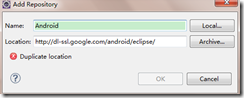
首先下载JDK并配置环境变量,本博文中有相关文章,并下载Java开发工具,推荐使用Eclipse或MyEclipse,安装完成后,点击“help”,选择“ Install new softWare ”然后弹出新对话框,点击右边的“add”,出现如下画面,然后在填入以下内容: Name可以随便填,下面的地址为:http://dl-ssl.google.com/android/eclipse/点击OK后, 全选那些工具,然后一步步进行,等它下载完成就可。如果以后什么疑问的地方欢迎留言。 二:怎么在Android模拟器中添加软件? 在Windows平台下首先找到android-sdk-windows目录,即为android开发目录。然后找到adb.exe, 然后利用Windows里面的Cmd命令提示符,然后建议将.apk文件 剪切到adb.exe相同的目录下,然后在CMD中输入以下内容: 首先输入:CD 切换到你安装的adb执行程序的目录 假如你安装的目录为E:\android 则为输入:cd “E:\android\platform-tools” 然后输入: adb install **.apk(注意此处的**指你的应用名称) 三:Android中的控件一些控件属性和表示? 安卓中最常见的布局是采用的xml方法,另外还有HTML布局,个人认为布局精美的是采用HTML5布局,但是经典的还是用xml,在源文件中res\Layout文件夹下面注意放置xml布局文件: xml布局最常见的是LinearLayout和RelativeLayout 共有属性: java代码中通过btn1关联次控件 android:id="@+id/btn1" 控件宽度 android:layout_width="80px" //"80dip"或"80dp" android:layout_width =“wrap_content” android:layout_width =“match_parent” 控件高度 android:layout_height="80px" //"80dip"或"80dp" android:layout_height =“wrap_content” android:layout_height =“match_parent” 控件排布 android:orientation="horizontal” android:orientation="vertical“ 控件间距 android:layout_marginLeft="5dip" //距离左边 android:layout_marginRight="5dip" //距离右边 android:layout_marginTop="5dip" //距离上面 android:layout_marginRight="5dip" //距离下面 控件显示位置 android:gravity="center" //left,right, top, bottom android:gravity="center_horizontal" android:layout_gravity是本元素对父元素的重力方向。 android:layout_gravity属性则设置控件本身相对于父控件的显示位置 android:gravity是本元素所有子元素的重力方向。 android:layout_gravity="center_vertical" android:layout_gravity="left" android:layout_gravity="left|bottom" TextView中文本字体 android:text="@String/text1" //在string.xml中定义text1的值 android:textSize="20sp" android:textColor=”#ff123456” android:textStyle="bold" //普通(normal), 斜体(italic),粗斜体(bold_italic) 定义控件是否可见 android:visibility=”visible” //可见 android:visibility=”invisible” //不可见,但是在布局中占用的位置还在 android:visibility=”gone” //不可见,完全从布局中消失 定义背景图片 android:background="@drawable/img_bg" //img_bg为drawable下的一张图片 seekbar控件背景图片及最大值 android:progressDrawable="@drawable/seekbar_img" android:thumb="@drawable/thumb" android:max = "60" 仅在RelativeLayout中有效: 在父亲布局的相对位置 android:layout_alignParentLeft="true" //在布局左边 android:layout_alignParentRight="true" //在布局右边 android:layout_alignParentTop="true" //在布局上面 android:layout_alignParentBottom="true " //在布局的下面 在某个控件的相对位置 android:layout_toRightOf="@id/button1" //在控件button1的右边,不仅仅是紧靠着 android:layout_toLeftOf="@id/button1" //在控件button2的左边,不仅仅是紧靠着 android:layout_below="@id/button1 " //在控件button1下面,不仅仅是正下方 android:layout_above=“@id/button1” //在控件button1下面,不仅仅是正下方 定义和某控件对奇 android:layout_alignTop=”@id/button1” //和控件button1上对齐 android:layout_alignBottom=”@id/button1” //和控件button1下对齐 android:layout_alignLeft=”@id/button1” //和控件button1左对齐 android:layout_alignRight=”@id/button1” //和控件button2右对齐 android:layout_centerHorizontal="true" //水平居中 android:layout_centerVertical="true" android:layout_centerInParent="true" 仅在LinearLayout中有效 设置控件在一排或一列中所占比例值 android:layout_weight="1" 本文转自左正博客园博客,原文链接:http://www.cnblogs.com/soundcode/archive/2012/03/24/2415388.html,如需转载请自行联系原作者

优秀的个人博客,低调大师

Appium for win7 环境搭建

一、安装node.js 1、到官网下载node.js:https://nodejs.org/download/ 2、获取到安装文件后,直接双击安装文件,根据程序的提示,完成nodejs的安装。 3、安装完成后,运行cmd,输入node –v,如果安装成功,会输出如下版本信息: 二、配置Android sdk环境 1、sdk环境配置:http://www.cnblogs.com/puresoul/p/4597211.html 2、确保安装了Level 17或以上的版本 api 3、设置ANDROID_HOME系统变量为你的 Android SDK 路径 4、把tools和platform-tools两个目录加入到系统的 Path 路径里 三、安装手机驱动并测试连接真机 完成上述步骤以后,为了能够让手机连接到PC端进行真机测试。还需要安装测试手机对应的驱动程序。根据手机型号提前下载相应的离线驱动并安装,之后将手机与PC通过usb线相连。在cmd中输入以下命令,如果能够看到设备,则表示安装成功。 四、安装Appium 1、方法一:(需要联网,推荐使用方法二) 使用npm安装appium。 在cmd使用命令npm install –g appium 下在appium(整个过程较慢,请耐心等待)安装成功后,在cmd输入appium出现以下信息表明安装成功。 2、方法二: 1)下载安装文件:https://bitbucket.org/appium/appium.app/downloads/ 2)直接双击appium-installer.exe文件安装就好,桌面会生成一个appium的图标 3、检查appium所需的环境是否OK: 进入cmd命令行,输入appium-doctor,出现以下提示,All Checks were successful ,说明环境成功。 Tips:Appium是用.net开发的,所以安装之前需要安装.net framework,否则安装过程中会报错,官网下载:http://www.microsoft.com/zh-cn/download/details.aspx?id=30653 本文转自贺满博客园博客,原文链接:http://www.cnblogs.com/puresoul/p/4696638.html,如需转载请自行联系原作者。

优秀的个人博客,低调大师

Hadoop 集群搭建之机器选购

两个概念: IO受限 在从硬盘或者网络读取数据时遇到瓶颈 CPU受限 处理数据时遇到瓶颈 带宽受限 写入数据网络带宽不够,导致无法实施传递数据 常见业务划分 硬盘容量敏感型业务 这类业务对读写延迟以及吞吐量都没有很大的要求,唯一的需要就是硬盘容量。比如大多数离线读写分析业务,上层应用一般每隔一段时间批量写入大量数据,然后读取也是定期批量读取大量数据。特点:离线写、离线读,需求硬盘容量 带宽敏感型业务 这类业务大多数写入吞吐量很大,但对读取吞吐量没有什么要求。比如日志实时存储业务,上层应用通过kafka将海量日志实时传输过来,要求能够实时写入,而读取场景一般是离线分析或者在上次业务遇到异常的时候对日志进行检索。特点:在线写、离线读,需求带宽 IO敏感型业务 相比前面两类业务来说,IO敏感型业务一般都是较为核心的业务。这类业务对读写延迟要求较高,尤其对于读取延迟通常在100ms以内,部分业务可能要求更高。比如在线消息存储系统、历史订单系统、实时推荐系统等。特点:在(离)线写、在线读,需求内存、高IOPS介质 二:内存需要 1. 高峰值计算: 1)假设高峰期有10W个用户,每个用户每秒产生一条数据,一年的数据量是10W*3600*24*365=3 W亿条 2)假设每条数据200大小,总需内存为600万亿B=573T 二:各项硬件及意义 1.CPU 2.磁盘 3.

资源下载

更多资源
优质分享App

优质分享App

近一个月的开发和优化,本站点的第一个app全新上线。该app采用极致压缩,本体才4.36MB。系统里面做了大量数据访问、缓存优化。方便用户在手机上查看文章。后续会推出HarmonyOS的适配版本。

Apache Tomcat

Apache Tomcat

Tomcat是Apache 软件基金会(Apache Software Foundation)的Jakarta 项目中的一个核心项目,由Apache、Sun 和其他一些公司及个人共同开发而成。因为Tomcat 技术先进、性能稳定,而且免费,因而深受Java 爱好者的喜爱并得到了部分软件开发商的认可,成为目前比较流行的Web 应用服务器。

JDK

JDK

JDK是 Java 语言的软件开发工具包,主要用于移动设备、嵌入式设备上的java应用程序。JDK是整个java开发的核心,它包含了JAVA的运行环境(JVM+Java系统类库)和JAVA工具。

Sublime Text

Sublime Text

Sublime Text具有漂亮的用户界面和强大的功能,例如代码缩略图,Python的插件,代码段等。还可自定义键绑定,菜单和工具栏。Sublime Text 的主要功能包括:拼写检查,书签,完整的 Python API , Goto 功能,即时项目切换,多选择,多窗口等等。Sublime Text 是一个跨平台的编辑器,同时支持Windows、Linux、Mac OS X等操作系统。