首页 文章 精选 留言 我的

精选列表

搜索[windows],共10000篇文章
优秀的个人博客,低调大师

Install Tensorflow 2.0 in Conda on Windows 10

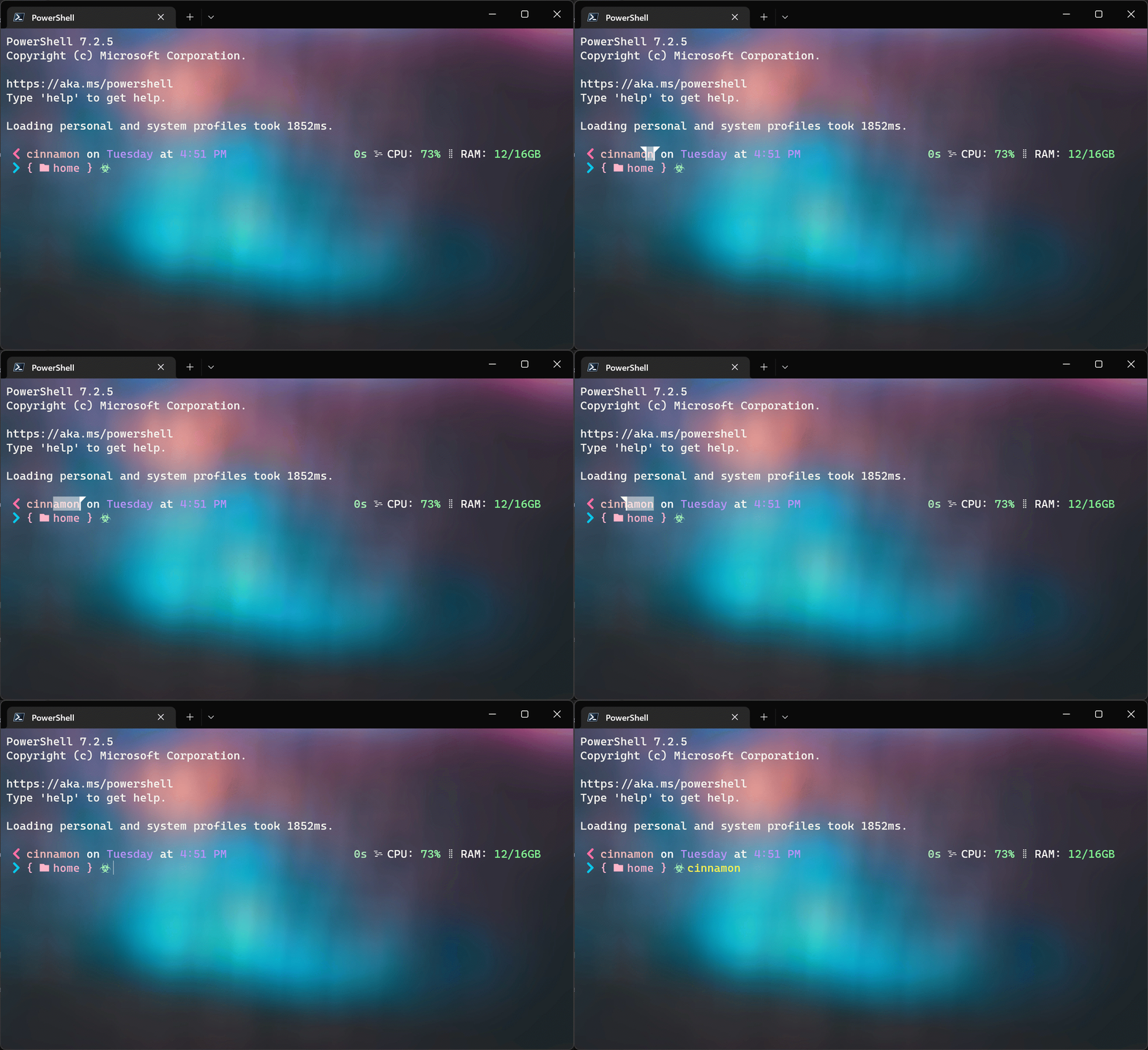
初学机器学习,安装Tensorflow时遇到了点问题,环境是WIN10+CONDA,简单做个笔记记录一下。 正常通过CONDA INSTALL是无法安装TF2.0的,所以只能通过PIP安装,如果你安装后没有任何问题,那么恭喜你,因为我没这么幸运。安装后我遇到了下面的问题,这个问题我花了1个多小时才得以解决,因众所周知的原因,只能BAIDU+BING,尝试了好些方案后找到如下亲测靠谱方案,供大家参考。 简言之,其实就是环境变量没设对的问题,把CONDA的一些路径加入到PATH当中去就行了。 ImportError: DLL load failed: The specified module could not be found. Since there is no tensorflow 2.0 in Conda, you will have to resort to install it from pip command, following are steps to install tensorflow 2.0. make sure you have pip command on your environment conda list pip if not, please install it first conda install pip Step 1: install tensorflow from pip, it will install the latest tensorflow which is 2.0 as of now @2019-10-19 pip install tensorflow Step 2: open cmd to test tesorflow import tensorflow as tf The result should be as below: Step 3 (additional): in case you have the following error message, please config your PATH environment ImportError: DLL load failed: The specified module could not be found. Open your Anaconda Prompt to check %PATH% configuration Compare the %PATH% from your cmd Add those missing path about Anacona to your account path or system path,below path is only for reference purpose which may vary from yours. Test it again from python command, it should be resolved

优秀的个人博客,低调大师

Windows 环境下安装 Oracle JDK

本页面中描述了如何在 Window 环境下安装 Oracle JDK。 我们使用的版本是 Window 10,我们需要安装的版本是 Oracle JDK 8u191。 检查当前版本 在进行新的 JDK 安装之前,你需要检查下你本地的计算机系统中是否已经安装有了 JDK 版本。 最简单的办法就是在命令行中运行 java -version 命令。 如果你有看到下面的输出,表明的是当前你的计算机系统中没有安装 Java。 C:\Users\YuCheng>java -version Error: opening registry key 'Software\JavaSoft\Java Runtime Environment' Error: could not find java.dll Error: Could not find Java SE Runtime Environment. 下载 JDK 在安装之前需要下载安装的办法,你可以通过访问网站获得: https://www.oracle.com/technetwork/java/javase/downloads/index.html 需要注意的是,从 2019年1月开始,Oracle 不再提供 JDK 1.8 版本的公开更新了。你需要在你使用的系统中考虑这个问题。对于 JDK,你需要根据的情况进行取舍,如果是一些新的项目,可以考虑使用 OpenJDK。 单击上面的连接后,进入 JDK 的下载页面。 请注意,你需要下载的是 JDK。 针对具体的下载版本,你需要根据你的操作系统版本进行选择。 执行安装 在获得下载的可执行文件后,在你的本地计算机中双击运行。 安装界面 你可以看到下面的运行界面。按照安装提示进行默认安装就可以了,基本上不需要修改安装路径。 选择安装路径 根据安装界面的提示,选择安装路径。一般来说使用默认的安装路径就可以了。 安装进程 安装正在进行中,请耐心等待。 版本提示 从 2019年1 月开始,JDK 8 将不会提供公共更新了。JDK 将会鼓励大家升级到新版本的 JDK。 你也可以选择安装 OpenJDK。 选择 JRE 安装路径 在安装的后面,将会要求对 JRE 进行安装,你可以在这里选择 JRE 的安装路径。 一般来说使用默认的就可以了。 JRE 安装进程 进度条中显示 JRE 的安装进程。 安装完成 当进入这个界面后,你可以单击 Close 按钮完成安装了。 校验安装 当安装完成后,你需要校验安装。 在 Window 的命令行工具中,输入 java -version,如果能够返回版权信息,则表明你的 Java 已经安装完成了。 C:\Users\YuCheng>java -version java version " 1.8.0_191 " Java(TM) SE Runtime Environment (build 1.8 .0_191-b12) Java HotSpot(TM) 64 -Bit Server VM (build 25.191 -b12, mixed mode) 界面中返回的版权信息。 设置环境变量 是否需要设置环境变量需要根据你的操作系统环境来看。 一般来说,如果你使用 Java 安装程序进行的安装基本上都不再需要设置环境变量了。 但是出于开发的需求,我们还是建议你设置环境变量。 设置环境变量的方法请参考:Java 环境变量 https://www.cwiki.us/pages/viewpage.action?pageId=37492899

优秀的个人博客,低调大师

Python WMI获取Windows系统信息

1 #!/usr/bin/env python 2 # -*- coding: utf-8 -*- 3 #http://www.cnblogs.com/liu-ke/ 4 import wmi 5 import os 6 import sys 7 import platform 8 import time 9 10 def sys_version(): 11 c = wmi.WMI () 12 #获取操作系统版本 13 for sys in c.Win32_OperatingSystem(): 14 print "Version:%s" % sys.Caption.encode("UTF8"),"Vernum:%s" % sys.BuildNumber 15 print sys.OSArchitecture.encode("UTF8")#系统是32位还是64位的 16 print sys.NumberOfProcesses #当前系统运行的进程总数 17 18 def cpu_mem(): 19 c = wmi.WMI () 20 #CPU类型和内存 21 for processor in c.Win32_Processor(): 22 #print "Processor ID: %s" % processor.DeviceID 23 print "Process Name: %s" % processor.Name.strip() 24 for Memory in c.Win32_PhysicalMemory(): 25 print "Memory Capacity: %.fMB" %(int(Memory.Capacity)/1048576) 26 27 def cpu_use(): 28 #5s取一次CPU的使用率 29 c = wmi.WMI() 30 while True: 31 for cpu in c.Win32_Processor(): 32 timestamp = time.strftime('%a, %d %b %Y %H:%M:%S', time.localtime()) 33 print '%s | Utilization: %s: %d %%' % (timestamp, cpu.DeviceID, cpu.LoadPercentage) 34 time.sleep(5) 35 36 def disk(): 37 c = wmi.WMI () 38 #获取硬盘分区 39 for physical_disk in c.Win32_DiskDrive (): 40 for partition in physical_disk.associators ("Win32_DiskDriveToDiskPartition"): 41 for logical_disk in partition.associators ("Win32_LogicalDiskToPartition"): 42 print physical_disk.Caption.encode("UTF8"), partition.Caption.encode("UTF8"), logical_disk.Caption 43 44 #获取硬盘使用百分情况 45 for disk in c.Win32_LogicalDisk (DriveType=3): 46 print disk.Caption, "%0.2f%% free" % (100.0 * long (disk.FreeSpace) / long (disk.Size)) 47 48 def network(): 49 c = wmi.WMI () 50 #获取MAC和IP地址 51 for interface in c.Win32_NetworkAdapterConfiguration (IPEnabled=1): 52 print "MAC: %s" % interface.MACAddress 53 for ip_address in interface.IPAddress: 54 print "ip_add: %s" % ip_address 55 print 56 57 #获取自启动程序的位置 58 for s in c.Win32_StartupCommand (): 59 print "[%s] %s <%s>" % (s.Location.encode("UTF8"), s.Caption.encode("UTF8"), s.Command.encode("UTF8")) 60 61 62 #获取当前运行的进程 63 for process in c.Win32_Process (): 64 print process.ProcessId, process.Name 65 66 def main(): 67 sys_version() 68 cpu_mem() 69 #disk() 70 #network() 71 #cpu_use() 72 73 if __name__ == '__main__': 74 main() 75 print platform.system() 76 print platform.release() 77 print platform.version() 78 print platform.platform() 79 print platform.machine() 注:转载需注明出处及作者。 流柯

资源下载

更多资源
Mario

Mario

马里奥是站在游戏界顶峰的超人气多面角色。马里奥靠吃蘑菇成长,特征是大鼻子、头戴帽子、身穿背带裤,还留着胡子。与他的双胞胎兄弟路易基一起,长年担任任天堂的招牌角色。

腾讯云软件源

腾讯云软件源

为解决软件依赖安装时官方源访问速度慢的问题,腾讯云为一些软件搭建了缓存服务。您可以通过使用腾讯云软件源站来提升依赖包的安装速度。为了方便用户自由搭建服务架构,目前腾讯云软件源站支持公网访问和内网访问。

Nacos

Nacos

Nacos /nɑ:kəʊs/ 是 Dynamic Naming and Configuration Service 的首字母简称,一个易于构建 AI Agent 应用的动态服务发现、配置管理和AI智能体管理平台。Nacos 致力于帮助您发现、配置和管理微服务及AI智能体应用。Nacos 提供了一组简单易用的特性集,帮助您快速实现动态服务发现、服务配置、服务元数据、流量管理。Nacos 帮助您更敏捷和容易地构建、交付和管理微服务平台。

Sublime Text

Sublime Text

Sublime Text具有漂亮的用户界面和强大的功能,例如代码缩略图,Python的插件,代码段等。还可自定义键绑定,菜单和工具栏。Sublime Text 的主要功能包括:拼写检查,书签,完整的 Python API , Goto 功能,即时项目切换,多选择,多窗口等等。Sublime Text 是一个跨平台的编辑器,同时支持Windows、Linux、Mac OS X等操作系统。

用户登录
用户注册