Android 自定义复合组件Demo
之前写过一篇文章里面有用到自定义组件的一个小Demo ,今天特地把这个Demo 拿出来讲讲。 在 ApiDemos 中有相应的几个例子也有讲述自定义组件,比如:Custorm 、 List4 和 List 6 。
那么为什么需要自定义组件?
因为在实际项目中或许 Android 给出的View 的功能不足以你实现一些特定的功能,这时候你就有必要去扩展它,或者去组装它,使它的功能更为强大。 本篇只讲述了如何将不同的组件混合起来并为其设置监听事件。
下面是一段从CSDN 博客摘录的一段话,感兴趣的朋友可以:
http://blog.csdn.net/shiqx429/archive/2009/02/06/3865581.aspx
如果你不想创建一个完全自定义的组件,而是由几个现有组件的组合产生的新的组件,那么混合组件技术就更加适合。简单的来说,这样把几个现有的组件融合到一个逻辑组合里面可以封装成一个新的组件。例如,一个Combo Box组件可以看作是是一个EditText和一个带有弹出列表的Button组件的混合体。如果你点击按钮为列表选择一项,
在Android中,其实还有其他的两个View类可以做到类似的效果: Spinner和AutoCompleteTextView,,但是Combo Box作为一个例子更容易让人理解。
下面简单的介绍如何创建组合组件:
一般从Layout类开始,创建一个Layout类的派生类。也许在Combo box我们会选择水平方向的LinearLayout作为父类。记住,其他的Layout类是可以嵌套到里面的,因此混合组件可以是任何组件的混合。注意,正如Activity一样,你既可以使用外部XML文件来声明你的组件,也可以嵌套在代码中。
在新的混合组件的构造函数中,首先,调用所有的父类的构造函数,传入对应的参数。然后可以设置你的混合组件的其他的一些方面,在哪创建EditText组件,又在哪创建PopupList组件。注意:你同时也可以在XML文件中引入一些自己的属性和参数,这些属性和参数也可以被你的混合组件所使用。
你也可以创建时间监听器去监听新组件中View类触发的事件,例如,对List选项单击事件的监听,你必须在此时间发生后更新你EditText的值。
你可能创建自己的一些属性,带有访问和修改方法。例如,允许设置EditText初始值并且提供访问它的方法。
在Layout的派生类中,你没有必要去重载onDraw()和onMeasure()方法,因为Layout会有比较好的默认处理。但是,如果你觉得有必要你也可以重载它。
你也可能重载一些on系列函数,例如通过onKeyDown()的重载,你可以通过按某个键去选择列表中的对应的值。
总之,把Layout类作为基类有下面几个优点:
在新的混合组件的构造函数中,首先,调用所有的父类的构造函数,传入对应的参数。然后可以设置你的混合组件的其他的一些方面,在哪创建EditText组件,又在哪创建PopupList组件。注意:你同时也可以在XML文件中引入一些自己的属性和参数,这些属性和参数也可以被你的混合组件所使用。
你也可以创建时间监听器去监听新组件中View类触发的事件,例如,对List选项单击事件的监听,你必须在此时间发生后更新你EditText的值。
你可能创建自己的一些属性,带有访问和修改方法。例如,允许设置EditText初始值并且提供访问它的方法。
在Layout的派生类中,你没有必要去重载onDraw()和onMeasure()方法,因为Layout会有比较好的默认处理。但是,如果你觉得有必要你也可以重载它。
你也可能重载一些on系列函数,例如通过onKeyDown()的重载,你可以通过按某个键去选择列表中的对应的值。
总之,把Layout类作为基类有下面几个优点:
正如activity一样,你也可以通过XML文件去声明你的新组件,或者你也可以在代码中嵌套。
onDraw()函数和onMeasure()函数是没有必要重载的,两个函数已经做得很好了。
你可以很快的创建你的混合组件,并且可以像单一组件那样使用。
onDraw()函数和onMeasure()函数是没有必要重载的,两个函数已经做得很好了。
你可以很快的创建你的混合组件,并且可以像单一组件那样使用。
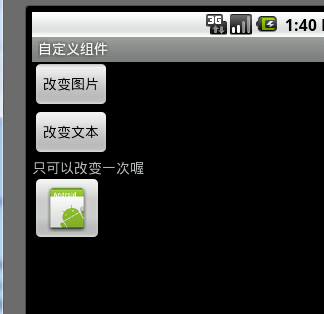
本篇Demo 例子功能为:扩展LinearLayout 为其加一个ImageButton 和 TextView 使其具有混合功能的效果,并为各自组件添加get/set 方法,并为ImageButton 设置监听使其的功能跟我们后面要使用的设置监听的功能赋值,达到设置混合组件监听的目的,下面给出代码:
package
com.terry.custom.widget;
import android.content.Context;
import android.graphics.drawable.Drawable;
import android.view.View;
import android.widget.ImageButton;
import android.widget.LinearLayout;
import android.widget.TextView;
public class TextExt extends LinearLayout {
private TextView tv;
private ImageButton ib;
private onExtClickListener clickListener;
public TextExt(Context context, String text, int imgres) {
super (context);
// TODO Auto-generated constructor stub
this .setOrientation(VERTICAL);
tv = new TextView(context);
tv.setText(text);
addView(tv, new LinearLayout.LayoutParams(LayoutParams.FILL_PARENT,
LayoutParams.WRAP_CONTENT));
ib = new ImageButton(context);
ib.setImageResource(imgres);
ib.setOnClickListener( new OnClickListener() {
@Override
public void onClick(View v) {
// TODO Auto-generated method stub
if (clickListener != null ) {
clickListener.onclickListenr(getText());
}
}
});
addView(ib, new LinearLayout.LayoutParams(LayoutParams.WRAP_CONTENT,
LayoutParams.WRAP_CONTENT));
}
public void setText(String text) {
tv.setText(text);
}
public String getText() {
return tv.getText().toString();
}
public void setImage( int res) {
ib.setImageResource(res);
}
public Drawable getDrawable() {
return ib.getDrawable();
}
public void setDrawable(Drawable dd) {
ib.setImageDrawable(dd);
}
public void setOnExtClickListener(onExtClickListener click) {
this .clickListener = click;
}
}
import android.content.Context;
import android.graphics.drawable.Drawable;
import android.view.View;
import android.widget.ImageButton;
import android.widget.LinearLayout;
import android.widget.TextView;
public class TextExt extends LinearLayout {
private TextView tv;
private ImageButton ib;
private onExtClickListener clickListener;
public TextExt(Context context, String text, int imgres) {
super (context);
// TODO Auto-generated constructor stub
this .setOrientation(VERTICAL);
tv = new TextView(context);
tv.setText(text);
addView(tv, new LinearLayout.LayoutParams(LayoutParams.FILL_PARENT,
LayoutParams.WRAP_CONTENT));
ib = new ImageButton(context);
ib.setImageResource(imgres);
ib.setOnClickListener( new OnClickListener() {
@Override
public void onClick(View v) {
// TODO Auto-generated method stub
if (clickListener != null ) {
clickListener.onclickListenr(getText());
}
}
});
addView(ib, new LinearLayout.LayoutParams(LayoutParams.WRAP_CONTENT,
LayoutParams.WRAP_CONTENT));
}
public void setText(String text) {
tv.setText(text);
}
public String getText() {
return tv.getText().toString();
}
public void setImage( int res) {
ib.setImageResource(res);
}
public Drawable getDrawable() {
return ib.getDrawable();
}
public void setDrawable(Drawable dd) {
ib.setImageDrawable(dd);
}
public void setOnExtClickListener(onExtClickListener click) {
this .clickListener = click;
}
}
设置监听其实就是实现一个接口功能,不知道这样表达是否正确,如果不正确请指教,这里我的理解是这样的:
public
interface
onExtClickListener {
public void onclickListenr(String text);
}
public void onclickListenr(String text);
}
通过上面的代码,我们己经封装好了一个组合控件,下面给出调用和设置代码:
package
com.terry;
import com.terry.custom.widget.TextExt;
import com.terry.custom.widget.onExtClickListener;
import android.app.Activity;
import android.graphics.drawable.Drawable;
import android.os.Bundle;
import android.view.View;
import android.view.View.OnClickListener;
import android.widget.Button;
import android.widget.LinearLayout;
import android.widget.Toast;
public class CustomActivity extends Activity {
boolean isChange = true ;
/** Called when the activity is first created. */
@Override
public void onCreate(Bundle savedInstanceState) {
super .onCreate(savedInstanceState);
setContentView(R.layout.main);
final TextExt te = new TextExt( this , " 自定义组件 " , R.drawable.icon);
te.setOnExtClickListener( new onExtClickListener() {
@Override
public void onclickListenr(String text) {
// TODO Auto-generated method stub
Toast.makeText(CustomActivity. this , text, 1000 ).show();
}
});
LinearLayout ly = (LinearLayout) findViewById(R.id.testWidget);
ly.addView(te);
Button btn = (Button) findViewById(R.id.Button01);
Button btn2 = (Button) findViewById(R.id.Button02);
btn.setOnClickListener( new OnClickListener() {
@Override
public void onClick(View v) {
// TODO Auto-generated method stub
if (isChange) {
te.setImage(android.R.drawable.btn_dialog);
} else {
te.setDrawable(getResources().getDrawable(R.drawable.icon));
}
isChange = ! isChange;
}
});
btn2.setOnClickListener( new OnClickListener() {
@Override
public void onClick(View v) {
// TODO Auto-generated method stub
te.setText( " 只可以改变一次喔 " );
}
});
}
}
import com.terry.custom.widget.TextExt;
import com.terry.custom.widget.onExtClickListener;
import android.app.Activity;
import android.graphics.drawable.Drawable;
import android.os.Bundle;
import android.view.View;
import android.view.View.OnClickListener;
import android.widget.Button;
import android.widget.LinearLayout;
import android.widget.Toast;
public class CustomActivity extends Activity {
boolean isChange = true ;
/** Called when the activity is first created. */
@Override
public void onCreate(Bundle savedInstanceState) {
super .onCreate(savedInstanceState);
setContentView(R.layout.main);
final TextExt te = new TextExt( this , " 自定义组件 " , R.drawable.icon);
te.setOnExtClickListener( new onExtClickListener() {
@Override
public void onclickListenr(String text) {
// TODO Auto-generated method stub
Toast.makeText(CustomActivity. this , text, 1000 ).show();
}
});
LinearLayout ly = (LinearLayout) findViewById(R.id.testWidget);
ly.addView(te);
Button btn = (Button) findViewById(R.id.Button01);
Button btn2 = (Button) findViewById(R.id.Button02);
btn.setOnClickListener( new OnClickListener() {
@Override
public void onClick(View v) {
// TODO Auto-generated method stub
if (isChange) {
te.setImage(android.R.drawable.btn_dialog);
} else {
te.setDrawable(getResources().getDrawable(R.drawable.icon));
}
isChange = ! isChange;
}
});
btn2.setOnClickListener( new OnClickListener() {
@Override
public void onClick(View v) {
// TODO Auto-generated method stub
te.setText( " 只可以改变一次喔 " );
}
});
}
}
实现效果如下:
本文转自 terry_龙 51CTO博客,原文链接:http://blog.51cto.com/terryblog/366960,如需转载请自行联系原作者

微信关注我们
原文链接:https://yq.aliyun.com/articles/413561
转载内容版权归作者及来源网站所有!
低调大师中文资讯倾力打造互联网数据资讯、行业资源、电子商务、移动互联网、网络营销平台。持续更新报道IT业界、互联网、市场资讯、驱动更新,是最及时权威的产业资讯及硬件资讯报道平台。
相关文章
发表评论
资源下载
更多资源腾讯云软件源
为解决软件依赖安装时官方源访问速度慢的问题,腾讯云为一些软件搭建了缓存服务。您可以通过使用腾讯云软件源站来提升依赖包的安装速度。为了方便用户自由搭建服务架构,目前腾讯云软件源站支持公网访问和内网访问。
Nacos
Nacos /nɑ:kəʊs/ 是 Dynamic Naming and Configuration Service 的首字母简称,一个易于构建 AI Agent 应用的动态服务发现、配置管理和AI智能体管理平台。Nacos 致力于帮助您发现、配置和管理微服务及AI智能体应用。Nacos 提供了一组简单易用的特性集,帮助您快速实现动态服务发现、服务配置、服务元数据、流量管理。Nacos 帮助您更敏捷和容易地构建、交付和管理微服务平台。
Rocky Linux
Rocky Linux(中文名:洛基)是由Gregory Kurtzer于2020年12月发起的企业级Linux发行版,作为CentOS稳定版停止维护后与RHEL(Red Hat Enterprise Linux)完全兼容的开源替代方案,由社区拥有并管理,支持x86_64、aarch64等架构。其通过重新编译RHEL源代码提供长期稳定性,采用模块化包装和SELinux安全架构,默认包含GNOME桌面环境及XFS文件系统,支持十年生命周期更新。
Sublime Text
Sublime Text具有漂亮的用户界面和强大的功能,例如代码缩略图,Python的插件,代码段等。还可自定义键绑定,菜单和工具栏。Sublime Text 的主要功能包括:拼写检查,书签,完整的 Python API , Goto 功能,即时项目切换,多选择,多窗口等等。Sublime Text 是一个跨平台的编辑器,同时支持Windows、Linux、Mac OS X等操作系统。
手机查看
扫码在手机上查看文章
扫描二维码,手机阅读更方便
热门标签
欢迎您来访!
登录后,您将获得更多功能!
第三方登录




热门文章
联系我们
有任何问题或合作意向欢迎联系我们
Email: 99873273@qq.com
QQ: 99873273