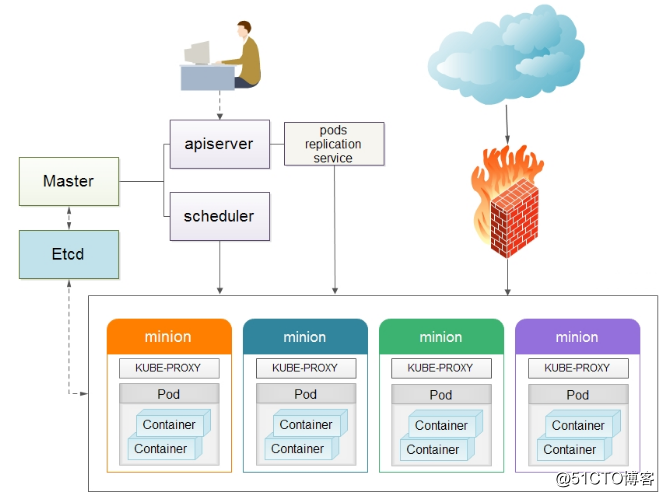
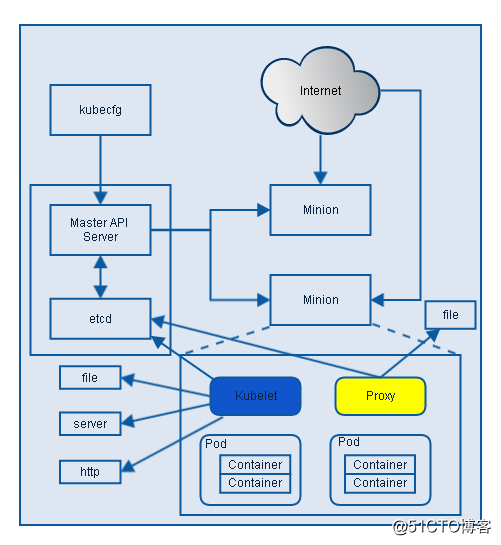
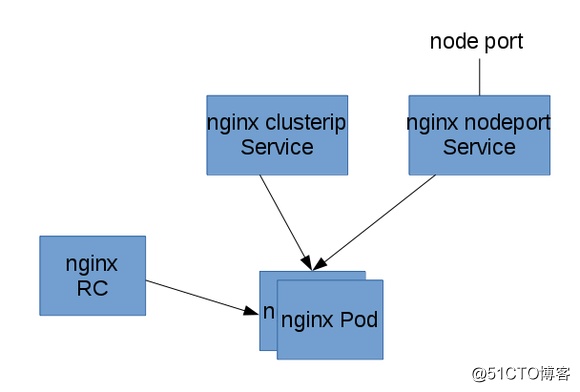
1)首先部署nginx pod 和复制“器”---------------------------------------------------------------------
[root@k8s-master ~]
REPOSITORY TAG IMAGE ID CREATED SIZE
docker.io
/nginx
latest 3448f27c273f 8 days ago 109.4 MB
通过下面命令发现apiVersion版本是v1
[root@k8s-master ~]
{
"apiVersion"
:
"v1"
,
.......
}
开始创建pod单元
[root@k8s-master ~]
[root@k8s-master kubermange]
apiVersion: v1
kind: ReplicationController
metadata:
name: nginx-controller
spec:
replicas: 2
selector:
name: nginx
template:
metadata:
labels:
name: nginx
spec:
containers:
- name: nginx
image: docker.io
/nginx
ports:
- containerPort: 80
[root@k8s-master kubermange]
replicationcontroller
"nginx-controller"
created
由于kubernetes要去gcr.io下载gcr.io
/google_containers/pause
镜像,然后下载nginx镜像,所以所创建的Pod需要等待一些时间才能处于running状态。
然后查看pods清单
[root@k8s-master kubermange]
NAME READY STATUS RESTARTS AGE
nginx-controller-3n1ct 0
/1
ContainerCreating 0 8s
nginx-controller-4bnfn 0
/1
ContainerCreating 0 8s
可以使用describe 命令查看pod所分到的节点:
[root@k8s-master kubermange]
Name: nginx-controller-3n1ct
Namespace: default
Node: k8s-node-1
/10
.10.172.203
.......
同理,查看另一个pod
[root@k8s-master kubermange]
Name: nginx-controller-4bnfn
Namespace: default
Node: k8s-node-2
/10
.10.172.204
.......
由上可以看出,这个复制“器”启动了两个Pod,分别运行在10.10.172.203和10.10.172.204这两个节点上了。到这两个节点上查看,发现已经有nginx应用容器创建了。
提醒:最好事先在node节点上执行命令yum
install
*rhsm* -y;然后执行命令docker pull registry.access.redhat.com
/rhel7/pod-infrastructure
:latest;最后执行命令kubectl -s http:
//10
.10.172.202:8080 create -f nginx-rc.yaml来创建pod单元。
[root@k8s-node-1 ~]
REPOSITORY TAG IMAGE ID CREATED SIZE
docker.io
/nginx
latest 3f8a4339aadd 12 days ago 108.5 MB
registry.access.redhat.com
/rhel7/pod-infrastructure
latest 99965fb98423 12 weeks ago 208.6 MB
[root@k8s-node-1 ~]
CONTAINER ID IMAGE COMMAND CREATED STATUS PORTS NAMES
e60877d9d5e4 docker.io
/nginx
"nginx -g 'daemon off"
10 minutes ago Up 10 minutes k8s_nginx.3d610115_nginx-controller-b05d6_default_aadfd74a-f43a-11e7-a1bf-005056866833_6de59c2d
cba61f9bda3b registry.access.redhat.com
/rhel7/pod-infrastructure
:latest
"/usr/bin/pod"
11 minutes ago Up 11 minutes k8s_POD.a8590b41_nginx-controller-b05d6_default_aadfd74a-f43a-11e7-a1bf-005056866833_e60a56ca
[root@k8s-node-1 ~]
"IpcMode"
:
"container:cba61f9bda3b9e68859098f16ae4c77c09189ace3b8dc4656b797f5dd7dcb615"
,
"LinkLocalIPv6Address"
:
""
,
"LinkLocalIPv6PrefixLen"
: 0,
"SecondaryIPAddresses"
: null,
"SecondaryIPv6Addresses"
: null,
"GlobalIPv6Address"
:
""
,
"GlobalIPv6PrefixLen"
: 0,
"IPAddress"
:
""
,
"IPPrefixLen"
: 0,
"IPv6Gateway"
:
""
,
[root@k8s-node-1 ~]
[root@k8s-node-2 ~]
REPOSITORY TAG IMAGE ID CREATED SIZE
docker.io
/nginx
latest 3f8a4339aadd 12 days ago 108.5 MB
registry.access.redhat.com
/rhel7/pod-infrastructure
latest 99965fb98423 12 weeks ago 208.6 MB
[root@k8s-node-2 ~]
CONTAINER ID IMAGE COMMAND CREATED STATUS PORTS NAMES
491df793c5d8 docker.io
/nginx
"nginx -g 'daemon off"
12 minutes ago Up 12 minutes k8s_nginx.3d610115_nginx-controller-8ddph_default_aadfcd91-f43a-11e7-a1bf-005056866833_785ceefb
647bf56d61b8 registry.access.redhat.com
/rhel7/pod-infrastructure
:latest
"/usr/bin/pod"
12 minutes ago Up 12 minutes k8s_POD.a8590b41_nginx-controller-8ddph_default_aadfcd91-f43a-11e7-a1bf-005056866833_145d0863
[root@k8s-node-2 ~]
"IpcMode"
:
"container:647bf56d61b8b46a01dbf422ab273a11aa36c6b38bce594d73bec1ac42068829"
,
"LinkLocalIPv6Address"
:
""
,
"LinkLocalIPv6PrefixLen"
: 0,
"SecondaryIPAddresses"
: null,
"SecondaryIPv6Addresses"
: null,
"GlobalIPv6Address"
:
""
,
"GlobalIPv6PrefixLen"
: 0,
"IPAddress"
:
""
,
"IPPrefixLen"
: 0,
"IPv6Gateway"
:
""
,
[root@k8s-node-2 ~]
2)部署节点内部可访问的nginx service------------------------------------------------------------------------
Service的
type
有ClusterIP和NodePort之分,缺省是ClusterIP,这种类型的Service只能在集群内部访问。配置文件如下:
[root@k8s-master kubermange]
apiVersion: v1
kind: Service
metadata:
name: nginx-service-clusterip
spec:
ports:
- port: 8001
targetPort: 80
protocol: TCP
selector:
name: nginx
然后执行下面的命令创建service:
[root@k8s-master kubermange]
或者
[root@k8s-master kubermange]
service
"nginx-service-clusterip"
created
[root@k8s-master kubermange]
NAME CLUSTER-IP EXTERNAL-IP PORT(S) AGE
kubernetes 192.168.21.1 <none> 443
/TCP
2d
nginx-service-clusterip 192.168.21.174 <none> 8001
/TCP
12s
验证service的可访问性(访问节点):
上面的输出告诉我们这个Service的Cluster IP是10.254.101.186,端口是8001。那么我们就来验证这个PortalNet IP的工作情况:
ssh
登录到节点机上验证(可以提前做
ssh
无密码登录的信任关系,当然也可以不做,这样验证时要手动输入登录密码)
[root@k8s-master kubermange]
The authenticity of host
'10.10.172.203 (10.10.172.203)'
can't be established.
ECDSA key fingerprint is 66:41:1f:d2:77:b6:eb:ce:3f:a1:68:47:7e:14:ee:cb.
Are you sure you want to
continue
connecting (
yes
/no
)?
yes
Warning: Permanently added
'10.10.172.203'
(ECDSA) to the list of known hosts.
root@10.10.172.203's password:
<!DOCTYPE html>
<html>
<
head
>
<title>Welcome to nginx!<
/title
>
<style>
body {
width: 35em;
margin: 0 auto;
font-family: Tahoma, Verdana, Arial, sans-serif;
}
<
/style
>
<
/head
>
<body>
<h1>Welcome to nginx!<
/h1
>
<p>If you see this page, the nginx web server is successfully installed and
working. Further configuration is required.<
/p
>
<p>For online documentation and support please refer to
<a href=
"http://nginx.org/"
>nginx.org<
/a
>.<br/>
Commercial support is available at
<a href=
"http://nginx.com/"
>nginx.com<
/a
>.<
/p
>
<p><em>Thank you
for
using nginx.<
/em
><
/p
>
<
/body
>
<
/html
>
[root@k8s-master kubermange]
同理验证到另外一个节点机上的service的可访问性也是ok的
[root@k8s-master kubermange]
由此可见,从前面部署×××的部分可以知道nginx Pod运行在10.10.172.203和10.10.172.204这两个节点上。
从这两个节点上访问我们的服务来体现Service Cluster IP在所有集群节点的可到达性。
3)部署外部可访问的nginx service-------------------------------------------------------------------
下面我们创建NodePort类型的Service,这种类型的Service在集群外部是可以访问。下表是本文用的配置文件:
[root@k8s-master kubermange]
apiVersion: v1
kind: Service
metadata:
name: nginx-service-nodeport
spec:
ports:
- port: 8000
targetPort: 80
protocol: TCP
type
: NodePort
selector:
name: nginx
执行下面的命令创建service:
[root@k8s-master kubermange]
service
"nginx-service-nodeport"
created
[root@k8s-master kubermange]
NAME CLUSTER-IP EXTERNAL-IP PORT(S) AGE
kubernetes 192.168.21.1 <none> 443
/TCP
2d
nginx-service-clusterip 192.168.21.174 <none> 8001
/TCP
27m
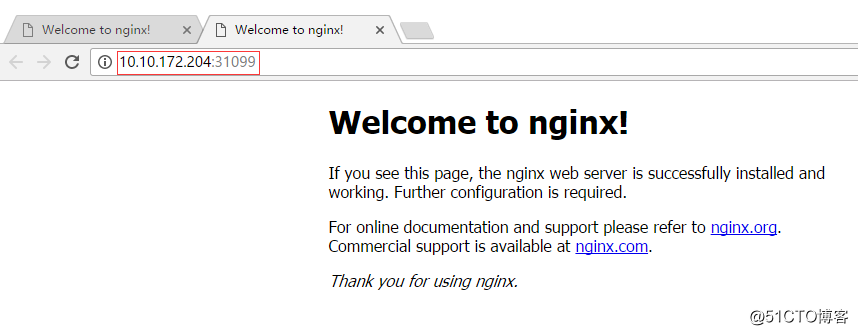
nginx-service-nodeport 192.168.21.140 <nodes> 8000:31099
/TCP
13s
使用下面的命令获得这个service的节点级别的端口:
[root@k8s-master kubermange]
Type: NodePort
NodePort: <
unset
> 31099
/TCP
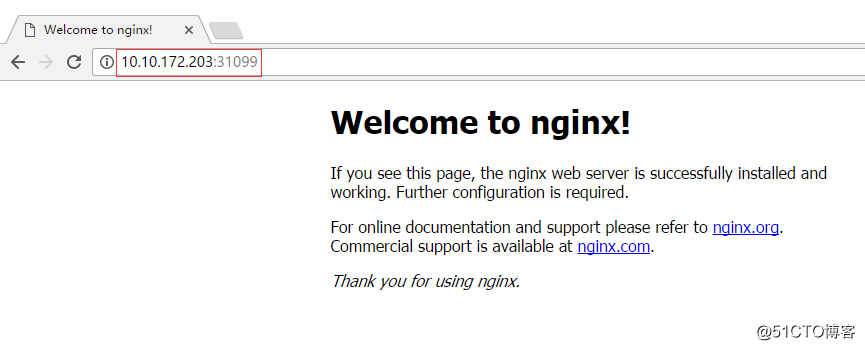
验证service的可访问性(访问节点):
上面的输出告诉我们这个Service的节点级别端口是31298。下面我们验证这个Service的工作情况:
[root@k8s-master kubermange]
<!DOCTYPE html>
<html>
<
head
>
<title>Welcome to nginx!<
/title
>
<style>
body {
width: 35em;
margin: 0 auto;
font-family: Tahoma, Verdana, Arial, sans-serif;
}
<
/style
>
<
/head
>
<body>
<h1>Welcome to nginx!<
/h1
>
<p>If you see this page, the nginx web server is successfully installed and
working. Further configuration is required.<
/p
>
<p>For online documentation and support please refer to
<a href=
"http://nginx.org/"
>nginx.org<
/a
>.<br/>
Commercial support is available at
<a href=
"http://nginx.com/"
>nginx.com<
/a
>.<
/p
>
<p><em>Thank you
for
using nginx.<
/em
><
/p
>
<
/body
>
<
/html
>
[root@k8s-master kubermange]
同理验证到另外一个节点机上的service的可访问性也是ok的
[root@k8s-master kubermange]
----------------------------------------------------------
登录另外两个节点机上,发现已经创建了nginx应用容器
[root@k8s-node-1 ~]
CONTAINER ID IMAGE COMMAND CREATED STATUS PORTS NAMES
e60877d9d5e4 docker.io
/nginx
"nginx -g 'daemon off"
About an hour ago Up About an hour k8s_nginx.3d610115_nginx-controller-b05d6_default_aadfd74a-f43a-11e7-a1bf-005056866833_6de59c2d
cba61f9bda3b registry.access.redhat.com
/rhel7/pod-infrastructure
:latest
"/usr/bin/pod"
About an hour ago Up About an hour k8s_POD.a8590b41_nginx-controller-b05d6_default_aadfd74a-f43a-11e7-a1bf-005056866833_e60a56ca
CONTAINER ID IMAGE COMMAND CREATED STATUS PORTS NAMES
491df793c5d8 docker.io
/nginx
"nginx -g 'daemon off"
About an hour ago Up About an hour k8s_nginx.3d610115_nginx-controller-8ddph_default_aadfcd91-f43a-11e7-a1bf-005056866833_785ceefb
647bf56d61b8 registry.access.redhat.com
/rhel7/pod-infrastructure
:latest
"/usr/bin/pod"
About an hour ago Up About an hour k8s_POD.a8590b41_nginx-controller-8ddph_default_aadfcd91-f43a-11e7-a1bf-005056866833_145d0863