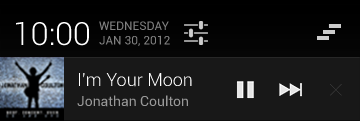
之前写过一个Notificaiton的文章,用上面的方式去操作也是OK的,但是到后面的SDK之后,有些方法被弃用,甚至我到SDK23的时候,我发现有些方法直接没了,所以在这里重新写一下最新的用法。
http://www.cnblogs.com/yydcdut/p/3828941.html
步骤
- 创建一个通知栏的Builder构造类
- 定义通知栏的Action
- 设置通知栏点击事件
- 通知
代码
NotificationManager mNotificationManager = (NotificationManager) getSystemService(NOTIFICATION_SERVICE);
otificationCompat.Builder mBuilder = new NotificationCompat.Builder(this);
mBuilder.setContentTitle("测试标题")
.setContentText("测试内容")
.setContentIntent(getDefalutIntent(Notification.FLAG_AUTO_CANCEL))
.setTicker("测试通知来啦")
.setWhen(System.currentTimeMillis())
.setPriority(Notification.PRIORITY_DEFAULT)
.setOngoing(false)
.setDefaults(Notification.DEFAULT_VIBRATE)
.setSmallIcon(R.drawable.ic_launcher);
对应的各个方法的属性
Flags
功能:提醒标志符,向通知添加声音、闪灯和振动效果等设置达到通知提醒效果,可以组合多个属性
有2种设置方法:
- 实例化通知栏之后通过给他添加.flags属性赋值。
java Notification notification = mBuilder.build(); notification.flags = Notification.FLAG_AUTO_CANCEL;
- 通过setContentIntent(PendingIntent intent)方法中的意图设置对应的flags
public PendingIntent getDefalutIntent(int flags){
    PendingIntent pendingIntent= PendingIntent.getActivity(this, 1, new Intent(), flags);
    return pendingIntent;
}
提醒标志符成员
Notification.FLAG_SHOW_LIGHTS
Notification.FLAG_ONGOING_EVENT
Notification.FLAG_INSISTENT
Notification.FLAG_ONLY_ALERT_ONCE
Notification.FLAG_AUTO_CANCEL
Notification.FLAG_NO_CLEAR
Notification.FLAG_FOREGROUND_SERVICE
setDefaults(int defaults)
NotificationCompat.Builder中的方法,用于提示。
功能:向通知添加声音、闪灯和振动效果的最简单、使用默认(defaults)属性,可以组合多个属性(和方法1中提示效果一样的)
Notification.DEFAULT_VIBRATE
Notification.DEFAULT_SOUND
Notification.DEFAULT_LIGHTS
Notification.DEFAULT_ALL
setVibrate(long[] pattern)
.setVibrate(new long[] {0,300,500,700});
mBuilder.build().vibrate = new long[] {0,300,500,700};
setLights(intledARGB ,intledOnMS ,intledOffMS )
功能:android支持三色灯提醒,这个方法就是设置不同场景下的不同颜色的灯。
描述:其中ledARGB 表示灯光颜色、 ledOnMS 亮持续时间、ledOffMS 暗的时间。
注意:1)只有在设置了标志符Flags为Notification.FLAG_SHOW_LIGHTS的时候,才支持三色灯提醒。2)这边的颜色跟设备有关,不是所有的颜色都可以,要看具体设备。
.setLights(0xff0000ff, 300, 0)

Notification notify = mBuilder.build();
notify.flags = Notification.FLAG_SHOW_LIGHTS;
notify.ledARGB = 0xff0000ff;
notify.ledOnMS = 300;
notify.ledOffMS = 300;
setSound(Uri sound)
.setDefaults(Notification.DEFAULT_SOUND)
.setSound(Uri.parse("file:///sdcard/xx/xx.mp3"))
.setSound(Uri.withAppendedPath(Audio.Media.INTERNAL_CONTENT_URI, "5"))
setOngoing(boolean ongoing)
功能:设置为ture,表示它为一个正在进行的通知。他们通常是用来表示一个后台任务,用户积极参与(如播放音乐)或以某种方式正在等待,因此占用设备(如一个文件下载,同步操作,主动网络连接)
setProgress(int max, int progress,boolean indeterminate)
属性:max:进度条最大数值 、progress:当前进度、indeterminate:表示进度是否不确定,true为不确定,如下第3幅图所示 ,false为确定下第1幅图所示
注意:此方法在4.0及以后版本才有用,如果为早期版本:需要自定义通知布局,其中包含ProgressBar视图
使用:如果为确定的进度条:调用setProgress(max, progress, false)来设置通知,在更新进度的时候在此发起通知更新progress,并且在下载完成后要移除进度条,通过调用setProgress(0, 0, false)既可。
如果为不确定(持续活动)的进度条,这是在处理进度无法准确获知时显示活动正在持续,所以调用setProgress(0, 0, true) ,操作结束时,调用setProgress(0, 0, false)并更新通知以移除指示条
自定义View
这里要用到RemoteViews这个类。
Notification的自定义布局是RemoteViews,和其他RemoteViews一样,在自定义视图布局文件中,仅支持FrameLayout、LinearLayout、RelativeLayout三种布局控件和AnalogClock、Chronometer、Button、ImageButton、ImageView、ProgressBar、TextView、ViewFlipper、ListView、GridView、StackView和AdapterViewFlipper这些显示控件,不支持这些类的子类或Android提供的其他控件。否则会引起ClassNotFoundException异常。
![587773-20150920114130383-1235804170.png]()
public void showButtonNotify(){
NotificationCompat.Builder mBuilder = new Builder(this);
RemoteViews mRemoteViews = new RemoteViews(getPackageName(), R.layout.view_custom_button);
mRemoteViews.setImageViewResource(R.id.custom_song_icon, R.drawable.sing_icon);
mRemoteViews.setTextViewText(R.id.tv_custom_song_singer, "周杰伦");
mRemoteViews.setTextViewText(R.id.tv_custom_song_name, "七里香");
if(BaseTools.getSystemVersion() <= 9){
mRemoteViews.setViewVisibility(R.id.ll_custom_button, View.GONE);
}else{
mRemoteViews.setViewVisibility(R.id.ll_custom_button, View.VISIBLE);
}
if(isPlay){
mRemoteViews.setImageViewResource(R.id.btn_custom_play, R.drawable.btn_pause);
}else{
mRemoteViews.setImageViewResource(R.id.btn_custom_play, R.drawable.btn_play);
}
Intent buttonIntent = new Intent(ACTION_BUTTON);
buttonIntent.putExtra(INTENT_BUTTONID_TAG, BUTTON_PREV_ID);
PendingIntent intent_prev = PendingIntent.getBroadcast(this, 1, buttonIntent, PendingIntent.FLAG_UPDATE_CURRENT);
mRemoteViews.setOnClickPendingIntent(R.id.btn_custom_prev, intent_prev);
buttonIntent.putExtra(INTENT_BUTTONID_TAG, BUTTON_PALY_ID);
PendingIntent intent_paly = PendingIntent.getBroadcast(this, 2, buttonIntent, PendingIntent.FLAG_UPDATE_CURRENT);
mRemoteViews.setOnClickPendingIntent(R.id.btn_custom_play, intent_paly);
buttonIntent.putExtra(INTENT_BUTTONID_TAG, BUTTON_NEXT_ID);
PendingIntent intent_next = PendingIntent.getBroadcast(this, 3, buttonIntent, PendingIntent.FLAG_UPDATE_CURRENT);
mRemoteViews.setOnClickPendingIntent(R.id.btn_custom_next, intent_next);
mBuilder.setContent(mRemoteViews)
.setContentIntent(getDefalutIntent(Notification.FLAG_ONGOING_EVENT))
.setWhen(System.currentTimeMillis())
.setTicker("正在播放")
.setPriority(Notification.PRIORITY_DEFAULT)
.setOngoing(true)
.setSmallIcon(R.drawable.sing_icon);
Notification notify = mBuilder.build();
notify.flags = Notification.FLAG_ONGOING_EVENT;
mNotificationManager.notify(notifyId, notify);
}
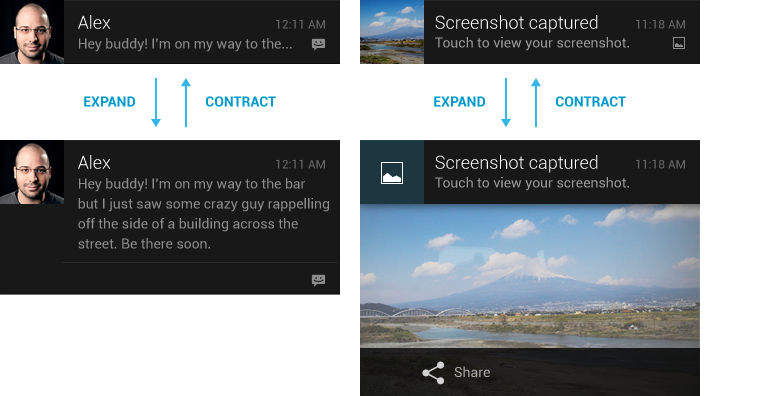
大视图风格通知
注:4.1之前的版本不支持大视图
![587773-20150920114143883-545052462.png]()
详情区域根据用途可有多种风格:
- NotificationCompat.BigPictureStyle 大图片风格:详情区域包含一个256dp高度的位图
- NotificationCompat.BigTextStyle 大文字风格:显示一个大的文字块
- NotificationCompat.InboxStyle 收件箱风格:显示多行文字
NotificationCompat.BigPictureStyle inboxStyle = new NotificationCompat.InboxStyle();
String[] events = new String[5];
inboxStyle.setBigContentTitle("大视图内容:");
for (int i=0; i < events.length; i++) {
inboxStyle.addLine(events[i]);
}
mBuilder.setContentTitle("测试标题")
.setContentText("测试内容")
.setStyle(inboxStyle)
.setTicker("测试通知来啦");
本文转自我爱物联网博客园博客,原文链接:http://www.cnblogs.com/yydcdut/p/4823133.html,如需转载请自行联系原作者