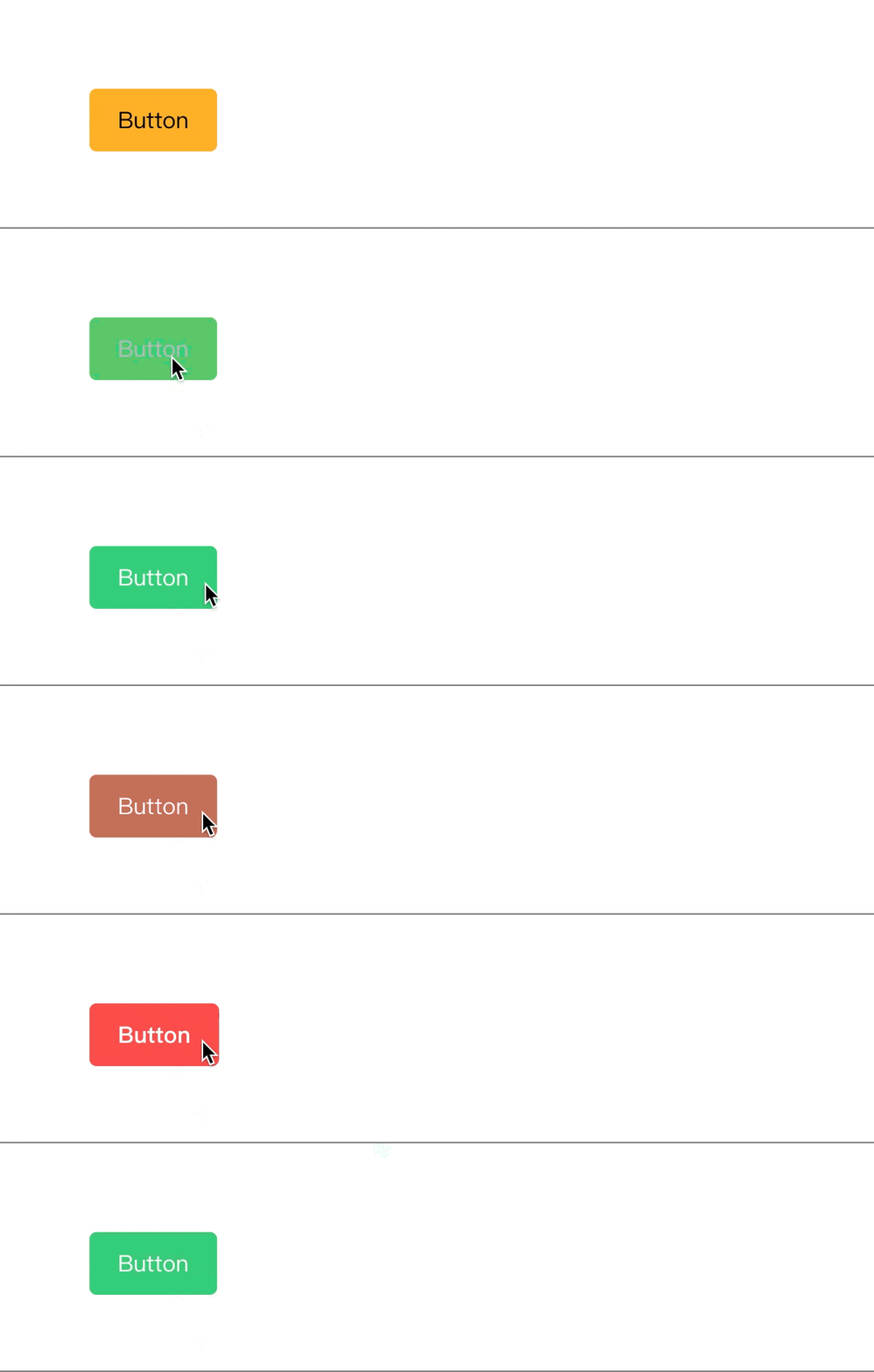
import { Group, Leafer, Frame } from 'leafer-ui'
import '@leafer-in/animate'

const leafer = new Leafer({ view: window })

const page1 = new Frame({
    x: 300,
    y: 100,
    width: 150,
    height: 100,
    fill: '#FEB027',
    animation: { // 入场动画
        keyframes: [{ opacity: 0, offsetX: -150 }, { opacity: 1, offsetX: 0 }],
        duration: 0.8
    },
    animationOut: { // 出场动画
        style: { opacity: 0, offsetX: 150 },
        duration: 0.8
    }
})

const page2 = page1.clone({ fill: '#32cd79' }) // 克隆 page 并重新设置fill

const group = new Group({ children: [page1] })

leafer.add(group)

// 切换页面, 自动执行入场、出场动画
setInterval(() => {

    if (page1.parent) {
        group.add(page2)
        page1.remove()
    } else {
        group.add(page1)
        page2.remove()
    }

}, 2000)
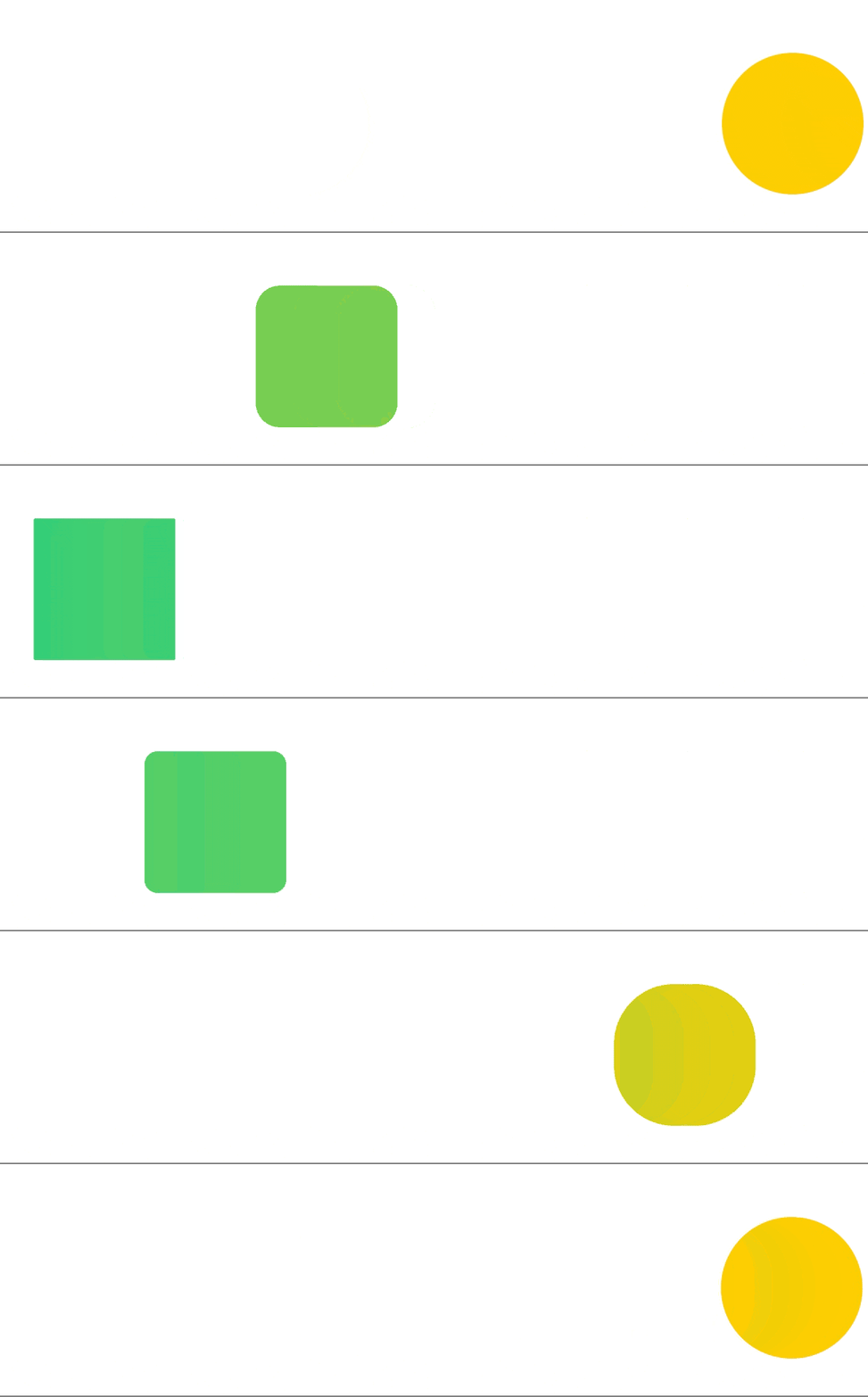
2.摇摆动画
可以用来制作来回摇摆的动画效果。
![]()
import { Leafer, Rect } from 'leafer-ui'
import '@leafer-in/animate'

const leafer = new Leafer({ view: window })

const rect = new Rect({
    y: 100,
    cornerRadius: 50,
    fill: '#32cd79',
    animation: {
        style: { x: 500, cornerRadius: 0, fill: '#ffcd00' }, // style keyframe
        duration: 1,
        swing: true // 摇摆循环播放
    }
})

leafer.add(rect)
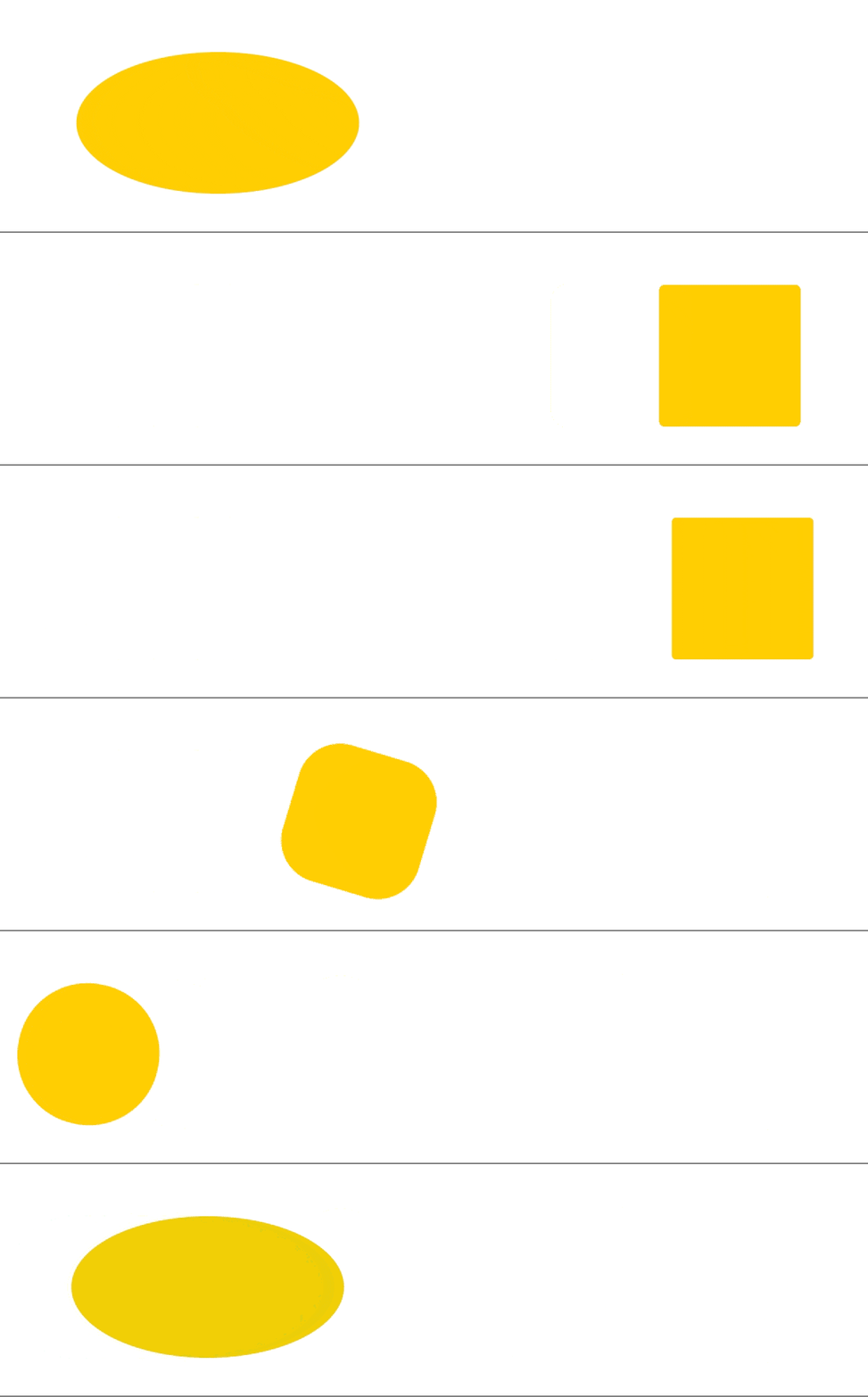
3.关键帧动画
可以用来制作复杂的时间线动画,允许你精确控制每一帧的延迟、时长和缓动方式。
![]()
import { Leafer, Rect } from 'leafer-ui'
import '@leafer-in/animate'

const leafer = new Leafer({ view: window })

const rect = new Rect({
    x: 50,
    y: 100,
    cornerRadius: 50,
    fill: '#32cd79',
    around: 'center',
    animation: {
        keyframes: [
            { style: { x: 150, scaleX: 2, fill: '#ffcd00' }, duration: 0.5 },  // animate keyframe
            { style: { x: 50, scaleX: 1, fill: '#ffcd00' }, duration: 0.2 },
            { style: { x: 550, cornerRadius: 0, fill: '#ffcd00' }, delay: 0.1, easing: 'bounce-out' },
            { x: 50, rotation: -720, cornerRadius: 50 } // style keyframe
        ],
        duration: 3, // 自动分配剩余的时长给未设置 duration 的关键帧: (3 - 0.5 - 0.2 - 0.1) / 2
        loop: true,
        join: true //  加入动画前的元素状态作为 from 关键帧
    }
})

leafer.add(rect)
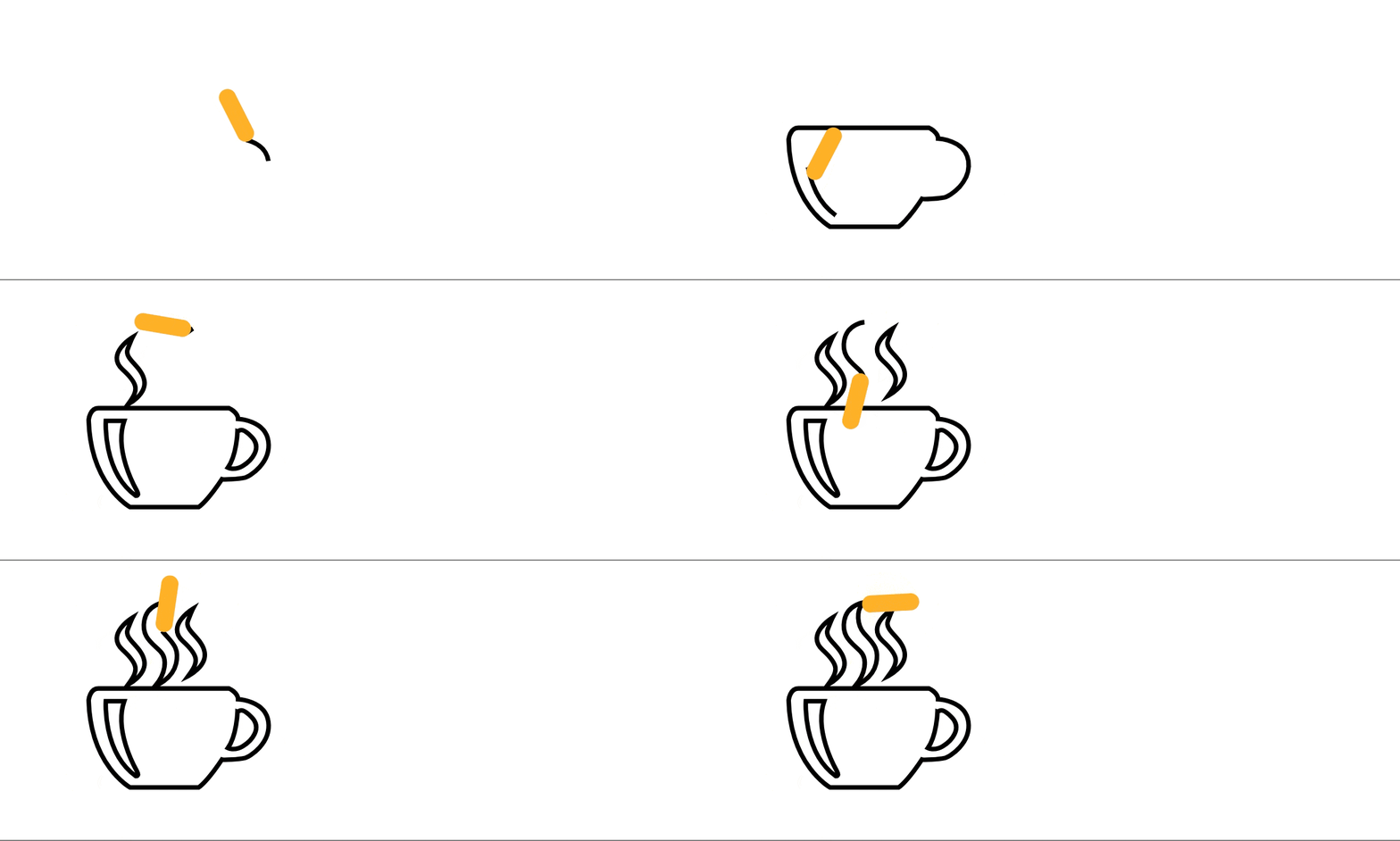
4.路径动画
让元素沿着另一条路径运动,或进行自身描边,已基本开发完成,测试和完善后将单独发布插件,敬请关注!
![]()
import { Group, Leafer, Path, Rect } from 'leafer-ui'
import '@leafer-in/motion-path'
import '@leafer-in/animate'

const leafer = new Leafer({ view: window })

const group = new Group()

const path = new Path({
    x: 100,
    y: 100,
    scale: 0.2,
    motionPath: true, // 设置为运动路径,该 Group 内的其他元素都可以沿此路径运动
    stroke: 'black',
    strokeWidth: 20,
    animation: {  // 沿 path 运动描边至 100%
        style: { motion: { type: "percent", value: 1 } },
        duration: 9,
        loop: true
    },
    path: 'M945.344 586.304c-13.056-93.44-132.48-98.048-132.48-98.048 0-29.888-39.808-47.424-39.808-47.424L201.664 440.832c-36.736 0-42.112 51.264-42.112 51.264 7.68 288 181.44 382.976 181.44 382.976l299.456 0c42.88-31.36 101.888-122.56 101.888-122.56 9.216 3.072 72.768-0.832 97.984-6.144C865.6 740.992 958.336 679.68 945.344 586.304zM365.568 825.28c-145.472-105.664-130.944-328.576-130.944-328.576l80.448 0c-44.416 126.4 43.648 285.696 55.872 307.904C383.232 826.816 365.568 825.28 365.568 825.28zM833.472 694.272c-37.568 22.272-65.152 7.68-65.152 7.68 39.04-54.4 42.112-159.296 42.112-159.296 6.848 2.304 12.288-26.048 61.312 23.744C920.768 616.128 871.04 672.064 833.472 694.272z M351.68 129.856c0 0-119.424 72.832-44.416 140.928 75.008 68.16 68.16 93.44 24.512 153.216 0 0 81.92-41.344 71.168-104.192s-89.6-94.208-72.768-137.792C347.136 138.304 351.68 129.856 351.68 129.856z M615.232 91.648c0 0-119.488 72.832-44.352 140.928 74.944 68.16 68.032 93.44 24.448 153.216 0 0 81.984-41.344 71.232-104.192-10.688-62.784-89.6-94.208-72.832-137.792C610.624 100.032 615.232 91.648 615.232 91.648z M491.136 64c0 0-74.304 6.144-88.128 78.144C389.248 214.144 435.968 240.96 471.936 276.992 507.904 312.96 492.608 380.352 452.032 427.904c0 0 72.768-25.344 89.6-94.976 16.832-69.76-17.344-94.272-52.8-134.784C453.312 157.504 456.64 83.968 491.136 64z',
})

const pen = new Rect({
    width: 15,
    height: 50,
    cornerRadius: 10,
    fill: '#FEB027',
    around: 'bottom',
    motionRotation: 45,
    animation: { // 沿 path 运动至 100%
        style: { motion: { type: "percent", value: 1 } },
        duration: 9,
        loop: true
    }
})

group.add(path)
group.add(pen)

leafer.add(group)
5.滚动驱动动画
你可能见过一些网站在滚动页面时,页面元素会自动产生动画效果。这就是滚动驱动动画,它通过滚动条或元素移动来控制动画的播放,即将支持。
二、状态
可以像 CSS 一样为元素增加 hover 、 press 、 focus 、 selected 、 disabled 交互状态样式。还可以预设复杂多样的 state 状态,用于随时切换。父元素可通过设置 button 属性,使子元素自动同步交互状态。
1. 按钮状态
![]()
import { Leafer, Box } from 'leafer-ui'
import '@leafer-in/state'

const leafer = new Leafer({ view: window, fill: 'gray' })

const box = new Box({
    x: 100,
    y: 100,
    fill: '#FEB027',
    cornerRadius: 5,

    button: true, // 标记为按钮,子元素 Text 将自动同步交互状态
    hoverStyle: { fill: '#32cd79' }, // 鼠标hover状态
    pressStyle: { fill: '#FF4B4B' }, // 鼠标按下状态

    children: [{
        tag: 'Text',
        text: 'Button',
        fontSize: 16,
        padding: [10, 20],
        fill: 'black',
        hoverStyle: { fill: 'white' }, // 鼠标在 button 上hover的状态
        pressStyle: { fontWeight: 'bold' }  // 鼠标在 button 上按下的状态
    }]
})

leafer.add(box)
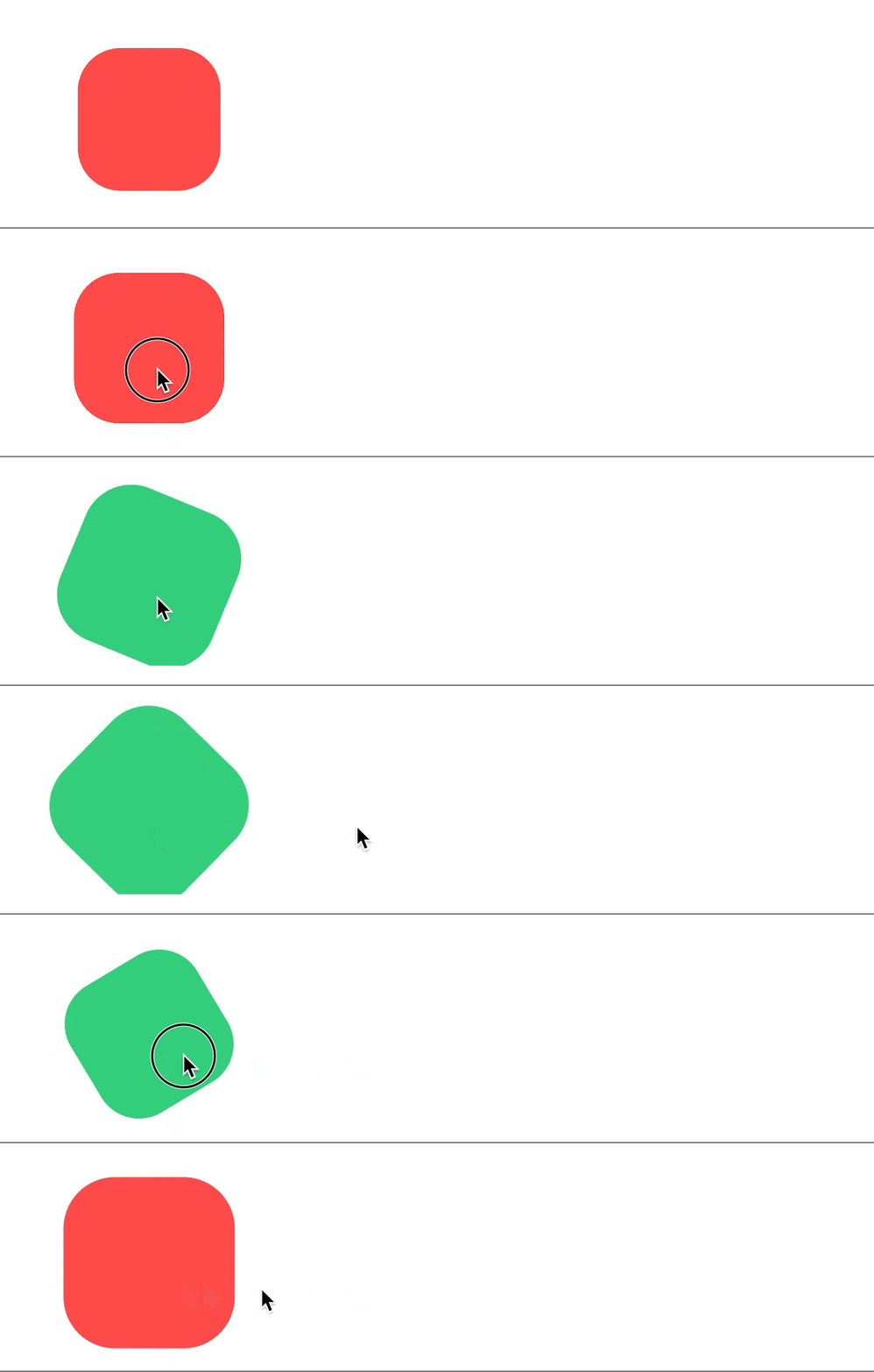
2. 点击切换自定义状态
![]()
import { Leafer, Rect } from 'leafer-ui'
import '@leafer-in/state'
import '@leafer-in/animate'

const leafer = new Leafer({ view: window })

const rect = new Rect({
    width: 100,
    height: 100,
    fill: '#32cd79',
    cornerRadius: 30,
    origin: 'center',
    states: { // 自定义状态列表
        color: { fill: '#FEB027' },
        rotate: { animation: { keyframes: [{ rotation: 45 }, { rotation: 135, scale: 1.2 }], duration: 1, swing: true } }
    },
    state: 'color', // 设置状态
    transition: 1
})

leafer.add(rect)

rect.on('click', () => { // 点击切换状态
    rect.state = rect.state === 'color' ? 'rotate' : 'color'
})
三、过渡
类似于 CSS 的过渡功能,但 LeaferJS 的过渡仅针对状态变化,不会在单独修改属性时触发过渡(提供更好的控制)。你可以分别设置进入和退出状态时的过渡动画。默认情况下,LeaferJS 自动开启了 state、hover 、 press 、 focus 、 selected 、 disabled 状态切换的过渡效果。
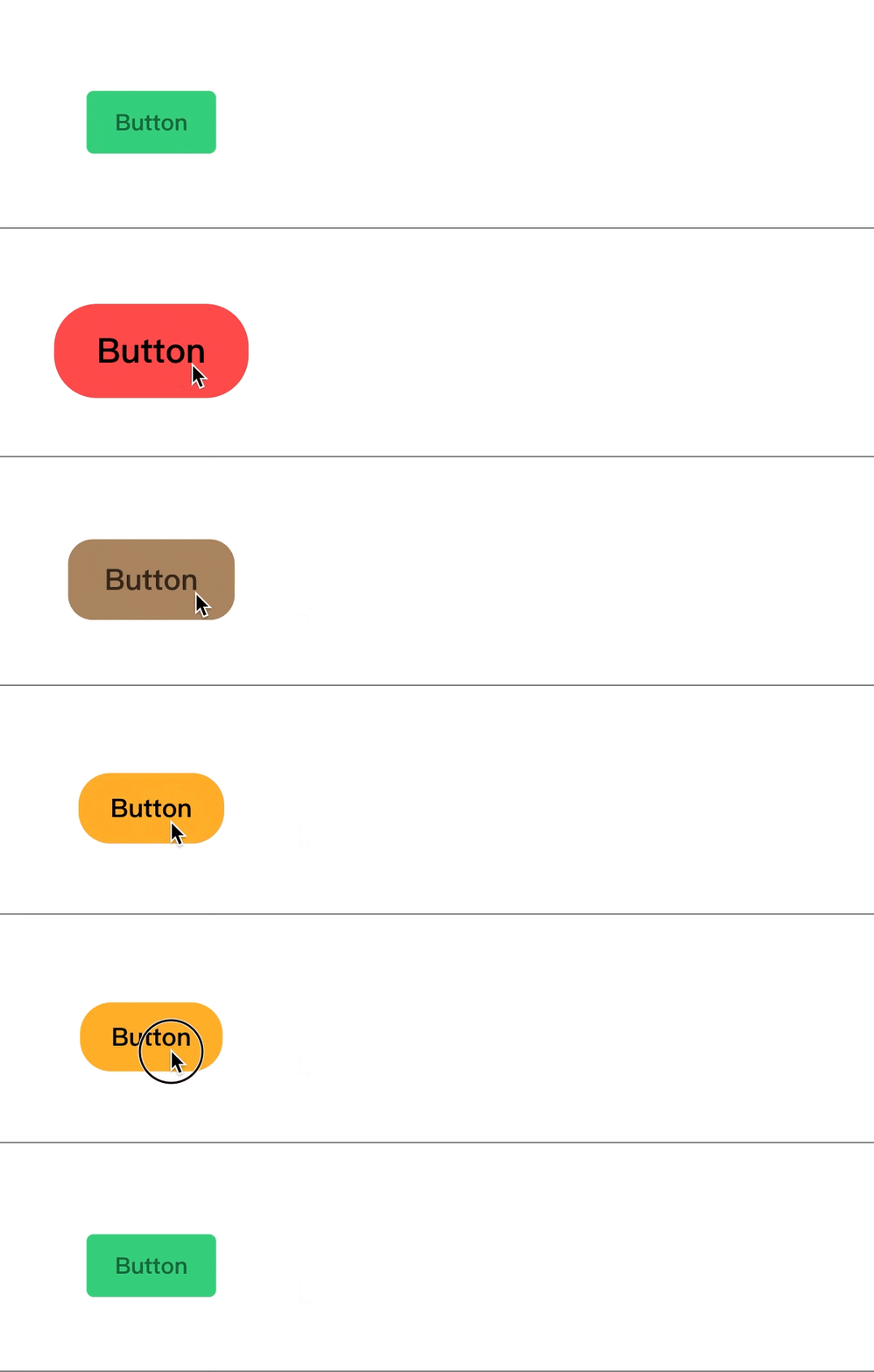
1.按钮交互过渡效果
切换不同交互状态时,流畅过渡样式,让交互体验更丝滑。
![]()
import { Leafer, Box } from 'leafer-ui'
import '@leafer-in/state'
import '@leafer-in/animate'

const leafer = new Leafer({ view: window, fill: 'gray' })

const box = new Box({
    x: 100,
    y: 100,
    fill: '#32cd79',
    cornerRadius: 5,
    origin: 'center', // 从中心缩放

    button: true, // 标记为按钮,子元素 Text 将自动同步交互状态
    hoverStyle: { // 鼠标hover状态
        fill: '#FF4B4B',
        scale: 1.5,
        cornerRadius: 20,
    },
    pressStyle: { // 鼠标按下状态
        fill: '#FEB027',
        scale: 1.1,
        transitionOut: 'bounce-out' // 退出状态时的过渡方式
    },

    children: [{
        tag: 'Text',
        text: 'Button',
        fontSize: 16,
        fontWeight: 'bold',
        padding: [10, 20],
        fill: 'rgba(0,0,0,0.5)',
        hoverStyle: { fill: 'black' } // 鼠标 hover 到 button 上的状态
    }]
})

leafer.add(box)
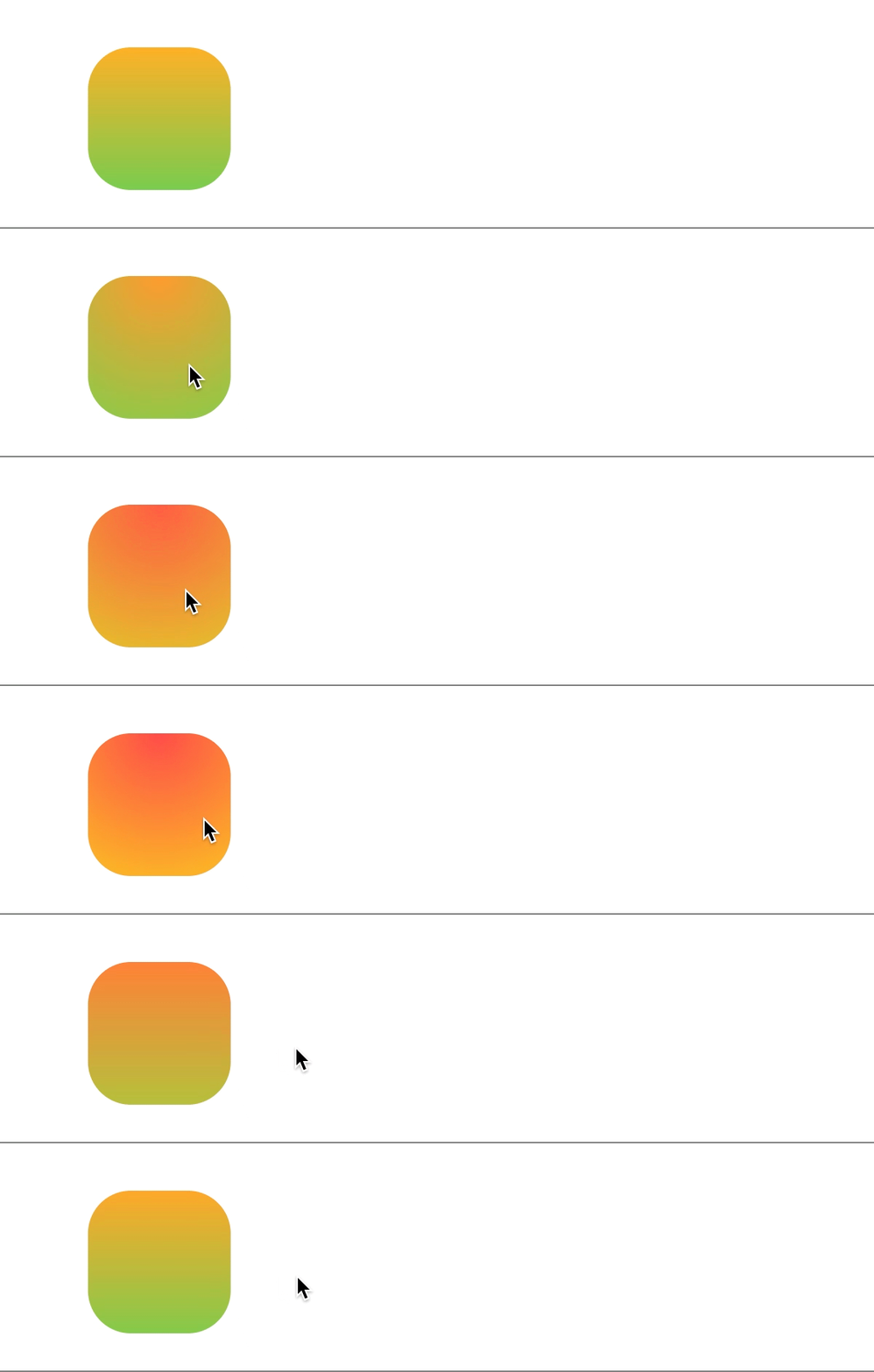
2. 复杂渐变过渡
实色到渐变色的过渡,及不同渐变类型的过渡。已基本开发完成,测试和完善后将发布插件!
![]()
import { Leafer, Rect } from 'leafer-ui'
import '@leafer-in/state'
import '@leafer-in/animate'
import '@leafer-in/transition'

const leafer = new Leafer({ view: window })

const rect = new Rect({
    x: 100,
    y: 100,
    width: 100,
    height: 100,
    cornerRadius: 30,
    fill: {
        type: 'linear',
        stops: ['#FEB027', '#79CB4D']
    },
    hoverStyle: {
        fill: {
            type: 'radial',
            from: 'top',
            stops: ['#FF4B4B', '#FEB027']
        }
    },
    transition: 1
})

leafer.add(rect)
四、游戏
之前做游戏时,最缺的就是一个能够自动播放动作帧的精灵元素,用于切换游戏动作。其他功能都可以结合第三方库来实现,如物理引擎推荐使用 Matter.js ,它易于上手、功能全面,可以模拟各种物理效果。
Robot 元素
Robot 元素类似于游戏中的精灵元素,集成了帧播放和动作预设功能,可以快速制作出具有行走和攻击动作的游戏角色。
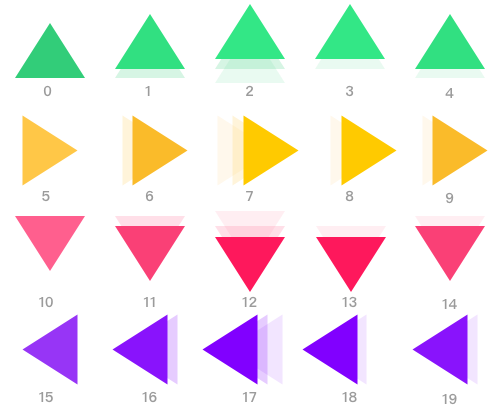
首先,你需要提供一张包含所有游戏动作的雪碧图,这些动作将会被自动编号,如下所示:
![雪碧图]()
通过加载和解析雪碧图,你将得到一个可以自由切换动作的游戏元素。
![]()
import { Leafer, KeyEvent } from 'leafer-ui'
import { Robot } from '@leafer-in/robot'

const leafer = new Leafer({ view: window })

const robot = new Robot({
    robot: { url: '/image/arrows.png', size: { width: 100, height: 100 }, total: 20 },
    actions: {  // 预设游戏动作(通过动作帧)
        up: 0, // 静止向上的箭头( 编号为0的动作帧)
        right: 5,
        down: 10,
        left: 15,
        arrowUp: [0, 1, 2, 3, 4], // 动态向上的箭头(循环播放编号为 1-4 的动作帧)
        arrowRight: [5, 6, 7, 8, 9],
        arrowDown: [10, 11, 12, 13, 14],
        arrowLeft: [15, 16, 17, 18, 19]
    },
    action: 'right' // 设置动作:静止向右的箭头
})

leafer.add(robot)

// 监听方向键进行交互

let speed = 5

leafer.on(KeyEvent.DOWN, (e: KeyEvent) => {
    speed++
    switch (e.code) { // 动态的方向箭头
        case 'ArrowUp':
            robot.action = 'arrowUp'
            robot.y -= speed
            break
        case 'ArrowDown':
            robot.action = 'arrowDown'
            robot.y += speed
            break
        case 'ArrowLeft':
            robot.action = 'arrowLeft'
            robot.x -= speed
            break
        case 'ArrowRight':
            robot.action = 'arrowRight'
            robot.x += speed
            break
    }
})

leafer.on(KeyEvent.UP, (e: KeyEvent) => {
    speed = 5
    switch (e.code) { // 静态的方向箭头
        case 'ArrowUp':
            robot.action = 'up'
            break
        case 'ArrowDown':
            robot.action = 'down'
            break
        case 'ArrowLeft':
            robot.action = 'left'
            break
        case 'ArrowRight':
            robot.action = 'right'
            break
    }
})
运行示例代码
上面的示例代码可以通过我们提供的 在线 Playground 环境 直接运行。
LeaferJS 正在被更多的人看见
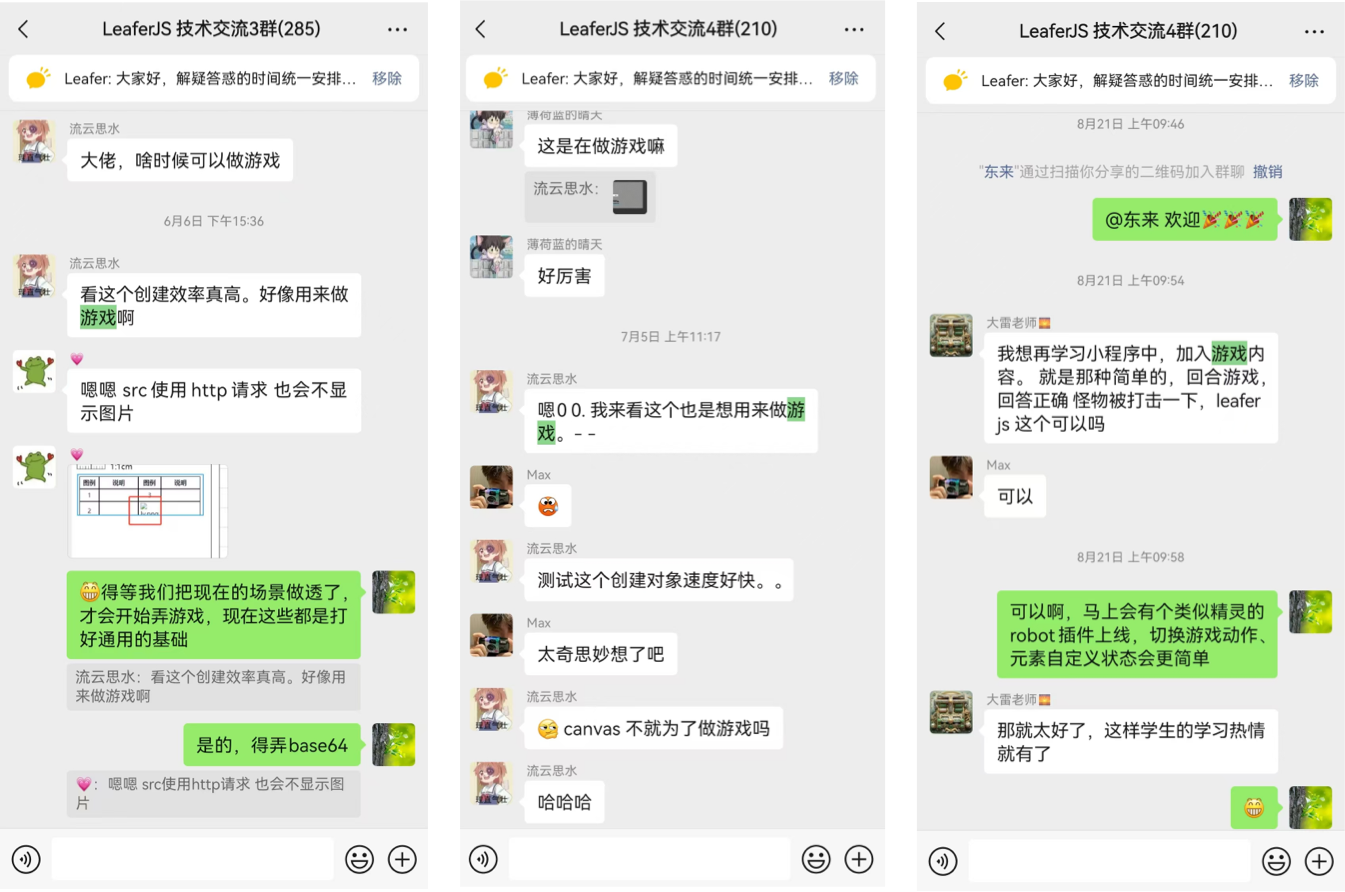
对于心怀“游戏梦”的开发者来说, LeaferJS 绝对是一个能让你轻松上手、实现游戏梦想的利器。
![]()
图中是 Cloud Studio 的产品经理 Megan Zhang 在 腾讯全球数字生态大会上推荐 LeaferJS 。
还在开发图形编辑应用的用户也不用担心,LeaferJS 现阶段依然专注于绘图、交互和图形编辑场景。我们引入游戏场景,只是希望让 LeaferJS 被更多有需要的人看到,以充分发挥它的价值。
我们将会继续推动我们的愿景,帮助更多用户创造出强大、实用的生产力工具。
在这一期更新中,LeaferJS 为你带来了全新的游戏、动画、状态和过渡功能,助你实现那些年少时的游戏梦想。我们引入了丰富的动画效果,如摇摆动画、关键帧动画和路径动画(即将上线),以及实用的过渡功能和灵活的游戏元素,让你能够轻松制作出动感十足的游戏角色和页面效果。
这些功能不仅让你的开发工作变得更加高效,也让你能够创造出更具视觉冲击力的作品。接下来,更多令人兴奋的社区游戏作品和教程将会陆续出现,我也会参与其中,敬请关注,我们下期再见~
https://www.leaferjs.com