前言
    NS_CLASS_AVAILABLE_IOS(2_0) @interface UITabBarController : UIViewController <UITabBarDelegate, NSCoding>
    @available(iOS 2.0, *)       public class UITabBarController : UIViewController, UITabBarDelegate, NSCoding
UITabBarController: 分栏视图控制器,在创建时,需要一次性的将所有 viewController 或 navigationController 添加到 UITabBarController 的 viewControllers 属性中。
UITabBarController 一次性添加了很多个视图控制器,但是在程序的运行的时候,并不是一次性将所有视图控制器对象进行创建和显示,而是用户点击显示那个视图控制器对象,系统才会创建和显示该视图。如果默认首先显示的不是 viewController1,例如是显示 viewController3, 系统首先创建 viewController1 和 viewController3,viewController2 和 viewController4 用户点击显示的时候才会被显示出来,无论先显示那个 viewController,viewController1 总是会被创建。
TabBarController 最多只能显示 5 个视图,超过 5 个的都会以 more 的形式显示,点击 more,剩余的视图将会被显示。当点击 Edit 时可以改变分栏上放置的分栏项。
TabBarController 的高度固定为 49,图片的尺寸最好为 30 * 30。
1、tabBarController 的创建
-
Objective-C
-
创建分栏视图控制器
    UITabBarController *tabBarController = [[UITabBarController alloc] init];

    // 将 tabBarController 添加到 viewController 上
    [self addChildViewController:tabBarController];
    [self.view addSubview:tabBarController.view];

    // 将 navigationController 做为 window 的根视图控制器
    self.window.rootViewController = tabBarController;
-
设置分栏视图控制器包含的视图控制器
    // 实例化视图控制器对象(或者 导航视图控制器对象)
    ViewController11 *viewController1 = [[ViewController11 alloc] init];
    ViewController12 *viewController2 = [[ViewController12 alloc] init];
    ViewController13 *viewController3 = [[ViewController13 alloc] init];
    ViewController14 *viewController4 = [[ViewController14 alloc] init];

    NSArray *viewControllerArray = @[viewController1, viewController2,
                                     viewController3, viewController4];

    // 向分栏视图控制器中添加视图控制器
    tabBarController.viewControllers = viewControllerArray;
-
设置分栏显示的标题和图片
    // 设置显示的 title
    NSArray *titleArray = @[@"微信", @"通讯录", @"发现", @"我"];

    // 设置选择时显示的图片
    NSArray *selectImageArray = @[@"tabbar_mainframeHL", @"tabbar_contactsHL",
                                  @"tabbar_discoverHL", @"tabbar_meHL"];

    // 设置未选择时显示的图片
    NSArray *unSelectImagArray = @[@"tabbar_mainframe", @"tabbar_contacts",
                                   @"tabbar_discover", @"tabbar_me"];

    for (int i = 0; i < 4; i++) {

        // 从 tabBarController 中取出 tabBarItem 成员
        UITabBarItem *tabBarItem = tabBarController.tabBar.items[i];

        tabBarItem = [tabBarItem initWithTitle: titleArray[i]
                                         image: [[UIImage imageNamed:unSelectImagArray[i]]
                                imageWithRenderingMode:UIImageRenderingModeAlwaysOriginal]
                                 selectedImage: [[UIImage imageNamed:selectImageArray[i]]
                                imageWithRenderingMode:UIImageRenderingModeAlwaysOriginal]];
    }
-
设置分栏标题文字颜色
    // 选中时颜色,默认为蓝色
    tabBarController.tabBar.tintColor = [UIColor greenColor];
-
Swift
-
创建分栏视图控制器
    let tabBarController = UITabBarController()

    // 将 tabBarController 添加到 viewController 上
    self.addChildViewController(tabBarController)
    self.view.addSubview(tabBarController.view)

    // 将 navigationController 做为 window 的根视图控制器
    self.window?.rootViewController = tabBarController
-
设置分栏视图控制器包含的视图控制器
    // 实例化视图控制器对象(或者 导航视图控制器对象)
    let viewController1 = ViewController11()
    let viewController2 = ViewController12()
    let viewController3 = ViewController13()
    let viewController4 = ViewController14()

    let viewControllerArray:Array = [viewController1, viewController2,
                                 viewController3, viewController4]

    // 向分栏视图控制器中添加视图控制器
    tabBarController.viewControllers = viewControllerArray
-
设置分栏显示的标题和图片
    // 设置显示的 title
    let titleArray = ["微信", "通讯录", "发现", "我"];

    // 设置选择时显示的图片
    let selectImageArray = ["tabbar_mainframeHL", "tabbar_contactsHL",
                            "tabbar_discoverHL", "tabbar_meHL"]

    // 设置未选择时显示的图片
    let unSelectImagArray = ["tabbar_mainframe", "tabbar_contacts", "tabbar_discover", "tabbar_me"]

    for i in 0 ..< 4 {

        viewControllerArray[i].tabBarItem = UITabBarItem(title: titleArray[i],
                                                         image: UIImage(named: unSelectImagArray[i])!
                                                         .imageWithRenderingMode(.AlwaysOriginal),
                                                 selectedImage: UIImage(named: selectImageArray[i])!
                                                      .imageWithRenderingMode(.AlwaysOriginal))
    }
-
设置分栏标题文字颜色
    // 选中时颜色,默认为蓝色
    tabBarController.tabBar.tintColor = UIColor.greenColor()
2、tabBarController 的设置
-
Objective-C
    // 设置首先显示的视图控制器

        // 视图的添加顺序已知
        /*
            用添加顺序的标号指定
        */
        tabBarController.selectedIndex = 1;

        // 视图的添加顺序未知

        // for-in 循环
        for (UIViewController *viewController in tabBarController.viewControllers) {

            if ([viewController isKindOfClass:[ViewController14 class]]) {

                // 设置首先显示的 viewController
                /*
                    直接指定视图控制器的名称
                */
                tabBarController.selectedViewController = viewController;
            }
        }

        // block 循环
        [viewControllerArray enumerateObjectsUsingBlock:^(id obj, NSUInteger idx, BOOL *stop) {

            if ([obj isKindOfClass:[ViewController14 class]]) {

                tabBarController.selectedViewController = obj;
            }
        }];

    // 设置分栏标题文字颜色
    /*
        选中时颜色,默认为蓝色
    */

        // 选中时颜色
        tabBarController.tabBar.tintColor = [UIColor greenColor];

        // 选中时颜色
        [[UITabBarItem appearance] setTitleTextAttributes:
                                     @{NSForegroundColorAttributeName:[UIColor greenColor]}
                                                             forState:UIControlStateSelected];

        // 未选中时颜色
        [[UITabBarItem appearance] setTitleTextAttributes:
                                     @{NSForegroundColorAttributeName:[UIColor grayColor]}
                                                             forState:UIControlStateNormal];

    // 设置背景颜色
    /*
        一个 tabBarController 只有一个 tabBar
    */
    tabBarController.tabBar.barTintColor = [UIColor blueColor];

    // 设置背景图片
    tabBarController.tabBar.backgroundImage = [UIImage imageNamed:@"tabbarBkg.png"];

    // 消除图片阴影线
    tabBarController.tabBar.shadowImage = [[UIImage alloc] init];

    // 设置分栏图片大小
    /*
        图片尺寸为 49*49 时,此设置值能使图片高度与分栏高度重合
    */
    UITabBarItem *item0 = [tabBarController.tabBar.items objectAtIndex:0];
    item0.imageInsets = UIEdgeInsetsMake(5, 0, -6, 0);

    // 关闭分栏的半透明状态
    tabBarController.tabBar.translucent = NO;

    // 隐藏分栏视图控制器
    /*
        导航视图控制器推出新的视图时,隐藏新视图下的分栏视图控制器
    */
    tabBarController.hidesBottomBarWhenPushed = YES;

    // 设置代理,需遵守协议 <UITabBarControllerDelegate>
    tabBarController.delegate = self;
-
Swift
    // 设置首先显示的视图控制器

        // 视图的添加顺序已知
        /*
            用添加顺序的标号指定
        */
        tabBarController.selectedIndex = 1;

        // 视图的添加顺序未知

            // for-in 循环
            for vc in viewControllerArray {

                if vc.isKindOfClass(ViewController14.self) {

                    // 设置首先显示的 viewController
                    /*
                        直接指定视图控制器的名称
                    */
                    tabBarController.selectedViewController = vc
                }
            }

    // 设置分栏标题文字颜色
    /*
        选中时颜色,默认为蓝色
    */

        // 选中时颜色
        tabBarController.tabBar.tintColor = UIColor.greenColor()

        // 选中时颜色
        UITabBarItem.appearance()
                    .setTitleTextAttributes([NSForegroundColorAttributeName: UIColor.greenColor()],
                                                                   forState: .Selected)

        // 未选中时的标题颜色
        UITabBarItem.appearance()
                    .setTitleTextAttributes([NSForegroundColorAttributeName: UIColor.grayColor()],
                                                                   forState: .Normal)

    // 设置背景颜色
    /*
        一个 tabBarController 只有一个 tabBar
    */
    tabBarController.tabBar.barTintColor = UIColor.cyanColor()

    // 设置背景图片
    tabBarController.tabBar.backgroundImage = UIImage(named: "tabbarBkg.png")

    // 消除图片阴影线
    /*
        消除图片边框线
    */
    tabBarController.tabBar.shadowImage = UIImage()

    // 设置分栏图片大小
    /*
        图片尺寸为 49*49 时,此设置值能使图片高度与分栏高度重合
    */
    let item0 = tabBarController.tabBar.items?[0]
    item0!.imageInsets = UIEdgeInsetsMake(5, 0, -6, 0)

    // 关闭分栏的半透明状态
    tabBarController.tabBar.translucent = false

    // 隐藏分栏视图控制器
    /*
        导航视图控制器推出新的视图时,隐藏新视图下的分栏视图控制器
    */
    tabBarController.hidesBottomBarWhenPushed = true

    // 设置代理,需遵守协议 UITabBarControllerDelegate
    tabBarController.delegate = self;
3、UITabBarControllerDelegate 协议方法
需遵守协议 UITabBarControllerDelegate,并设置代理
-
Objective-C
    // 将要选择的某个 viewController 是否允许被选择
    - (BOOL)tabBarController:(UITabBarController *)tabBarController shouldSelectViewController:(UIViewController *)viewController {

        // 允许编辑
        return YES;
    }

    // 已经选择
    - (void)tabBarController:(UITabBarController *)tabBarController didSelectViewController:(UIViewController *)viewController {

        NSLog(@"%li", tabBarController.selectedIndex);
    }

    // 将要开始编辑(超过5个时进行 edit 时触发)
    - (void)tabBarController:(UITabBarController *)tabBarController willBeginCustomizingViewControllers:(NSArray *)viewControllers {

    }

    // 已经结束编辑
    - (void)tabBarController:(UITabBarController *)tabBarController willEndCustomizingViewControllers:(NSArray *)viewControllers changed:(BOOL)changed {

    }

    // 已经结束编辑
    - (void)tabBarController:(UITabBarController *)tabBarController didEndCustomizingViewControllers:(NSArray *)viewControllers changed:(BOOL)changed {

    }
-
Swift
    // 将要选择的某个 viewController 是否允许被选择
    func tabBarController(tabBarController: UITabBarController, shouldSelectViewController viewController: UIViewController) -> Bool {

        // 允许编辑
        return true
    }

    // 已经选择
    func tabBarController(tabBarController: UITabBarController, didSelectViewController viewController: UIViewController) {

    }

    // 将要开始编辑(超过5个时进行 edit 时触发)
    func tabBarController(tabBarController: UITabBarController, willBeginCustomizingViewControllers viewControllers: [UIViewController]) {

    }

    // 已经结束编辑
    func tabBarController(tabBarController: UITabBarController, willEndCustomizingViewControllers viewControllers: [UIViewController], changed: Bool) {

    }

    // 已经结束编辑
    func tabBarController(tabBarController: UITabBarController, didEndCustomizingViewControllers viewControllers: [UIViewController], changed: Bool) {

    }
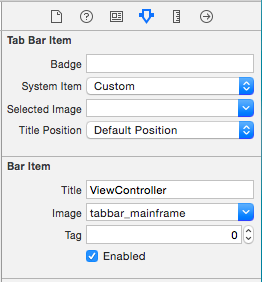
4、Storyboard 中设置