微软Azure云平台Hbase 的使用
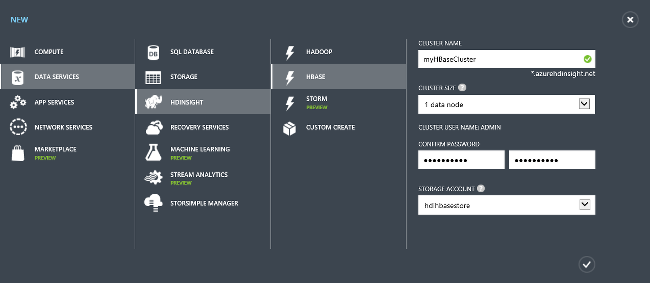
In this article What is HBase? Prerequisites Provision HBase clusters using Azure Management portal Mange HBase tables using HBase shell Use HiveQL to query HBase tables Use the Microsoft HBase REST client library to manage HBase tabels See also What is HBase? HBase is a low-latency NoSQL database that allows online transactional processing of big data. HBase is offered as a managed cluster integrated into the Azure environment. The clusters are configured to store data directly in Azure Blob storage, which provides low latency and increased elasticity in performance/cost choices. This enables customers to build interactive websites that work with large datasets, to build services that store sensor and telemetry data from millions of end points, and to analyze this data with Hadoop jobs. For more information on HBase and the scenarios it can be used for, seeHDInsight HBase overview. NOTE: HBase (version 0.98.0) is only available for use with HDInsight 3.1 clusters on HDInsight (based on Apache Hadoop and YARN 2.4.0). For version information, seeWhat's new in the Hadoop cluster versions provided by HDInsight? Prerequisites Before you begin this tutorial, you must have the following: An Azure subscriptionFor more information about obtaining a subscription, seePurchase Options,Member Offers, orFree Trial. An Azure storage accountFor instructions, seeHow To Create a Storage Account. A workstationwith Visual Studio 2013 installed. For instructions, seeInstalling Visual Studio. Provision an HBase cluster on the Azure portal This section describes how to provision an HBase cluster using the Azure Management portal. NOTE: The steps in this article create an HDInsight cluster using basic configuration settings. For information on other cluster configuration settings, such as using Azure Virtual Network or a metastore for Hive and Oozie, seeProvision an HDInsight cluster. To provision an HDInsight cluster in the Azure Management portal Sign in to theAzure Management Portal. ClickNEWon the lower left, and then clickDATA SERVICES,HDINSIGHT,HBASE. EnterCLUSTER NAME,CLUSTER SIZE, CLUSTER USER PASSWORD, andSTORAGE ACCOUNT. Click on the check icon on the lower left to create the HBase cluster. Create an HBase sample table from the HBase shell This section describes how to enable and use the Remote Desktop Protocol (RDP) to access the HBase shell and then use it to create an HBase sample table, add rows, and then list the rows in the table. It assumes you have completed the procedure outlined in the first section, and so have already successfully created an HBase cluster. To enable the RDP connection to the HBase cluster From the Management portal, clickHDINSIGHTfrom the left to view the list of the existing clusters. Click the HBase cluster where you want to open HBase Shell. ClickCONFIGURATIONfrom the top. ClickENABLE REMOTEfrom the bottom. Enter the RDP user name and password. The user name must be different from the cluster user name you used when provisioning the cluster. TheEXPIRES ONdata can be up to seven days from today. Click the check on the lower right to enable remote desktop. After the RPD is enabled, clickCONNECTfrom the bottom of theCONFIGURATIONtab, and follow the instructions. To open the HBase Shell Within your RDP session, click on theHadoop Command Lineshortcut located on the desktop. Change the folder to the HBase home directory: cd %HBASE_HOME%\bin Open the HBase shell: hbase shell To create a sample table, add data and retrieve the data Create a sample table: create 'sampletable', 'cf1' Add a row to the sample table: put 'sampletable', 'row1', 'cf1:col1', 'value1' List the rows in the sample table: scan 'sampletable' Check cluster status in the HBase WebUI HBase also ships with a WebUI that helps monitoring your cluster, for example by providing request statistics or information about regions. On the HBase cluster you can find the WebUI under the address of the zookeepernode. http://zookeepernode:60010/master-status In a HighAvailability (HA) cluster, you will find a link to the current active HBase master node hosting the WebUI. Bulk load a sample table Create samplefile1.txt containing the following data, and upload to Azure Blob Storage to /tmp/samplefile1.txt: row1 c1 c2 row2 c1 c2 row3 c1 c2 row4 c1 c2 row5 c1 c2 row6 c1 c2 row7 c1 c2 row8 c1 c2 row9 c1 c2 row10 c1 c2 Change the folder to the HBase home directory: cd %HBASE_HOME%\bin Execute ImportTsv: hbase org.apache.hadoop.hbase.mapreduce.ImportTsv -Dimporttsv.columns="HBASE_ROW_KEY,a:b,a:c" -Dimporttsv.bulk.output=/tmpOutput sampletable2 /tmp/samplefile1.txt Load the output from prior command into HBase: hbase org.apache.hadoop.hbase.mapreduce.LoadIncrementalHFiles /tmpOutput sampletable2 Use Hive to query an HBase table Now you have an HBase cluster provisioned and have created an HBase table, you can query it using Hive. This section creates a Hive table that maps to the HBase table and uses it to queries the data in your HBase table. To open cluster dashboard Sign in to theAzure Management Portal. ClickHDINSIGHTfrom the left pane. You shall see a list of clusters created including the one you just created in the last section. Click the cluster name where you want to run the Hive job. ClickQUERY CONSOLEfrom the bottom of the page to open cluster dashboard. It opens a Web page on a different browser tab. Enter the Hadoop User account username and password. The default username isadmin, the password is what you entered during the provision process. A new browser tab is opened. ClickHive Editorfrom the top. The Hive Editor looks like : To run Hive queries Enter the HiveQL script below into Hive Editor and clickSUBMITto create an Hive Table mapping to the HBase table. Make sure that you have created the sampletable table referenced here in HBase using the HBase Shell before executing this statement. CREATE EXTERNAL TABLE hbasesampletable(rowkey STRING, col1 STRING, col2 STRING) STORED BY 'org.apache.hadoop.hive.hbase.HBaseStorageHandler' WITH SERDEPROPERTIES ('hbase.columns.mapping' = ':key,cf1:col1,cf1:col2') TBLPROPERTIES ('hbase.table.name' = 'sampletable'); Wait until theStatusis updated toCompleted. Enter the HiveQL script below into Hive Editor, and then clickSUBMITbutton. The Hive query queries the data in the HBase table: SELECT count(*) FROM hbasesampletable; To retrieve the results of the Hive query, click on theView Detailslink in theJob Sessionwindow when the job finishes executing. The Job Output shall be 1 because you only put one record into the HBase table. To browse the output file From Query Console, clickFile Browserfrom the top. Click the Azure Storage account used as the default file system for the HBase cluster. Click the HBase cluster name. The default Azure storage account container uses the cluster name. Clickuser. Clickadmin. This is the Hadoop user name. Click the job name with theLast Modifiedtime matching the time when the SELECT Hive query ran. Clickstdout. Save the file and open the file with Notepad. The output shall be 1. Use HBase REST Client Library for .NET C# APIs to create an HBase table and retrieve data from the table The Microsoft HBase REST Client Library for .NET project must be downloaded from GitHub and the project built to use the HBase .NET SDK. The following procedure includes the instructions for this task. Create a new C# Visual Studio Windows Desktop Console application. Open NuGet Package Manager Console by click theTOOLSmenu,NuGet Package Manager,Package Manager Console. Run the following NuGet command in the console: Install-Package Microsoft.HBase.Client Add the following using statements on the top of the file: using Microsoft.HBase.Client; using org.apache.hadoop.hbase.rest.protobuf.generated; Replace the Main function with the following: static void Main(string[] args) { string clusterURL = "https://<yourHBaseClusterName>.azurehdinsight.net"; string hadoopUsername= "<yourHadoopUsername>"; string hadoopUserPassword = "<yourHadoopUserPassword>"; string hbaseTableName = "sampleHbaseTable"; // Create a new instance of an HBase client. ClusterCredentials creds = new ClusterCredentials(new Uri(clusterURL), hadoopUsername, hadoopUserPassword); HBaseClient hbaseClient = new HBaseClient(creds); // Retrieve the cluster version var version = hbaseClient.GetVersion(); Console.WriteLine("The HBase cluster version is " + version); // Create a new HBase table. TableSchema testTableSchema = new TableSchema(); testTableSchema.name = hbaseTableName; testTableSchema.columns.Add(new ColumnSchema() { name = "d" }); testTableSchema.columns.Add(new ColumnSchema() { name = "f" }); hbaseClient.CreateTable(testTableSchema); // Insert data into the HBase table. string testKey = "content"; string testValue = "the force is strong in this column"; CellSet cellSet = new CellSet(); CellSet.Row cellSetRow = new CellSet.Row { key = Encoding.UTF8.GetBytes(testKey) }; cellSet.rows.Add(cellSetRow); Cell value = new Cell { column = Encoding.UTF8.GetBytes("d:starwars"), data = Encoding.UTF8.GetBytes(testValue) }; cellSetRow.values.Add(value); hbaseClient.StoreCells(hbaseTableName, cellSet); // Retrieve a cell by its key. cellSet = hbaseClient.GetCells(hbaseTableName, testKey); Console.WriteLine("The data with the key '" + testKey + "' is: " + Encoding.UTF8.GetString(cellSet.rows[0].values[0].data)); // with the previous insert, it should yield: "the force is strong in this column" //Scan over rows in a table. Assume the table has integer keys and you want data between keys 25 and 35. Scanner scanSettings = new Scanner() { batch = 10, startRow = BitConverter.GetBytes(25), endRow = BitConverter.GetBytes(35) }; ScannerInformation scannerInfo = hbaseClient.CreateScanner(hbaseTableName, scanSettings); CellSet next = null; Console.WriteLine("Scan results"); while ((next = hbaseClient.ScannerGetNext(scannerInfo)) != null) { foreach (CellSet.Row row in next.rows) { Console.WriteLine(row.key + " : " + Encoding.UTF8.GetString(row.values[0].data)); } } Console.WriteLine("Press ENTER to continue ..."); Console.ReadLine(); } Set the first three variables in the Main function. PressF5to run the application. What's Next? In this tutorial, you have learned how to provision an HBase cluster, how to create tables, and and view the data in those tables from the HBase shell. You also learned how use Hive to query the data in HBase tables and how to use the HBase C# APIs to create an HBase table and retrieve data from the table. To learn more, see: HDInsight HBase overview: HBase is an Apache open source NoSQL database built on Hadoop that provides random access and strong consistency for large amounts of unstructured and semi-structured data. Provision HBase clusters on Azure Virtual Network: With the virtual network integration, HBase clusters can be deployed to the same virtual network as your applications so that applications can communicate with HBase directly. Analyze Twitter sentiment with HBase in HDInsight: Learn how to do real-timesentiment analysisof big data using HBase in an Hadoop cluster in HDInsight.