首页 文章 精选 留言 我的

精选列表

搜索[快速],共10000篇文章
优秀的个人博客,低调大师

centos 6.5 x64bit 快速安装openstack

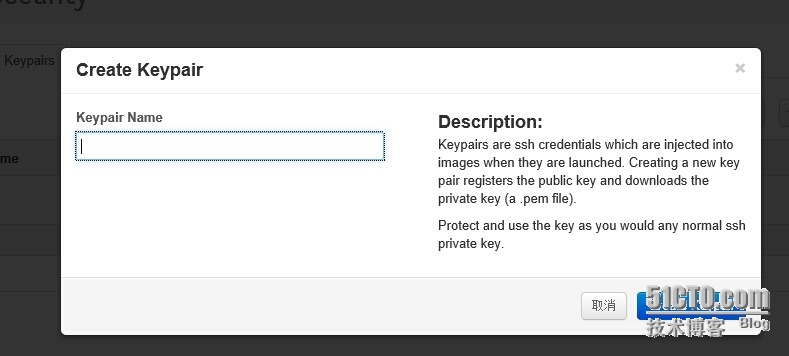
OpenStack是一个美国国家航空航天局和Rackspace合作研发的,以Apache许可证授权,并且是一个自由软件和开放源代码项目。 OpenStack是一个云平台管理的项目,它不是一个软件。这个项目由几个主要的组件组合起来完成一些具体的工作。 OpenStack是一个旨在为公共及私有云的建设与管理提供软件的开源项目。它的社区拥有超过130家企业及1350位开发者,这些机构与个人都将OpenStack作为基础设施即服务(简称IaaS)资源的通用前端。 OpenStack项目的首要任务是简化云的部署过程并为其带来良好的可扩展性。本文希望通过提供必要的指导信息,帮助大家利用OpenStack前端来设置及管理自己的公共云或私有云。 OpenStack 是由 Rackspace 和 NASA 共同开发的云计算平台,帮助服务商和企业内部实现类似于 Amazon EC2 和 S3 的云基础架构服务(Infrastructure as a Service, IaaS)。OpenStack 包含两个主要模块:Nova 和 Swift,前者是 NASA 开发的虚拟服务器部署和业务计算模块;后者是 Rackspace开发的分布式云存储模块,两者可以一起用,也可以分开单独用。OpenStack 是开源项目,除了有 Rackspace 和 NASA 的大力支持外,后面还有包括 Dell、Citrix、 Cisco、 Canonical 这些重量级公司的贡献和支持,发展速度非常快,有取代另一个业界领先开源云平台 Eucalyptus 的态势。 1.[root@localhost ~]#yum install -yhttp://rdo.fedorapeople.org/openstack/openstack-grizzly/rdo-release-grizzly-1.noarch.rpm//安装openstack-grizzly源 Loaded plugins: fastestmirror, security base | 3.7 kB 00:00 base/primary_db | 4.4 MB 00:05 extras | 3.4 kB 00:00 extras/primary_db | 19 kB 00:00 updates | 3.4 kB 00:00 updates/primary_db | 3.7 MB 00:03 Setting up Install Process rdo-release-grizzly-1.noarch.rpm | 7.1 kB 00:03 Examining /var/tmp/yum-root-tkysSj/rdo-release-grizzly-1.noarch.rpm: rdo-release-grizzly-1.noarch Marking /var/tmp/yum-root-tkysSj/rdo-release-grizzly-1.noarch.rpm to be installed Resolving Dependencies --> Running transaction check ---> Package rdo-release.noarch 0:grizzly-1 will be installed --> Finished Dependency Resolution Dependencies Resolved ================================================================================ Package Arch Version Repository Size ================================================================================ Installing: rdo-release noarch grizzly-1 /rdo-release-grizzly-1.noarch 3.2 k Transaction Summary ================================================================================ Install 1 Package(s) Total size: 3.2 k Installed size: 3.2 k Downloading Packages: Running rpm_check_debug Running Transaction Test Transaction Test Succeeded Running Transaction Installing : rdo-release-grizzly-1.noarch 1/1 Verifying : rdo-release-grizzly-1.noarch 1/1 Installed: rdo-release.noarch 0:grizzly-1 Complete! 2.[root@localhost ~]#yum install -y openstack-packstack //安装openstack-packstack软件包 Loaded plugins: fastestmirror, security Determining fastest mirrors * base: mirrors.163.com * extras: mirrors.163.com * updates: mirrors.163.com openstack-grizzly | 2.9 kB 00:00 openstack-grizzly/primary_db | 992 kB 00:02 Setting up Install Process Resolving Dependencies --> Running transaction check ---> Package openstack-packstack.noarch 0:2013.1.1-0.31.dev696.el6 will be installed --> Finished Dependency Resolution Dependencies Resolved ================================================================================ Package Arch Version Repository Size ================================================================================ Installing: openstack-packstack noarch 2013.1.1-0.31.dev696.el6 openstack-grizzly 605 k Transaction Summary ================================================================================ Install 1 Package(s) Total download size: 605 k Installed size: 1.9 M Downloading Packages: openstack-packstack-2013.1.1-0.31.dev696.el6.noarch.rpm | 605 kB 00:01 Running rpm_check_debug Running Transaction Test Transaction Test Succeeded Running Transaction Installing : openstack-packstack-2013.1.1-0.31.dev696.el6.noarch 1/1 Verifying : openstack-packstack-2013.1.1-0.31.dev696.el6.noarch 1/1 Installed: openstack-packstack.noarch 0:2013.1.1-0.31.dev696.el6 Complete! 3.[root@localhost ~]# packstack --allinone //在线安装openstack软件。 Welcome to Installer setup utility Packstack changed given value to required value /root/.ssh/id_rsa.pub Installing: Clean Up... [ DONE ] Setting up sshkeys...root@192.168.200.180'spassword: [ DONE ] Adding pre install manifest entries... [ DONE ] Adding MySQL manifest entries... [ DONE ] Adding QPID manifest entries... [ DONE ] Adding Keystone manifest entries... [ DONE ] Adding Glance Keystone manifest entries... [ DONE ] Adding Glance manifest entries... [ DONE ] Adding Cinder Keystone manifest entries... [ DONE ] Installing dependencies for Cinder... [ DONE ] Checking if the Cinder server has a cinder-volumes vg...[ DONE ] Adding Cinder manifest entries... [ DONE ] Adding Nova API manifest entries... [ DONE ] Adding Nova Keystone manifest entries... [ DONE ] Adding Nova Cert manifest entries... [ DONE ] Adding Nova Conductor manifest entries... [ DONE ] Adding Nova Compute manifest entries... [ DONE ] Adding Nova Scheduler manifest entries... [ DONE ] Adding Nova VNC Proxy manifest entries... [ DONE ] Adding Nova Common manifest entries... [ DONE ] Adding Openstack Network-related Nova manifest entries...[ DONE ] Adding Quantum API manifest entries... [ DONE ] Adding Quantum Keystone manifest entries... [ DONE ] Adding Quantum L3 manifest entries... [ DONE ] Adding Quantum L2 Agent manifest entries... [ DONE ] Adding Quantum DHCP Agent manifest entries... [ DONE ] Adding Quantum Metadata Agent manifest entries... [ DONE ] Adding OpenStack Client manifest entries... [ DONE ] Adding Horizon manifest entries... [ DONE ] Adding Swift Keystone manifest entries... [ DONE ] Adding Swift builder manifest entries... [ DONE ] Adding Swift proxy manifest entries... [ DONE ] Adding Swift storage manifest entries... [ DONE ] Adding Swift common manifest entries... [ DONE ] Adding Provisioning manifest entries... [ DONE ] Preparing servers... [ DONE ] Adding Nagios server manifest entries... [ DONE ] Adding Nagios host manifest entries... [ DONE ] Adding post install manifest entries... [ DONE ] Installing Dependencies... [ DONE ] Copying Puppet modules and manifests... [ DONE ] Applying Puppet manifests... Applying 192.168.200.180_prescript.pp 192.168.200.180_prescript.pp : [ DONE ] Applying 192.168.200.180_mysql.pp Applying 192.168.200.180_qpid.pp 192.168.200.180_mysql.pp : [ DONE ] 192.168.200.180_qpid.pp : [ DONE ] Applying 192.168.200.180_keystone.pp Applying 192.168.200.180_glance.pp Applying 192.168.200.180_cinder.pp 192.168.200.180_keystone.pp : [ DONE ] 192.168.200.180_glance.pp : [ DONE ] 192.168.200.180_cinder.pp : [ DONE ] Applying 192.168.200.180_api_nova.pp 192.168.200.180_api_nova.pp : [ DONE ] Applying 192.168.200.180_nova.pp 192.168.200.180_nova.pp : [ DONE ] Applying 192.168.200.180_quantum.pp 192.168.200.180_quantum.pp : [ DONE ] Applying 192.168.200.180_osclient.pp Applying 192.168.200.180_horizon.pp 192.168.200.180_osclient.pp : [ DONE ] 192.168.200.180_horizon.pp : [ DONE ] Applying 192.168.200.180_ring_swift.pp 192.168.200.180_ring_swift.pp : [ DONE ] Applying 192.168.200.180_swift.pp Applying 192.168.200.180_provision.pp Applying 192.168.200.180_nagios.pp Applying 192.168.200.180_nagios_nrpe.pp 192.168.200.180_swift.pp : [ DONE ] 192.168.200.180_provision.pp : [ DONE ] 192.168.200.180_nagios.pp : [ DONE ] 192.168.200.180_nagios_nrpe.pp : [ DONE ] Applying 192.168.200.180_postscript.pp 192.168.200.180_postscript.pp : [ DONE ] [ DONE ] Finalizing... [ DONE ] **** Installation completed successfully ****** //成功安装如下: Additional information: * A new answerfile was created in: /root/packstack-answers-20140626-162910.txt * Time synchronization installation was skipped. Please note that unsynchronized time on server instances might be problem for some OpenStack components. * To use the command line tools you need to source the file /root/keystonerc_admin created on 192.168.200.180 * To use the console, browse tohttp://192.168.200.180/dashboard * To use Nagios, browse tohttp://192.168.200.180/nagiosusername : nagiosadmin, password : 0e2abdb9d2914cce * The RDO kernel that includes network namespace (netns) support has been installed on host 192.168.200.180. * The installation log file is available at: /var/tmp/packstack/20140626-162910-yqzZnu/openstack-setup.log //如果要进openstack界面直接利用http://192.168.200.180/dashboard进入,用户名有两个一个demo,另一个是admin 密码在/root目录下 4.创建keypair,名字自己写 5.创建映像f19下载地址http://cloud.fedoraproject.org/fedora-19.x86_64.qcow2创建好之后启动 6.启动zh888实例 7.选择网卡点加号放入networks 8.启动好的zh888的实例 本文转自zh888 51CTO博客,原文链接:http://blog.51cto.com/zh888/1431689,如需转载请自行联系原作者

优秀的个人博客,低调大师

详解logstash+elasticsearch+kibana快速搭建日志平台

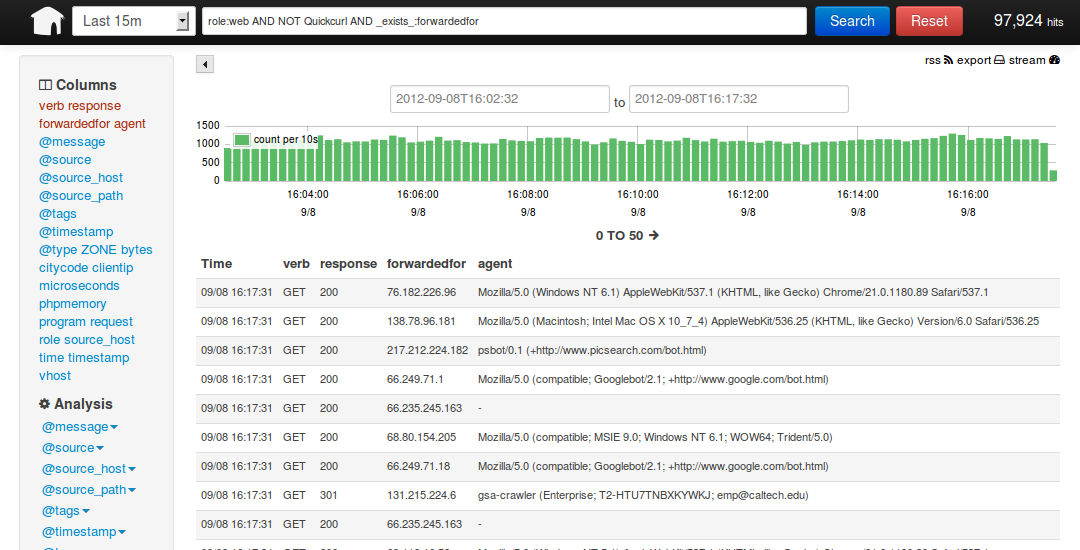
本文出自 “story的天空” 博客,请务必保留此出处http://storysky.blog.51cto.com/628458/1158707 Logstash是一个完全开源的工具,他可以对你的日志进行收集、分析,并将其存储供以后使用(如,搜索),您可以使用它。说到搜索,logstash带有一个web界面,搜索和展示所有日志。 kibana 也是一个开源和免费的工具,他可以帮助您汇总、分析和搜索重要数据日志并提供友好的web界面。他可以为 Logstash 和 ElasticSearch 提供的日志分析的 Web 界面 说到这里,我们看看 kibana 和 logstash到底能为我们做些什么呢?下面是kibana的界面 简单来讲他具体的工作流程就是 logstash agent 监控并过滤日志,将过滤后的日志内容发给redis(这里的redis只处理队列不做存储),logstash index将日志收集在一起交给 全文搜索服务ElasticSearch 可以用ElasticSearch进行自定义搜索 通过Kibana 来结合 自定义搜索进行页面展示,下图是 Kibana官网上的流程图 好了 让我们一步步的把这套环境搭建起来吧,先看看都需要安装什么软件包ruby 运行Kibana 必须, rubygems 安装ruby扩展必须 bundler 功能类似于yum JDK 运行java程序必须 redis 用来处理日志队列 logstash 收集、过滤日志 ElasticSearch 全文搜索服务(logstash集成了一个) kibana 页面展示 这里有三台服务器192.168.233.128 logstash index,ElasticSearch,kibana,JDK 192.168.233.129 logstash agent,JDK 192.168.233.130 redis 首先到 logstash index服务器上面,logstash分为 index和aget ,agent负责监控、过滤日志,index负责收集日志并将日志交给ElasticSearch 做搜索 此外 logstash 的收集方式分为 standalone 和 centralized。 standalone 是所有功能都在一个服务器上面,自发自收,centralized 就是集中收集,一台服务器接收所有shipper(个人理解就是logstash agent)的日志。 其实 logstash本身不分 什么 shipper 和 collector ,只不过就是配置文件不同而已,我们这次按照集中的方式来测试 在 logstash index上安装基础的软件环境 [192.168.233.128root@nodec:~]#cd/soft/[192.168.233.128root@nodec:/soft]#wgethttp://down1.chinaunix.net/distfiles/jdk-6u13-dlj-linux-i586.bin从oracle下载实在是太慢了,从CU下载会快一些,如果需要最新版本请访问这里http://www.oracle.com/technetwork/java/javase/downloads/jdk7-downloads-1880260.html[192.168.233.128root@nodec:/soft]#shjdk-6u13-dlj-linux-i586.bin输入yes便开始安装了安装完成后设置一下JAVA_HOME[192.168.233.128root@nodec:/soft/Kibana-0.2.0]#vim/etc/profileexportJAVA_HOME=/usr/javaexportPATH=$JAVA_HOME/bin:$PATHexportCLASSPATH=.:$JAVA_HOME/lib/tools.jar:$JAVA_HOME/lib/dt.jar:$CLASSPATH安装ruby就比较简单了(Kibana需要ruby1.8.7以上版本)[192.168.233.128root@nodec:/soft]#yuminstallrubyrubygems.....安装内容省略安装完成后用rubygems来安装bundler[192.168.233.128root@nodec:/soft]#/usr/bin/geminstallbundler.....ok这样基本的环境就已经有了,下面就是安装kibana和logstash其实logstash就是一个java脚本,不需要安装...下载即用[192.168.233.128root@nodec:/soft]#wgethttp://logstash.objects.dreamhost.com/release/logstash-1.1.0-monolithic.jar现在看看这个脚本应该怎么去执行[192.168.233.128root@nodec:/soft]#java-jar/soft/logstash-1.1.0-monolithic.jar-hNosuchcommand"-h"Availablecommands:-v-V--versionagentwebtest显然没有-h参数,不过列出了能用的参数,但是logstash的参数可不止这些,java-jar/soft/logstash-1.1.0-monolithic.jaragent--help这些是在agent模式下的命令参数-f,--configCONFIGFILELoadthelogstashconfigfromaspecificfile,directory,orawildcard.Ifgivenadirectoryorwildcard,configfileswillbereadinorderlexigraphically.-eCONFIGSTRINGUsethegivenstringastheconfigurationdata.Samesyntaxastheconfigfile.Ifnotinputisspecified,'stdin{type=>stdin}'isdefault.Ifnooutputisspecified,'stdout{debug=>true}}'isdefault.-w,--filterworksCOUNTRunCOUNTfilterworkers(default:1)--watchdog-timeoutTIMEOUTSetwatchdogtimeoutvalue.-l,--logFILELogtoagivenpath.Defaultistologtostdout-vIncreaseverbosity.Therearemultiplelevelsofverbosityavailablewith'-vv'currentlybeingthehighest--pluginpathPLUGIN_PATHAcolon-delimtedpathtofindotherlogstashpluginsinjava-jar/soft/logstash-1.1.0-monolithic.jarweb--help下面的是在web界面的参数--logFILELogtoagivenpath.Defaultisstdout.--addressADDRESSAddressonwhichtostartwebserver.Defaultis0.0.0.0.--portPORTPortonwhichtostartwebserver.Defaultis9292.-B,--elasticsearch-bind-hostADDRESSAddressonwhichtobindelasticsearchnode.-b,--backendURLThebackendURLtouse.Defaultiselasticsearch:///(assumesmulticastdiscovery).Youcanspecifyelasticsearch://[host][:port]/[clustername]如果上面的这些命令都能执行正常的话就表示logstash可以使用了,但要让他启动还需要一个配置文件 [192.168.233.128root@nodec:/soft]#vimredis.confinput{redis{host=>'192.168.233.130'data_type=>'list'port=>"6379"key=>'logstash:redis'type=>'redis-input'}}output{elasticsearch{embedded=>true}} 解释一下logstash的配置文件由inputfilteroutput等几个基本的部分组成,顾名思义input就是在那收集数据,output就是输出到哪,filter代表一个过滤规则意思是什么内容 会被收集。 上面这段是让logstash去192.168.233.130这个redis服务器上去收集日志redis端口为6379,key是logstash:redis类型为redis-input,(注意:这几个值必须跟logstashagent的 output所对应),收集完成后输出到elasticsearch,embedded=>true的意思是使用logstash内嵌的elasticsearch。如果有独立的elasticsearch服务器,需要将这条改为 host=>'elasticsearch的ip'port=>端口 好了,这个简单的配置文件可以让logstash开始启动了 [192.168.233.128root@nodec:/soft]#java-jar/soft/logstash-1.1.0-monolithic.jaragent-f/soft/redis.conf--web--backendelasticsearch:///?local&[1]5205...这里要等待约5秒钟...为什么?去问开发者吧[192.168.233.128root@nodec:/soft]#I,[2013-03-19T03:23:10.749000#5205]INFO--:Usingbetaplugin'redis'.Formoreinformationaboutpluginstatuses,seehttp://logstash.net/docs/1.1.0/plugin-status{"timestamp":"2013-03-19T03:23:10.732000-0700","message":"Usingbetaplugin'redis'.Formoreinformationaboutpluginstatuses,seehttp://logstash.net/docs/1.1.0/plugin-status","level":"info"}file:/soft/logstash-1.1.0-monolithic.jar!/gems/rack-1.3.4/lib/rack/backports/uri/common_192.rb:53warning:alreadyinitializedconstantWFKV_Mizuno0.5.0(Jetty8.0.y.z-SNAPSHOT)listeningon0.0.0.0:9292解释一下上面的命令agent代理模式-f指定配置文件--web其实是个分隔符等于又启动了一个命令,后面的参数就是开启一个web页面默认端口是9292,这个命令如果拆成两个就是这个样子java-jar/soft/logstash-1.1.0-monolithic.jaragent-f/soft/redis.conf&java-jar/soft/logstash-1.1.0-monolithic.jarweb--backendelasticsearch:///?local&(其实如果用kibana来做web界面的话这一步完全可以省掉了) 好了,看到9292端口启动就代表启动成功了,检查一下 [192.168.233.128root@nodec:/soft]#lsof-i:9292COMMANDPIDUSERFDTYPEDEVICESIZENODENAMEjava5205root465uIPv4130805TCP*:armtechdaemon(LISTEN)其实logstash还启动了一个端口9200,因为启动了内嵌的elasticsearch,这个9200是elasticsearch在监听[192.168.233.128root@nodec:/soft]#lsof-i:9200COMMANDPIDUSERFDTYPEDEVICESIZENODENAMEjava5205root160uIPv4130682TCP*:wap-wsp(LISTEN) 现在可以通过浏览器访问一下http://192.168.233.128:9292看看logstash是的页面是个什么样子 现在还不能搜索因为现在还没有数据,其实这个时候 http://192.168.233.128:9200 也是可以访问的, 很多开发自己写代码来调用elasticsearch 来实现他们自己的需要,这里就不多说了 192.168.233.128 这台logstash index的操作暂时告一段落,下面开始配置logstash的agent 登录到 服务器 192.168.233.129 安装基本软件包和logstash [192.168.233.129root@noded:~]#cd/soft/[192.168.233.129root@noded:/soft]#wgethttp://down1.chinaunix.net/distfiles/jdk-6u13-dlj-linux-i586.bin[192.168.233.129root@noded:/soft]#shjdk-6u13-dlj-linux-i586.bin设置JAVA_HOME[192.168.233.129root@noded:/soft]#vim/etc/profileexportJAVA_HOME=/usr/javaexportPATH=$JAVA_HOME/bin:$PATHexportCLASSPATH=.:$JAVA_HOME/lib/tools.jar:$JAVA_HOME/lib/dt.jar:$CLASSPATH[192.168.233.129root@noded:/soft]#yuminstallruby192.168.233.129root@noded:/soft]#wgethttp://logstash.objects.dreamhost.com/release/logstash-1.1.0-monolithic.jar[192.168.233.129root@noded:/soft]#vimredis.confinput{file{type=>"producer"path=>"/soft/apache.log"}file{type=>"php-log"path=>"/soft/php.log"}}filter{grep{match=>["@message","mysql|GET|error"]}}output{redis{host=>'192.168.233.130'data_type=>'list'key=>'logstash:redis'}} 大概说一下这个配置文件 input 里的file就是要监视的文件了 这里我监视了两个文件,如果这两个文件有追加的内容就会通过下面的output设置发给 redis服务器 filter 里的grep 意思就是 grep... 后面这段就是 日志内容里面只要有匹配mysql或GET或error的内容就会被过滤出来,发送到 logstash index 以上就是一个比较简单的配置文件了,让我们启动他 [192.168.233.129root@noded:/soft]#java-jar/soft/logstash-1.1.0-monolithic.jaragent-f/soft/redis.conf&I,[2013-03-19T19:45:35.762000#2721]INFO--:Usingbetaplugin'file'.Formoreinformationaboutpluginstatuses,seehttp://logstash.net/docs/1.1.0/plugin-status{"timestamp":"2013-03-19T19:45:35.752000-0700","message":"Usingbetaplugin'file'.Formoreinformationaboutpluginstatuses,seehttp://logstash.net/docs/1.1.0/plugin-status","level":"info"}I,[2013-03-19T19:45:35.778000#2721]INFO--:Usingbetaplugin'file'.Formoreinformationaboutpluginstatuses,seehttp://logstash.net/docs/1.1.0/plugin-status{"timestamp":"2013-03-19T19:45:35.778000-0700","message":"Usingbetaplugin'file'.Formoreinformationaboutpluginstatuses,seehttp://logstash.net/docs/1.1.0/plugin-status","level":"info"}I,[2013-03-19T19:45:35.804000#2721]INFO--:Usingbetaplugin'grep'.Formoreinformationaboutpluginstatuses,seehttp://logstash.net/docs/1.1.0/plugin-status{"timestamp":"2013-03-19T19:45:35.803000-0700","message":"Usingbetaplugin'grep'.Formoreinformationaboutpluginstatuses,seehttp://logstash.net/docs/1.1.0/plugin-status","level":"info"}I,[2013-03-19T19:45:35.854000#2721]INFO--:Usingbetaplugin'redis'.Formoreinformationaboutpluginstatuses,seehttp://logstash.net/docs/1.1.0/plugin-status{"timestamp":"2013-03-19T19:45:35.853000-0700","message":"Usingbetaplugin'redis'.Formoreinformationaboutpluginstatuses,seehttp://logstash.net/docs/1.1.0/plugin-status","level":"info"} 只要没有 warning 和 error就算是正常启动了 启动之前请确定 192.168.233.130的 redis服务器已经启动,不然会报错下面登录到 192.168.233.130 上看看 redis服务的状态 [192.168.233.130root@nodea:/data/redis/etc]#lsof-i:6379COMMANDPIDUSERFDTYPEDEVICESIZENODENAMEredis-ser2732root4uIPv47946TCP*:6379(LISTEN)redis-ser2732root5uIPv47963TCPlocalhost.localdomain:6379->localhost.localdomain:19214(ESTABLISHED)java2733root9uIPv47959TCPlocalhost.localdomain:19214->localhost.localdomain:6379(ESTABLISHED)状态正常,端口处于监听状态,我用的是最简单的配置,[192.168.233.130root@nodea:/data/redis/etc]#vimredis.conf#thisistheconfigfileforredispidfile/var/run/redis.pidport6379timeout0loglevelverboselogfile/data/redis/log/redis.logdbfilenamedump.rdbdir/data/redis/db/vm-swap-file/tmp/redis.swapactiverehashingyes启动命令如下[192.168.233.130root@nodea:/data/redis/etc]#redis-server/data/redis/etc/redis.conf& 下载安装就比较简单了 [192.168.233.130root@nodea:/soft]#wgethttp://redis.googlecode.com/files/redis-2.4.14.tar.gz[192.168.233.130root@nodea:/data/redis/etc]#make–j24[192.168.233.130root@nodea:/data/redis/etc]#makeinstall 配置文件里的那几个路径要提前建好 最后我们回到 logstash agent 上面测试一下 [192.168.233.129root@noded:/soft]#echoGET12313>>apache.log[192.168.233.129root@noded:/soft]#echoerrorabcd>>apache.log ok 到 http://192.168.233.128:9292 去搜索一下 刚才的两个内容 嗯,就是这样了,我现在找个php的错误日志给他追加到php.log文件里 [192.168.233.129 root@noded:/soft] # cat php-error.log >> php.log 在看看 logstash的页面 搜索一下 error OK,最后就是 Kibana了 ,我把Kibana装在了 logstash index上面 下载地址为 http://kibana.org/intro.html [192.168.233.128root@nodec:/soft]#tarxfKibana-0.2.0.tar.gz[192.168.233.128root@nodec:/soft]#cdKibana-0.2.0[192.168.233.128root@nodec:/soft/Kibana-0.2.0]#bundleinstall直接安装就好了,非常简单,因为之前咱们已经安装好了bundle编辑配置文件,指定elasticsearch的位置[192.168.233.128root@nodec:/soft/Kibana-0.2.0]#vimKibanaConfig.rb.....Elasticsearch="localhost:9200"KibanaPort=5601KibanaHost='0.0.0.0'.....主要是这几个参数启动的话需要ruby[192.168.233.128root@nodec:/soft/Kibana-0.2.0]#/usr/bin/rubykibana.rb&[192.168.233.128root@nodec:/soft/Kibana-0.2.0]#==Sinatra/1.3.5hastakenthestageon5601fordevelopmentwithbackupfromThin>>Thinwebserver(v1.5.0codenameKnife)>>Maximumconnectionssetto1024>>Listeningon0.0.0.0:5601,CTRL+Ctostop如果ruby的东西都不缺的话,启动会很顺利,ok现在看看5601端口的状态[192.168.233.128root@nodec:/soft/Kibana-0.2.0]#lsof-i:5601COMMANDPIDUSERFDTYPEDEVICESIZENODENAMEruby3116root5uIPv428947TCP*:esmagent(LISTEN) 访问一下 试试看 http://192.168.233.128:5601 尝试搜索一下php的错误日志,比如mysql 要的就是这个效果,日志会实时的汇总到 logstash index 上供我们查询,当然这只是开始使用logstash的第一步而已,更多的高级功能可以看看官方文档http://logstash.net/docs/1.1.9/ 据说还可以跟nagios,rsyslog结合. 本文转自 wdy198622 51CTO博客,原文链接:http://blog.51cto.com/weimouren/1716357

优秀的个人博客,低调大师

10分钟快速配置LAMP环境

关于LAMP的文档在网上能搜到很多,但是大多数都是编译安装为主,耗时长,成功率低是编译安装的最大的问题。本文的目的旨在迅速完成搭建工作,不拘泥于细节。环境是RHEL5 update 1,全部使用RPM包安装。这里顺便提一下,编译安装是需要会的,这只是在没有包管理的情况下或者是学习的过程中,有包管理器的话,还是强烈推荐使用包安装,因为一般而言,使用包安装更易于管理。 LAMP:原意为linux中apache mysql php的组合,该环境使用非常广泛。只要把握住分别安装apache/mysql/php三个软件就可以了,提示缺什么包就补什么包,还有重要的就是一个叫php-mysql的链接包,相当于一个中间件,也必须要安装。按照这样的方法安装,基本上10分钟之内可以成功搭建。 下面罗列的是需要安装的包,可能由于不同的环境,取决于在安装的时候装的包安装的不一样,会提示安装的相关性,按照提示安装缺失的包就可以了。 rpm -ivh httpd-2.2.3-11.el5.i386.rpm rpm -ivh httpd-devel-2.2.3-11.el5.i386.rpm rpm -ivh apr-devel-1.2.7-11.i386.rpm rpm -ivh apr-util-devel-1.2.7-6.i386.rpm rpm -ivh httpd-devel-2.2.3-11.el5.i386.rpm rpm -ivh mysql-5.0.22-2.1.0.1.i386.rpm rpm -ivh perl-5.8.8-10.i386.rpm rpm -ivh perl-DBI-1.52-1.fc6.i386.rpm rpm -ivh mysql-5.0.22-2.1.0.1.i386.rpm rpm -ivh php-5.1.6-15.el5.i386.rpm rpm -ivh php-mysql-5.1.6-15.el5.i386.rpm rpm -ivh php-pdo-5.1.6-15.el5.i386.rpm rpm -ivh php-mysql-5.1.6-15.el5.i386.rpm rpm -ivh mysql-5.0.22-2.1.0.1.i386.rpm rpm -ivh mysql-bench-5.0.22-2.1.0.1.i386.rpm rpm -ivh mysql-devel-5.0.22-2.1.0.1.i386.rpm rpm -ivh mysql-server-5.0.22-2.1.0.1.i386.rpm rpm -ivh perl-DBD-MySQL-3.0007-1.fc6.i386.rpm rpm -ivh mysql-server-5.0.22-2.1.0.1.i386.rpm 本文转自 justiceplus 51CTO博客,原文链接:http://blog.51cto.com/johnwang/126383,如需转载请自行联系原作者

优秀的个人博客,低调大师

Xcode4 单元测试快速入门[转]

这是一篇xcode单元测试入门的文章。有空了给各位翻出来方便大家看。 This is a post by iOS Tutorial Team member Unit testing is great because it makes your life easier. Easier to deliver high quality code, and easier to make changes without fear of breaking something! But what might not be so easy is getting started if you’re new to unit testing – and that’s what this tutorial is all about! We’ll cover how to set up Xcode to use three different unit testing frameworks: OCUnit, which is the unit testing framework built into Xcode GHUnit, which is a third party framework with some extra cool features OCMock, which helps you write mock objects to aid tricky testing scenarios We won’t cover how to actually write test cases in this tutorial, but don’t worry – I’ll be covering that in my upcoming tutorial series on Test Driven Development for iOS! This tutorial assumes you already know the basics of iOS development. If you are a complete beginner, check out some of theseBeginner iOS Tutorialsfirst. Getting Started with OCUnit OCUnit is the unit testing framework that’s built straight into Xcode, so let’s try that out first. In Xcode, go to File\New\New Project, select iOS\Application\View-based Application, and click Next. Name the projectSampleProject, and make sure to check theInclude Unit Testsoption, as shown below. Click Next, choose a folder for your project, and click Create. If you look at the generated project, you’ll see that Xcode has created two targets for you:SampleProject(the app target), andSampleProjectTests(the unit test target). The unit test target is created with a dependency on the app target, so that when you run the tests, the app target will automatically be built. Xcode also creates a single test class as an example for you, which you can find in SampleProjectTests\SampleProjectTests.m. You’ll see a single test case set up in the file that looks like this: - (void)testExample { STFail(@"Unit tests are not implemented yet in SampleProjectTests"); } Basically this is a sample test that should fail immediately when it’s run, because you haven’t written any unit tests yet! Let’s try this out and see if it indeed fails like it should. Select the iPhone Simulator from the Scheme drop down, then choose Product\Test from the Xcode menu (shortcut key ⌘U). Xcode will then build the app target, then build the unit test target. If both targets can be built it then runs the test cases on the simulator and highlights any failures in the Issue Navigator and in the source file itself, just like it does with build warnings and errors. So as you can see, setting up unit testing with OCUnit in Xcode is really easy – it’s just a matter of selecting a checkbox! We won’t get into how to use write unit tests with OCUnit in this tutorial series, since I prefer the alternative unit testing frameworks GHUnit and OCMock which we’ll cover next. However, if you decide OCUnit is right for you, check outApple’s Unit Testing Overviewfor more information on how you can write your own tests. GHUnit vs OCUnit GHUnit is a popular unit testing framework developed byGabriel Handfordas an alternative to OCUnit. With the release of Xcode 4, using OCUnit is better than it used to be, but I still prefer GHUnit because: GHUnit allows you to run all tests, a single test, or just the failed tests, while OCUnit can only run all of them. GHUnit comes with a neat test runner app, that quickly shows you a high level view of passing and failing tests, while OCUnit does not have this. GHUnit is an open source project, so you can modify the framework to better meet your needs. OCUnit does still have the advantage of being tightly integrated with Xcode, which makes the initial project setup easier, but to me the advantages of GHUnit outweigh this. If you’re interested in reading more about the differences between GHUnit and OCUnit, check out thisnice comparisonbyMark Makdad. Introducing OCMock Unit testing without OCMock. Image credit:ettina82 Before we cover how to integrate GHUnit into your Xcode project, let’s take a minute to discuss OCMock. If you have ever written automated unit tests before, you probably have encountered the problem of trying to test more than one class at a time. This is a recipe for brittle tests and spaghetti code. After a while, you get to the point that you’re ready to throw the tangled mess into the trash! Using some form of dummy objects (also known asmock objects) to reduce dependencies is a good method to solve this. Mock objects allow you to test interactions with the outside world while keeping external dependencies as low as possible. If your code has external dependencies or responsibilities (and most do), you’ll want to use these! OCMockis a framework for OS X and iOS developed by Mulle Kybernetik that follows the pattern of mock frameworks developed for other platforms. So you’ll learn how to set up Xcode to use this along with GHUnit! Installing GHUnit and OCMock: Overview These instructions will create a project structure with all files stored in the actual project directory, including the GHUnit and OCMock frameworks. These instructions also assume everything we create or download will be in the directory ~/myproj, but feel free to put them wherever you like. After each step in the process, you should do a clean, build, and run for each target to validate the configuration and dependencies. We will use the name MyProj for our project and derive several targets and file names from it. You can choose whatever name you wish, but it is best to be consistent in your naming of targets and components. There are many more options for GHUnit and OCMock, but they are outside the scope of these instructions. For more information, see the Other Links at the end of this post. Getting Started Let’s get started by creating a fresh directory and project: Create a new subdirectory myproj in your home directory Open up Xcode, and create a new View-based Application Leave the “Include Unit Tests” checkbox unchecked since we will be using GHUnit instead of OCUnit Save the project as MyProj in ~/myproj Make sure the project builds and runs in the simulator without error Integrating GHUnit OK, time to integrate GHUnit! It just takes three quick steps. 1) Add a GHUnit Test Target First, we need to add a test target to our project for GHUnit. Select the project file in the Project Navigator view, and click ‘Add Target’. Create an iOS View-based Application named ‘MyProjTests’ for the GHUnit target. As with the project creation, leave the “Include Unit Tests” checkbox unchecked. 2) Add GHUnitIOS Framework The next step is to add the GHUnitIOS framework to our project. You’ll need todownload it from githubfirst if you haven’t already. Note:Be sure you select the latest iOS version (named like ‘GHUnitIOS-####.zip’), and not the Mac OS X version (named like ‘GHUnit-####.zip’)! We want to include the full set of files in our project, so unzip it into ~/myproj/MyProj. Then select the “Build Phases” tab for the MyProjTests target, expand the “Link Binary With Libraries” section, and click the “+” button. Select “Add Other…” and select the GHUnitIOS.framework from the ~/myproj directory, as shown in the screenshot below. Now verify that the test target builds before continuing. Select the iPhone Simulator for the MyProjTests target from the Scheme drop down and click the Run button. You will only see a blank view at this point in the simulator. 3) Configure GHUnit Test Target The GHUnitIOS framework has an embedded window and app delegate, so we need to remove the ones installed by default when we created the test target. First, delete the files MyProjTestsAppDelegate.h, MyProjTestsAppDelegate.m, MainWindow.xib, MyProjTestsViewController.h, MyProjTestsViewController.m, MyProjTestsViewController.xib, and main.m from MyProjTests. Second, remove the “Main nib file base name” property from MyProjTests-Info.plist. Next,download the file GHUnitIOSTestMain.mto ~/myproj/MyProj/MyProjTests, as shown in the screenshot below. Now, add the file to the MyProjTests target, making sure to select the MyProjTests target when adding the file. Lastly, we need to update the build settings for the MyProjTests target. Select “Other Linker Flags” under MyProjTests and add the value “-ObjC -all_load”. Congrats – you’ve successfully configured GHUnit! Run the MyProjTests target in the simulator and you’ll see the GHUnit test runner: Creating a Simple Test Case Although GHUnit is integrated in your project now, you don’t have any tests to run yet! So let’s make a simple test case to try things out. Create a new Objective-C class SampleTestCase.m in the MyProjTests group, making sure it belongs to the MyProjTests target, but not to the MyProj target. Our test case class does not need a header file, but Xcode 4 does not give us the option to only create a .m file, so delete the SampleTestCase.h file and replace the entire contents of the SampleTestCase.m with the following code: #import <GHUnitIOS/GHUnit.h> @interface SampleLibTest : GHTestCase { } @end @implementation SampleLibTest - (void)testSimplePass { // Another test } - (void)testSimpleFail { GHAssertTrue(NO, nil); } @end Then run the MyProjTests target in the simulator and you should see this: You can tap the Run button in the upper right corner to run the tests – one should fail and one should succeed. Creating a test case in GHUnit is straightforward, a test case is simply a method that follows these simple rules: The class inherits from GHTestCase, the method return type is void, the method name begins with ‘test’, and the method takes no arguments. Obviously, to be a useful test case, it needs to do something (unlike the ‘testSimplePass’ method above.) Each test case should have a single purpose, and often after all the setup is done it only checks a single value. It can be as simple as creating an instance of the class to be tested, calling a method on that class, and checking that the value returned matches your expectations. Test cases specify what they expect by asserting certain conditions, and in GHUnit, there is a set of macros that cover a variety of casesin the file GHTestMacros.h. There are afew simple exampleson the GHUnit website. w00t! At this point you now have a working project using GHUnit on which you can build. Read on to learn how to add in OCMock support as well! Addding OCMock Now that we have GHUnit set up and running, we want to add support for OCMock. The framework available on the website does not work with iOS projects. We need the static library from thethe example iPhone projectand the header files from the framework. Before we get started, go ahead and create a separate directory in our project to hold the library and header files. From the Project Navigator in Xcode, right click on MyProj and select “Add Files to ‘MyProj’”: Select the directory ~/myproj/MyProj, and click the “New Folder” button. Add a folder named “Libraries” and click the “Create” button. Once the folder is created, click ‘Add’ to add it to the target. Now that we have a folder ready to add OCMock into, let’s get started! Again, adding OCMock into your project is just three steps. 1) Install latest OCMock iOS library First download the filelibOCMock.ato the ~/myproj/Libraries directory. Then right click on ‘Libraries’ folder in the Project Navigator, and add the libOCMock.a file to the MyProjTests target. 2) Extract header files from OCMock framework Download the latest ocmock dmg file fromdownload directoryto the ~/myproj directory and open it in finder. It should mount the image “OCMock #.##” in finder. Select the directory ‘Release/Library/Headers/OCMock’ directory and add it to our project ‘Libraries’ folder (for the MyProjTests target). The end result in the Project Navigator should look like this: 3) Update build settings for MyProjTests The following linker settings depend on the fact that the above step created a physical directory ‘OCMock’ under our directory ‘Libraries’. In the “Build Settings” for the MyProjTests target, make sure the “Library Search Paths” contain the “$(SRCROOT)/Libraries” directory like this: Next, we need to add “$(SRCROOT)/Libraries” to the “Header Search Paths” item. Make sure you check the ‘Recursive’ checkbox as well: Simple Test Case with OCMock Now we need to add some test cases that use OCMock to our SampleTestCase. Update SampleTestCase.m to look like this: #import <GHUnitIOS/GHUnit.h> #import <OCMock/OCMock.h> @interface SampleLibTest : GHTestCase { } @end @implementation SampleLibTest - (void)testSimplePass { // Another test } - (void)testSimpleFail { GHAssertTrue(NO, nil); } // simple test to ensure building, linking, // and running test case works in the project - (void)testOCMockPass { id mock = [OCMockObject mockForClass:NSString.class]; [[[mock stub] andReturn:@"mocktest"] lowercaseString]; NSString*returnValue = [mock lowercaseString]; GHAssertEqualObjects(@"mocktest", returnValue, @"Should have returned the expected string."); } - (void)testOCMockFail { id mock = [OCMockObject mockForClass:NSString.class]; [[[mock stub] andReturn:@"mocktest"] lowercaseString]; NSString*returnValue = [mock lowercaseString]; GHAssertEqualObjects(@"thisIsTheWrongValueToCheck", returnValue, @"Should have returned the expected string."); } @end And finally, run the MyProjTests target in the simulator and it should look like this: The tests we added that use OCMock merely demonstrate we have the project configured correctly. They do not show the usefulness of mock objects or the OCMock framework. Mock objects are useful in testing that a class interacts with other objects properly, without the need to configure a large object hierarchy, and in some cases before a class is even implemented. Where To Go From Here? Here is thesample projectwith all of the code from the above tutorial. Congratulations, now you know how to integrate OCUnit, GHUnit, and OCMock into your Xcode project! However, this tutorial did not touch on how to make good use of unit tests in your iOS project, but I will soon be releasing a tutorial series on Test Driven Development for iOS, so stay tuned! In the meantime, if you would like more information about GHUnit or OCMock, one of these links might help. 欢迎加群互相学习,共同进步。QQ群:iOS: 58099570 | Android: 572064792 | Nodejs:329118122 做人要厚道,转载请注明出处! 本文转自张昺华-sky博客园博客,原文链接:http://www.cnblogs.com/sunshine-anycall/archive/2011/11/30/2268854.html ,如需转载请自行联系原作者


优秀的个人博客,低调大师

iOS:融云即时通讯快速集成

一、介绍 即时通讯在众多社交软件、生活软件以及教育软件中已经是必备的功能了,在当前国内,即时通讯SDK做的比较不错的有那么几家,例如环信SDK、融云SDK...,这两家做的都很不错,各有千秋吧,要是真让说出个不同,就我个人感觉融云的集成要更简单一些,就那么几步,有点开发基础都会,我之前在项目中集成过环信,解决了不少的坑才集成好。他们共同的特点就是,都只负责进行聊天,不管理好友之间的关系和用户的信息,它们都是在代理方法中设置用户的信息,包括姓名、昵称、头像等,环信中是通过IMessageModel模型直接设置,融云则是通过将RCUserInfo模型作为block的参数进行回调设置。 如果需要集成环信,可以看看我的集成过程:http://www.cnblogs.com/XYQ-208910/p/5396635.html 二、准备 (1)注册融云开发者账号:https://developer.rongcloud.cn/signup (2)登录账号,在控制台创建应用获取AppKey和AppScrete (3)找到调试API接口,手动获取token(这个融云最终要求是开发者从自己的服务器获取),此处只是在为开发环境测试所用 (4)在plist设置iOS9需要的https网络请求字段NAAppTransportSecurity (5)如果对界面没有更高的定制要求,融云本身提供的所有聊天等界面已经足够使用,此时集成IMKit框架使用即可,推荐使用CocoaPods自动集成 三、集成 (1)生成Podfile文件,选择IM框架 platform :ios, '8.0' target 'RongCloudKit' do pod 'RongCloudIM/IMLib', '2.8.0' //需要自己去定制UI界面 pod 'RongCloudIM/IMKit', '2.8.0' //融云提供完善的UI界面 end (2)安装后导入头文件即可使用 四、使用(RCIM是一个单例类,几乎很多重要的操作都是由这个类来完成的) (1)注册融云APPKey //注册融云APPKEY [[RCIM sharedRCIM] initWithAppKey:APPKEY]; (2)登录融云服务器 //使用手动生成的token连接融云服务器进行登录 [[RCIM sharedRCIM] connectWithToken:TOKEN success:^(NSString *userId) { NSLog(@"登陆成功。当前登录的用户ID:%@", userId); } error:^(RCConnectErrorCode status) { NSLog(@"登陆的错误码为:%ld", status); } tokenIncorrect:^{ //token过期或者不正确。 //如果设置了token有效期并且token过期,请重新请求您的服务器获取新的token //如果没有设置token有效期却提示token错误,请检查您客户端和服务器的appkey是否匹配,还有检查您获取token的流程。 NSLog(@"token错误"); }]; (3)显示聊天界面代码如下(此处我继承了原生会话类RCConversationViewController) // RongCloudConversationViewController.h // RongCloudKit // // Created by 夏远全 on 16/12/17. // Copyright © 2016年 广州市东德网络科技有限公司. All rights reserved. // #import <RongIMKit/RongIMKit.h> @interface SystemConversationViewController : RCConversationViewController @end // RongCloudConversationViewController.m // RongCloudKit // // Created by 夏远全 on 16/12/17. // Copyright © 2016年 广州市东德网络科技有限公司. All rights reserved. // #import "SystemConversationViewController.h" @interface SystemConversationViewController ()<RCIMUserInfoDataSource> @end @implementation SystemConversationViewController -(instancetype)init{ self = [super init]; //设置会话的类型,如单聊、讨论组、群聊、聊天室、客服、公众服务会话等 self.conversationType = ConversationType_PRIVATE; //设置会话的目标会话ID。(单聊、客服、公众服务会话为对方的ID,讨论组、群聊、聊天室为会话的ID) self.targetId = OTHERID; //设置聊天会话界面要显示的标题 self.title = OTHERID; return self; } -(void)viewDidLoad{ [super viewDidLoad]; //用户信息提供者 [RCIM sharedRCIM].userInfoDataSource = self; } #pragma mark - <RCIMUserInfoDataSource> /*! 获取用户信息 @param userId 用户ID @param completion 获取用户信息完成之后需要执行的Block [userInfo:该用户ID对应的用户信息] @discussion SDK通过此方法获取用户信息并显示,请在completion中返回该用户ID对应的用户信息。 在您设置了用户信息提供者之后,SDK在需要显示用户信息的时候,会调用此方法,向您请求用户信息用于显示。 */ -(void)getUserInfoWithUserId:(NSString *)userId completion:(void (^)(RCUserInfo *))completion { //设置用户信息 NSString *avatarURL = @"http://xxxxxx.com/static/avatar/137180371639017.jpeg"; RCUserInfo *userInfo = [[RCUserInfo alloc] initWithUserId:userId name:userId portrait:avatarURL]; //block回调设置用户信息 completion(userInfo); } @end //聊天界面 -(void)conversationStart{ //新建一个聊天会话View Controller对象、显示聊天会话界面 SystemConversationViewController *chat = [[SystemConversationViewController alloc]init]; [self.navigationController pushViewController:chat animated:YES]; } (4)显示会话列表界面代码如下(此处我继承了原生会话列表类RCConversationListViewController) // ConversationListViewController.h // RongCloudKit // // Created by 夏远全 on 16/12/17. // Copyright © 2016年 广州市东德网络科技有限公司. All rights reserved. // #import <RongIMKit/RongIMKit.h> @interface SystemConversationListViewController : RCConversationListViewController @end // ConversationListViewController.m // RongCloudKit // // Created by 夏远全 on 16/12/17. // Copyright © 2016年 广州市东德网络科技有限公司. All rights reserved. // #import "SystemConversationListViewController.h" #import "SystemConversationViewController.h" @interface SystemConversationListViewController ()<RCIMUserInfoDataSource> @end @implementation SystemConversationListViewController - (void)viewDidLoad { //重写显示相关的接口,必须先调用super,否则会屏蔽SDK默认的处理 [super viewDidLoad]; self.conversationListTableView.tableFooterView = [[UIView alloc] init]; //设置需要显示哪些类型的会话 [self setDisplayConversationTypes:@[@(ConversationType_PRIVATE), @(ConversationType_DISCUSSION), @(ConversationType_CHATROOM), @(ConversationType_GROUP), @(ConversationType_APPSERVICE), @(ConversationType_SYSTEM)]]; //设置需要将哪些类型的会话在会话列表中聚合显示 [self setCollectionConversationType:@[@(ConversationType_DISCUSSION), @(ConversationType_GROUP)]]; //用户信息提供者 [RCIM sharedRCIM].userInfoDataSource = self; } //重写RCConversationListViewController的onSelectedTableRow事件 - (void)onSelectedTableRow:(RCConversationModelType)conversationModelType conversationModel:(RCConversationModel *)model atIndexPath:(NSIndexPath *)indexPath { SystemConversationViewController *conversationVC = [[SystemConversationViewController alloc]init]; conversationVC.conversationType = model.conversationType; conversationVC.targetId = model.targetId; conversationVC.title = model.targetId; [self.navigationController pushViewController:conversationVC animated:YES]; } #pragma mark - <RCIMUserInfoDataSource> /*! 获取用户信息 @param userId 用户ID @param completion 获取用户信息完成之后需要执行的Block [userInfo:该用户ID对应的用户信息] @discussion SDK通过此方法获取用户信息并显示,请在completion中返回该用户ID对应的用户信息。 在您设置了用户信息提供者之后,SDK在需要显示用户信息的时候,会调用此方法,向您请求用户信息用于显示。 */ -(void)getUserInfoWithUserId:(NSString *)userId completion:(void (^)(RCUserInfo *))completion { //设置用户信息 NSString *avatarURL = @"http://xxxxxx.com/static/avatar/137180371639017.jpeg"; RCUserInfo *userInfo = [[RCUserInfo alloc] initWithUserId:userId name:userId portrait:avatarURL]; //block回调设置用户信息 completion(userInfo); } @end //会话列表 -(void)chatViewList{ //新建一个会话列表界面类,显示所有的会话联系人 SystemConversationListViewController *chatList = [[SystemConversationListViewController alloc] init]; [self.navigationController pushViewController:chatList animated:YES]; } 五、演示截图 六、提示一下 融云的开发文档些的相当详细,我这儿写一下纯属闲来无事,自娱自乐,有这方面需要的还是去看官方的文档吧,那文档的详细,厉害了我的哥~~~ 欢迎关注我的博客:http://www.cnblogs.com/XYQ-208910和github:https://github.com/xiayuanquan 程序猿神奇的手,每时每刻,这双手都在改变着世界的交互方式! 本文转自当天真遇到现实博客园博客,原文链接:http://www.cnblogs.com/XYQ-208910/p/6195117.html ,如需转载请自行联系原作者

优秀的个人博客,低调大师

攻略:如何快速赚取积分,Get云栖大会资料

2017杭州云栖大会已于10月11日-14日在云栖小镇完美召开,作为全球最具影响力的科技展会之一,本届有140多场技术主题论坛,共计800多个主题分享,涵盖人工智能、金融科技、量子计算、生命科学、IoT、政务、多媒体、VR等20多个前沿科技领域。多位全球顶级学术专家、以及MySQL & MariaDB创始人、PostgreSQL联合创始人、Redis创始人等大咖都献出了精彩的分享。相关文章和其他回顾,请点击云栖大会公众号( https://yq.aliyun.com/teams/142)。期间,云栖社区也同步上线了下载频道( https://yq.aliyun.com/download),为大家带来更多技术实战干货、技术趋势等资源。 2016杭州云栖大会资料分享获得大家的热烈欢迎。为此,组委会特别决定今年大会资料将以部分免费+通

优秀的个人博客,低调大师

【iOS 开发】同步快速判断视频是否可以播放

背景 拿到一个视频的 url 地址(无论是远程还是本地),有时候在播放之前需要检测该视频是否可以播放(本地可能是文件损坏,远端地址情况更复杂),下面介绍两种适用不同情况的方法来实现。 常用的异步方法 import UIKit import AVFoundation class ViewController: UIViewController { var avplayer: AVPlayer! override func viewDidLoad() { super.viewDidLoad() let url = URL(string: "http://gslb.miaopai.com/stream/24fONfescp-SRz61DjJz62WO1LLIwjIQXHthNg__.mp4")! avplayer = AVPlayer(url: url) avplayer.addObserver(self, forKeyPath: "status", options: .new, context: nil) } override func observeValue(forKeyPath keyPath: String?, of object: Any?, change: [NSKeyValueChangeKey : Any]?, context: UnsafeMutableRawPointer?) { if (avplayer == object as? AVPlayer) && (keyPath == "status") { print((avplayer.status == .readyToPlay) ? "readyToPlay" : "fail") } } } 如代码所示,我们可以使用 AVPlayer (MPMoviePlayerController 在 iOS 9 被 deprecated) 尝试解析 url,进行视频播放。然后可以通过 KVO 在它的 status 属性变为 “readyToPlay” 的时候,进行播放等操作。在这里这个 status 只能异步获取,如果你直接在初始化 AVPlayer 之后就同步获取这个值,这个值会是 “unknown”。 如果你在这里需要直接使用这个 AVPlayer 进行视频播放,那么推荐使用这个 KVO 方法。否则会有这样几个缺点: avplayer 用于判断视频可播放性,本应该是局部变量,现在因为 KVO 它的 scope 被扩大了 KVO 方法在代码可读性上不如同步的直接判断 控制台会默认打印下面这些东西: 2017-09-05 14:43:36.983707+0800 VideoPlayable[40473:10508878] [aqme] 254: AQDefaultDevice (1): skipping input stream 0 0 0x0 2017-09-05 14:43:38.992581+0800 VideoPlayable[40473:10508878] [aqme] 254: AQDefaultDevice (173): skipping input stream 0 0 0x0 2017-09-05 14:43:41.000864+0800 VideoPlayable[40473:10508878] [aqme] 254: AQDefaultDevice (173): skipping input stream 0 0 0x0 同步判断方法 import UIKit import AVFoundation class ViewController: UIViewController { override func viewDidLoad() { super.viewDidLoad() let url = URL(string: "http://gslb.miaopai.com/stream/24fONfescp-SRz61DjJz62WO1LLIwjIQXHthNg__.mp4")! let avasset = AVAsset(url: url) print(avasset.isPlayable) } } 经过一番折腾,发现直接通过 url 新建出 AVAsset,即可通过 isPlayable 属性判断视频是否可以正常播放。如果仅仅是想要判断视频可播放性,而不需要使用 AVPlayer,建议使用这种方法,可以将 AVAsset 的创建逻辑加入到你的自定义播放器的 init 方法中。 我尝试在 iPhone 6s 上使用本地的一个约 800k 的 mp4 视频进行粗略测试,发现新建 AVAsset 耗时约 0.02s,新建 AVPlayer 异步返回耗时约 0.05s,这种同步方法大概快了一倍。

优秀的个人博客,低调大师

阿里云创建E-MapReduce 1 快速开始

注意:请确认您已经完成了必选的准备工作。 通过本教程,用户能够基本了解E-MapReduce中集群、作业和执行计划的作用和使用方法。能够创建一个Spark Pi的作业在集群上运行成功,并最后在控制台页面上看到圆周率Pi的近似计算结果。 1.创建集群 在控制台左侧选择集群,并点击右上创建集群软件配置选择最新的EMR产品版本,比如EMR-3.4.1使用默认软件配置硬件配置选择按量付费若没有安全组,打开新建,并填写安全组名称选择 Master 4核8G选择 Core 4核8G, 两台其他保持默认基础配置填写集群名称选择日志路径保存作业日志,务必开启。在集群对应的地域,创建OSS的Bucket填写密码创建集群 2.创建作业 在控制台左侧选择作业,并点击右上创建作业填写作业名称选择Spark类型参数填写,使用如下 --class org.apache.spark.examples.SparkPi --master yarn-client --driver-memory 512m --num-executors 1 --executor-memory 1g --executor-cores 2 /usr/lib/spark-current/examples/jars/spark-examples_2.11-2.1.1.jar 10 注意:,这个/usr/lib/spark-current/examples/jars/spark-examples_2.11-2.1.1.jar, 需要根据实际集群中的 Spark 版本来修改这个jar包,比如 Spark 是2.1.1的, 那么就是spark-examples_2.11-2.1.1.jar,如果是2.2.0的,那么就是spark-examples_2.11-2.2.0.jar其他保持默认,创建作业 3.创建执行计划 确认之前创建的集群已经创建成功以后,在列表上的状态显示为空闲在控制台左侧选择执行计划,并点击右上创建执行计划创建时选择已有集群,并选择之前创建集群进行关联将之前创建的作业,加入到运行队列中填写执行计划名称默认手动执行创建执行计划运行执行计划在执行计划列表页面,点击立即运行查看作业日志并确认结果点击管理,进入管理页面,在下方查看运行记录点击运行记录的右侧,查看作业列表点击stdout能够查看到Pi的近似计算结果:3.14xxxx

优秀的个人博客,低调大师

阿里云办公快速上手教程

钉钉,是一款免费沟通和协同的多端平台,上线以来,已有超过 300万企业组织正在使用,阿里云市场作为国内知名的软件服务交易平台,为解决企业通讯,销售管理以及协同办公等需求,阿里云面向中小企业推出一款企业办公套件——" 阿里云办公"。 下面我们主要从阿里云办公的 套件组成,功能及应用场景,使用建议3方面做分析介绍。 阿里云办公介绍 阿里云办公:是阿里云为企业用户打造的一款基于“钉钉”的移动办公平台,可以一站式提供企业即时通讯、协同办公和销售管理的办公套件,用户可随意搭配企业邮箱、OA、CRM、等多种应用组件以满足不同业务场景的个性化办公需求。随着智能手机改变人们的习惯,以及移动应用的普及,办公可不再局限在办公室。 阿里云办公,属于钉钉上第三方应用,同时支持PC端和手机端,主要包含了 OA(考勤打卡,流程管理,流程审批)、CRM,可以结合钉钉的自带的

资源下载

更多资源
腾讯云软件源

腾讯云软件源

为解决软件依赖安装时官方源访问速度慢的问题,腾讯云为一些软件搭建了缓存服务。您可以通过使用腾讯云软件源站来提升依赖包的安装速度。为了方便用户自由搭建服务架构,目前腾讯云软件源站支持公网访问和内网访问。

Nacos

Nacos

Nacos /nɑ:kəʊs/ 是 Dynamic Naming and Configuration Service 的首字母简称,一个易于构建 AI Agent 应用的动态服务发现、配置管理和AI智能体管理平台。Nacos 致力于帮助您发现、配置和管理微服务及AI智能体应用。Nacos 提供了一组简单易用的特性集,帮助您快速实现动态服务发现、服务配置、服务元数据、流量管理。Nacos 帮助您更敏捷和容易地构建、交付和管理微服务平台。

Spring

Spring

Spring框架(Spring Framework)是由Rod Johnson于2002年提出的开源Java企业级应用框架,旨在通过使用JavaBean替代传统EJB实现方式降低企业级编程开发的复杂性。该框架基于简单性、可测试性和松耦合性设计理念,提供核心容器、应用上下文、数据访问集成等模块,支持整合Hibernate、Struts等第三方框架,其适用范围不仅限于服务器端开发,绝大多数Java应用均可从中受益。

Rocky Linux

Rocky Linux

Rocky Linux(中文名:洛基)是由Gregory Kurtzer于2020年12月发起的企业级Linux发行版,作为CentOS稳定版停止维护后与RHEL(Red Hat Enterprise Linux)完全兼容的开源替代方案,由社区拥有并管理,支持x86_64、aarch64等架构。其通过重新编译RHEL源代码提供长期稳定性,采用模块化包装和SELinux安全架构,默认包含GNOME桌面环境及XFS文件系统,支持十年生命周期更新。

用户登录
用户注册